Topaz Video 1.7.0

Try this:

  1. Stop the stuck upscale.
  2. Create a new project.
  3. Close Topaz Video, or even restart the PC.
  4. Copy the video to another folder and rename the file. It is important to change the video file name.
  5. Open Topaz Video (It should open the new empty project), open the renamed video file(do not crop or rotate), and try again.

I had a very similar problem. Maybe something is being cached incorrectly and causing this issue.

@skv89 You are spot on about FFV1. I brought this exact issue up in a dedicated topic a while back — the default FFV1 parameters baked into the settings file are complete garbage.

When FFV1 isn’t configured properly (slices, context model, thread handling), decoding turns into a massive CPU bottleneck. The pipeline chokes on parsing the stream before it even hands the frames over to the GPU, which is why SLP sits for hours on the “estimating…” phase.

As I mentioned in my thread, their stock implementation is broken. Your workaround — transcoding to ProRes All-Intra — is currently the best way to bypass Topaz’s unoptimized FFV1 defaults, get instant frame fetching, and keep the GPUs properly saturated.

Here are the profiles I use instead:

{
  "id": "ffv1-10bit-420-lim",
  "encoder": "FFV1",
  "profile": "10b 4:2:0 Limited",
  "allowsAlpha": 0,
  "ffmpegOpts": "-c:v ffv1 -level 3 -coder 1 -context 1 -pix_fmt yuv420p10le -color_range tv -slices 24 -slicecrc 1 -g 1 -threads 0",
  "ext": ["mkv"]
},
{
  "id": "ffv1-10bit-420-full",
  "encoder": "FFV1",
  "profile": "10b 4:2:0 Full",
  "allowsAlpha": 0,
  "ffmpegOpts": "-c:v ffv1 -level 3 -coder 1 -context 1 -pix_fmt yuv420p10le -color_range pc -slices 24 -slicecrc 1 -g 1 -threads 0",
  "ext": ["mkv"]
},
{
  "id": "ffv1-10bit-422-lim",
  "encoder": "FFV1",
  "profile": "10b 4:2:2 Limited",
  "allowsAlpha": 0,
  "ffmpegOpts": "-c:v ffv1 -level 3 -coder 1 -context 1 -pix_fmt yuv422p10le -color_range tv -slices 24 -slicecrc 1 -g 1 -threads 0",
  "ext": ["mkv"]
},
{
  "id": "ffv1-10bit-422-full",
  "encoder": "FFV1",
  "profile": "10b 4:2:2 Full",
  "allowsAlpha": 0,
  "ffmpegOpts": "-c:v ffv1 -level 3 -coder 1 -context 1 -pix_fmt yuv422p10le -color_range pc -slices 24 -slicecrc 1 -g 1 -threads 0",
  "ext": ["mkv"]
},
{
  "id": "ffv1-10bit-444-lim",
  "encoder": "FFV1",
  "profile": "10b 4:4:4 Limited",
  "allowsAlpha": 0,
  "ffmpegOpts": "-c:v ffv1 -level 3 -coder 1 -context 1 -pix_fmt yuv444p10le -color_range tv -slices 24 -slicecrc 1 -g 1 -threads 0",
  "ext": ["mkv"]
},
{
  "id": "ffv1-10bit-444-full",
  "encoder": "FFV1",
  "profile": "10b 4:4:4 Full",
  "allowsAlpha": 0,
  "ffmpegOpts": "-c:v ffv1 -level 3 -coder 1 -context 1 -pix_fmt yuv444p10le -color_range pc -slices 24 -slicecrc 1 -g 1 -threads 0",
  "ext": ["mkv"]
},

Depending on your hardware, you can drop the slice count from 24 to 16, or switch to the small context model with -context 0 — noticeably lighter on the CPU for a small hit on compression ratio.

One caveat: -coder 0 (Golomb-Rice) is not an option here. FFmpeg’s FFV1 encoder rejects it above 8-bit, so any 10-bit profile has to stay on the range coder (-coder 1).

e.g.:

{
  "id": "ffv1-10bit-420-lim",
  "encoder": "FFV1",
  "profile": "10b 4:2:0 Limited",
  "allowsAlpha": 0,
  "ffmpegOpts": "-c:v ffv1 -level 3 -coder 1 -context 0 -pix_fmt yuv420p10le -color_range tv -slices 16 -slicecrc 1 -g 1 -threads 0",
  "ext": ["mkv"]
},

Note on -g 1: FFV1 is intra-only, so a long GOP doesn’t cost you a motion-compensation chain — but the keyframe flag still gates the entropy coder state.

A frame with keyframe=0 inherits its range coder states from the previous frame, so it can’t be decoded standalone: the demuxer has to rewind to the last keyframe and run the decoder blind through everything in between.

That is exactly what a frame server does not want. FFmpeg’s default gop_size is 12, not 1, so this bites you silently unless you set it. The size saving from non-keyframes is a few header bytes per frame — worth nothing.

This settings file should be worth testing

video-encoders.json

Hop it helps
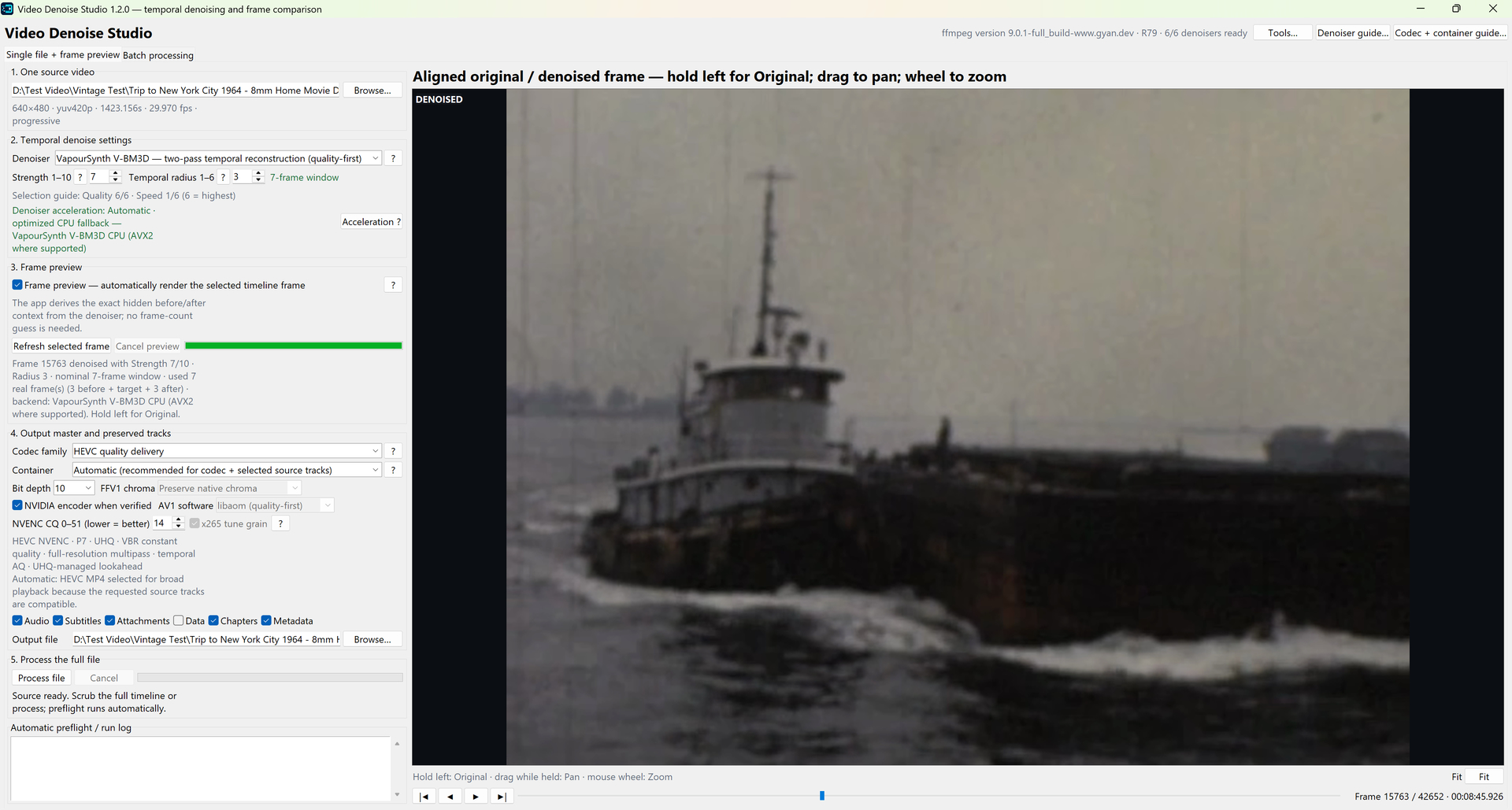
For SEEDVR2/SLP don’t do any processing prior. I tested extensively and it is best not to run any enhancement process first. Only PNAT helped on one of my tests because of the denoising and temporal processing that could make the video smoother. However it is better to just use a denoiser with temporal awareness, where it looks at multiple frames instead of just one frame in order to differentiate detail from noise so it can better preserve real detail while removing noise. Denoising can reduce SLP’s dirty face issue to a certain extent.

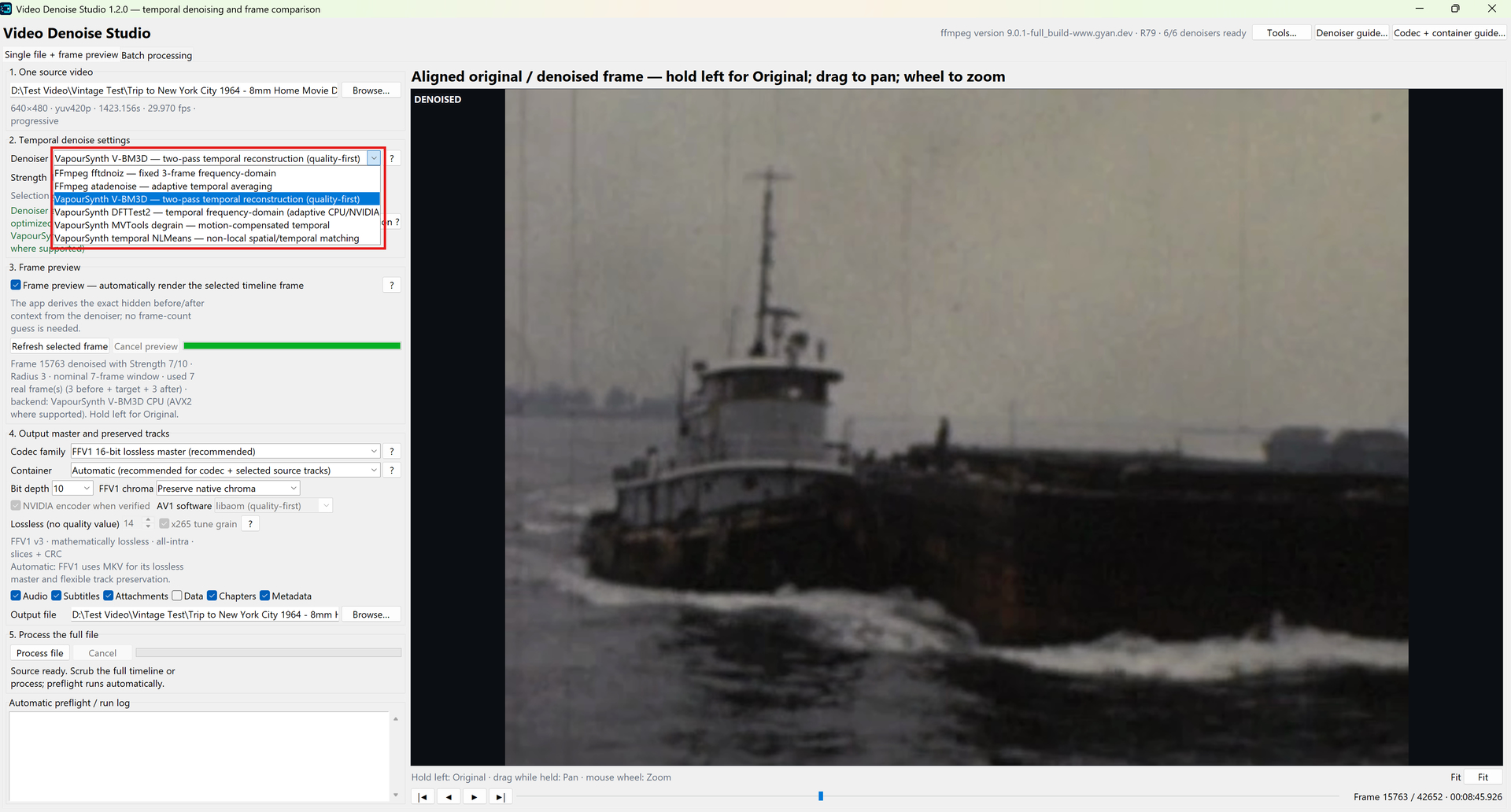
You can use my denoise app, which I included the 6 highest quality denoisers (you can do your own research to confirm) with temporal awareness. These are really the best non-commercial denoisers available. You can set the strength of the denoise and the number of temporal frames to analyze. More frames = potentially better quality but slower and might create more smear in fast moving scenes so don’t go overboard. Some of the denoisers in my app supports NVIDIA hardware acceleration for significantly improved speeds. You can also visually preview the results and compare denoised vs original the exact same way preview works in Topaz Video. I find these denoisers work better than Topaz’s denoiser but you should run comparisons using the video-compare app before starting large projects.

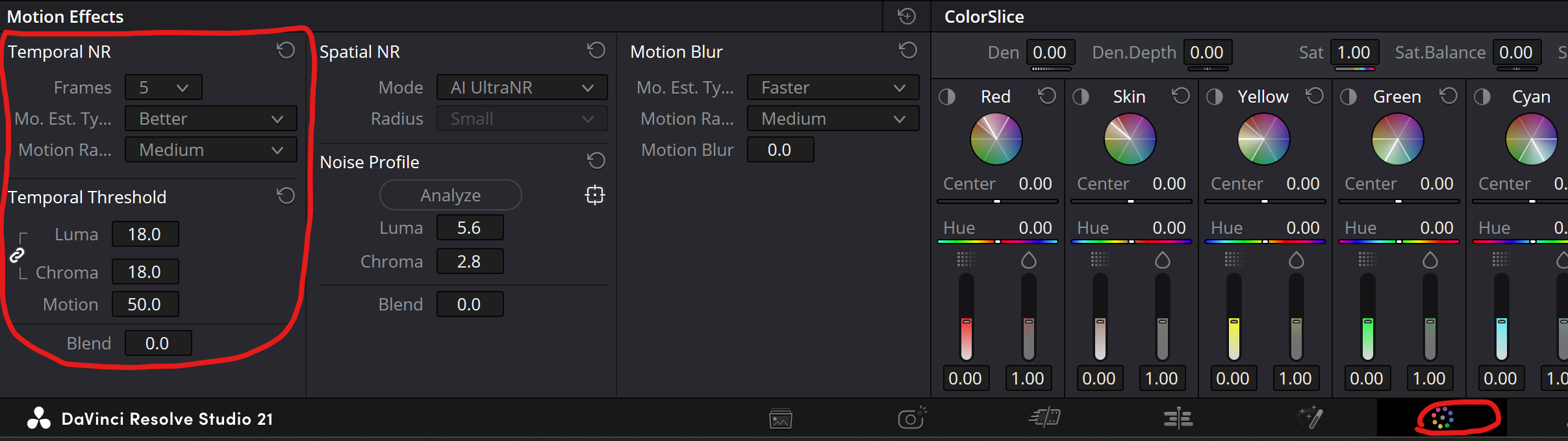
One of the best temporal denoisers I tried is Davinci Resolve’s Temporal NR. Their Spatial NR with AI UltraNR is also the best non-temporal (single frame) denoiser I’ve tried so you can use both Temporal NR and Spatial NR in conjunction. Below are the settings I use in Resolve to denoise prior to sending to SEEDVR2/SLP. But the denoisers in my app “could” be as good or even better in certain scenes so per project testing is important. But if I had to choose one denoiser, it would be Davinci Resolve’s.

The only video enhancer that I would use prior to SEEDVR2/SLP is Davinci Resolve’s built-in Super Scale. For some reason it greatly reduces flickering in the SVR2/SLP outputs resulting in smoother more stable images. It does not actually improve details in the SVR2/SLP outputs; I only use it to improve stability/smoothness. Not all videos benefit from this so you need to test prior to starting a big video project.

3 Likes

I have on my long list of ideas is for my Topaz SLP tuner app the ability to properly support FFV1. The best is FFV1 v3 all-intra with (-c:v ffv1 -level 3 -g 1) and I plan to incorporate that somehow into Topaz SLP for both input side and output side. This will also improve subsequent processing by other Topaz models like Rhea, Iris, Apollo, etc. Also FFV1 intra would make it more reliable for adding a partial file resume feature incase Topaz or PC crashes. I have an idea how to implement a pause/resume and failure resume feature for SLP. But I have to get back to real work so I can only work on these hobby projects intermittently.

1 Like

That sounds awesome, I totally agree with your approach!

Implementing FFV1 v3 All-Intra on both input and output is the absolute best way to handle intermediate passes for Rhea, Iris, or Apollo without running into decoding bottlenecks.

The pause/resume and crash recovery idea is a game-changer—having a clean frame-accurate resume feature for multi-hour SLP runs would save so much wasted rendering time.

Take your time with the real-world workload :innocent:, but I’m definitely looking forward to seeing this implemented in your launcher! :heart_eyes:

2 Likes

hyperion2 so after 4 days of rendering i get user skipped anyone know what this means

I manually resumed failed SLP renders a few times already due to computer crashes and once was because I had to reset my pc while the SLP still had many hours left. Each time I was successful in achieving a seamless resume but it takes time, effort, and require technical know-hows to resume manually. Therefore I will implement the feature into my SLP Tuning Launcher so it will be a very much automated feature and anyone that runs SLP through my launcher will be protected and not have to worry about crashes wasting their many hours or days of processing.

1 Like

I just realize you mentioned deinterlacing. The deinterlacers in Topaz aren’t particularly good, and I’ve also seen cases where deinterlacing inside Topaz can lead to aspect-ratio or timing issues, especially when the source file has damaged or incorrect metadata which is not uncommon with old interlaced videos.

Another important issue is temporal resolution. An interlaced source reported as 25 fps actually contains 50 separate temporal fields per second, because the two fields that make up each interlaced frame were captured at different moments in time. You can use my Deinterlace Studio app, which can preserve those fields and reconstruct them as 50 progressive frames per second instead of reducing the video to 25p.

That means all of the original temporal information is retained before the video is passed into enhancers such as SEEDVR2 or SLP. If you deinterlace 25i to only 25p first, you’re effectively discarding half of the original motion samples before enhancement even begins.

For restoration and enhancement, I think it’s much better to give SEEDVR2/SLP the full 50p sequence and let them work with all of the temporal information that was present in the source rather than feeding them a 25p version where half of that information has already been removed. Yes you double the processing time but the quality difference is worth it and you also won’t have to do an Apollo interpolation run since it would already be 2x the original frame rate that runs smoother than the original video and more natural than any 2x interpolation algorithm can achieve.

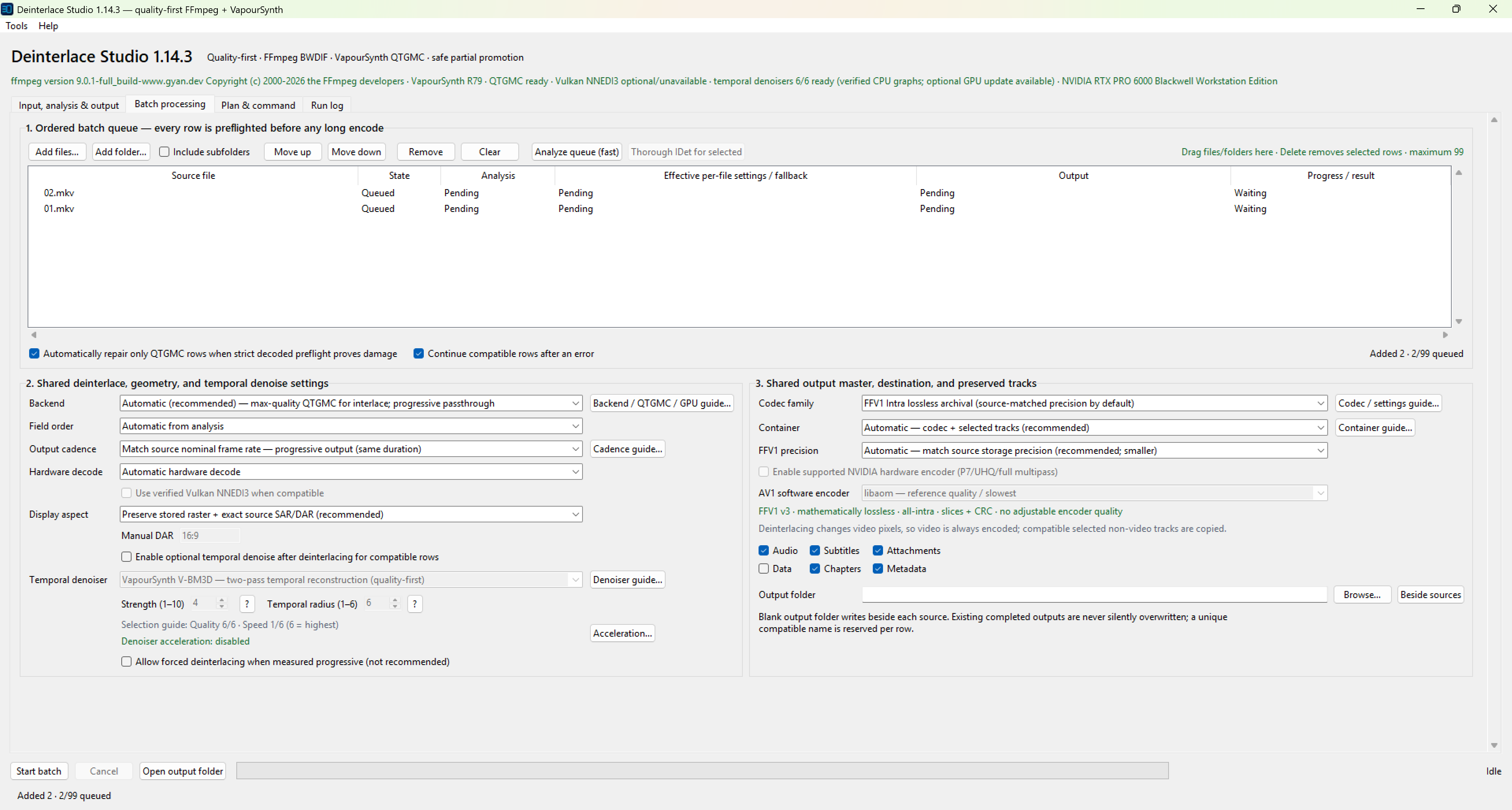
Also my Deinterlace Studio allows you to choose from the highest quality deinterlacers. QTGMC is really the best and you can do a apples-to-apples comparison using video-compare but it is quite slow. You can also choose BWDIF with CUDA acceleration, which is much faster and is still one of the highest quality deinterlacers out there.

My app also scans for metadata damage or actual file structural damage and automatically performs necessary repairs. If you were to send the same damaged file through Topaz for deinterlacing - as I have tried - the damages would be ignored and you will have issues down the road with freezes, out-of-sync audio/subs, aspect ratio mismatches, or other potential anomalies.

It also does automatic source matching regardless of which codec you choose for the output file to preserve the source file’s color bit/depth profile using the least amount of space. Batch processing of multiple files is supported.

2 Likes

I generally deinterlace in handbrake to FFV1 in an mp4 container first, but like I say up until recently, it was pretty quick.

I got error below when try to initialize the Deinterlace-Studio runtime. Did I do something wrong?

Script evaluation failed:
Python exception: (QTempGaussMC) Unknown arguments were passed. ((analyze_force_tr=2, analyze_blksize=16, analyze_overlap=2, analyze_refine=2))

Traceback (most recent call last):
File “vapoursynth.pyx”, line 3832, in vapoursynth._vpy_evaluate
File “vapoursynth.pyx”, line 3833, in vapoursynth._vpy_evaluate
File “C:\Users\admin\AppData\Local\Temp\tmpvfd41cch.vpy”, line 14, in
qtgmc = QTempGaussMC(analyze_force_tr=2, analyze_blksize=16, analyze_overlap=2, analyze_refine=2)
File “e:\videoedit\skv89\video processing runtime.staging\install-85435dea1d3b42e78f6a2ae9c2ca0ed1\vapoursynth-candidate\Lib\site-packages\vsdeinterlace\qtgmc.py”, line 298, in init
raise CustomValueError(“Unknown arguments were passed.”, self.class, kwargs)
ValueError: (QTempGaussMC) Unknown arguments were passed. ((analyze_force_tr=2, analyze_blksize=16, analyze_overlap=2, analyze_refine=2))
Failed: The staged VapourSynth/QTGMC graph failed validation:

You did nothing wrong. A recent VSJetpack API change is incompatible with the QTGMC configuration used by my Deinterlace Studio. The installer rejected the staged runtime before activating it. I have identified the required compatibility update and will correct it in the application and will let you know when I upload a new version to Github.

1 Like

Thanks, very interesting. What i observe is, that 4x SLP gives me better results than 2x, 3x i’m unsure, seems more “interpolations” happens.

To really have a proper comparison, we should take some problematic faces and upscale them once by 2x and once by 4x. Then take the 2x result and upscae it 2x with Lanczos and overlay both results with a before/after slider.

Regarding Rhea 2x, I’m still not completely sure about it either. Yes it looks good, but I can achieve something quite similar with Iris MQ and adjusted settings. It does less reconstruction, but I’m still undecided about whether I always like what Rhea does, because the Rhea model isn’t quite mature yet in terms of how it handles things like text/fonts, teeth, etc. You know what I mean.

Another option, especially for poor-quality sources:

SLP upscale 2x (or 4x) then EWA_Lanczos downscale with some antiringing, sample:
ffmpeg -i "Input_1280x960.mkv" -vf "libplacebo=w=640:h=480:downscaler=ewa_lanczos:antiringing=0.15" -c:v ffv1 "Output_640x480.mkv" (you need ffmpeg full build)

And then: The Downscaled 480p → SLM 3x → 1440p

The SLP step reconstructs details more aggressively than SLM could do from a original source, so SLP gives SLM better footage for upscaling.

Then we could take this to the next level:

The SLP 960p Upscale → Lanczos → 1080p
The “SLP-Downscale-SLM 1440p Upscale” → Lanczos → 1080p

Then overlay and blend both in a video editor, for example at 50% opacity. Export and finally upscale the 1080p overlay with SLP to 4K.

Since the overlay is a mix between our SLM (improved) and SLP upscales, it should help mitigate the issue of over-emphasizing or over-reconstructing certain detailswhen doing SLP again. But this workflow is horrible time consuming.

I think I’ve found a dirty fix to stop the problem I was having with models that I was mentioning before.

If anyone else is having issues with projects hanging or slowing down interminably:

To recap, I kept having issues with SLP 2.6 model start to hang after awhile, getting stuck and never loading or finishing. Tried to rename the models folder so that it would build a new folder and redownload the models. SLP 2.6 worked again, but then other models started saying “AI error” and couldn’t use the other models.

So I went back to The old models folder and reloaded the studio with that and the other models worked again.

I think there is an issue of switching between and loading different models that corrupt each other in some way.

I now have a models folder I load only to do SLP 2.6 modeling, never another. And then I load another models folder to do 2nd pass modeling.

I have yet to have an issue with models hanging or not working sense.

if someone else is having problems with models loading and rendering, maybe try this separate models folder loading.

I cut out a 32 sec section from a 45minute or so FFV1 mkv file that took 2hours or so to load by SLP and converted it into other formats and then fed it into SLP to monitor with my SLP Tuning Launcher. This is what I measured with my Launcher:

Input Forced decoded-frame count Full decode to null
H.264 NVENC 4.52 s 0.76 s
AV1 NVENC 5.16 s 2.28 s
HEVC NVENC 6.58 s 1.02 s
DNxHR 7.65 s 0.71 s
ProRes 12.72 s 1.03 s
FFV1 Intra All 79.84 s 5.90 s
FFV1 80.00 s 6.30 s

So you can see it took 80s to load a 32s clip. The operation had to decode every single frame just to count the number of frames, which is ludicrous. I tested a fix (right column) for this and it is working. So for that 32-second FFV1 test file, expect approximately 6s for the frame-counting part of loading after the fix instead of 80s. The complete application load may be slightly longer because it can also include opening the file, reading metadata, initializing the interface, and other processing. I will add this fix to future versions of my SLP 2.6 Tuning Launcher. Btw, the current v1.0.1 has some issues so please use the original v1.0.0 in the meantime.

Try the new version. This should be fixed. But if you still experience issues, you can also update the dependencies incase you have missing or old versions installed in your system. The dependencies will only be installed into the portable app’s subfolders and will not be systemwide.

Hi @skv89,

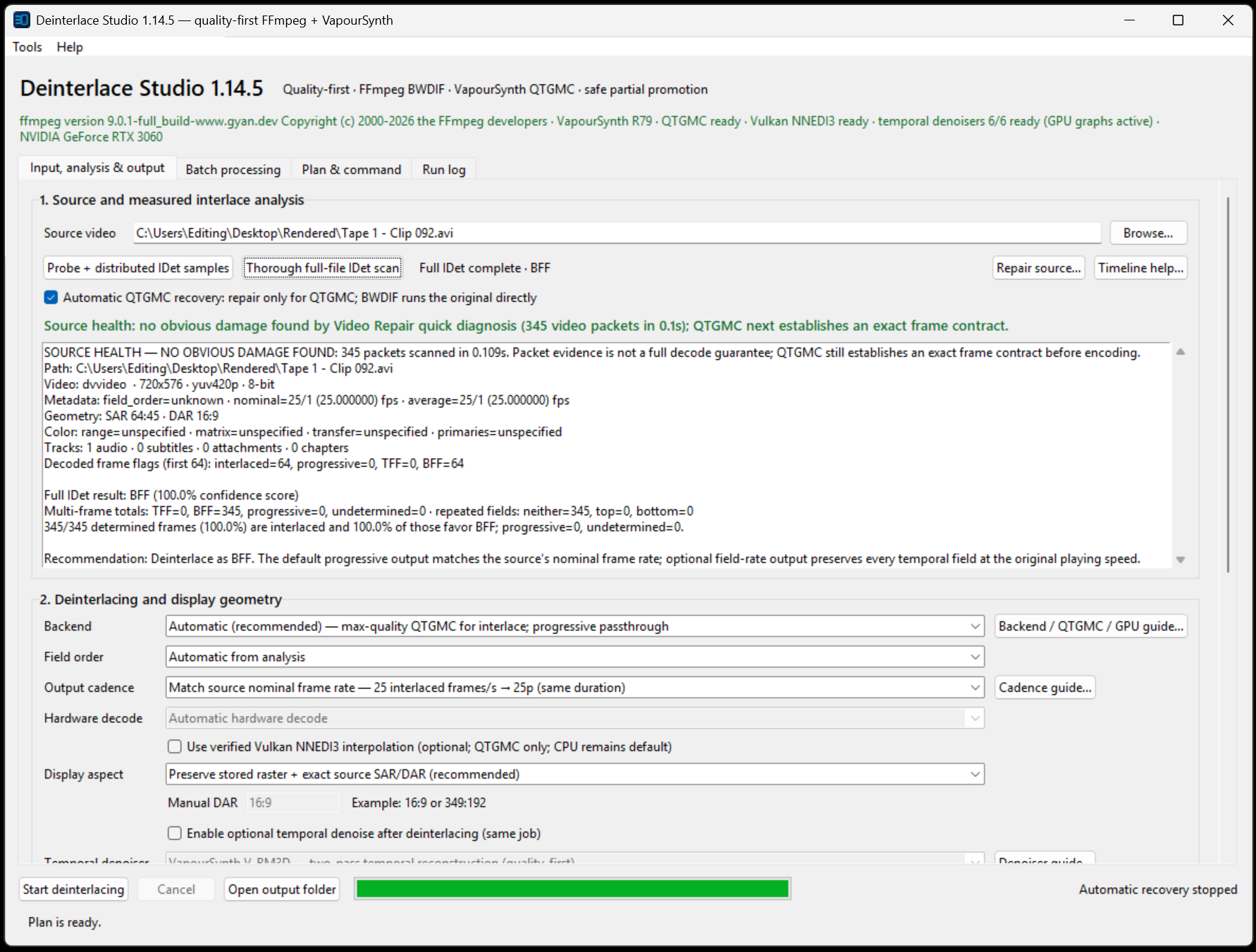
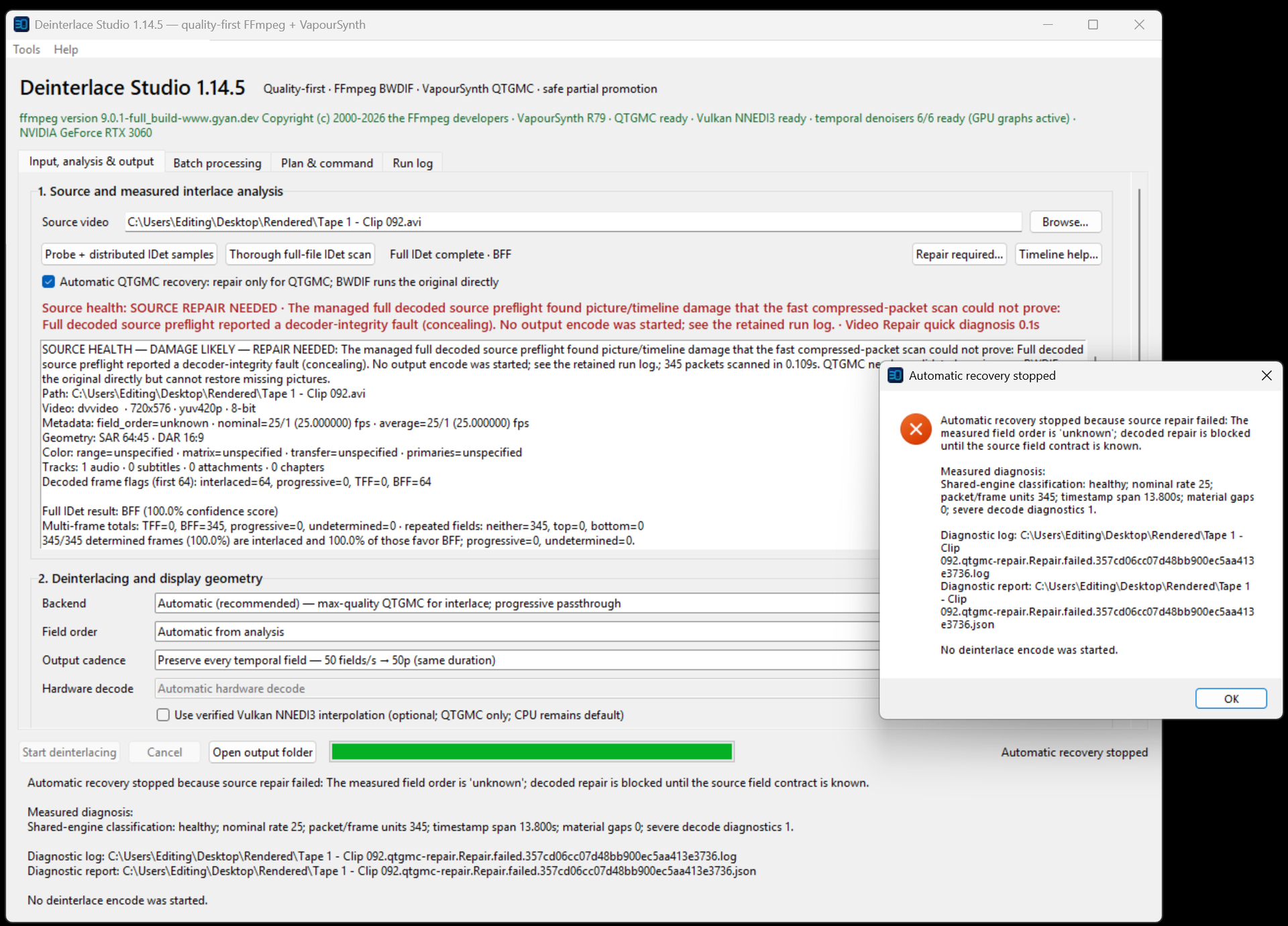
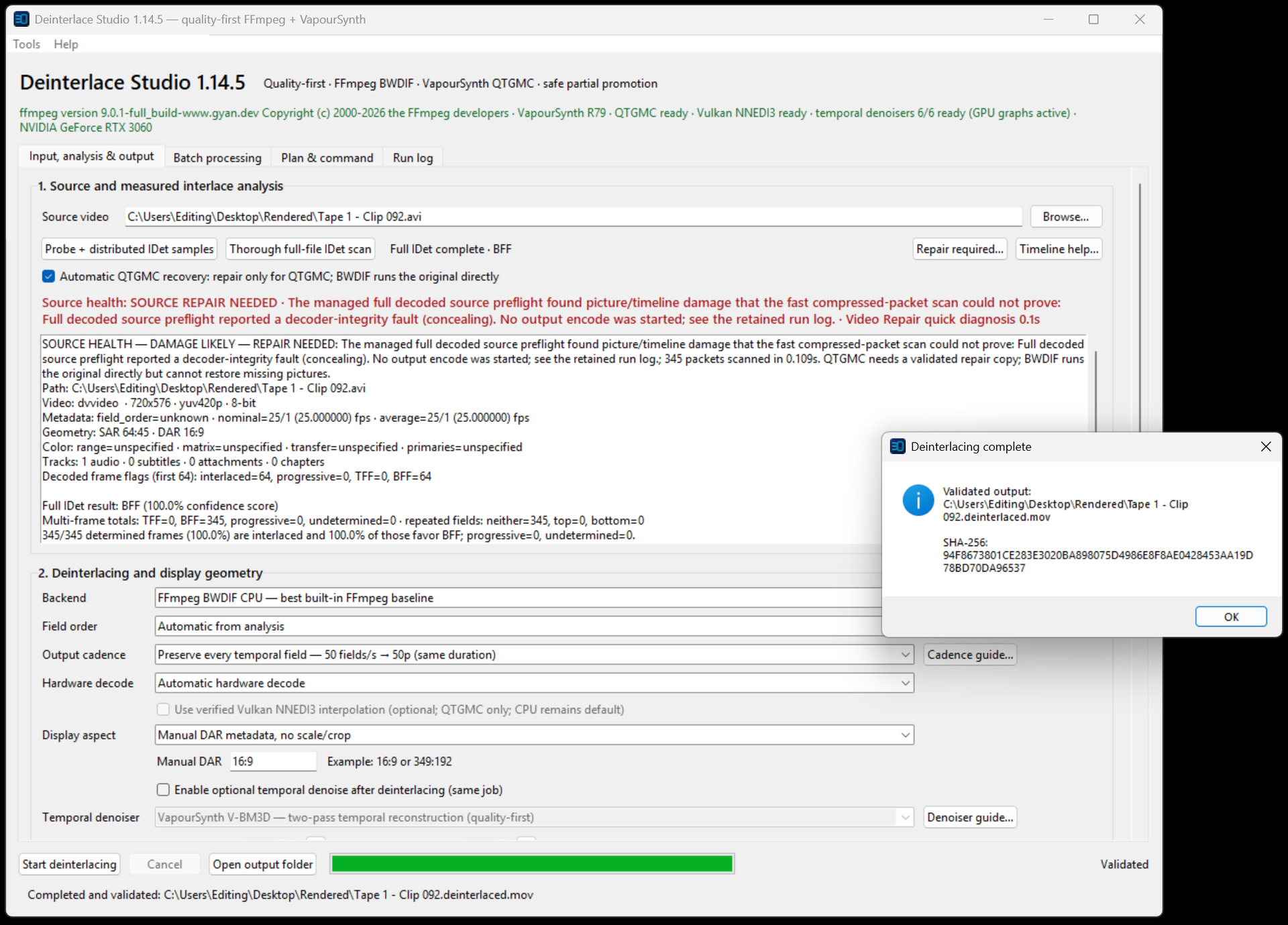
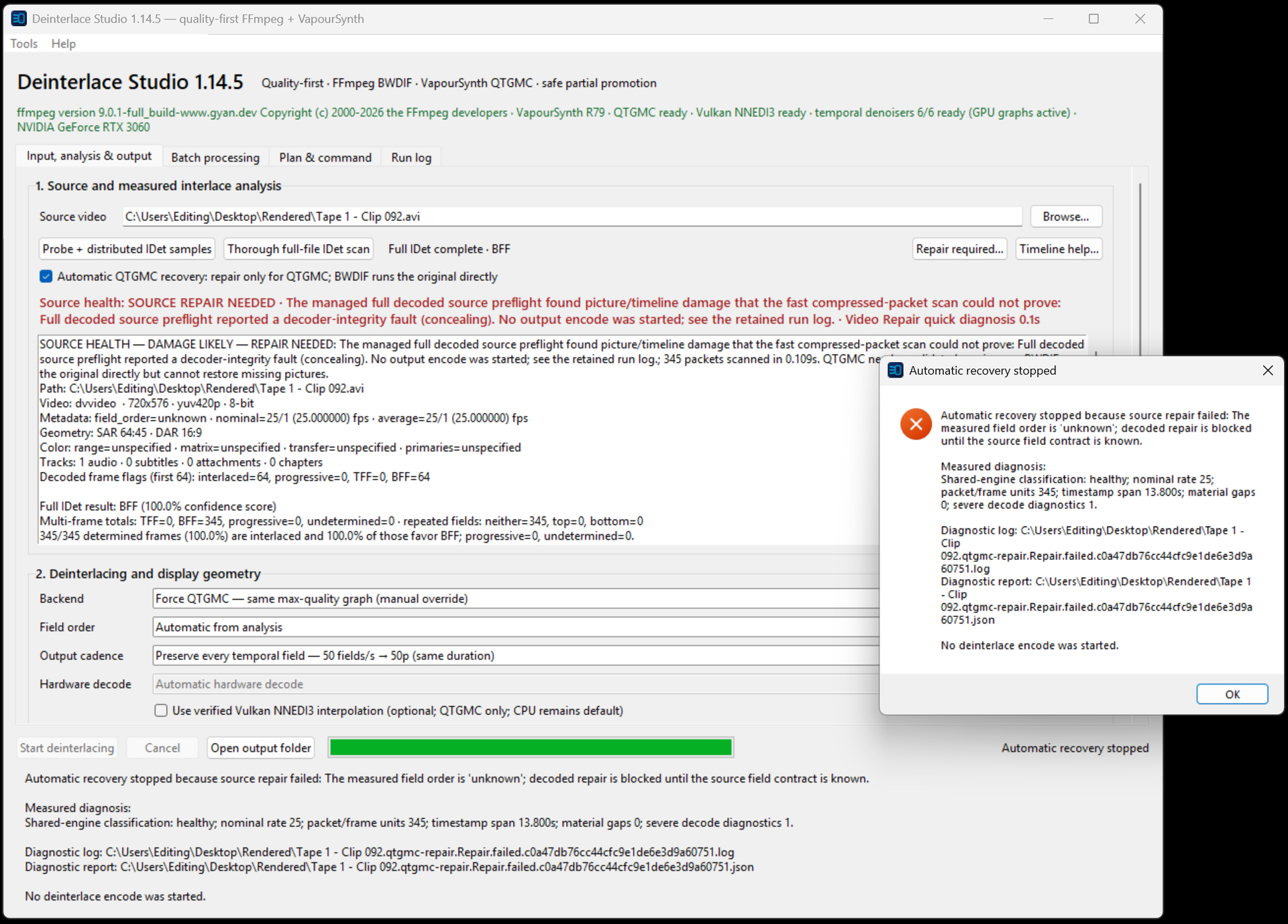
Thanks for developing DeInterlace Studio. I’m trying to process some old DV footage in an .avi container, but I keep hitting an error during processing (screenshots attached).

I initially suspected file corruption and tried running a repair on a duplicate of the source file, but it threw the exact same error.

Could this be a codec/container issue on my end, or is it a known bug? Happy to upload a sample clip if that helps troubleshoot.

One small addition. the BWDIF works with the CPU and GPU option. I own a RTX 3060 Card.

Rendered.zip (2.8 KB)

Tape 1 - Clip 092.qtgmc-repair.Repair.failed.b93b8df8796c441389db6ad6f5d8d15b.json (793 Bytes)

1 Like

Anyone all of sudden having their cloud renders for Starlight Precise 2.6 fail with a error message “error sending upload results” - same exact files worked all day then around 10pm the same clips were having errors. Was exporting prores both before and during the crash.

The dependency issue is resolved. Thank you so much :grin:

1 Like

Thanks for sharing those screenshots. Have you tried updating the dependencies per the screenshot in my earlier message? Try that first, and if it still doesn’t work, please share the exact video and I will take a look at it.

Just to let you know, QTGMC will probably run very slow on your system for slightly better quality (imo) over BWDIF. Both should be better than the deinterlacing in most commercial apps including Topaz deinterlacers because being able to preserve the full temporal field really helps when the file will be processed by AI enhancers like SEEDVR2 and SLP. The difference in output quality is more amplified after AI enhancement.

Please reply in this link regarding my Deinterlace Studio app so we don’t clutter up this thread.

https://community.topazlabs.com/t/deinterlace-studio/104736

EDIT:
I don’t know why some sneaky individual is keep flagging all my posts and causing them to be hidden. If you have an issue with what I’m saying, please have the courage to explain yourself openly instead of hiding behind anonymous reports. If there genuinely is a problem with something I’ve said, I’m completely willing to listen and will gladly modify or remove the message as appropriate. I just don’t understand the point of repeatedly flagging posts without explaining what the actual issue is.

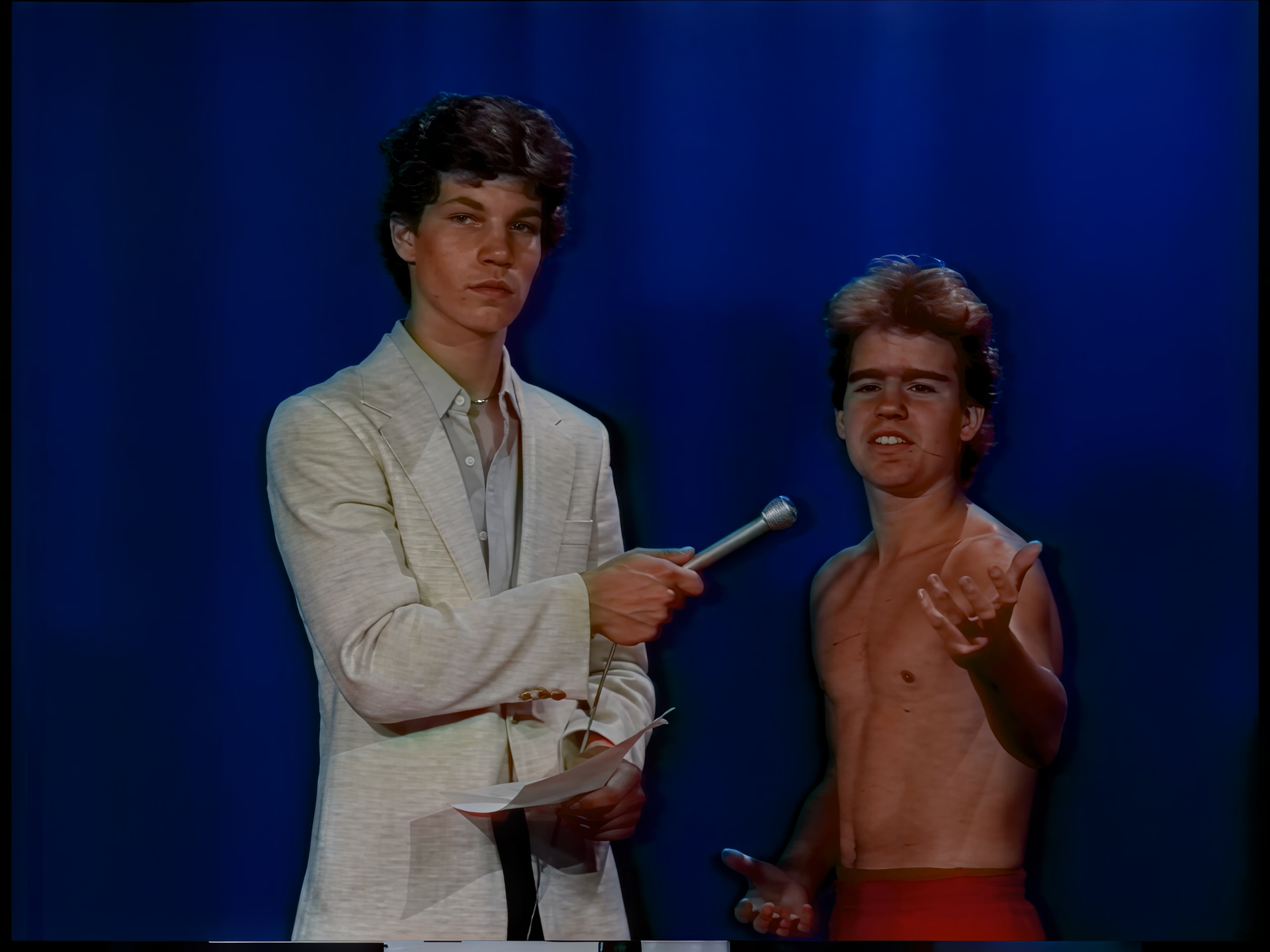
Regarding captured 480p analog stuff, I have been finding that slp x2 to 960p, then followed by another slp x2, is giving the best looking results, although the slp 2x followed by Rhea 2x is pretty close, if you look close you can see the difference, and when the video plays it is even more noticable. When doing the double slp in two passes, you have to play with the sharpness setting, I find starting with a sharpness of 3, then finishing with a sharpness of 1 looks best.

But Rhea is pretty close and takes a lot less time. But because I can see the difference, kinda want to stick with the slp 2x ==> slp 2x.

slp 2x ==> Rhea 2x

slp 2x ==> slp 2x

Now I want to check out Skv89’s Deinterlace Studio