Hi Everyone,
The team’s been busy working on a good number of exciting updates!
See more details below:
1.7.0 Downloads
Windows | Mac
Please note, with Neuroserver, DMG versions are no longer available.
Improvements and Fixes
Features
- Starlight Precise 2.6!
- Starlight Mini Updates!
- Topaz Plugin: Final Cut Pro
Additional Updates
- Live Preview Stabilization
- Model Manager Update
- Export Queue: Model Downloading
Bug Fixes
- Addressed Starlight Sharp resolution problem
- Metadata for neuroserver models
- Image Sequence crash recovery
- Refined plugins from hanging
- Fixed Starlight 1 frame issues
- Starlight Mini MAC access
- Refined preset for HDR
- Neuroserver Fixes
- and more!
Starlight Precise 2.6
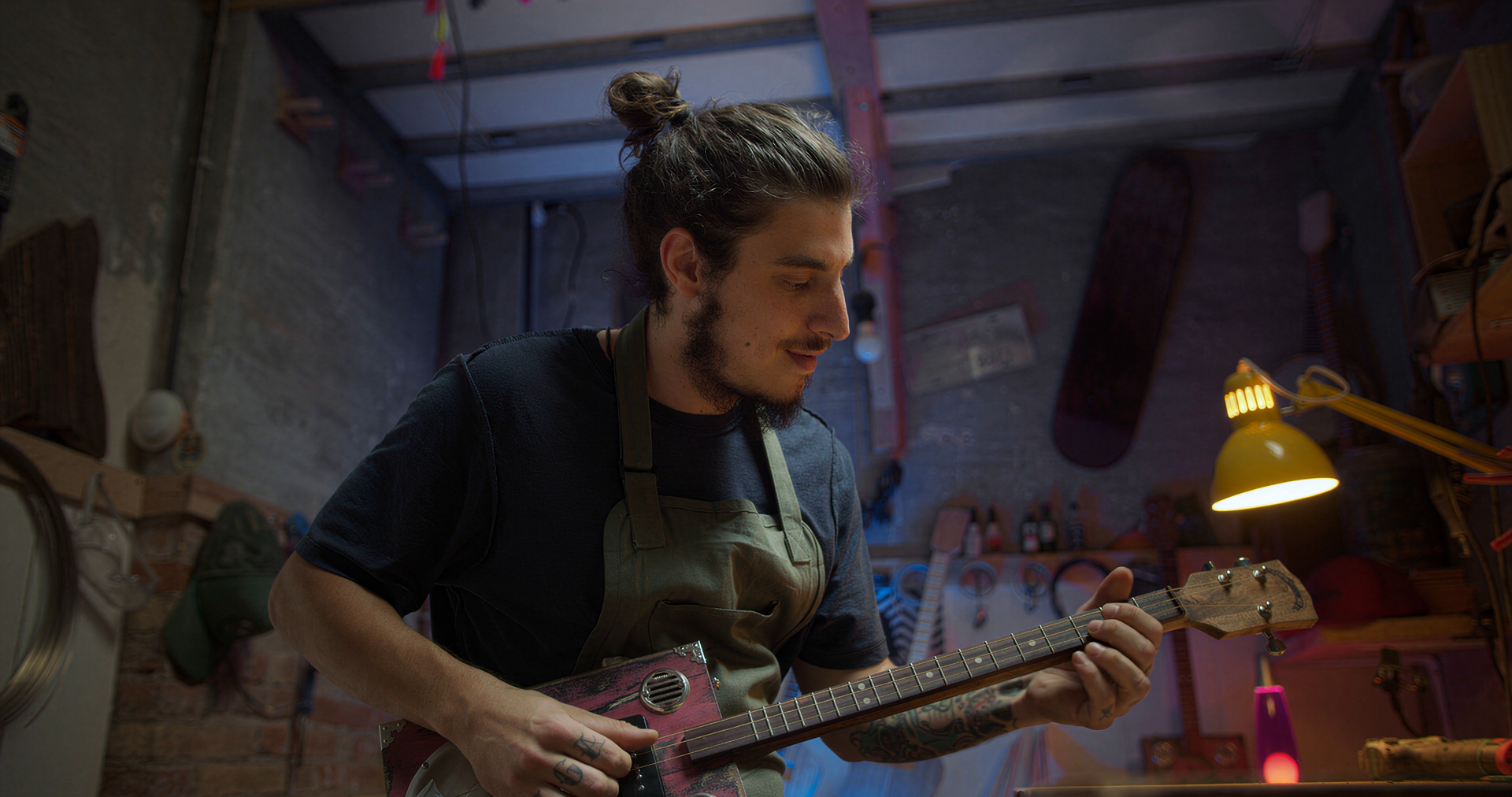
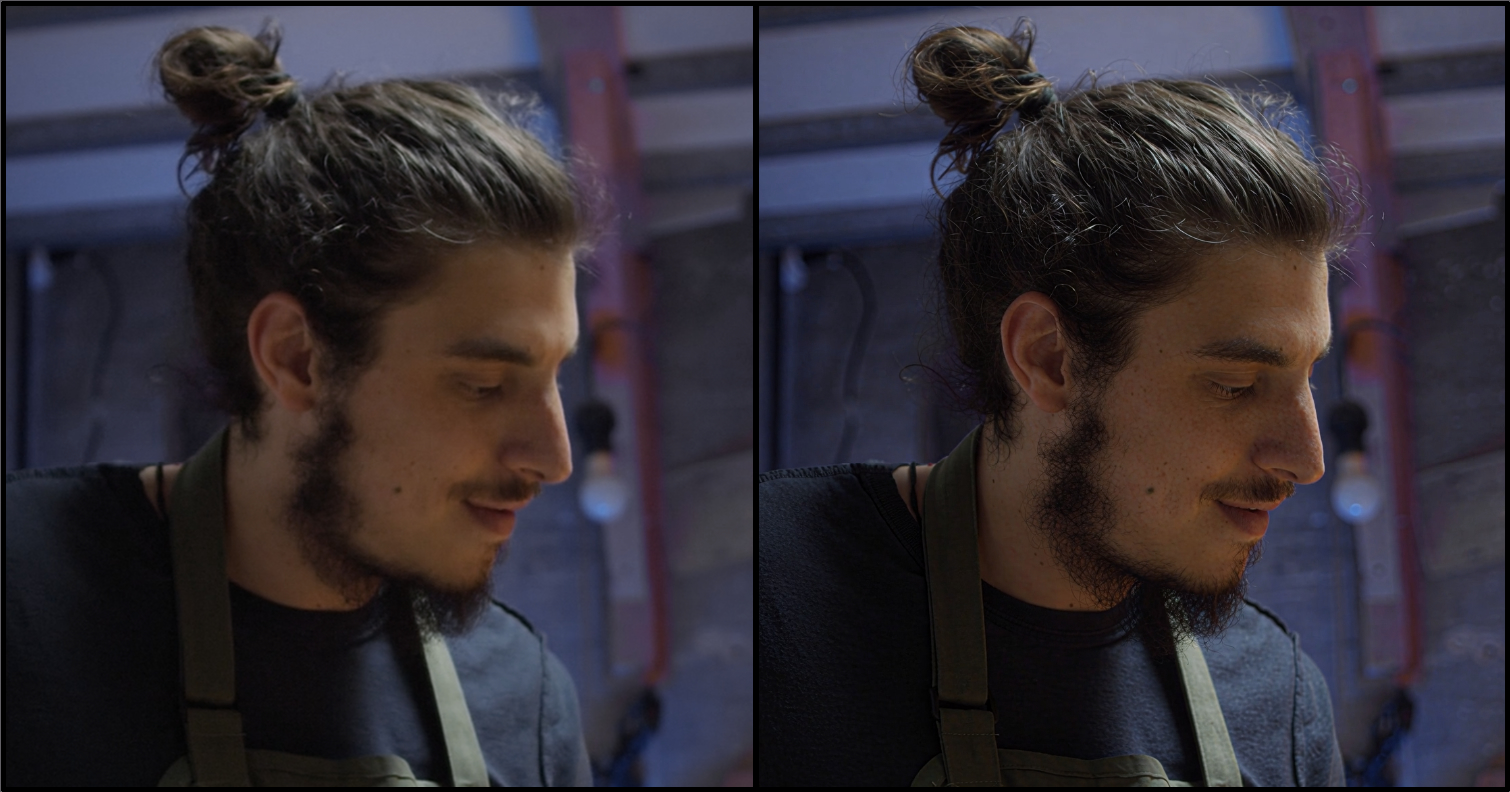
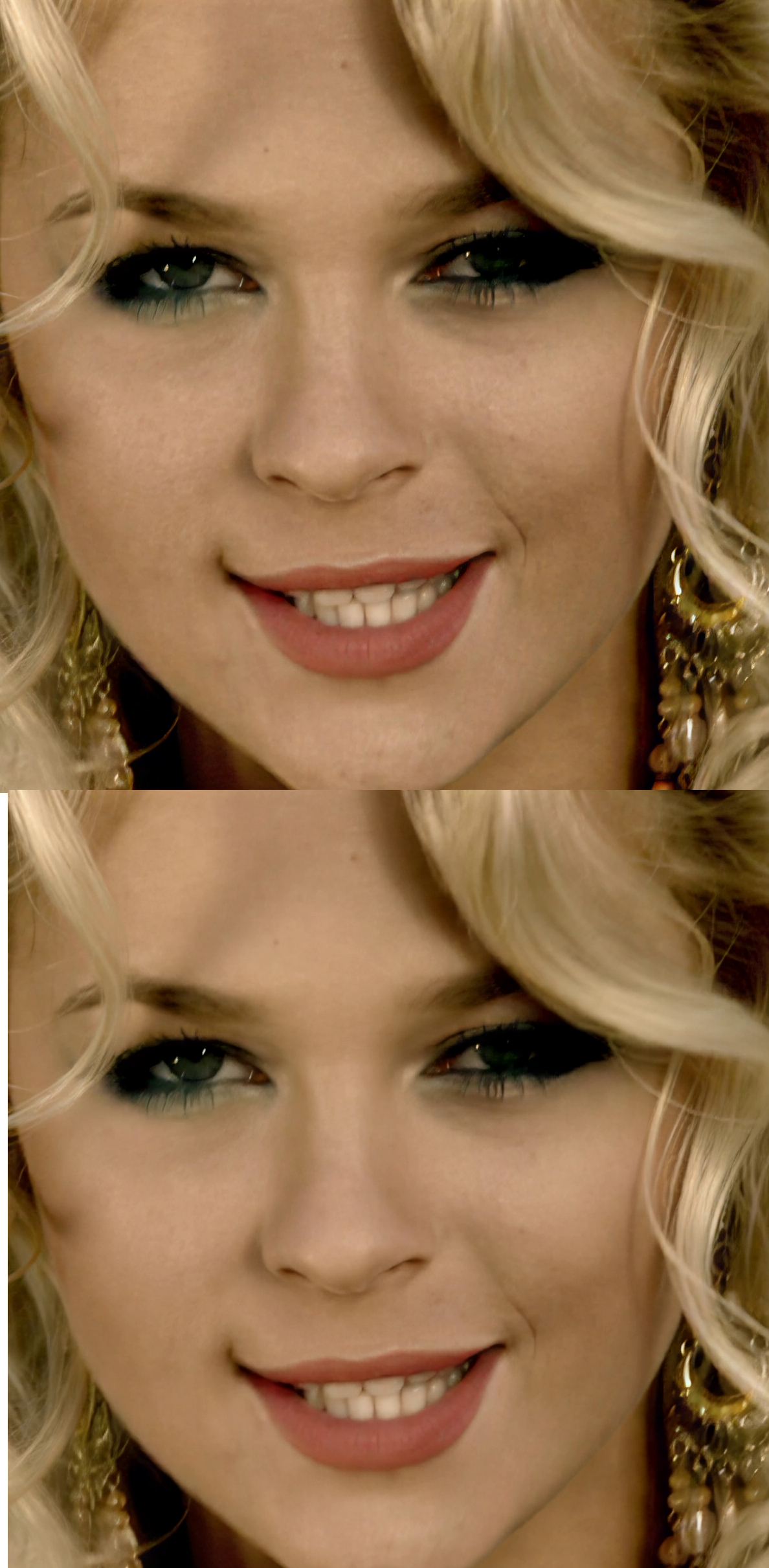
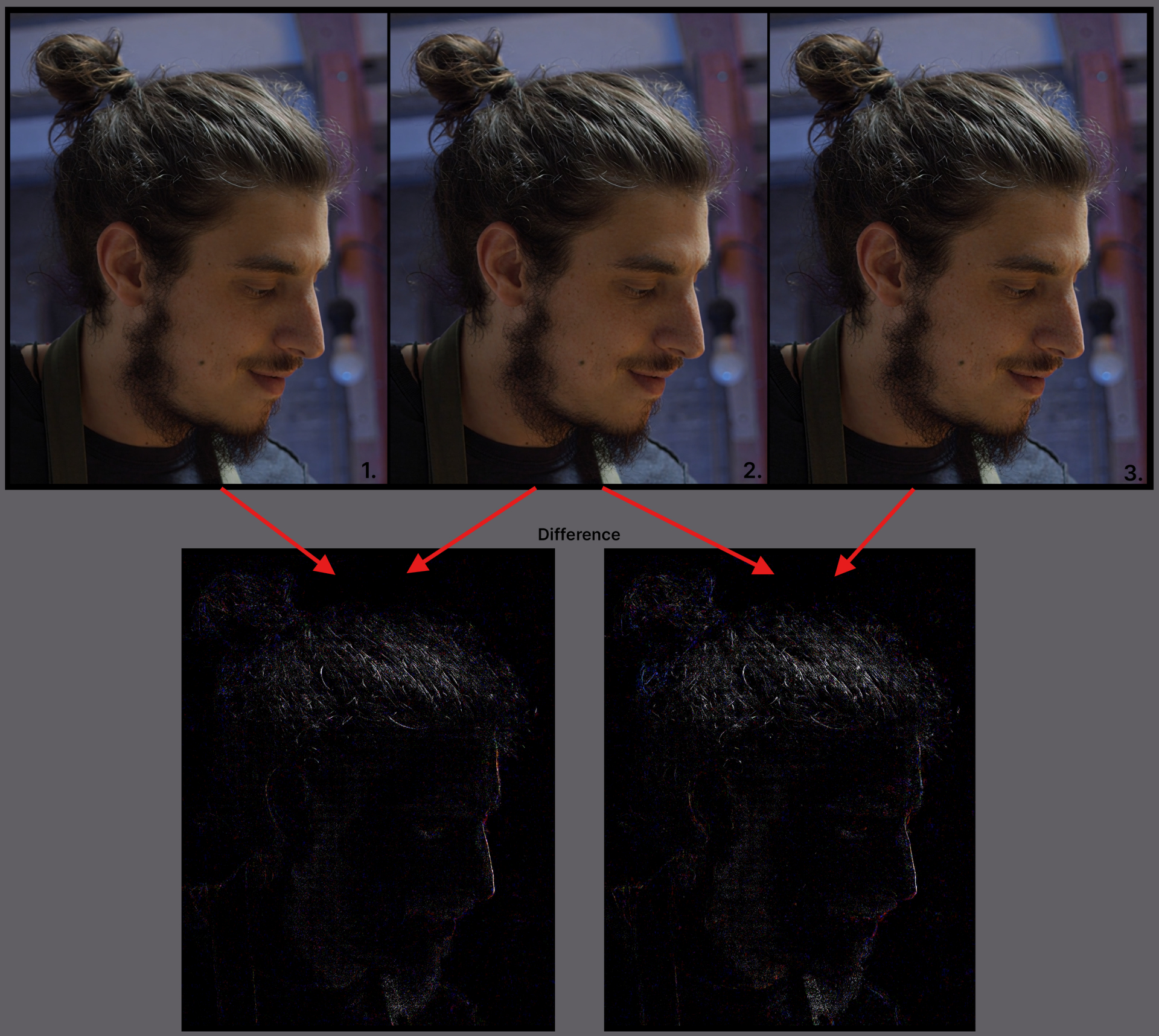
Precise 2.5 has been reworked into Precise 2.6 to give some additional options for sharpness levels. With Starlight Precise 2.6, there are three selectable sharpness levels via a slider.
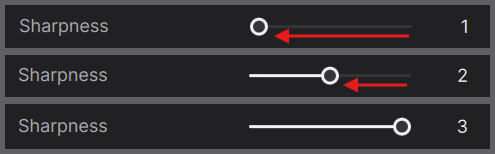
- This variation has a more natural look with a lighter touch in sharpness.
- This produces a balance between the first and third sharpness options.
- Set to default. This variation produces the sharpest outputs. The sharpness level equates to what’s expected from Starlight Precise 2.5.
Updates for AMD and Nvidia!
In addition to the sharpness levels, a few more updates for Starlight Precise 2.6 have been refined for those with AMD and Nvidia GPUs.
- Updated model for better temporal consistency.
- Experience up to 15% speed improvements.
Model Recap
Starlight Precise 2.6 has been specialized for realistic human faces and skin textures in addition to other areas of improvement such as material, texture, and text.
About
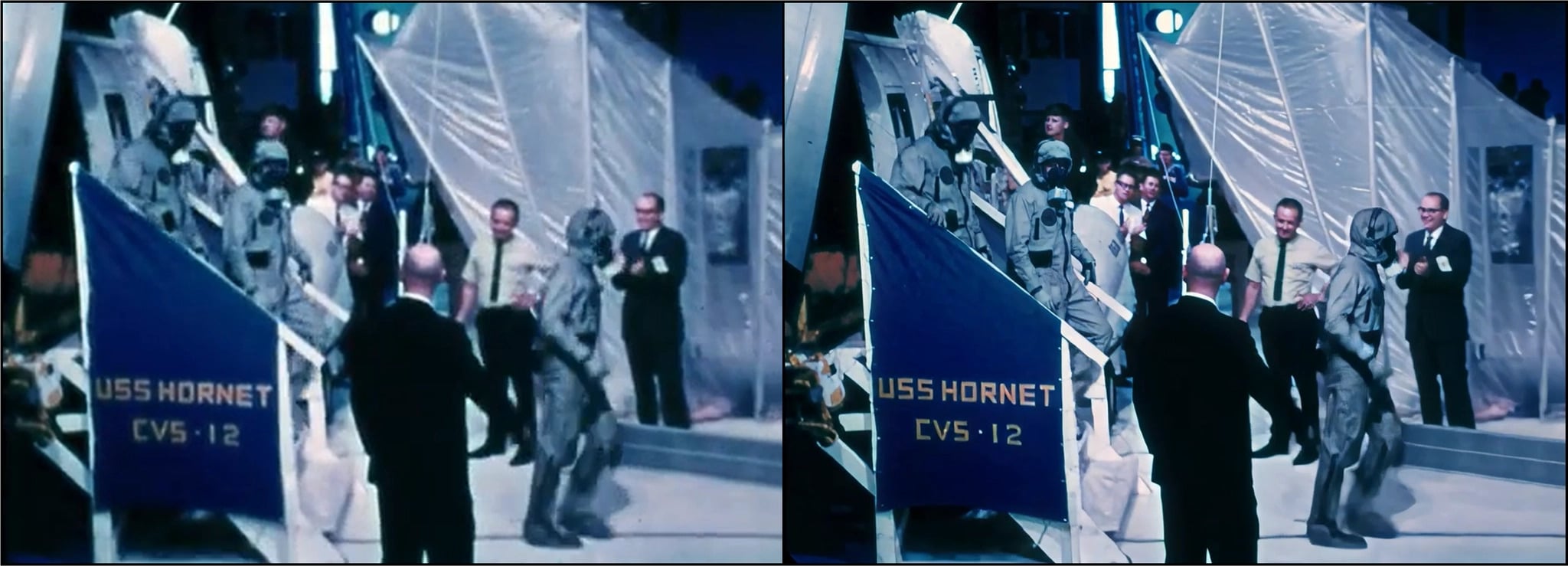
- This model works for Medium to High Quality content whether this is generative, live action or restoration videos.
- Improves generated content that may have soft, plastic, or slight artificial looks, however the AI generated content should have solid structure and composition for ideal improvements.
- Greatly reduces flickering with smaller textures.
- For video inputs at or under 4K.
- Outputs up to 4K.
- Model access via the cloud for all subscription models.
- Expect long render times for this diffusion model.
This Model Is Less Ideal For
- Shots with heavy motion blur may be rendered as texture.
- Not intended for very low/poor condition quality media.
- Interlaced content needs to be de-interlaced first.
- Not ideal for content below 480p
Technical Things To Know

- Available for AMD, Mac & Nvidia
- Available for all licenses to run locally!
- This model is included locally, using neuroserver.
Nvidia Requirements:
- Requires an absolute minimum of 12GB VRAM with 32GB CPU RAM, though 16GB VRAM is recommended.
- Targeted for GPU compute compatibility of 8.9. This is also the recommendation.
- Please note, though there might be some success with a CC of 8.6 cards, this is not technically supported and some may encounter a less ideal experience.
- This model is included locally, using neuroserver.
AMD Requirements:
- Requires an absolute minimum of 12GB VRAM with 32GB RAM, though 16GB VRAM is recommended.
Mac Requirements:
- Requires an absolute minimum of 16GB though 24GB is recommended.
- All Apple Silicon should be supported.
Starlight Mini Updates!
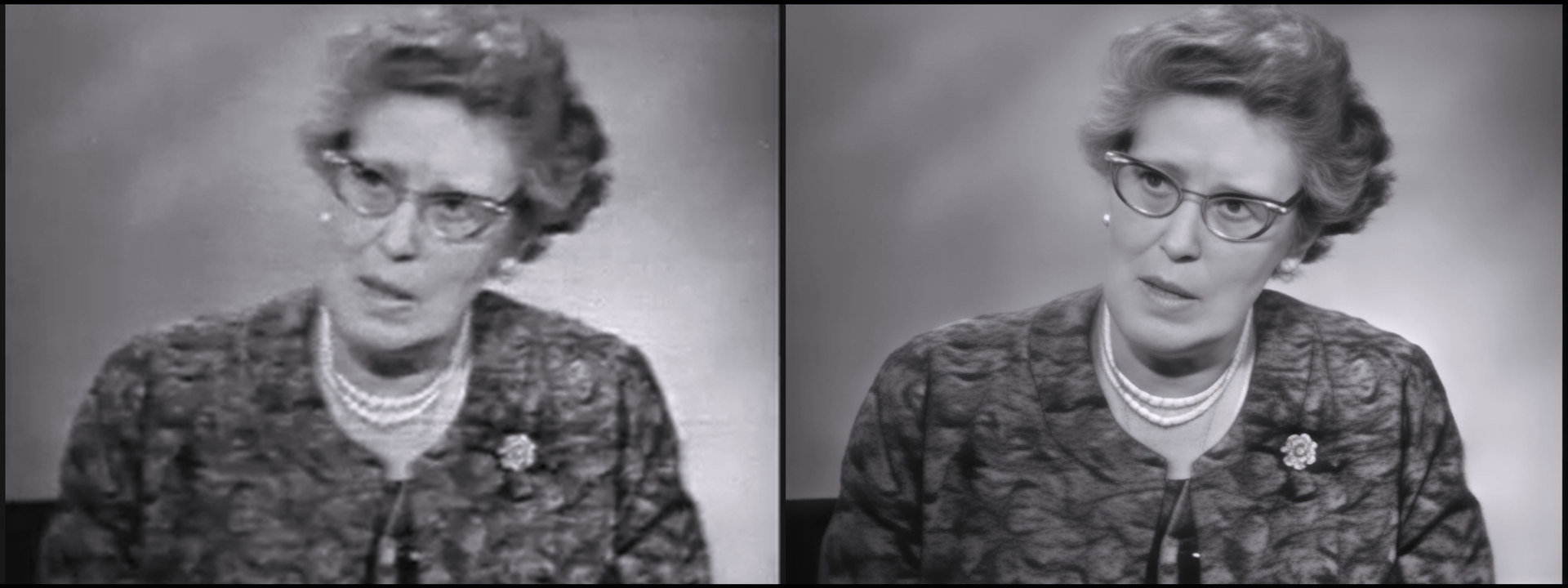
Starlight Mini is just over a year old and it’s been one of the best “go to” models for archival content!
I’m absolutely excited to announce that we have a faster Starlight Mini with the same model we know and love! Improvements can reach about 2x faster for NVIDIA cards with >12GB VRAM. Of course, speed results depend with your machine and setup, but you should see some speed improvements.
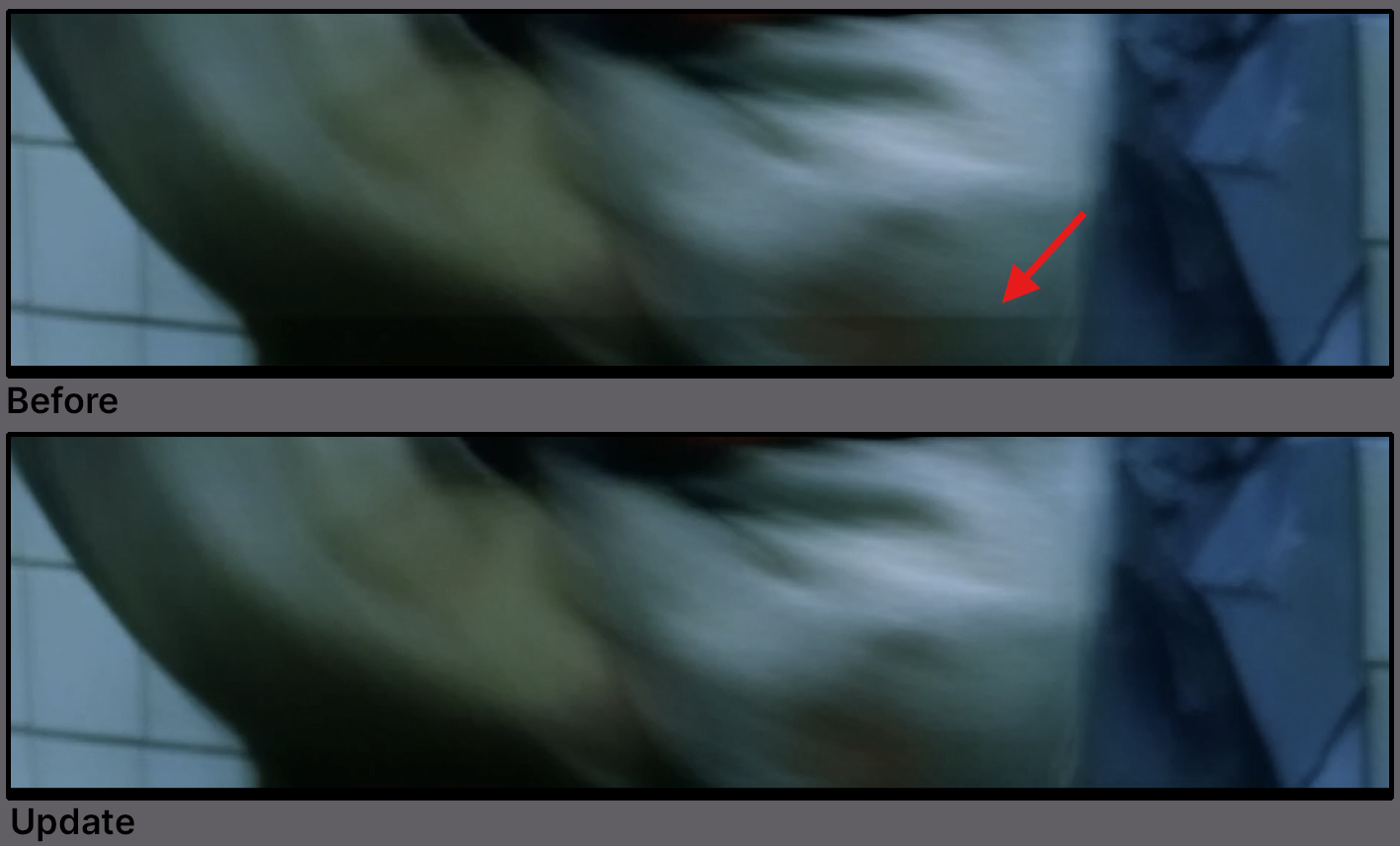
Additionally on some very rare occasions some have experiences an issue of the lower edge of the frame to have a horizontal edge. This update also addresses this.
I’m also happy to announce that Starlight mini is now available to everyone! A Pro account is no longer a requirement to run this model.
Model Recap
To get the best results out of this model, it’s good to know what it’s intended for and what makes it unique.
- For older videos, results provide great details, subtle definitions and consistency in the animated motion. It is without doubt the best Desktop AI model for older footage enhancement/upscales.
- Intended for low to medium quality content.
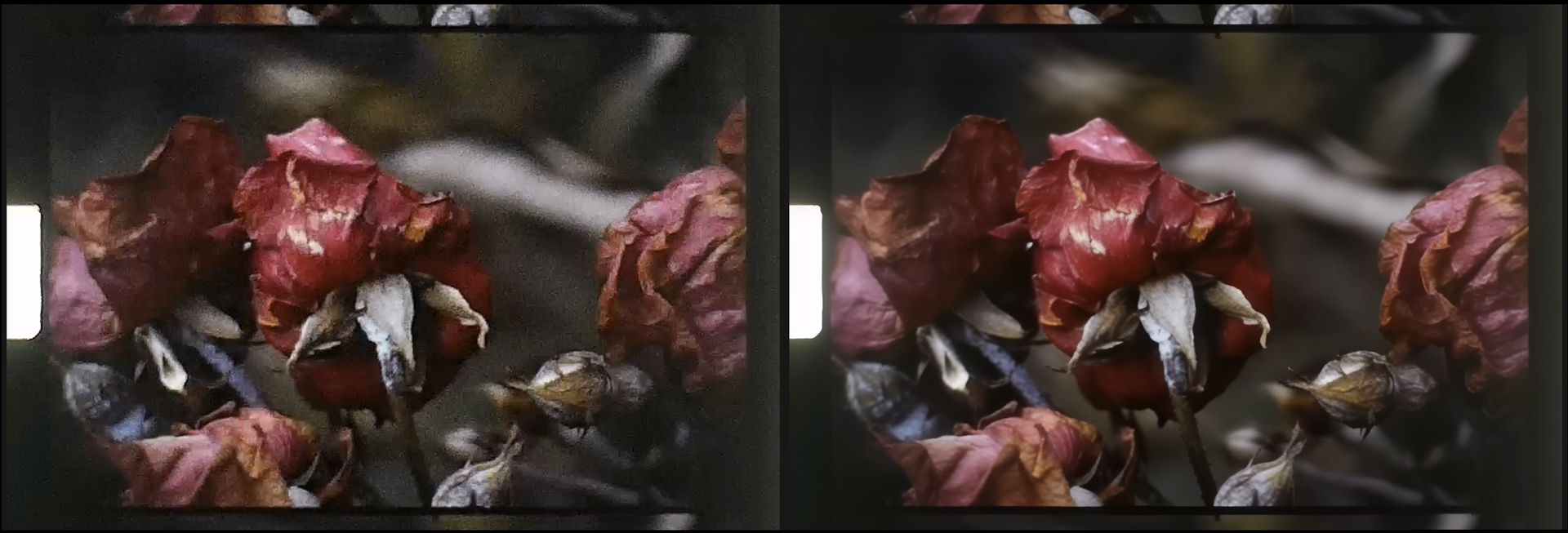
- This model has a unique look, which is a subtle haze. This is great for human faces and more natural looking footage. Especially for older formats. This is similar to having a diffusion gel in front of a harsh light on set. This greatly reduces the “plastic” look of upscales and enhancements that are too clean.
- Additionally, this model also greatly reduces flickering commonly seen in flat backgrounds that cause banding.
We recommend testing standard definition (SD) videos or others that have less than ideal results with our other models. This will give a larger “Wow” moment. Note, that the difference between standard definition vs high definition will naturally be more drastic. Essentially starting with something very good in quality may have marginal results.
About
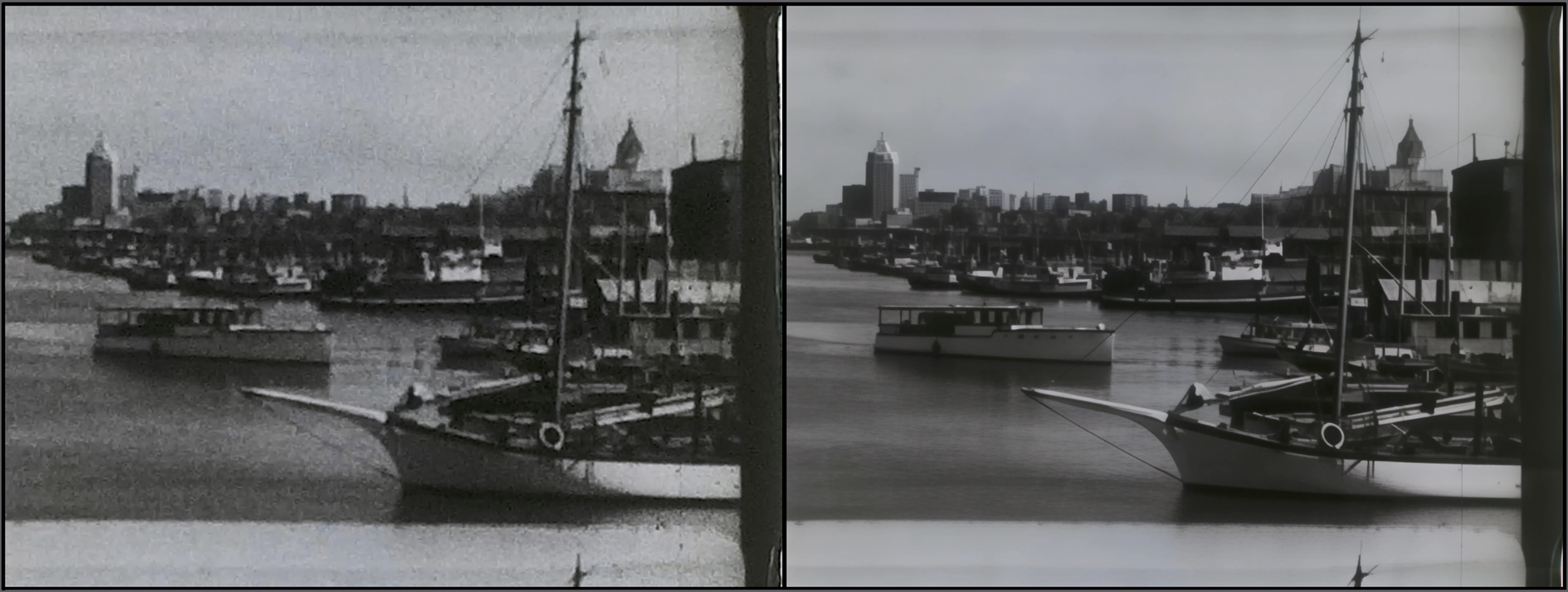
- This model works best for low to medium quality content whether this is generative, live action or restoration videos.
- Greatly reduces flickering with smaller textures.
- For video inputs at or under FHD 1920x1080.
- Outputs up to 4K.
- Model access via the cloud for all subscription models.
- Cloud Export is supported on both Mac and Windows.
- Though faster, this is still a complex and resource heavy diffusion model. Expect long render times for this diffusion model.
Things to consider:
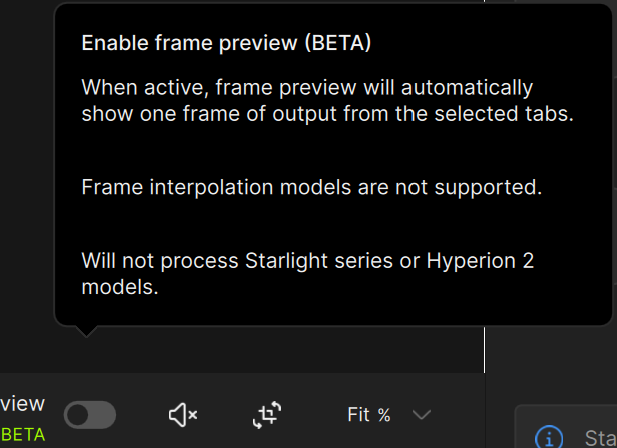
- It is not recommended to run Preview or Frame Preview with this model. For Nvidia users it will not work. AMD and Mac users this may also not work. It is recommended to export a few seconds for Preview purposes.
- Please note that if you have text that is too small, blurry or inconsistent, the result may not be “sp3ll3d” correctly. If you can barely make it out, so will this model. It may assume that the text is a texture or pattern.
- Water may appear smooth when compared to source.
- If you have interlaced videos, it is recommended that you deinterlace first before enhancing with Starlight.
Technical Things To Know
- Available for AMD, Mac & Nvidia
- Available for all licenses to run locally!
- This model is included locally, using neuroserver.
Nvidia Requirements:
- A requirement of an NVIDIA GPU with at least 10GB of video memory, but we strongly recommend a GPU with 16GB or more memory for optimal performance and quality.
- One of the minimum NVIDIA GPU requirements, is that the GPU needs the compute capability of at least 7.0, which means all the legacy GPUs with compute capability smaller than this version is not supported, including GTX 10 series and Quadro P series.
- In addition to these GPU requirements, Starlight also requires a minimum of 32GB of system RAM.
AMD Requirements:
- Requires an absolute minimum of 20GB VRAM with 32GB RAM
Mac Requirements:
- The recommendation for Mac is to have a minimum 36GB of RAM.
- All Apple Silicon should be supported.
Topaz Plugin: Final Cut Pro!
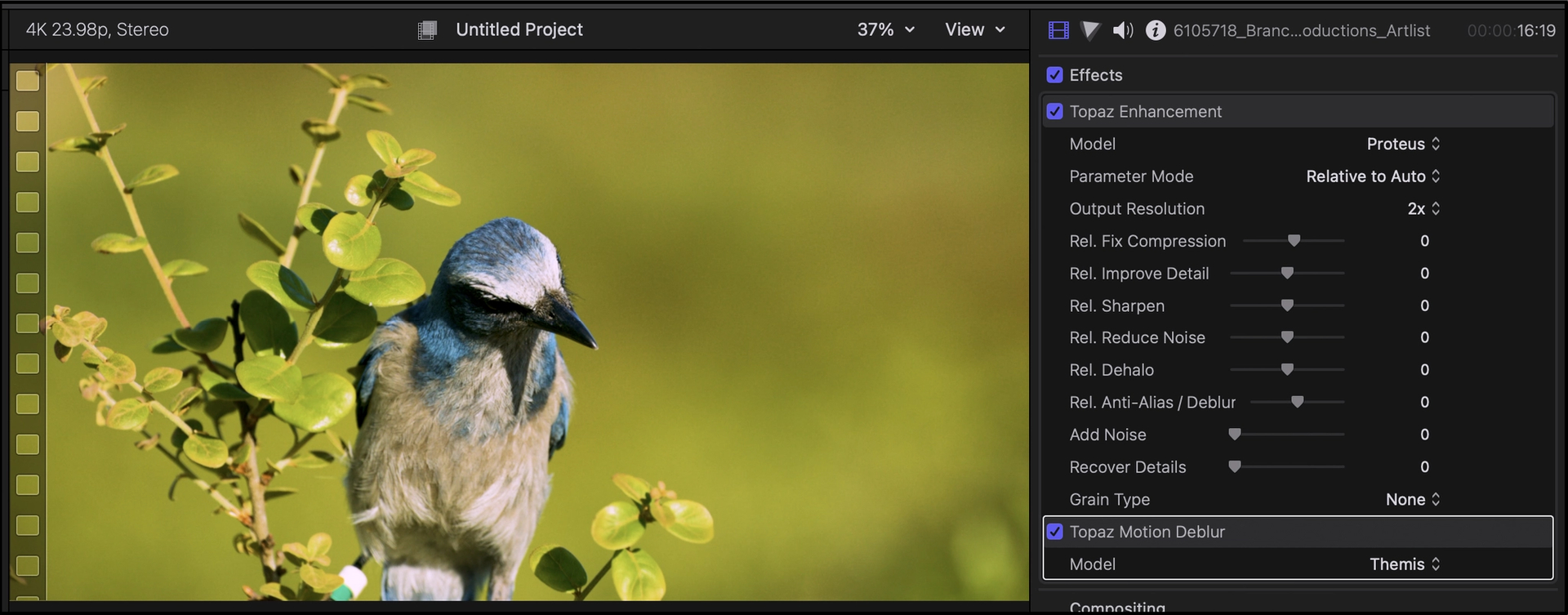
The Topaz plugin for Final Cut Pro (FCP) is now here! As an editor, one is now able to take advantage of some of Topaz’ famous models directly within the FCP environment.
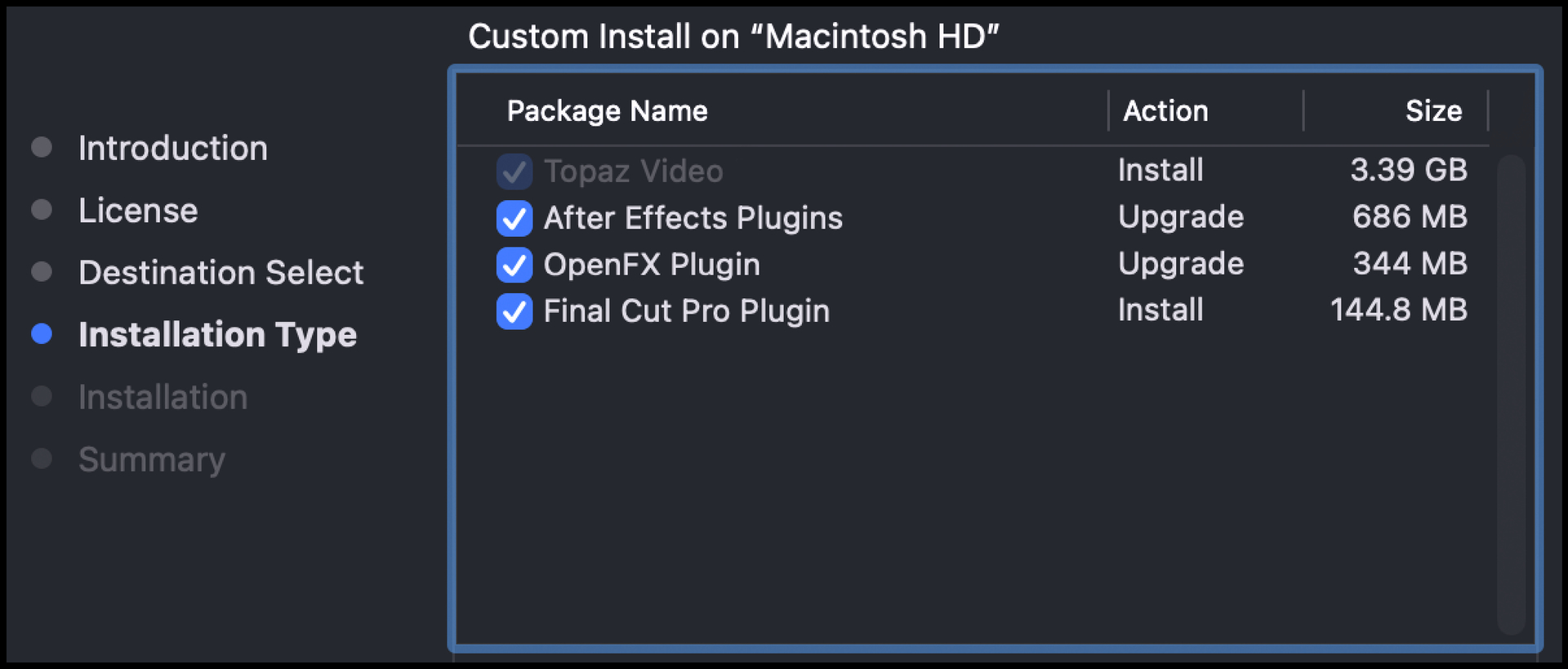
Upon installation, the FCP file will be available to download. Make sure Final Cut Pro Plugin is selected to install. You can also decide here if you would like to deselect any plugins from installing.
Topaz in FCP
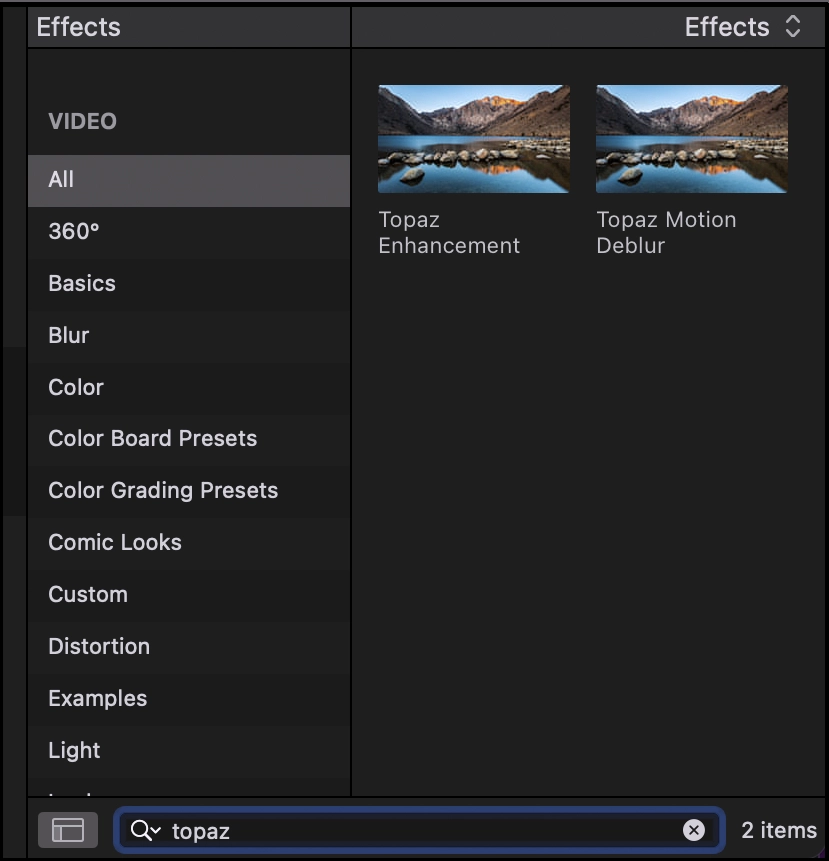
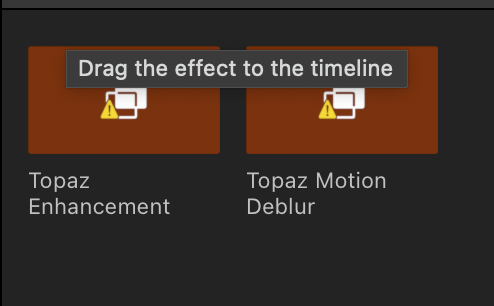
You can find the Topaz Enhancement in the “Effects” menu. You can easily type in “Topaz” in the search option.
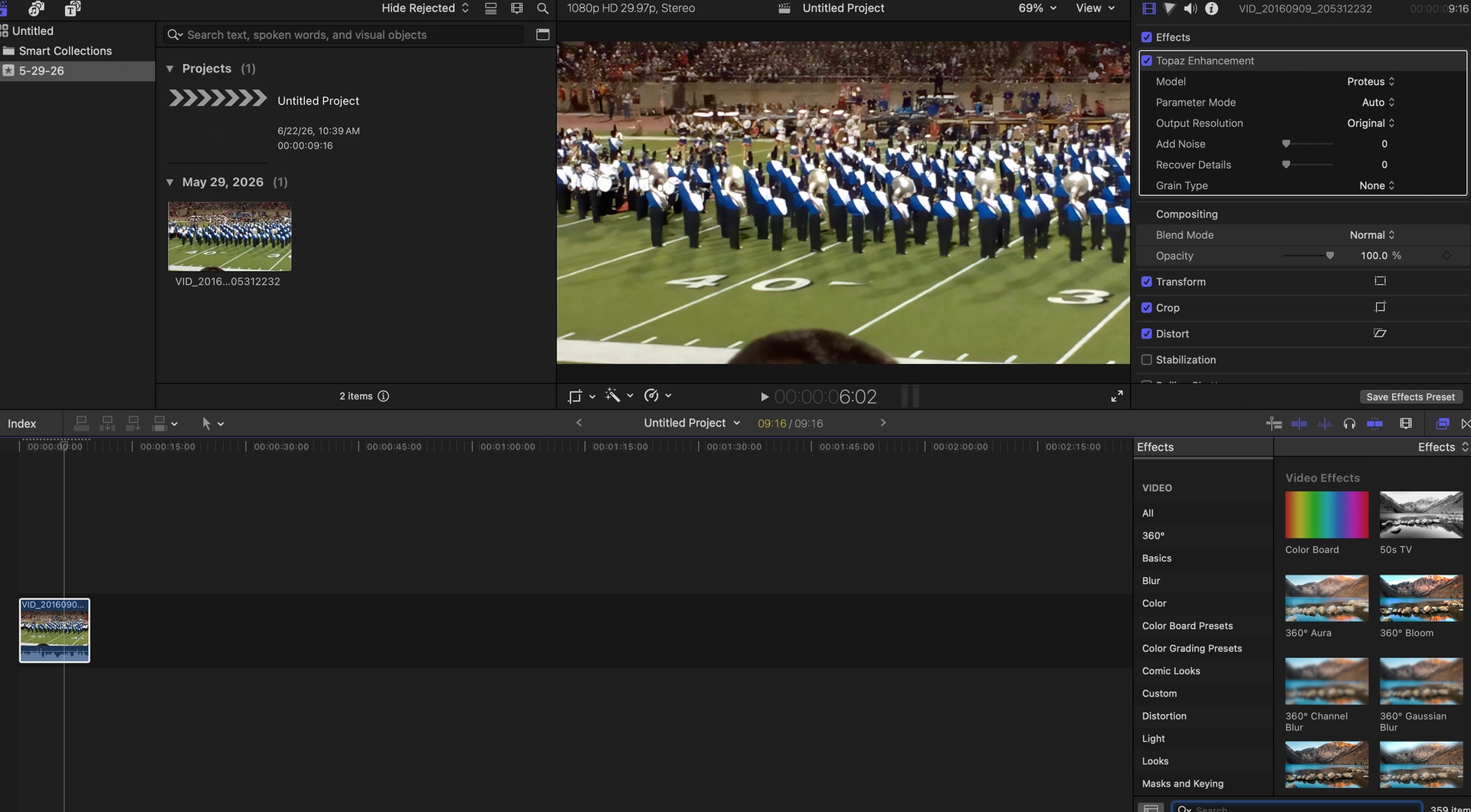
When working with the enhancement parameters, these modifiers are equivalent to working in manual mode within the desktop app.
Known Issue
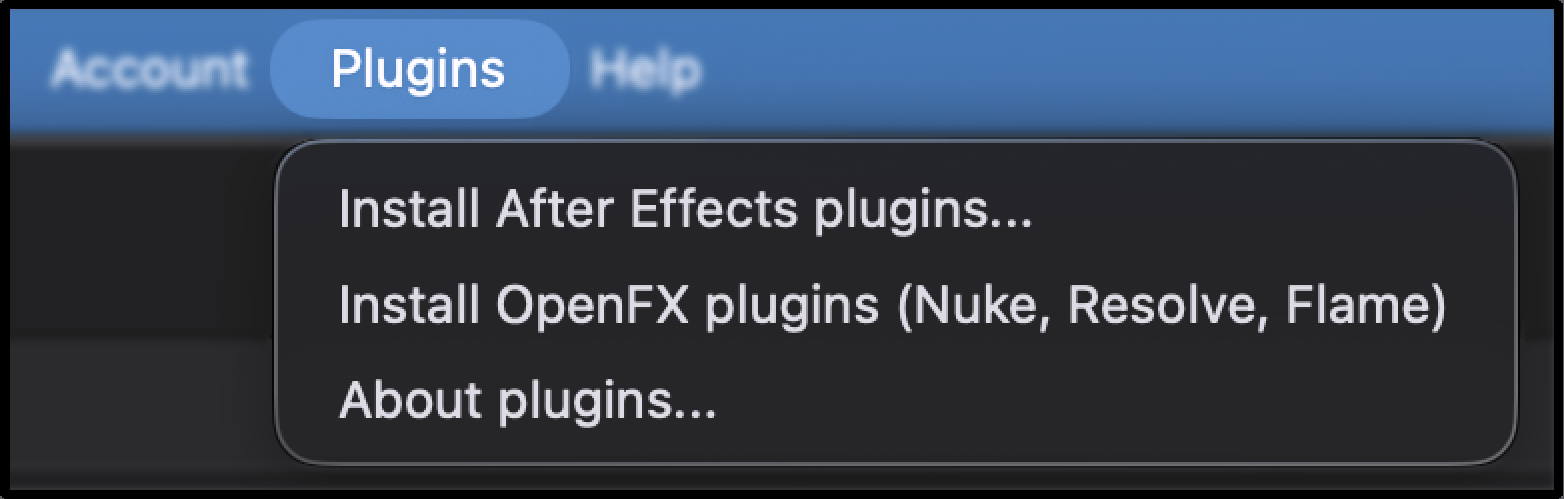
Selectable plugin installation within the Topaz Video “Plugin” tab is currently not available for Final Cut Pro. Only available via the initial installer for now.
Have fun working with the different model options on your footage!
Additional Updates to Note!
Live Preview Stabilization
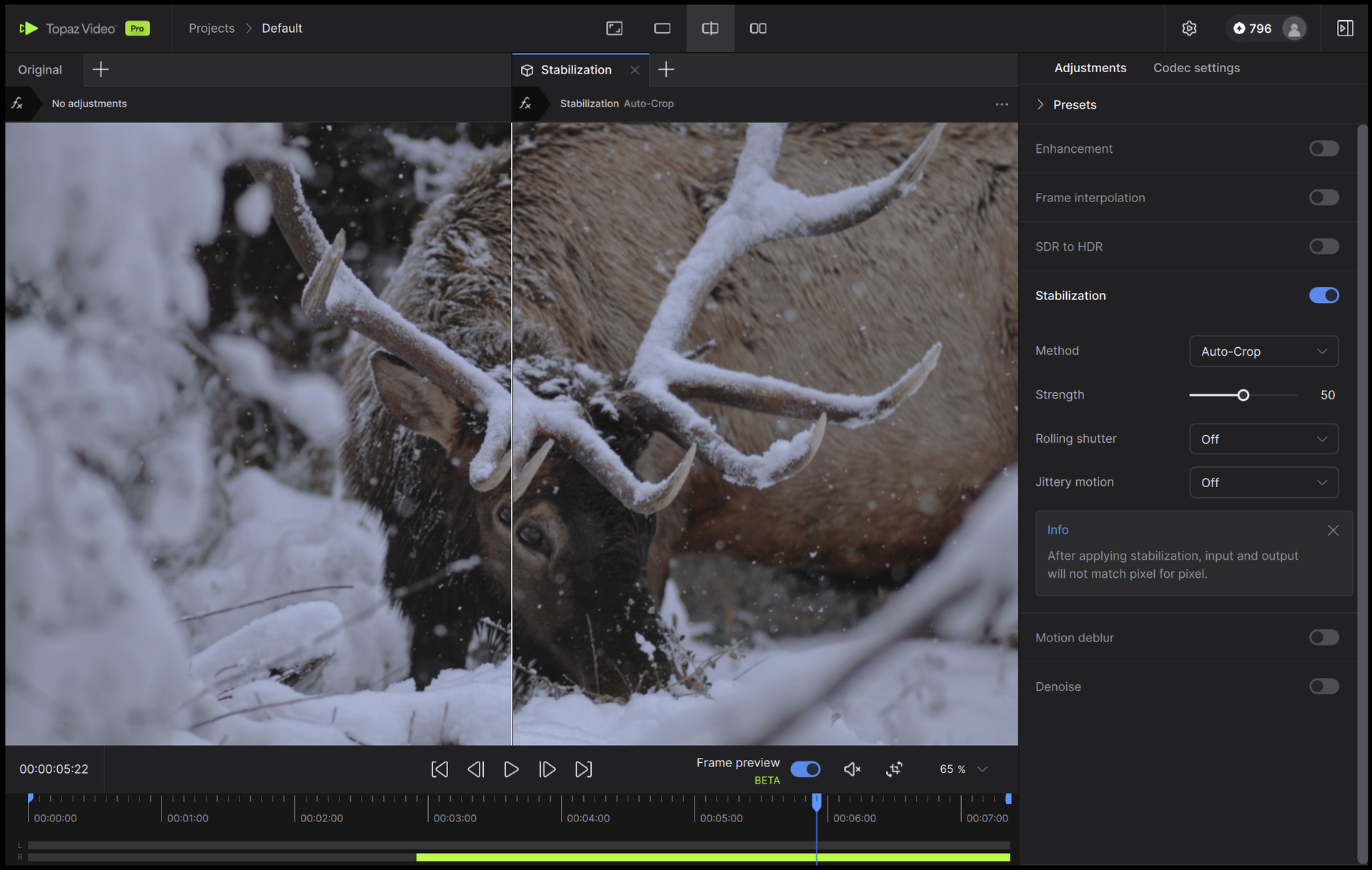
Now you can review stabilization quickly to get an idea of what your export will look like. Compare the difference between Full-Frame and Auto-Crop. See if Rolling Shutter or Jittery Motion options are useful for your video.
-
You will need to make sure that Live render in preview is enabled. You can do this by going into your Preferences and go into the Advanced section under Features.
-
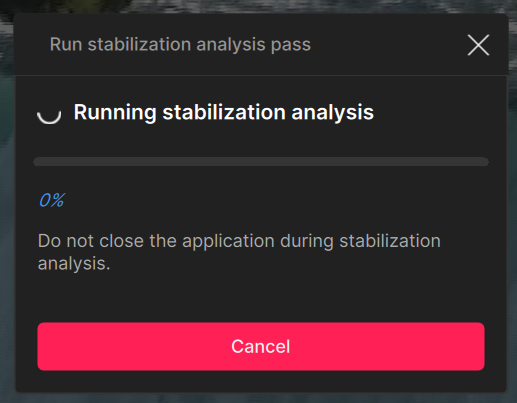
The moment you click and enable the Stabilization menu, a pop up will occur for a Stabilization Analysis Pass. This will essentially cache your source for quick in app reviews.
Things to consider
- Works with most Gan models. Do not use with Starlight Models.
- Not ideal for multiple enhancements.
- Works best with resolutions at or under 4K.
- The Analysis will pass through your entire clip first. Consider using this for shorter clips first and see where your comfortable with your system.
- Full-Frame takes more time to process than Auto-Crop.
Model Manager Update: Neuroserver Models
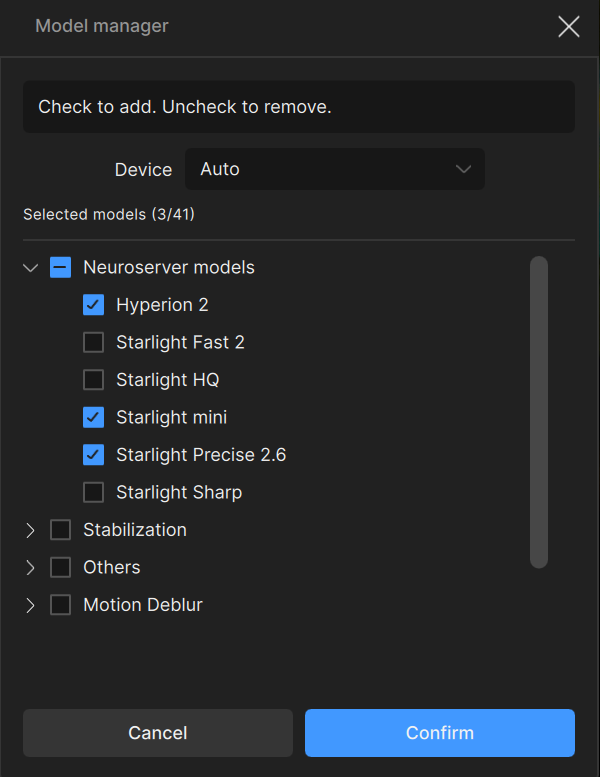
Now you can now optionally download the Neuroserver Models via the Model Manager.
For space management, you can also uncheck a model to remove them from your machine.
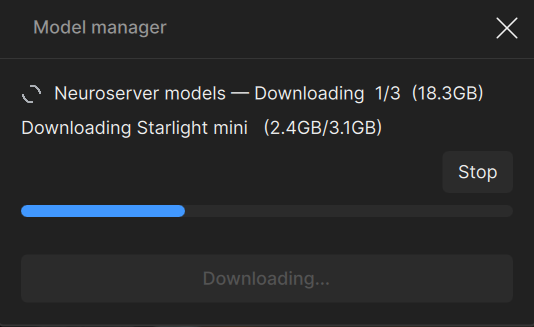
Downloading a models will display the download progress via:
- Completed downloads vs expected total (1/3) with total space requirement (18.3GB)
- Current downloading Model and download progress vs model total space requirement (1.1GB/7.3GB)
- Progress bar updates per completed model. If you are downloading a single model, you may not see the blue bar update.
- Use the “Stop” button to end the downloading process.
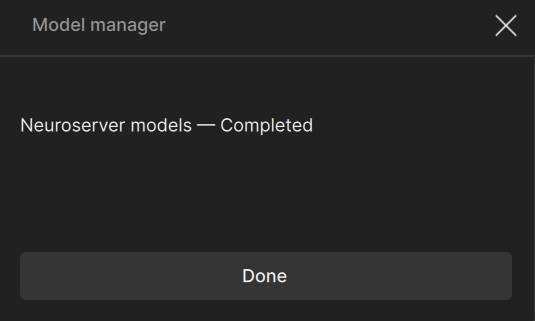
Export Queue: Model Downloads*
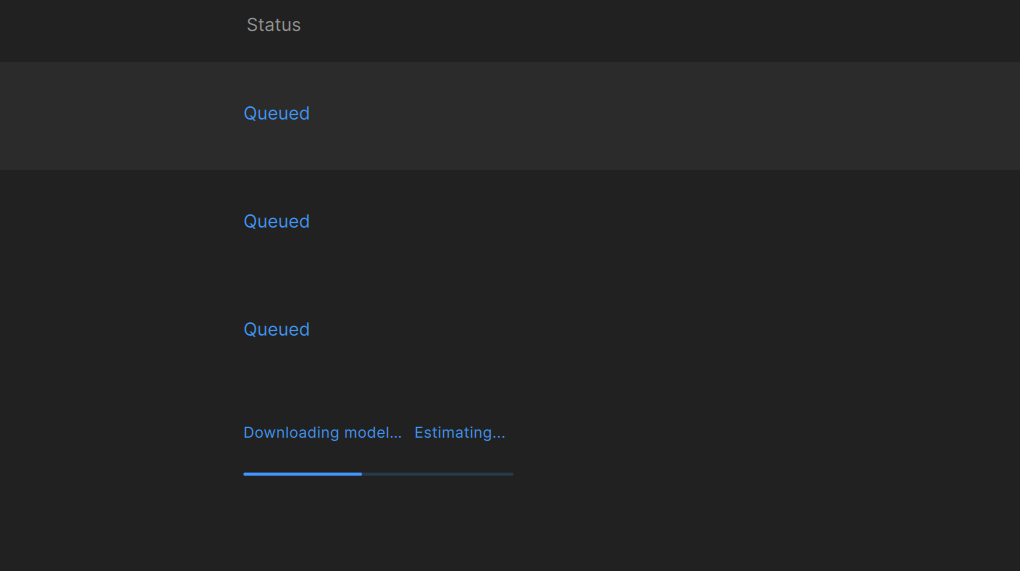
When a Neuroserver Model has not been downloaded via the Model Manager, exporting one such as a Starlight model (for the initial time), the model will be downloaded in the Export Queue before processing the render. Afterward this download process will not occur again.
Bug Fixes
- Fixed Neuroserver Starlight series models for 1 frame issues.
- Addressed Starlight Sharp resolutions not matching properly.
- Refined issues with plugins hanging and freezing with DaVinci Resolve and After Effects Projects.
- Fixed Starlight Mini local export being disabled on Mac.
- Refined the HDR/SDR-to-HDR presets and batch processing selection to better apply settings with Hyperion.
- Folders are now made for image sequences when using a preset.
- Ensures temp folders exists to minimize some stabilization errors.
- Addressed the occasional issue of continued processing even when exports are paused/failed.
- Fixed issue with intermediate files path length being too long.
- Fix playback issues with image sequence that have folders containing a comma.
- Refined the player hang when exiting the application.
- Addressed grain slider for an occasional bug of displaying a previous setting.
- Fixed the frame preview issue of showing an “Unavailable” error for Proteus Natural once a second enhancement is enabled.
- Multi GPU is back for Starlight Sharp for Pro accounts.
- Starlight Mini cannot be combined with other models. Updated messaging to help clarify this when sending for cloud rendering.
- Fix mismatching output resolution when using certain Nyx models.
- Fixed issues with image sequences partial exports clearing when errors occurred.
- Added missing video metadata for Neuroserver exports.
- Refined Preview Queue panel experience when exiting.
- Fixed Hyperion-2 cloud exports failing with “Trimming input failed”.
- Clarified cloud render errors to note that credits are automatically refunded.
- Fixed trimmed cloud exports returning the wrong clip when multiple trims of the same file were queued.
- Fixed WebM AV1 exports failing when audio mode is set to Convert.
- Fixed “Codec parameters disabled” tooltip showing when codec settings were enabled.
- Improved the AI Processor preferences tooltip with Auto/All GPUs details.
- Fixed Neuroserver system-check status staying stuck on “Please wait before exporting”.
- Fixed batch export ignoring “Original Folder” when a default export directory was set.
Don’t Forget
Is your system compatible?
Click Here
Documentation
Click Here
Encountered an Issue?
- If you experience any issues, please ensure that your drivers are up to date. Next to a proper restart or an app reinstall, this is usually the first step to ensure you have the correct drivers running for this application.
- Be sure to do a full reinstall if you are having issues making the upgrade from a previous version.
- Sometimes a firewall can prevent the app from starting. If this occurs, be sure to add Topaz on the exception list.
Otherwise, you can easily reach out to our fantastic Support Team: Click Here
Enjoy the new updates!