Photo AI gets a mention in the latest NVIDIA driver update (4/16).
3 Likes
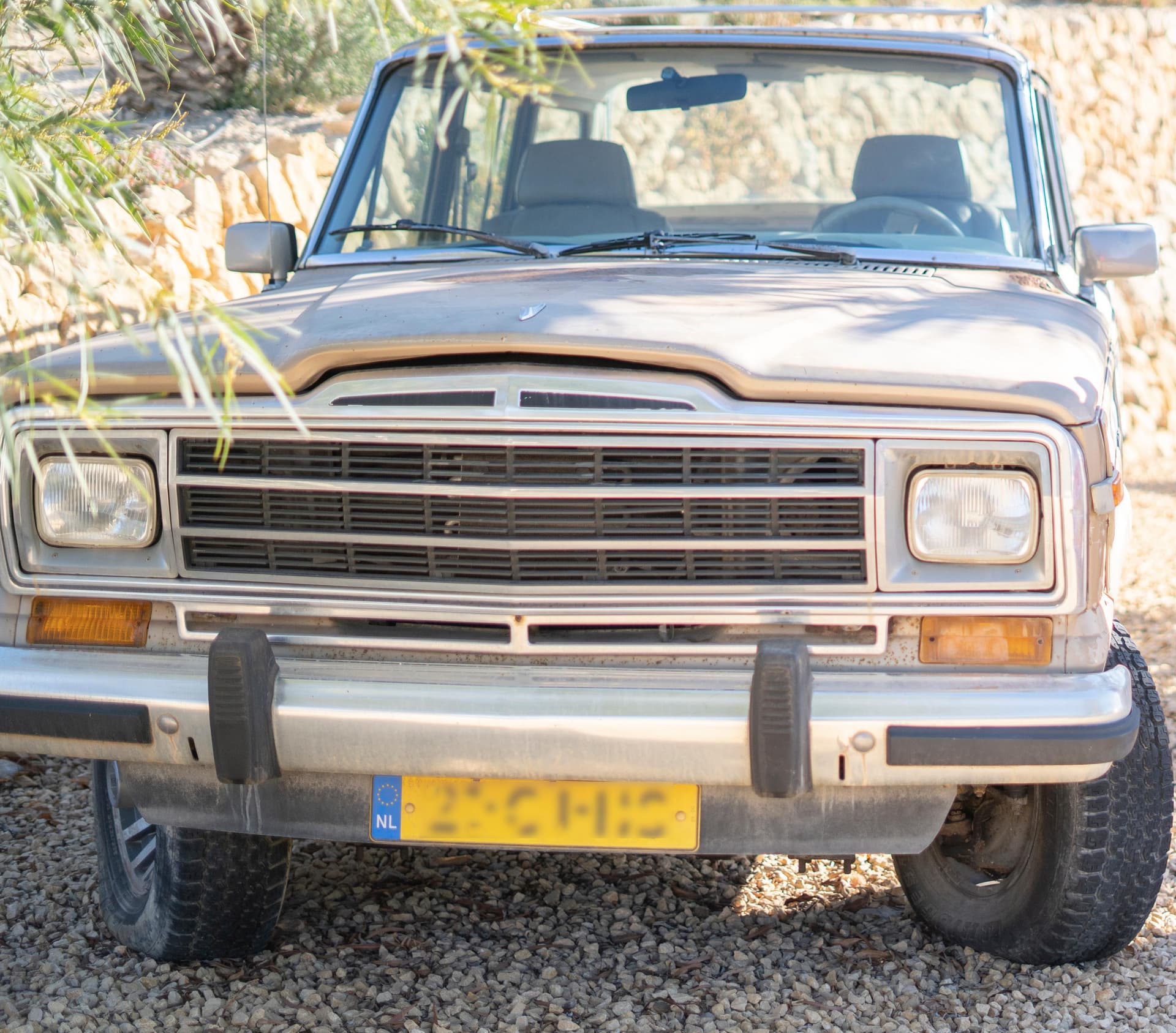
Bought a RTX 5080 with 576.15 Drivers and Windows 11, this is what happens, with Topaz AI, worked fine with a 4080 and 3080 TI.
Org:
Enhanced, using autopilot, 5080:
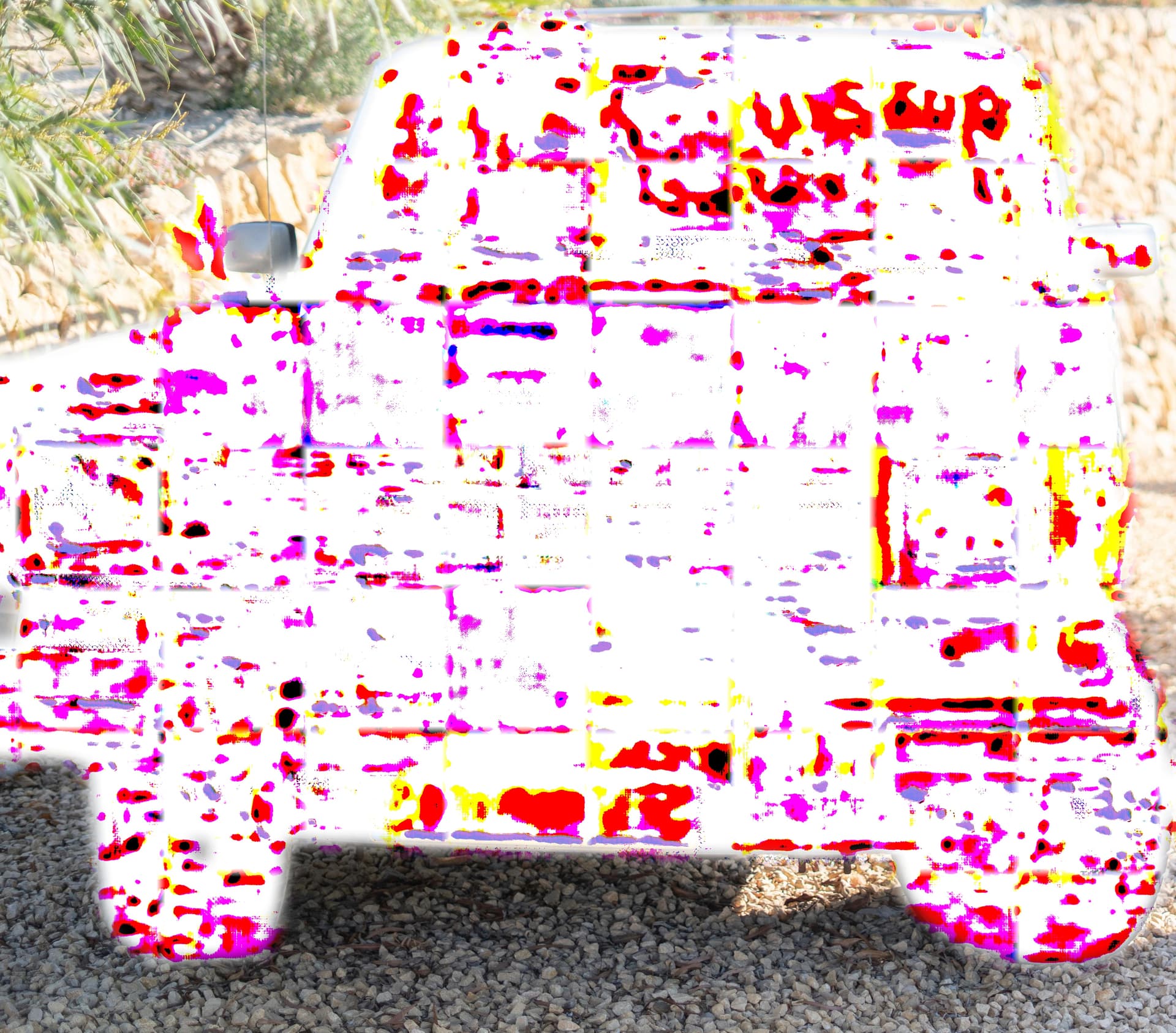
Enhanced, using autopilot, CPU:
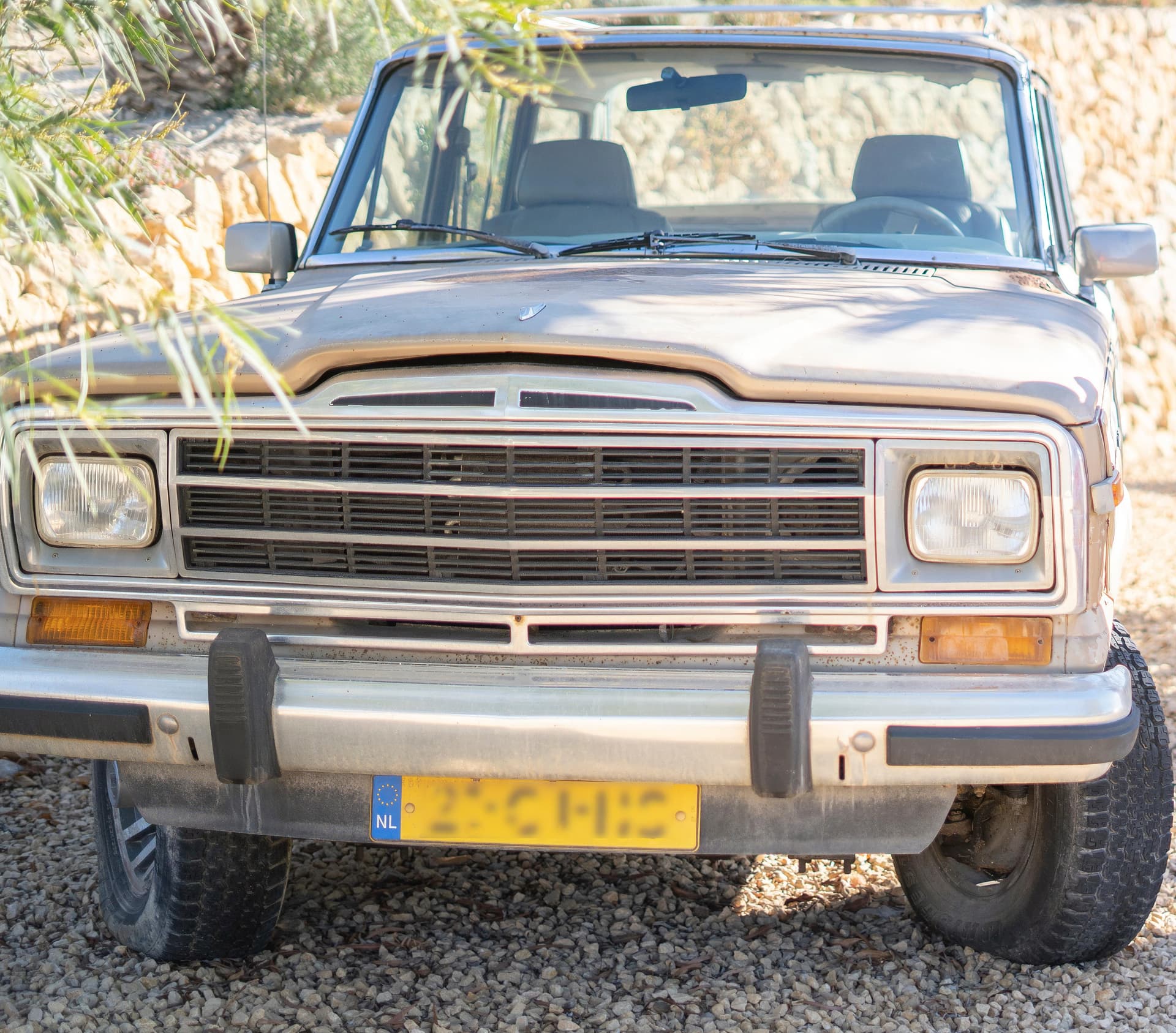
Same again enhanced using embedded AMD GPU using autopilot
So the issue with with the GPU, which should be at least as good as a 4080, for this.
Some images are better some are worse, but generally nothing works correctly with the 5080 Card.
ERIC
@gandteric - yes this was discussed above, reputting here: this is because you have the new RTX 5000 series graphic cards, that will have issues with the specific NVIDIA Standard AI model. Referenced here below as a known issue that the development team is working on! For now, use Sharpen Strong, or any other Sharpen Model than Standard, which you can force as the default model to be used in Edit > Preferences. Our development team is looking into the issue with Standard and we will circle back here once resolved!
All other models will work correctly, like Denoise and all its AI models as well.
 [NDIVIA RTX 5000 series] - Sharpening “Standard” issues on this new NVIDIA card Bugs and Issues
I wish to ask for whole body restoration update.
Needed for fashion, bikini shots
Right now only face is nicely restored and them you see… that blurry body skin.
Hi.
Have you tried using Super Focus first to recover the whole image then apply Recover Faces and finally Sharpening and Upscaling your image as a finishing touch
Hope this helps
1 Like
Sharpen and Super Focus can already help with this. Send in original files and the current results you can achieve to support@topazlabs.com and we can send back how to get the best results!
1 Like
The requirements for AVX512 on CPU are unacceptable, fix it immediately, we can’t change CPU every time Topaz comes out a new version.. What the hell are you doing?
Topaz bye bye
So… I found the setting in my camera for turning off auto rotation… and ending up having to rotate every photo shot in portrait mode manually.
Great idea… Or not! 
Since I crop & rotate far less fotos than I shoot in portrait and do nothing about I’m going back to my previous settings. I guess some things you just have to learn to live with for a bit longer.
Edit: And there seems to be absolutely no way (or I’m more stupid that I thought for not finding it) of just plain rotating a foto in PAI without cropping and still maintaining the same size.
I’m screwed…
1 Like
Can you clarify what issue you are experiencing? The AVX requirement has not changed, and it will also work with AVX and AVX2 Instructions, as well as AVX512; there is no need to change your CPU. If you send more details on what issue you have, we can sort it out!
You can rotate pretty quickly in your File Explorer, it would be quicker! You can rotate multiple files at once too in the File explorer.
Interesting thought…
Where can I download an extension/plug-in that enables rotating Canon .CR3 in the file explorer of a fully updated install of Windows 11?
I’ve never been able to do much with RAW’s in thw file explorer beyond previewing them. As far as I know you can rotate for example jpg’s and other non-raw formats that Windows can manage, but RAW’s… not so much. And that doesn’t help me with keeping my neck from twisting out of shape when going through the photos - neither when culling, nor in PAI.
Hi.
If you’re not happy with Photo AI’s Cropping simply, use another application Lightroom and Photoshop for instance both have dedicated cropping tools that can automatically straighten and rotate the images for you and as Photo AI works as a plugin within both of these programs it’s a simple matter of sending your images to Photo AI then, Upscaling your images and returning them back to either application automatically via Lightroom’s Plugin Extras or Edit in options and Photoshop’s Automate function.
Lightroom and Photoshop are just examples, any image editor will serve this purpose Even the free one from Canon DPP Digital Photo Professional
Thank you for your input, but I think you might want to go back and read the whole conversation leading to the post you’re commenting on.
Me “not being happy” (your words) originates from an actual - and recognized as such - problem in PAI. (I think we can all agree that photos shouldn’t be “squashed” out of proportion when rotated a couple of degrees)
Second - Your comment and suggestions are quite flawed as you assume that everybody have similar workflows and uses for PAI. I’d say that the number of different workflows and uses for PAI are quite many while still all entering into the scope of PAI.
My workflow is:
Shoot 300-400 photos → Cull them down to preferably 1/3 of that → load them into PAI and export the whole batch → Radiant Photo → delivery.
This is a couple of hours of work for me as I don’t have the fastest GPU on in the world, but it basically takes care of itself.
Can DPP be used for culling and rotate a photo that’s just a couple of degrees off and then export the modified RAW so I can open it in PAI?
As PAI is working (or not depending on how one sees it) at the moment the presented solution to my first problem (not letting the camera auto-rotate) gives me far more grief than if I would let it auto-rotate, follow my workflow and just stop by another app (or do it in Radiant Photo - haven’t looked into that yet) to nudge the occasional photo a couple of degrees after PAI.
“Assumptions are the mother…”
1 Like
@Left_The_Building - Actually, to keep RAW file, it would be to be done after the TPAI edits. Find the exported Photo AI files, then in File explorer you can open with Photos, then Edit, then rotate it. There is no perfect solution here but it can help!
Exiftool
I’m on an IT-managed PC right now so I can’t install it, but I’ll test some things when I get home. If you want to try some tests, change the -orientation flag in your RAW’s (use a backup copy) before TPAI crop/rotate (typically portrait is -270 CW, landscape is horizontal). You can also try changing the orientation in the squished output files - I don’t know whether all of the image data are there and orientation and/or height and width are wrong, or the image data is actually cropped incorrectly. I’ll try to figure that out tonight/tomorrow.
The exif orientation flag works in 90 deg increments and I’m not sure what it gets set to for other rotations. My guess is that TPAI is getting confused with the flag and height vs width during a crop+rotate.
(also, the thumbnail and main image rotation settings are in different places in the image files)
2 Likes
Having an issue when I attempt to run this version on my Mac Studio M4. It says “This app is damaged and can’t be opened”. I have tried to install it completely twice, after using the “Move to Trash” option the first time I got the error.
@erik.van_riper - this can occur when you migrate apps, it’s a security warning from Mac since the install date is in the past and it’s being flagged. See here steps to resolve this: Education | Photo AI Is "Damaged" And Can't Be Opened | MacOS - #5
Just a heads up for those who are waiting for a Super Focus 2 fix. Support told me a couple of days ago that the fix will be in a release within 2 weeks. Great!
Apparently, the Recover 2 bug in Gigapixel AI will also be fixed at the same time since previously I was told they are the same problem.
The Redefine bug in Gigapixel AI is a different issue, but I am hoping it will get fixed at the same time.
2 Likes
The thing is that i was recommended to turn off Auto Rotate in the camera. This outputs photos shot in portrait mode at a 90 degree angle (or 270 degrees depending on how you look at it).
Loading such photos into PAI (or any image viewer I might be using for culling) makes me have to twist my head to the side to get a good idea of how things turns out, something that doesn’t actually help concentrating on the photos themselves.
I know I can rotate photos in the file explorer after exporting them, but that doesn’t help with the actual “work” part of the process.
Anyway - thanks for trying to help. I will just set the camera back to it’s previous settings and do the fine tuning (the “nudging” a degree or two) after export as the number of those are a lot less than the ones I just export and forget about.
I still think the behavior I initially reported is wrong though, and do hope it will get fixed eventually.
Had a look at your suggestion for Exiftool, but that one doesn’t seem to affect how the CR3 loads into PAI - only the jpg “preview”.
I could probably separate the portrait photos into a separate folder, batch rotate the previews for culling and then load them into PAI and go from there, but I think I rather go back to letting the camera auto rotate. That’s probably less work…
But thanks for the suggestion I’ll be testing Exiftools a bit more when I have a moment..
Edit - it actually looks like Exiftool do rotate like it’s supposed to - I opened it in PAI, the preview still shows the portrait shot 90 (or 270) degree wrong, but when I export it comes out right… I need more testing.
