Did you post any comments in this discussion thread?
If yes, and if you set alerts to notify you of any responses or comments in the thread, then the comments will not only appear here in the discussion but also be sent to you as an email update.
You have the option to control the level of alerts (or none) that you prefer in the system. It can get overwhelming in terms of emails coming in if everyone and their mother comments in any way in a discussion thread…
If you have a “Home” key or some easy way to get to the top of this thread, notice at the bottom of Adam’s initial intro to what’s new (and slightly to the right - where the number counts are for each post) there’s a Bell Icon. If you click on that icon it tells you what level of alerts you have activated. There are different tiers. If you don’t wanna hear nuthin’ from nobody, you can “mute” the alerts. Or, you can select different levels of parsing, to your taste. Hope that helps!
The program doesn’t work and is unresponsive. I’ve tried to launch it 15 times already, but nothing is happening. I can’t perform updates, even though the option is displayed in the top right corner. Mac Ventura
This update has broken Topaz for me.
I had decided to redo some restoration I’d done yesterday but with better quality source files, and I decided to update before I did it.
However, after the update, on all 8 of the images for this project, regardless of the settings, it was just amplifying the noise in the images, and weirdly, sometimes it would remove the noise, but create the same sort of noise in slightly different places (effectively moving the speckles of noise around).
That was all in the previews, and obviously kind of renders the whole software useless, but I thought I’d export to see if it looked better after export, and it got to ~80% through processing the first one for export, then hung and didn’t move.
I cancelled the job and restarted it and it just jumped to the 80% marker and didn’t move.
I open Task Manager and it shows Topaz using 30% ish of my RAM but 0 CPU or GPU, so it’s not even trying.
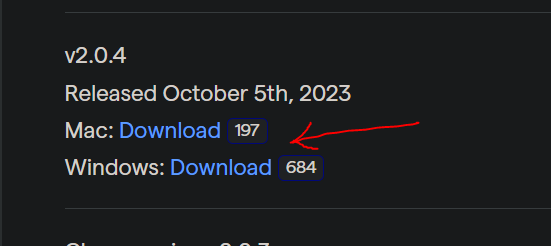
Did you update from within the program or from the Product Releases tab on this forum? See posts just above if you don’t know where that is. If you updated from inside the program I suggest you use the other approach instead.
Do you release updates before checking if they work correctly in automatic updates? The program Ventura doesn’t work on version 2.0.5; I had to install 2.0.4, and it also freezes.
I did that, but the program automatically updates itself to version 2.0.5, and I have to repeat this process endlessly from the beginning. Before releasing something, please make sure it works because people don’t have time for the hassle of installing and uninstalling
It never updated automatically on my Windows PC (at least up to 2.0.1 which was the last version I installed). I get an info screen that there are updates available with the history of changes but I can just ignore that. I very much hope they haven’t changed that behaviour.
A crop should not carry forward to other pictures. Each one is usually unique, and the crop would be different. Making it carry forward to every picture would make a mess out of them. You just happen to have some that need the same crop.
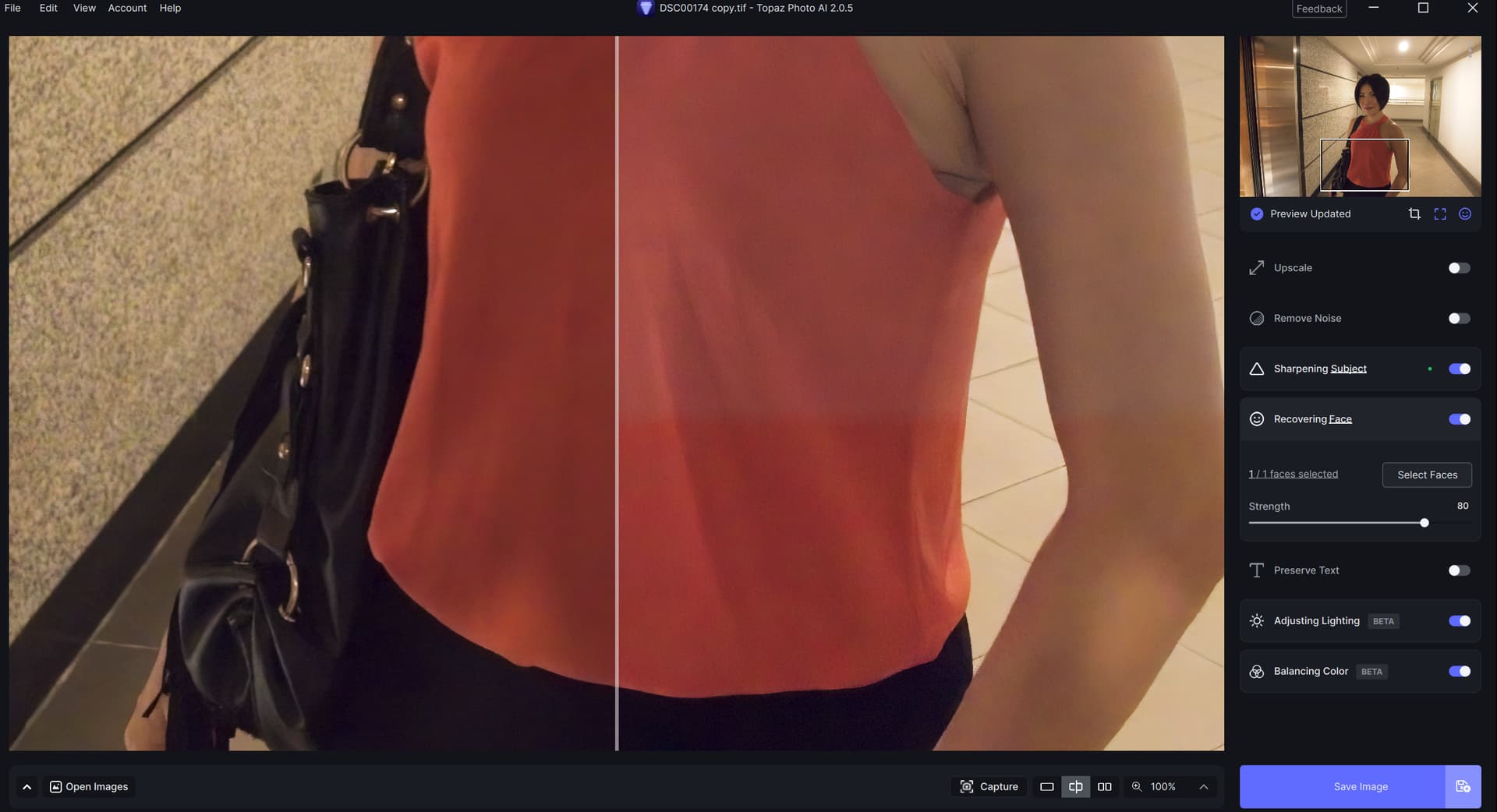
I have downloaded the latest updates. I am trying to match images I ran through Topaz earlier version back in March 2023. Compared to earlier ones, the current ones have washed-out colour and are not sharp. I have tried all 5 options of Sharpen (Standard etc) and changed from 5 % to 95% and all look exactly the same as each other and nowhere near as clear as the previous version.
Win 11 Pro desktop PC. Photoshop 2024 (rel. 25.0) PAI 2.0.5 plugin. Processor = AMD RX6800 XT.
.jpg processed to .tif in Ps used. Launched from image layer (not adjustment layer).
I just updated to Ps 2024 today. So trying my PAI Ps plugin features. Ran into an issue…
I could open, use, save processed changes to the image via the PAI Ps Plugin via Filters Menu access okay.
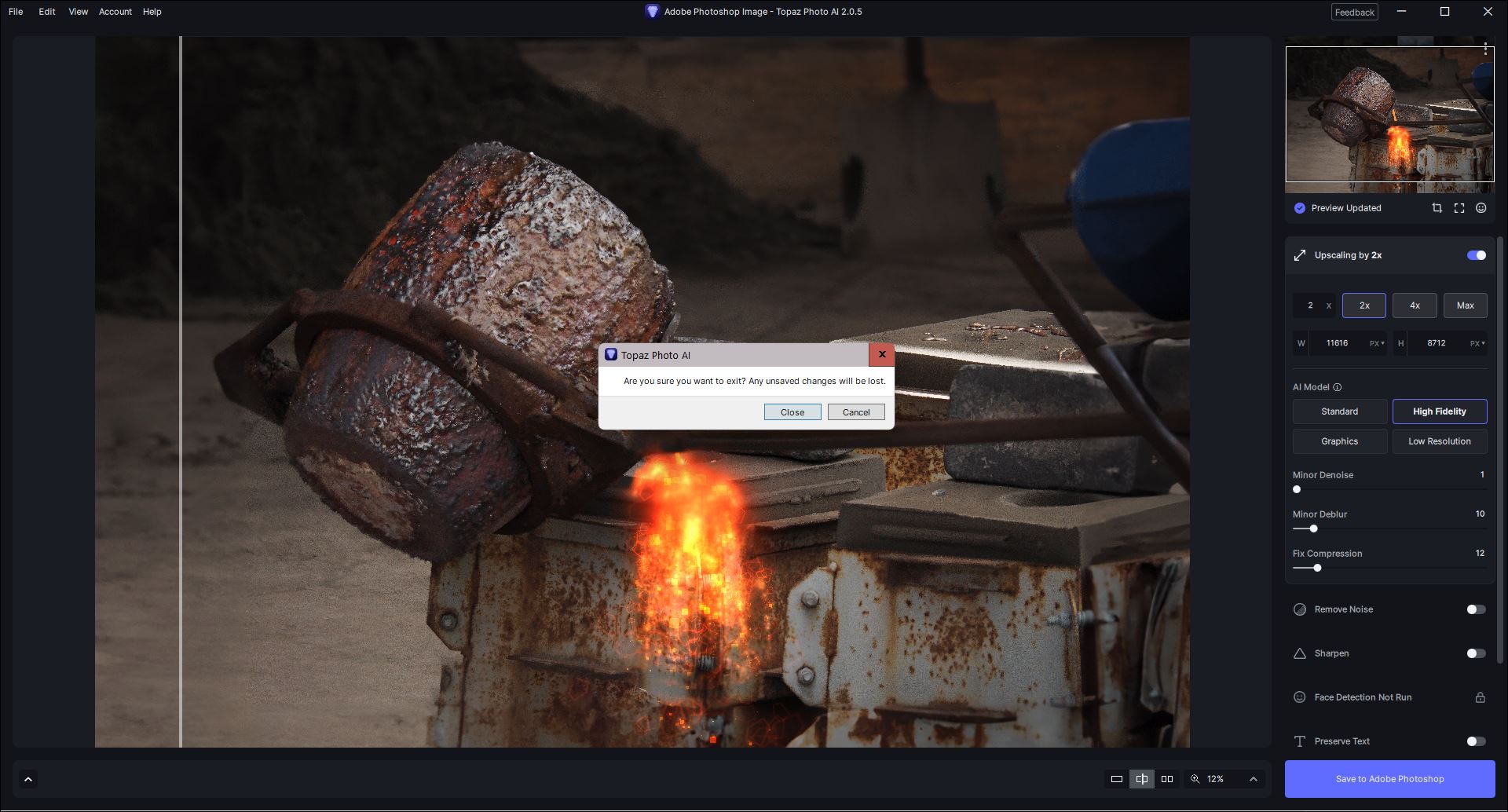
I could launch & open the same image into File > Automate okay too. But I decided not to upscale or make additional changes there. NOTE: PAI would not let me cancel out and return to my Ps UI/layers. What I tried: I tried CTRL + W = n.g./didn’t work. I tried clicking the “X” at upper right of the PAI File > Automate UI = ditto, n.g. wouldn’t close and return me to Ps. I finally gave up and said to “Save & Return to Ps Layer” hoping that would let me out (but I didn’t want my image to scale to an enormous size, so hit “Cancel” when it started to process). That locked up and seems to have crashed my entire Ps UI. I can’t do anything in it now that the Ps workspace is visible again.
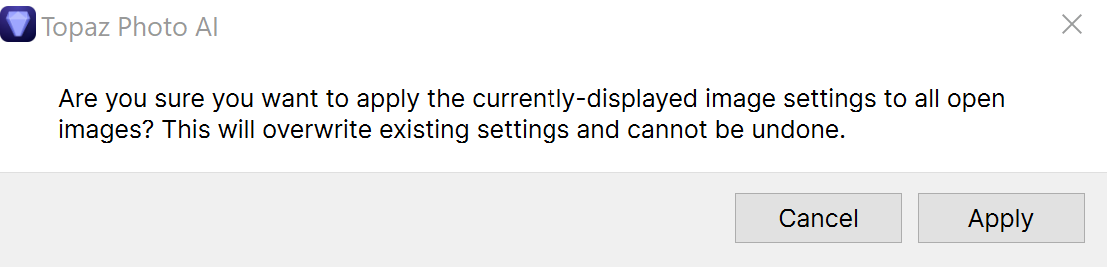
I had some eclipse images where the same crop would have been fine. The feature indicates apply “all settings” to other images, so if I have a crop it should apply. I might also want to crop an image, and transfer settings as a starting place. If “All” settings don’t transfer, there should be a popup or other notification.
Even though I understand that there might be a - albeit limited - benefit in some situations I would say it makes sense that crops don’t carry over when “apply to all”, the same way that faces and text recovery don’t (or just about any case where you have to mask or make manual selection as those are usually very “dynamic” and photo-by-photo dependent).
It could however be interesting with a notification to that effect…
I don’t get why this is a controversial topic. If the program indicates it is applying settings to all images then that is what it should do, or it should clearly indicate it is not. If the program is going to ignore the crop, then it should also ignore the upscale. Individuals should not have to figure out through trial and error what the program is doing. In On1, when you copy edit settings from one image to another it asks which settings you want to apply, crop being one of them, it’s been a while but I believe Adobe does as well. The message should indicate only a subset of settings are applied.
Thought this was an open forum where we share opinions,not one where one person say what he/she thinks and noone is allowed to weigh in with their thoughts on the subject. Guess I was wrong about that one…