I’ve been wondering if it’s something intrinsic to my files (Sony .arw’s, a6400/a6700), as a lot of reports were with Sony’s, but depending on whether I work on a jpg or arw of the same image, the grid size changes, and I’ve seen reports with other camera brands (although possibly Sony made the sensor). I could potentially see block effects with jpgs but it’s hard to image how they get there in raws given how the sensor scans (and the grids are >400 pixels, so it’s beyond jpg compression blocks).
I’m in the Capture 1 camp, so it’s not limited to LR. But I can get the same effect using tpai as a standalone, so I don’t think it’s related to ancillary software, and viewing a processed jpg in C1 or Affinity gives the same result.
It’s also markedly less in DenoiseAI 3.7.2, which makes it seem, well, not sure, really.
In your image, do you see anything if you crank the exposure? I tend to see it more in dark areas that get lightened after tpai, but looking over my shots, I don’t have a lot of monochromatic sky to really test with.
Someday I’ll have to do some systematic tests including uncompressed raws and other various things (like my dad’s Lumix DMC-TZ3 and a couple phones, electronic vs mechanical shutter, etc.) to at least rule out a few things.
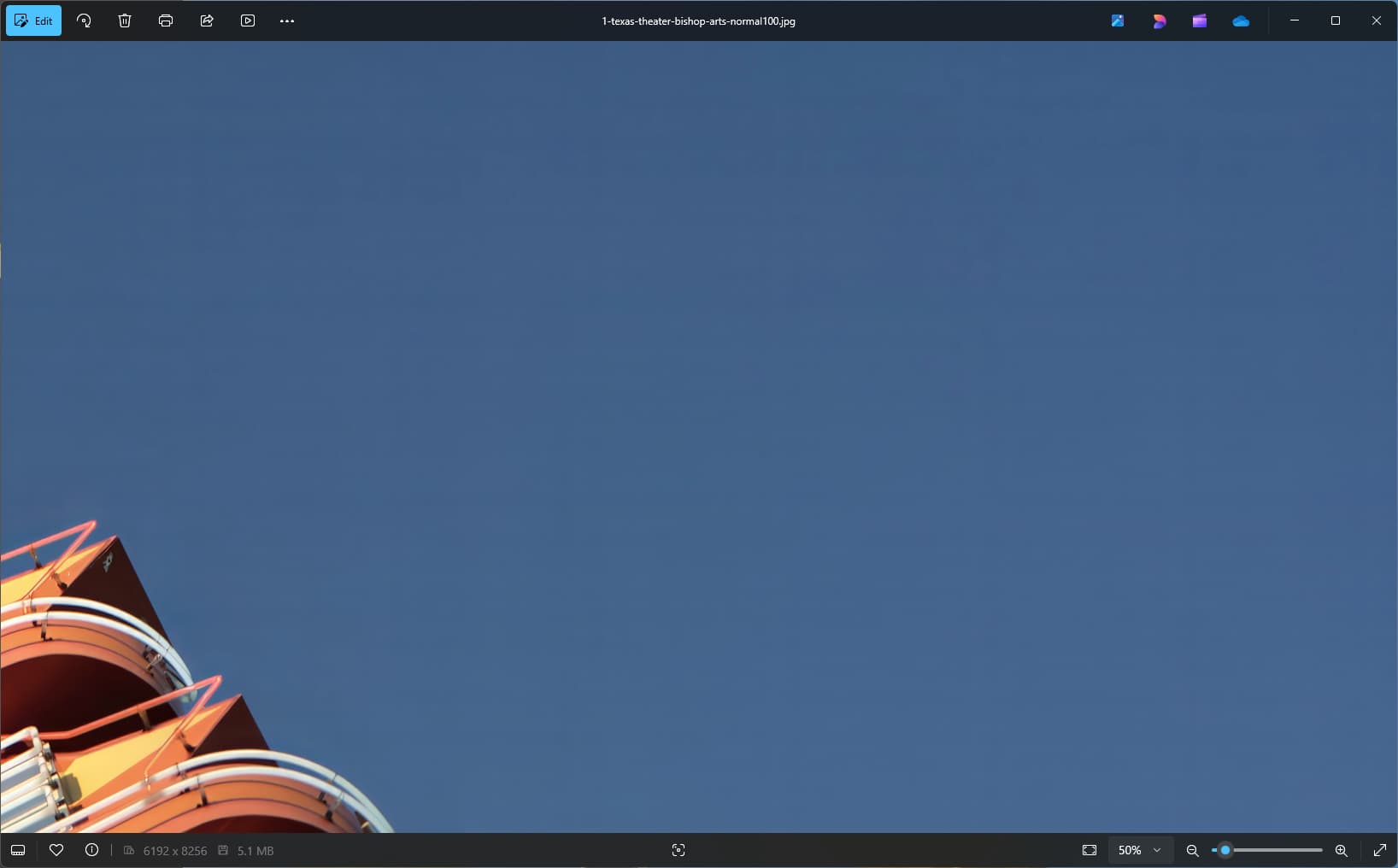
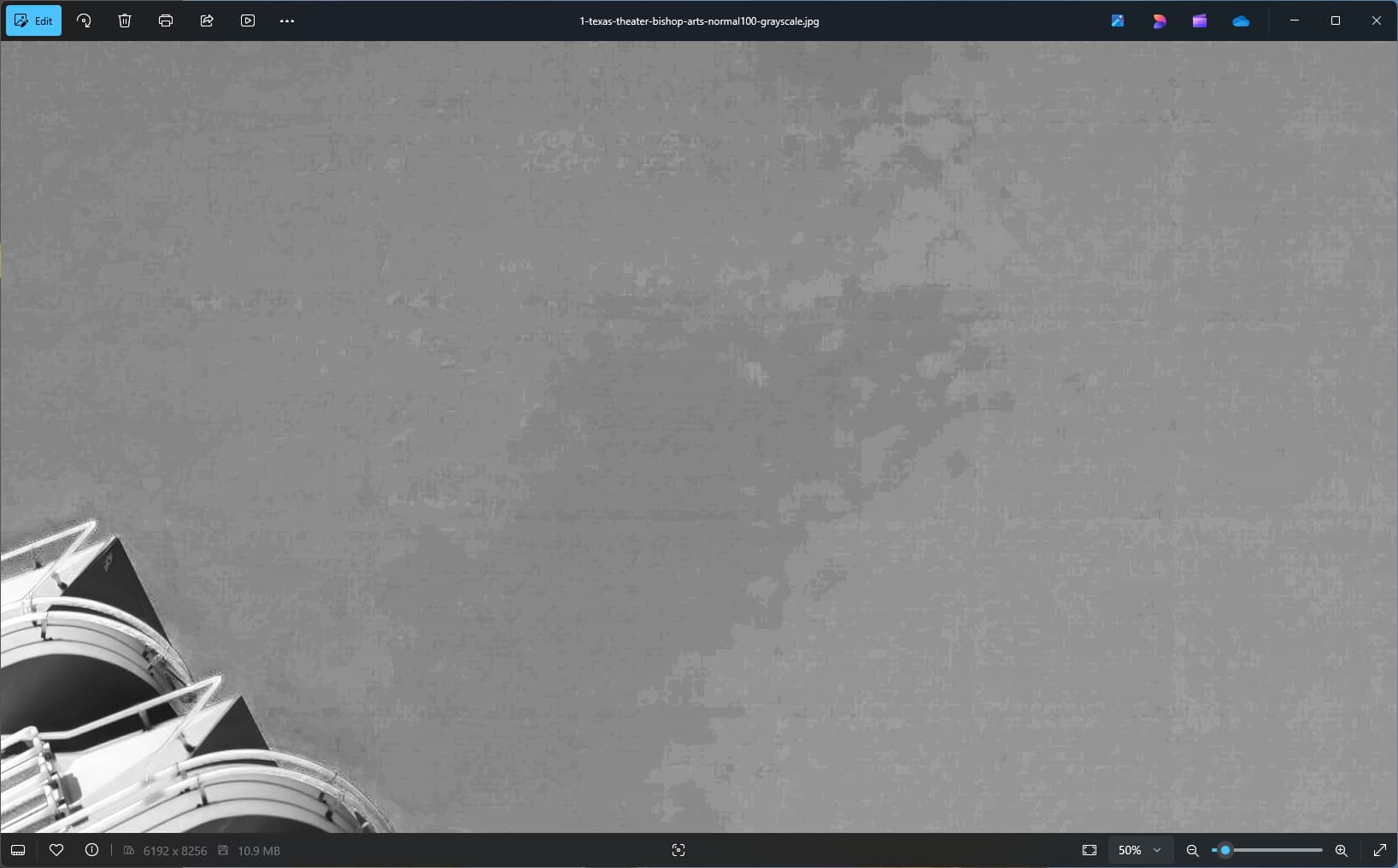
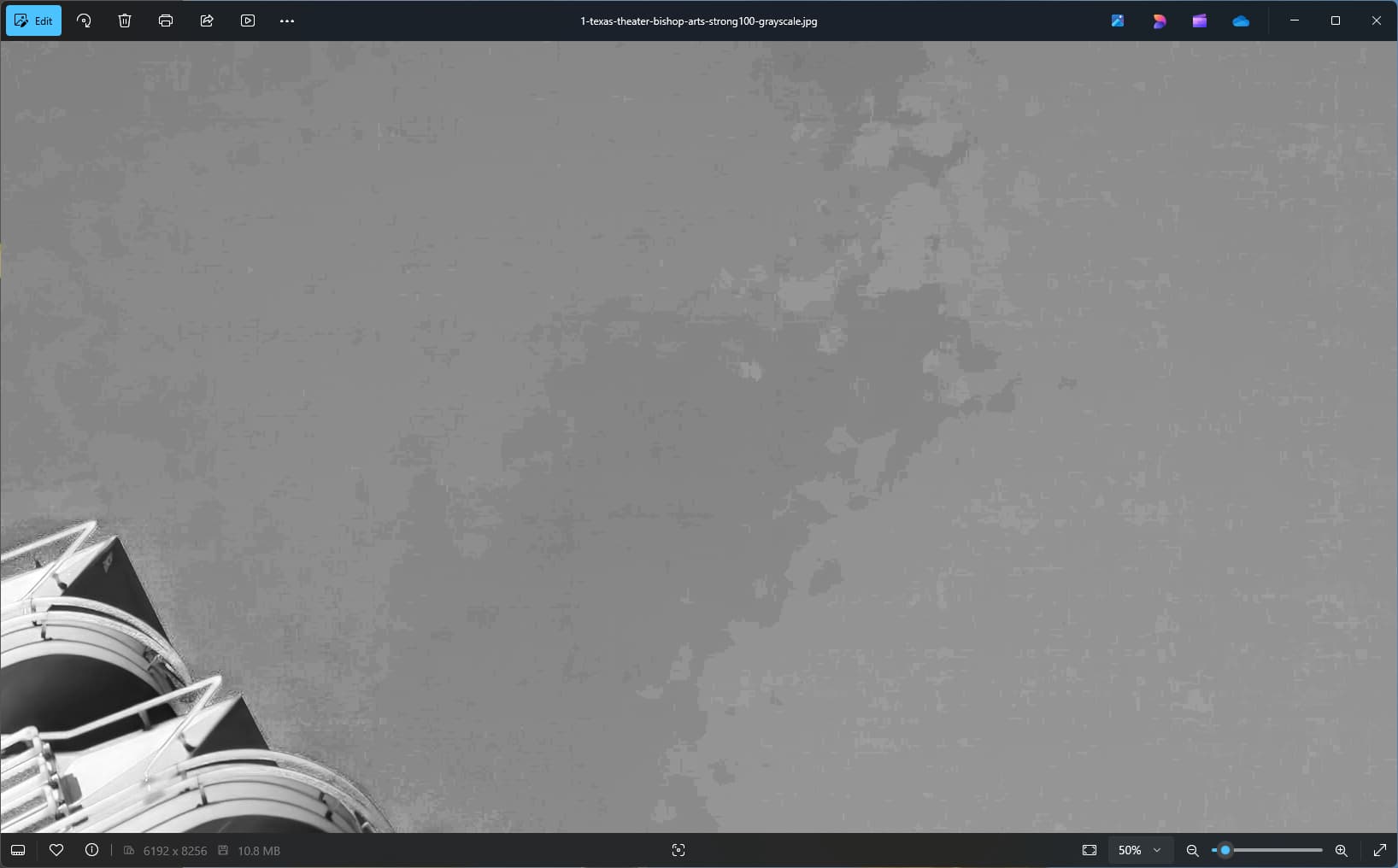
(top left - untreated arw, top right, tpai normal default, bottom left tpai strong 53)
not a grid but I’ve seen the blocks around bright objects before (especially a full moon).
tpai 3.3.2 and 3.3.3 (I don’t know if they’re different on Windows). I’m on a i5-8500/UHD630 Windows 11 PC. I get the same effects on a newer Windows 10 PC (both 32 GB Ram).
Both of my systems meet Topaz specs, but maybe there’s something about the Windows version.
(I also lose color gradation if I over-denoise (~30) your tiger statue in the shadows at the lower left - do you see that at all?)
I’m still seeing the grid appearing in denoise with TPAI 3.4.1.
From what I’ve seen of my and other’s photos, it is particularly bad/noticeable when denoise works on low-contrast areas (sky/dark). v3.4.1 gives a good base example that hopefully others with different systems can reproduce (or not), as well as something concrete for the devs.
Here’s the top right of 1-texas-theater-bishop-arts denoised using normal/100/1/0 (viewed at 50% size):
This issue has been noted by multiple users for over a year. To date I don’t recall any acknowledgment from Topaz, so I don’t know if they can’t reproduce it, can’t fix it, or haven’t gotten around to looking at it.
Search the forum for grid/checkerboard and it’s pretty much all the same - featureless areas (sky/dark) show grid patterns after denoise. I can even cause it to happen on the sample image of the Texas Theatre supplied with TPAI.
Thanks for sending in that information, and my apologies on the delay of response.
I have included these files and examples to an open support ticket we have with our development team who are currently investigating why this might be occurring with this particular types of images.
We will be sure to reach out to you on this forum thread and if you have any other questions always feel free to send us an email at help@topazlabs.com
I have also been having these issues as most of my photography is low-light. After searching through the forums here and from google, this issue has been around since 2018!! Is there any kind of workaround?!
I’m guessing I need to edit the images first in RAW then export it to something that TPAI likes as opposed to first denoising / sharpening the RAWs and editing.
So is there a file format that I can run through TPAI which will not produce artifacts? What is the highest quality format that will not produce artifacts? or does this even exist? Does TPAI always produce artifacts?
Also, when I brought up something similar before the thread was left to die with no solution:
I’m not seeing it in all of the images, but from some I spot it very easily. It’s much more recognizable on the actual image than these as attaching the image here seems to downgrade it a bit.
This looks like an artifact that is appearing due to either Raw Remove Noise or Enhance Resolution. The grid pattern is especially significant if the two filters are used together.
We will be working on updating the models to prevent this artifact.
@waltteri.reunamo@mountainbikers-78738
Please upload the files to my Dropbox so I can try to reproduce this issue which should make it easier to fix. Please be sure to send me a note to let me know you sent something. Dropbox File Request