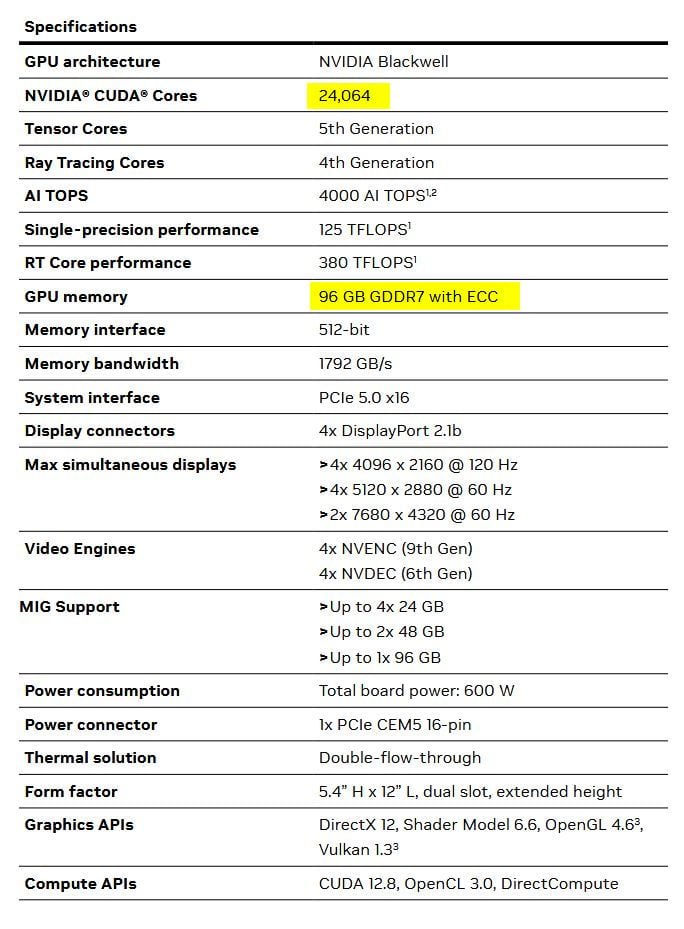
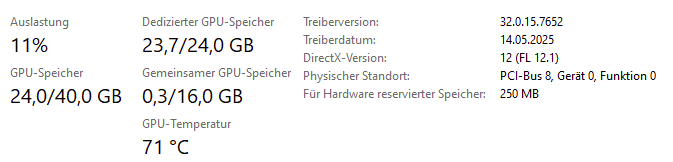
Thanks for the extensive testing! 32G VRAM needed?! In a time where nVidia brings about an RTX 5060 with only 8G, this may be a tough sell for many,
I have a RTX 4090 myself (with 24G), So, 7x slower for ‘only’ 24G onboard, is quite a stiff penalty. For 1.5 hours movie, I could be looking at a ~36 hour long render then. Oof.
Starlight works wonders for low-res and degraded footage but I’ve found it can actually worsen higher quality stuff. In particular, it tends to soften fine detail, turn text into gibberish and render small versions of faces as completely new people. If your movie is already not too bad, I think you’d get better results with Rhea (which is also new since your 3.1.6. version). Quite a lot quicker too!
Something different.
Could it be that the “add noise” function isn’t working? I’ve tried it on Proteus, Iris, and Gaia, and I can’t see any difference between the values 0 and 10.
Ive found Rhea and Rhea XL terrible. Ruins everything ive tried it on.
Starlight Mini still best quality overall even though slow as death! Wierdly, the output is darker than original so have to brighten it using Davinci.
Ive found Starlight Mini is like Iris+
Text, unless large on the screen turns into alien text and some monster faces here and there. To edit something high quality you’d have to use different models on certain scenes or overlay a face/text on top of video (not so difficult with Davinci Studio)
Funny Starlight Cloud delivers 1080p, and with the Mini we get 960p or 1440p from 480p source. When they have 2.25x model, I would like to have it Could also be they don’t have one and do Lanczos downscale.
I created a simple LUT editor for the use with TVAI (eg fix color cast) in html which can be downloaded from this TVAI thread in General section with some explanation and a sample:
What’s the highest resolution you would use? Anything below 720p?
I’ve had similar results, if you try to upscale something already in a higher resolution, the results aren’t great. But with the slow speed, why would you want that anyway. Proteus does a fine job at higher resolutions, or iris.
With a 5070ti 16gb and poor quality “choppy” frame rate video it seems that starlight squashes the frames together at regular intervals, which causes the video to play way faster than the audio.
Can you use the original frame’s PTS for the output to match the input? If you take 2 frames with pts 1000 and pts 1400, and output those frames at pts 1000 and pts 1300, you’re fast-forwarding the video .25x, and it accumulates into a large AV sync issue. It’s also visually surprising, like an old silent movie played too quickly.
Right, I’m not expecting a fix overnight, but I assume the sooner they tackle the issue, the better off it’ll be. I imagine the longer the issue remains as the model evolves, the more difficult it would be to correct it.
But yes, some response from the dev team about it would be nice.
Hello there, yes, they do, I bought one of the shiny new A6000 PRO Blackwell and the poor card is running almost H24 upscaling my stock of old and damaged digitalized VHS. Right now it is eating 47/96 GB of VRAM (Starlight Mini x3 of an old NTSC very damaged VHS)
Using Starlight Mini at ‘Minimum’ and then upscaling with RheaXL distorts especially faces in a very unpleasant way, this works only if the input video is not too damaged and faces can be clearly seen. With Proteus, it is a bit better, but not ideal either. What I have found out, is that for very damaged videos, you are better of using Starlight Mini at ‘x3’ and no further upscaling with a classic model. This yields the best results. However, this means much more time obviously.
I use as input (VHS, S-VHS, Mini-DV, Super 8) the original resolution.
Either 640x480 or 720x576.
Starlight Mini works only, if I (minimum) double the input resolution for output.
If I don’t double the input resolution for output I get an error then rendering.
First I deinterlace the videos with the app TMPGEnc Video Mastering Works 7.
The results are better then using Starlight Mini.
In order to deal with the very long render times at only 0,2 fps, I splitted before my videos in single sequences with the app “Lossless Cut”. Lossless Cut split automatic videos via scene change recognition and batch output all single clips. It is very fast.
So I use the nights to render the single clips with Starlight Mini.
Starlight mini ist still crashing my rtx 3090 if I upscale 480p with 2x and 100% vram..
88%vram is working.
I set global all to"use system fallback" and also runner.exe
Also Resizeable Bar is enabled
could this be a problem with RTX3090 or with Win10?
Or do I need more than 32 GB of system RAM?
I have a RTX 4090 with 16GB of VRAM, i9 processor and 64GB of RAM. A 36 second video says it will take 1hr47min to render with mini. Is this normal? If it is, then it def needs to be enhanced more.
Would need to know a few more things, like what type of video you’re enhancing and by how much, is it from an SD resolution of say 480p? And are you doing the minimum resolution size increase, or X2, or X4? What have you set the VRAM usage for within the settings of Topaz?
On my 4090, using Starlight Mini for a 30 second 480p video for the minimum resolution size increase, with the 88% VRAM setting, is about 20 minutes give or take. If I go to X2, the typical speed translates to roughly 1 minute of footage takes an hour.
Click the restore button in the nVidia control panel. I have 3090 and Windows 10 operating system, the same error as you appeared after I disabled the use of additional system memory
 Could also be they don’t have one and do Lanczos downscale.
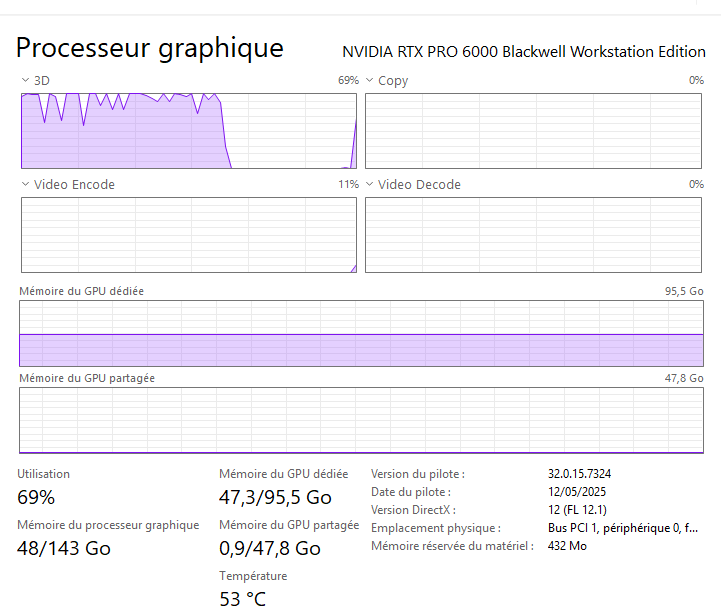
 can you try 4x, I think more VRAM then gets used