Video AI 7.0 - NEW Starlight Mini (Local) AI Model

If you don’t get the following error message [ERROR] exception during run(): CUDA out of memory ... when executing the runner, than yes, that’s likely the case.

Swapped VRAM memory is marked as non-pageable in windows (IIRC), which just means windows won’t try to further swap that memory to disk when DRAM is also running out.

So if the GPU is out of memory, and Windows is out of memory, and Windows isn’t allowed to swap overflowing memory to disk, then there’s nothing it can do but force the program to crash, else your entire system would go down.

To check if you’re running out of just VRAM or DRAM as well, just open the terminal and go to the folder where the runner.exe file resides in. Then start the starlight runner directly.

runner.exe sample.mp4 sample_starlight_out.mkv --start-frame-idx 0 --end-frame-idx 64 --ffmpeg-encoding "-c:v h264_nvenc -profile:v high -pix_fmt yuv420p -g 15 -preset p7 -tune hq -rc constqp -qp 18 -rc-lookahead 10 -spatial_aq 1 -aq-strength 15 -b:v 0 -movflags frag_keyframe+empty_moov+delay_moov+use_metadata_tags+write_colr -bf 0" --ffmpeg-preproc-filters scale=w=320:h=240,setsar=1 --upscale-factor 1 --max-gpu-mem 24

Where you just change the name of the clip to the absolute path of whatever test clip you want to test with. E.g. “c:/temp/cute-puppies”.

When I disable GPU swapping, after a minute or so of initial startup time, I get a CUDA out of memory crash like this:

[INFO] Start and End frame: 0, 83. Timebase: 1/15360
[INFO] Seeking got us to: 1, we need to go to 0
[ERROR] exception during run(): CUDA out of memory. Tried to allocate 3.52 GiB. GPU 0 has a total capacity of 23.99 GiB of which 2.00 GiB is free. Of the allocated memory 18.41 GiB is allocated by PyTorch, and 1.37 GiB is reserved by PyTorch but unallocated. If reserved but unallocated memory is large try setting PYTORCH_CUDA_ALLOC_CONF=expandable_segments:True to avoid fragmentation.  See documentation for Memory Management  (https://pytorch.org/docs/stable/notes/cuda.html#environment-variables)
{"timestamp": "2025-06-01 17:53:54,989", "level": "INFO", "message": {"status": "ERROR", "frame": 0, "progress": 0}}

When I enable swapping, the first few frames are rendered correctly (and the rest as well)

{"timestamp": "2025-06-01 17:56:28,621", "level": "INFO", "message": {"status": "RUNNING", "frame": 0, "progress": 0}}
[INFO] Start and End frame: 0, 164. Timebase: 1/15360
[INFO] Seeking got us to: 1, we need to go to 0
[INFO] total number of frames written: 32, 64, 64, 165
...

In my case I don’t get a crash since I have 128 GB RAM with plenty free. But if I hadn’t I’d been in trouble as well. From what I can see the peak DRAM usage for starlight during startup seems to be around 18-20GB. But it could well be higher for an instant (32GB+), since my measurement tools weren’t accurate enough to capture these microsecond peak usages [1]

[1] A picosecond of using too much memory is just as bad as infinity of using the same amount, so the time duration for excess usage doesn’t matter if swapping isn’t possible.

Yes, Absolutely. And very well I’d estimate.

See, what Topaz has cleverly done with the Mini model is not to use their existing TVAI engine (ffmpeg plugin)

The problem (or one of the problems) with that engine was that it was built on an ancient versions of nVidia tech, so ancient it didn’t support Blackwell.

With SLM they Instead seem to be using the latest pytorch with CUDA 12.8. The last bit is key for blackwell. The recent pytorch is just an extra performance boon for us (optimizations there as well).

In short, I’d expect Blackwell to perform at peak performance, finally stomping my “old” 4090 :slight_smile:

can you explain what u mean by Starlight Mini at ‘x3 i have some horrible old hi 8 thanks

1 Like

he means 3x upscale if you have 480p gives you 1440p

I saw benchmarks (not Starlight) the card is overall about 20% faster than 5090, or you can say a tuned 5090 with 96GB VRam, power consumption is 600W

1 Like

Awesome, thanks! I actually just started using lossless cut. It seems like you have to make cuts during keyframes. Sometimes I need to make a more precise cut, but if you turn off keyframes, it doesn’t quite work. I’m wondering if you know a fix for this. I haven’t researched it yet.

I never got runner.exe to work.. how do you do that?
In the TVIA gui, I go to ‘process’ and open a command prompt window..

Then I start the runner.exe in the model-folder with the arguments, but the runner always exit immediately without any error..

edit:
now its working.. That was tough.
had to add a lot of PATH environmental variables to the cmd

edit 2: got this with 24GB and system-swap-enabled

[INFO] Seeking got us to: 0, we need to go to 0
[ERROR] exception during run(): CUDA out of memory. Tried to allocate 3.52 GiB. GPU 0 has a total capacity of 24.00 GiB of which 2.94 GiB is free. Of the allocated memory 18.26 GiB is allocated by PyTorch, and 1.38 GiB is reserved by PyTorch but unallocated. If reserved but unallocated memory is large try setting PYTORCH_CUDA_ALLOC_CONF=expandable_segments:True to avoid fragmentation.  See documentation for Memory Management  (https://pytorch.org/docs/stable/notes/cuda.html#environment-variables)
{"timestamp": "2025-06-01 20:54:53,817", "level": "INFO", "message": {"status": "ERROR", "frame": 0, "progress": 0}}

edit 3:
I found the reason why TVAI crashes at 100%.
I didn’t have enough free space on the C drive for the pagefile.sys, even though I had expanded the pagefile to two other SSDs.
The problem was that Windows refused to use the other SSD because I encrypted Windows with BitLocker and the other SSDs are not encrypted. I have now discovered that the pagefile can therefore only be moved to an encrypted SSD… oh man.
now its working

You don’t need to manual set keyframes.

Go under “Tools” (menu above) and then “Dedect Scene Changes”.

On export you use “Separate Files”. Thats it :wink:

2 Likes

How is this going with the ffmpeg - thing (because of my p7 - error)? What must I download and where must I install or update it?
Many thanks for help.

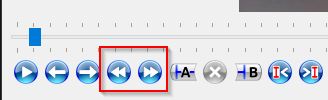
you can also use Avidemux, can do lossless cut on Keyframes also. Use the two Arrows to jump from one Keyframe to next one

2 Likes

Yeah, not going to spend 6,000-10,000 dollars on a video card. :slight_smile: If it can’t be done on my RTX 4090 (or possible RTX 5090 even), then I won’t bother.

2 Likes

Hello, I noticed many people getting soft exports from SLmini. I am one of those people.
I’ve been playing around with other models to fix the sharpness after exporting a file with SL mini. I didn’t get the results I wanted with Iris OR Rhea (although they’re okay). I found that Proteus does a better job than both of those (for 480p exports).

With Proteus, I set the ‘Focus Fix’ on ‘Normal’ and set the ‘Sharpen’ option to around 50% (I’m still shifting that up and down, at the moment for potential best results).

I even tried another way with the same settings, but adding the option to interpolate the same vid to 60 from 30 fps. This one came out pretty realistic, in my opinion.
I’ve gotten pretty nice results with this, as far as trying to make everything more sharp.

3 Likes

Ok….

I have been somewhat put off by constant issues on my PC with Video AI…. basically from 6.0 on.

Mac works fine.

But I have to tell you that 7.0 and this new Starlight mini just hits it out of the park for me.

The major thing I work with is old 8 mm and 16 mm conversions…. As well as old VHS and VHSC conversions…. and the source material ranges from the 1950s to 2000…… after 2000 most of the video cameras became so much better and quality on the home videos doesn’t seem to be that big an issue.

Virtually everything I see before year 2000 is pretty bad quality…. And sizes range from 320 x 240…… to a lot of 640 x 480…. Some of the later conversions are at 1920 x 1080…. But many times the quality is just….bad.

So many different digitation outfits and they all seem to provide different results….. and quality.

But here’s the bottom line….

Although Starlight mini is slow as molasses….

The quality that comes out is just really, really good!

FAR better than any of the models I have tried using on these old videos for the last 3 to 4 years.

And it’s so simple….. fire and forget…..it defaults to 1280 X 960 which is totally fine for iPad, computer and phone viewing, which is what I’m shooting for.

You have to wait a long time for the final render result….. a 25 minute video might take all night and then some… BUT LORDY, YOU WILL BE SURPRISED AT THE RESULTS! And output file sizes are totally manageable….. not bad at all.

Finally, an easy to use, non-rocket science method to make really old home videos that are just bad….. become really good!

Good Job Topaz!

3 Likes

Hello Robert. With Starlight mini on ‘minimum’, speed is 1.0 fps, and it eats about 36 GB of VRAM. With Starlight mini on ‘x3’, speed is at 0.3 fps, and it eats almost 47 GB of VRAM. This is for input videos in PAL or NTSC format (mostly digitalized old VHS).
NB : ‘x2’ does nothing, you get the same output resolution as ‘Minimum’, but that’s not related to the card.

yes, exactly that :slight_smile:

excellent, that’s the card I have, make sure you buy the “Desktop Edition” if you decide to get one :wink: I haven’t tried x4 yet, I don’t sure it’s so useful for Starlight Mini.

This thing is very nice, but i was joking, for me it’s to expensive because i don’t earn any money with it it’s a hobby. But something like this with 48GB VRAM would be ideal for us, where you can do every SD source 3x in highest quality loading model into VRAM without shared system RAM.

We can hope the 5090 with 32GB prices drops, but I’m waiting for something cheaper, maybe we get “5080Ti Super” with 24GB VRam, was announced but you can’t buy one today. I think it would be more suitable for the masses

2 Likes

I really don’t know what to do further with starlight mini.
I have 32GB RAM, 16GB VRAM on a RTX5060ti and everything seems to work.
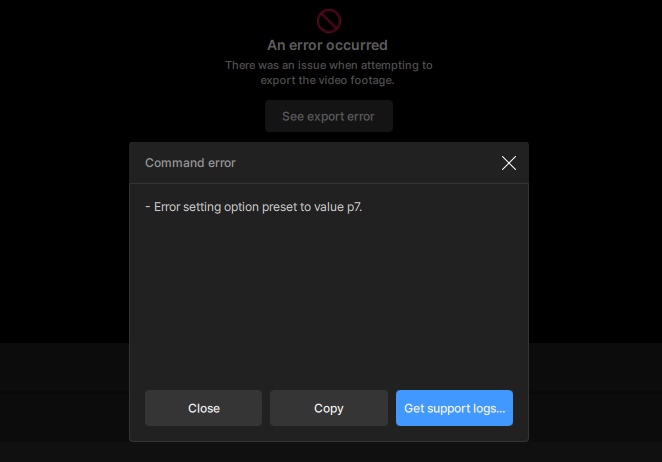
After a few seconds i get the following messages:


I changed the output codec from H264 to H265 and to AV1 with the same result.
I reduced the max memory to 70%.

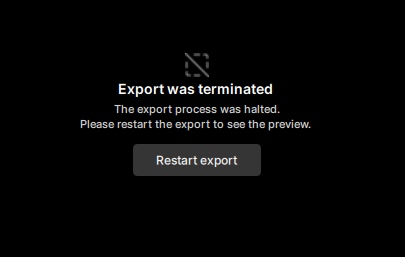
Exporting as mkv makes this picture:

The program doesn’t crash but doesn’t export, too. What’s the problem???
Frustrating…

I don’t know, if it is the same problem like in my case.

I get this error on export, then I don’t manually increase/double the output resolution before export.
Since I double the output/input resolution before export, I don’t have this error.

Try this manual set 2x. If it happens again, can you post the logs? Would be easyer to find the fault in the logs when you clean up all logfiles first, then do again that the fault happens and export logs.

For logs clean-up copy paste this into file explorer and delete all log-files here (logs files are then new generated when you do something into TVAI)
%USERPROFILE%\AppData\Roaming\Topaz Labs LLC\Topaz Video AI\logs

The newest log…

2025-06-02-11-55-45-Main.tzlog (156.3 KB)
audio-codecs.json (785 Bytes)
proxy.json (28 Bytes)
video-encoders.json (20.0 KB)