Upscaling Hi8/MiniDV/VHS – Workflows for short clips to achieve the best possible quality

In the Topaz Video release threads, many users share their experiences, tips, and tricks regarding the upscaling workflow as soon as new models or improvements become available.

Older release threads are locked as soon as a new release is published, which can interrupt discussions. And tips on workflows often get a bit lost among the other posts there and are harder to find later on. Therefore, I would like to suggest that we collect and continue the recommendations regarding the upscaling workflow here, separate from the release posts.


This thread should focus specifically on:

  • Experiences and workflows in the restoration of old SD footage (mainly PAL/NTSC sources, below 720p) from the 1980s, 1990s and 2000s (e.g. Hi8/MiniDV/VHS)

  • Starlight models involved (e.g. SLM = Starlight Mini; SLP = Starlight Precise)

  • How to achieve the best possible quality

These workflows are probably only suitable for short clips, as – depending on the source material and quality requirements – it can be very time-consuming to render everything multiple times in order to find the best model combination for each scene.

If you’re looking for tips or would like to share your workflow for optimising longer recordings, please click here: Upscaling Hi8/MiniDV/VHS – Workflows for longer recordings with less time effort


Please feel free to share your workflows, settings, experiences, example screenshots/videos, recommendations, tips and tricks, quirks and flaws…

(Originally posted in the Topaz Video 1.4.0 release thread, modified:)

If the video clip has a static background (camera not moving), Starlight Precise sometimes creates visible ‘jumps’ in the background. For me, the “jump” occurred after about 25 frames. To hide these ‘jumps’, I am currently using the following method:

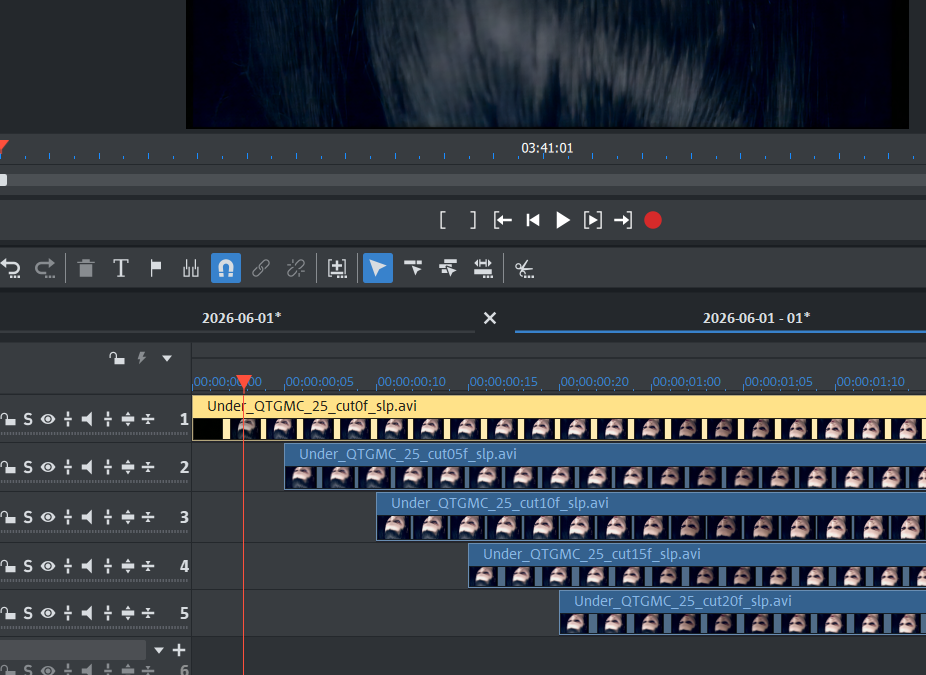
Create 4 copies of the original video sequence.

Then trim these copies at the beginning:

  • Remove 5 frames from the first copy
  • Remove 10 frames from the second copy
  • Remove 15 frames from the third copy
  • Remove 20 frames from the fourth copy

Then render all 5 files (including the untrimmed original file) with SLP. Due to the time offset, SLP seems to enhance each clip slightly differently; the results are not exactly identical.

Then overlay the 5 SLP results in a video editor (layer opacity from bottom to top: 100%, 50%, 33%, 25%, 20%) and make sure the clip ends are flush in the timeline so that all 5 clips are in sync. The beginning of the timeline should look like a staircase (due to the time offset of the 5 clips).

Afterward, I could no longer see any “jumps,” and overall the result was more realistic (smoother skin, less exaggerated, no overly sharp edges, etc.).

The only downside: It’s much more time-consuming and labor-intensive. But I find the result convincing, and depending on the project or scene, it could be worth the effort.

I’ve also recently noticed that, with this method, it’s worth setting Starlight Precise to the maximum upscale factor (4x or UHD).

Although the video footage is already significantly improved at a factor of 1x or 2x, at the maximum factor, small faces in particular are rendered even more realistically and closer to the original.

Superb initiative! Gonna post some samples here soon. :slight_smile:
BTW…you forgot about Video8, Hi8’s little brother. :stuck_out_tongue:

Here’s a tip regarding downscaling. I tried a lot of different methods and came to the conclusion that this one delivers the best results by use in a workflow like this: Upscale with SLM → Downscale → Upscale with SLP.

ffmpeg -i "INPUT.mkv" -vf "libplacebo=w=1440:h=1080:downscaler=ewa_lanczos:antiringing=0.6" -c:v ffv1 "OUTPUT.mkv"

adjust desired resolution, path/filename. You must use one of the “ffmpeg Full-Builds”, otherwise “ewa_lanczos” is not included

ewa_lanczos is one of the highest-quality reconstruction filters in FFmpeg / libplacebo.

  1. EWA filters preserve fine structure better than standard Lanczos.
  2. antiringing=0.6 helps suppress halos introduced by aggressive kernels, which is useful before another AI upscale.

Edit
The value can of course be adjusted; 0.3 would be half of a very light anti-ringing setting. If the source image is generally fine but only tiny details are too sharp - for example, teeth are often a problem - it can make sense to selectively soften them using Smart Blur.

ffmpeg -i input.mp4 -vf "smartblur=lr=0.7:ls=0.12" -c:v libx264 -crf 15 -preset slow -c:a copy output.mp4
  • lr=0.7 → a rel. small blur radius (value how far the filter looks around each pixel)
  • ls=0.12 → does slightly softening (positive values blur, negative sharpening)

I’d be very interested to find out if anyone has encountered something good much akin to Topaz, that helps with the audio side? Can now get some fantastic video outputs, but some get spoiled due to either background noises or audio that partially cracks/breaks up.

I do this horrible time consuming workflow now :grin:

I used an FFmpeg script to trim 5, 10, 15, and 20 frames and create four separate videos. At the moment, I’m upscaling all 5 versions with SLP. I’ll also check whether the overlay can be done with CMD instead of in a video editor, as that would simplify the process.

Once I have the finished video, I’d be happy to share it here. It’s a music video that’s under four minutes long; otherwise, I wouldn’t put myself through this. :grinning_face_with_smiling_eyes:

We need a other solution for the SLP jittering problem @Topazlabs


here are some ChatGPT suggestions that could reduce the effect

Post-processing approaches that may help

Temporal blending

A very mild temporal blend can hide these periodic jumps.

Examples:

  • Resolve: Motion Blur FX with low settings.
  • After Effects: Pixel Motion Blur or Frame Blend.
  • FFmpeg: tblend or motion-compensated interpolation.

The goal isn’t visible blur—just enough to smooth the discontinuity.

Interpolate and downsample

A surprisingly effective trick:

  1. Take the Starlight output.
  2. Interpolate 24 fps → 48 fps (or 25 → 50).
  3. Export.
  4. Convert back to the original frame rate.

The optical flow stage often smooths over the temporal reset frames.

Motion-compensated temporal denoise

Resolve Studio’s Temporal NR can act as a temporal stabilizer if used gently:

  • 2 frames
  • Better motion estimation
  • Very low luma/chroma values

Too much will create ghosting.

Better than post-processing: overlap the processing

If Topaz is chunking internally because of VRAM limits, the ideal fix is usually during processing:

  • Reduce output resolution slightly.
  • Use tiles with overlap (if available).
  • Increase available VRAM.
  • Use a model variant that uses a larger temporal context per frame.
  • Process in overlapping segments and blend the boundaries.

How to verify this theory

Take a clip where the issue is obvious and step frame-by-frame.

If you see:

  • Frame 1–24: coherent motion
  • Frame 25: slight reinterpretation
  • Frame 26 onward: coherent again

and the pattern repeats regularly, that’s very characteristic of a limited temporal context rather than random hallucination.

SLP Anti-Jittering project finally finished! My computer was sweating for three days straight… and afterward, so was I. It is a SLP 4x upscale, no SLM used. The entire processing chain was done losslessly in FFV1, stacked all five upscales in my video editor on top of each other and set opacity.

The result: hell yeah, the five-layer blend-trick definitely works! The footage became smooth, with no more jittering! However, the amount of time required doing this is enormous—I’ll probably never do it again.

Deinterlacing: QTGMC without BOB, I tryed double frames, but generated ones looked very bad and had no movments.


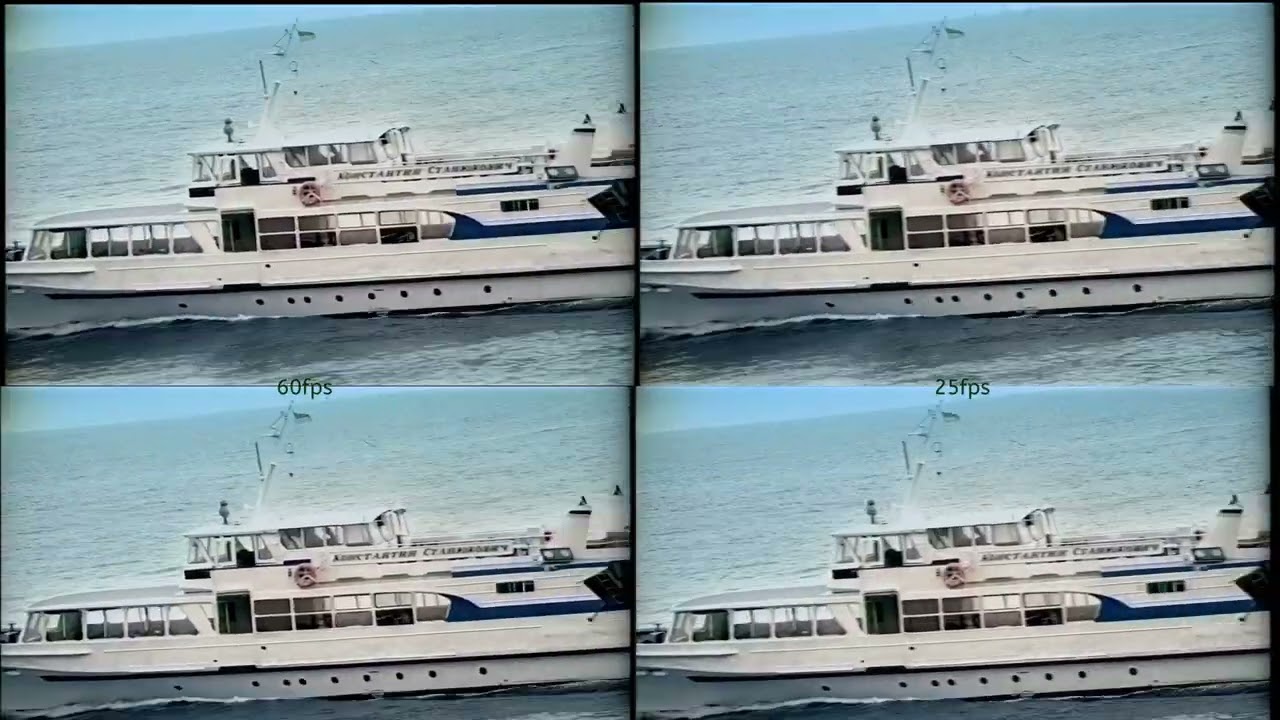
So this is very interessting; this is 25fps only, but movements looks smooth it looks like more than 25fps. This speaks for this Five-Upscale-Blending superduper method :slightly_smiling_face:

Post-processing

The overlay softened the SLP, which was exactly what I wanted. However, in this particular case it was still a little too “crispy,” so I used SmartBlur at a very low setting: smartblur=lr=0.7:ls=-0.12

I then imported it into Topaz and used Iris MQ as the finishing model (with Gaia as the second model), and added some grain. Unfortunately, YouTube killed most of the grain during re-encoding.

My FFV1 upscale looks better than on YouTube, but that was to be expected and my FFV1 is 4:2:2 10-Bit (converted, better grain), for Youtube i did 4:2:0 (in cases of compability).

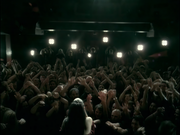
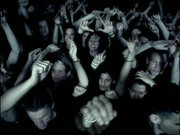
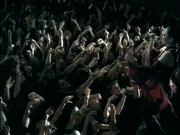
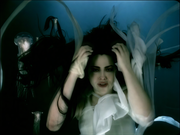
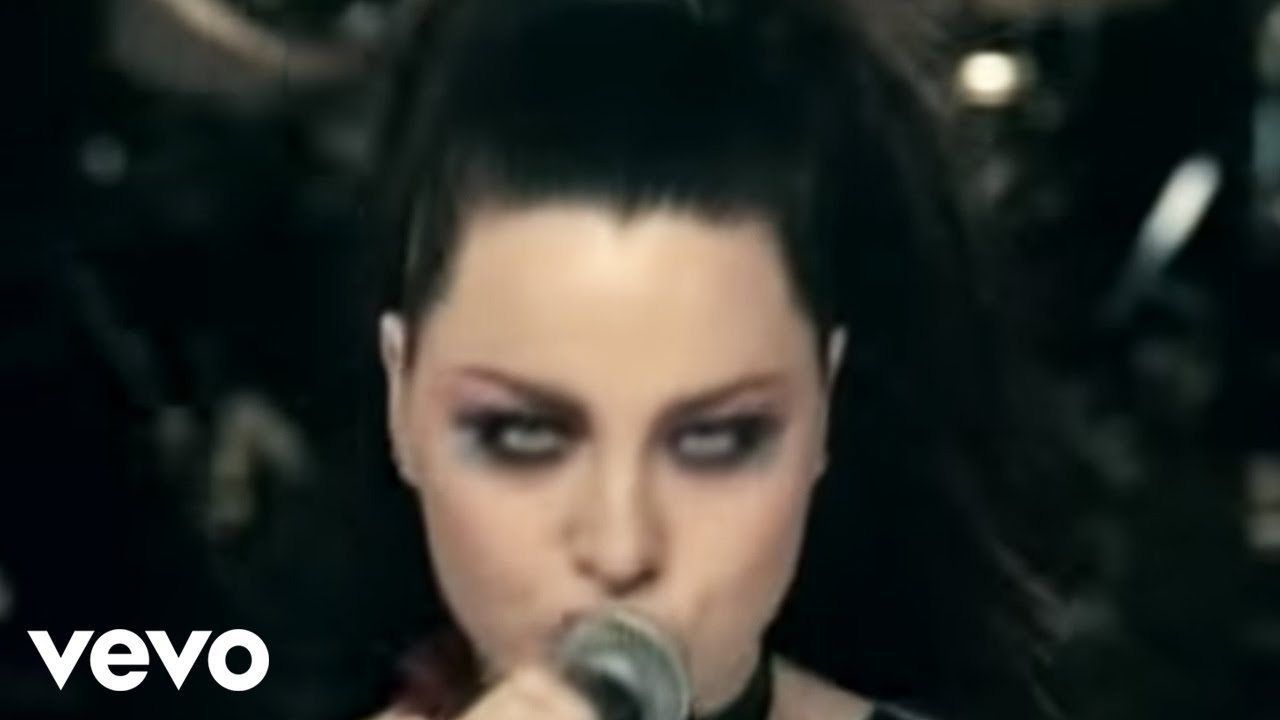
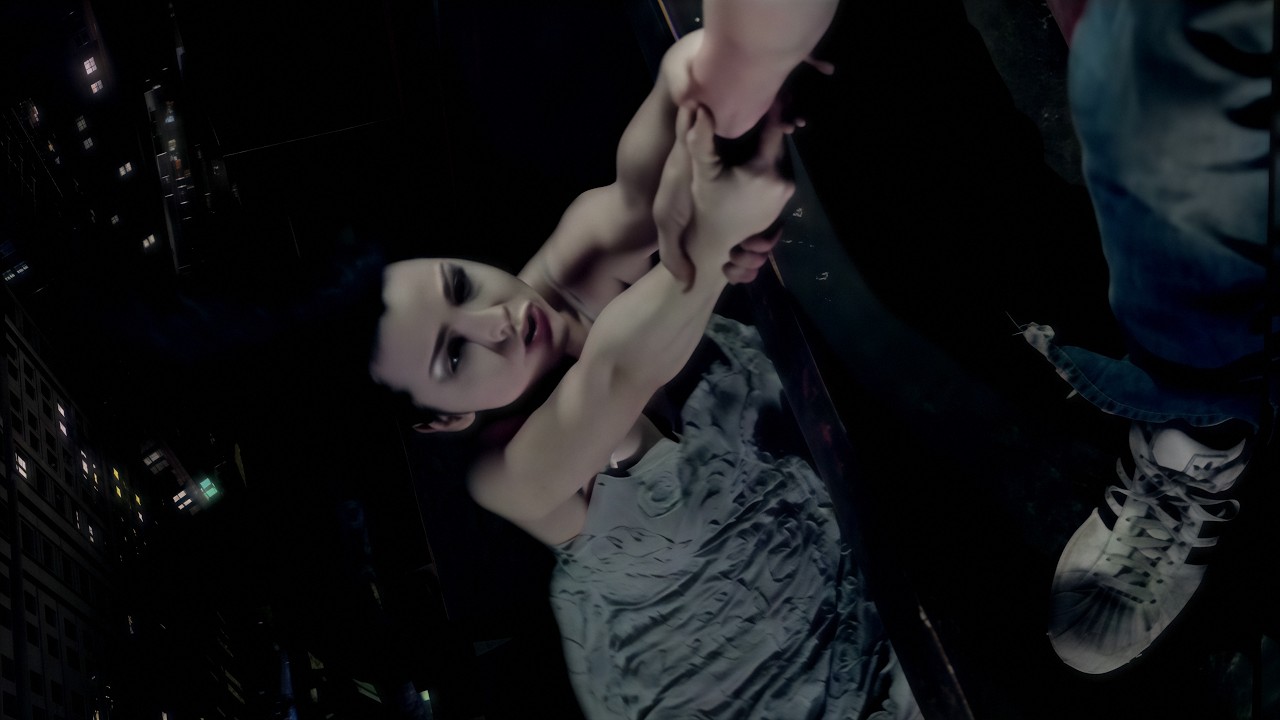
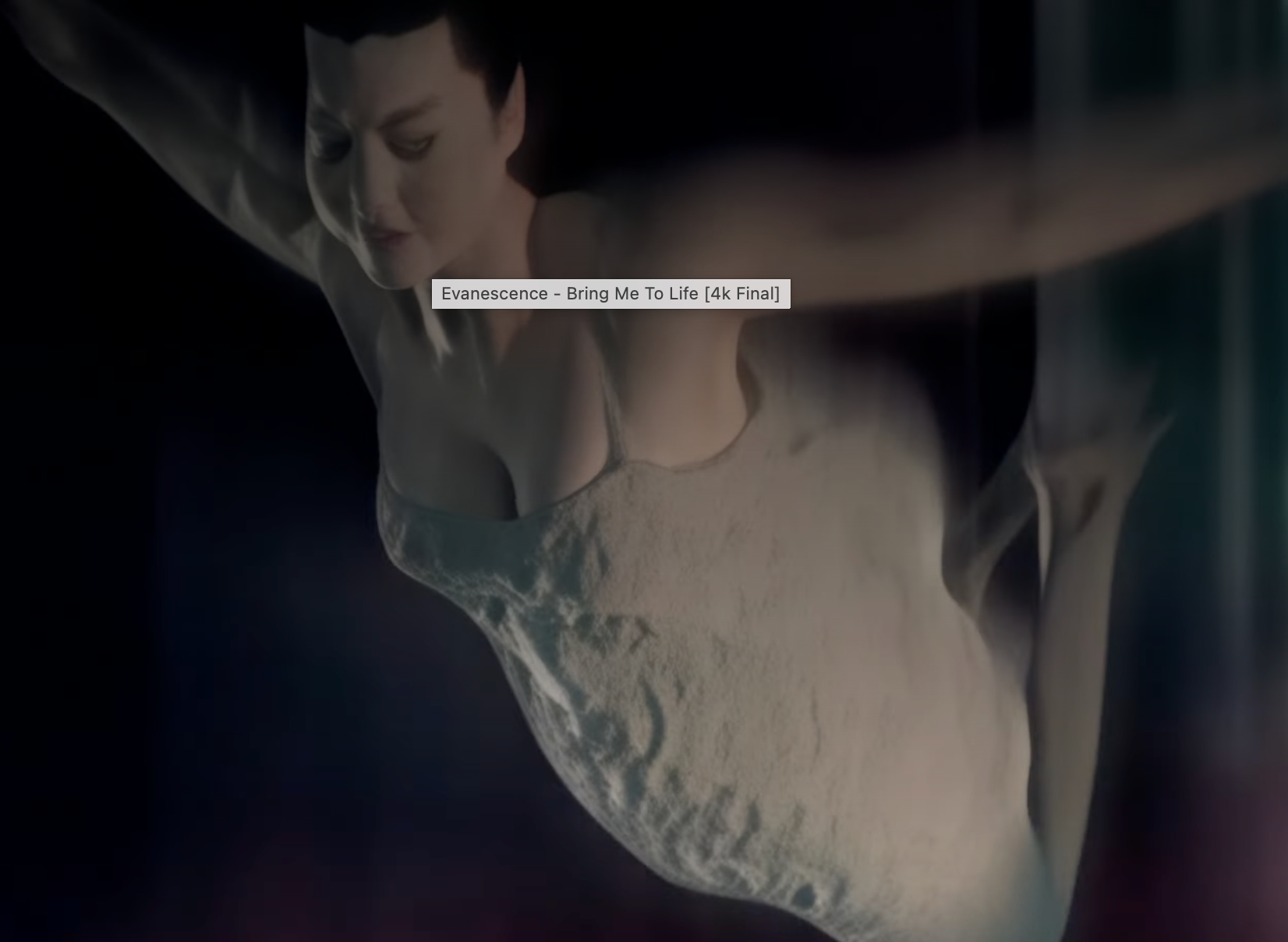
The screenshots are taken from my original FFV1, so you can also see some grain there.

My Upscale video, here it is

here is the official SD version, close to the DVD version (sure I used DVD source)

ups i did it again - Wasn’t that the text from Britney Spears? Anyway, I’ve already done 5 x SLP upscales again and blended 5 frames with offset. After that I also did SLM 1x here and, as a final step, Iris MQ, and well, in the end also worked with GrainFactory. In between, I used various ffmpeg filters to make the whole thing smoother and more lifelike.

So again, the 5-layer method is amazing; I mean the video only has 25 fps, it almost completely removes jittering. The time investment, however, is brutal. Anyway, here is the result

a legendary song deserves maximum effort