That is a good point, thank you for sharing how this affects your workflow.
Odd, I was not able to reproduce this, could you share the exact title you saved with?
Can you share more about the second issue? On my end, I can use the edit menu option or click on the save icon to update my custom presets.
Can you share a screen recording of what you are seeing? Oftentimes it is easiest to share a screen recording for issues like this to quickly show me exactly what is happening. I use Loom for screen recordings since this is a free and easy to use app.
Also, please provide examples of why the custom resolution option is messed up and how this affects your workflow. Now you can have custom width and height by unchecking the lock, or the two first options by locking it and editing one of them
Now you can have custom width and height by unchecking the lock, or the two first options by locking it and editing one of them
The resolution will be saved to your preset, can you please confirm that this is not working on your end?
1 Like
Can you share more about what you are reporting.
Yes, the resolution remain in the preset, but it’ll stay in the preset for that one video I’ve had loaded, when I saved the preset. Next video, dropped into VEAI, while THE preset is a default one, will have the exact same width and height, so I have to retype ‘1080’ as height to force VEAI to calculate the width for the newly dropped video. 
Of course, if I wanted another (<>1080) value, then retyping is a valid option. I’d made another preset with, for example, 720p height, though.
Thank you for replying, to reproduce problem:
- Load video
- Slide Enhancement to On
- Change Auto to Manual
- Press Estimate: Revert Compression displays 34
- Manually change Revert Compression to 99
- Press Estimate: Revert Compression displays 99 (should go back to 34)
- Go to different frame, press estimate, still 99 (in 3.35 → new value)
- Load a new video file, press estimate, still 99 (in 3.3.5 → new value)
Exporting image sequences become even more buggy.
Since the advertised ProRes 444 encoding is still not available on the UI (9 months after the release of v3), I worked around it by exporting PNG sequences instead (to preserve that extra color info).
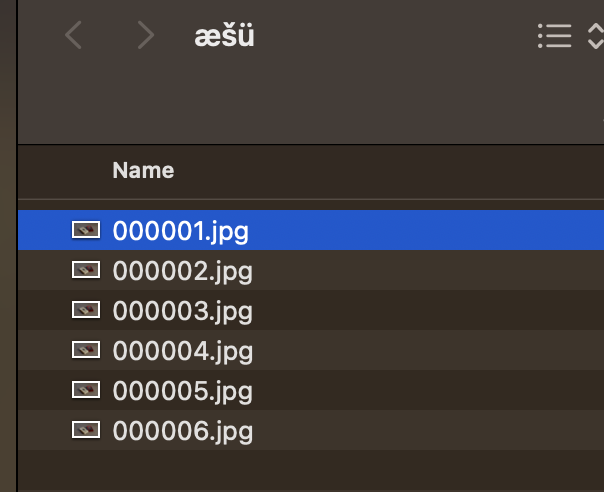
That process become a bit more troublesome since a bug got introduced a few weeks back: any attempt to (re)import sequences crashes the whole application instantly (so the log files don’t say much) when “special” characters are present in the file path. I work in an environment where English is not the primary language so I ran into problem a lot.
As a result, I started to use the “Export As…” button/checkbox more often so I can pick places on my drive where the path is not problematic.
After this release however, “Export As…” seems to cause a weird issue (regular Export doesn’t seem to be affected): If I’m done with exporting a sequence, then try to “Preview” another part of the same video, the preview images overwrite my previously exported sequence! The whole folder actually… So if I just exported 10,000 PNGs, then I request a 30 frame long Preview of the same video, 10k PNG file vanishes as they are replaced by 30 preview image in that same folder.
- My preview temp folder is correctly set (to another folder of course)
- I use Windows 11 (Intel Core i5-13500, Nvidia GeForce RTX 3060, 64GB DDR5-4800 RAM) and I have plenty of free space on my SSD.
v3.3.7
Released July 26th, 2023
Downloads:
- Windows (3.3.7)
- Mac - DMG | PKG (3.3.7)
Changes from 3.3.6:
- Iris Interlaced now has Recover Original Detail slider
4 Likes
Does this release restore the ability to tweak an existing preset and save it as something else? Removing this functionality is a severe limitation to my workflow, as I make and use presets constantly. Having to make a new preset only from the “None” position is a big hinderance.
Great - thanks for the quick response.
v3.3.8
Released July 26th, 2023
Downloads:
- Windows (3.3.8)
- Mac - DMG | PKG (3.3.8)
Changes from v3.3.7:
- Fixed image sequence previews overwriting or deleting previously completed exports
5 Likes
Thank you for fixing this so quickly!
1 Like
I read the posts every now and then , i got a bit frustrated using Intel Arc a770 , and thanks to ida.topazlabs i got a tip to use version 3.1.9 and it runs really good , but i know as updates come there are new stuff added .
So hopefully sometime in a near future i can upgrade the graphic card and can run the updates .
3 Likes
I have a question. I always input 5 video files, upscaled from 1080 → 3840*2160 and 29.97FPS → 59.94FPS. Chronos Fast+Proteus Manuel (VideoType is Progressive),the values of the parameters of the 5 video files (Revert Compression, Recover Details, Sharpen, Reduce Noise, Dehalo and Anti-Alias/Deblur) are all different. However, after setting the parameter values for the fifth video file, when I check to see if the settings for all the video files are set correctly, the set values for all video files change to the parameter values for the fifth video file.(For example, set the Recover Details for the fifth video file to 50. All other video files’ Recover Details will also change to 50.) Is this a bug?
Ha that’s right I didn’t pay attention to that detail. I’m so used to importing files that when I import a folder from an image sequence I don’t even look at the default input value anymore hahaha. I guess that’s why I had more images than expected in the output. I’ll have to look harder next time hahaha
I think Windows and Mac are different. It will work on Mac but not necessarily on Windows.
But the input file names for the image sequence in my folder start with 0000.
But it’s mainly if the folder has accented characters or white spaces in the name that the crash occurs. Also, if the sequence folder is correctly named, but only one folder in the hierarchy is named with white spaces, the software will crash when importing the sequence. So these are the tests I ran yesterday. But if all the folders and subfolders in the hierarchy are named without white spaces and without capital letters, everything’s fine. This is a bug that didn’t exist before 3.3.0. In fact, of all the software programs in general with image sequence import capability, I’ve never seen such a problem caused by renaming names with white spaces.
Unfortunately this doesnt work for me … I am using 3 images sequence as usual - no specific characters in file names or folders . Its like c:\images\image001.png , image002.png , image003.png
With older VAI version i never had any issues like this . If i try to export them as video file - there is no problem - everything works . But cant export them as images…the output folder stays empty …
Unfortunately the problem still persist in version 3.3.8 . When you load image sequence and set output settings “image sequence” and some image format like .jpeg , png or tif - after the jobe is “done” the output folder is EMPTY ! Image preview doesnt work too .FIX this ASAP please !
