I managed to improve the speed of StarLight mini on my RTX 3070. I’ve gone from 5.99/6.04 seconds per frame with “Power Limit” at 100% to 5.94 at best, with spikes to 6 or 6.11 seconds per frame. But more often than not, it remains constant below 6. I’ve simply activated an auto Overclock with “MSI After Burner” while leaving the “Power Limit” at 100%. So, in “Core Clock”, it set a curve for me. Well, the fans turn a little faster and the temperature climbed a little to 52-53° max following my cooling settings. Against 50-51°. With the “Power Limit” at 55%, I’m usually around 47-50° with Video AI.
I can’t get Starlight mini to work correctly 
If I have “Create New Folder” activated in “Codec Settings” Starlight mini" just creates an empty folder and says export completed after a few seconds (But never exports anything)
If I do NOT have “Create New Folder” activated, then it does export frames, but doesn’t put them in the folder I choose for export (But rather in a folder above the folder I said it should export to)
Why is Topaz Software always so buggy (Used by NASA my behind!)
On M3 Macbook AIr. Last 2 versions have been crashing regularly. Runs fine when I’m still using the computer while Topaz is running. But when I leave for a while and come back, Topaz has crashed/closed itself.
Got “dual-GPU” working by having a 5060Ti and a 4060Ti in the same system. Conventional models like Proteus work just fine. Starlight mini does not obey GPU selection and always uses the GPU that has lower device ID in the task manager (4060ti, even though physically it is mounted lower in the PCIE slots). However, it can be mitigated by simply disabling that GPU, run a process, enable that GPU, then run a second topaz.
3 Likes
Based on my testing, the render appears to resume when the app is restarted during an active render. However, under the hood, it actually is starting from the first frame all over again, and either overwriting the output file or entirely ignoring the previous unfinished output file and creating a new one. So, this seems to be just a visual glitch in the software.
Honestly, having a pause, save, and resume-later option would be a total lifesaver, given how long Starlight Mini takes to render. It’d be great to be able to just shut down your PC or use it for other demanding stuff, then pick up the render whenever you’re ready, whether that’s after a few hours or a few days. While I don’t have a background in software development, I imagine this wouldn’t be too difficult to implement. After all, not everyone has a spare machine to dedicate solely to Starlight Mini renders.
3 Likes
That’s less surprising then TVAI resuming where it got interrupted, sadly.
I’ve just finished a 54 minute 19 video with StarLight Mini. All in all, it took me 5 days 22h20 and 39 seconds. Of course, I didn’t keep my PC running 24 hours a day. I did a little bit at a time when I wasn’t in front of the screen. Each piece lasted from 11 seconds for the shortest to 3 minutes 20 for the longest.
Already a 3-minute sequence, I need at least 7h55 and 12 seconds on my RTX 3070. It’s huge 
The sequences have a basic resolution of 720x576 to 1280x1024, initially with StarLight.
1 Like
That’s insane. I hope they can improve the speed using my suggestions from the last thread. It looks like there are three different optimizations they can do. It’s just too much work for me to do that type of thing right now.
1 Like
Well then you should better not try SL mini at 3x.
I‘m having this ATM:
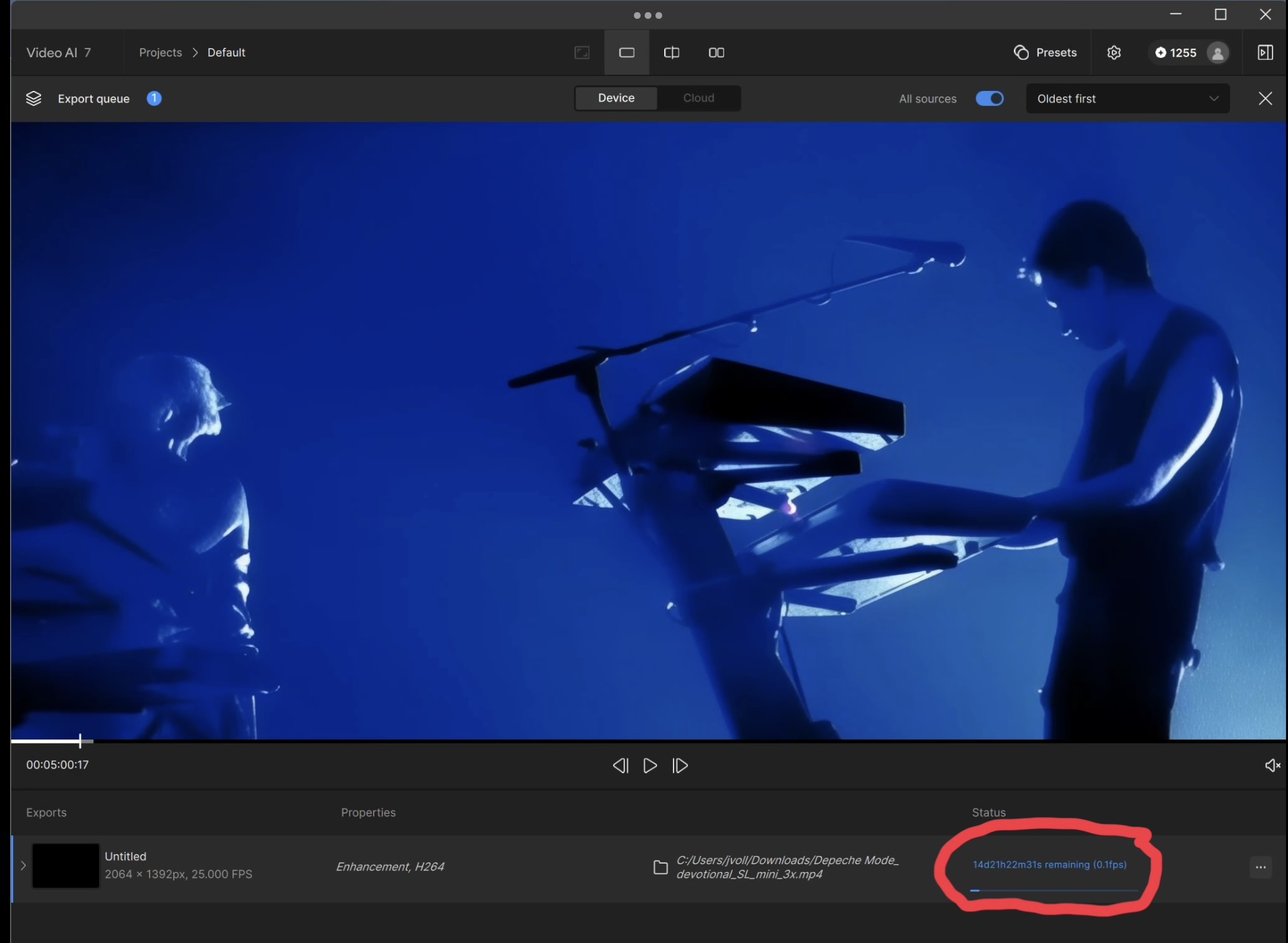
This is on a RTX 4070 w 12GB.
When doing upscales at minimum re I‘m getting 0.3fps instead but still several days to render a 2 hour concert video.
Do what I do. Cut your film into several small chunks of no more than 3 minutes.
Yeah indeed.
I‘ll likely just let it run through for two weeks if the result is worth it (i.e. noticeably better than the 2x upscale that I already have). I don‘t game and the PC is running 24/7 anyways,
I‘ll check the actual rendering tomorrow I think against the 2x upscale and then decide if I cancel the process.
Hmmm. Strange. In my cases (two times), TVAI picked it where it left off. That saved me 12 hours in the first case and 5 hours in the second. It definitely didn’t restart from scratch either time. Wonder why your experience is different. And since I’m not the only one who has posted this phenomenon, it seems to be able to pick up where it leaves off. Perhaps someone from TL can offer comment.
When a specific model got improved with a new update, would it be mentioned in the changelogs? For example, did Rhea got improved from Video AI 6 to 7?
1 Like
Looks like 7.0.2 works for me correctly.
Normal models are fast, but I have 0.4fps on Startlight Mini and 320x240 input.
I use Windows 10 and RTX 5070.
Questions:
- is there a way to run it on Linux? (I am a programmer, can load model in Python for example)
- on which GPU do you have better performance?
I have Linux machine with 2x3090 but I wonder is it a problem with VRAM in 5070 or speed.
1 Like
Ha! The sad part is x3 mini looks the best to me so when I do run something I usually do 2x or 3x.
I agree x3 looks the best to my eyes
2 Likes
I can’t upload images (png or jpeg) files to TVAI.
Nothing happens and it doesnt show the normal editing menu once you’ve selected your file. It stays on the upload/import file menu.
Anyone else having this same issue?
I just swapped out my RTX 3080 Ti for a 5070 Ti. My Starlight Mini upscales of 480p originals went from taking 2.2 seconds per frame on the 3080 Ti to 1.6 seconds per frame on the 5070 Ti. Approximately a 30% improvement.
ETA:
Probably worth noting that there a number of differences between the 3080 Ti and the 5070 Ti beyond the GPU chip:
- 3080 Ti has 12 GB VRAM vs. 16 on the 5070 Ti
- 3080 Ti is rated at 273 TOPS (Tensor Operations Per Second), the 5070 Ti at 1406.
- 3080 Ti has 3rd gen Tensor Cores, the 5070 Ti has 5th gen
- 3080 Ti has a memory bandwidth of 912 GB/sec, the 5080 Ti has 866 GB/sec
4 Likes
Tip:
- don’t go above 1280x720 if you don’t have more than 16GB VRAM. In the screenshot you are very likely blowing up your VRAM so it has to swap to the much higher latency, much slower system RAM.
- I’ve now got a dedicated 4060Ti 16GB + 5060Ti 16GB that is UPS protected, letting it run 24x7. Doing fine churning out 0.3/0.4 fps for long renders.
- For 1920x1080 or higher, my 5090 build averages no faster than 0.5fps, so keep your expectation (and resolution) tamed lol. Use something like HWinfo64 to make sure you are not blowing up your VRAM as current builds of Topaz aren’t always respecting the limit you set in settings.
- From my testing, minimal or no more than x2 looks best. Higher it tends to make s* up. Creating unwanted textures or patterns.
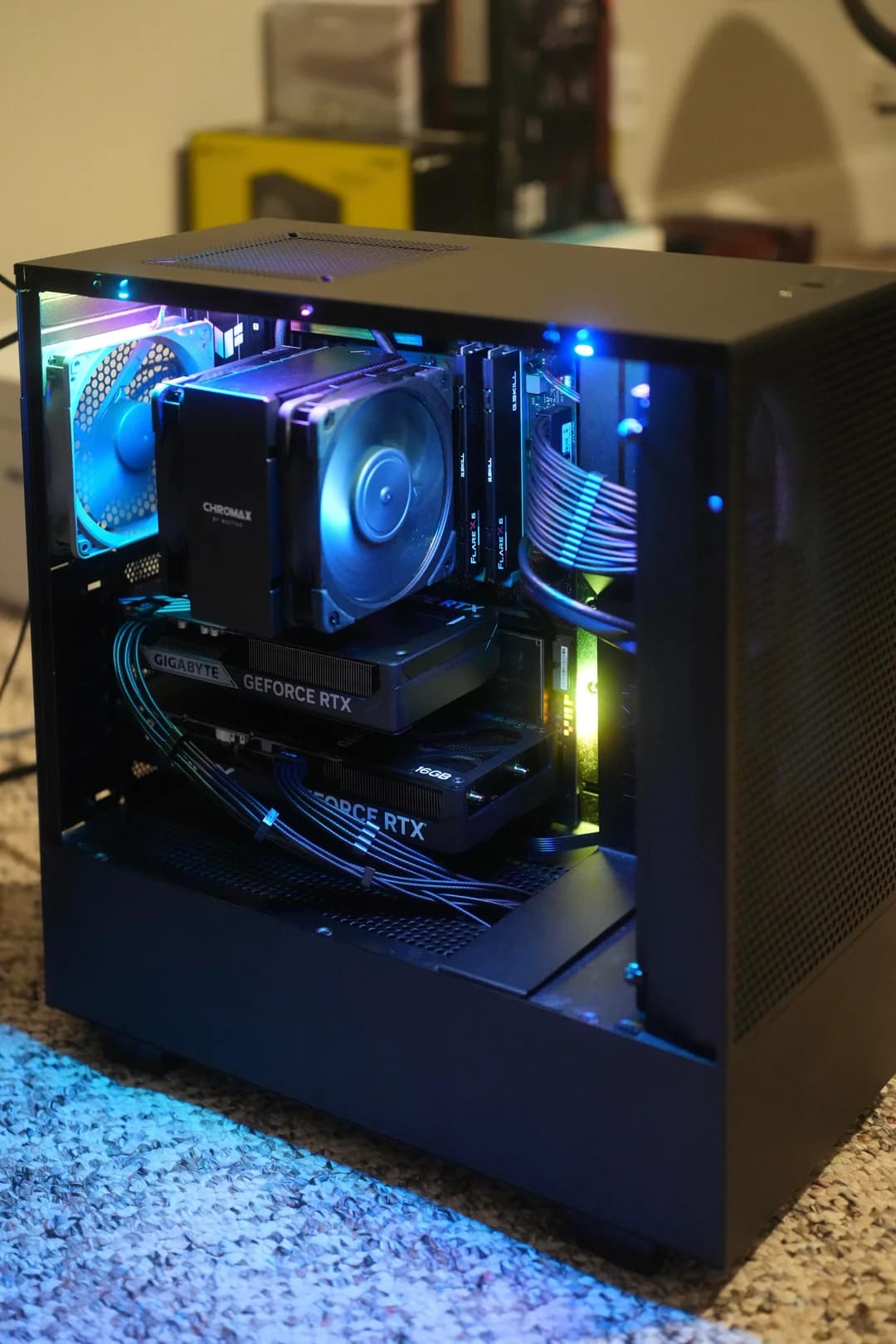
5 Likes
