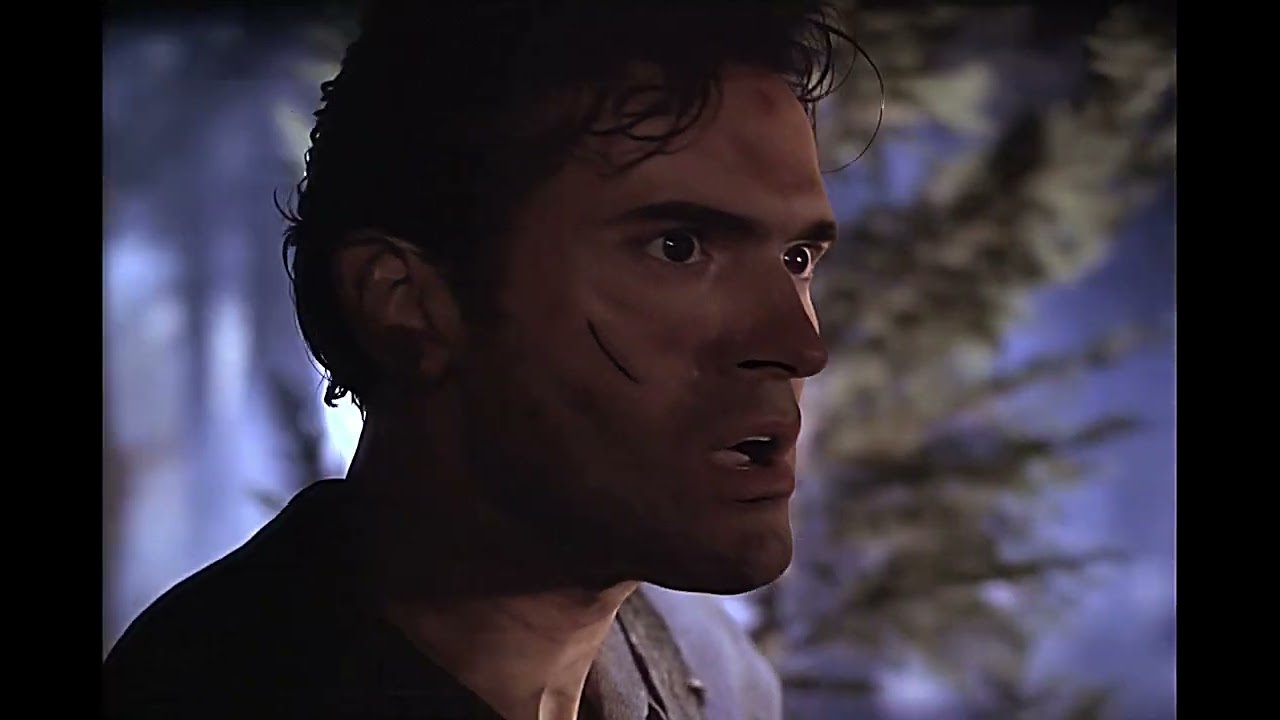
I also recognize textures/patterns or “lines”, then I’m using Starlight Mini more than “Minimal” or “x2”.
I tested it again and again between my S-VHS, VHS, Mini-DV renderings, cause I read here always in the thread, that the best is x3 for Starlight Mini.
Beside the very/too smooth picture (from my point of view) using x3, I recognize (as said before) in some scenes e.g. added vertical lines on smooth surfaces.
I’ll stay so far at “Minimal” and/or x2.
On my second “render PC” I also run a RTX 5090. Same experience as you have: until I render 640x480 or 720x576 with Starlight Mini and use “minimal” or “x2” it render with 0,9-1,0 fps.
If I go to e.g. 1080p it is only 0,5 fps and 4K only 0,1-0,2 fps.
I was not really complaining- just showing the user I answered to that this kind of speed is expected.
And no, RAM usage is the same (11GB) as with the 2x resolution- so no swapping, SLmini just that slow on a 4070.
Also, as already stated I don’t have a problem with the PC running continuously for two weeks to fulfill the task as this computer is powered on 24/7 anyways. And with a consumption of nearly 30.000 KWh per month even the power draw isn’t really an issue here.
For the quality I’m still not finished with the evaluation: some thing are better than 2x while some are worse/artificial. A bit like Iris LQ V1 vs. MQ. And since I normally prefer fidelity to the original over more, but artificial details I‘m more leaning to a „3x isn’t worth the wait“ standpoint.
But then SL mini by far isn’t that bad as IrisMQ or Rhea in making up things and has some continuity advantages (especially for very small/low-res faces that have „morphing“ issues in SL mini 2x) and looks better for nature/vegetation - so I‘ve not yet come to a final verdict. Likely I‘l have to test 2x vs. 3x for every source and maybe it would even be best to render some parts 2x and others 3x,
Yeah I get 0.1fps on Starlight mini too. Using rtx 4070 super as well… I’m on a ryzen 3600 though with 32gb of ddr4 so not the best specs to be using especially on topaz because my cpu resources run out when i’m using any other ai upscaler other than starlight mini.
I would keep checking temperatures on the gpu hot spot as well as GDDR6 temperatures.
Mine usually stayes below 77c on the hot spot and below 68c on the vram which is pretty good.
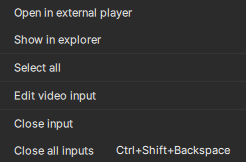
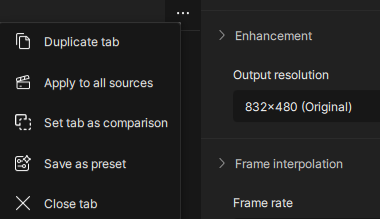
I wanted to apply same settings (preset) to all source videros but I couldnt figure out how. I can select all source videos but there is no option to apply preset or settings to all. Why is that? ctrl+c and ctrl+v works only per single video.
I tried then to run CLI with some commands and because I havent used it in a while I went to “Help / CLI Documentation” which doesn’t exist on the website ( 404 ## This page could not be found). This software does feel quite unfinished and not very user-friendly. Can you please fix those small issues called quality of life QoL Improvements? EDIT: Just found it under different part of the GUI, its hidden under … 3 dots at top right corner. Seriously, there should be some updated tutorial videos for this. Those features are all over the place.
Textures/patterns or “lines” will show up whatever “Minimal” or “x2” or …,just in different scene,its the major issue of SLM rather than the performance,making your video chicken ribs aftter waitting long long time of renderin…and topazlabs seems not trying to fix it
Where is the command line interface? All links to any reference of command line interfaces results in a 404 and there is no more topazvideoai.exe for command line automation. Topaz is gonna get a chargeback from me if this isn’t restored as that’s why I spent the $350+ USD (after tax) on the software.
Even their own menu item has a link via Help → CLI Documentation but that just takes me to a 404 page - as does all references in google and duckduckgo search engines.
Topaz has some explaining to do as I have entire family tv show collections with 20+ seasons each on DVD to upscale which is why I purchased this product in the first place. I’m not opening the GUI for every single episode.
I already wrote that, and Topaz response was it is not yet supported, let’s hope it will be done soon because it would be easy to adapt the copy/paste code works, because it is possible to start SLM via CLI. You can try script below (it’s not from me), it process all files in the folder, edit “upscale factor” and “max-gpu-mem”
    @Echo off
    Set !INDIR=SourceFiles
    Set !OUTDIR=StarlightMini
    If not exist %!OUTDIR% md %!OUTDIR%
    For /D %%D in (%!OUTDIR%) do set !OUTDIR=%%~fD%

    For %%F in (%!INDIR%*.mkv) Do Call :OneFile “%%~fF” “%!OUTDIR%%%~nF.mkv”
    Goto :EOF

    :oneFile

    Echo %1
    Echo.

    Pushd %TVAI_MODEL_DIR%

    runner %1 %2 --start-frame-idx 0 --end-frame-idx 999999 --ffmpeg-encoding “-c:v h264_nvenc -profile:v high -pix_fmt yuv420p -g 30 -rc cbr -b:v 40M -preset p6 -movflags frag_keyframe+empty_moov+delay_moov+use_metadata_tags+write_colr -bf 0” --ffmpeg-preproc-filters “scale=720:540,setsar=1” --upscale-factor 2 --max-gpu-mem 31
    PopD

    If not exist %2 pause

    Goto :EOF
Built it with cooling to the extent that I’m not worried about 24/seven operation.
Media being rendered is mostly 640x480 old VHS and VHS C….8mm and 16mm…some media was digitized as high as 1920 x 1080
SLM is just excellent with my older stuff dating from the 1950s up to about 2007.
SLM is slower than sin….
Staying at the default output of 1280x720…..Media renders on 640x480 always start out at .9 FPS but drop to .5 or .6 FPS after about 10-15 seconds.
Rule of thumb rendering that has held pretty much true on 640x480 input….1 minute rendered =1 hour rendering time in SLM
That rule of thumb will get bigger on any other output other than default.
Output file sizes are not large at all…very reasonable for the quality gained.
For even sharper results and upscaling…I have used a second rendering with Rhea 1 and like the results a lot….but file sizes jump tremendously.
My audience will view mainly on iPhones and iPads and the default of 1280x720 is excellent on those devices.
Conclusion: I love it!
Wish it were a whole lot faster!
Really, really want this on my Mac even knowing render times will probably be even more ridiculous.
Here’s another example of the box/block/patchwork/tile (whatever you want to call it) problem. Seems to happen a lot with dark areas and contrasty footage. Played once normally and then again enhanced so you can’t miss it. The Youtube compression softens it a tad, but make no mistake: it is a noticeable eyesore in the full-quality ProRes version. Be sure to select the full 4K version.
I also processed this footage in the cloud but got similar results - slightly hidden by the x264 compression but still noticeable.
Hoping this can be resolved soon. Loving the results I’m getting otherwise! Thanks Team!
I actually managed to get it sorted - you can use the command it shows as “copy command” in the GUI - but for shell scripts you need to set 2 environment variables (either system wide or just for that script/session).
I tested this on both windows and OSX - the caveat is that you MUST use the bundled ffmpeg binary as it contains the necessary filter.
If you don’t set the 2 environment variables, you’ll get errors about not being able to find the models.
There’s also a menu option in “Process → Command Prompt” that will set them for you.
This is my base start of my script that is now running in batch:
#!/bin/zsh

set -euo pipefail
export LC_NUMERIC=C

# --- Configuration ---
TOPAZ_FFMPEG_PATH="/Applications/Topaz Video AI.app/Contents/MacOS/ffmpeg"
export TVAI_MODEL_DATA_DIR='/Applications/Topaz Video AI.app/Contents/MacOS/../Resources/models'
export TVAI_MODEL_DIR='/Applications/Topaz Video AI.app/Contents/MacOS/../Resources/models'
Can we talk about Starlight file naming and output queue management?
Doesn’t matter how I name it, which path do I choose - it always overwrites it with the path of the source file and default filename __starlight_mini.
I have to process a handle of scenes in my source with SL, so I put timecodes in file names. Needless to say - this is useless because of SL stubbornness.
This leads to my second question.
Is it hard to see an output In and Out points?
The only way to reveal it is to open a project file and look up for “trimRange” in frames. I had to convert it back to timecode.
Setting a Timecode stream in the mp4 file would be so nice! I’d put the resulting file to Adobe Premiere and use the embedded Timecode.
And the last question is - sometimes TVAI starts two simultaneous SL processes, ignoring 1 process limit in preferences. In that case a second process stays at status “Loading model” indefinitely even after TVAI restart.
I had to edit project file, setting Status to 0 and manually starting this output again.
Personally, on my sequences, I cut out pieces according to the cutting area and render each small piece at a time. And I usually start rendering when I know I won’t be in front of my PC for a while.