Topaz Video AI 7.0.2
Hi everyone,
Today we have a new release with some great updates that we have been working on!
See more details below:
7.0.2 Downloads
Improvements and Fixes
- Film Stock Presets: Light, Medium & Strong
- Requires 2nd enhancement enabled
- MiniDV Preset
- A great starting point for interlaced MiniDV videos
- Added option to disable live export in preferences
- Added option to disable live render in preferences
- EXR Alpha Support
- DPX no longer converts to TIFF
- Fixed cloud renders from duplicating frames when using frame interpolation.
Presets for Film Stock
The following Film Stock Presets will require a second pass enhancement. At default this feature is not enabled. Please refer to the Second Pass Enhancement web doc for enabling and more information.
Film Stock 4K Light
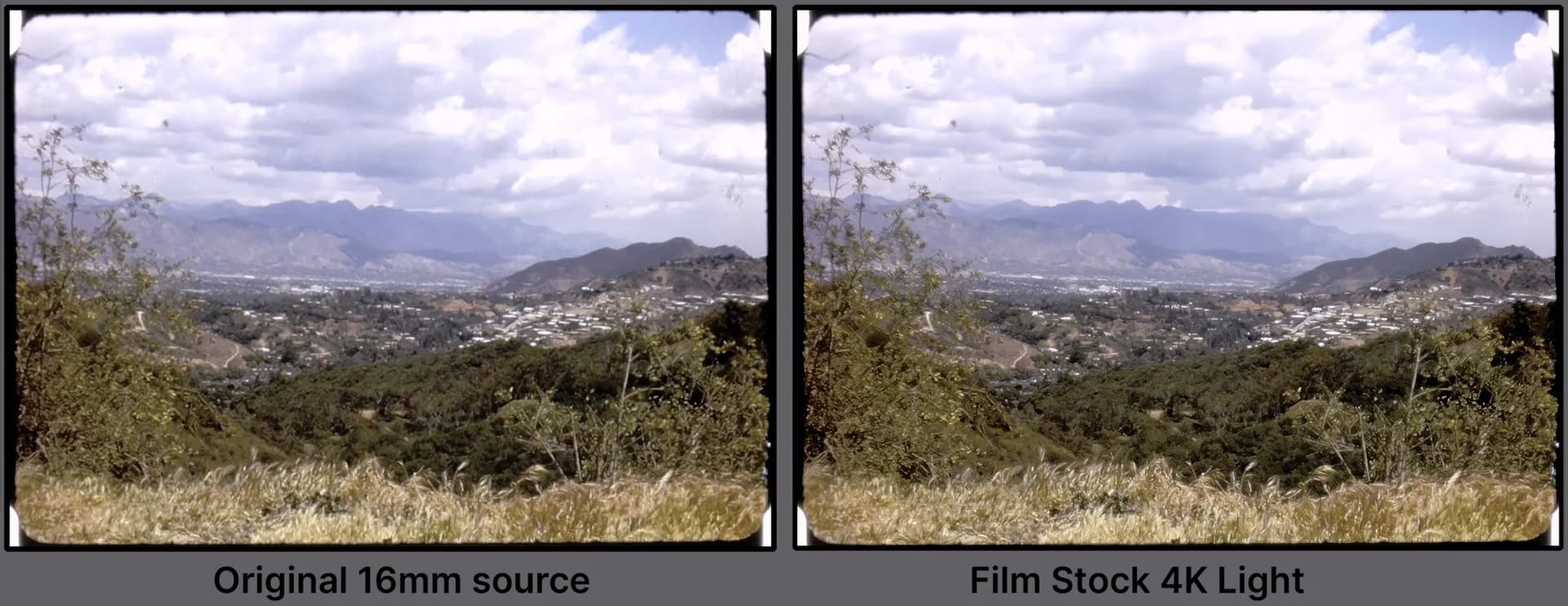
This setup is for film or progressive older footage that need a light touch to bring out some details.
- 4K preset
- This preset requires the Second Pass Enhancement to be enabled.
- This preset has stabilization enabled as many older family films did not have a physical stabilizer for the time. You can disable this task for faster results.
- Much of this setting can be used as a base and further modified to your liking.
Film Stock 4K Medium
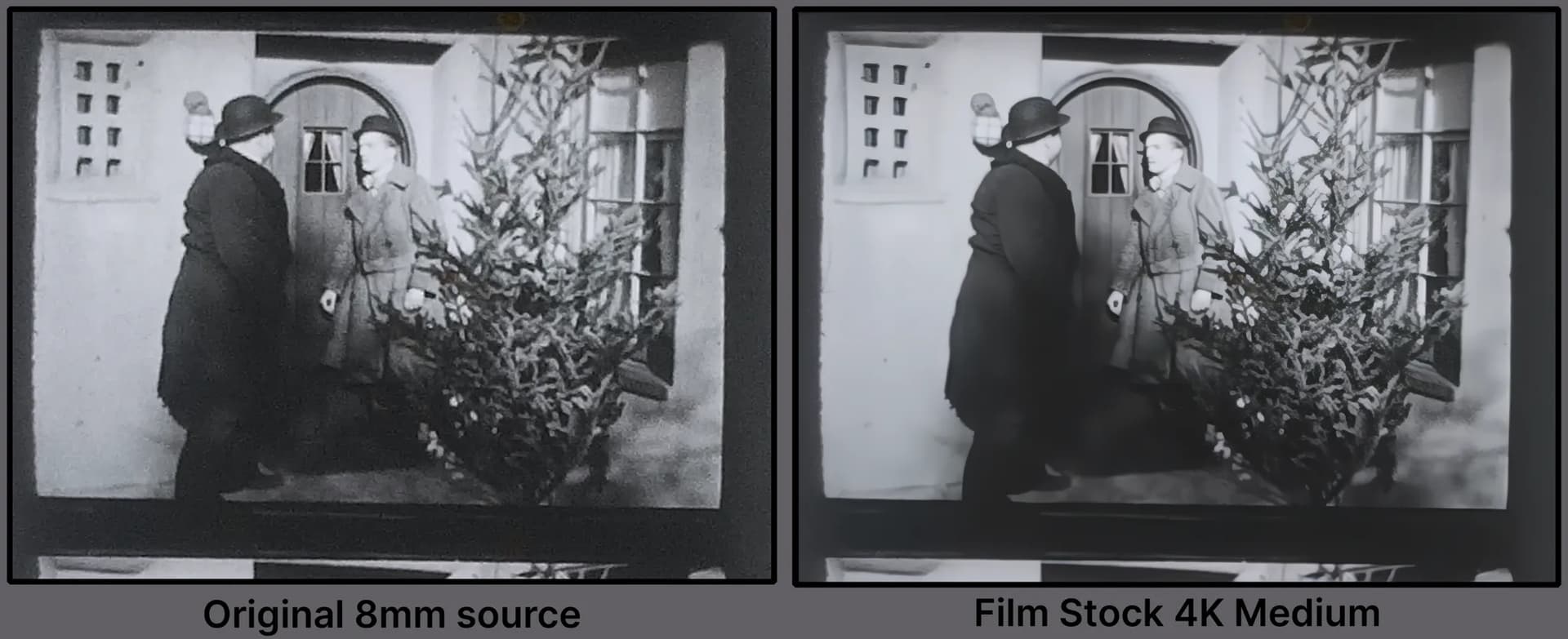
This setup is for film or progressive older footage that need an extra push from the light touch version. This uses a different set of filters for the overall treatment.
- 4K preset
- This preset requires the Second Pass Enhancement to be enabled.
- This preset has stabilization enabled as many older family films did not have a physical stabilizer for the time. You can disable this task for faster results.
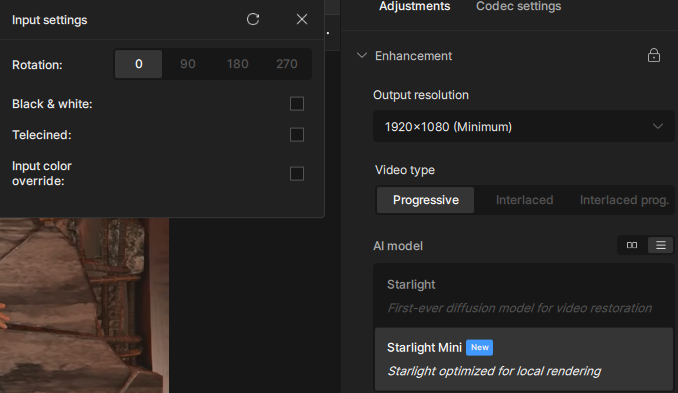
- Works best with high contrast black & white films like the example above. Please ensure that “Black & White” is checked (within the Input Settings -Gear Button next to Presets), if your film is grayscale.
- Much of this setting can be used as a base and can be partially modified to your liking.
Film Stock 4K Strong
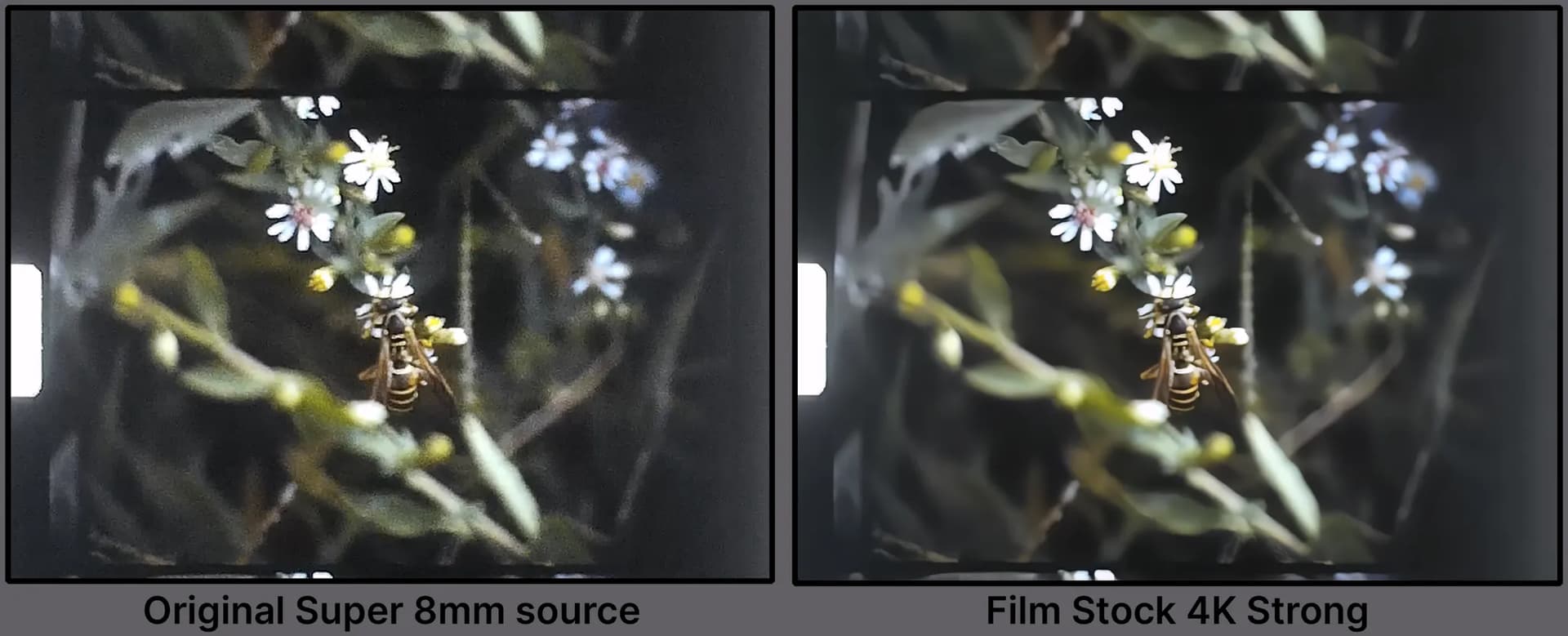
This setup is for film or progressive older footage with lots of grain/digital noise.
- 4K preset
- This preset requires the Second Pass Enhancement to be enabled.
- This preset has stabilization enabled as many older family films did not have a physical stabilizer for the time. You can disable this task for faster results.
- Great results for 8mm/Super 8mm films digitally captured with products such as Wolverine Data MovieMaker PRO, Kodak Reels Digitizer and Eyesen Film Scanner Digitizer.
- Also good results with grainy 16mm telecine digital files.
- Much of this setting can be used as a base and can be partially modified to your liking.
Preset for MiniDV
This setup is for MiniDV or digitally captured videos that made use of Interlaced footage (horizontal fields) for the time. MiniDV saw a large range of quality variations and conditions throughout it’s reign beginning around 1995 and ending around the late 2000’s. There was a huge use case scenarios with home movies to actual television shows and feature films.
MiniDV Int HD Basic
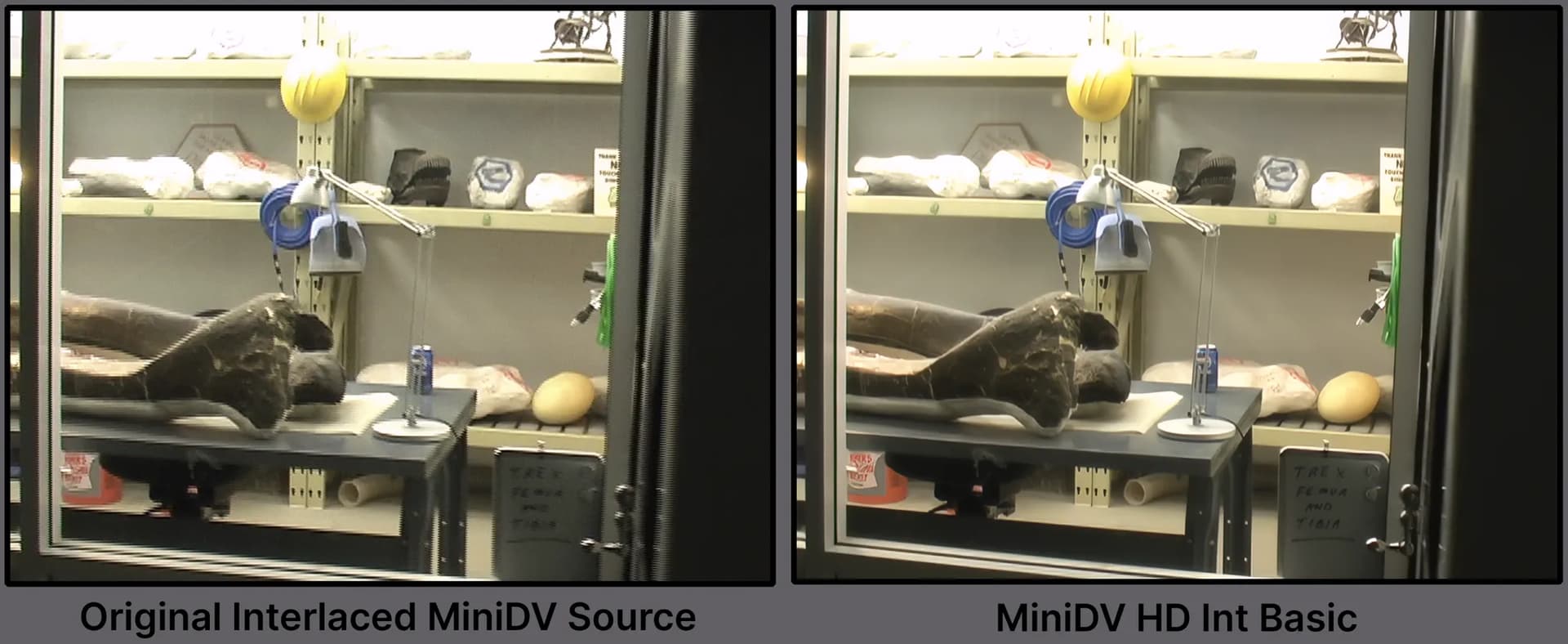
Due to the large quality and use case scenarios, the settings is a basic starting point for interlaced MiniDV footage. The intention of this preset is to get an average result that looks good in many cases. This setting is therefore intended to be modified.
- HD Preset. Can be adjusted to 4k.
- To make use of the Interlaced footage the settings are prepared with the Interlaced Video Type category.
- The resolution is set to custom in order to keep the aspect ratio and pixel type as Square Pixel. Change accordingly.
- This setting is intentionally and fully modifiable as a solid base for further refinement.
Disable Live Export
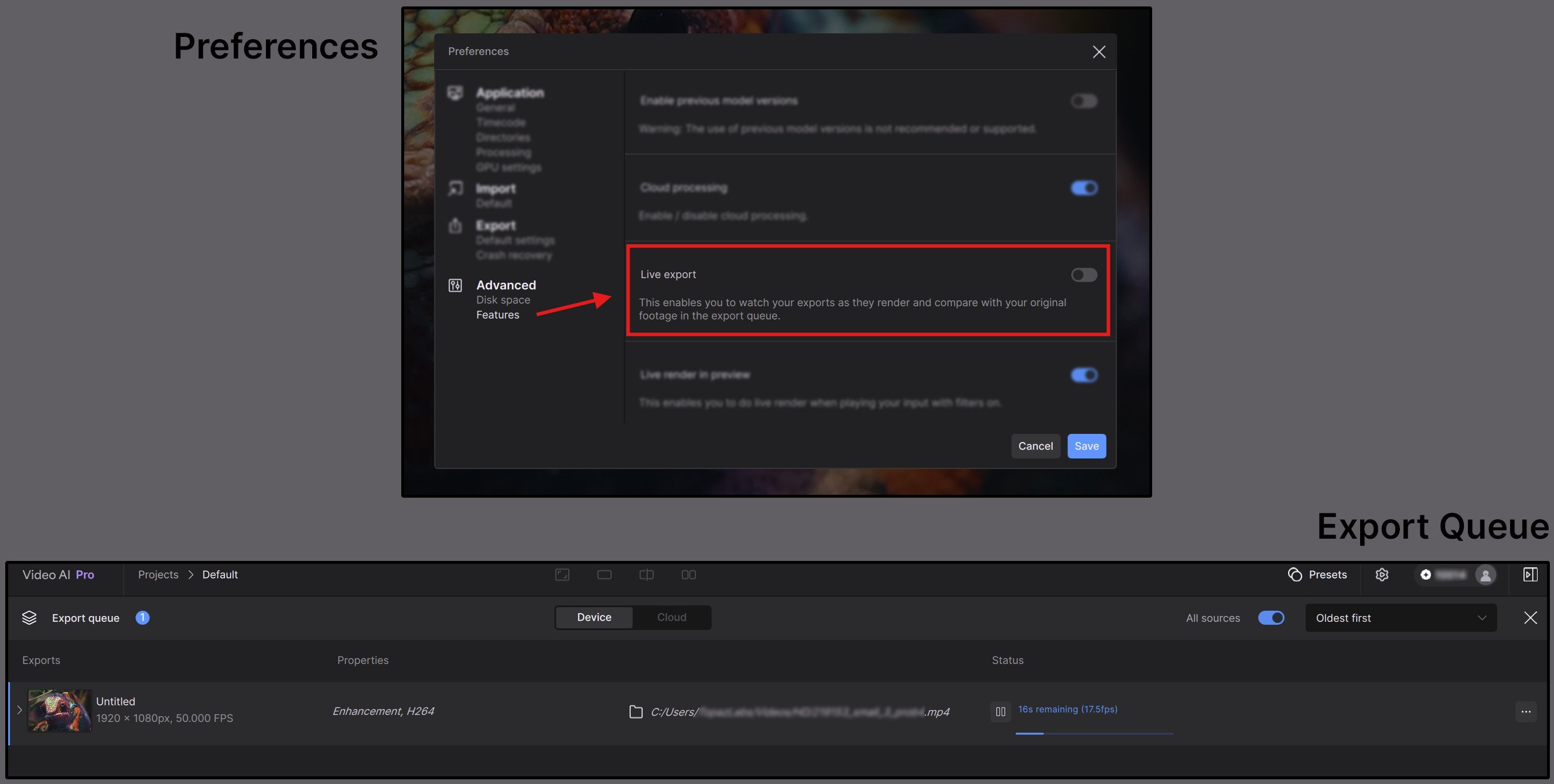
You can now disable or enable the Live Export viewer.
- You can find this option within the Preferences menu under the Advanced Features section.
- Please note that this is enabled by default.
Disable Live Render
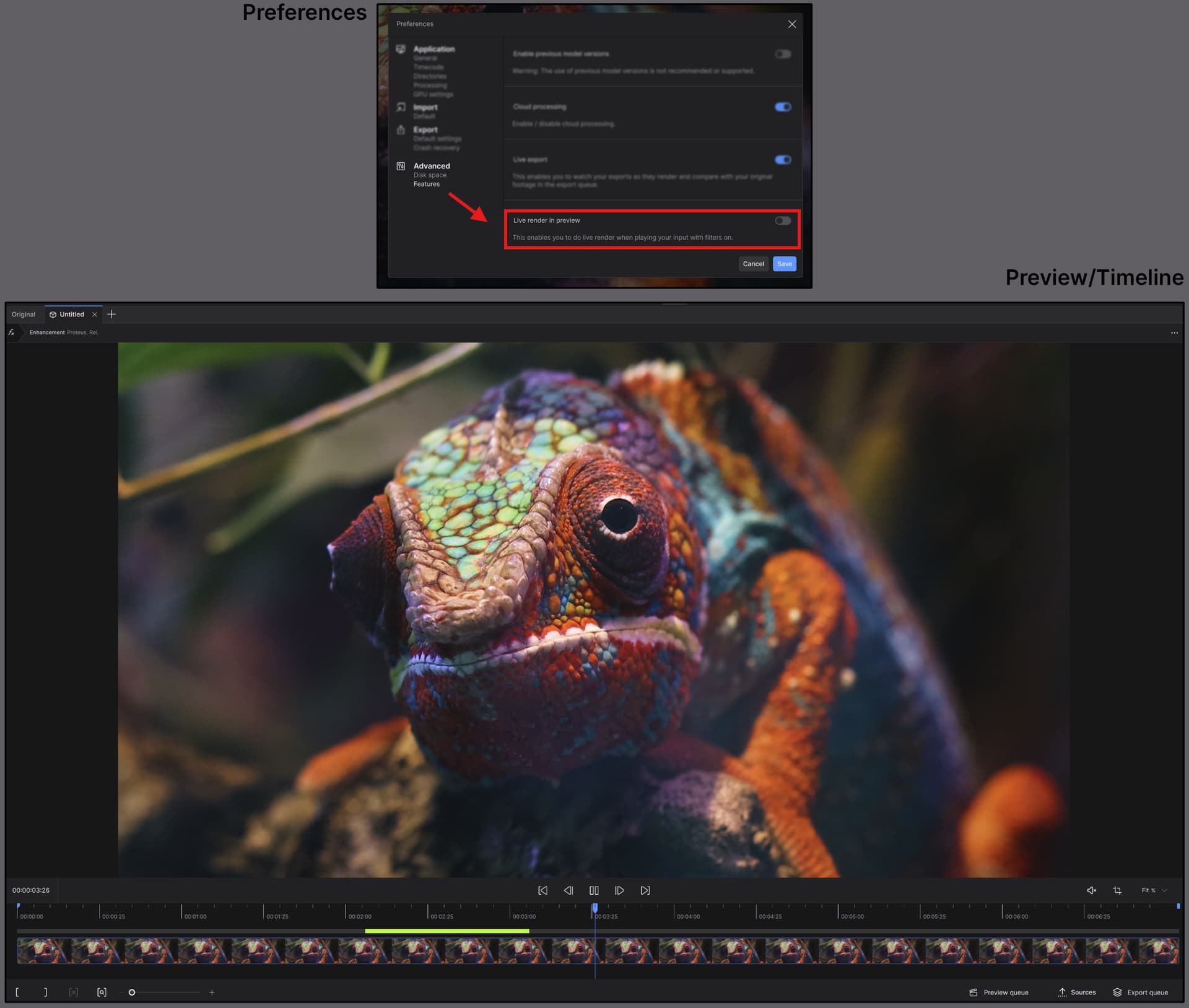
You can now disable or enable the Live Render function.
- You can find this option within the Preferences menu under the Advanced Features section.
- When disabled, areas that do not have a rendered preview will automatically play the original source.
- Please note that this is enabled by default.
EXR Alpha Support

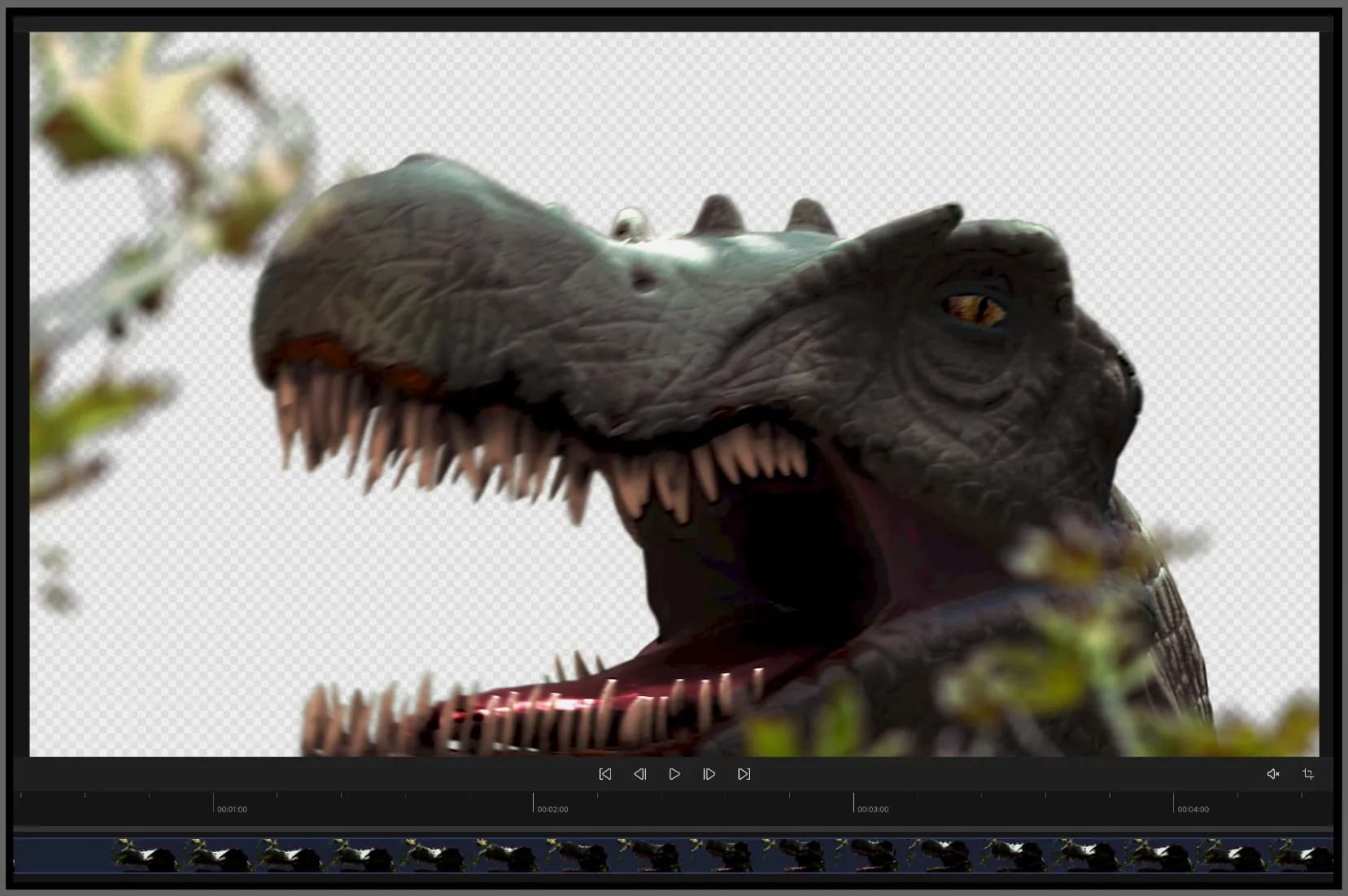
EXRs with an Alpha channel, can now be supported by giving you the option to enable Alpha channel outputs via the codec settings.
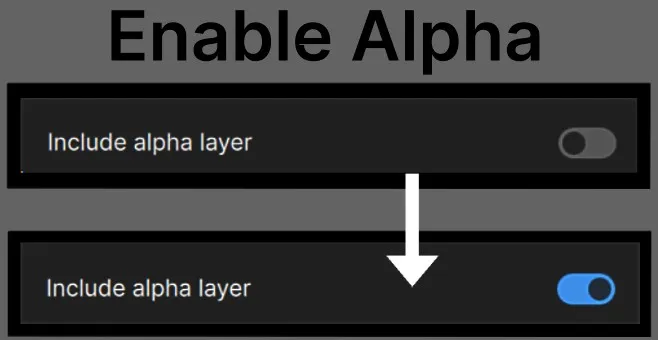
*Note, that at this time EXRs with Alpha may show transparency of the alpha as a checkerboard pattern in the preview. Outputs do not perform any matte operations, so the full of the RGB image will remain intact. Refer to the example below:
DPX Non-Conversion
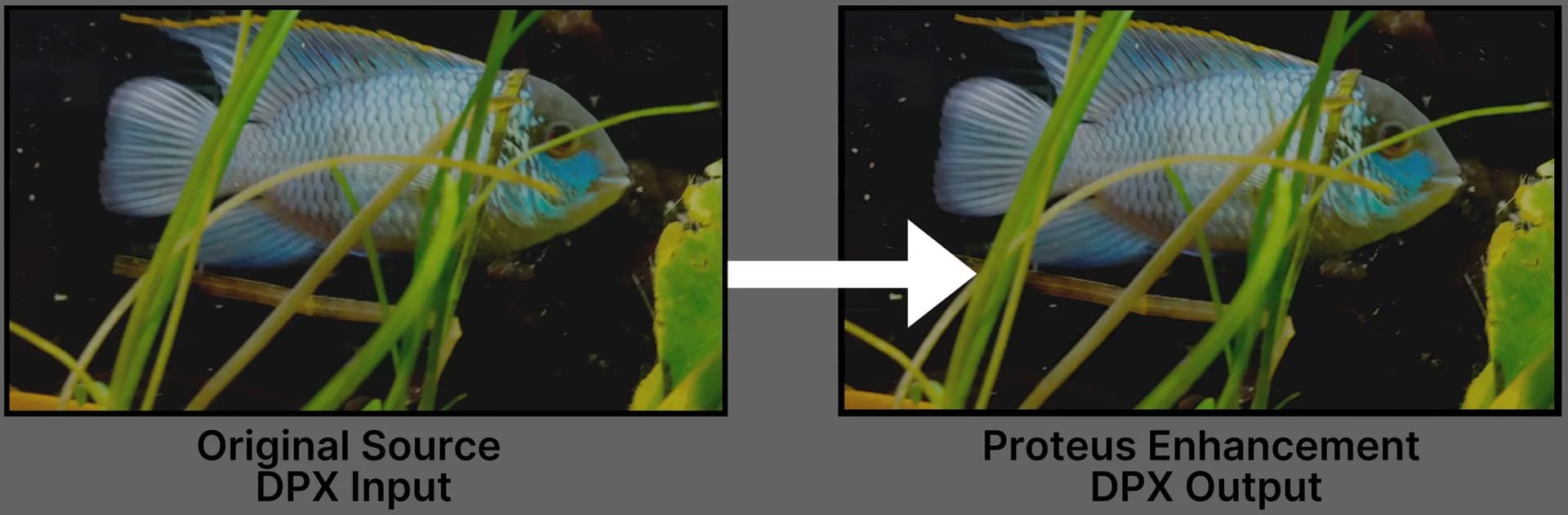
No longer will DPX files need to be converted to Tiffs when working with Video AI. Now you can use DPX files like any other image sequence.
Have fun with the 7.0.2 release and give these new and updated features a try!

 With Rhea, I’m usually in the 30 fps range when upscaling a 1080p to 4K.