Topaz Video 1.0.0 (New Studio Release)

I’m coming back for an update on settings that made Starlight 500% faster.
I tested six new configs tonight.

My setup:
Win 11 9950X3D
5090 dedicated to TVAI (no display) using CPU Gen5 x8
5060 Ti (display) using CPU Gen5 x8
96GB DDR5 6200 MT/s CL28
CPU overclock using asynchronous eCLK = 102, PCIe Bus & Mem = 100 & Spread Spectrum On
I am using the latest NVIDIA driver

The job:
I wanted to upscale 2x using traditional SLm
The source video was portrait mode and an odd resolution = 382 x 640

For my sad base case run…
Memory slider was 90%
CUDA sysmem fallback = prefer no fallback

~23GB of VRAM was in use during the run
0.3fps-0.4fps

After about an hour torch_cpu would crash
(new behavior since Topaz Studio version)

After testing many configurations I found one that worked

1.8fps!

A 500% increase!
for a 2x upscale SL

and… for me, the result was of acceptably similar quality to the slow run,
and no crashing
this time only 11GB VRAM were in use
(which probably means this result is “quality level 1” and not “quality level 2” normally seen with VRAM usage around 24GB)

Changes I made:

  1. Set memory slider to 74% (chosen to be just below 24GB (74%x32GB=23.7GB)
  2. Set CUDA prefer sysmem fallback = prefer no fallback for runner.exe and ffmpeg.exe
  3. Re-encoded the file landscape
  4. Cropped the file slightly to fit the standard size 640x320

I made several changes in BIOS:

  1. All virtualization items were disabled
    IOMMU - disable
    SR-IOV - disable
    SVM - disable

  2. Clock
    Used synchronous clock = 101
    (CPU/PCI/Memory now all use the same clock)
    CPU & PCI Clocks - Spread Spectrum Off

  3. PCIe related
    ASPM Control for CPU PCIe - disable
    PSPP Policy - disable
    PCIe - spread spectrum off

  4. DDR5 settings:
    TSME - disable
    Data scramble - disable
    loosened tRAS, tRC slightly (may not matter since previously ok)

Other
ACPI SRAT L3 Cache As NUMA Domain - enable
(may not matter)

What I think (for sure) mattered were:
Low memory slider setting
Horizontal video orientation
Standard resolution sizing
Synced PCI/CPU/Mem Clock
All virtualization features disabled in BIOS
Changing PCI power state handling (ASPM,PSPP)

These maybe mattered:
TSME & Data Scramble - disable

I don’t think the fallback policy mattered since my VRAM usage was so low.

4 Likes

The resolutions I noted above were not exactly right:
Original file was 368 x 640 (not 382 x 640)
Cropped file I used was 640 x 360 (not 640 x 320)

Also the problem is that you have to have 5090, or at least 4090 for it to work as intended.
Any other cards (with 16gb or less) would struggle with out-of-memory errors and/or slow processing time.

3 Likes

I did the opposite yesterday, as slow as it gets :face_with_peeking_eye: I installed just for fun old Beta 7.0.0.4.b. and then Interesting things happened; It has taken my 32GB Vram + additional up to 6GB shared Ram! So between 35-38GB Ram usage by the gpu. For sure my fps droped worse, I had about the half speed I get usual…but the quality of my Starlight upscale was great, the best I ever had! ok not a huge difference but already visible :slightly_smiling_face:

Thank you for your tests, I analyzed what you wrote in ChatGPT and it gave me these results:

Effect of BIOS changes

Virtualization (SVM, IOMMU, SR-IOV) → Disabling these does not speed up rendering and AI, it just reduces some stability overhead if you are not using the virtual machine.

Synced PCI/CPU/Mem Clock (Spread Spectrum off) → This can sometimes give stable higher PCIe bandwidth. Data transfer between the GPU and the CPU may receive very small optimizations, but it does not create an “fps boost”.

This is the most useful part of extinguishing ASPM / PSPP (PCIe power saving). Because the GPU no longer goes into “low power state”, it always remains at high performance. This reduces the risk of microstutter and throttling under prolonged load, such as Topaz.

TSME, Data scramble disabled → It is kept in mind for more latency, you do not notice much difference in AI speed.

ACPI SRAT L3 Cache as NUMA domain → May affect systems with multiple CPU cores, but the difference is minimal in GPU-based rendering.

Main speed factor for Topaz Video AI

GPU compute power (CUDA / Tensor Core speed).

VRAM speed and amount.

PCIe bandwidth (extended x8/x16 may differ, but x16 4.0 is now sufficient).

Disk speed (I/O can be bottlenecked, especially for very large videos).

:white_check_mark: The BIOS tweaks you made are good for stable performance (i.e. not “downclocking” the GPU, not having PCIe link power saving).
:cross_mark: But it does not bring real speed increase (fps boost). In Topaz Video AI, 90% speed is determined by GPU architecture and model selections.

That’s the point. Myself, I wouldn’t care too much about slow operation because my Computer runs 24/7 anyways.
But those failed attempts because of OOM errors are killing it (“only 12GB” VRAM here).
That’s why I’d like to see an AppleSilicon version of SeedVR as there I have plenty of (V)RAM and don’t really notice that the MacStudio does heavy work.

No big heat, no really annoying fan noise and a system that stays quite fully usable while the upscaling is done in the background.

And if it takes two weeks instead of a few days, so be it..

1 Like

also big thanks, I have already tested a little bit your settings, but was bit frustrating because i had afterwards a worser system than before, then I did the Beta installation I described above (out of frustration :grin:) tuning needs more time and it’s not so easy because every system is and bios looks different, I won’t give up
Totally untrue, I have a RTX4070 12gb and with seedvr I’m getting 3.8fps and no oom messages.

2 Likes

Thanks for mentioning this. I saw that and was pretty let-down. This is an exciting-looking application!

I re-ran this SLm again with mem slider at: 74%,85%,93% and 94%

Results
MemSlider VRAMalloc fps OutputQuality
74% 11.8GB 1.8fps Good/Same as 0.35fps/23GB VRAM
85% 19.8GB 1.8fps Same as 74%
93% 22.5GB 1.8fps Same as 74%
94% 22.6GB 1.8fps Same as 74%

for the last 2 runs the slider was higher than the 90% setting I used that caused the 0.35fps

that implies that the other factors made the difference:
Synced Bus Clock
All BIOS virtualization disabled
All BIOS PCIe Power Management - disabled (bus info shows there is pwr mgmt taking place)
Video Orientation & Crop to Standard Sizing

1 Like

I can send you the file and you can test yourself.
Maybe you can replicate if you are willing to use eCLK=>bCLK.

Let’s say Chat GPT is 100% correct.

How do explain the almost 500% increase in fps?

After more testing today, I really think the big one was syncing the CPU/PCIlink/MemCOntroller/DRAM clock

Here’s why I think that could be.
If you watch the run take place, there is a ping pong back and forth between the CPU and GPU.

Once the run is in steady state I see this routine:

GPU is at 100% for ~9 seconds

Then there is a big burst of data on the PCIe lanes (I’ve seen ~3GB/s using NVIDIA utility)
and PCI Bus utilization goes from 3-5% to 100% for about 2 seconds
…simultaneously…
DRAM write bandwidth goes from 0.1GB/s to 32GB/s for ~2 seconds (this = my PCIe Bus Tx rate Gen5 x8)(also, this a fraction of my full DRAM write rate of ~90GB/s)

GPU utilization abruptly drops very low for ~2-3 seconds

CPU cores progressively become heavily loaded over ~5-6 seconds - the ramp up is staggered with nearly all cores at effective clocks of 5.75GHz at the end of the ramp-up

(with old config torch_cpu would usually crash around here somewhere)

DRAM read bandwidth goes from 0.1GB/s to 45GB/s for ~2 seconds
…simultaneously…
There is a big burst of data on the PCIe lanes
and PCI Bus utilization goes from 3-5% to 100% for about 2 seconds

GPU goes back to 100%

CPU abruptly drops to near idle for ~7-9 seconds

and the process starts over..

There is some overlap from step to step in this routine

There is clearly a lot of activity between the GPU/CPU and DRAM.
The CPU is doing a lot of work on the file too. - regardless of whether there is sysmem fallback.

I think that when the CPU bus clock is out of sync with the PCIe/Memory Controller/DRAM bus clock there is a big penalty.

The second thing is that the ChatGPT response does not mention is the video orientation or resolution.

It seems possible that there are optimizations for particular standard resolutions (recall that my fast run had that but the slow one did not). I think this is possible because the old SLm forced you to upscale to a certain minimum resolution 1280x960 (i.e. an optimized resolution).
Orientation could matter also based on how many results I used to get that were stretched rather than rotated.

Also, the Chat GPT doesn’t say anything about sysmem fallback. My slow one could have been doing fallback - but I doubt it.

Nevertheless, if Chat GPT is correct and none of these additional items above matter either.
How do we explain the difference? I mean it’s not a small difference, it’s 5x.

Tonight I also tried the update version 1.0.1.

I used my new config (synced bus etc.), but I set the mem slider to 99% & no sysmem fallback.
I got 22GB VRAM allocated out of 32GB and speed was still the high 1.8fps.

This update may have tamed the memory problem.

1 Like

That is unfortunate.. Instead of founding member, this should be called a perpetual subscriber to 3+ products.

You’ve done some great testing, congratulations. But what I don’t understand is this SLM speed? What was the fps it used to be? How fast has SLS gotten? Currently, SLS gives me 1.8 fps. I don’t use SLM because I find the quality of SLS to be better. Besides, it’s too slow. I don’t have time to wait that long.

Mine 4070 can’t upscale 720x576 videos.
Can you share your settings, if I may ask?

I’ll post a reply on the seedvr2 thread Open source ComfyUI-SeedVR2 VideoUpscaler when I get back from work

1 Like

I got some info back from Topaz support about my slow SLm experience and torch_cpu.dll Access Violation errors…

They said:
We have a known bug that our team is looking into, so it’s good that you changed the file to horizontal.
Another thing that could be contributing is the file container. Since your source is in .mkv , I’d recommend converting it to .mp4 before importing, as we’ve seen MKV files trigger stability issues in some cases


Last night I ran the new 1.01 SLm on the other half of my problematic video with mem slider =88% and it ran perfectly at the new, faster 1.8fps AND almost 24GB of VRAM was being used without any issues.

This is the same file that I only got 0.35fps processing speed with before I made these changes:

  1. changed to portrait orientation and made a slight crop to a “standard” aspect ratio
  2. Changed to a Synced CPU/PCIe/Memory/DRAM Bus Clock vs async eCLK OC I had when fps was bad
  3. All BIOS virtualization disabled (SVM,SR-IOV,IOMMU)
  4. All BIOS PCIe Power Management off (ASPM,PSPP)
  5. PCIe spread spectrum off
  6. DDR5 memory encryption off - TSME, Data Scramble
  7. Moved TVAI memory slider such that only 11GB of VRAM would be allocated (out of my 32GB)
  8. Set CUDA sysmem fallback to prefer no fallback for runner.exe and ffmeg.exe in NVIDIA control panel

I know @Gemini said ChatGPT didn’t think some of these settings mattered that much…
But, each one of those BIOS changes came from white papers by AMD, NVIDIA (Cuda) or Texas Instruments OR their tech support forums. They weren’t random guesses, but that doesn’t mean they made any difference…

The papers, forum posts from TI were about the PCIe bus handshake, link negotiation, Rx and Tx, spread spectrum and bus power management.

The AMD white papers were from their series on optimizing high end AI workstations with Epyc and covered the Virtualization Settings and async vs sync bus clock.

NVIDIA forums provided info on when/how the system handles the CUDA sysmem fallback preference, IOMMU, Resizable BAR and optimizing apps on virtual machine vs not on virtual machine. There was also good information on PCIe bus power management issues and optimizing the ping pong processing between GPU and CPU.

Overclock.net recommended the DDR5 data encryption disable.

The decision to change video orientation came from my own past experience with SLm (problems with slow processing on portrait file and stretched output and problems with the forced minimum res).

The crop to a standard aspect ratio (rather than 8 pixels bigger than standard) was me guessing that there are optimizations that have cutoffs set to the standard ratios.


Now it seems that TVAI also wants us to use mp4 container and not mkv.
That’s a bummer because the mkv files are useable when there is a crash whereas I don’t think the mp4 container is (easily) recoverable.

I hope some of this info is helpful…
I’m no expert.
I’m just trying to find my way down the dark hallway like everybody else… and sharing what little I can see.

My whole series of posts this last week were due to a file that was suddenly giving me an unexpectedly slow SLm speed of 0.35fps (calculated) AND runner.exe was often crashing with torch_cpu.dll Access Violation when CPU ramped up during the GPU/CPU processing ping pong.

I also would have used SLS but I wanted a 2x upscale not a fixed final resolution.

In the past, I usually got the typical 1fps for SLm 2x on source files like this. When I saw 0.35fps + crash with studio version 1.0 is when I started investigation. After my changes I got 1.8fps on the same file… that is why I was advertising my investigation and tweaks.

These processes can take day(s), so any tweak that cuts off a half day or more is worth talking about imo… even if they are sometimes a dead end.

Nevertheless I saw a 500% speed increase on the same file after some tweaks and am trying to get to the bottom of it.

It does seem the very recent 1.01 version has some fixes that may help with VRAM allocation and DRAM fallback.

I’m pretty happy with SLS too.
I’m still in awe of SLm and SLS capabilities.

1 Like

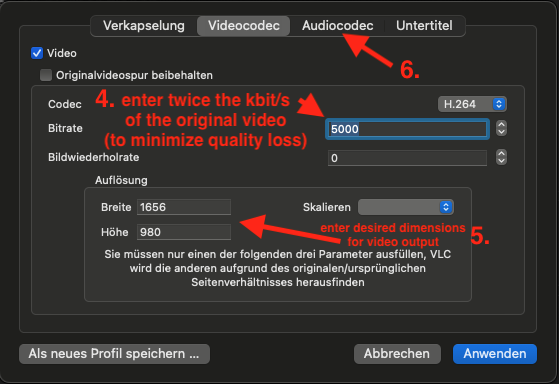
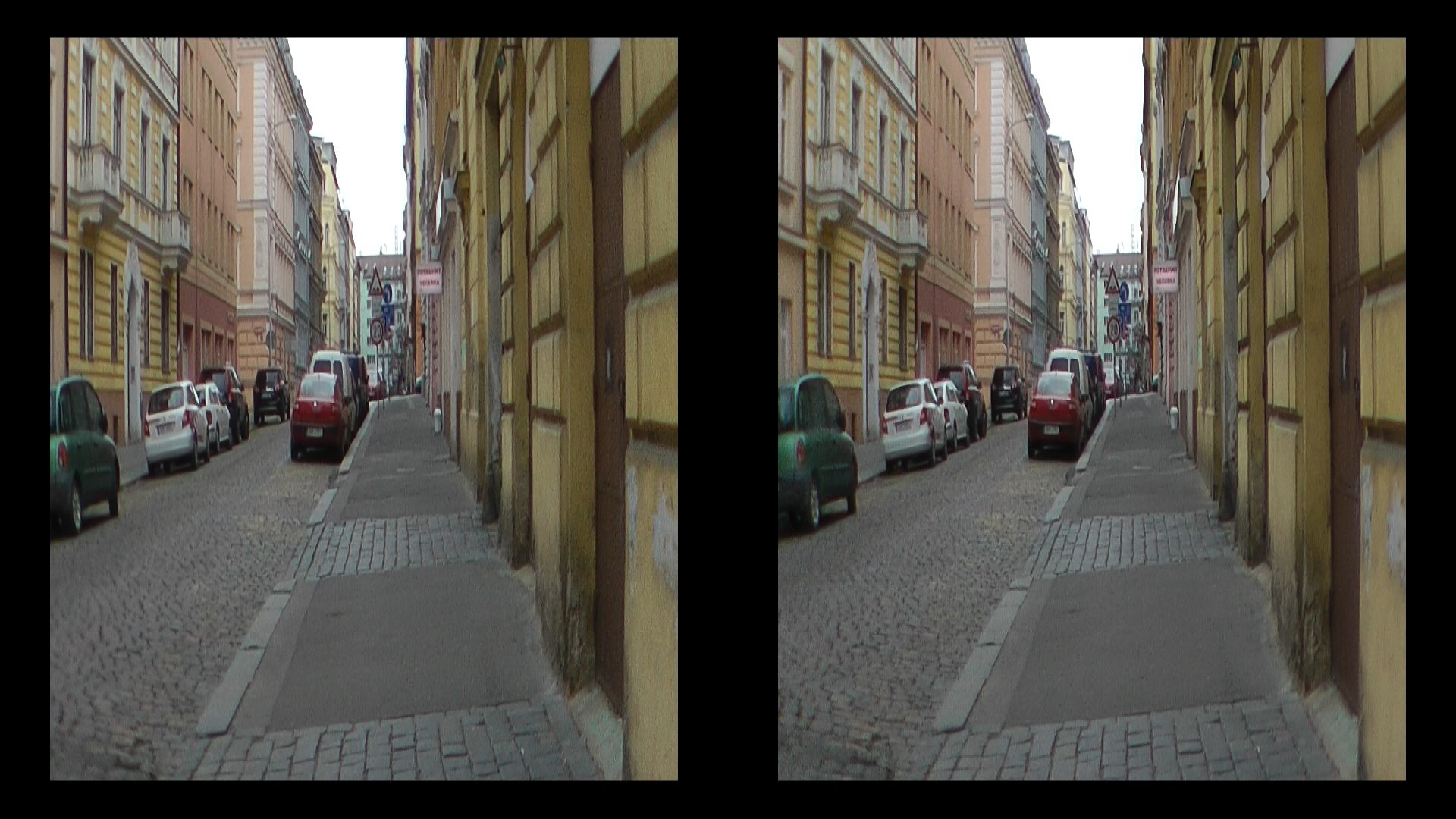
its from a older stereoscopic camera, forgot the model, basically there are two frames from each lens with a black surrounding instead having them purely half SbS like the new ones are. So 828x980 (8x9) is squashed twice along x-axis, which would be 1656x980 (16x9) per eye. I need to stretch that to 1656x980 (16x9) and upscale it to 1920x1080 (16x9). Here is a screenshot from the original video.

Yep, same issue here. I completely uninstalled and reinstalled just to see if that fixed. I also updated to the latest Nvidia driver. No change, still outputs at 1280x960 for starlight.

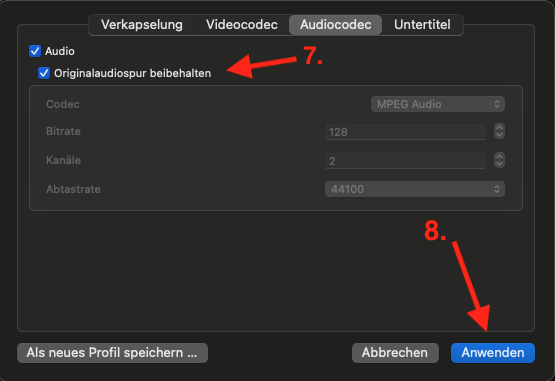
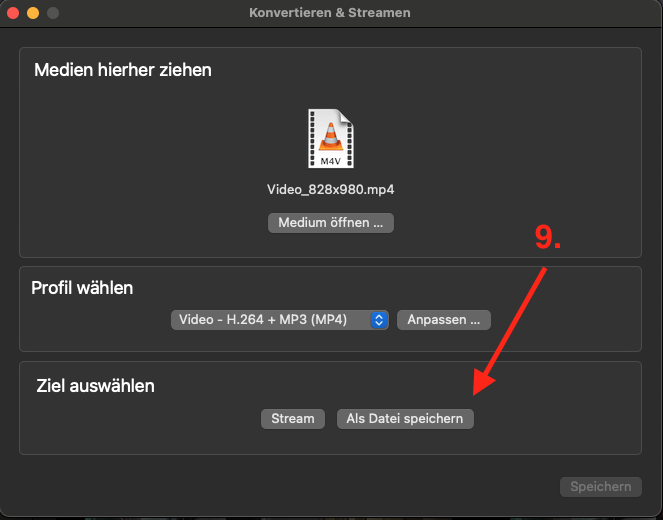
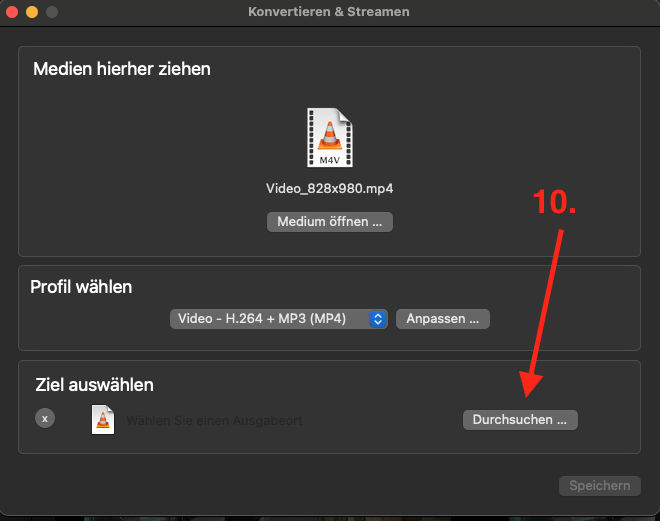
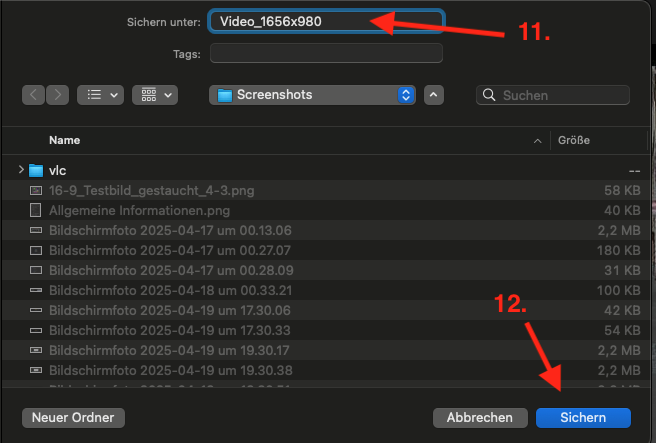
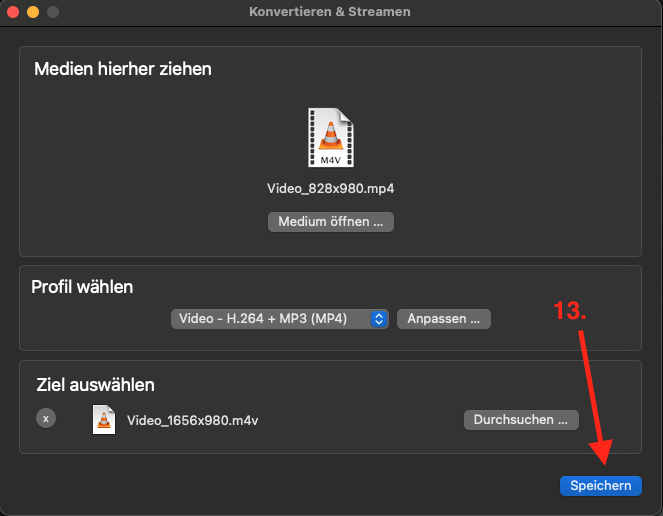
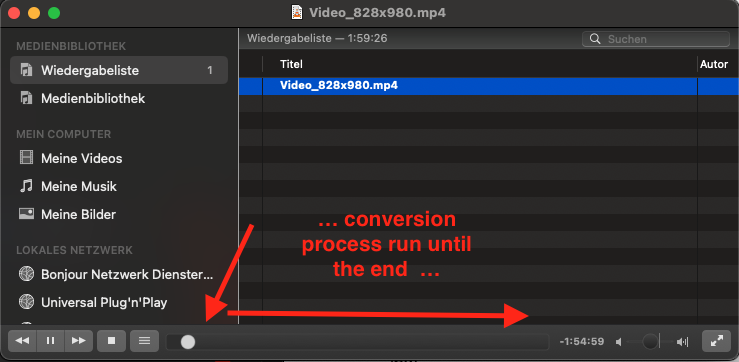
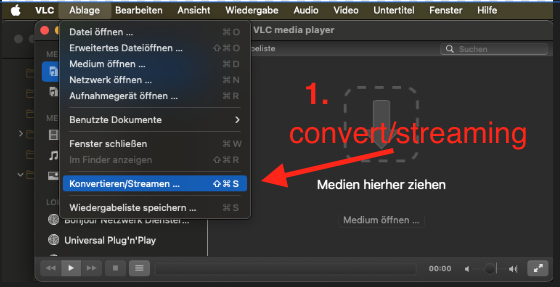
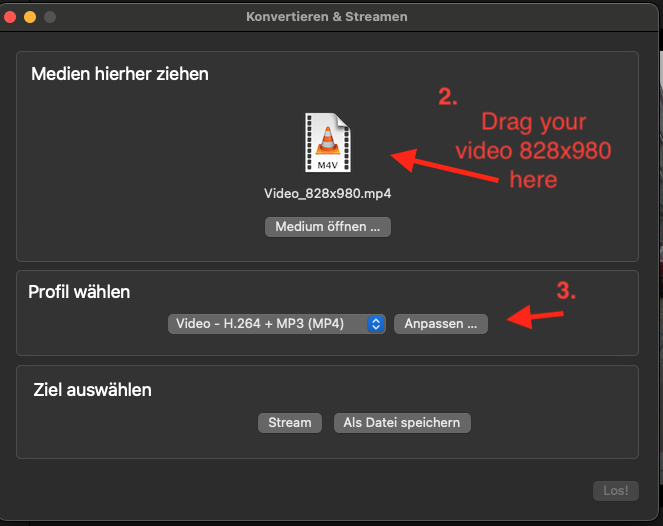
start VLC (Official download of VLC media player, the best Open Source player - VideoLAN)

and follow the 13 steps to your target:


EDIT: In retrospect, it occurs to me that you might want to try setting the kbit/s value to 0 in the screen on point 4. I have never checked to what extent the data density and thus the quality decrease after conversion. However, since you are going to throw the result into Video AI anyway, the loss should be compensated for.