@Fotomaker - I see! To clarify, what was removed was lingering Credit amount information in Topaz Photo top right bar and menu, which is not needed as it’s unlimited cloud rendering. Removing the cloud credit number fixes any confusion! The credit amounts on everyoone’s accounts remains intact.
1 Like
@rayinsanmiguel - Recover v3 in Topaz Photo is in the Upcaling models. Make sure you are on the latest version and show us a screenshot if still missing, of your entire screen. It will definitely be available for your M4 machine in the Upscaling model choices! You can send a screenshot here or by DM.
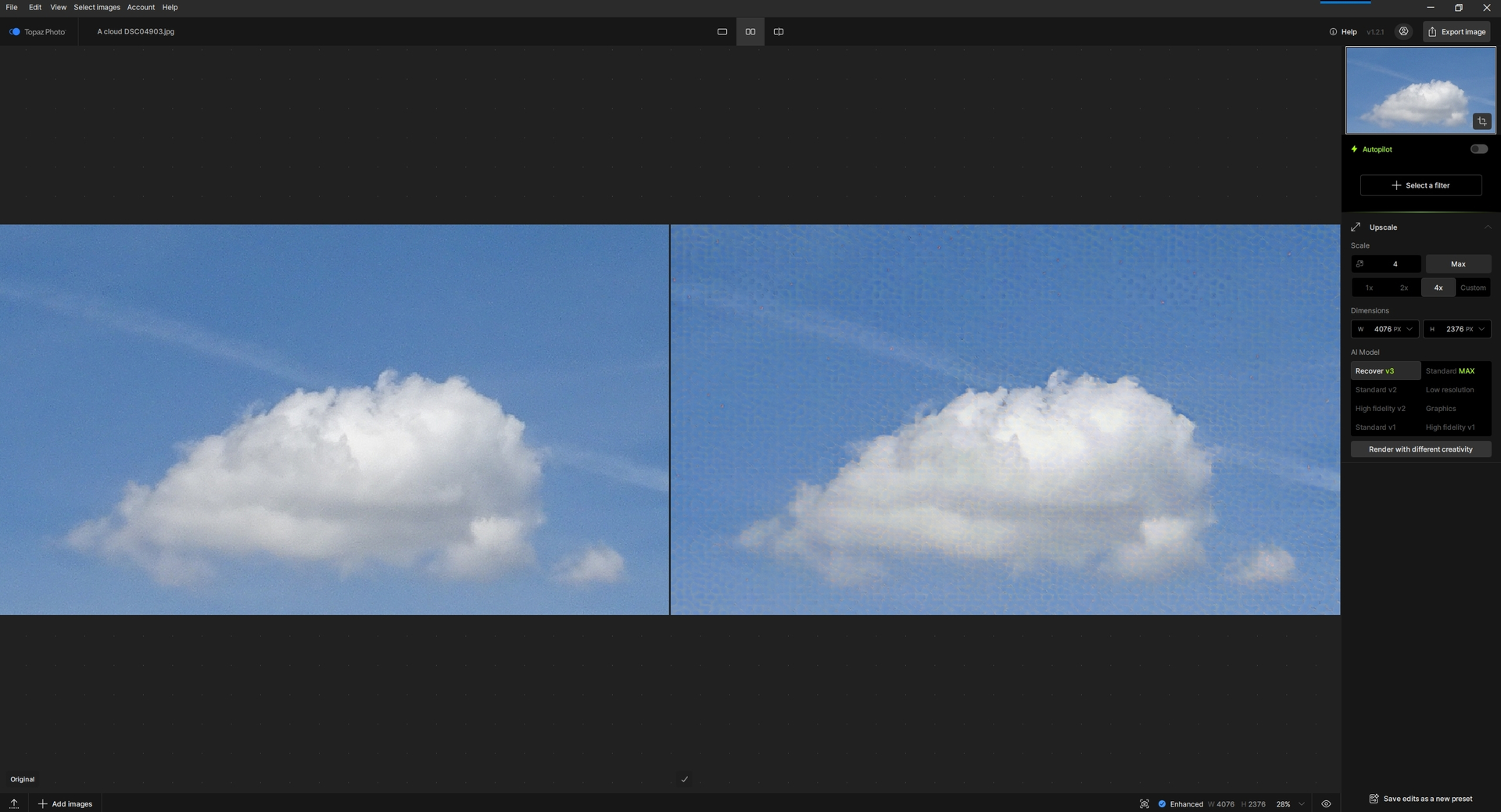
The basic problem is not the bird, that can be improved (even with the sky) in other ways. The problem is the background, specifically in my case the sky. I just sometimes take pictures in addition to birds, for example, of friends in hot air balloons. They fly high above me, the sky is dominant. The balloon and the people in it are small, so I make a cutout and a reasonable part of the cutout is also a piece of sky (as a context, let’s say). If it works, it will be printed on A3 format, just like that, for fun. And then there are the honeycombs that spoil it (the balloon crew is not beekeepers). I was just trying out Recover v3 to see if it would be useful for my needs.
I am attaching an illustration of a piece of sky with a cloud. Just a cutout, completely unedited and submitted for enlargement (I didn’t even remove the noise). Not that I take pictures of clouds, but the honeycomb sky is there for illustration. The original doesn’t seem sharp to me (and it isn’t).
1 Like
@unrelent - Thanks Ive added this additional example to the development team ticket for this. What is the original format you shoot in? If RAW have to import that RAW file in Topaz, to remove all that noise first, it will help for the artifacts. Also - How does Wonder 2 behave in this case?
Recover Face tends ro remove the existing details and makes it sometimes blurry when using high values like 60-80%.
I use the JPG format from the camera (RAW could be used too, but I haven’t tried it yet, I’m not a big expert).
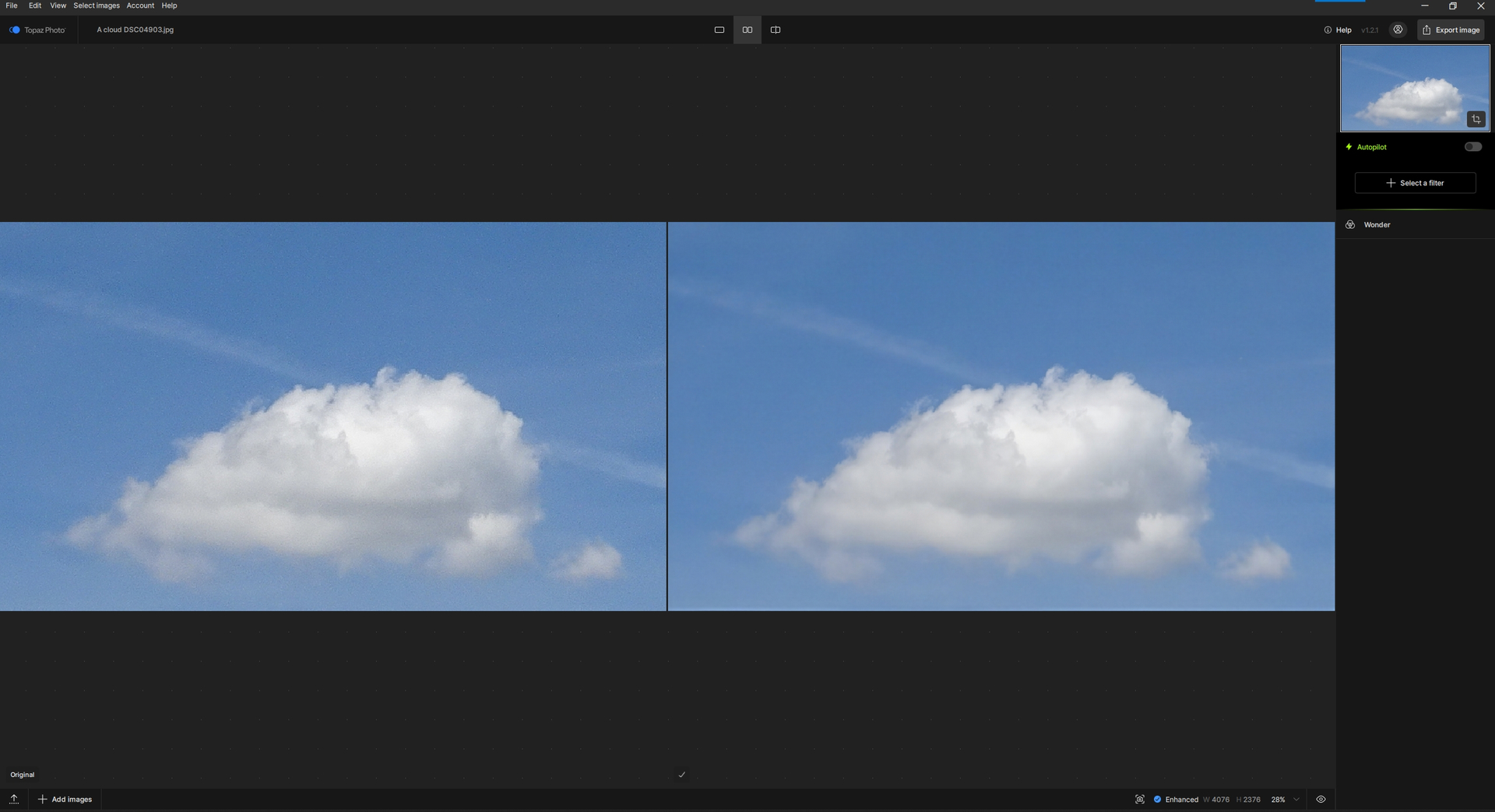
As for Wonder 2 (beta), I use it in a number of cases. It works well for me (sometimes it doesn’t, but that’s OK). Here is an illustration of the result of Wonder (Upscale 4x) on the cloud. Quite a nice result:
Yes, my mistake! However, as has already been noted, images are being cropped.
Okay. That clears that up. I assume that credit info is on our personal acct pages (I didn’t have to look for it there before since it was in the product UI’s). Thx.
1 Like
I have a problem with “flattened” filters, especially when using Autopilot. It likes to automatically flatten some of the filters used, and I’m unable to modify any of the settings for those filters. This is especially bothersome for the Upscale filter, where I usually want to set the processed image to be a particular size. Please, either don’t flatten any of the filters, or at least make it an option.
11 posts were split to a new topic: Discussion | Wonder 2 tests + Adjust 5 and Gemini/ChatGPT tests
@rayinsanmiguel - If you are on the latest version, crop was fixed for cloud. Make sure to send details to support@topazlabs.com when on v1.2.1 showing what issues remain.
@lpenderg - the flatten was necessary to introduce the Upscale anywhere feature request. You can, in Preferences, turn off Upscale from kicking in during Auto-Pilot, and you can upscale when you have done all your other edits.
1 Like
@unrelent yes, that is what I thought. Recover v3 would definitely not be trained for a flattened, cropped portion of a file, with its RAW noise not removed and flattened in it. This would be using 1. Incorrect workflow causing artifacts 2. Incorrect AI models. Use the full RAW file in Topaz Photo, benefit RAW Denoise, then can crop in Topaz Photo and upscale to the size needed, using the correct AI model. Wonder Works on that cropped noisy file as it has noise removal and upscaling abilities, not Recover v3. (Alternate workflow: remove RAW noise in another program, then import the clean, noise-free, non-RAW export to Topaz)
4 Likes
Thanks for your explanation!
1 Like
Small problem. I can’t export my image with Wonder V1. The preview worked fine. But I get this error when I try to export.
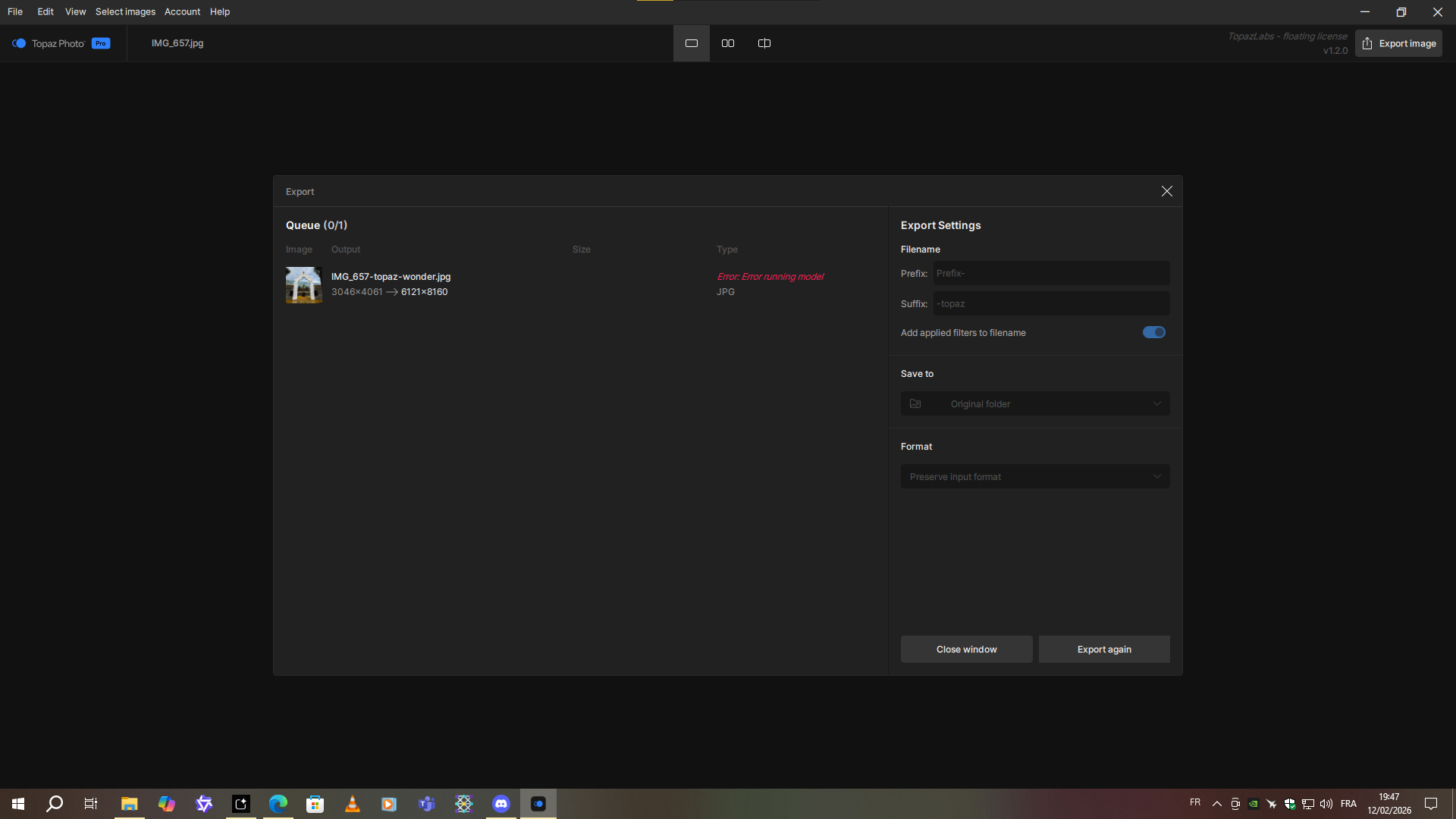
For any issues, make sure to contact support@topazlabs.com with your apps logs. You can use the top right Help button to send the logs to support!
4 posts were split to a new topic: Discussion | Tests on an imag
Autopilot is set to off, so why it is Autopiloting?
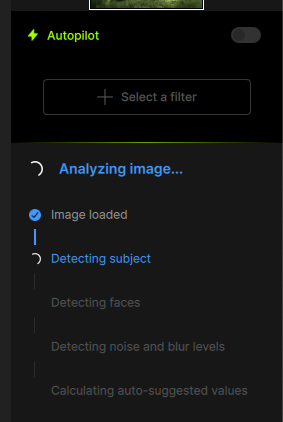
After all this it just presents the empty options for me to choose.
1 Like
Hi.
Autopilot and image Analysis aren’t the same thing the image is Analyzed regardless if Autopilot is enabled or disabled because the Idea of Autopilot is too apply Enhancements based the Analysis of the whole image
Even if Autopilot is disabled the image is still Analyzed and when you manually select an Enhancement for example, Sharpening the initial AI Model and settings will still be applied based on the image Analysis
Here’s the official information from Topaz
If Auto-Pilot is off (that is the default):
-
On image import Topaz Photo will still analyse the file.
-
When an Enhancement is manually added from the “Add enhancement” button, it will add it with the recommended AI model and strength, based on the AI Analysis made on file import.
Hope this helps
1 Like
Thanks, so I guess there is no way to optimize the image-opening experience.
To be clear, I had not selected any Enhancement at this point.
So why does the image have to be analyzed when the human user can choose to decide what they want to do (to save time up front)? Then after choosing an Enhancement (everybody knows what they are in advance), let the app do its thing.
3 Likes
