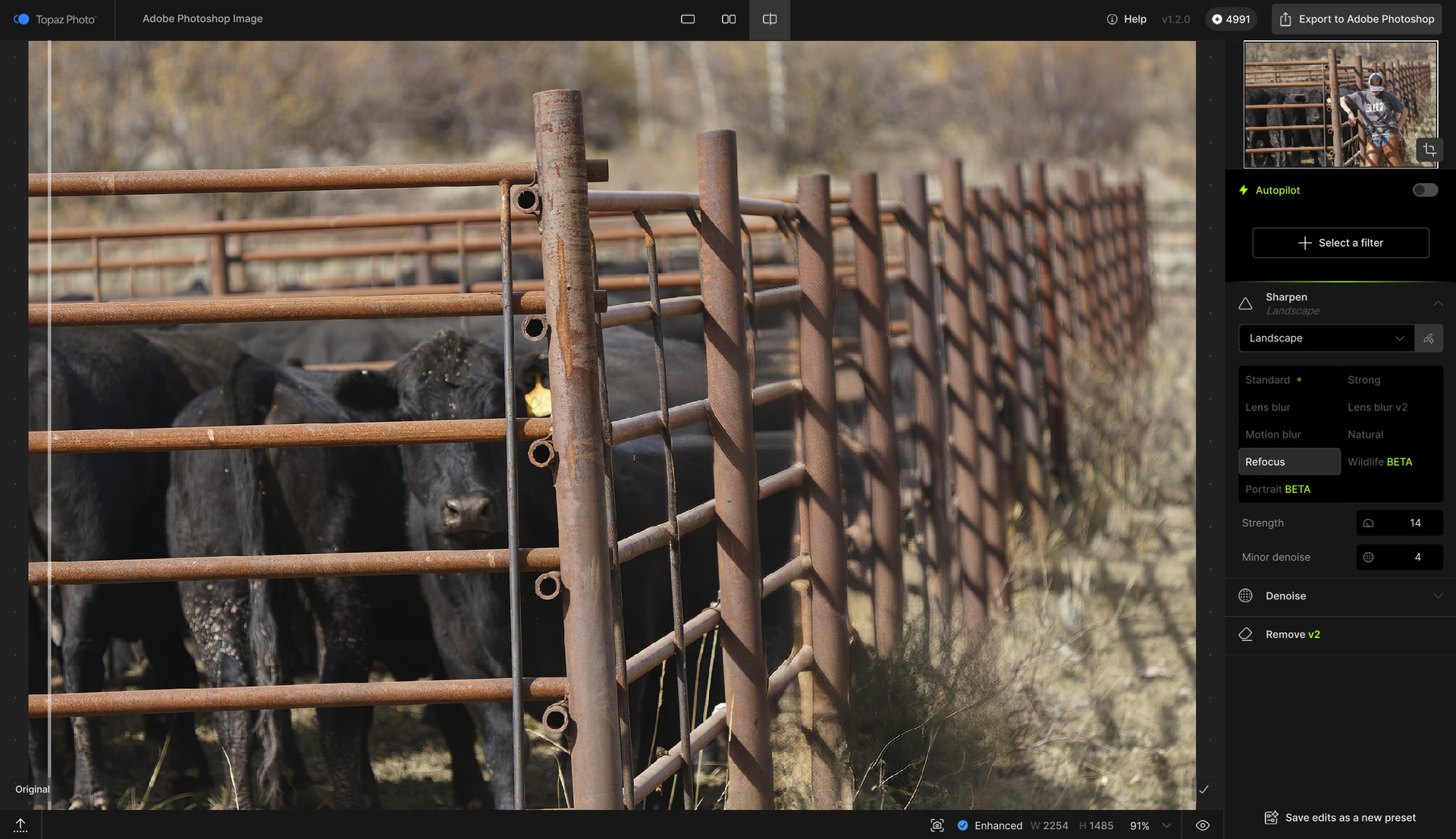
Also, from the release notes of Topaz Photo v1.0.0:
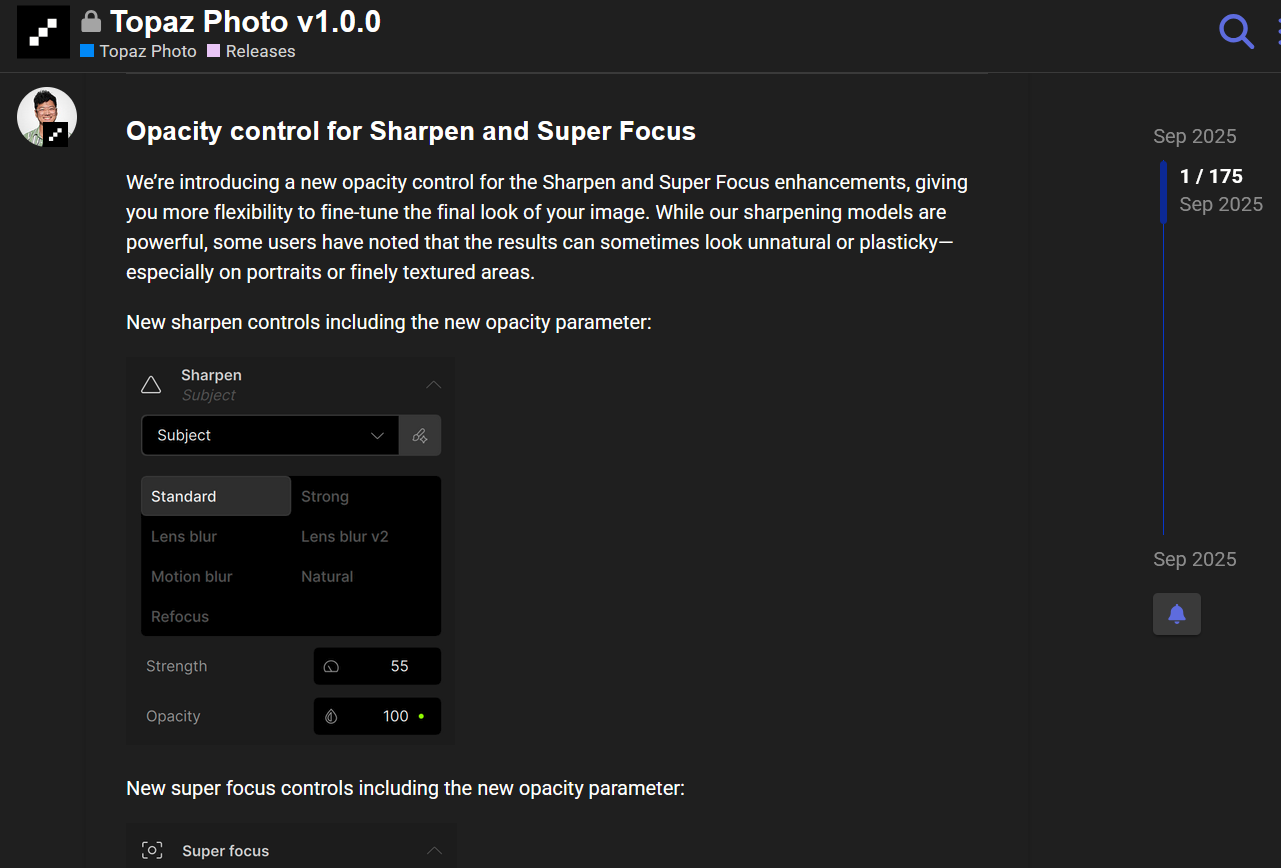
Seems odd to remove a new feature so soon after introducing it.
EDIT: They’ve added a Minor Denoise slider, but that isn’t mentioned in the release notes either.
Also, from the release notes of Topaz Photo v1.0.0:
Seems odd to remove a new feature so soon after introducing it.
EDIT: They’ve added a Minor Denoise slider, but that isn’t mentioned in the release notes either.
At least it’s still there for Super Focus.
Adjust Lightning always comes onfor this update. Can I have it turn off?
In Preference, Adjust Lighting is under Apple Color Correction and it is OFF, yet Adjust Lightning still comes on Auto.
The succinct Summary of changes w/brief intended use, above the detailed explanation Changelog, is helpful! @Lingyu
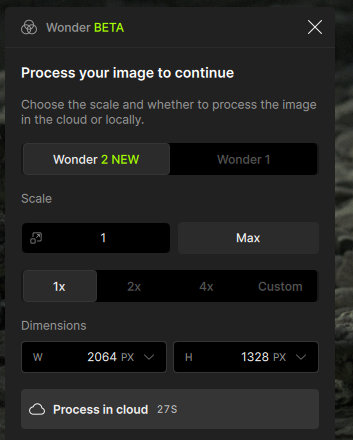
UPDATE: 3 hrs later… Sadly, Wonder does not process. I tried a 2x Cloud render and waited for over 6 mins. then finally cancelled the job. Msg box stayed in a static “Processing” mode - the Progress Bar did not move at all from about a 1% position and there was no countdown timer. I’ll try to send Logs if I can find the TL Dropbox link somewhere. Just sent - looks like tagged for Ange.
Win 11 Pro. Desktop PC. Using TL Phot 1.2.0. as Ps 2026 plugin via File > Automate. Processor = NVIDIA 5090. Image = Olympus Raw .ORF, 91.1 MB.
Have the same problem… sigh. Even looks the same…
Have RTX 2070 Super, Win11 Pro, Intel I9 9900 KF all new drivers.
Tried totally removed uninstall and reinstall as well….
Hope for a quick fix 
I have this problem as well!AMD ryzen 5 5600.RTX 3060 12Gb 32gb memory.Gpu does not work, on cpu works
I’ve discovered that whatever the preference for “Default Standard MAX rendering method” is set to, then that preference also applies to Recovery v3. The “Default Recovery v3 rendering method” preference is ignored completely. This is in the Windows version.
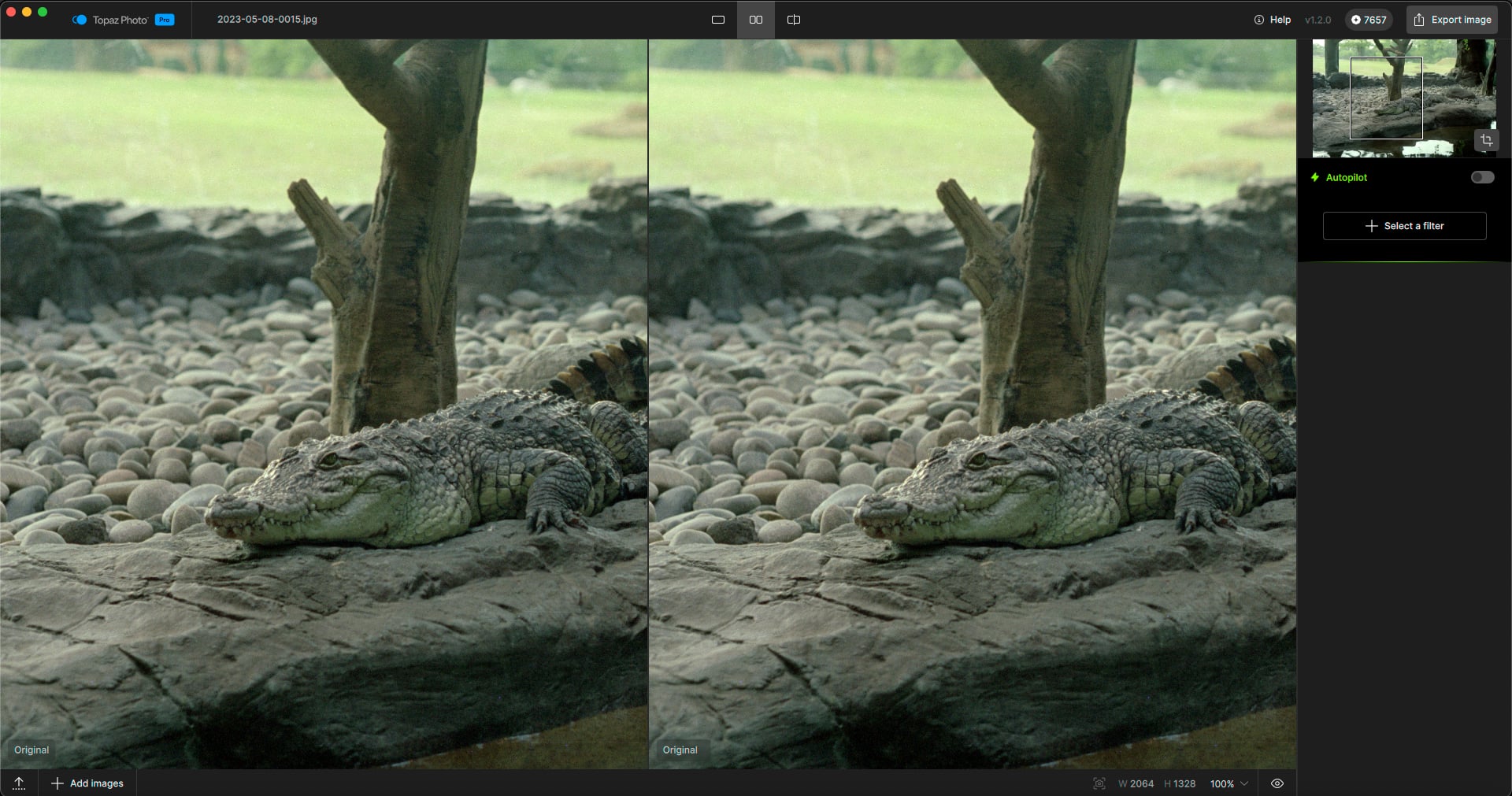
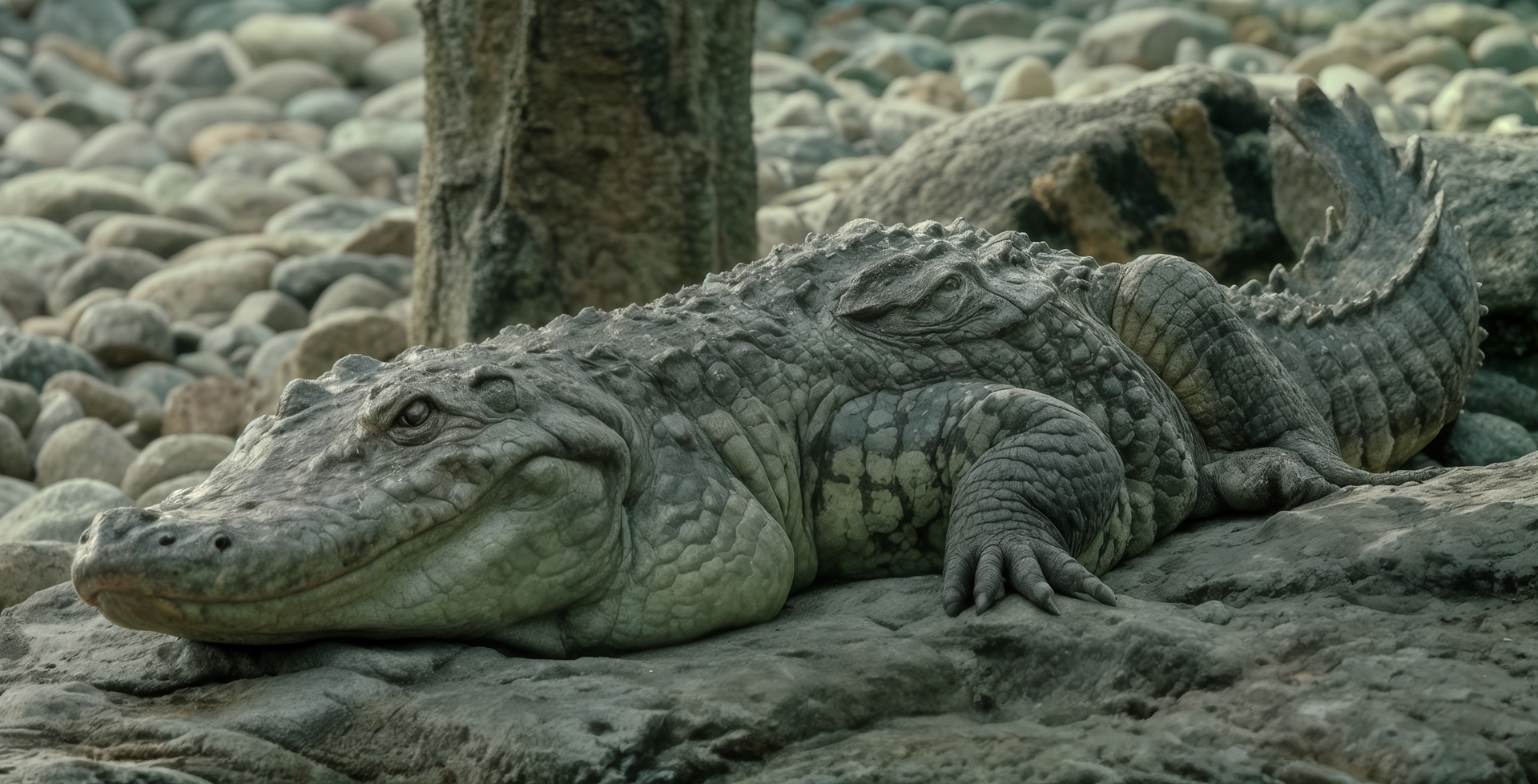
Let’s talk about the Remove tool. Usually I use PS Generative Fill for such tasks, but let’s see how Photo does using a 1990s 35mm film scan.
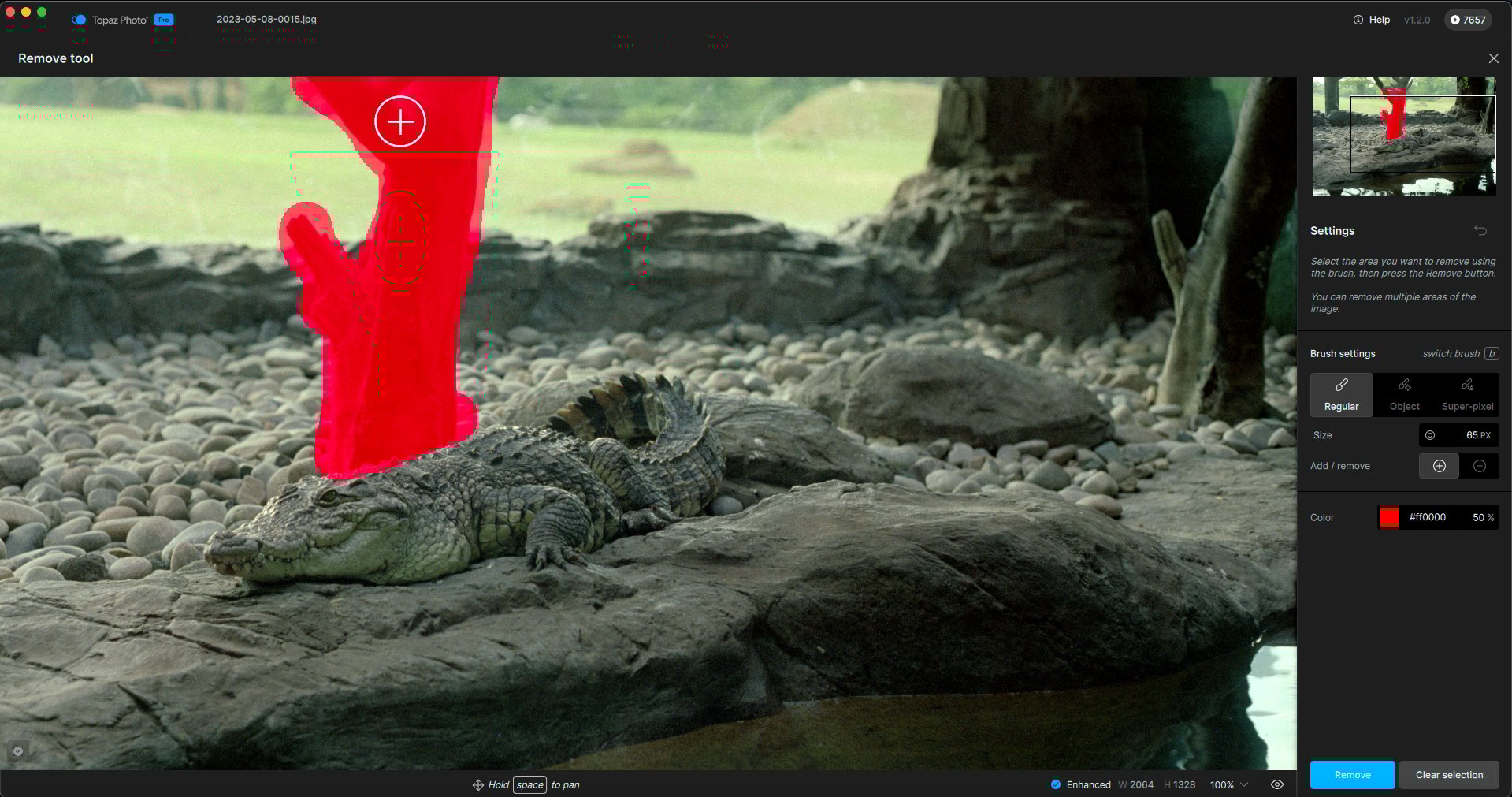
First try, I am using default settings (Regular option):
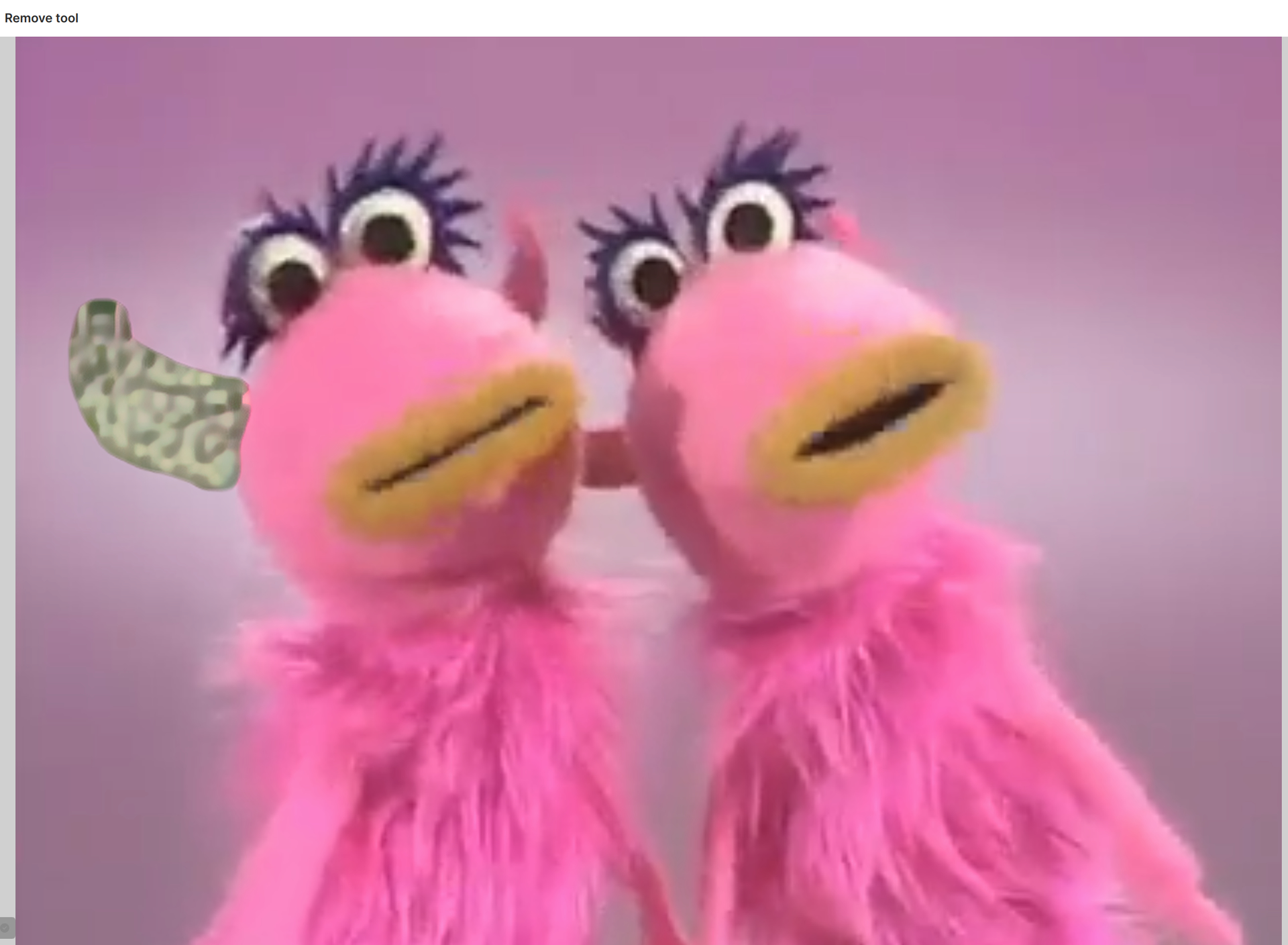
Photo does not remove, it replaces. WE NEED TO BE ABLE TO DIFFERENTIATE BETWEEN THE TWO OPTIONS. The app says, “Select the area you want to remove…”
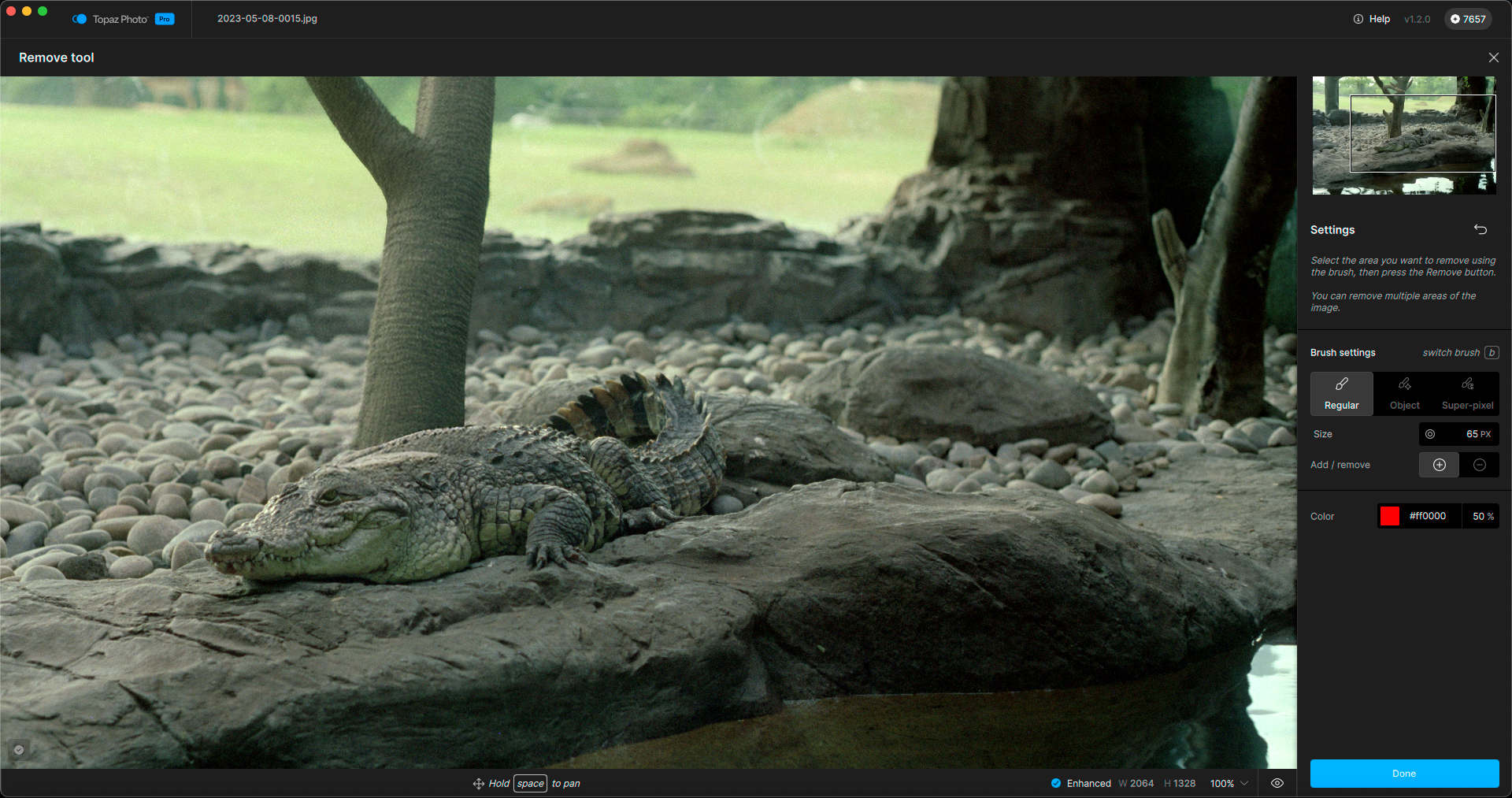
In the process, the alligator grew a hump on his back:
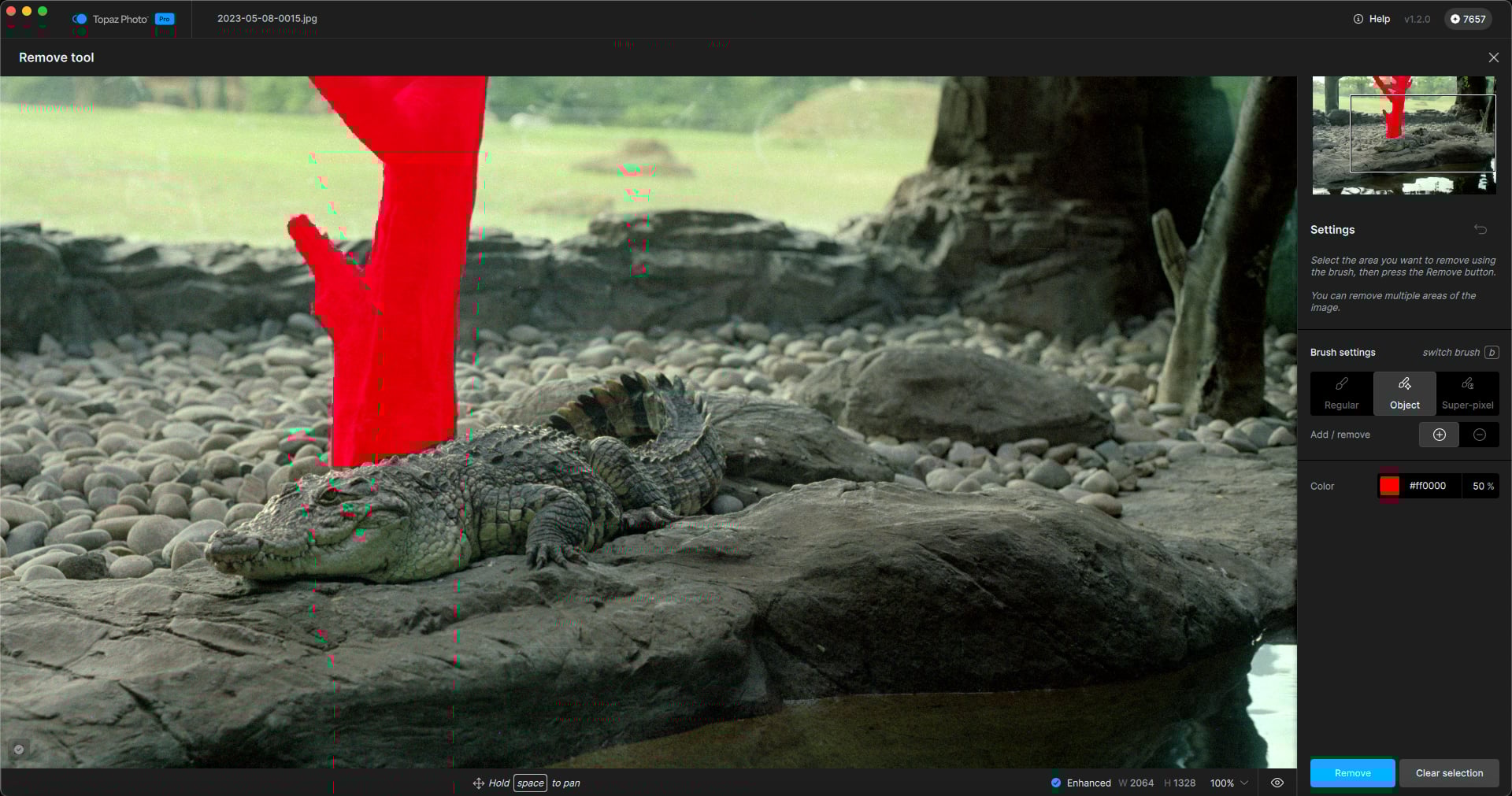
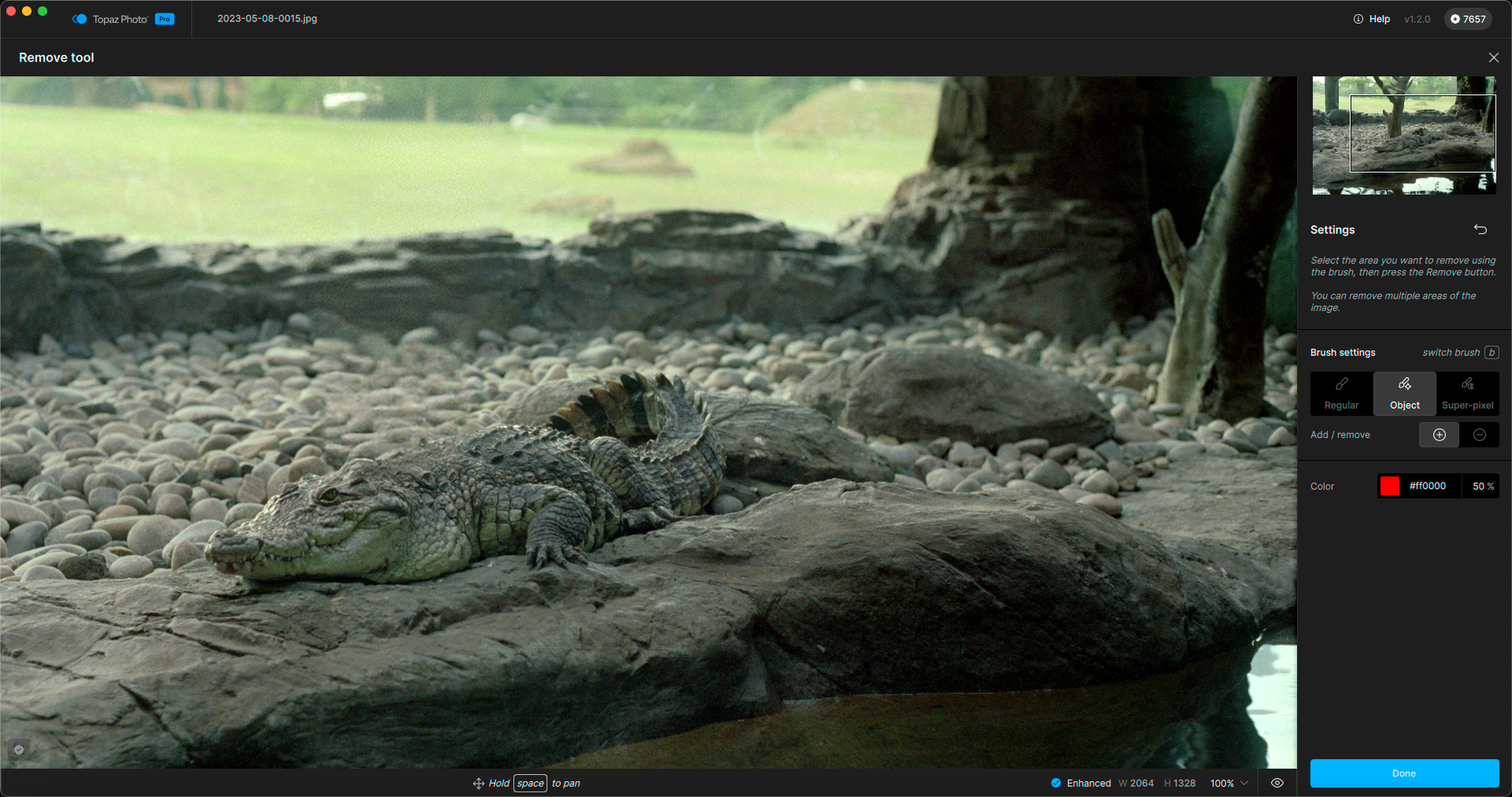
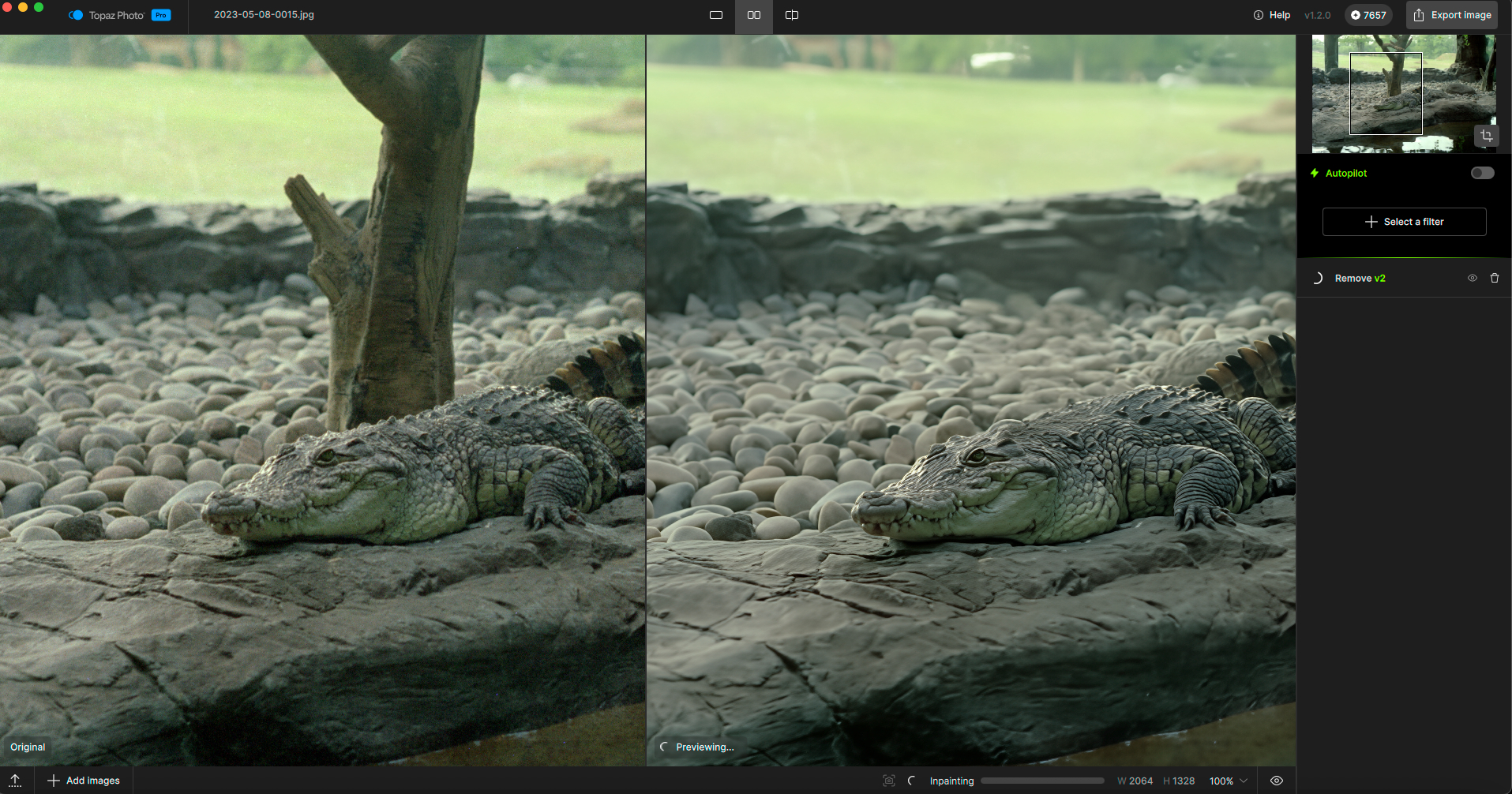
I undid the action and next tried the Object option. The tree was selected except for the extreme edges, and while the removal was successful, it still altered the alligator (removed some of his “bumps”):
Good enough for now, so I will proceed with Wonder 1 and 2 (cloud):
Is the Removed tree coming back-?
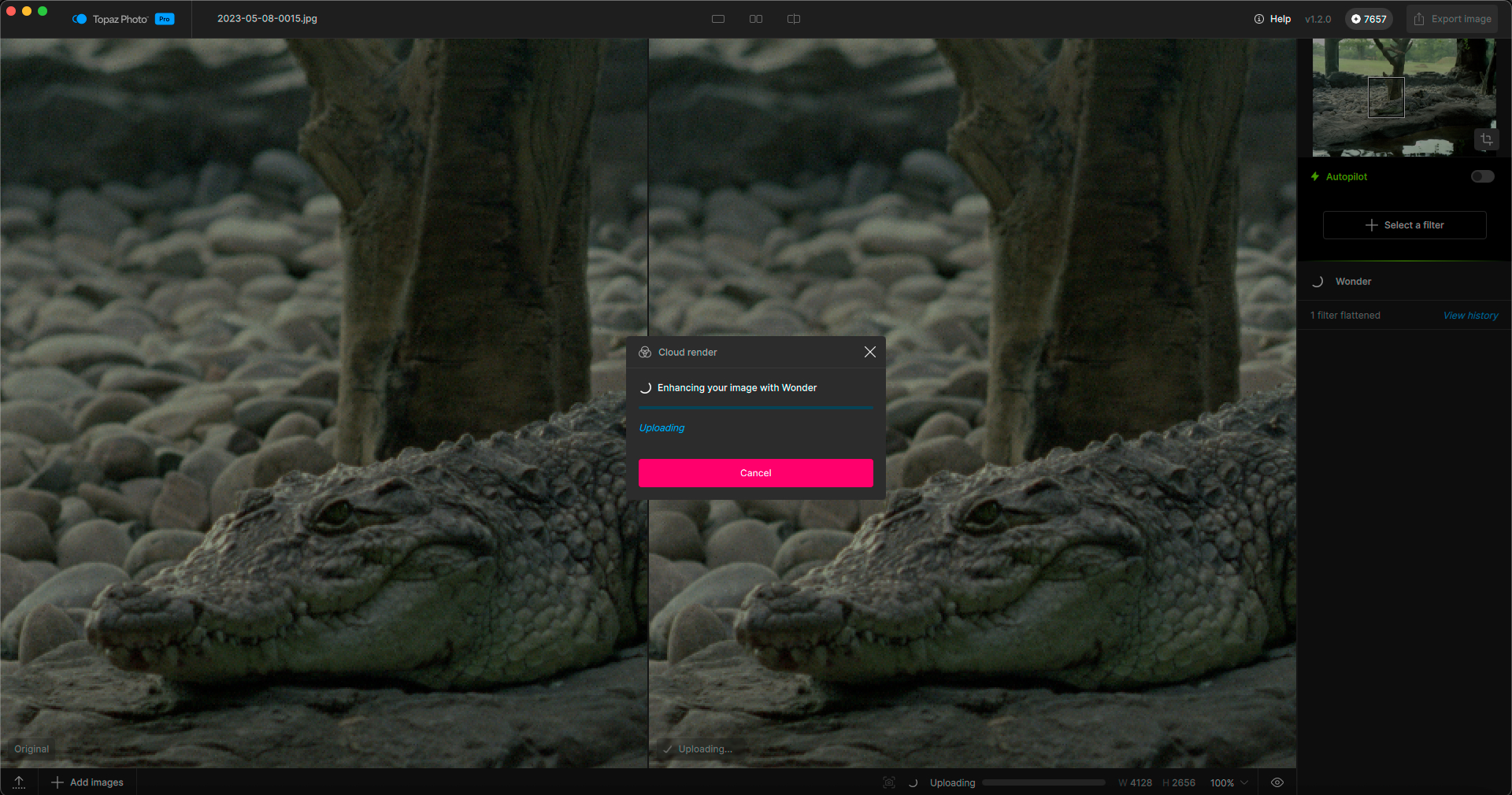
Did I get an error? Still (supposedly) enhancing… I believe this was Wonder 1 at 2X:
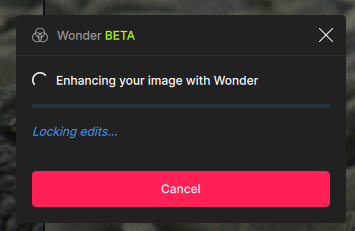
I think it errored out while continuing to act as if it’s processing. It’s been awhile so I will Cancel:
Now trying Wonder 1 at 1X, hmm:
Now let’s try Wonder 2:
Well, I mistakenly removed Remove and now the tree is back. But I cannot undo this accidental filter removal:
I’m not going to mess with the tree again, I will go straight to Wonder 2:
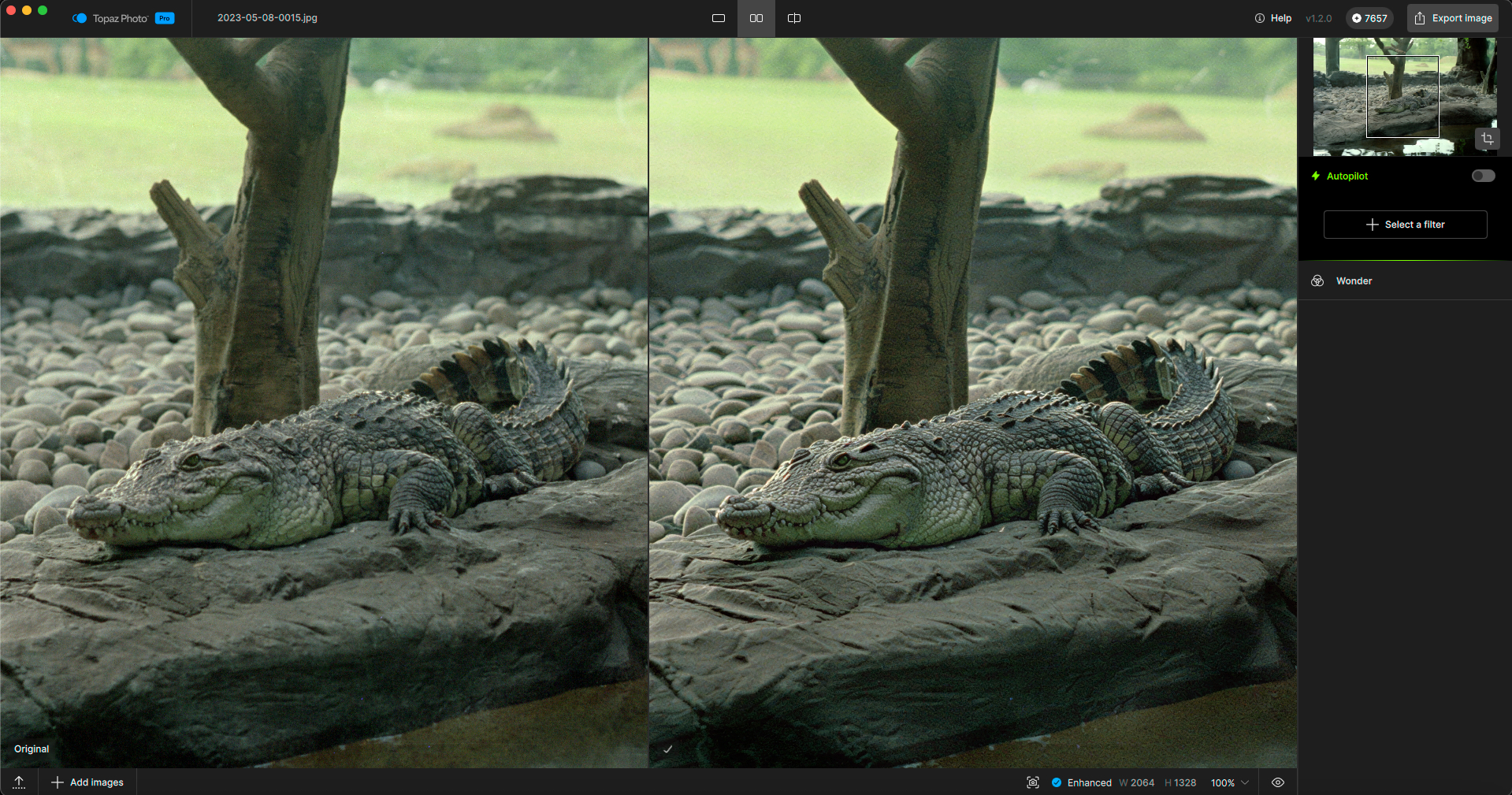
This is better than Wonder 1 from earlier:
I see I can’t Upscale after this so I will revert and do a crop within Photo and try some more. Recover v3 at 4X:
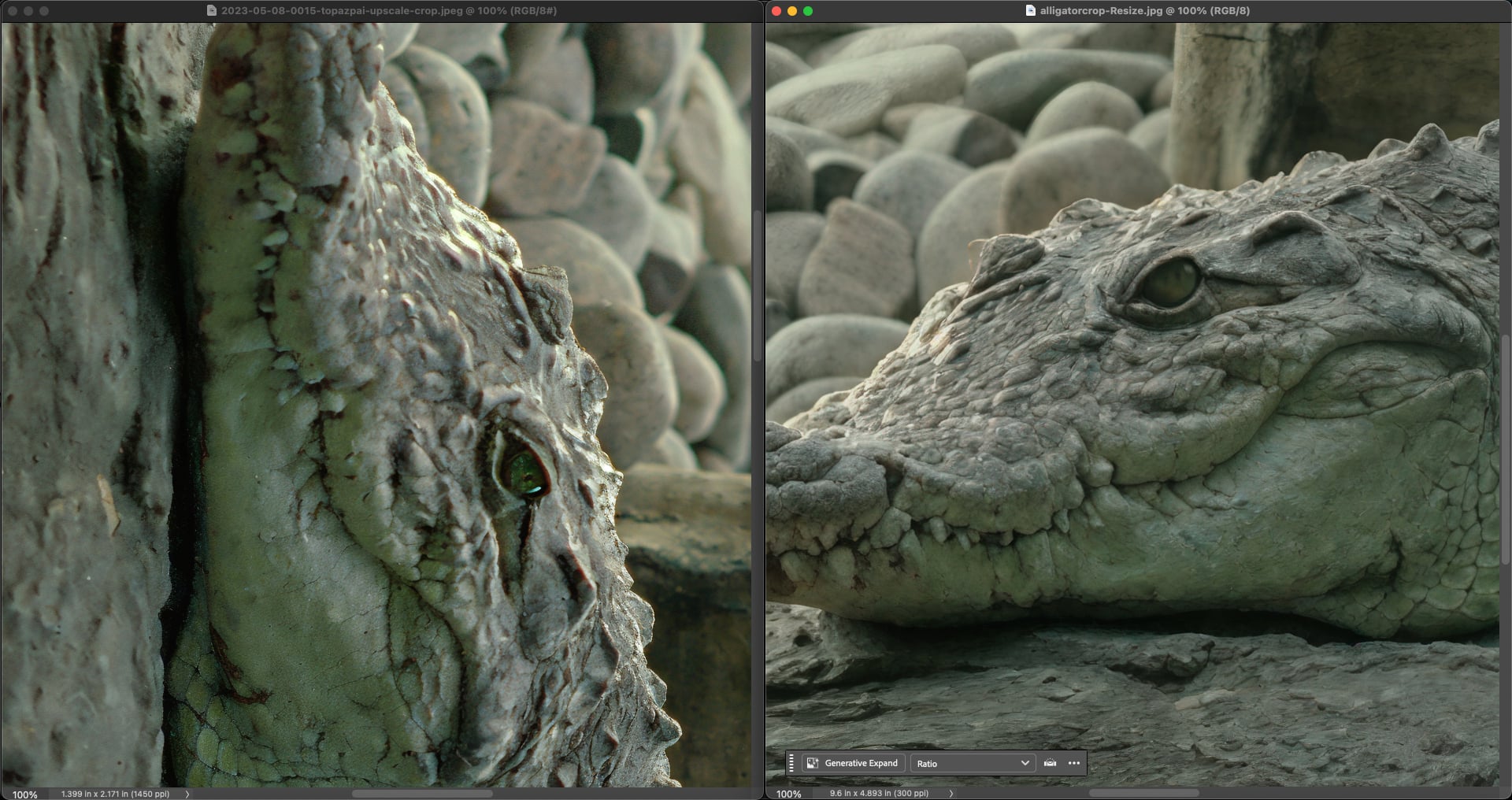
Photo vs. ON1 Resize. Photo returned a sideways result (the image may have been rotated in Adobe Bridge but opens horizontally in other apps):
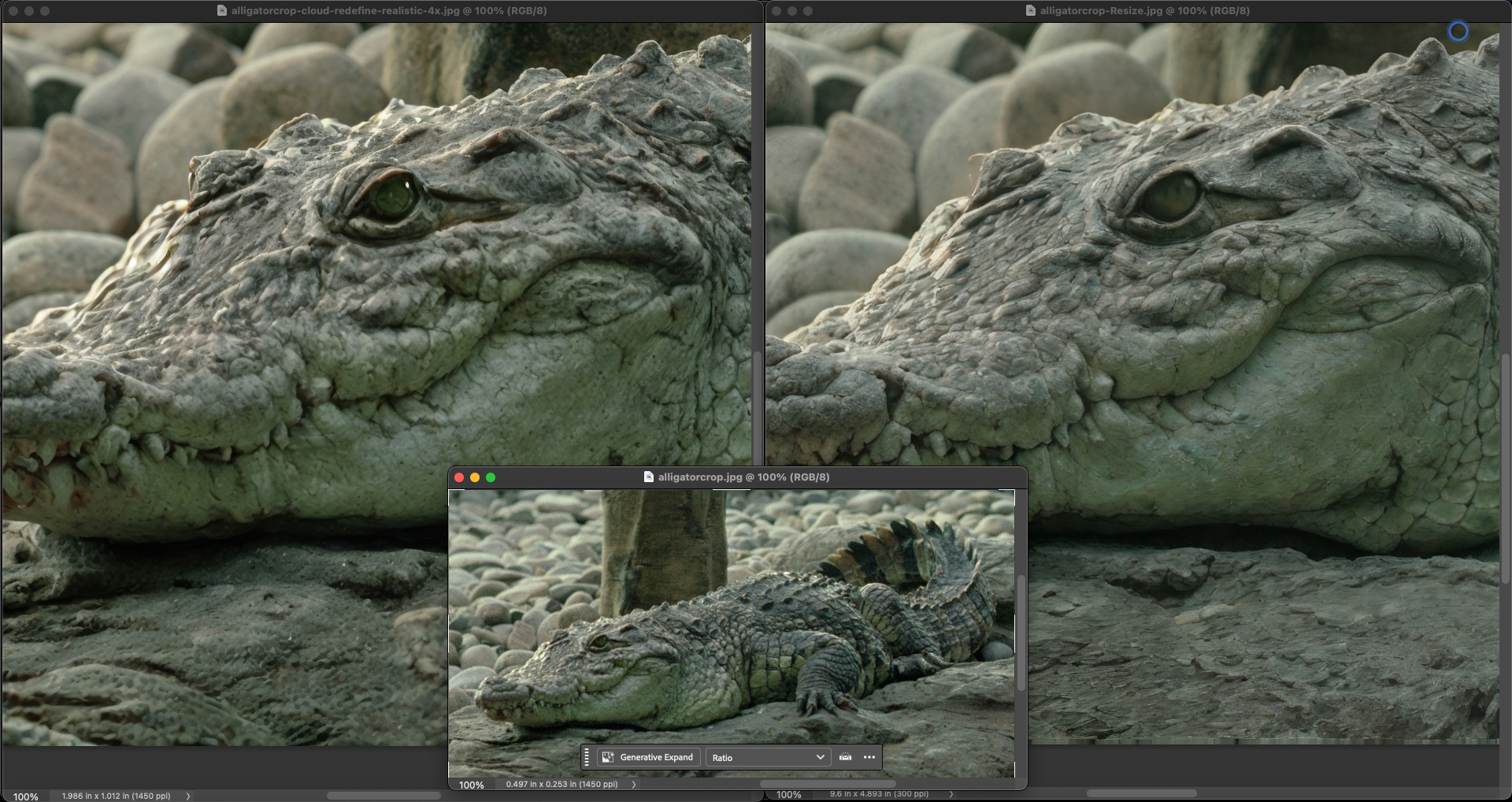
I was curious how Gigapixel would handle this vs. ON1. Redefine Realistic came closest, while Redefine>Creative/Low was sharpest, but the alligator turned into a hippo…
I’m currently using macOS Tahoe, and I’m unable to use the remove filter at all. This is incredibly frustrating! At the very least, provide us with the option to revert to version 1 or something similar. The remove filter was functioning fine before this update, and now I have no way to remove anything from my photos. If this feature is not going to be supported by macOS Tahoe, I have no reason to continue my subscription.
Okay, after trying Wonder (with mixed results b/wn my NVIDIA 4090 laptop and NVIDIA 5090 desktop Win 11 PCs) & seeing some results above, I was curious to try Remove v2 also.
System: Win 11 laptop. Using Ps 2026 beta (not the current rel. which is supposed to be exceedingly buggy…). Phot 1.2.0 Plugin. Processor = NVIDIA 4090 (laptop).
Image: Adobe stock of cowgirl leaning against a metal fence with cows behind her in the enclosure. 19.2 MB .tiff.
My Goal: Remove the cowgirl. Keep the rest of the landscape shot - with the fence intact.
Steps/Workflow:
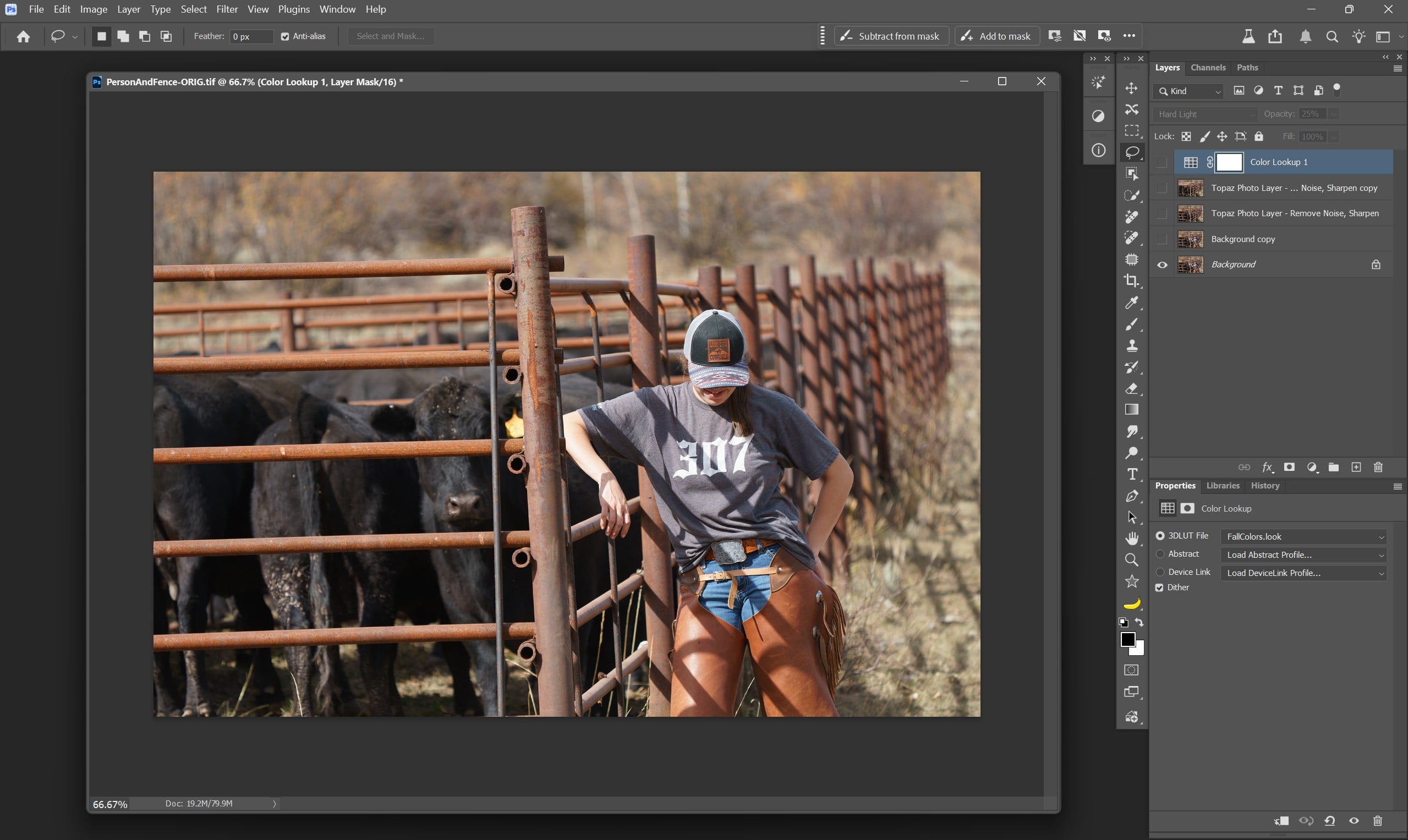
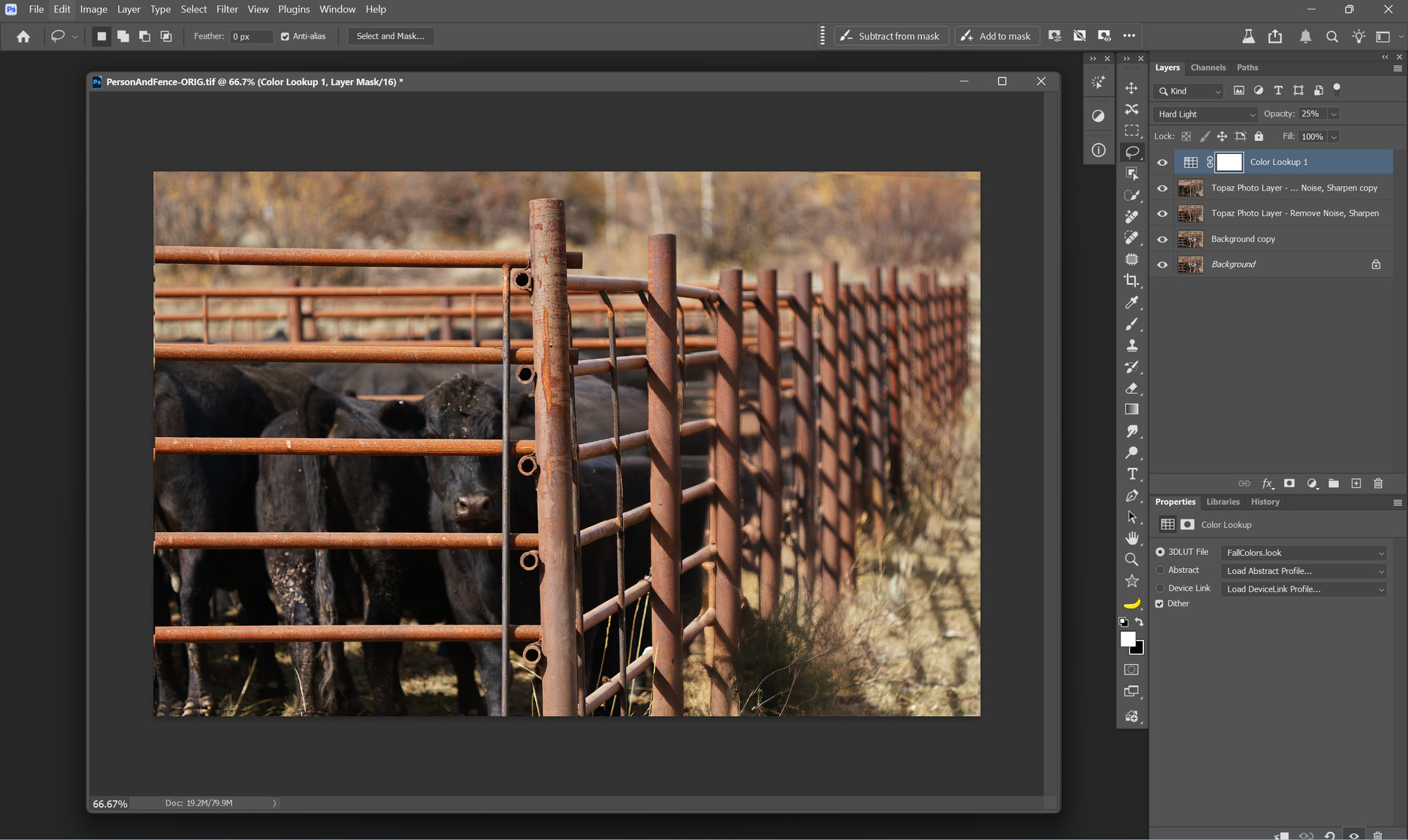
Open image into Ps beta. Background layer visible in snip. All other eye icons off.
Send to Camera Raw Filter to Auto Straighten. No other ACR settings.
Send to Phot. 1.2.0 Plugin via File > Automate.
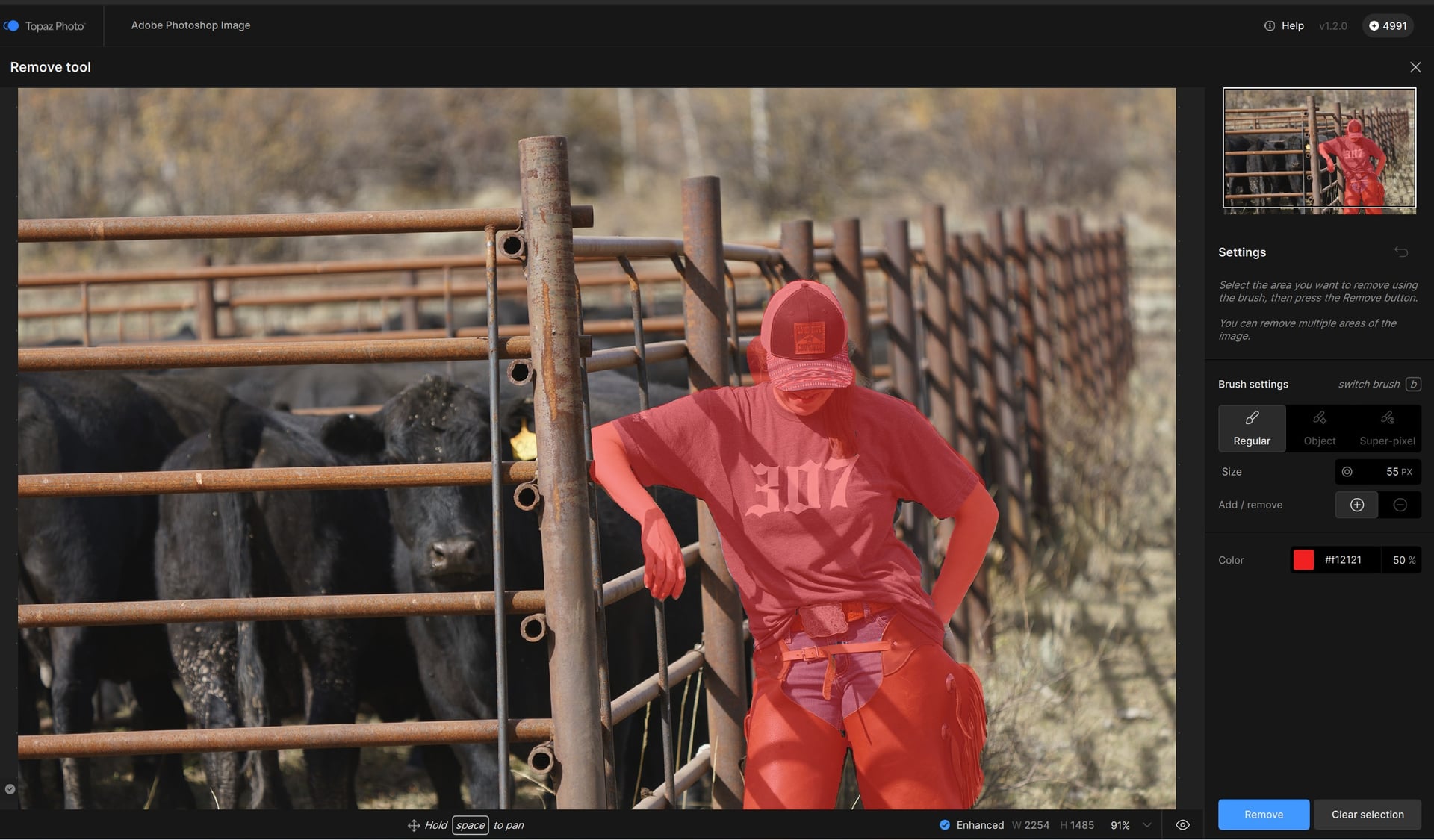
Remove v. 2 - Used combo of Object Selection Brush & Regular Brush to create overlay on cowgirl. Object didn’t go fully out to edges in some spots and missed some spots. I used Regular to make sure she was fully covered with a small margin beyond her in tricky areas like the fence.
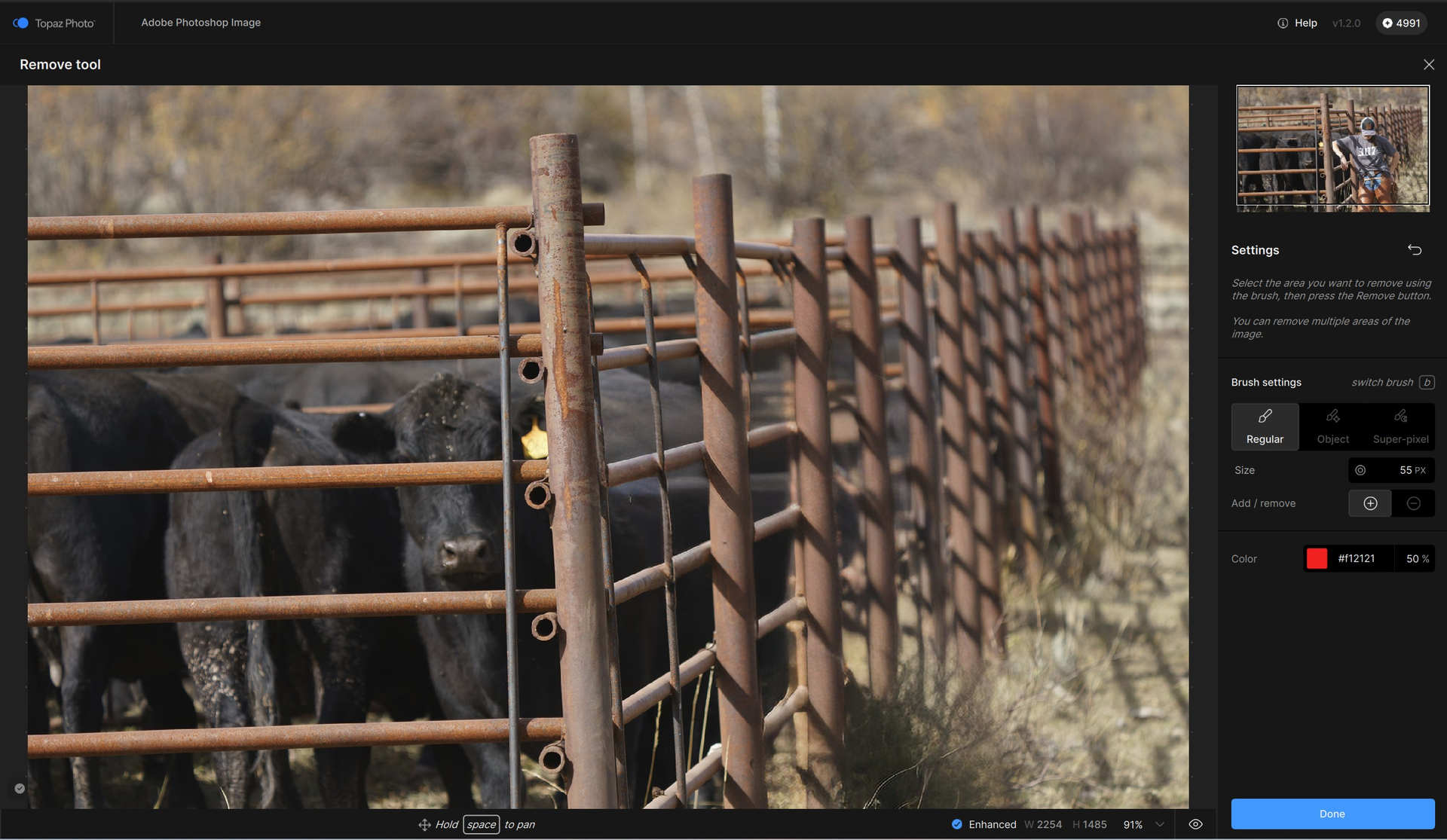
Result of Remove: Phot filled in the fence areas that she blocked and removed her.
But it takes a heck of a long time with each subsequent processing for her to disappear (using Split View) - she comes back on the right (‘After’ side of Split View) until all processing finishes. Then she disappears again. Ps doesn’t do that. Once a ‘removed’ object is removed it stays out of sight. That is the preferred removal mechanism! The Phot approach slows workflow efficiency - even if, for this test, it was accurate in the object/subject removal.
Denoise - All (lowest tier of denoising). Because it’s stock I assume noisy.
Sharpen - Landscape. Had to manually run through each model to compare the appearance. Sure wish there was a Sharpening Comparison View (like in the good old days TL photo products…). Used: “Refocus” model. I kept denoising at 1 b/c didn’t want to double dip on denoising after having run a Denoise layer.
Export/Save to Ps - Appeared same as in Photo UI. I added an autumn-toned LUT for giggles (typically to be sure the TL plugin didn’t render my output uneditable using other native Ps tools). No issues adding a LUT or other adjustment back in Ps layer stack. This is more orange than pleases me, but makes it obvious a LUT was added. (Note: I actually did a final Remove in Phot to get rid of the yellow (cow’s ear tag?) before exporting back to Ps).
Note that not only did the Phot Remove construct the part of the fence behind the woman, but it also matched the direction of light that was in the surrounding fence.
Uninstalling this version and going back to 1.1.1 until the issue with Remove is sorted out.
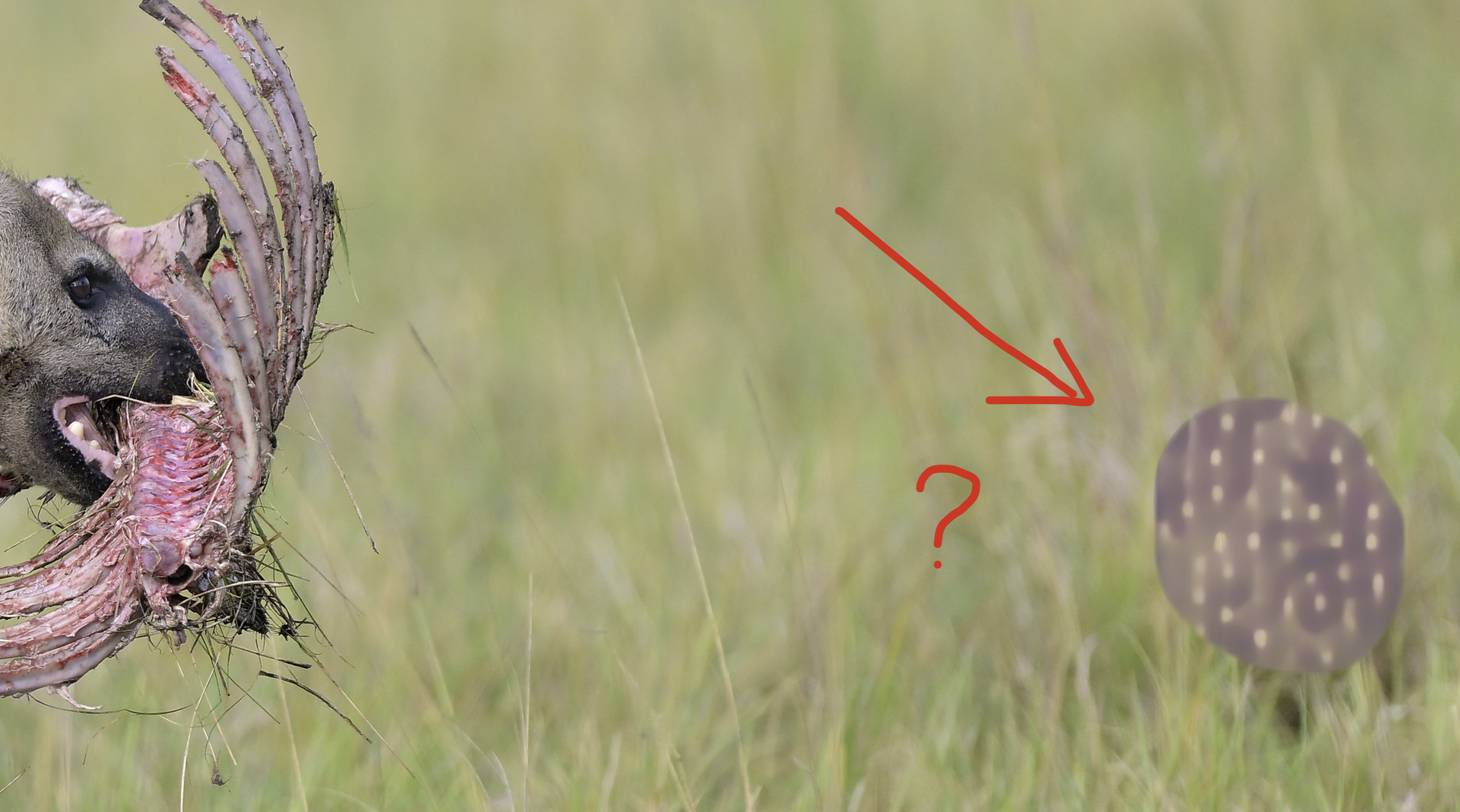
This is what I get when using Remove v2 and try to erase a portion of darker grass:
Anyone else having problems with Super focus V2 in 1.2.0? It never finishes for me. It gets stuck right at the end. Render on computer and Cloud render are the same. It hangs right at the end and the Preprocessing window never goes away. Clicking Cancel just says gives the choice of Continue render or Stop rendering. M2 Pro 12/19 Mac 32gb, MacOS 15.7.3. I tried rebooting, but no change.
Remove V2 doesn’t work at all here (RTX 5070 TI, driver ver 591.74) as well.
Trying to remove the “horn”:
Forcing CPU as AI processor works:
P.S.: Why on earth didn’t you leave Remove V1 in the app (as with most other models where you could select the older one if it was giving better results)?
I have a 5070-Ti (591.74 Studio Drivers) and on my system it cleanly removes the horn from your original using Auto, CPU, or GPU. Others have reported this same blob removal artifact, so it’s an acknowledged issue they’re working on, but it’s strange that not everyone is experiencing it.
Windows ARM devices and macOS 26 (Tahoe) are not currently supported for this model.
Please restore “Remove v1” until you support Tahoe. I’m now left with a major feature unavailable on a macOS version which was released 4 months ago.
@david.barker-2802 @alanhusband-677420 @jyrki.viiala
You are correct -Ill bring up to Lingyu and the development team and tag you both here once it’s back. Link to revert to v1.1.1 if needed.
@mrtoyota03 - Adjust Lighting should not kick in with Auto-Pilot. It is also not related to Apple Color Correction that you mention. Can you send a screen recording of the behavior to support@topazlabs.com and we can troubleshoot what is happening on your side
@Fotomaker - can you confirm where the logs were sent? can you DM me or send them to support@topazlabs.com ATT: Ange. Make sure to send steps on your workflow as well (plugin menus used, the image used etc and I can test it on our side)
Let me know and Ill have a look at them!
@tetri6ix - the development team is looking into this, we will update this thread here once resolved. Seems to affect specific RTX cards. Workaround would be to force the CPU in AI Processor at the moment.
@alanhusband-677420 - thanks for flagging I will create an item for the development team and tag you this Preferences window issue fixed.