Hello! We are releasing the v1.1.1 patch, fixing Sharpen - Portrait set as the default model for Sharpen. Please update to the latest version for this fix.
Changelog
- Fixed Sharpen - Portrait model set as the default for all Sharpening instead of using Auto model selection
v1.1.1
Released December 22th, 2025
Windows: Download
Mac: Download
Snapdragon : Download
Hello everyone! We’re happy to introduce Topaz Photo v1.1.0, the latest version of the app.
As part of our continued push toward more realistic, natural-looking results, this release introduces three new and improved models designed to better handle real-world images. In v1.1.0, you’ll find:
- Portrait Sharpen — High Resolution Detail for Faces and People
- Adjust Lighting v3 — Better Results in Difficult Lighting
- Dust & Scratch v2 — Cleaner Restorations
We also released Wildlife Sharpen in the previous version, which is still very much worth trying if you work with animal or wildlife images. Together, these updates continue our focus on delivering cleaner, more lifelike results across a wide range of photo types.
Alongside these model updates, we’re continuing to expand RAW camera support. This release adds support for 13 new cameras, helping ensure your RAW files import and process correctly from the start. We’ll keep adding support for new cameras as they become available so you can rely on Topaz Photo in your existing workflow.
v1.1.0
Released December 18th, 2025
Windows: Download
Mac: Download
Snapdragon : Download
Portrait Sharpen — High Resolution Detail for Faces and People
We’re introducing Portrait Sharpen, a new model trained specifically for portraits and people photography. Portraits make up a large percentage of the images processed in Topaz Photo, yet none of the previous Sharpen models were designed for this image type. Existing models often produce results that look smooth, artificial, or simply did not have noticeable improvement especially on medium and high-resolution photos.
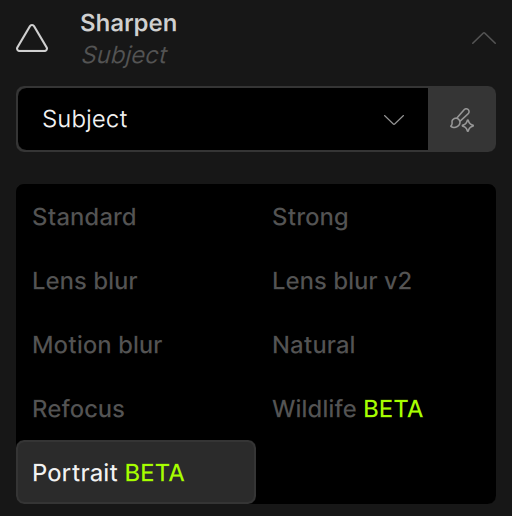
The Portrait Sharpen model was trained on high-quality portrait images to better handle the fine details that make people look natural — hair texture, facial features, and clothing details. The goal is to deliver sharp, clean detail without exaggeration or the “plastic” effect that can appear with older models. To use it, add Sharpen then pick it from the model selector.
For the Best Results
This model should be used only on high-resolution (5MP or larger) portrait images that are already denoised and deblurred. RAW images are the best to use with Portrait Sharpen. We recommend running Denoise and Sharpen first to fix noise and blur. Portrait Sharpen will run best as a finishing step, as it will not perform as well on images beyond a certain blur level. Attached are sample files you can test the new model with.
For smaller or low-resolution portraits, use Upscale first to increase pixel detail, then apply Portrait Sharpen as a final step for natural, lifelike results.
Click here to download sample images for Portrait Sharpen.
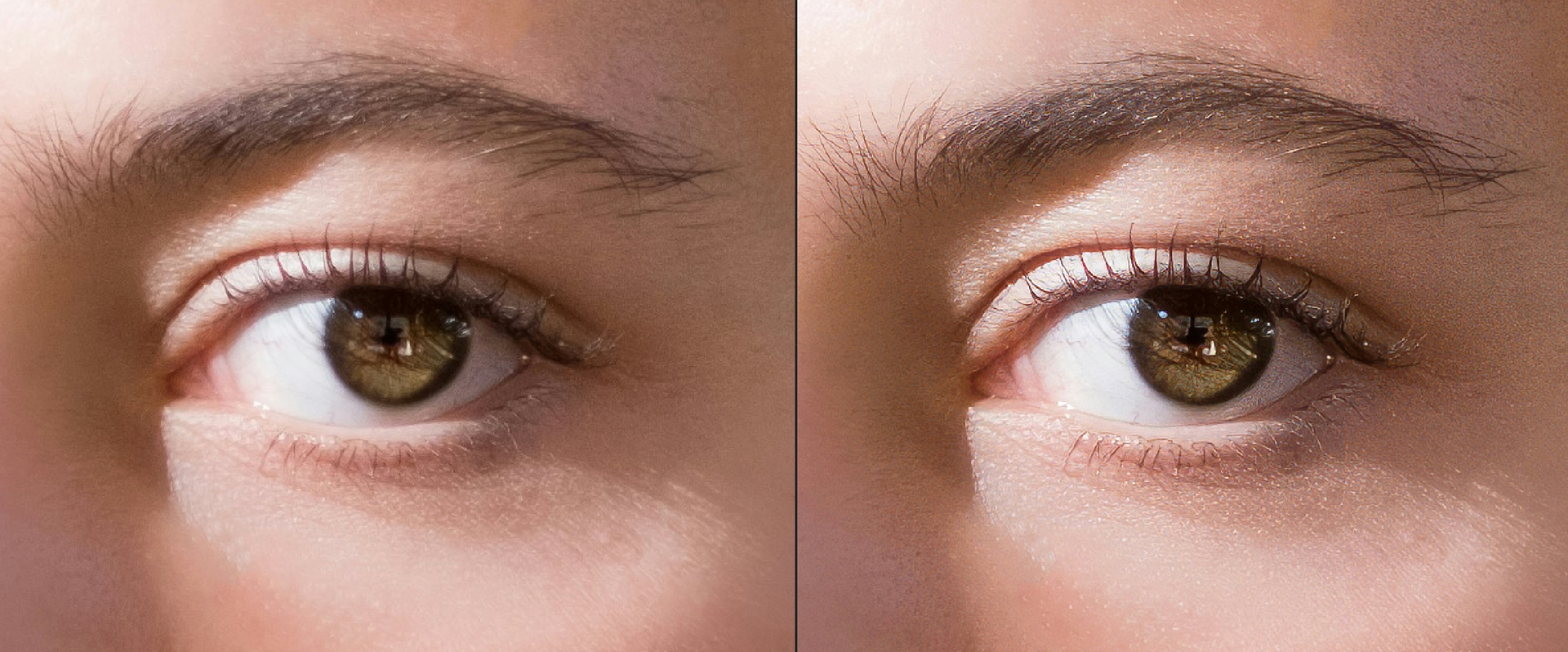
Here is an example of an eye sharpened with the Standard model (original on left, output on right). The eyebrow hairs are smudged together, skin details are over-sharpened and changed. Patterns and textures are created on the skin.
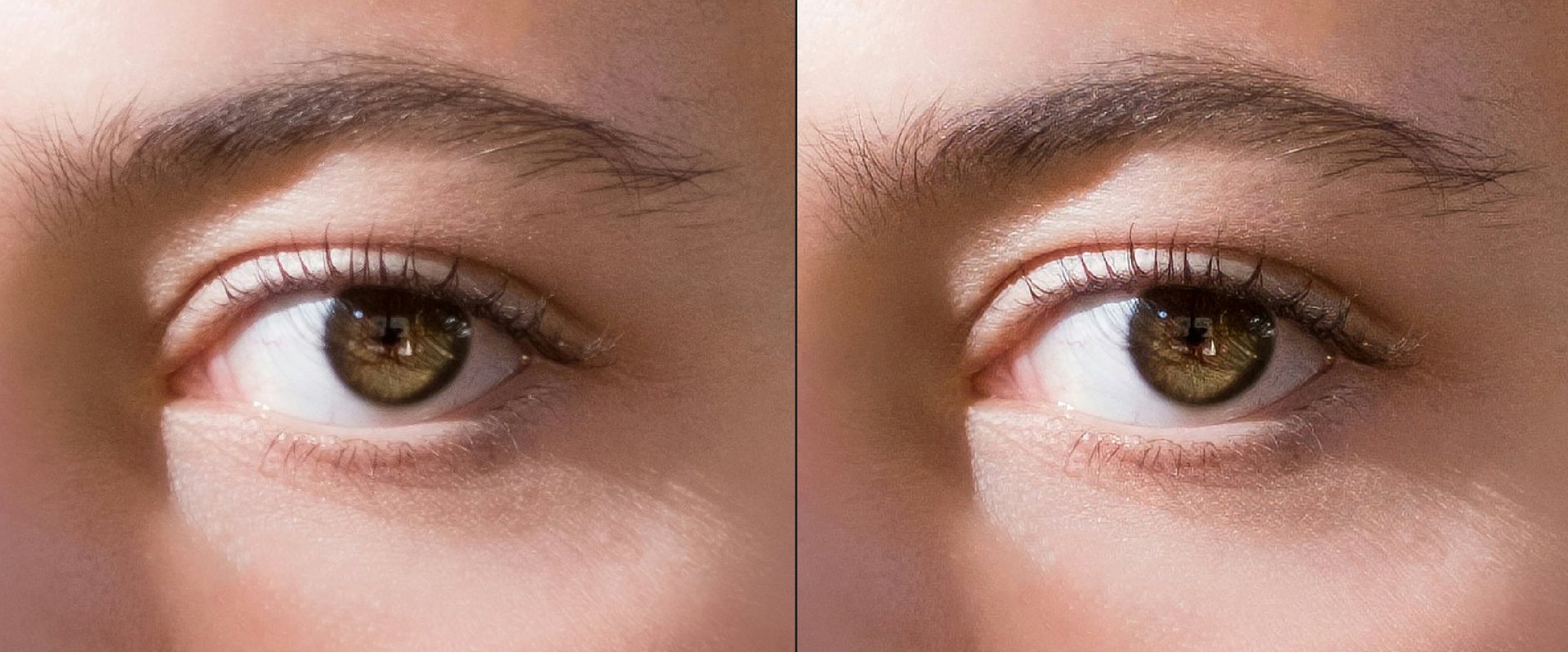
And an example with the Portrait model. Skin texture is enhanced instead of over-sharpened. Details are amplified to become eye-caching (excuse the pun).
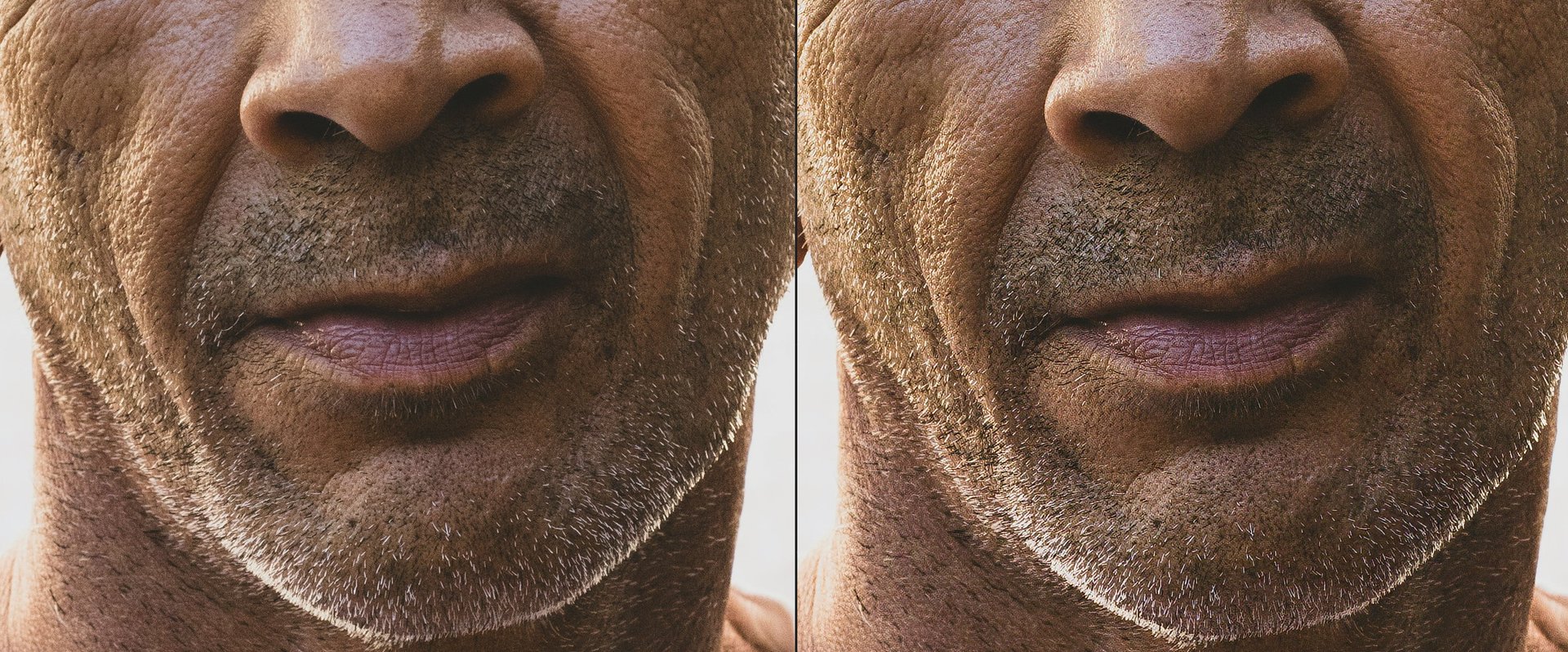
For this face, the Standard model enhances the face but does not enhance the skin texture or facial hair. There is also a noticeable shift in brightness on the facial hair.

With the Portrait model, the image is enhanced without a change in exposure. Skin details are finer and more natural. Facial hair is sharpened without losing the quality of hair.
Please try it on a range of portrait images — close-ups, group photos, and candid shots — and let us know what you think. Do faces, hair, and fabrics look more realistic? Does it produce the level of natural detail you expect?
Adjust Lighting v3 — Better Results in Difficult Lighting
We’re introducing Adjust Lighting v3, an update to one of the most widely used models in Topaz Photo. Adjust Lighting has always been designed to optimize lighting. The v2 model is able to fine-tune already well-lit photos and fix mild lighting issues. However, v2 struggles with underexposed or overexposed images. With v3, we focused on expanding the model’s ability to correct challenging lighting conditions.
The new model is trained to better recover detail from dark shadows and blown highlights, making it more effective across a wider range of real-world images. In addition to improved lighting correction, v3 produces results that are slightly more vibrant and visually pleasing compared to v2, while still maintaining a natural look.
If you want to push vibrance even further, toggle on the color correction to further enhance colors in your image.
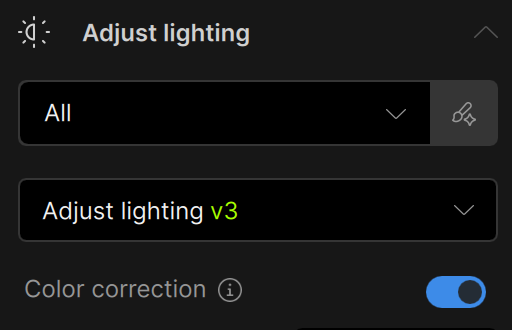
Below, we’ll share example before-and-after results demonstrating how Adjust Lighting v3 performs on underexposed, overexposed, and mixed-lighting images. Click here to download sample images to use with the new model.
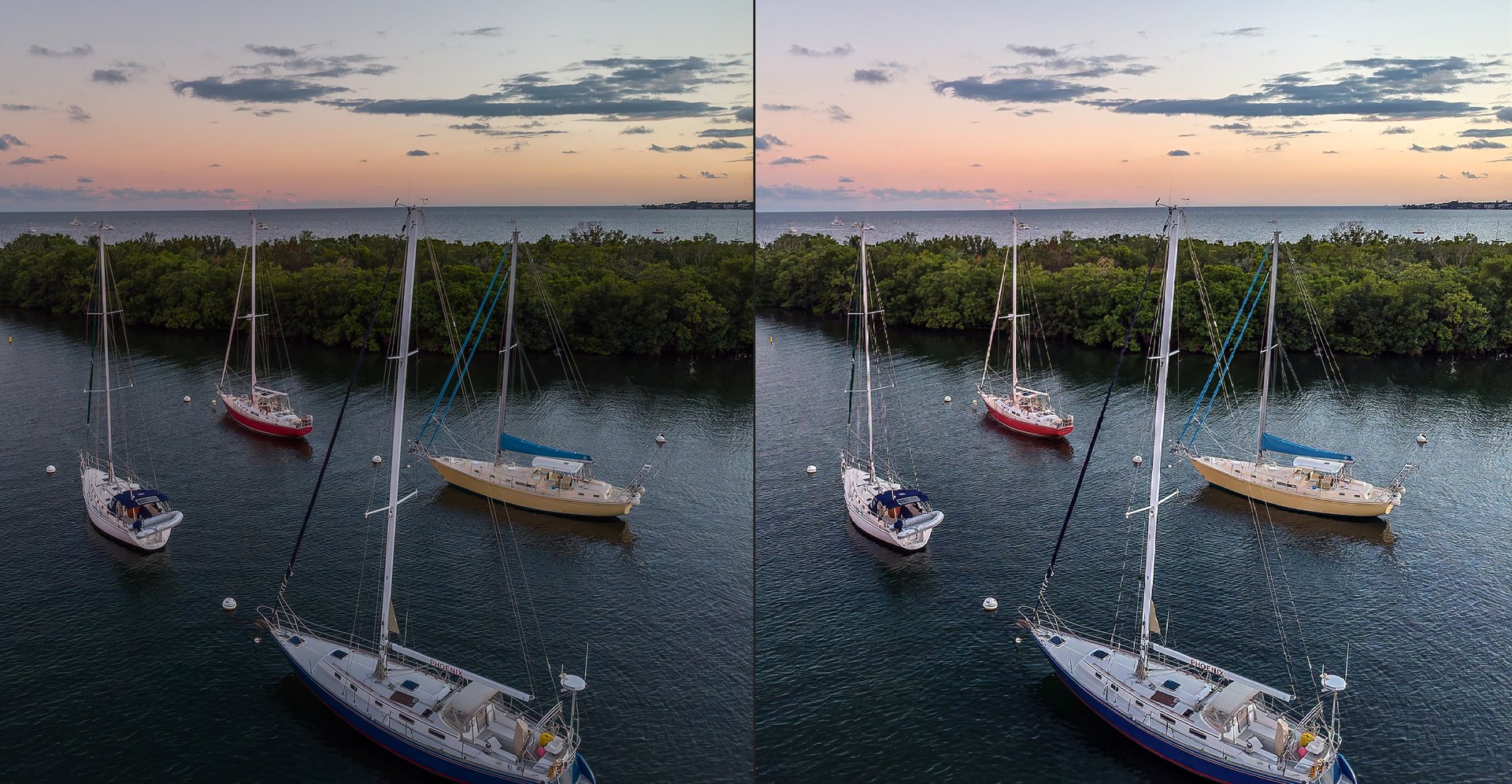

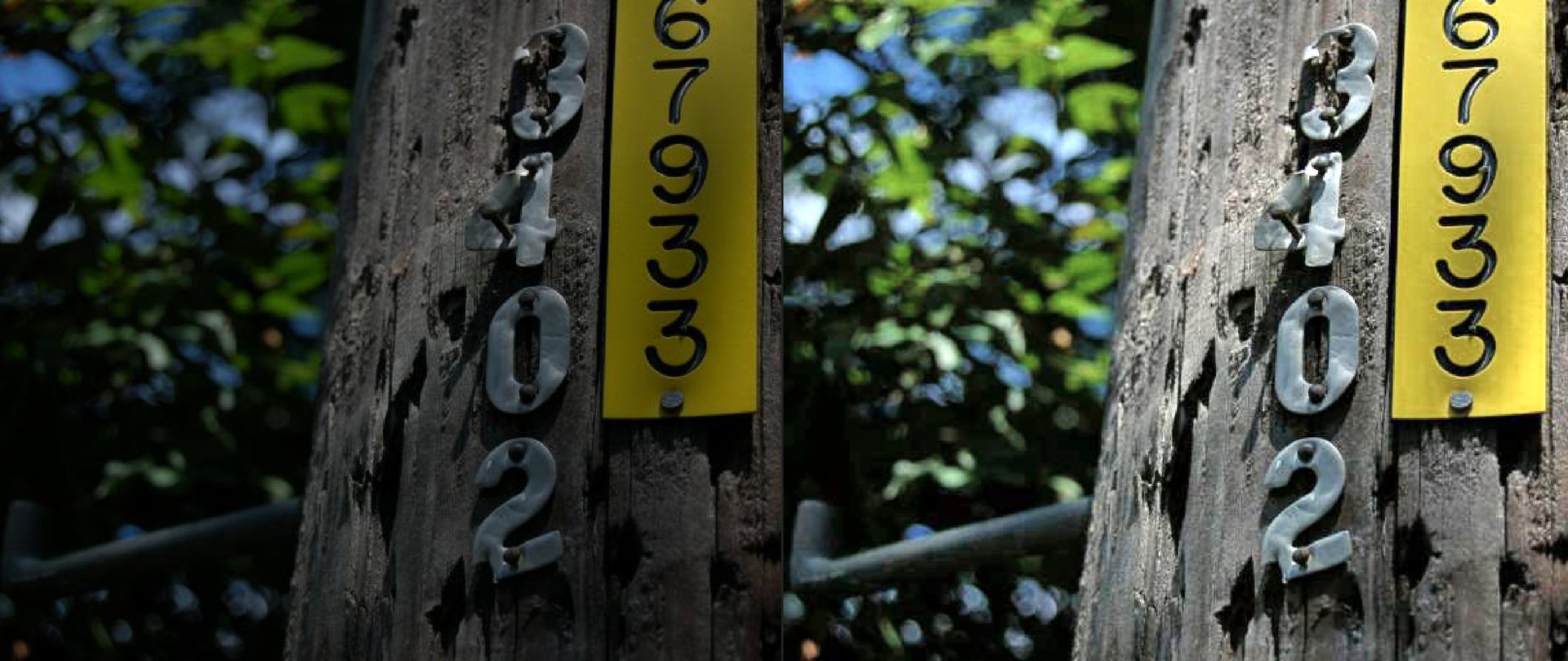
Please let us know what you think about the results. Does the model strength feel right? Do the lighting results look natural, or realistically enhanced? Any feedback will help us tune the model output to deliver better image quality to you.
Dust & Scratch v2 — Cleaner Restorations
Dust & Scratch is a powerful, time-saving tool for anyone working with film scans, archival photos, and damaged prints. With Dust & Scratch v2, we’re introducing a major model update focused on improving cleanup quality while better preserving original image detail.
This new model includes several key improvements:
- Better dust removal for small particles and fine surface debris
- Better scratch removal for thin scratches
- Improved edge handling, eliminating cases where borders and edges had worse results than the rest of the image
A major piece of feedback we have heard so far is that the v2 model can remove details from the image. We will continue to improve the model to improve fidelity and detail preservation now that it is able to clean dust & scratches with high confidence.
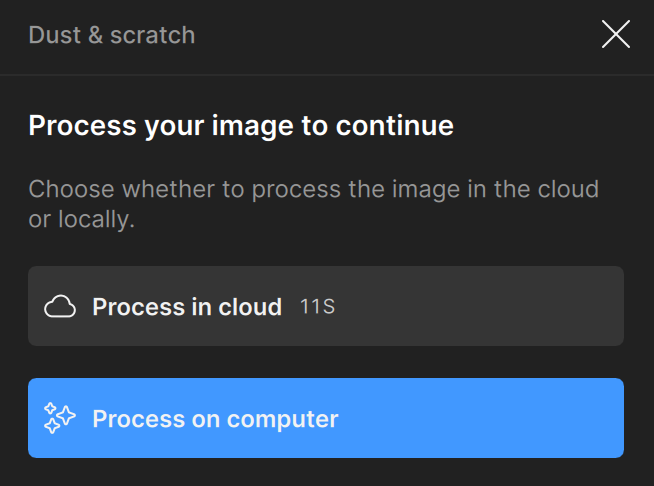
Dust & Scratch v2 is available for both local render and cloud render so you can use it on-device or take advantage of faster processing in the cloud.
Changes to Workflow
The v1 model is no longer available for use. All local and cloud render will use the v2 model only as the v2 results are much better the previous model.
We removed the spot healing step that ran directly after Dust & Scratch processes, as this tool is now included in the enhancement list to be used as needed.
Of course, we have to show off the new model with some examples. Click here to download images for testing. Before and afters with Dust & Scratch v2:
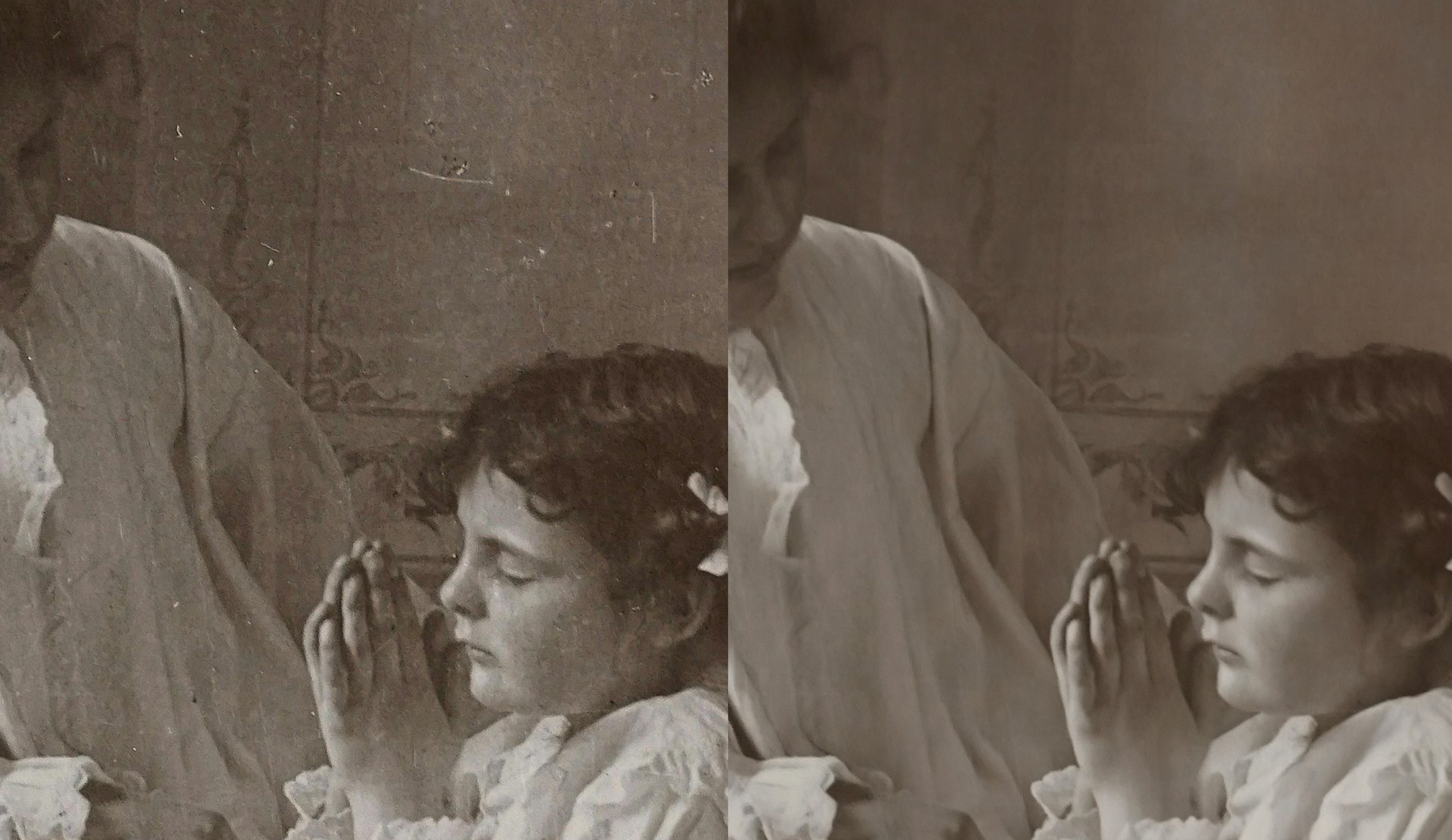
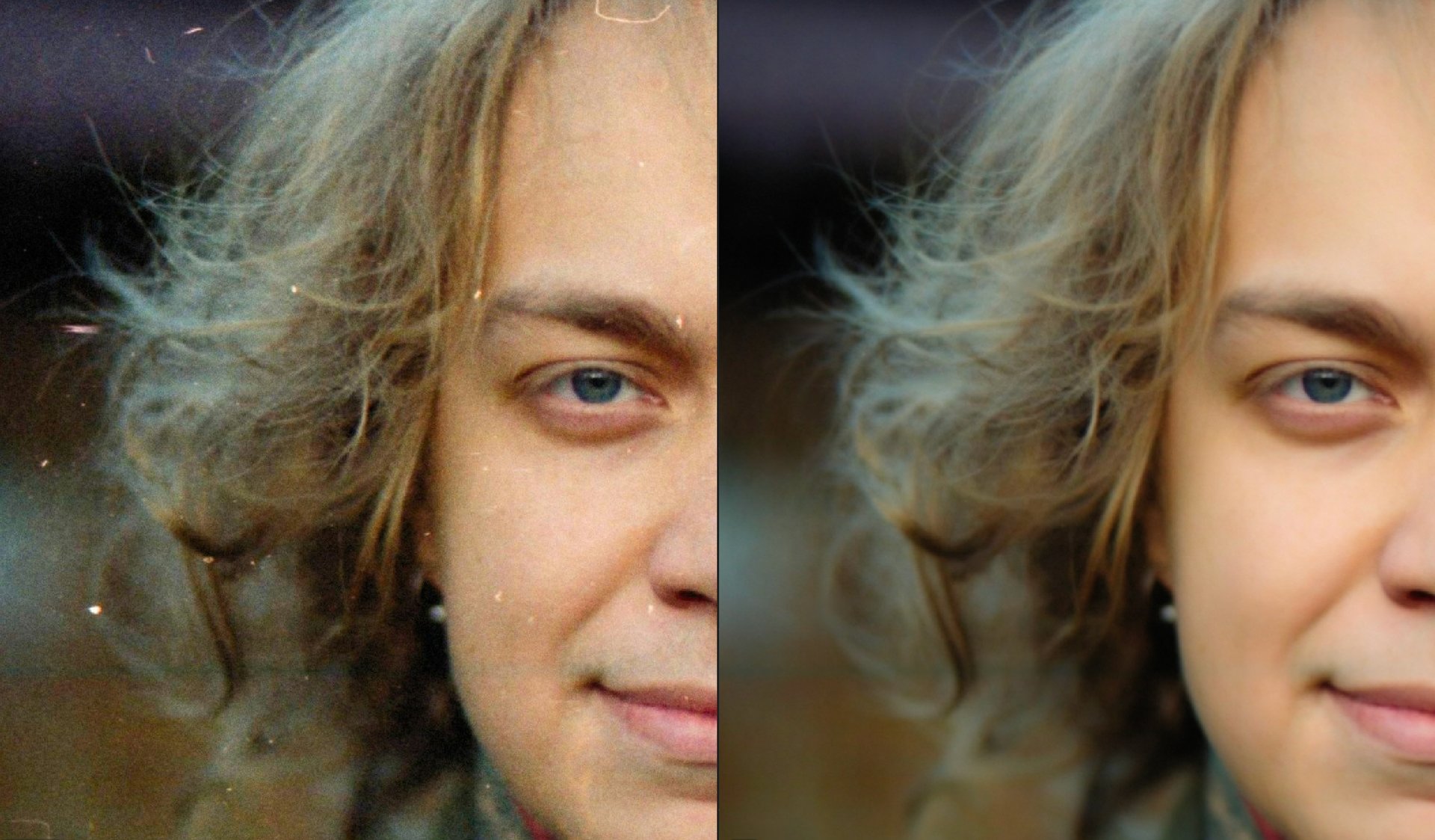
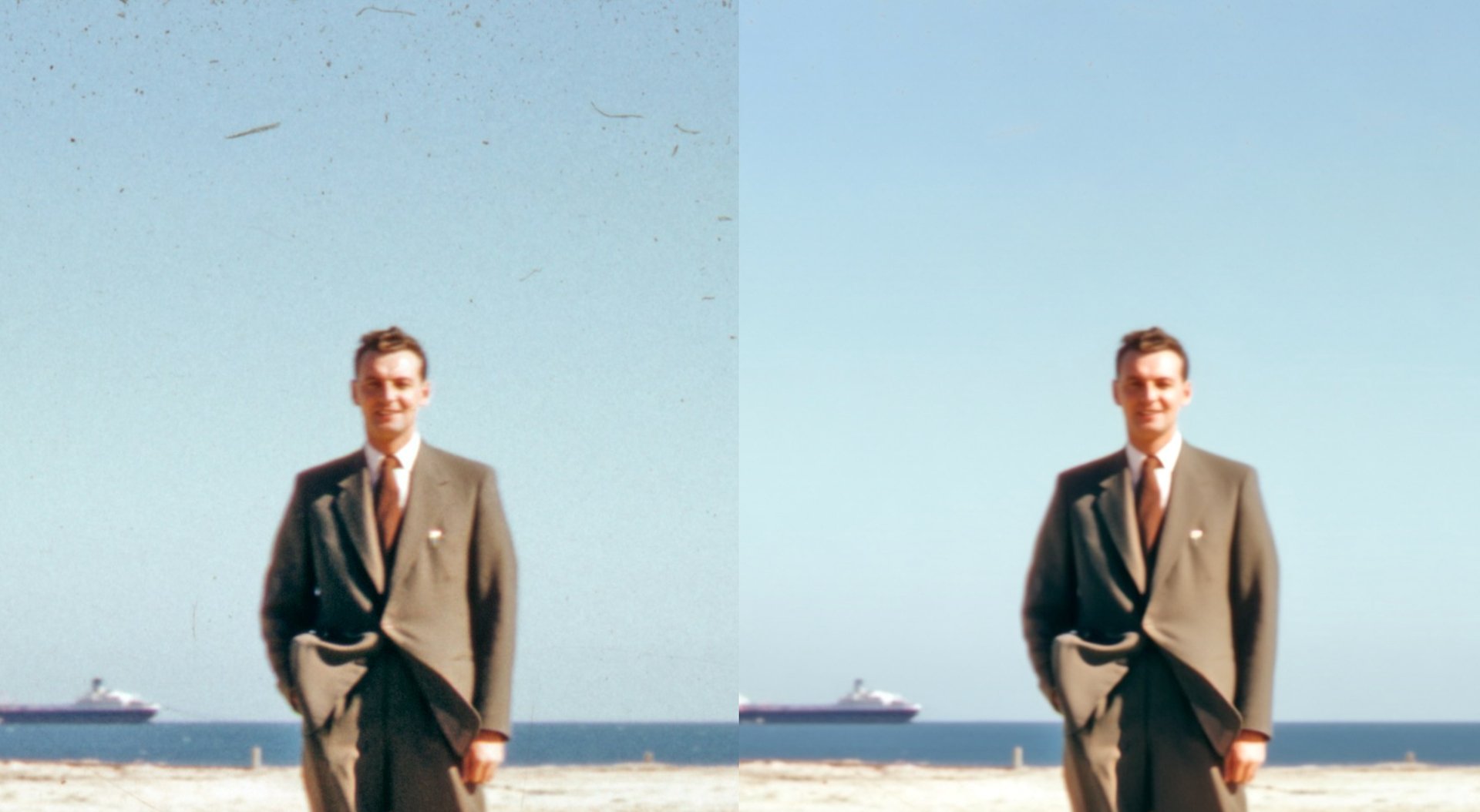
We hope that Dust & Scratch v2 will be an important part of your image restoration workflows to save you time. Let us know if it’s working for your needs, especially if we can improve it further.
New Camera Support Added
We’ve added RAW support for 13 additional cameras in this beta, continuing our effort to ensure your files import and process correctly from the start. If you shoot with any of the cameras below, you should now be able to open and work with your images in Topaz Photo without extra conversion steps:
- OM-3
- Panasonic ZS200D
- Nikon Z5 II
- Panasonic Lumix S1 RII
- Fujifilm X-T50
- Hasselblad X2D II 100C
- Hasselblad CFV-100C
- Fujifilm GFX100RF
- Fujifilm X-E5
- Panasonic DC-ZS99
- Sony RXR1 III
- Canon PowerShot V1
- Nikon Coolpix P1100
Please try loading RAW files from these cameras and let us know if you run into any issues with import, color, or processing. Your feedback will helps us validate and finalize camera support for these.
Known Issues
- HEIC import is broken. We will be fixing this in the next patch.
Changelog
- Sharpen - Portrait model
- Adjust Lighting v3 model
- Dust & scratch v2 model
- Fixed TIF thumbnails displaying incorrectly in filmstrip
- Fixed Wonder cloud render failing with some upscale values
- Fixed Apple Photo plugin export failing if the image was stored on an external drive
- Updated Adjust lighting to use All selection instead of Auto by default
- Updated Super Focus to use Auto selection by default
- Added RAW file support for 14 cameras
Lingyu Kong
Technical Product Manager
Image AI
