He means that if there are new models versions the old versions will be removed
1 Like
Or did you mean “She means” or more appropriately “Ange means”
I think, an apology is in order
That is correct, you will see in the installer some steps are removing files, when needed.
2 Likes
all good it’s hard to say online, thanks And-E! She would be correct but all good!
1 Like
I was wondering how the wildlife models are chosen. Is it something that I need to manually choose? I went on safari for a few weeks, so I have tons of photos of elephants, giraffes, hippos etc. Whenever I load one of them in, it always defaults to standard. I have to manually select wildlife.
Is there a way to install the models on a drive other than c:? some laptops only have 256gb of storage, and a 50+gb install may not be possible. The only way I managed to get around this is to install on c:\ and then move the model files to d:\ and create a hard link so the program thinks the models are on c. The only problem is when updating the app, I have to move the models back to c, update and move them back again.
i often travel and do not always have access to the internet to be able to use cloud processing. So I would need the files locally, but would really like a way to install the model files on an alternative drive.
Why don’t you symlink the whole folder?
This way you don’t have to move anything when updating..
In preferences > sharpen > Default AI Model
then select “wildlife”
Hi.
The information that Golder gave you about setting Wildlife as your default Sharpening within Preferences is incorrect.
That’s because, the Wildlife Sharpening Model is currently in BETA and as a result can not be automatically selected by Autopilot and is not available within the Preferences Menu for Sharpening.
Basically, as the Wildlife Sharpening Model is in BETA (still under testing) Autopilot can’t recommend it.
Hope this helps
2 Likes
While Topaz Video has a direct Model Folder setting in its Preferences, Topaz Photo is more rigid and currently lacks a simple Change Directory button for its models in the UI.
However, you can achieve your goal without the manual hassle of moving files back and forth during every update by Reinstall to a separate Drive, Drive for example; Drive D
The most reliable way to force Topaz Photo to store its models on your D Drive is to change the installation path of the entire application.
-
Uninstall Topaz Photo.
-
Run the installer again.
-
When you reach the step for the “Install Location,” click Browse and select a folder on your D Drive (e.g., D:\Software\Topaz Photo).
-
By default, Topaz often bundles the model downloads into the application directory or a subfolder of it. By moving the “home” of the app, you often move the bulk of the storage requirements.
Alternatively, your current Hard Link method is good other than that, I would recommend having a word with Topaz Support because, you know with Topaz Support they’ll give you the best possible help without some convoluted complex solution which is difficult to follow.
Here’s the link to contact Topaz Support directly
Topaz Support
Hope this helps
Andy
1 Like
I created a hard link, which is what should be required based on my google searches. It works just fine to run the app, but when I come to update the app, it will not update. I cannot recall the error I get, but it errors out and will not update. I guess it can still detect the fact that the files are not physically on c:
That’s why I told you to create a symbolic link
In Windows, a hard link is another name for the same file data (inode), making it behave like the original file and remain accessible even if the original name is deleted, but it can’t cross drives; a symbolic link (symlink) is a pointer (like a shortcut) to a file or folder path, can cross drives, but breaks if the target is moved or deleted. Think of hard links as multiple keys to the same physical door, while symlinks are addresses written on a piece of paper; if the building changes (target moves), the address is useless.
Good catch - forgot about that!
1 Like
+1
And in Windows the easiest way to create symlinks is to use the Link Shell Extension
1 Like
This is also because you also need to change the location in the registry editor.
2 posts were split to a new topic: Adjust Lighting for Videos
I am not sure if there has been any discussion of v2 of the spot and dust removal tool. My experience with it is that is too aggressive: for example removing texture in faces etc and smoothing everything out too much.
2 Likes
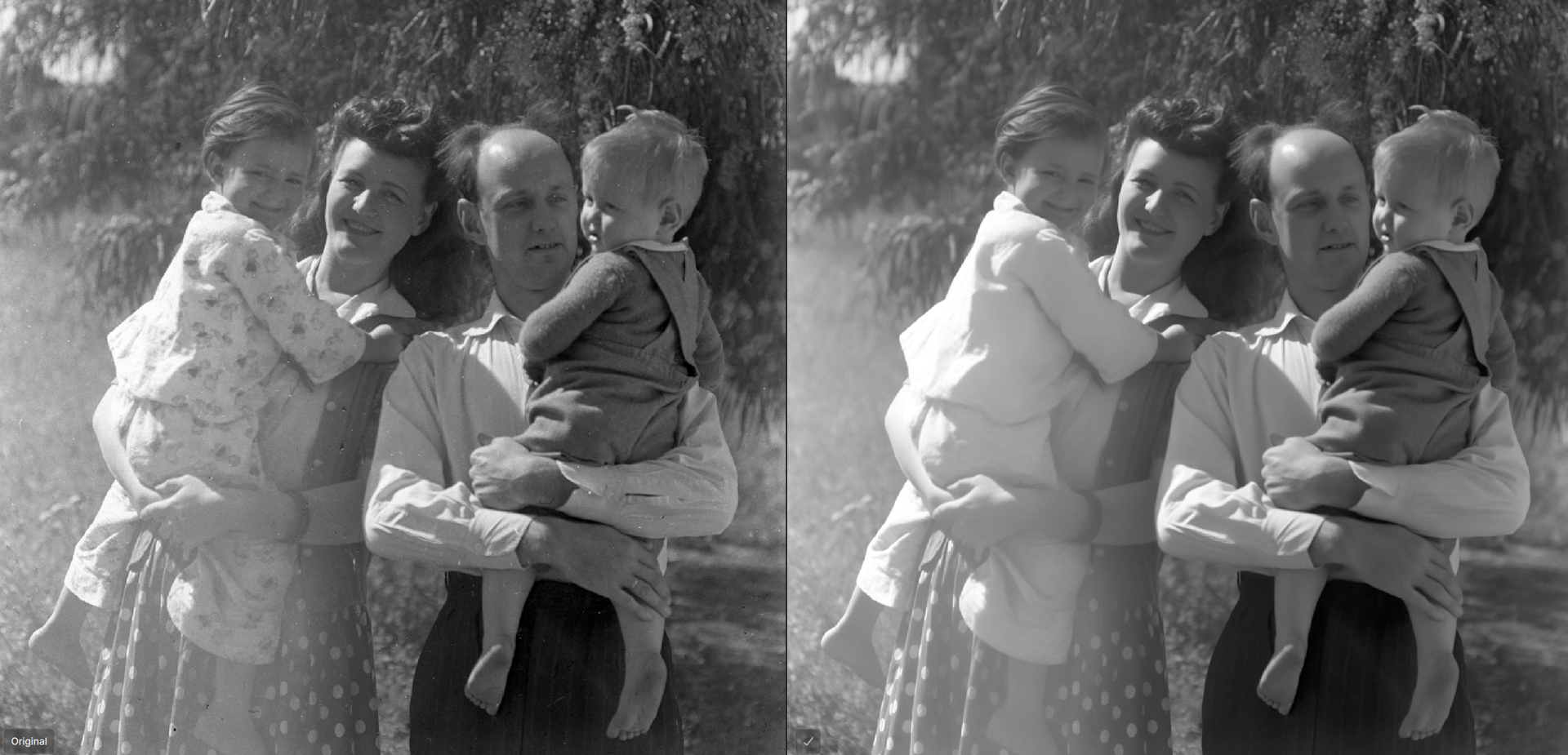
Thanks for the latest updates. I tried using the latest Dust and Scratch tool on an old family photo I scanned and it removed all the printed pattern from the little girl’s clothes so it now looks like she’s wearing a completely white outfit. Screengrab attached for your reference.
2 Likes
Is there a way to force Topaz to use a specific model for photos? For example, I have thousands of photos taken on safari and I want Topaz to use the new wildlife model. I can select the bunch of photos and copy the settings over to the others, but it copies the model as well as the sharpening amounts. The sharpen values may not be the same from one photo to the next. I would want only the model (wildlife) to be copied and then to let autopilot choose the actually settings for that model on that specific photo.
Look at the answer from @AND-E above:
1 Like
