Thanks and You’re welcome 
2 Likes
If you haven’t tried it yet, please restart your device then run the installer again. If that is still not working, please reach out to support@topazlabs.com for troubleshooting.
Please reach out to support@topazlabs.com for further troubleshooting. We can get more details there to solve this issue.
I saved edits as a new preset. Now how do I invoke it when I put in a new picture? Google AI tells me to open the Add Enhancement menu, but I dont’ see that anywhere. (Mac m2 Pro)
Thank you for your answer.
After trying all hints, i’ll found, As a last resort, I deleted the installation directory and completely reinstalled photo ai, and now it works again. Merry Christmas and thank you!
2 Likes
You’re welcome. I’m so glad that worked for you! Happy processing!!!
1 Like
It’s also what appears on the Topaz website under Topaz Docs for Topaz Photo:
Considering the ‘Save a Preset’ button is placed where the ‘Export’ button should be (if only to be consistent across TL product lines besides industry stds), one would assume almost every user creates presets & must apply them. It should be well-documented. It’s a double whammy…
3 Likes
I just simulated saving a preset to see what would happen for you, @colin-9170.
Here’s a snip of the Dialog Box that appears in the Topaz Photo UI when I create & name a preset (as you noted in your post it refers to “Enhancements” that are no longer a term used in Topaz Photo):
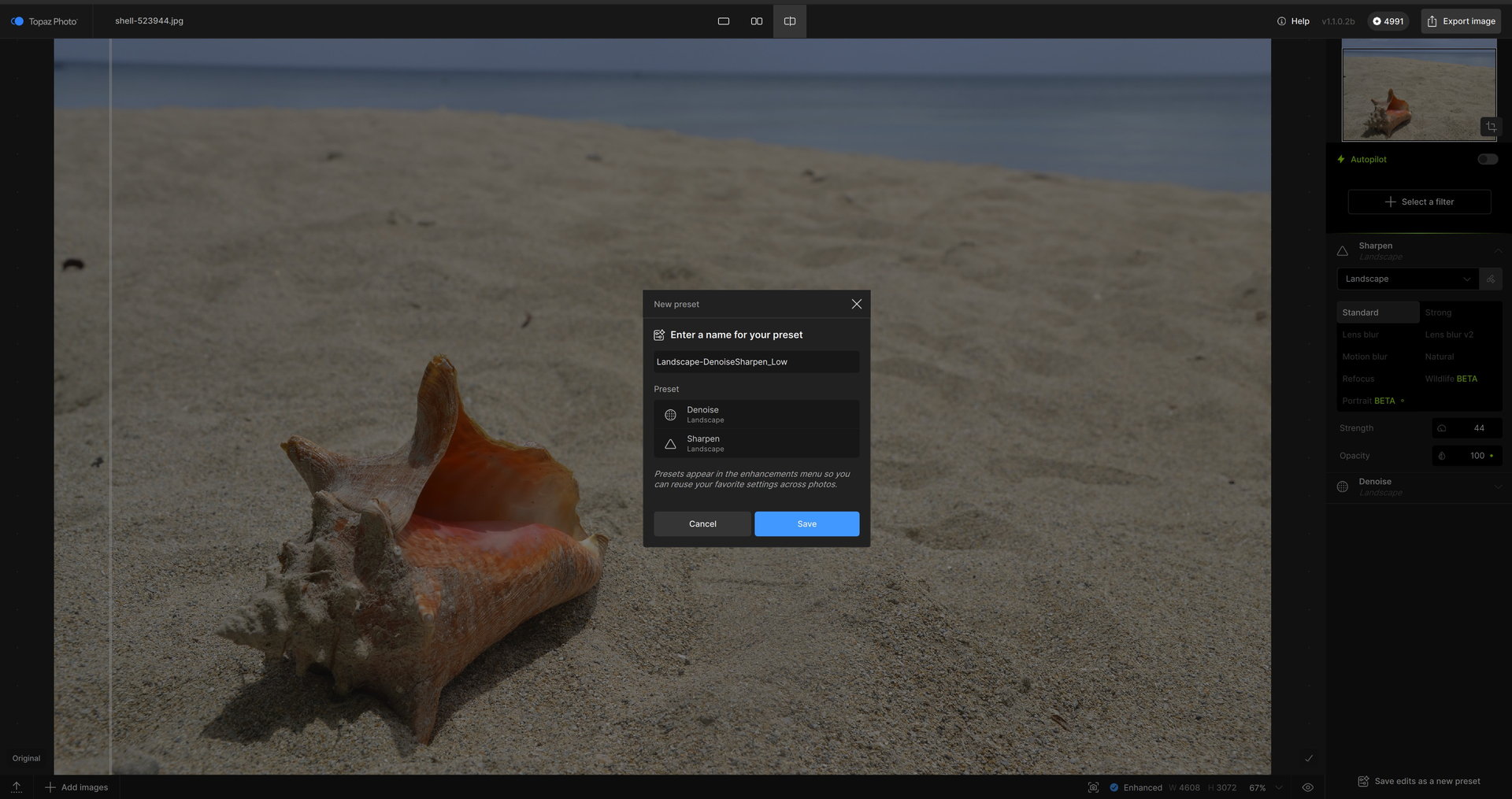
I cannot capture a screenshot of it b/c it disappears if I try to use my Win screen snip or screenshot feature, but… if you click on that “Select a Filter” button in that large, empty, righthand panel in the Photo UI, down at the bottom, below all the other TL named filter/model options appears the preset I named in my test. That’s where you should be able to find yours. I don’t work with batches at all, but I’m guessing if you select a batch of images and use an Apply to All option that then you’ll be able to apply that Preset to a full set of images (at least in theory…).
I hope that helps, Colin!
The rest of this (reiterative rant) will be directed to TL and not to you…. If all those filters/models options that are currently in the (much maligned) pop-out panel appeared instead in the empty real-estate righthand panel in the Phot UI, not only would it be more efficient for most users of the product (who’ve requested that many times) but, TL devs & PMs, it would free up an accordion pop-out panel for people like Colin to store their Photo presets. As it is now, the preset is crammed at the bottom of that long list of TL models. I don’t use presets. There must be people who do. It seems (intuitively) as if it would be easier for them to spot their presets if they were the Only things in that pop-out panel and if that button that’s in the righthand panel now was changed to read “Select a Preset”. I won’t suggest, again, that if ‘Save as Preset’ was at the top right of the UI and ‘Export’ at the bottom right of the UI, that would cause less confusion too. Just a suggestion/observation.
4 Likes
Thanks, Fotomaker, that works. I was frustrated because all my searches about this problem led to pages about Photo AI. I was already long accustomed to Photo AI. Topaz Photo is not Photo AI.
2 Likes
I saw that too when checking the documentation online - plus, the verbiage is incorrect in the Topaz Phot Presets dialog box too b/c there’s no longer an ‘enhancements’ in the new UI.
I’m glad you are able to use the presets feature now!
1 Like
Looks this update broke Apple Photos integration when it comes to processing Apple RAW (DNG) files. Could manage processing a RAW image with Wonder setup in 1.1.0, then updated to 1.1.1 and wanted to run Wonder with another setting and DNG import is no longer possible. Reverted to 1.1.0 and it does no longer work.
Hi.
I don’t work for Topaz and I haven’t got a solution for you but, may I ask when you reverted back to version 1.1.0 was it the same RAW image that had worked previously or a different one and also, curious to know had the previous image had HDR applied or was the image you tried to import and failed was that a HDR RAW file
FEATURE REQUEST
Provide “Strength” and “Original Detail” settings for Dust & Scratch v2
(The 1.1+ release is excellent!)
2 posts were split to a new topic: AI model that can remove texture/pattern on old photos
40 posts were split to a new topic: Discussion | Results on Old file restoration with texture
Hi,
By the way, I have a question for the support. I’m not sure that when installing new versions the “models” folder (Windows) is cleaned up and that obsolete model files are removed. On my system, Photo currently has 42 Gb of files in C:\ProgramData\Topaz Labs LLC\Topaz Photo\models.
Hi.
I’ve repeated this information within another reply so, here’s it is again for your convenience
Topaz Photo takes up a significant amount of hard drive space primarily because it stores massive AI Models files directly on your computer.
Unlike many other apps that process data solely in the cloud, Topaz performs all its AI thinking locally.
This allows you to use it offline and ensures better privacy, hence, it comes at the cost of your storage space.
Hope this helps
1 Like
Hi,
Thank you. I already knew this. However, I’m just wondering whether unnecessary model files are left over after an update. This already happened in the past for Gigapixel.
I guess the only way to know is to compare the current “models” folder before and after uninstalling/installing.
The installer will remove unnecessary files, however there is no models removed in the new versions so it will not remove models. It will replace when we do model updates, yes.
1 Like
Sorry, but this sentence is a bit unclear. Do you mean that when a new major version is installed, model files belonging only to the previous versions are not removed ? In which case, this would mean that previous versions should be uninstalled first.
