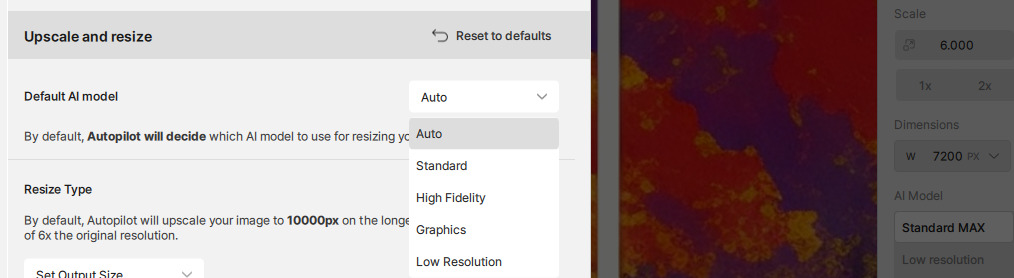
Did take a look at it again and there are 3 Models doing its work with wonder and the “Center” (second) one does its job on the CPU.
With small images its not a thing but with big the enlargement does take some time.
Its the same for Gigapixel.
Did take a look at it again and there are 3 Models doing its work with wonder and the “Center” (second) one does its job on the CPU.
With small images its not a thing but with big the enlargement does take some time.
Its the same for Gigapixel.
Wonder Beta - Is it okay when it uses GPU only around 33% and (somewhat unusually) CPU around 42%? It runs very slowly.
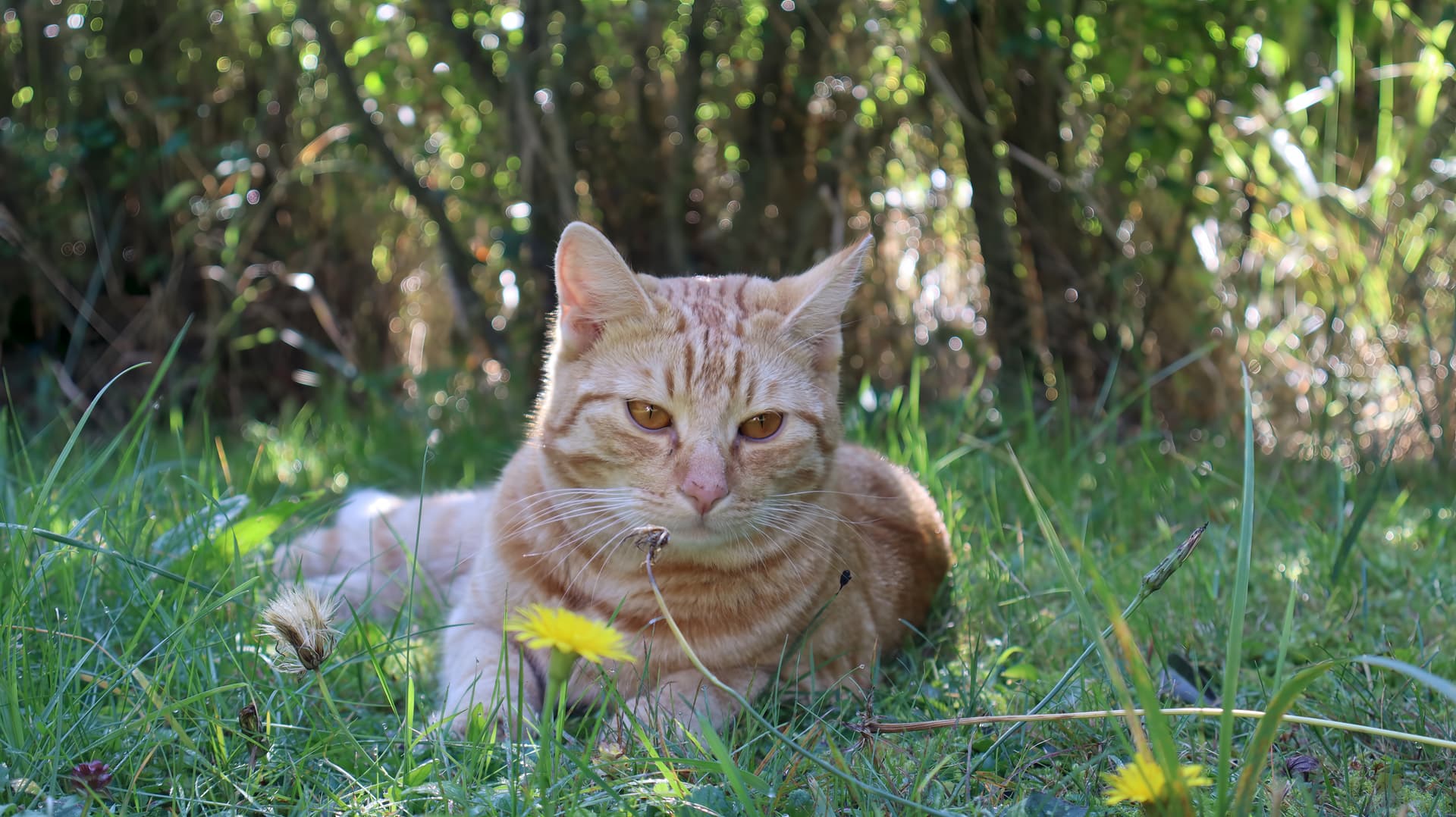
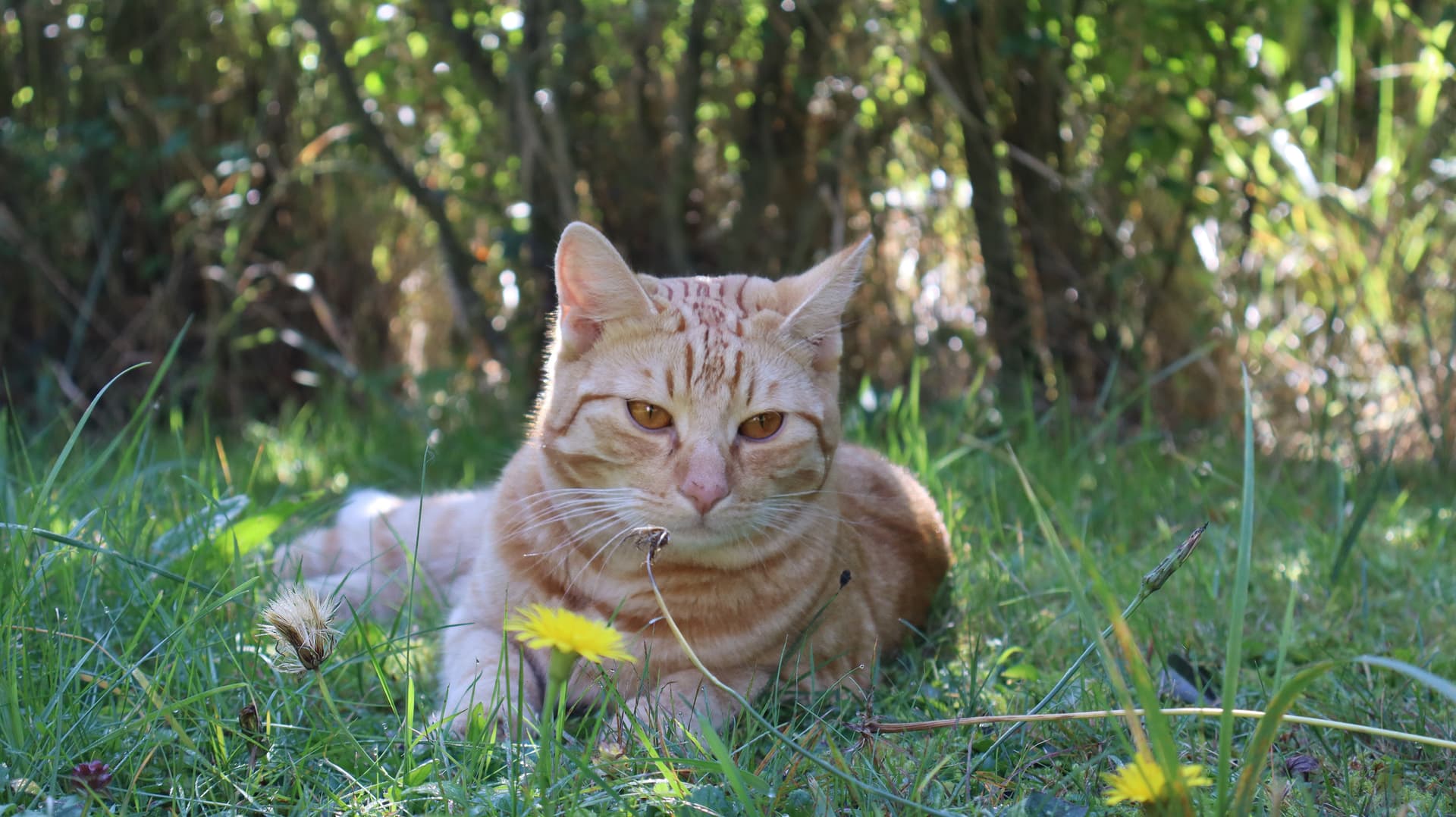
After a long wait, a very nice result was created (I did not adjust the surroundings of the subject). Wonder Beta improved the whiskers and fur quite nicely (that’s what I was mainly interested in in this experiment). For comparison, I also used Auto – sharpening was to be expected, but the offer to adjust the face surprised both my cat and me: He has a perfect face, what can be improved?!
Wonder looks promising, so we’ll see. And here:
The result of Wonder Beta:
Well, anyone who likes automating their workflow, now the new version of Photo v1.0.0 now has had the CLI completely removed, now anyone on a previous plan needs to upgrade to their enterprise plan to have this feature, this is a complete money making scheme removing the previous features available to all users. It’s a disgrace to be completely honest.

Close, but no cigar. That is about the worst UI decision you could make for a user—making a destructive decision for them and then removing their ability to easily back it out.
When a filter is flattened, you can’t see what settings it had so you can decide whether or not you want to keep it. You end up having to delete everything above it and start over again. Just flag the “flattened” filter so we can delete it if we choose to. Or just remove it if you choose the same filter again.
And autopilot is still forcing certain settings, like Recover Faces Gen 2, which has NEVER worked for me. I can’t specify it to default to Gen 1, so I have to change it in EVERY SINGLE FILE. I’ve just turned the stupid Autopilot off completely, as it’s worse to have it spin wheels and eat system resources to do something I’m going to throw out in the end anyway.

Preserve text + Upscale (and possibly other filters before Upscale) will lead to artifacts, i.e the preserved text being placed in the wrong place and with the wrong magnification. See attached example.
What happens if you run Preserve Text after your Upscale?
Yes, tried a restart, tried a re-install as well. First instalation the app didn’t open. Second onwards they try to open but dont and then windows starts a crash report.
If you go to your C: Program Data > Topaz LLC file hierarchy (I think .. Ange or Spt will be more help!!) do you see a folder for Phot 1.0.0?
If so, and if you click expand it do you see a Logs folder?
If so, do you see log files dated from the times you just experienced the launch crashes in the past few days?
If so, those logs would help TL Spt & the devs to troubleshoot. If you copy & send to them: Support@topazlabs.com
Then all is fine.
But in a few cases the text is recovered better if one first applies a little text noise correction, then upscales, and finally a low resolution text correction.
Where is the quick export button?
Sounds like a bit of trial & error if you don’t initially get a result you’re happy with.
I love the picture of the cat. It looks like it hasn’t a care in the world. Nice composition. I favour the Wonder picture most. It’s a very subtle difference but it has more presence and looks natural.
Best regards Robert. 
The Wonder gives me nice results (in my photos from nature), this was the first attempt. I look forward to seeing the method brought to a successful conclusion. Btw, the cat Rašo was found as a stray kitten about a year ago. Today he is a beautiful young man – and as you write, he doesn’t have a single worry in the world. Which his face in the photo truthfully documents.
Oh yeah? Why is the software telling me I don’t have an active license when I do?
@BMuntasserPhoto - seeing you only have 2GB of VRAM, and that would be under requirements for both Photo AI and Topaz Photo. The only workaround for an underpowered machine is to force the app to use solely the CPU instead of the underpowered graphic card: Edit > Preferences > General > AI Processor > CPU. Keep in mind even on CPU it will be slow and have limitations using all enhancements since CPU does not replace proper VRAM. Make sure when shopping for a new machine in future to look for one that meets the requirements: System Requirements | Topaz Labs
@dartmouthphotographs - To know what is happening we can have a look at your Logs and System Profile to make sure we sort out the crashes you have, see steps here: Troubleshooting | Topaz Labs
@unrelent - Wonder is very machine demanding so yes will use both CPU and GPU. To make sure nothing else is happening you can send the logs to support@topazlabs.com and we can have a look too! Have you tested cloud for Wonder? Let us know in your email if any issues arise using it too.
@jamie-6940 - I can add a feature request for this, since it’s a generative model it is not available in the default selection options, but I can relay the request to the development team!