I dont think this is working.
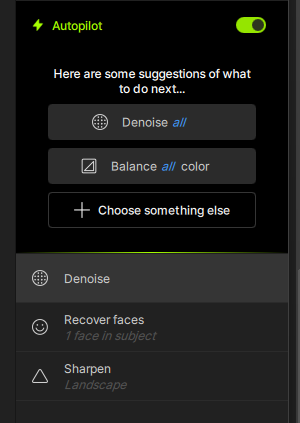
First PAI auto-pick Recover Face and Sharpen only. I bring in Denoise and it should be at the bottom, not at the top. Is this a bug?
I dont think this is working.
First PAI auto-pick Recover Face and Sharpen only. I bring in Denoise and it should be at the bottom, not at the top. Is this a bug?
Hi.
No Not a Bug, after the image has been Analysed, Autopilot has decided which Enhancements are needed to be applied for your image
when you manually bring in Denoise or any Enhancements after Autopilot has applied it’s recommended Enhancements in this case, Recover Faces and Sharpen, Photo AI is merely placing the the latest Enhancement you applied on top of the stack so, any further Enhancements you apply will be placed on top.
Having said that, it doesn’t matter which order the Enhancements are in because, when you Export the image
Photo AI will follow the typical processing order: Denoise followed by Sharpen then, Recover Faces and if you had also opted to Upscale your image then, again it doesn’t matter where you place the Upscale Enhancement for example at the top of or in the middle of your workflow Photo AI will always apply Upscaling last.
That’s how Photo AI as a general rule is Optimized for Image Quality
Denoising
Sharpening
Upscaling
And anything else in-between
Hope this helps
If that’s what it’s really doing, why doesn’t PhotoAI just show it that way in the stack?
Hi Andy.
If that’s what it’s really doing, why doesn’t is show it that way in the stack?
Because, Photo AI allows you the freedom to select and apply Enhancements within the Stack in any order you wish without the need to follow a strict protocol.
However, the fact remains, Topaz Photo AI, does not apply Enhancements strictly in the order you select them when Processing and Exporting.
Instead, it follows a fixed internal processing order that’s optimized for best results based on how their AI models are trained.
According to Topaz Labs, the enhancements are typically applied/processed in this order:
Denoise
Sharpen
Upscale
Denoise, is always applied first either, for a RAW or Non RAW Workflow, to clean up noise before any detail is enhanced. Because, why would you want Photo AI to Sharpen the noise before attempting to remove it.
Sharpening is applied second to restore or enhance edge detail after noise is removed. Because, why would you want Photo AI to Upscale a soft image without added detail.
Finally, Upscaling is applied last, to increase resolution once the image is clean and sharp. Because, this ensures that the Upscaling step works with the cleanest and sharpest version of your image
So even if you manually add Upscale first, Photo AI will still process Denoise and Sharpen before it Upscales the image.
As I’ve already mentioned, this ensures that the upscaling step works with the cleanest and sharpest version of your image.
Hope this helps
That explains why they took away our ability to drag and drop the stack order since it was irrelevant. Sadly, if the program would just present what it’s actually doing to the user we could have avoided wasting time deleting and reapplying effects that were initially stacked in the “wrong” order. Seriously, we just went through the disruption of inverting the stack from the way it was for a couple of years. Now you tell us that the stack sequence has never made any difference because the program is hard wired to always do what Topaz thinks is best. 
This is the correct behavior in Photo AI v4.0. The processing order goes from bottom to top. In your edit stack, Sharpen is processed first, then Recover Faces, then Denoise.
This is not the case since Photo AI v2.4. In very early versions of Photo AI we did in fact enforce a processing order like you are describing. In the last year and a half that has since changed, and the processing is generally (but not fully) based on the order in which enhancements are added.
At the moment, Upscale is always locked to the end of the processing. However, the order of other enhancements added, such as Denoise, Sharpen, Adjust Lighting, Remove, and all other enhancements aside from Upscale do respect the order in which they are added.
Hi Lingyu.
Thank you for clarifying the process and that’s for a Non-RAW Workflow but, my original statement still applies for a RAW Workflow with Denoising first, followed by Sharpening and other Enhancements then, finally Upscaling
Photo AI did not detect low-light noise in the shadows. If you want to “force” a Denoise on this that Auto-Pilot did not add, you can, but make sure to remove Sharpen, Recover Faces. Then put Denoise and then readd the other enhancements. You can send to support@topazlabs.com and details on your workflow if you feel like Denoise should kick in. We can test the file. It could be a improper workflow (example, the RAW file not being sent to Photo AI).
This version is unusable. Both the desktop and RAW plugin versions crash during the photo analysis, leading to a blue screen of death and reboot of my PC. How do I roll back? Guys, your product is generally excellent but you need to do a much better job beta testing before you roll out an upgrade. You are wasting 100s of hours of your customers’ time.
@arthur_n - Photo AI cannot cause a BSOD and there is no other reports that we have received for this happening. However, high CPU and GPU usage like Photo AI does can create issues if your hardware needs a BIOS update, or is overclocked, or has power supply issue.
You can revert to prior versions here but it would not fix the issue with BIOS or overclock or power supply issue your computer could have! You can write to support@topazlabs.com if you have other questions or to troubleshoot with us further!
I’m also facing these issues with random stops on 4.0.2 with batch processing on Win11 (i5-13600, 64GB RAM, and RTX3080 10GB) although AI processor is set to Auto. As noted, batch pause/restart lets TPAI continue processing.
Any suggestions?
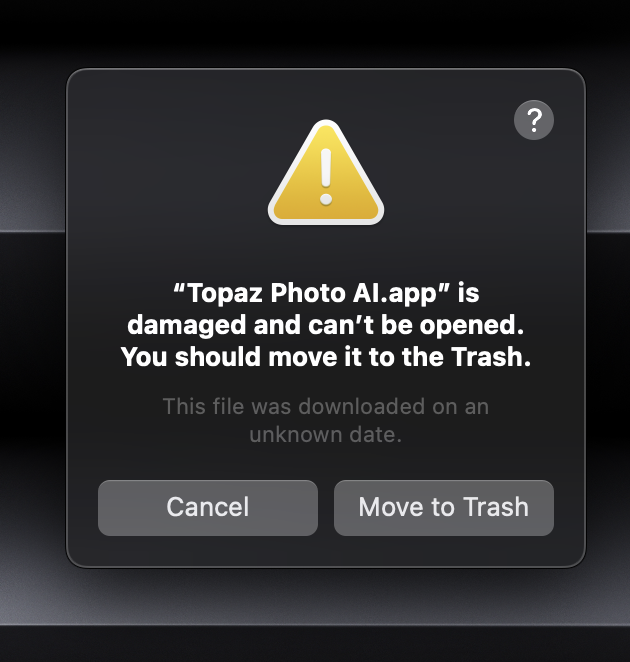
@tedd.huff - This is a security Apple pop up, here are steps to sort it out:
https://community.topazlabs.com/t/education-photo-ai-is-damaged-and-cant-be-opened-macos/86719/5
@erik.forker - The development team is looking in batch processing issues, make sure to test reverting to v4.0.1 - if it works, let me know and we can add your contact information on the development team ticket working on this. You are on Windows but posting both links in case someone on Mac has any issues;
v4.0.1
Released May 30th, 2025
Windows: Download
Mac: Download
It seems v4.0.1 for Windows indeed fixes the issue for me. I ran 900 files in a batch without any issues so far.
great! Will tag you here once a fix released for it!
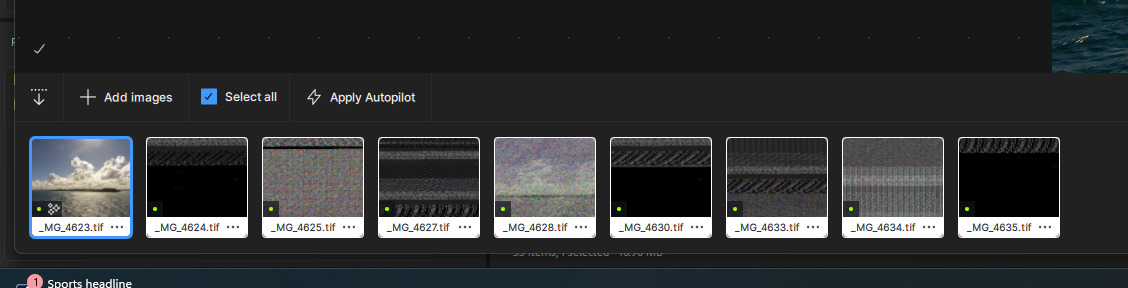
I think this is a bug. I load a bunch of photos and some of the photos besides the first one, are all scrambled.
@mrtoyota03 - thanks! I added your contact info on a development team team looking into this. We noticed it happens only on some TIFF files, not all TIFF files - and will tag you once a fix found. Make sure to test editing with the original files which would be JPEG or RAW format and will not get these thumbnail issues. You can also revert to v4.0.1 until it’s fixed!
I’m having an issue. Everything I open a photo to render in Photo AI, it hangs up in the “analyzing” phase and doesn’t get to letting me edit at all. I have to force quit to get it to stop. I haven’t been able to get to any actual edits on any photos.