4.0.2 doesn’t work in Big Sur, although your site says it does. 4.0.1 still worked in Big Sur. I downloaded 4.0.1 again from here and it works. Your site shows the 4.0.2 update as working with Big Sur.
iMac (Retina 5K, 27-inch, Late 2014)4 GHz Quad-core Intel Core i732
GB 1600 MHz DDR3AMD
Radeon R9 M295X, 4 GB
The new update doesn’t show much of what it’s for. In the top right corner of the app, there’s only a cloud image in the update and a message saying where the update is coming from. It doesn’t mention that you don’t need to update others.
@jouko.seppanen - as mentionned by @Imo - this computer does not meet the requirements for any Photo AI versions, it only has 4GB of VRAM, the minimum needed is 6GB of VRAM. It may be best to stay on v4.0.1. There is no changes for Macs from v4.0.1 to v4.0.2 (mentioned by Lingyu here above on the initial post)
These requirements have not changed (6GB minimum VRAM) and are mentioned at 2 places on our website , and also in our Docs: System Requirements | Topaz Photo AI
Even on v4.0.1, you have yet to experience the processing speeds or app behavior the app is designed to offer. There are also limitations using all enhancements on this underpowered machine. Once you get a computer that meets the minimum requirements, then you can install the latest owned versions you have on it. We also ddon’t have any details on what the issue you have is. On the next update, send an email to support@topazlabs.com with details on the issue. We can then send workarounds, but underpowered machines cannot be troubleshooted, other then sending workarounds which may or may not work.
One thing you might try is disabling your graphics card (device manager), firing up TPAI, setting graphics to CPU only, save/quit, reenable your graphics card, and try to start TPAI again. I’m pretty sure it will start with the card disabled - can’t remember if it starts with the card enabled in windows but unselected inTPAI.
I can run 4.0.2 (via standalone installation just now) on a discrete card-less PC (i5-11th gen, IrisXE graphics). It’s stupid slow but you can denoise/sharpen and presumably (I haven’t tried this) do high-end tricks on the cloud. If Topaz wants people to use their cloud processing, they shouldn’t make starting TPAI on a low-end-card machine impossible.
We would not recommend to turn off any graphic card in Device Manager. Even on computers that meet requirements, Photo AI’s UI will open with Intel card when there is one, and process with the dedicated graphic card (in this case it’s an underpowered one). Changing the AI Processor only affects the Processing part, not the opening behavior. This machine @mbennett60657-779012 has is under requirements and we need more info to see if their Intel drivers are out of date creating issues opening the app. Using such memory intensive tools, issues are bound to happen when forcing the app on an underpowered computer! Once Mbennet sends us more info on their computers we can figure out their Intel Drivers etc and send steps to get on a working version until they can get a computer that meets requirements.
Not my experience with whatever tpai version was current in mid December - putting a R5 430 into a i5-8500 (intel graphics) would crash TPAI on startup; disabling the card would startup fine. repeatedly.
Other than superfocus, my i5-8500 (without dedicated graphics card) was fine for both TPAI and all other software (Capture 1, affinity, etc.). Topaz needs to try running their software on underpowered/below spec machines which would let people use cloud processing without having to buy a new PC just to get the software to start. And just firing up shouldn’t require new drivers (especially for out of date hardware). I’m fine with not being able to do some things, or things taking interminably long, but I shouldn’t need a new computer just to denoise.
I bought a new (4060) laptop because my i5 desktop was getting old, my own laptop was a very old i3, and I didn’t want to rely on my work laptop (i5-11) for personal stuff. But this isn’t going to be the case for a lot of people.
If that workaround works for you then great. We wouldn’t recommend that on our side, turning off a graphic card can create other issues and lots of people are not familiar with device Manager. But glad it can helo you use Photo AI on your computer with no dedicated graphic card!
Hello Ange,
Thank you very much for your reply.
After testing with changing the settings to auto, this did not fix my issue.
I thought that the issue was just with 5070ti processors but I think the issue is more widespread.
It may have something to do with the fact that I ahve set the output to upsacle the largest edge to 6000 pixels.
The upscaling bugs in the following two ways.
- The longest edge does not get set to 6000 in some cases.
- The batch processing pauses randomly, and can reset with a pause into resume, however the image size is very small and it does not look like the AI actually worked on the processing.
I am hoping that these issues can be resolved in an upcoming update, but if there is anything I can do to help with these issues please let me know.
Please consider making one simple change (addition) to your save format extensions. Windows users do NOT use jpeg, we use jpg. So could you please add jpg to your list of available formats. Thank you on behalf of all windows users!
1 Like
Hi Ozzie.
You can change the file type from JPEG to JPG within the Preferences Menu
Simply goto the Preferences Menu under the Edit Menu or press Control plus the Comma key , to open the Preferences Menu
Once the Preferences Menu has opened you’ll see on the Left three Sections Application, Autopilot and Shortcuts and under these are the Subsections the one you want is under Application and select Export
The Options for Export will appear on the right
You’ll now see Save JPEG as JPG and a Toggle Switch
Simply Click on the Toggle Switch to change the setting from JPEG to JPG files, if you wish you can also, change the Toggle Switch for Save as TIFF to TIF and Save your settings
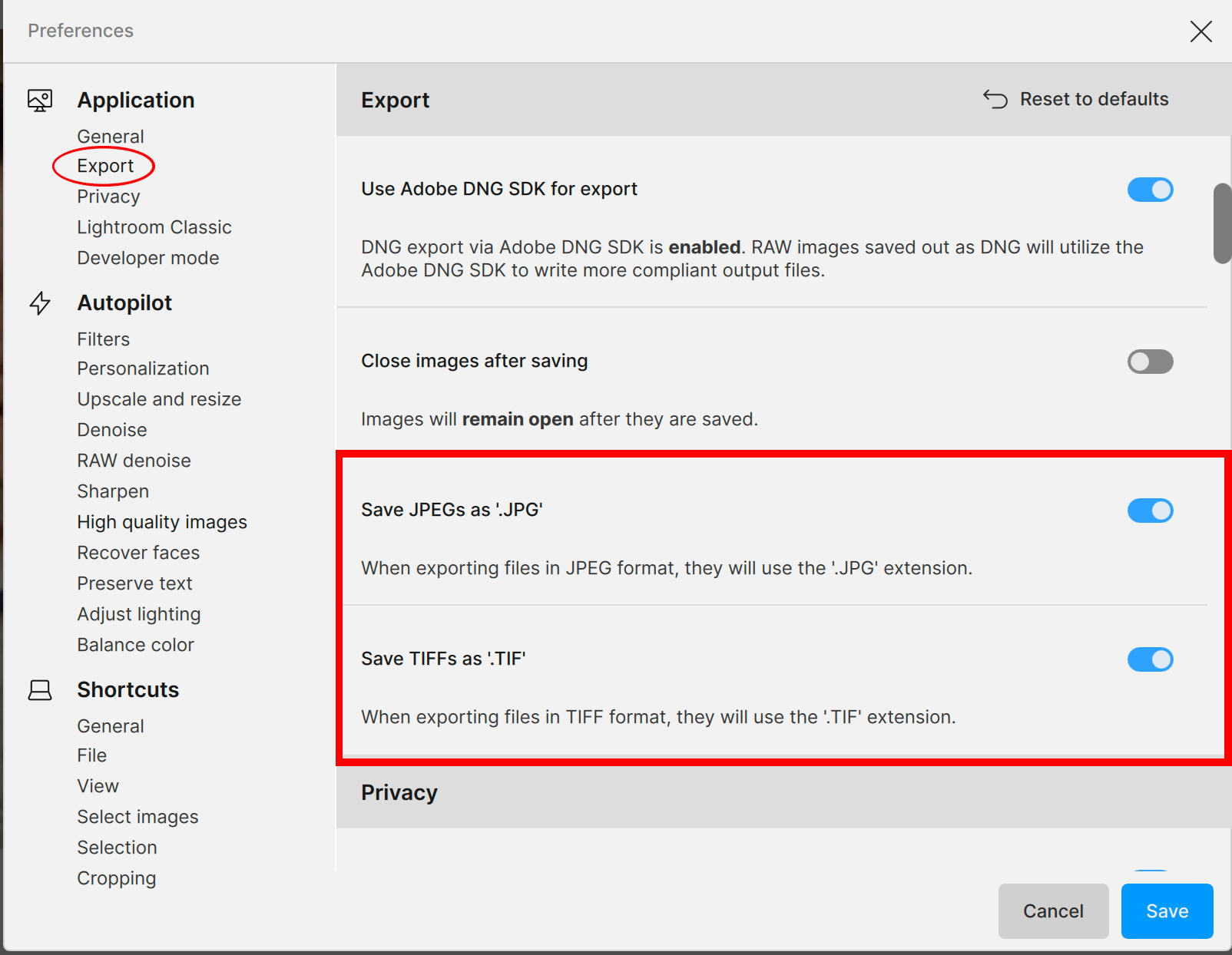
Now when you save an image you can select JPG or TIF
Hope this helps
2 Likes
I’m an idiot, thank you very much.
1 Like
@jinjiro.kanada - Strange! to be able to look into a fix and relay to the development team, we will need logs. Make sure to replicate both issues again, then go in your app, then Get help button, then it will open a Suport pop-up. Then attach all the logs and sent it over to us!
Hi, since the 50 series NVIDIA update my NVIDIA 4070 Super seems to have slowed a bit for superfocus and noise and scratch removal. My home brew normally beat the previous cloud processing times. The fans on the card rarely crank up like they did before the update.
Any ideas or is it my imagination?
Too much home brew? Hic… 


The Cloud Servers use graphic power that is not comparable to a 4070 and will always be faster. The changes in the new version were for 50 series cards and will not affect your process speed in your case!
Thank you for the response. Have a great day.

1 Like
I was running the 4.0.1 and decided to update to the 4.0,2 and now I am getting the error . I am running a Dell Optiplex 7070 i7 and the 4.0.1 works ok! 4.0.2 when I go in will get the error of not able to render. so I downgrade to 4.0,1
@davechng can you confirm what error? You don’t need to update to v4.0.2, as it’s only a change for RTX cards, that you don’t have. I also see you have only 2Gb of VRAM and that is below the minimum requirements for the app. Make sure to set your AI Processor to CPU in Edit > Preferences > General > AI processor until you can get a machine that meets the minimum requirements for Photo AI.
Ok .I am ordering a Radeon 580 graphics card .. hopefully will have enough juice to run
DaveC
Topaz products work best with the NVIDIA cards, by the way.
2 Likes
@davechng great! make sure to check if you need a new power supply to handle this new card!
