On the new MacBook M2 Max 98GB some Topaz Products has Problems. Gigapixel works great, but in some other like Sharpen AI some Models don’t work. Photo AI is not usable, also in the previous version. It is noch possible to drop any image to the Photo AI container. Also it is not possible to load it over the Finder. I reinstalled many times, but it is always the same problem.
Steps to reproduce issue:
Open Photo AI as stand allone App
try to move some images from Bridge CC to the Drop Image container
after a long time you will see the image, but Photo AI is hanging and must manually shut down over the task manager
Topaz Photo AI [v1.2.4] on [Mac Apple M2 Max 96GB Ventura 13.2.1]
Enhancement request - crop/zoom by selecting rectangular region with mouse in preview area: left-click mouse button, while holding mouse button down drag to create rectangular area, release. Image should now fully occupy the rectangular area in preview. Right click to go back to previous zoom/area selection. Then have a simple button or something which just crops to this selected rectangular area.
Apologies if this is already possible I can’t work it out on MacBook with trackpad.
Hello,
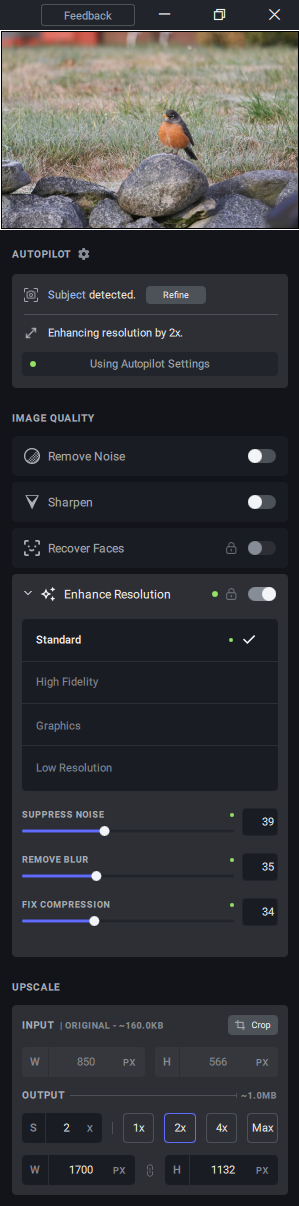
I’m new to Topaz and most of the time, Photo AI works well. Sometimes it will need a little adjustment, but this image just isn’t working.
I just downloaded the new update (v1.2.4) but it didn’t make any difference.
The app is freezing in 80% of situations on my MacBook Pro 16" M1, with MacOS Monterey.
I have to uninstall the app and reinstall it, to run properly, but after I close and reopen it, is freezing again.
Yes, copy and paste and a lot of reload to flickr!
My experience, 90% the GPS coord. disappear. Not the case if I first edit to Photoshop and then to TPAI. However, I seldom use photoshop!
99% of the GPS coord. come from the Camera using Imaging Edge, much precise and quicker.
thanks for your comment
I put you screenshot through TPAI and got an OK result with sharpening. Of course, we do not know what result would be without testing the original image to see if your issues can be reproduced.
I reported this against 1.2.3, and think I’d also seen it earlier, but it may have been lost in the rollover to 1.2.4. Trying again, I’m running the Windows version of Photo AI in a VMware Win 11 VM (on underlying Linux host system), which has 32GB and 12 processor cores. When I start Photo AI and browse to a Canon CR3 file with side-by-side comparison views enabled, I see the center of my image in both windows as I’d expect. If I switch, say, from 100% to 200% to get a closer view, however, the view focus moves off center, towards but not all the way to the upper left corner of the frame, and I have to move it back to get back to the center. This doesn’t seem to happen after processing the first image following Photo AI startup, and Photo AI runs smoothly and appropriately thereafter but it’s a recurrent annoyance. I tried each of the Processor settings, and they don’t change the effect. Any ideas?
TPAI is fine to work on a few pictures one by one, but it’s too slow when you want to work on batches of images which is what I need it for.
I’m currently using it on a batch of 400 512x512 pictures, not enhancing resolution, only using Remove Noise and Recover faces and it’s very long compared to other systems like Code Former.
I’m using a 2080Ti GPU, which is not the best but quite solid, and I wish it were faster. Especially considering that most of the time I need to enhance 2000 to 5000 images like this.
so yes, TPAI looks better than Code Former, but it is too slow.
Isn’t there a way to improve speed ? Like treating 4 to 8 pictures at the same time (depending on GPU VRAM I guess) instead of just doing pictures one by one during batch processing ?
I’m not a coder but I hope your team can implement something like that soon.
Because for now it’s a great tool to enhance family pictures, but using it in a professional context dealing with video frames and not photos is a test of patience.
Alternate question
I have another PC with a 3090, can I install TPAI on it without needing to buy another license ?
I don’t think it will speed up the process that much considering it will still process pics one by one, but for sure it will be a few seconds faster per picture.
Something easy to fix
When you choose JPEG as save format, it saves images as .jpeg, which is annoying because I need to keep the same name, but the extension is different from my original .jpg
I can use Preserve input format, but then I can’t choose quality.
So please add the possibility of choosing between JPG and JPEG for saving.
Also, if coding “real” parallel processing is too complicated, you can maybe cheat the system by using grids.
Meaning : let’s say I have 5000 512x512 pictures, each with one face. TPAI makes several grids, so like one big image containing for example 10x5 512x512 images. Then TPAI will process it as one single big image (5120x2560 if I’m not mistaken) containing 50 faces. It should speed up the process if TPAI is able to detect and fix 50 faces on one picture. Then at the end TPAI crops each picture from the grids and saves them with their original file name and there you go you (probably) saved a lot of time compared to processing each jpg one by one.
I don’t know how it’s applicable to TPAI but I’ve seen something like this work with Remini so it’s probably doable with TPAI.
You might also make your suggestion in the Ideas forum where it may not get forgotten about when 1.2.5 comes out, a new release thread starts, and this one is locked.
[Please describe your issue here. Try to include logs (Help → Logging) and add screenshots if necessary.]
When processing CR2 Raw file noise removal works fine using autopilot however adjusting sliders manually makes no difference. ie. with both Strength and Detail set to 1. the result is identical to autopilot result.
AI 1.2.4 windows 10
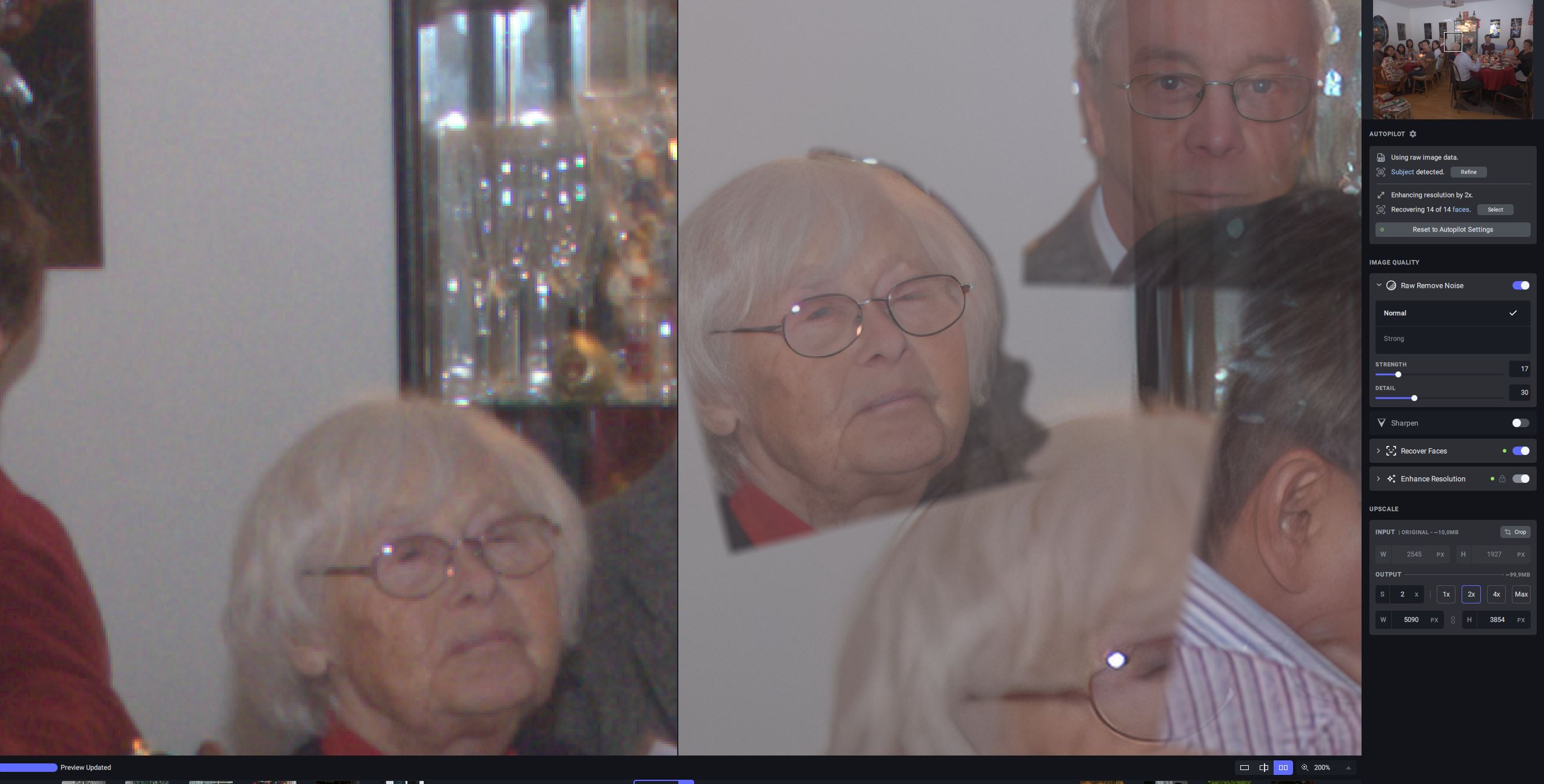
When using a MRW raw file (from an old Minolta d7HI) I get totally misplaced faces in the image, when I use raw denoising on and face recovery combined. It is when viewing inside TPAI standalone at different magnifications I get the issue. It seems as if different parts of the processing modules gets the scaling factors mixed up somehow. I am currently only in demo mode, but I am about to purchase.