john.alessi-36473
Right now, if I only want to sharpen a subjects eyes, it takes forever using the AI brush to subtract the other areas of the face. Am I missing something
Under “Refining subject” start with “None” und then just brush the eyes.
john.alessi-36473
Right now, if I only want to sharpen a subjects eyes, it takes forever using the AI brush to subtract the other areas of the face. Am I missing something
Under “Refining subject” start with “None” und then just brush the eyes.
Nikon .NEF files in Lightroom Classic do open in Topaz Photo AI with clicking on Edit in. After the preview is updated you can click on Save to Adobe Lightroom Classic and you find your edited photo there.
Canon .CR2 files in LrC (I have thousands of them until 2016) DO NOT open in Topaz Photo AI. Version 1.0.8 opens and ask to drop images or browse images. You can save the edited image, but not back to LrC.
There is something wrong with .CR2 files in the process between LrC and Topaz Photo AI. With kind regards, Peter Bontrop
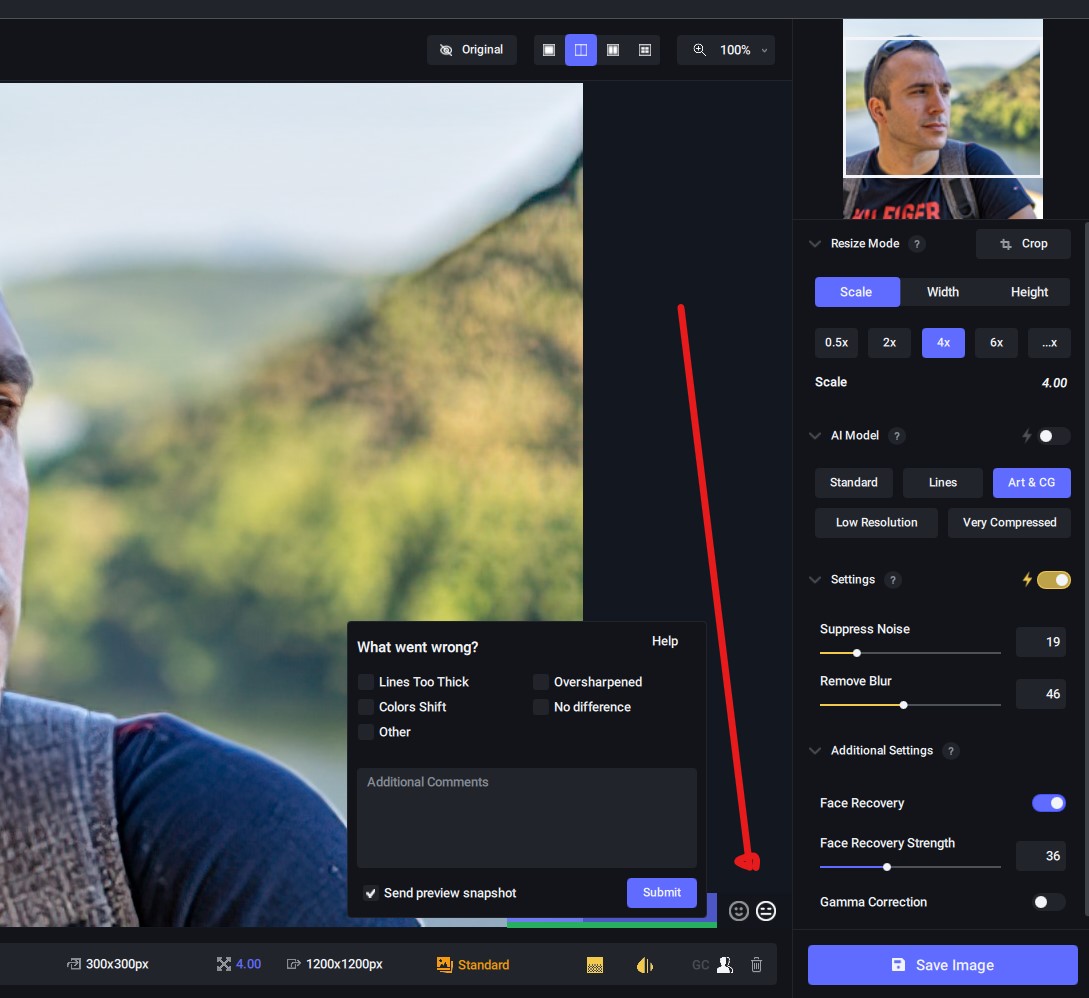
Please put back the option to send “advanced” feedback as it is done in Gigapixel AI/DeNoise AI/Sharpen AI, so you can more easily send positive or negative feedback of photo processing: it is definitely a better method than having to write here on the forum every time 
That’s so funny!!! 

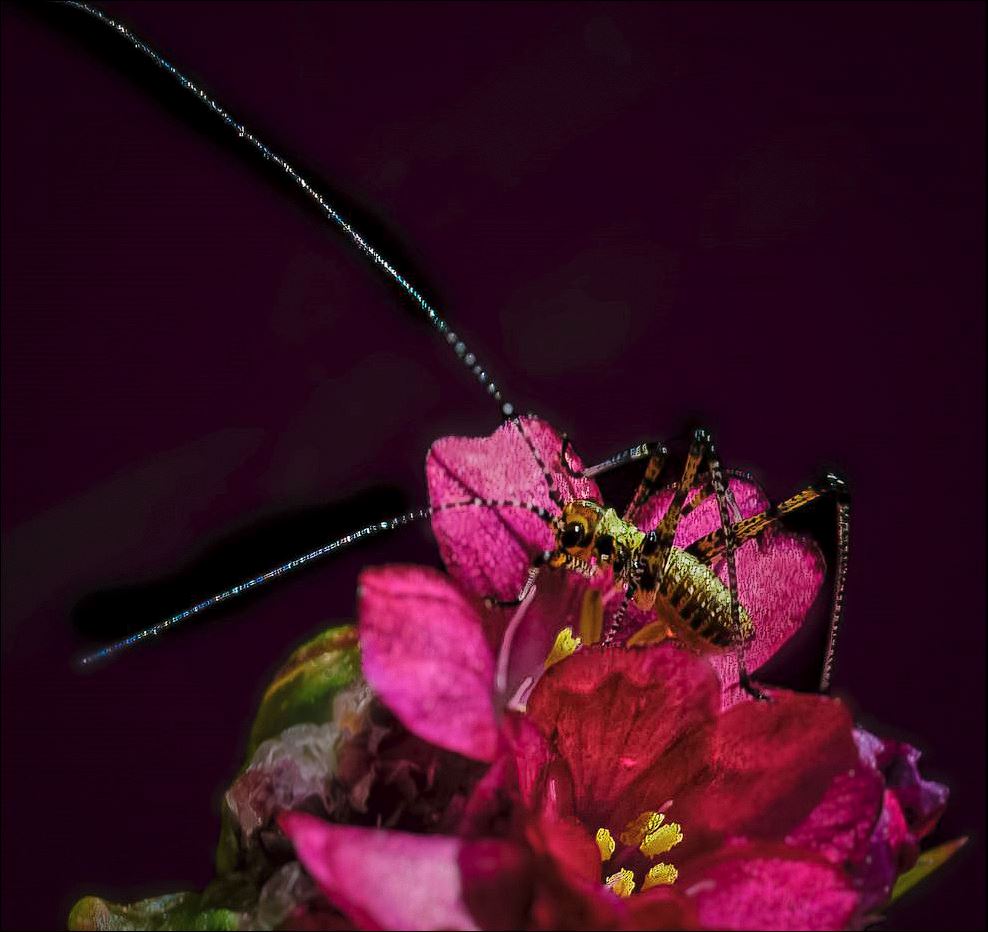
I decided to play with your image (I realize I couldn’t work with an original)…hope you don’t mind.
I took a different approach than you did.
I pulled it into Photoshop. Opened it into the Camera Raw Neural Filters > Depth Blur. And blurred most of the flower(s) except for the one in the foreground that I think is a nice complement to the colors on the insect.
I also worked a bit with the Details Panel while I was in the Ps Camera Raw Filter. Not much.
Pulled that back into the Ps layer stack & cleaned up the mask to be sure the bug didn’t get blurry in the process. May have done a bit of color sampling & retouching of some blown highlights.
Then pulled that into Topaz Sharpen AI. From Comparison View I liked the Soft Image - Normal best (focusing just on the bug, I knew I’d use the same mask as before to not affect parts of the foliage).
Per your own assessment, it is a bit challenging to get a crisp result from the base image. But this is what I produced! When my photos don’t capture exactly the true to life look I’d hoped for I decide they were supposed to be “artistic” & I process them accordingly…
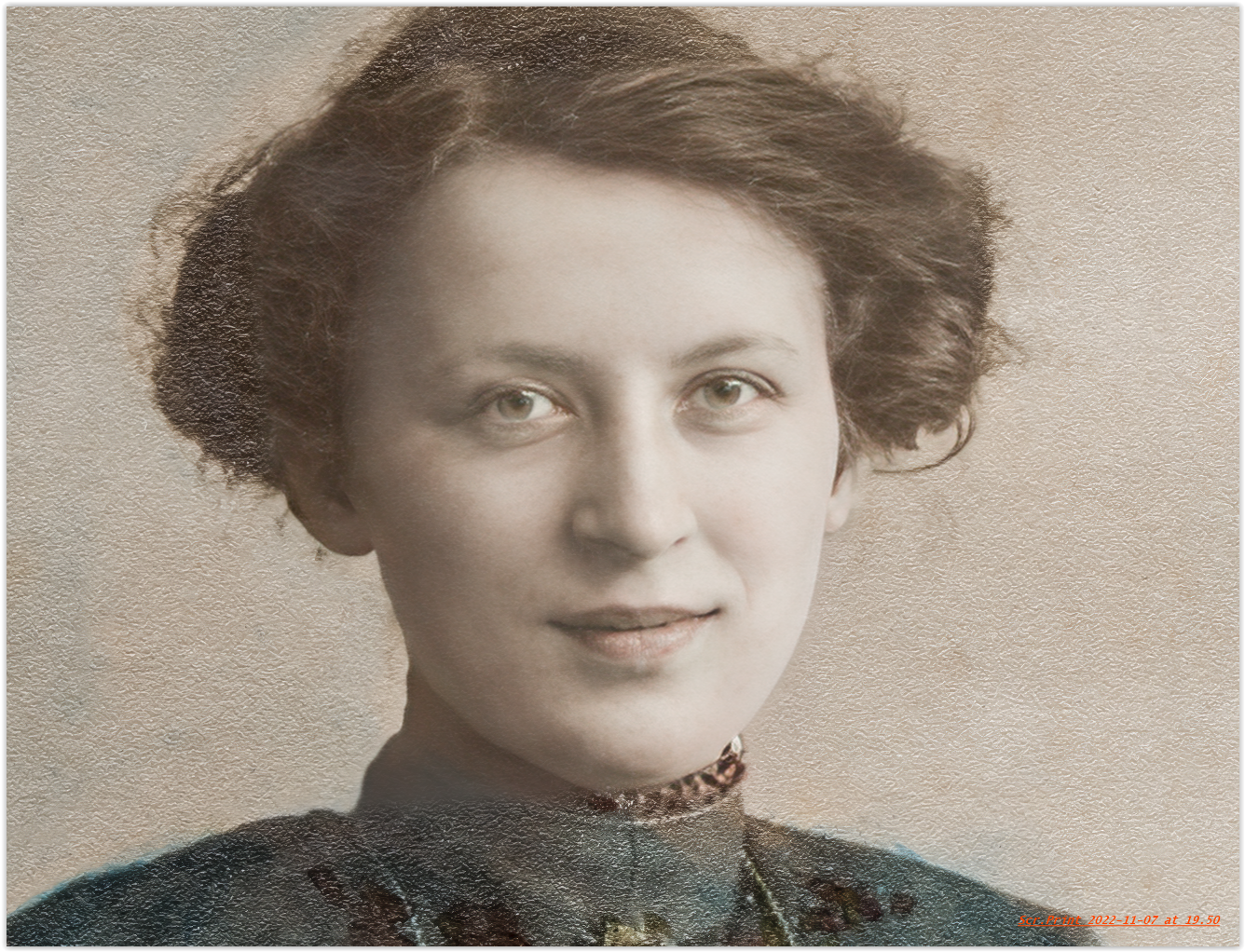
Please please please, make it possible to manualy refine the area for the face recovery. It would be a major tool enhancement for my old foto restoration projects.
Best regards,
Cees
I created a folder for the app to save out put to. Ran it several times no problem. Then I changed the folder name (user mistake, for sure) and forgot to change in the app. However, the app did not spin out an error message but proceeded to process the long, long list I had queued. After it was done and I could not find the output anywhere, I realized what happened. I am curious as to where it saved the output (if it indeed saved them)
I would suspect it didn’t as it does not create folders.
A second bug: The app crashes on long queues about 20% of the time.
Context: I am pushing a few TB of TIFFs through Photo AI just for fun and to see how it does. My queues/ batches are anywhere from 20 to 150 images. For the bigger batches, I have noticed it crashes about 20% of the time.
Yes, in the Lightroom Plugin it is the same. Filename “2022-10-22 Museum für Naturkunde Berlin” with “ü”. It do not open in Topaz.
Filename “2022-10-22” open Plugin in Topaz Photo Al v 1.0.8.
The Browse button on the stand alone version still does not work. I have to click in the blank areas after clicking Browse to get to pictures (third time mentioned now). Windows 10.
In processing a DNG file the result darkens the picture. See Ray’s picture of a baby to see the same thing.
I see output from help (it just doesn’t document how to input - sadly not consistent with the video enhance app, which does document input, and apparently handles it differently than photo AI to boot).
There is no action or output on any command though. No error. No photo is processed. It creates an empty directory and that it. It starts some logging and then just cuts off. Unfortunately, it appears to follow in the footsteps of the UI when it comes to error handling. For example, you might toss in 100 photos and it might spit back it couldn’t write them out one by one, with no hint as to what exception or problem it found - and that helpful info does exist of course. So you check out the logs, surely anything that spits out error text in the UI logged something useful. No, you will see 100 debug messages that say, dropped file, dropped file, dropped file. And then the batching experience in general for those products that support it, even after improvements …
Don’t get me wrong, I own every product they have but like the jpg raw one, Topaz is great at machine learning models, but the UI’s … man, they are unfortunate. Which is a large reason I’ve been dying to try and work around with them with a CLI. No such luck. And it’s not some minor misunderstanding. I use CLI’s daily, 10’s of them, I write them, I script them, I develop software, I use Linux, osx, and windows, I have 4 computers in front of me now and 7 monitors, I build open source software, I make a crap ton to write software … first CLI I’ve met of this caliber. And again, I love the Topaz products. I hate the interfaces.
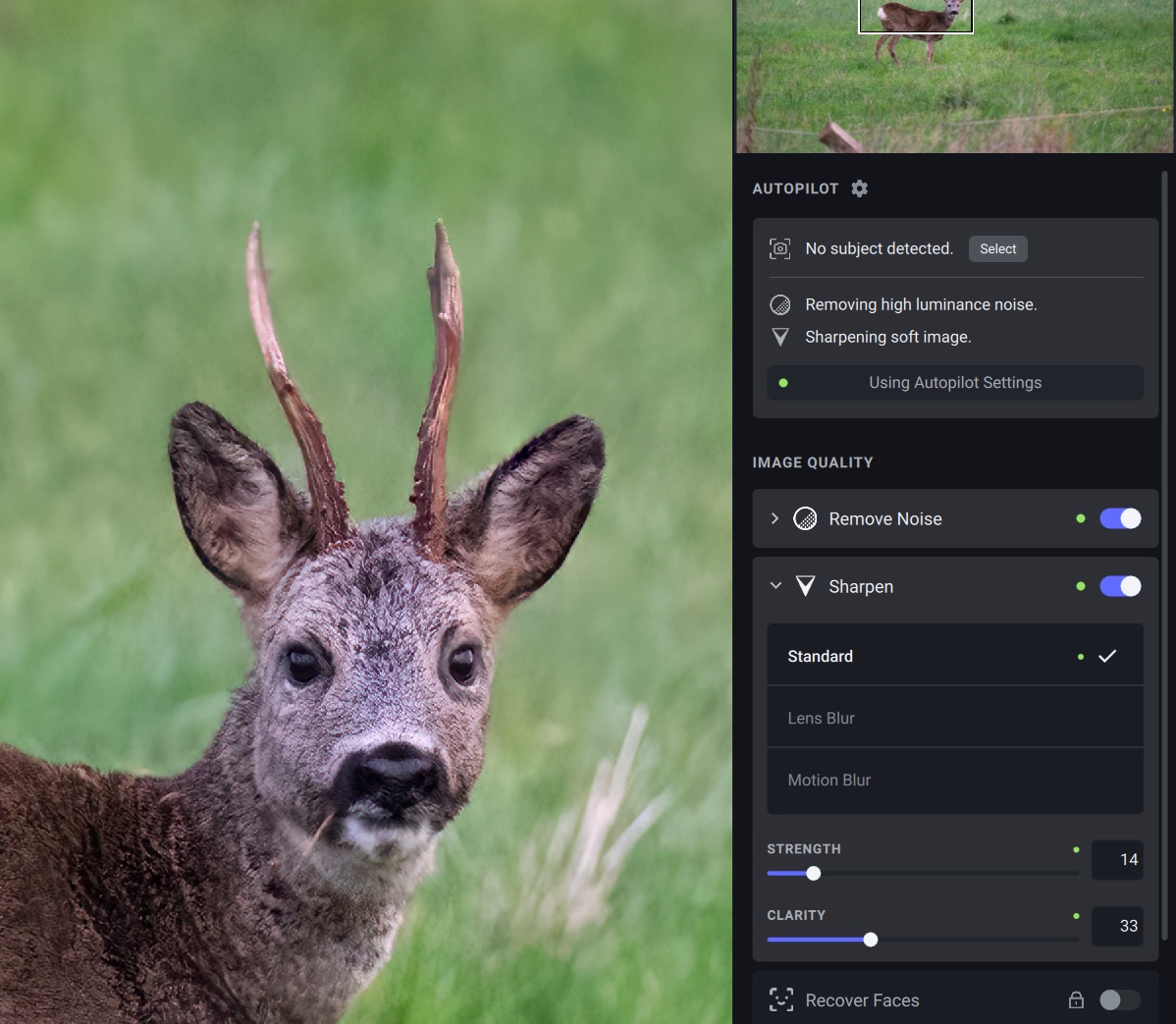
Topaz PAI still failing to differentiate noise from texture. This issue is ongoing. I have posted regarding this issue several times as well as others reporting this issue. I have seen this in grass texture and item texture on several occasions. While past issues in item texture where less apparent, this example clearly demonstrates PAI’s inability to recognize texture as opposed to noise. While its general noise reduction is good, this issue cannot be overlooked.
Still getting a shift in the sharpened part of the image. Sending an image from Affinity Photo.
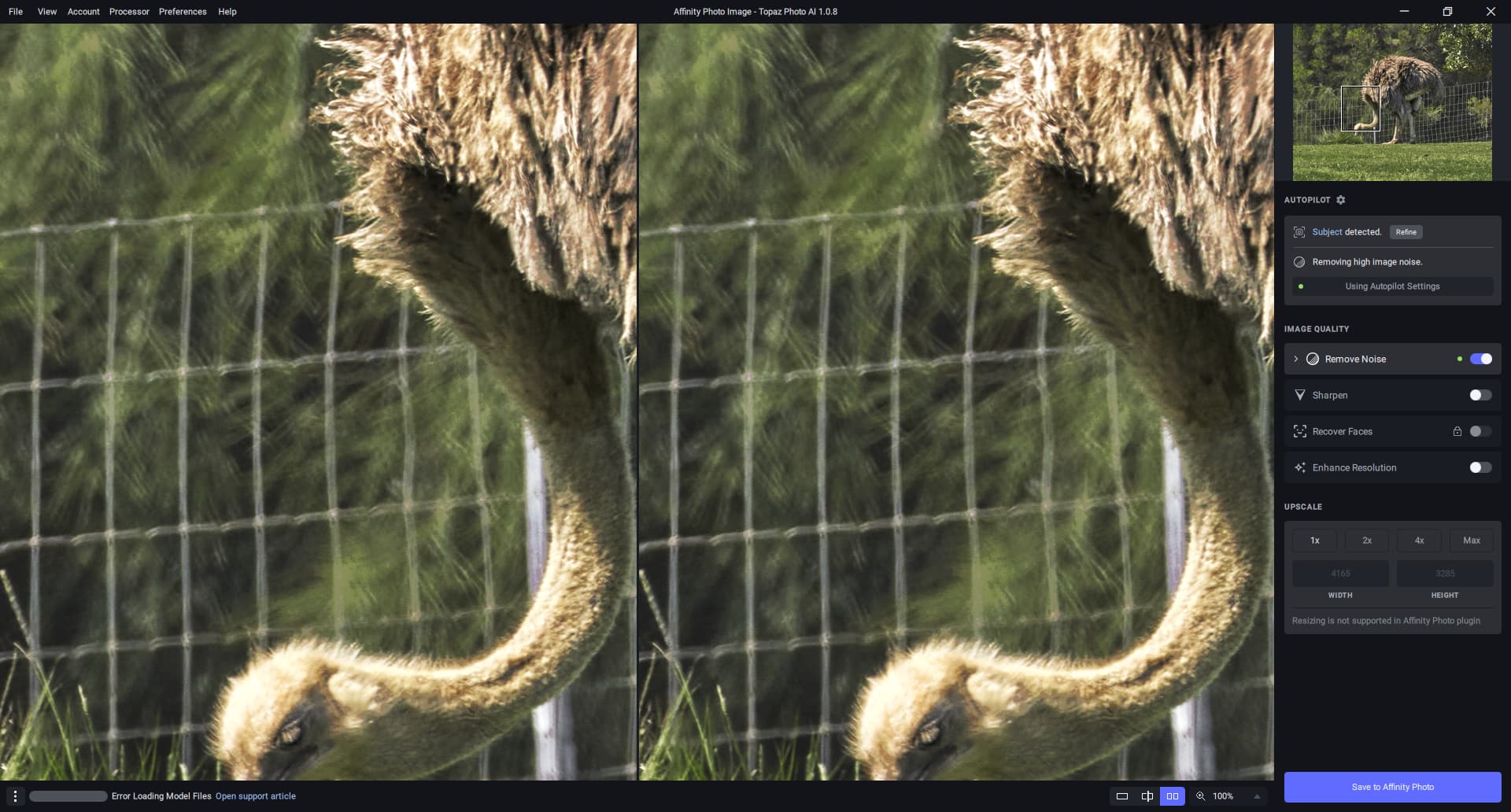
I’m getting the occasional odd message (lower left in below) about an error loading model files after I refine a mask and click done. It goes away after I click on sharpen then everything updates. I can then turning off sharpen and everything seems OK.
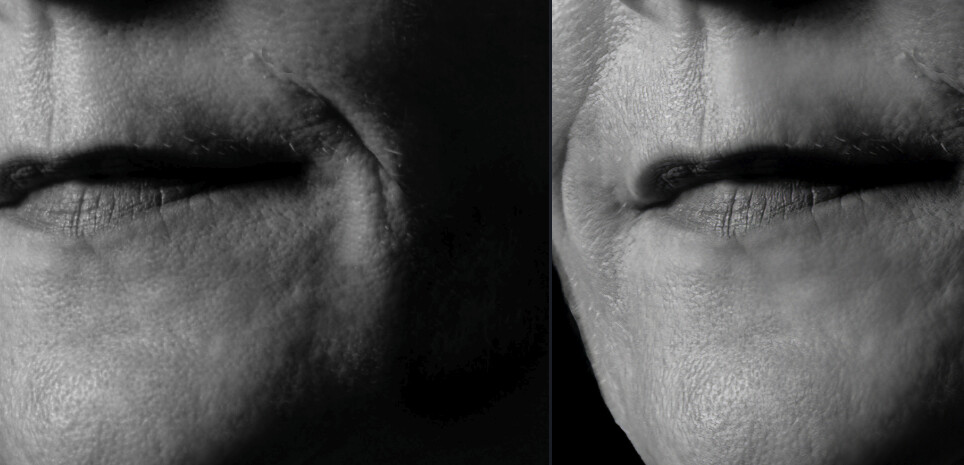
I select the mask to refine, basically the result is not changing. I think this is not really working fine with skin, it removes the texture even I use the brush to remove the area. I tried 100% and 0% soft on brush and results are the same
See attached error log - regarding not being able to find the model for saving.
2022-11-08-10-36-50.tzlog (140.8 KB)
Photo AI does the job but can’t save the result.
NO!
Actually the images was returned with a BLACK filter mask (not transparent as in the image).
I didn’t observe that right away. When I filled with white, the image was rendered as in Photo AI.
A bug or a hick-up? I don’t know.
I am adding DxDiag.
DxDiag.txt (95.1 KB)
I have this issue also
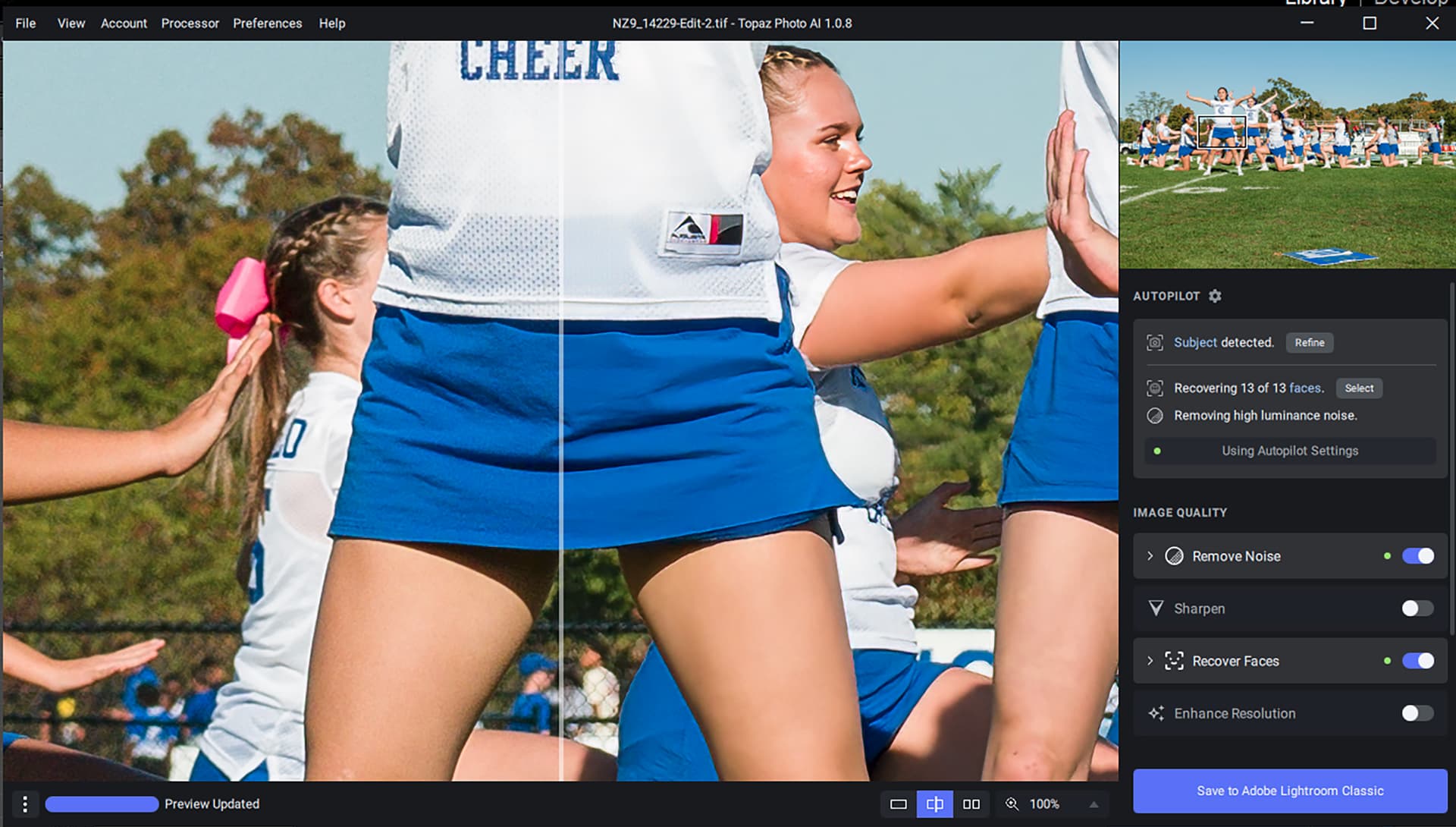
Autopilot Settings:
when using Photo AI from Photoshop as a Smart Filter, upon saving, it would be important to save as “non-auto” settings.
…then, when re-editing Photo AI as a “Smart Filter”, the saved settings would not be reset to “Autopilot Settings”