You need to make the pixels more dense before upscaling with wonder 2.
Yesterday i did enlarge a Phase One IQ3 150 image back to its 15k size after downscaling it to 4.5k, via wonder 2, it did look better than the original image afterwards, but not in every place.
My sweet spot is 3.1x, you downscale your image with Bilinear scaling (by 3.1x) then scale it up with wonder 2.
How do you determine the downscaling figures for each particular image? Or do you have an action that does it for you?
If the reduction amount if simple to input into the PS Image Size dialog, please advise. I routinely downsize by inches/resolution, but never percentage.
Perhaps if you are working only with the EOS images, they will all get the same treatment. I have tons of various size film scans and different resolution digital images spanning decades…
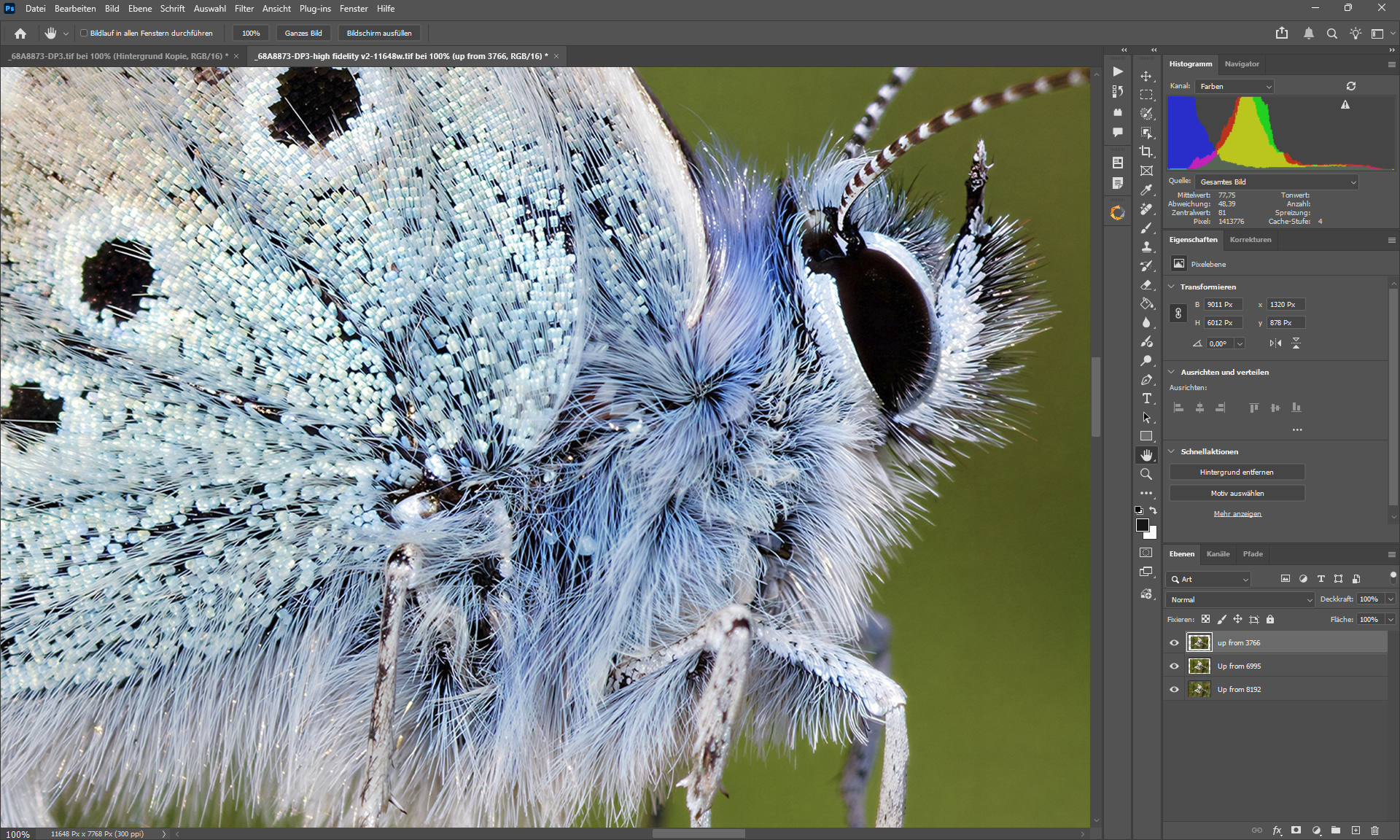
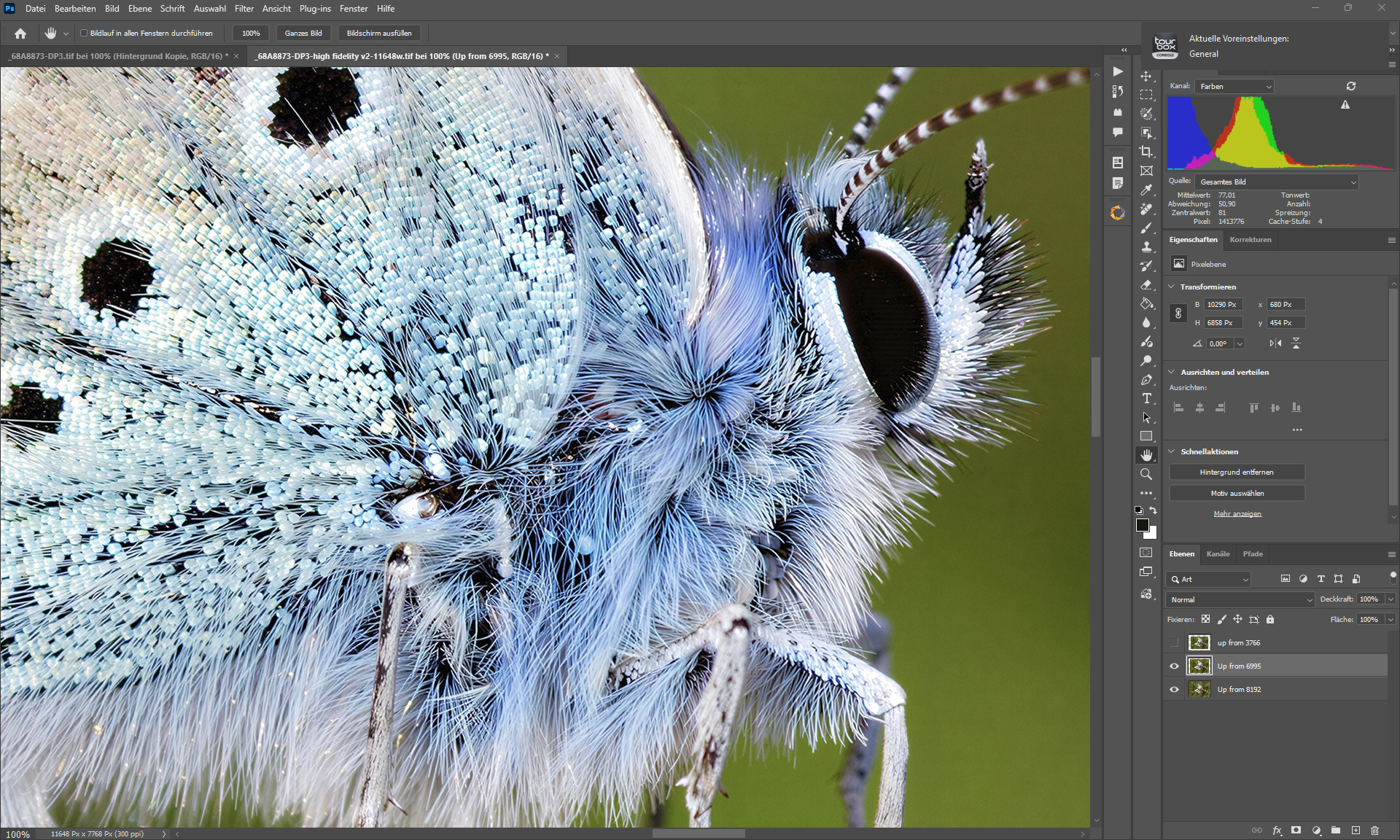
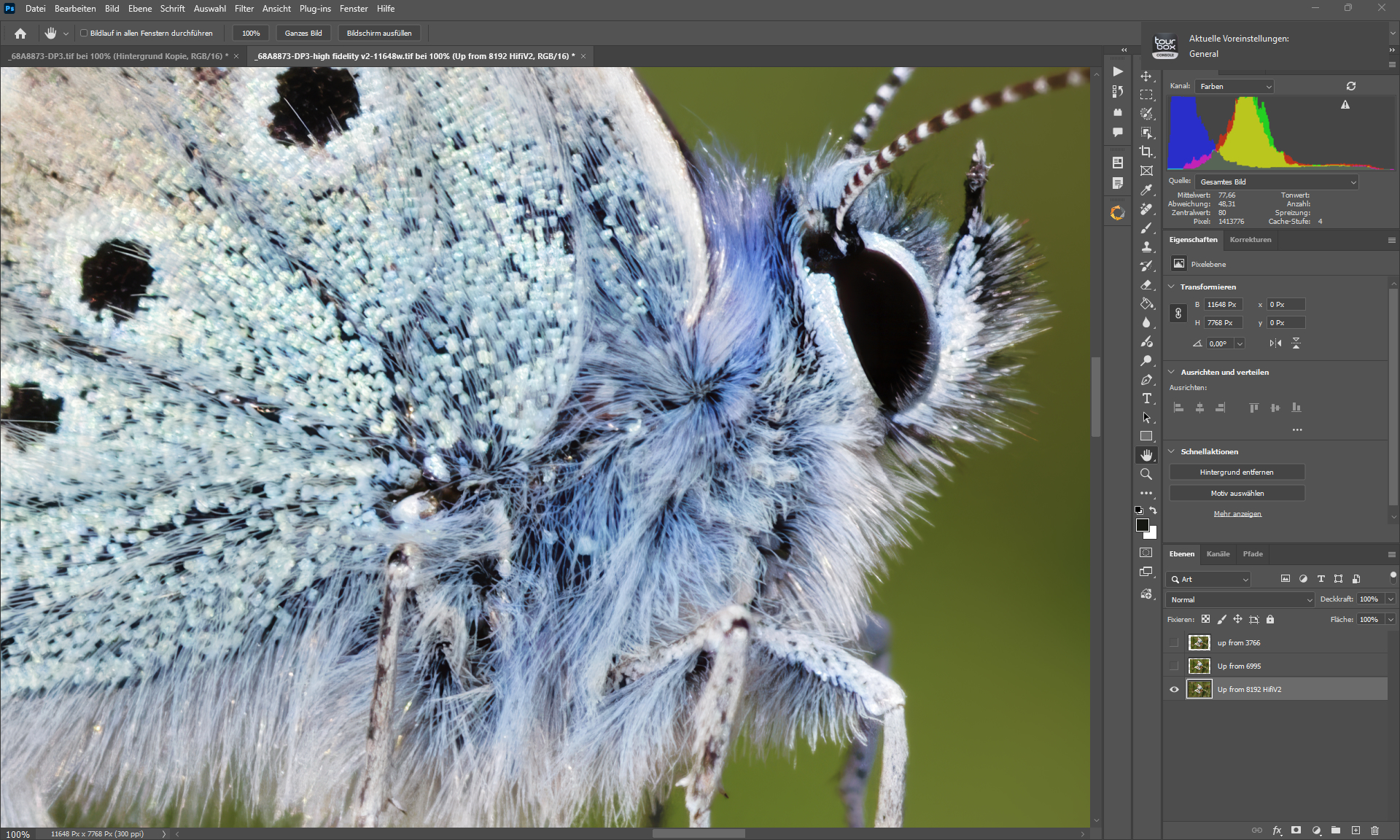
At the moment the targetdownsize for my cameras is 3766px.
At 3766, my cameras have the pixel size of a medium format camera with approx. 100 megapixels, which was my test size and proved to be very good.
It would be possible to write an action for this and apply it to a batch using automation.
I’m just not sure whether Gigapixel can be integrated into automation, but once you’ve reduced all your images to a uniform size using Photoshop or Camera Raw—a size that you’ll have to determine yourself as the sweet spot—then you’ll have come a lot further.
You can simply load images without layers into Camera Raw and reduce the size of all images at once. Of course, you should choose a file format that does not lose any details.
It may be that reducing the size destroys details, which we don’t want to do. We just want to bring the details closer together so that the Wonder 2 model can do its job.
For this camera, I will likely need to determine a resolution between my sweet spot of 3766px and 6995px.
This is all very good information! But I am struggling with the practicality of doing this for every image you might edit…
Didn’t one or more of the Topaz apps have an option for downscaling before upscaling? I am not seeing this any more. And wouldn’t a workflow such as you describe be easier to use if it was baked in?
It would be cool if they incorporated that into Wonder 2, but with the option to select downscaling so that it reduces the size with the same color depth and file format (not that it works with compression internally) and perhaps includes other methods besides bilinear for reducing image size.
Not necessarily, images can be quickly reduced in size in bulk.
In that ‘swimsuit girl’ example I posted there’s a visible pattern of what’s possibly destroying the details in Recover v3 (it’s some sort of mesh pattern), as the source image is lowres.
But you have to admit, his question is really silly. The answer is so obvious that I figured he was either doing it on purpose, or he wasn’t thinking straight, or he just lacked logic. Because it’s so logical: “the more files you add, the bigger the software gets.”
It was a question that shouldn’t even have been asked. Hence my very direct answer.
For me, it’s the kind of question that’s annoying because of the overly obvious answer.
This can happen when it’s overprocessed. Maybe that image would benefit from another model. Our models are not universal, but I can say confidently that we received a lot of good results from Recover 3
 . Unless there’s some quick way to input the resize, please provide a screenshot.

 Hum, So, there are translators powerful enough to do the job. English isn’t my first language either, so I use a translator.