I don’t know if 151 megapixels would have been enough to resolve the text in reality, I can’t say.
I also can’t say whether 50 MP would have been enough.
There is no camera with autofocus and 151 MP that could work that fast.
Everything has limits, mostly physical ones.
This is one of those pictures that I never usually show because it’s work for clients.
I just jumped into this thread but is it true that downscaling the input to Wonder 2 before upscaling back gives better results?
I did try the same image, once downscaled to 50% original size then 2x’d by wonder, and again the same image using 100% sizing, no down/or up - and the downscaled process resulted in better output
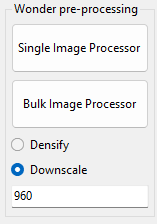
For small images, you would use ‘Densify’ which uses this logic:
If longestEdge < 900 Then
    scale = 1.35
ElseIf longestEdge < 1400 Then
    scale = 1.25
Utility uses FANT bilinear scaling and anti-aliasing to prep images to try and hit the ‘sweet spot’ for Wonder v2 model.
For larger images, (1400px and up) you would want to use ‘Downscale’ and set the target pixel size (example is 960px for a 1920px image).
You can select and process 1 image using single image button or do an entire folder with bulk button.
Example:
Original image → 780x1024 → run through ‘Densify’ in utility (scales to 1.25x) → feed into Wonder v2 at 2x with grain settings 3/3/1 → run output through utility again, downscale to 1920px → run output through high fidelity model @ 1x with grain settings 8/8/1 → done
Results are good so far, but I don’t have any shareable images yet.
Is anyone interested in the utility? Windows only. I have only tested with .jpg so far, don’t know if it would work with RAW formats.
It feels like a step up from Wonder v1—sharper images and fewer artifacts.
Also, I really hope Wonder v2 will be available for local processing. As a “skeptic,” I prefer not to upload my private gallery to the cloud. I firmly believe that data is only truly private when it stays on my local machine.
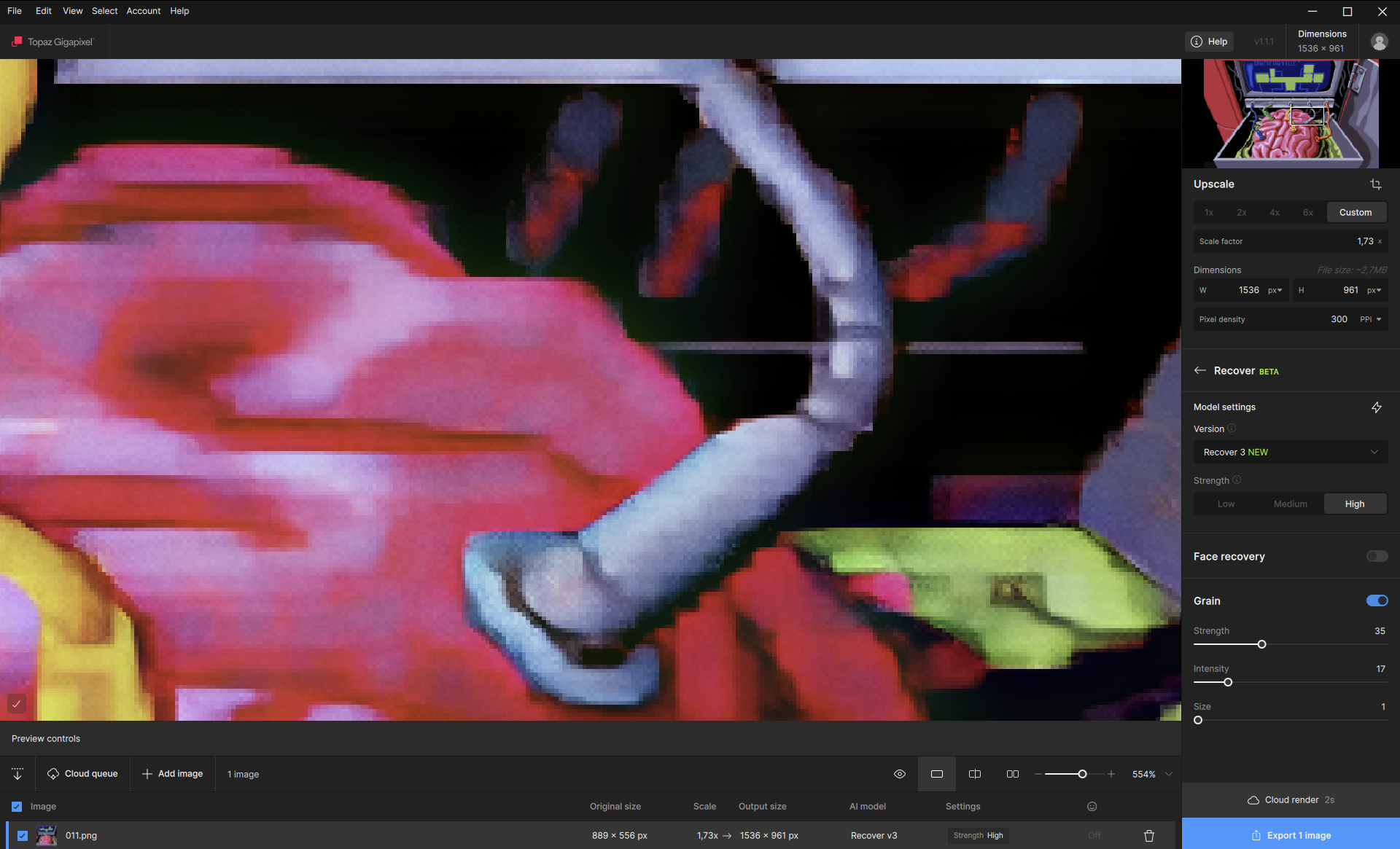
There’s also that cropping bug in the cloud processing here (in Gigapixel v1.1.1), hence I used [Windows]+[Shift]+[S] combo to capture a part of screen.
Another example:
Recover v3 strong from your cloud (with crop bug, unfortunately):
When you fix the local Recover v3, it’ll be a GREAT tool!
I also encountered a bug with failed preview (and export) of 1.08x upscale (1536 pix at longer side) with Redefine with 0 Creativity. I had to use 2x upscale to export. That’s the image I tried:
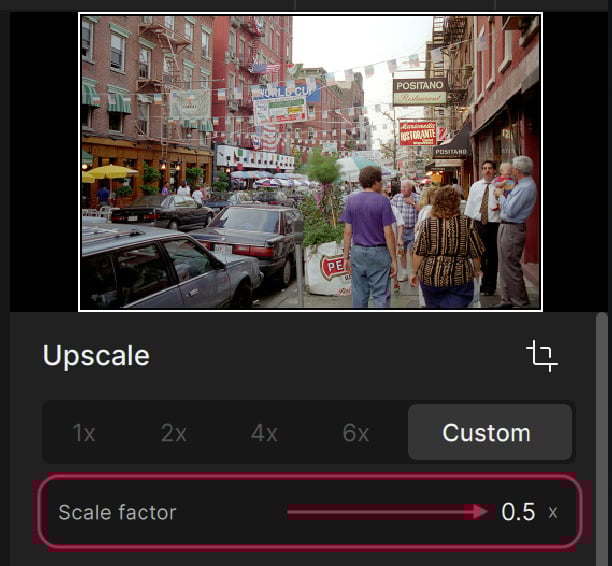
While Recover V2 is currently the only model that features a built-in downscaling option, any image can be downscaled with any model using decimal values less than 1 in the scale factor parameter.
In this example, a scale factor of 0.5x results in a 50% reduction. Downscaling with different models will produce different results, so experiment!
If an image is greater than 1000px on both sides, doing a 1x pass with pre-downscaling applied in Recover V2, then importing that result for processing with Wonder V2 after can create great results on old film and scanned prints.
I haven’t tried downscaling with other models yet.
But I definitely need to do that.
My results when other models have modified images beforehand were that the pixels merged together and the resolution decreased, which led to poor enlargement results.
If you make pre-downscaling available for all models, please include different interpolation algorithms such as Bilinear or Lanczos.
Batch processing is still an issue for me. I sent 31 images for processing in the cloud using Redefine. ETA was about 20 minutes. This morning, more than 8 hours later, 6 had still not been processed and it was all stuck. Since then processing continues to be intermittent.
seems like this should work. Is that random images that are failing or always the same? Let’s say you send the one that failed in a second batch will it work?
I sent the ones that had not processed overnight again, some individually, some in small batches. This worked. So it’s not specific images that cause the problem as far as I can tell.