Interesting, I haven’t looked at the rewards tab for my new RTX 5070 Ti GPU. Thanks.
I’ll have to contact them. Thx! Just got an RTX in late July and nobody mentioned that…
My NVIDIA app doesn’t work. Have tried installing it multiple times with no luck. Ditto for the guys who rebuilt my PC (they couldn’t get it to work either)… so I’ve seen nothing about freebie CC Pro
Thanks for the tip about Amazon. It’s true that you can often find things cheaper on Amazon than on official websites.
1 Like
Is it real or AI-generated? In any case, it has a most peculiar appearance  .
.
The Birdseye pea car is a small green pea shaped car that was built for a 2005 BirdsEye frozen pea advertisment
It was engineered for road use but designed to fall apart on cue during the commercial, which was created by the special effects company Asylum.
The car, which was inspired by the styling of a VW and built with a Honda engine, became a popular and memorable advertisement.
-
Purpose: The car was a promotional vehicle built specifically for a 2005 TV commercial for Birds Eye peas.
-
Design: It was a small, pea-shaped vehicle with styling inspired by a VW. It was built to be road-legal but was rigged to fall apart during the ad.
-
Engineering: The car had a Honda engine and a body made of fiberglass panels, designed and built by the special effects company Asylum.
-
Legacy: The pea car became very popular, gaining a lot of attention from car enthusiasts and being featured in many magazines.
-
Current status: After the commercial, the car was displayed at events and museums before being sent to the Unilever Ice Cream and Frozen Foods Co. in Walton on Thames.
1 Like
I think that if you combine the best of each variant, you’ll get the perfect photo. That’s what I do.
You’re welcome
That’s strange. Have you tried removing all leftover NVIDIA files by uninstalling the NVIDIA app? And then performing a clean install?
Ok, thanks for info. I wasn’t familiar with this pea ad. At the same time, it’s not a Belgian or French brand. So it’s normal that I’ve never seen it.
I also experimented with upscaling the image using OMGSR. 
If you’d like to dive further into this, I’d suggest continuing the conversation on another forum.
Yes. Uninstalled it 2x and also reinstalled when I updated my driver in Oct. No change.
I am not techy. So I didn’t want to risk a DDU (after paying so much to experts) just for the app. Didn’t realize there’s things like Rewards in there. I figured if experts (they partner with NVIDIA) couldn’t get it to work maybe I shouldn’t mess around more than I already have.
The kids on Reddit posted about having to do something in their Win 11 registry to fix it on their systems and/or in other (blankety) Win settings. I wasn’t gonna mess with that. 
I have some computer knowledge. But all my knowledge, I learned by learning from my mistakes. If you find solutions online, you should test them. But to be on the safe side, you should always make a complete backup of your machine in case you mess something up.
Testing some radical face recovery with Gigapixel.
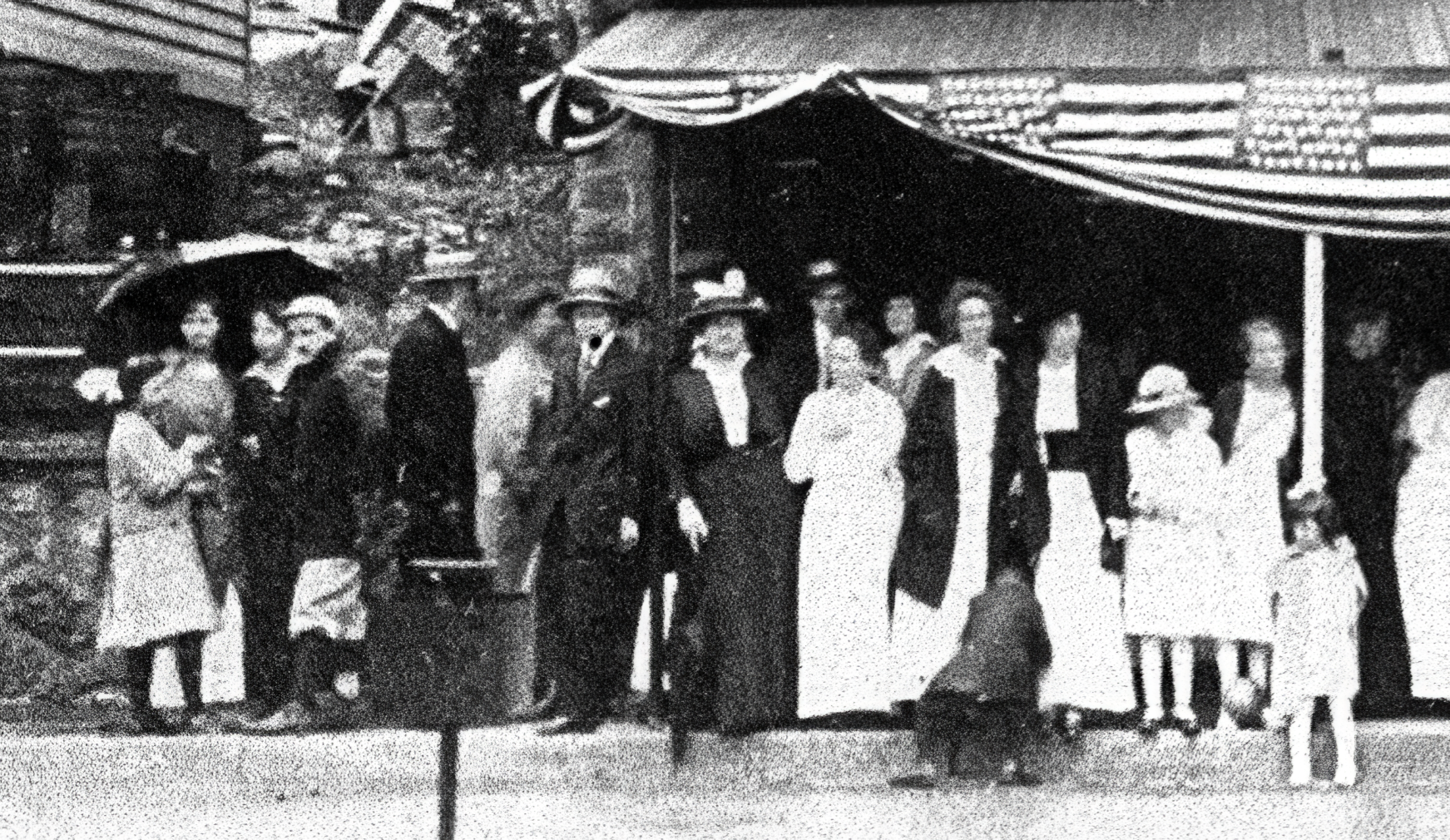
The source is rough (35mm copy of an 8x10 photo I did back in the early ‘80s):
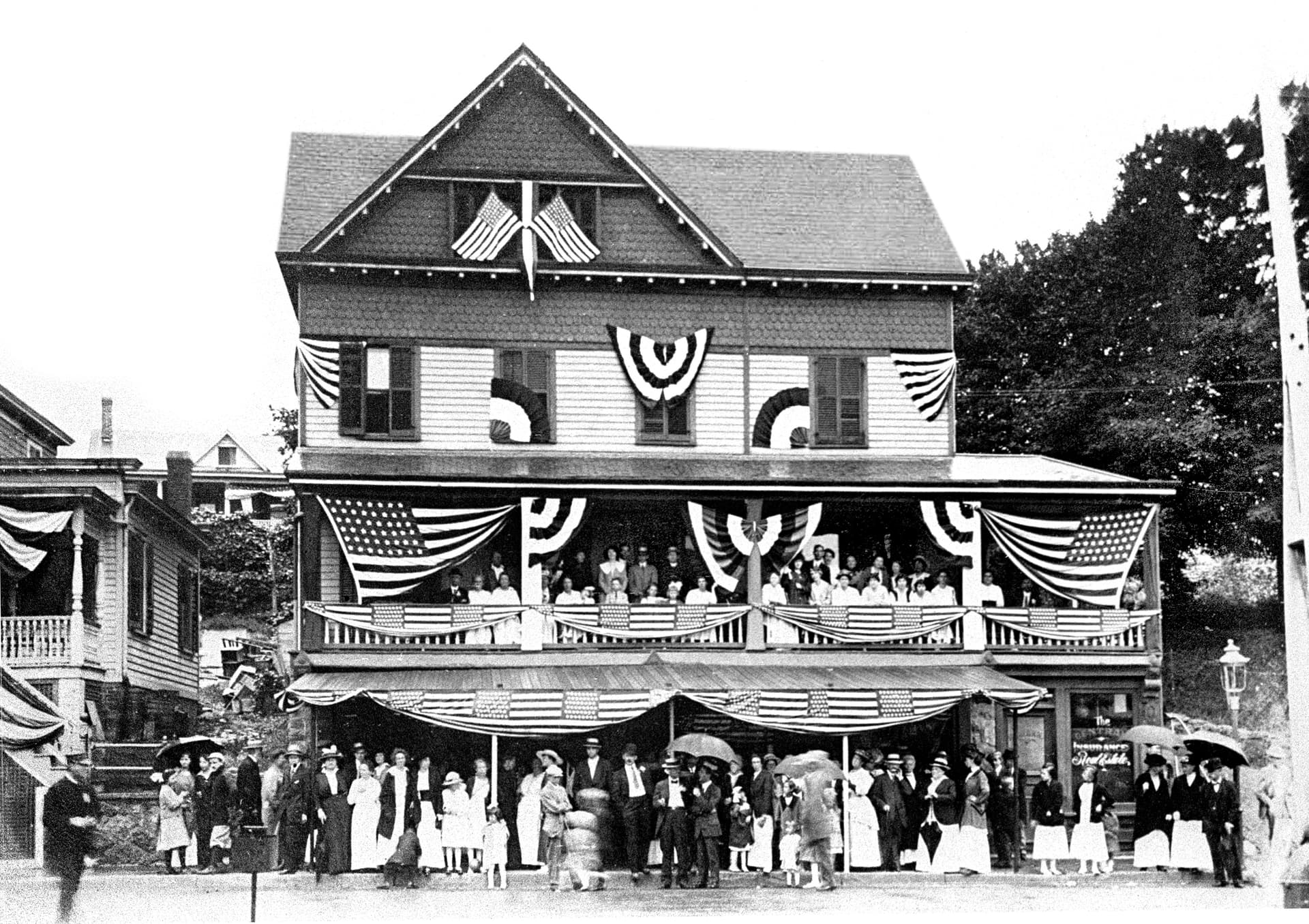
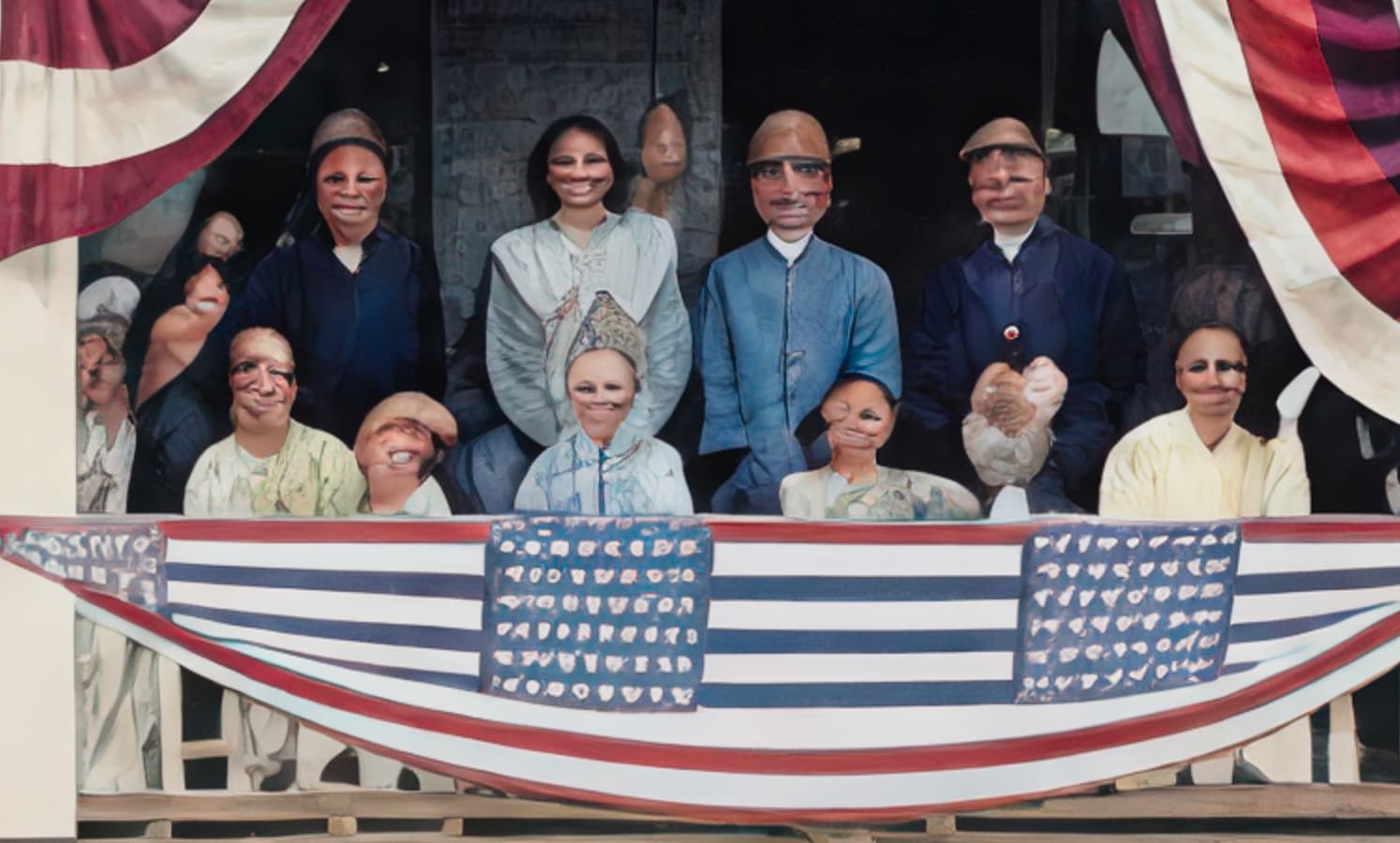
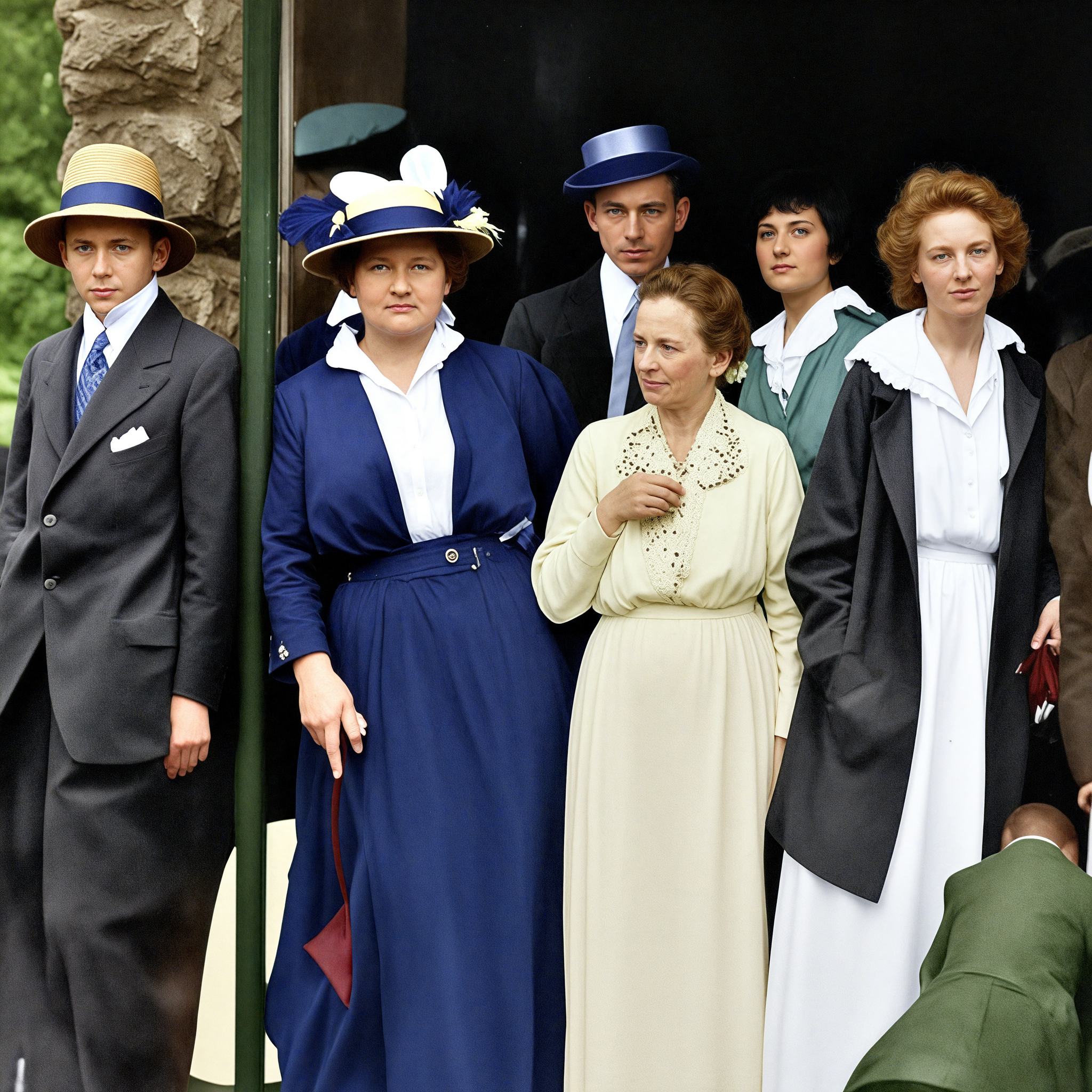
After colorizing in Nano Banana and upscaling to 8X in ON1 Resize, I got results like this:
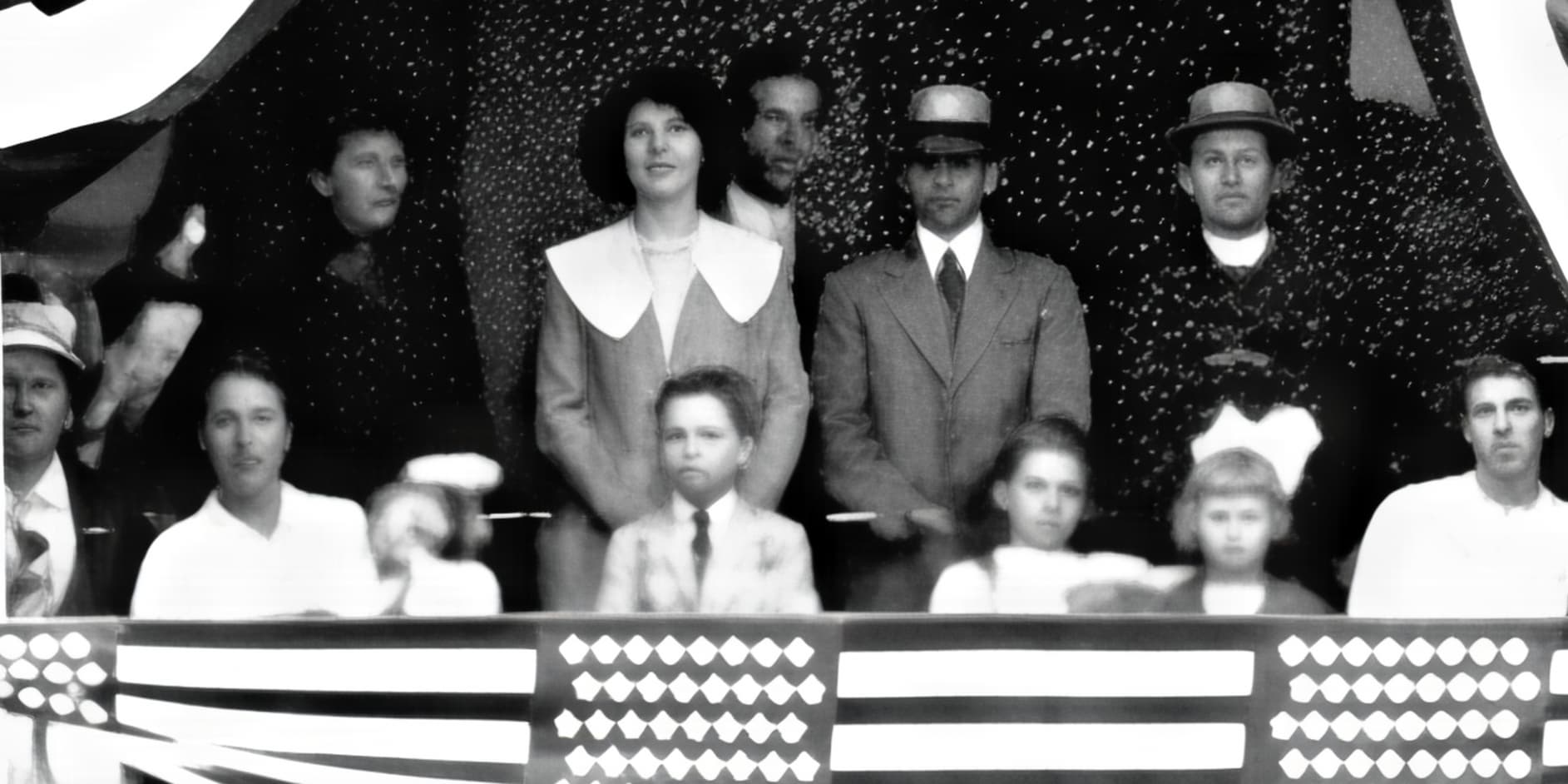
The original at 6X in Gigapixel Recover (cloud) gave me this result (seemingly larger than the 8X above-?):
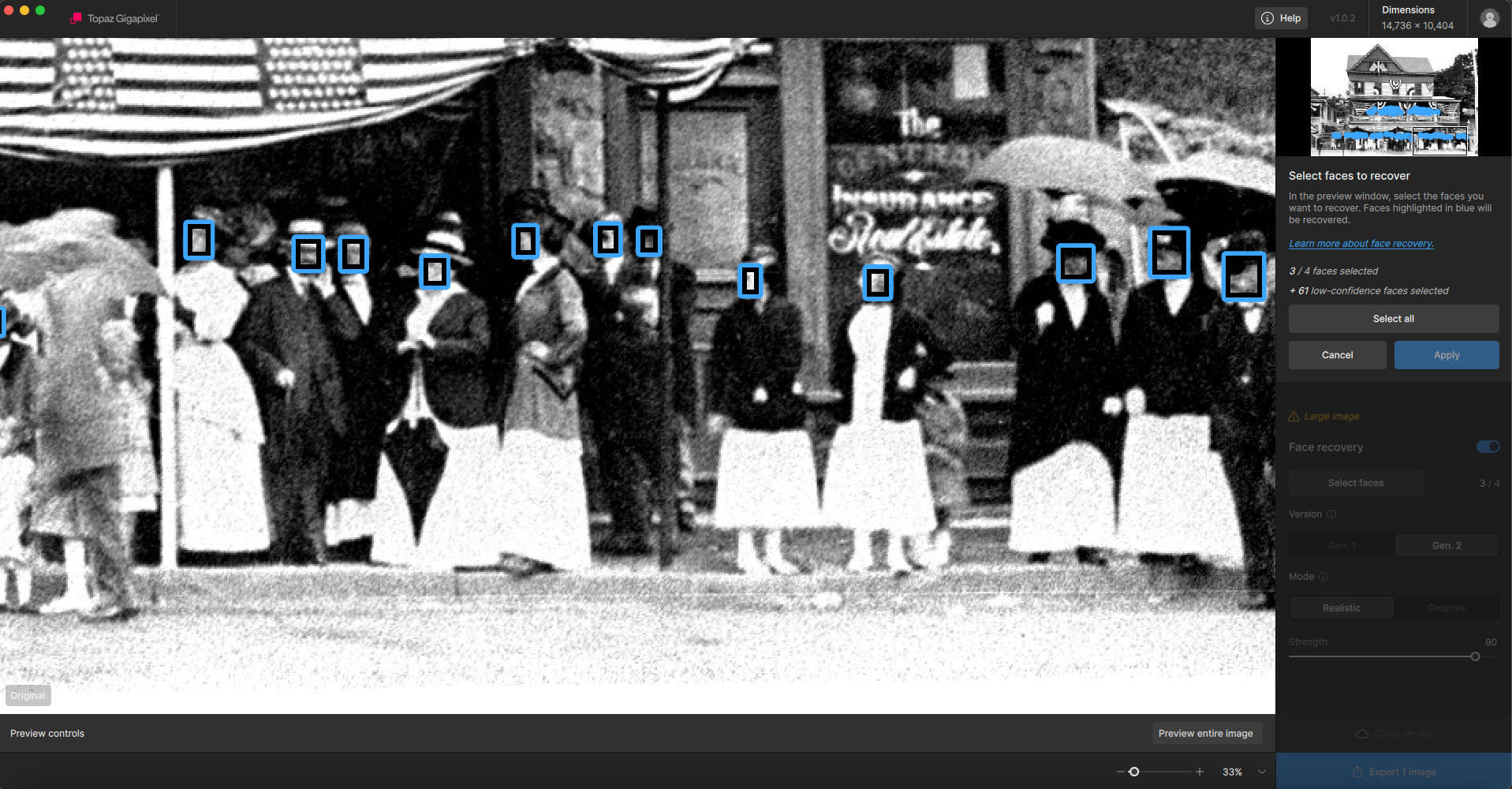
I had manually selected all of those faces and wanted to switch models in GP, but got stuck in the GUI. This is before I originally selected them all and hit Apply:
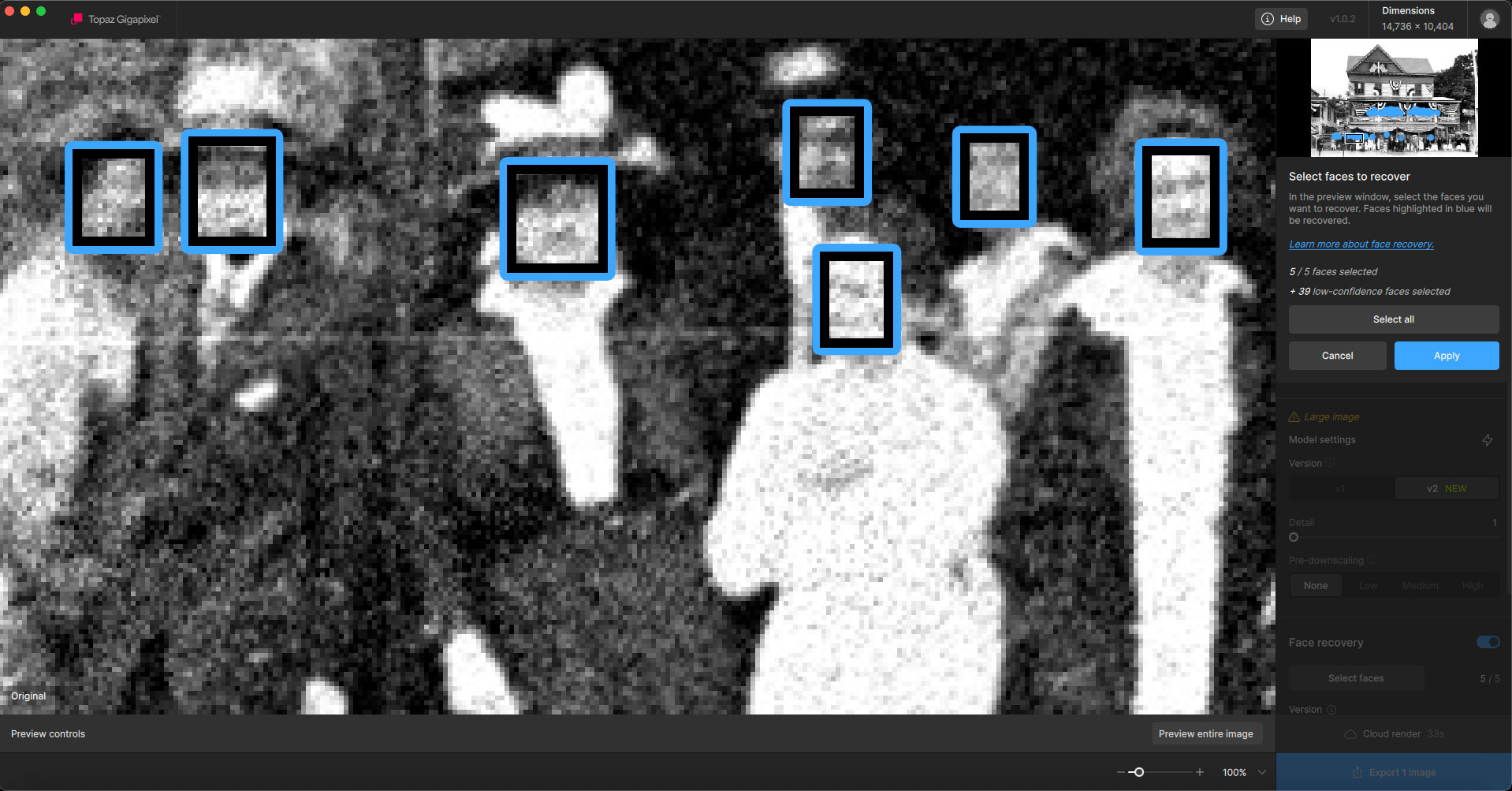
It’s hard to follow in the screenshots but after doing an export with Recover, I wanted to try another model (Wonder) but couldn’t retain my face selections. The 61 faces went back to 3/4 and I cannot Apply my choices to the new model:
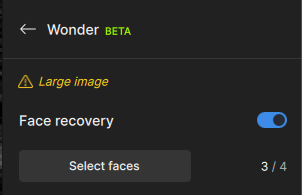
Apply is greyed out. Select All resets the selection back to 4 faces. Redefine has the same issue. I cannot try another model, unless I start from scratch selecting 61 faces after reloading the image, I assume.
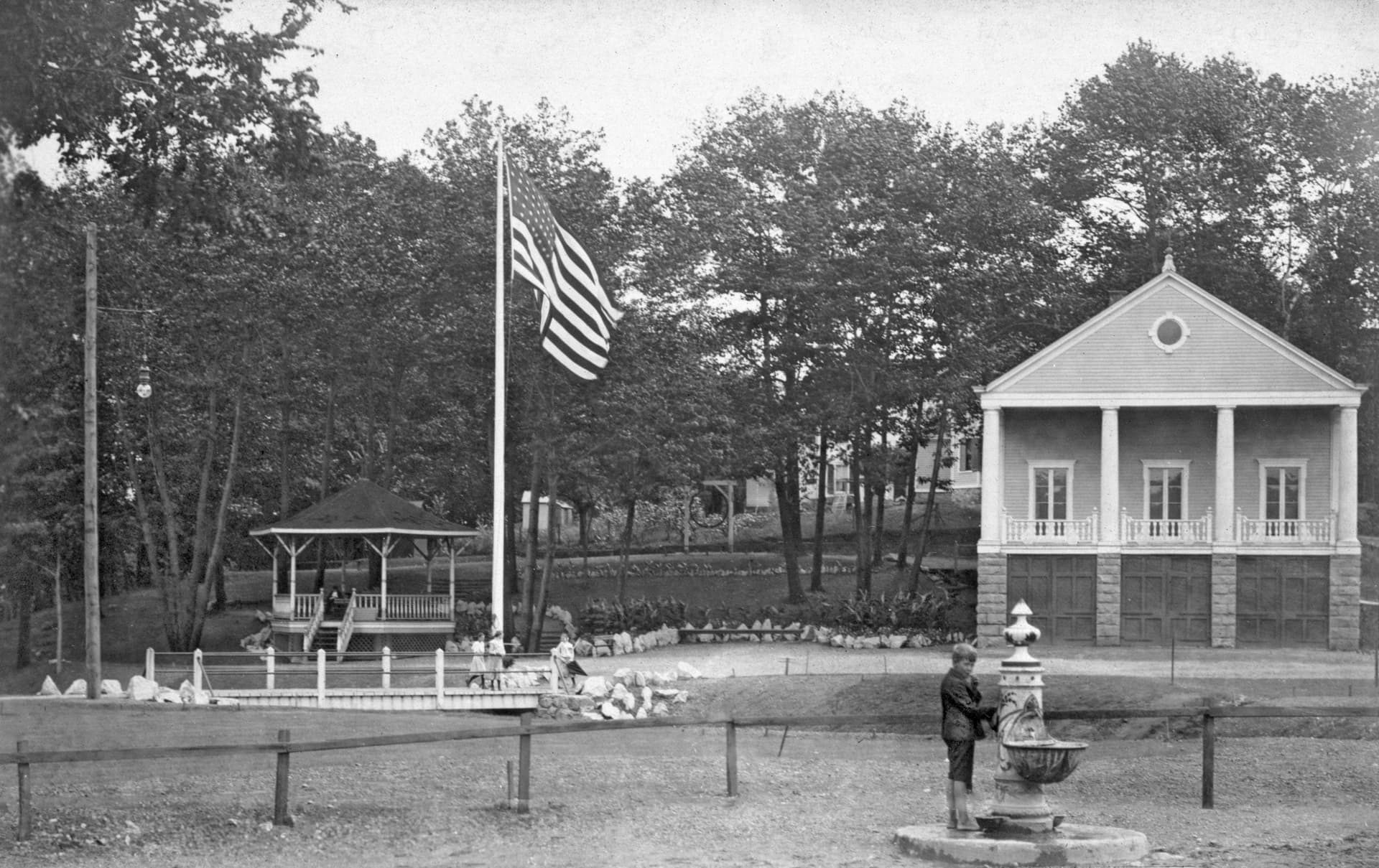
For this image, Gigapixel>Redefine Realistic>Subtle helped salvage the faces generated by Nano:
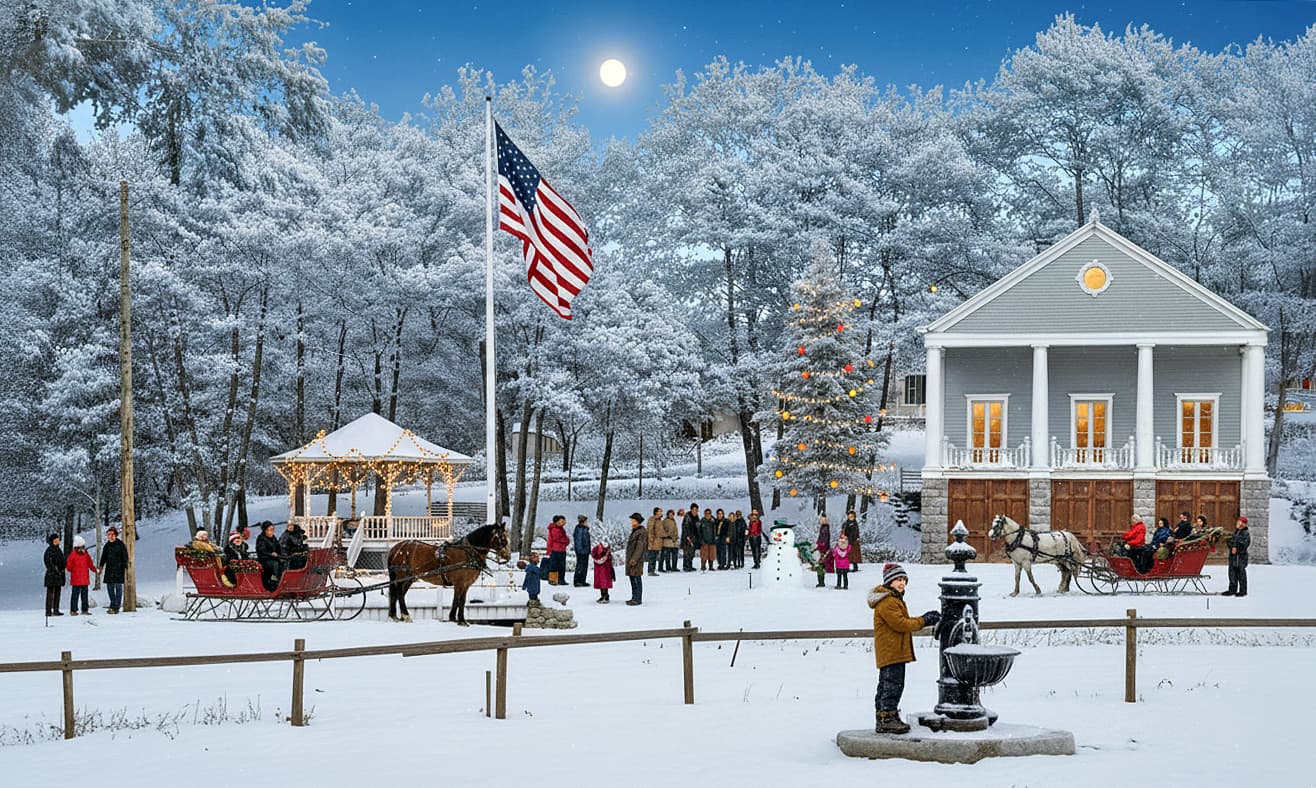
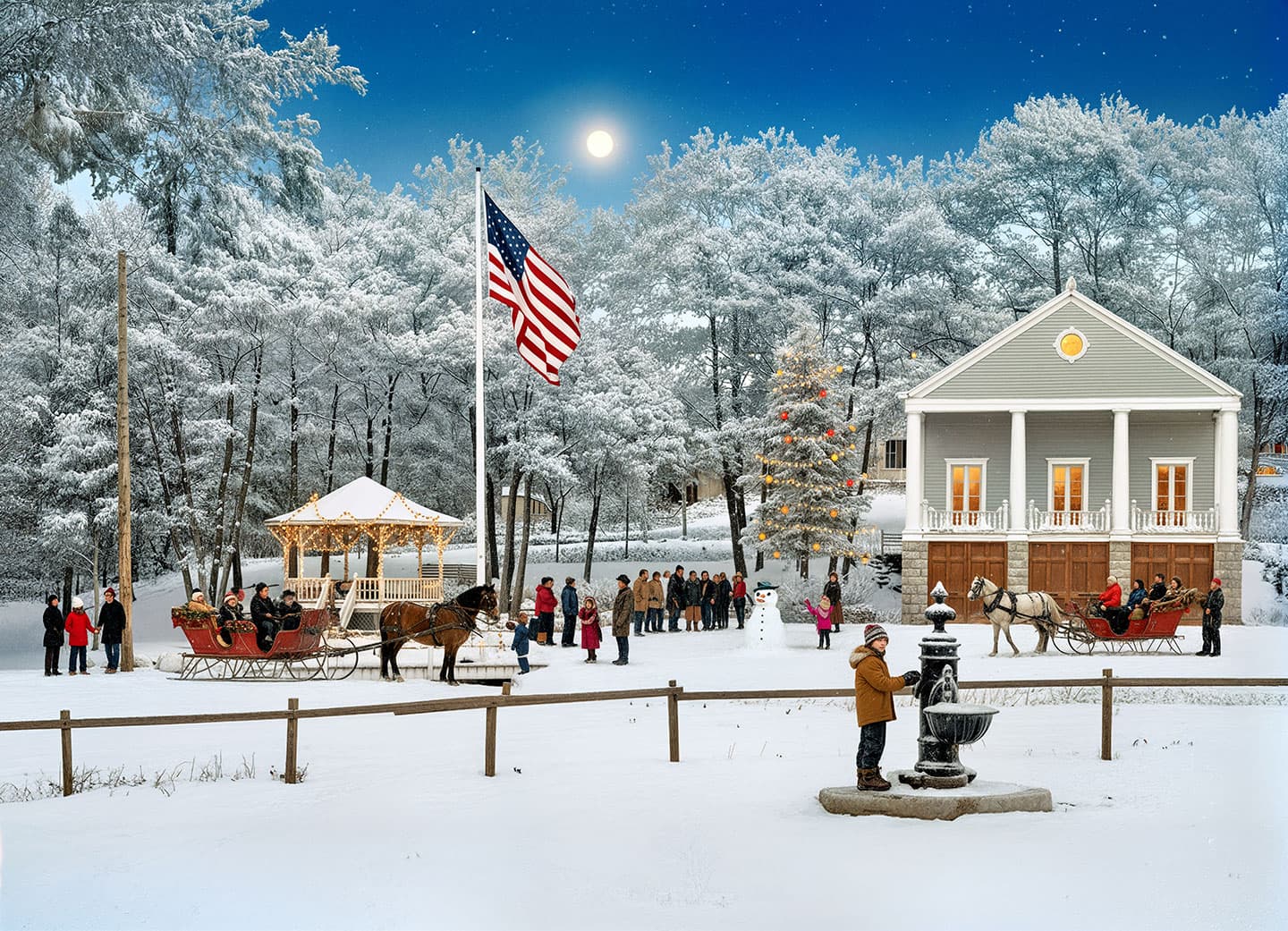
Well, the earlier image faces (above post) look like smooshed, rotting potatoes… either that or whatever movie (Indiana Jones?) showed the faces of some of the not nice characters melting in flames.
But the last couple of pics above look like a classic Christmas card (Norman Rockwell or other…).
Yeah, faces and text are rough in any upscaling app. It helps to crop to just the people, run the enhancement, then comp the results back into the larger image.
More results, see file name in screenshot for info.
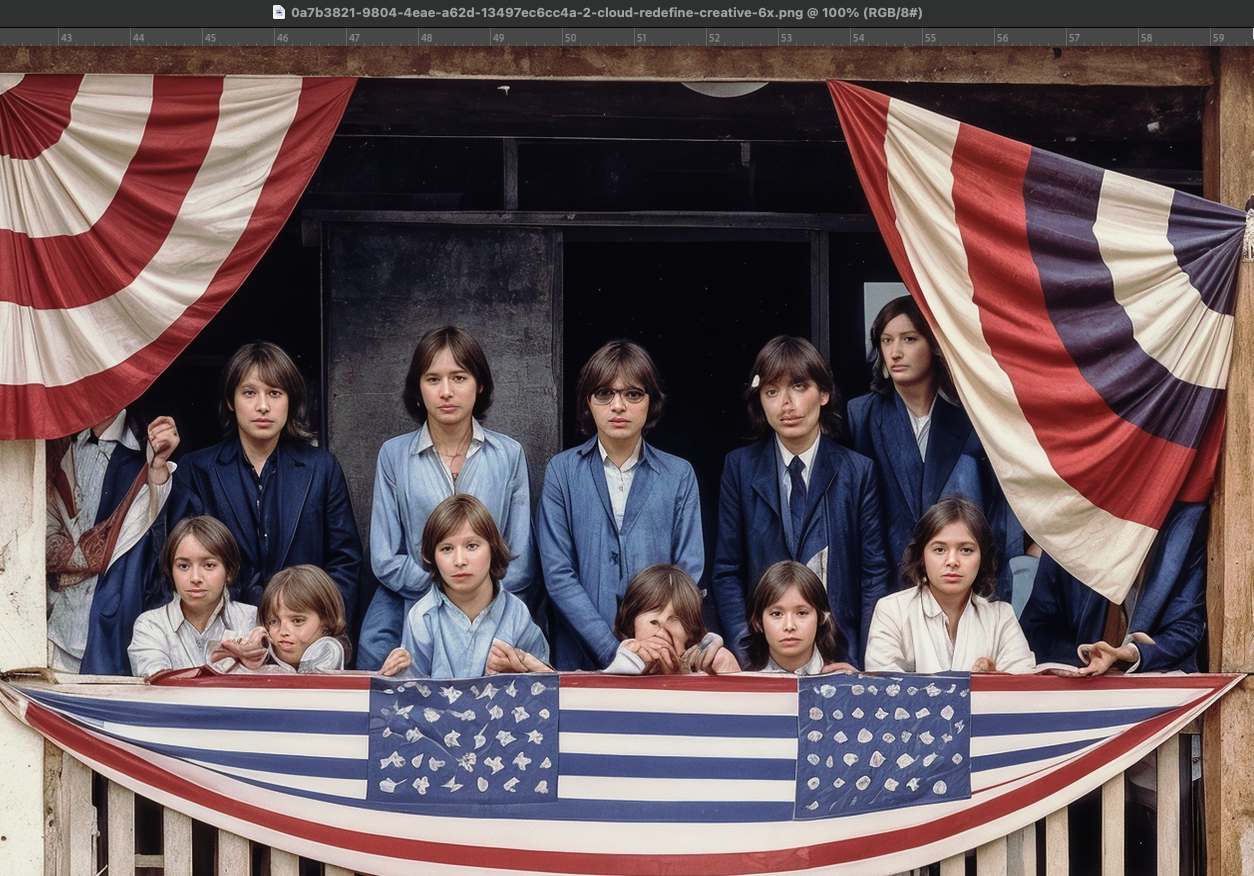
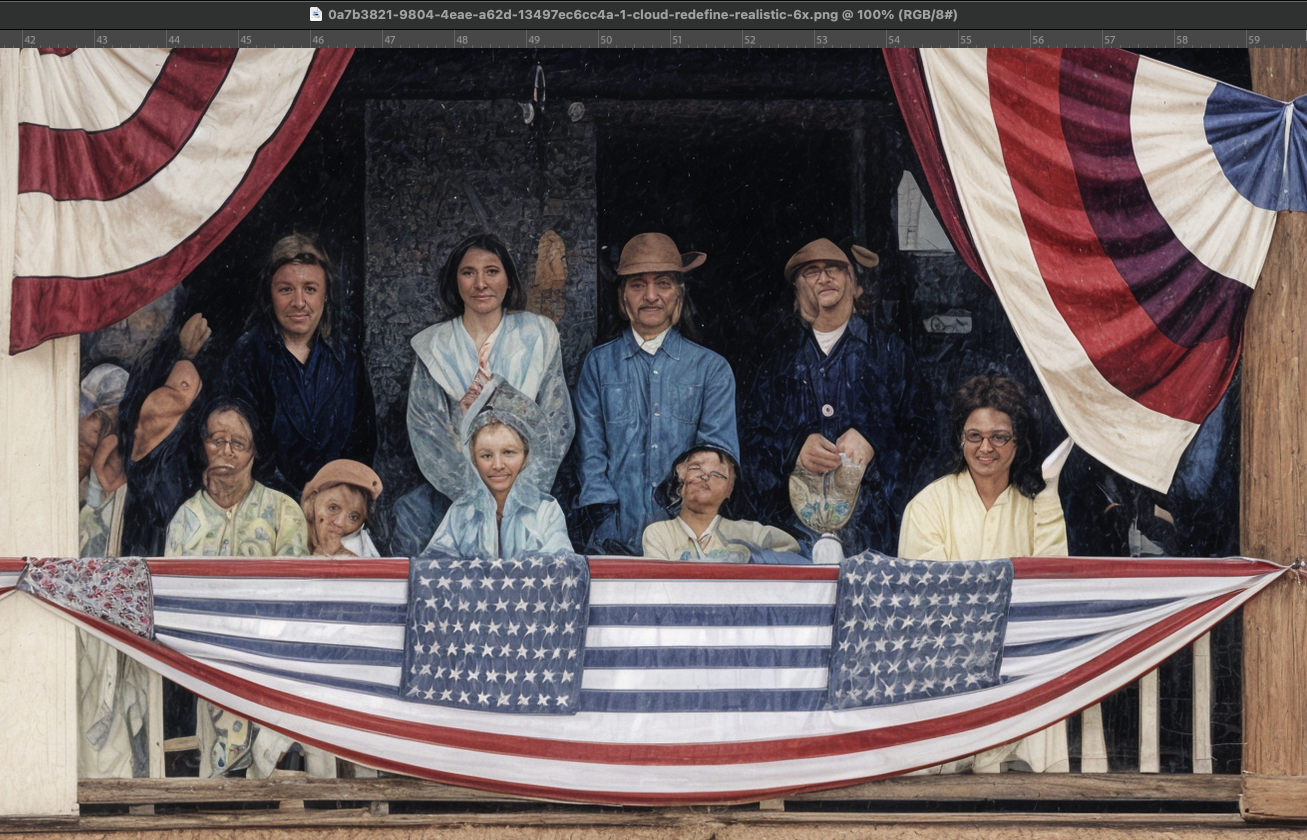
1 Like
Yow. The top one isn’t bad except for the one guy in the back row, the kid 2nd from left in the front row and (understandably) the kid with their hands in front of their face in the front row.
Is it possible to “patch” together the different pieces if they’re cropped to smaller sections for restoration like that? Do scene elements match up?
That may be the way to approach it, piece by piece. I learned while colorizing with Nano that it worked better when I cropped (for instance) each flag rather than expecting it to find the flags all throughout the image.
So as part of my reply here I decided to do this image over from my original B&W scan of the copy negative. Crop at 100%:
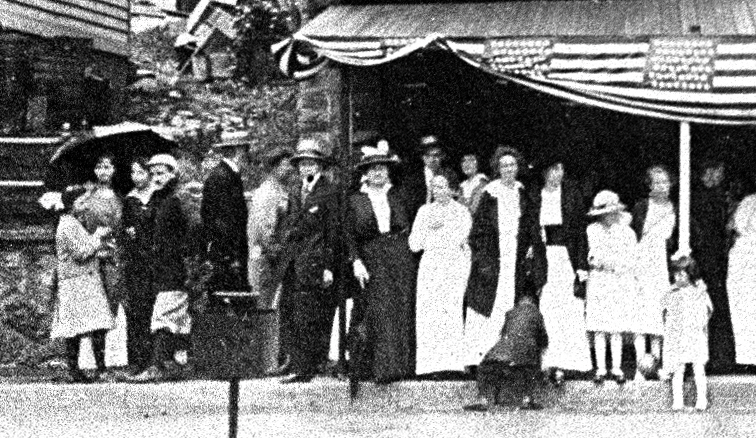
Yes, I’m angry that I did not have a laptop and scanner in 1983 as these old photos I was collecting for a newspaper feature would have turned out better-!!
Here is Mosaic – we got some green trees and lost all detail in the roof and siding). No flag was in danger of being colorized…
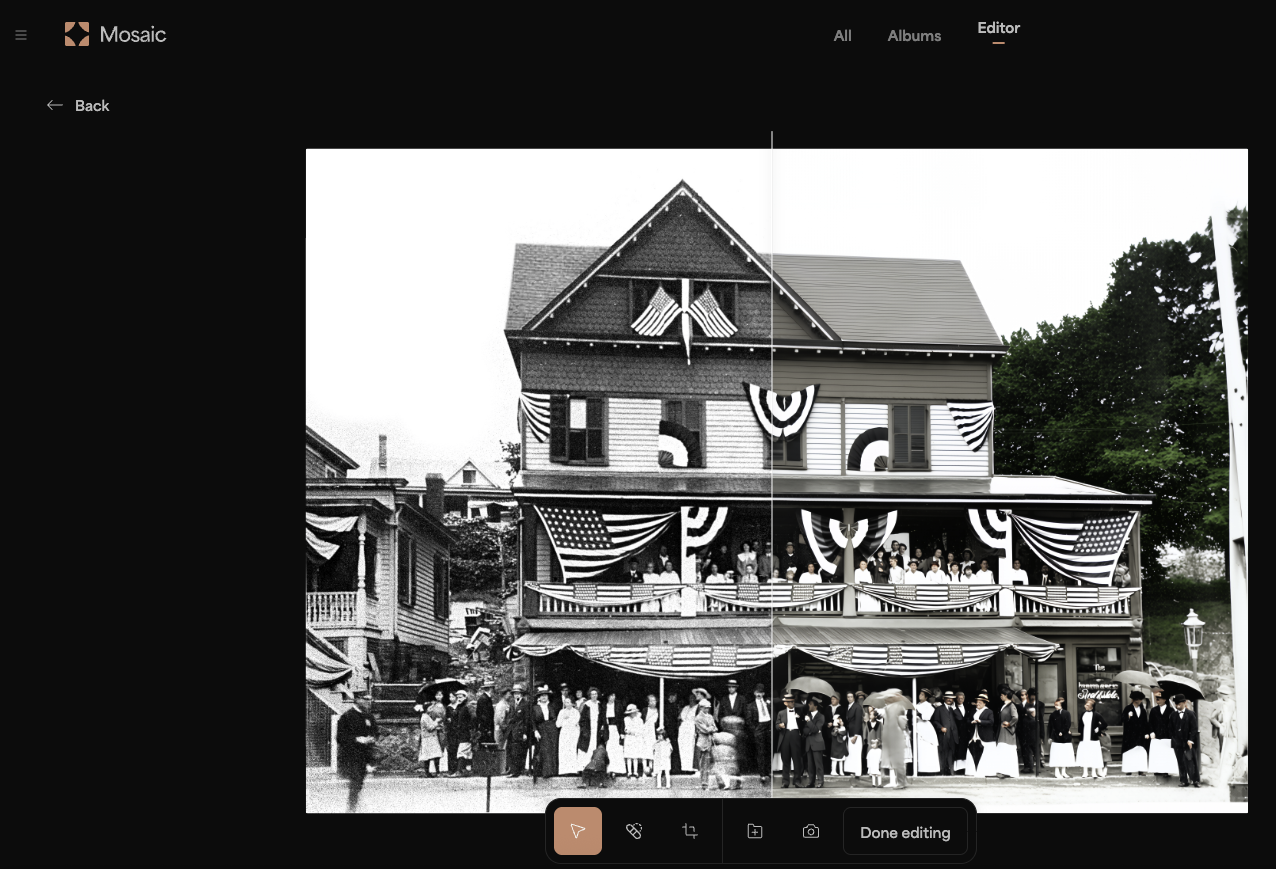
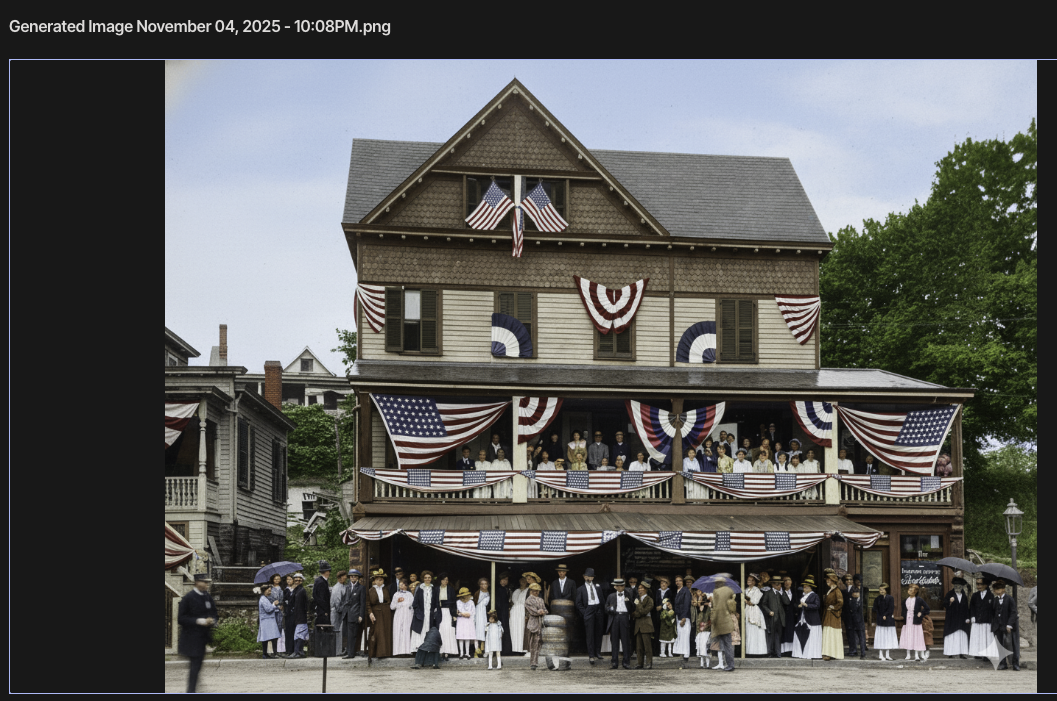
A fresh visit to Nano with these instructions: “enhance, restore, clean, colorize, be mindful of all the american flags and bunting, use red white and blue, never purple”. And I got my best result yet, minus the faces:
Now I am trying running the original though Gigapixel Redefine>Realistic to get better faces. I selected all of the faces, hit Apply, and while I assume they applied, the face count went back to 4/4, which is confusing (more mystical GUI stuff):
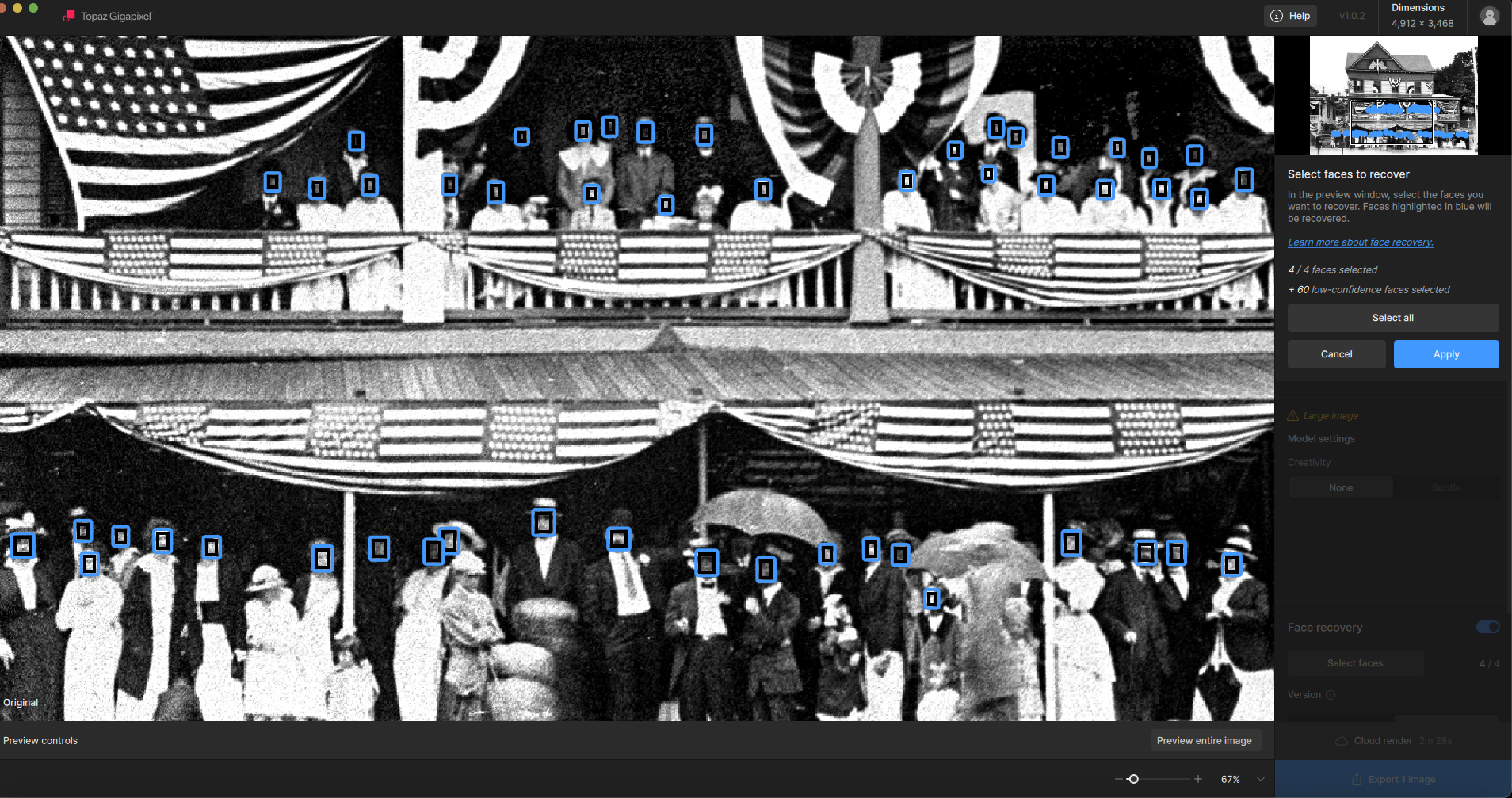
Here is the result (reduced and 100% crop):
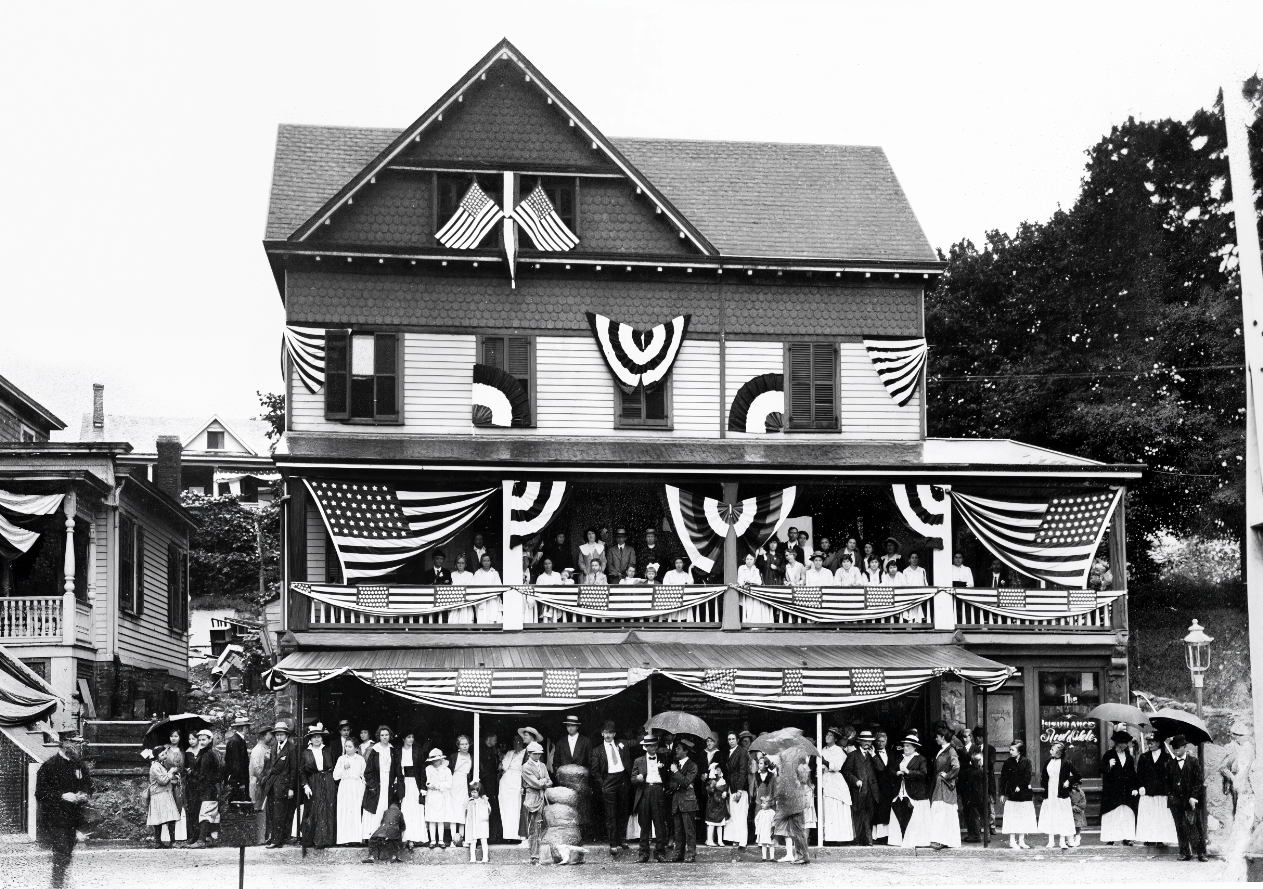
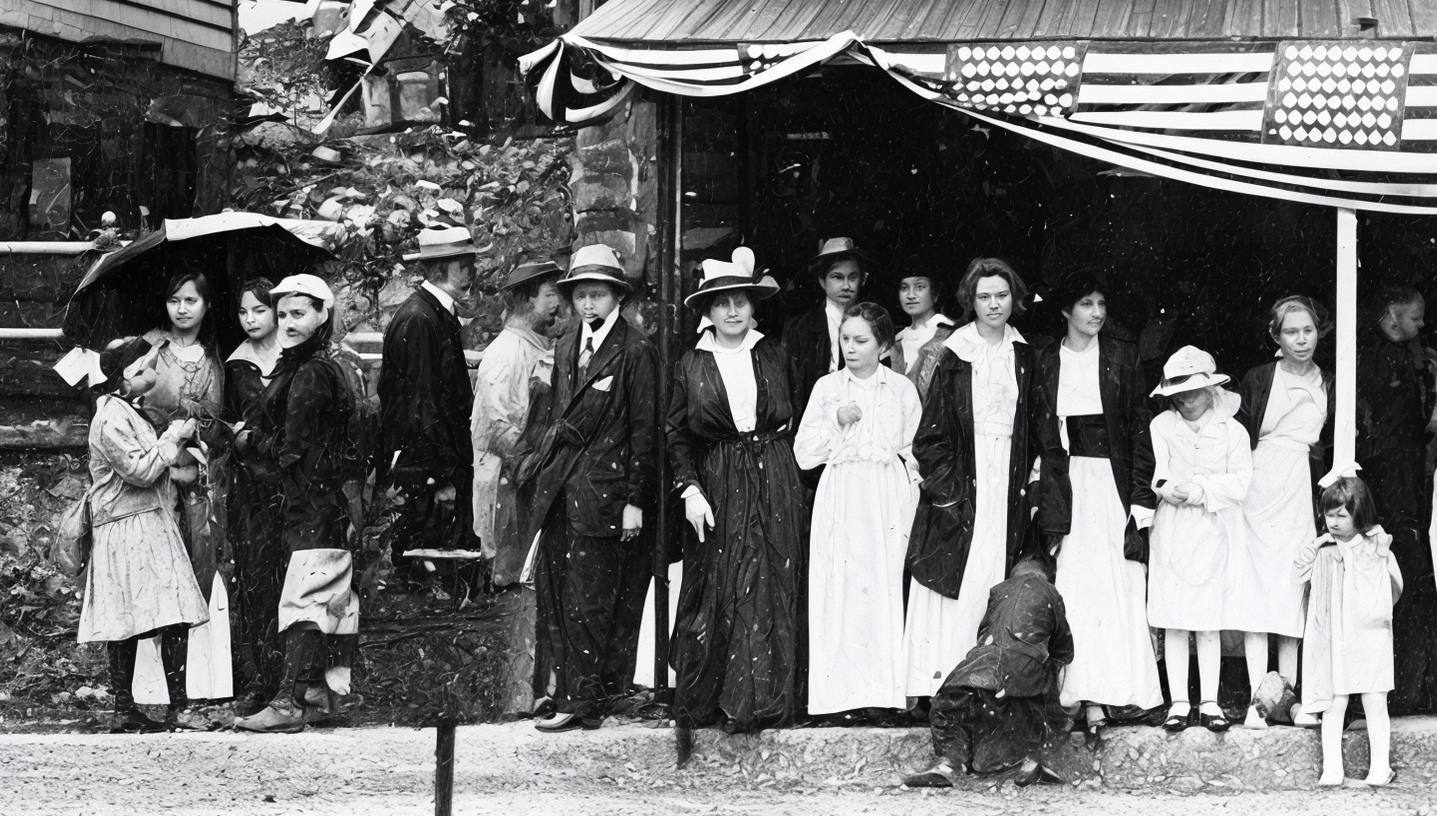
Next I will run the Gigapixel version through Nano to see if the faces improve any (100% crop):
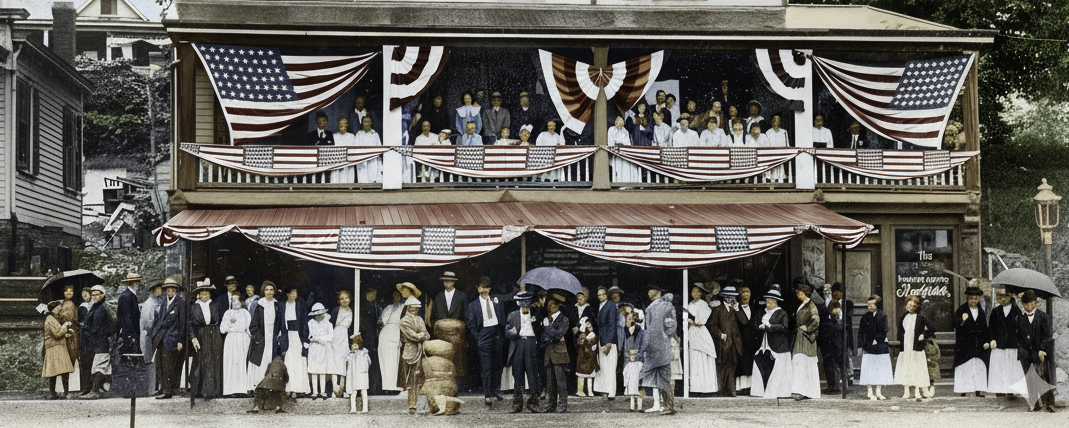
Now I will run that result back through GP, same settings as before. Far fewer faces were available this time. I am doing 6X now, I don’t recall what I used just before (it was defaulting to 2X):
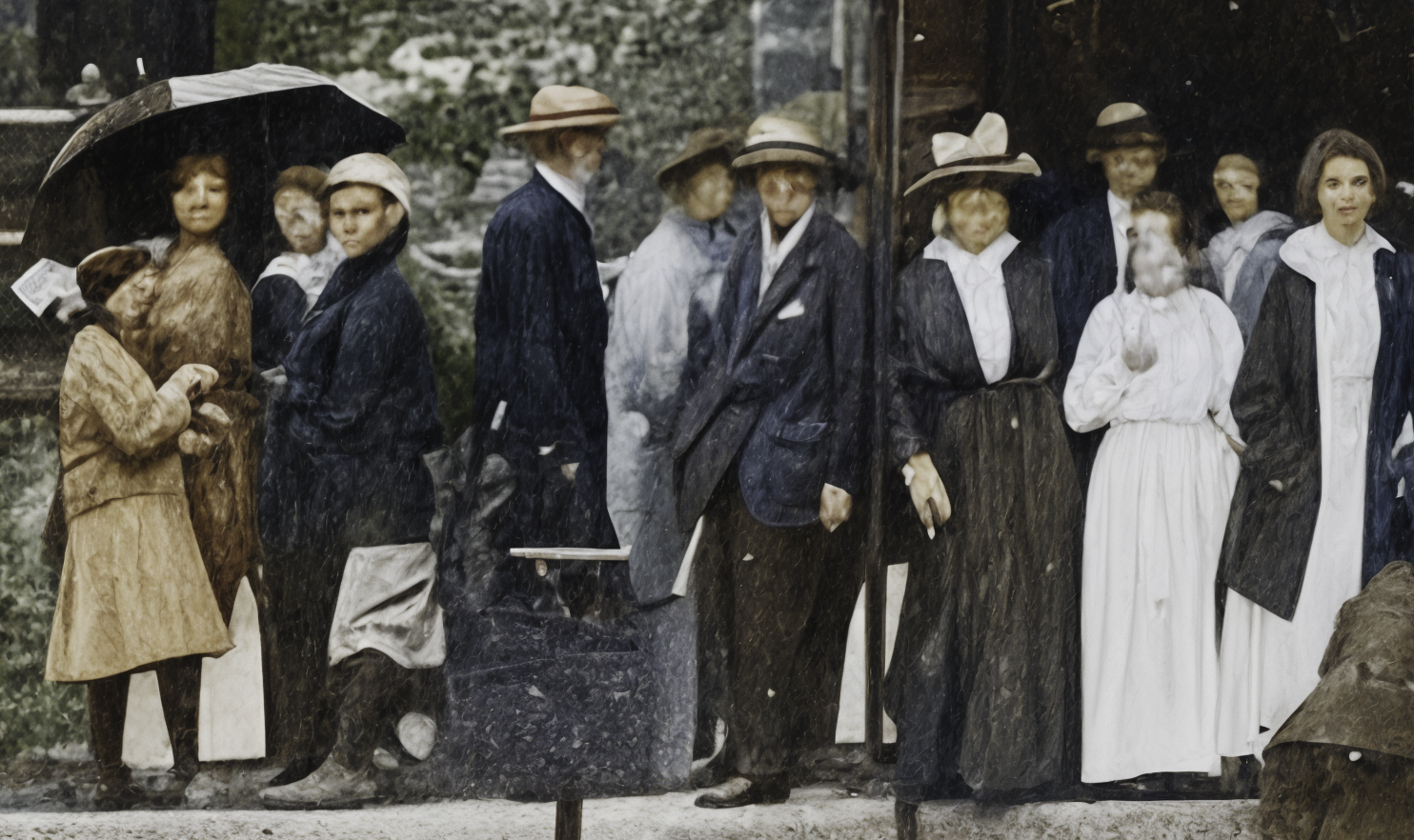
The Nano result run through ON1 Resize at 8X, max settings (which I am starting to suspect in the same as GP 4X):
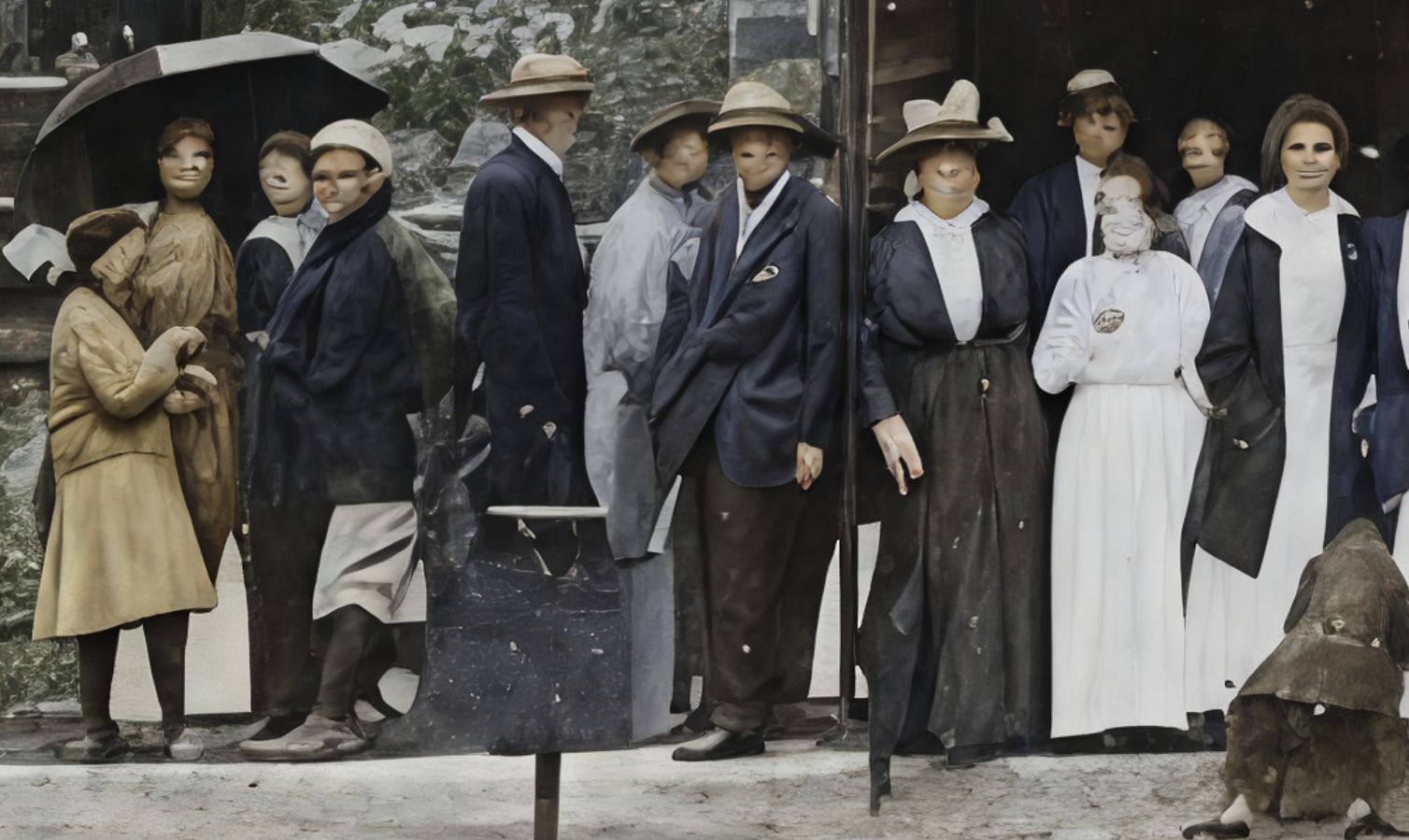
Obviously this workflow needs work! Maybe there’s some better approach to upscaling small faces that someone can provide.
2 Likes
Had a go at one of your pictures using Photo AI, Photo, Gigapixel AI and Gigapixel. The faces are not too bad under the circumcisions.

Regards.
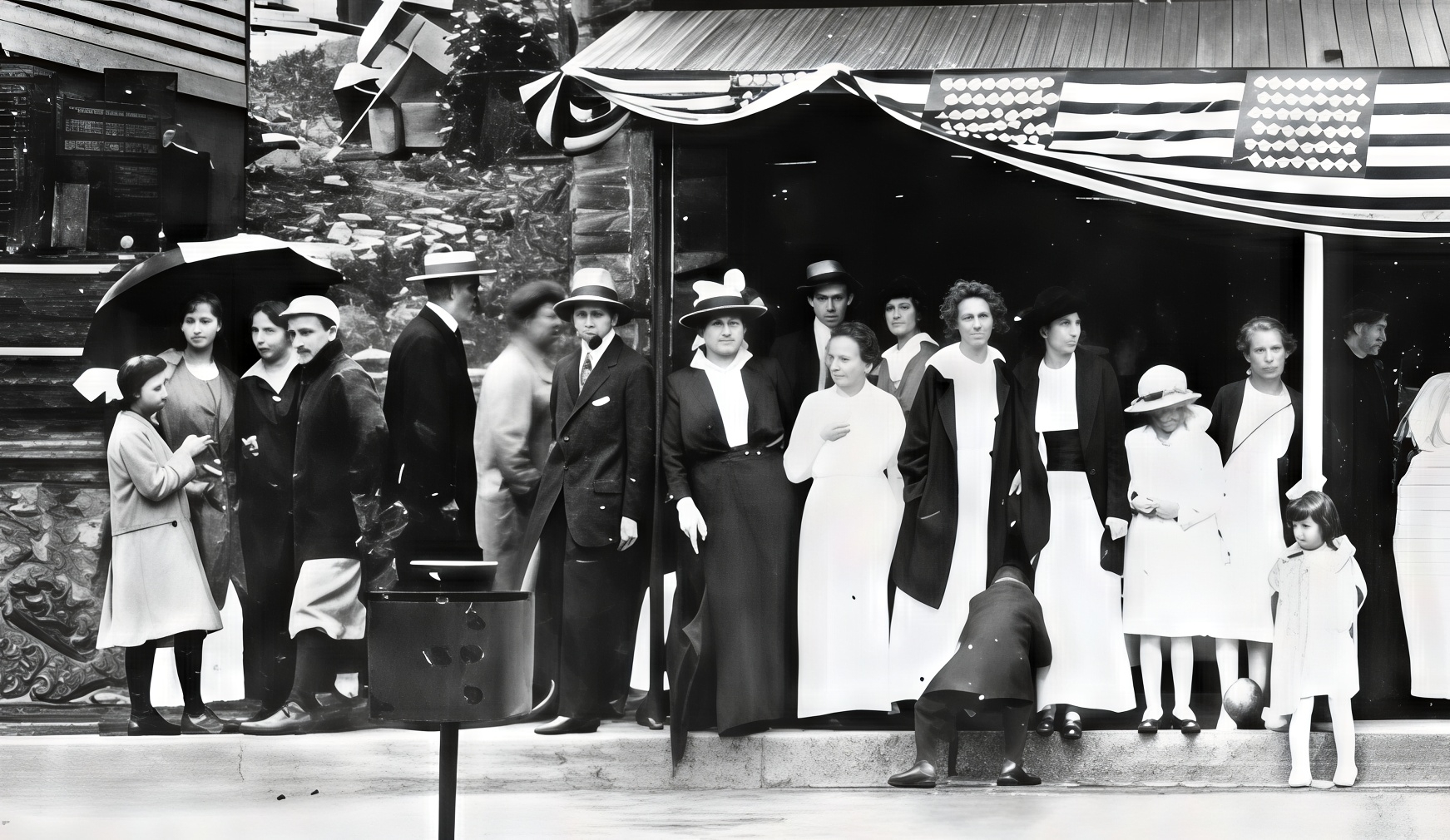
1 Like
That’s quite good! There is hope!
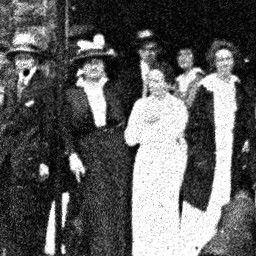
Let’s see if the full res original posts here so you can try some more!


4 Likes
