Hello!
** Topaz Gigapixel Official Release **
Founders and fellow upscalers - today we’re thrilled to announce a brand-new Topaz Gigapixel Studio release that brings some of our most exciting features to date. We know many of you are adjusting to the new subscription model, and our goal with this update is to make Topaz Gigapixel more valuable and accessible than ever — so you can spend less time worrying about limitations and more time creating.
Here’s a quick preview of what’s in this release:
-
Standard Max – Next-Gen Upscaling, Lower Requirements
Our newest AI model that delivers faster, cleaner upscaling with lower hardware demands, making professional-quality results possible even on less powerful machines. -
Wonder Model – Natural Enhancements
The new Wonder model produces balanced, natural images with fewer artifacts and improved background integrity. This model is available locally for PRO/Founder users. -
Unlimited Image Cloud Rendering
We’ve eliminated cloud credit costs for image apps — you can now render as much as you want in the cloud. This is perfect for exploring models without worrying about local system requirements. To keep the experience smooth for everyone, we’ve added a 100-image batch queue limit across all apps. -
Streamlined Login with Single Sign-On (SSO)
Log in faster using your Google account — no extra account setup needed. -
Save Your Redefine Prompt in EXIF Data
Your creative guidance is now automatically saved in the exported file’s metadata, so you can revisit or share your exact workflow later. -
Updated Crop Tool
The redesigned crop tool brings the intuitive, precise controls from Topaz Photo into Topaz Gigapixel, letting you frame your images perfectly before upscaling.
But wait - You might have some questions regarding Topaz Gigapixel Studio. Please click this link to learn more.
Note: We are working to formally support Mac OS 26 (Tahoe) which was just released. Support will come to both Topaz Gigapixel (Studio) as well as the legacy Gigapixel AI app.
This release is intended to give you more freedom, faster results, and an overall smoother experience. We hope you’ll join us in this new chapter of Topaz Gigapixel!
Esther H.
Associate Product Manager
Please use the v1.0.1 links as they include several fixes related to the pay modal and small minor fixes within the app. You can see more descriptions to these fixes for v1.0.1 under the Changelog.
v1.0.1
Mac: [Download]
Windows: [Download]
Windows ARM: [Download]
Released September 18, 2025
–
v1.0.0
Mac: [Download]
Windows: [Download]
Windows ARM: [Download]
Released September 16, 2025
Introducing the New Standard Max Upscaling Model
Standard Max is an AI model development built on new architecture. It delivers upscaling results with lower hardware requirements and faster processing — making high-end enhancement more accessible than ever.
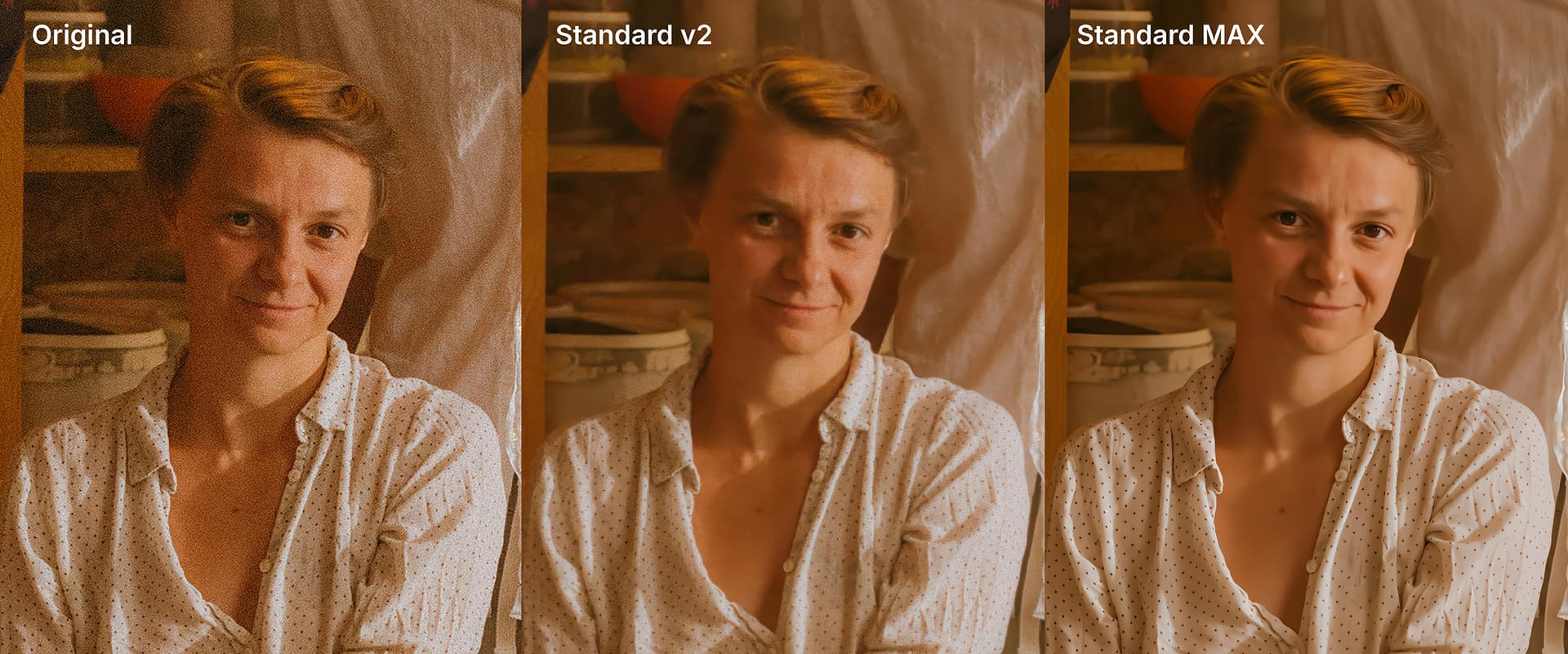
Standard Max produces improved enhancements for details - generating fine, realistic textures that help bring your photos back to life.
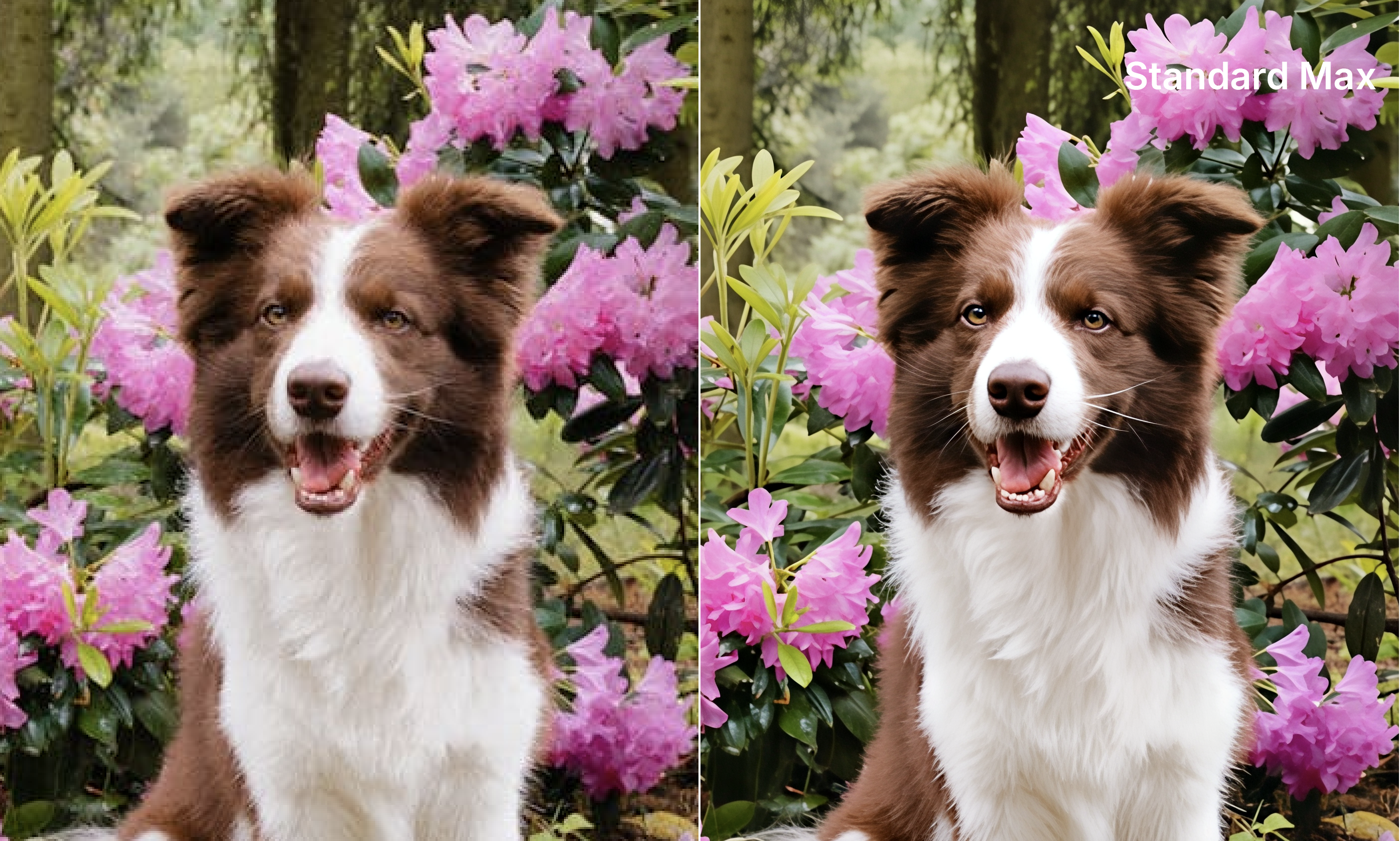
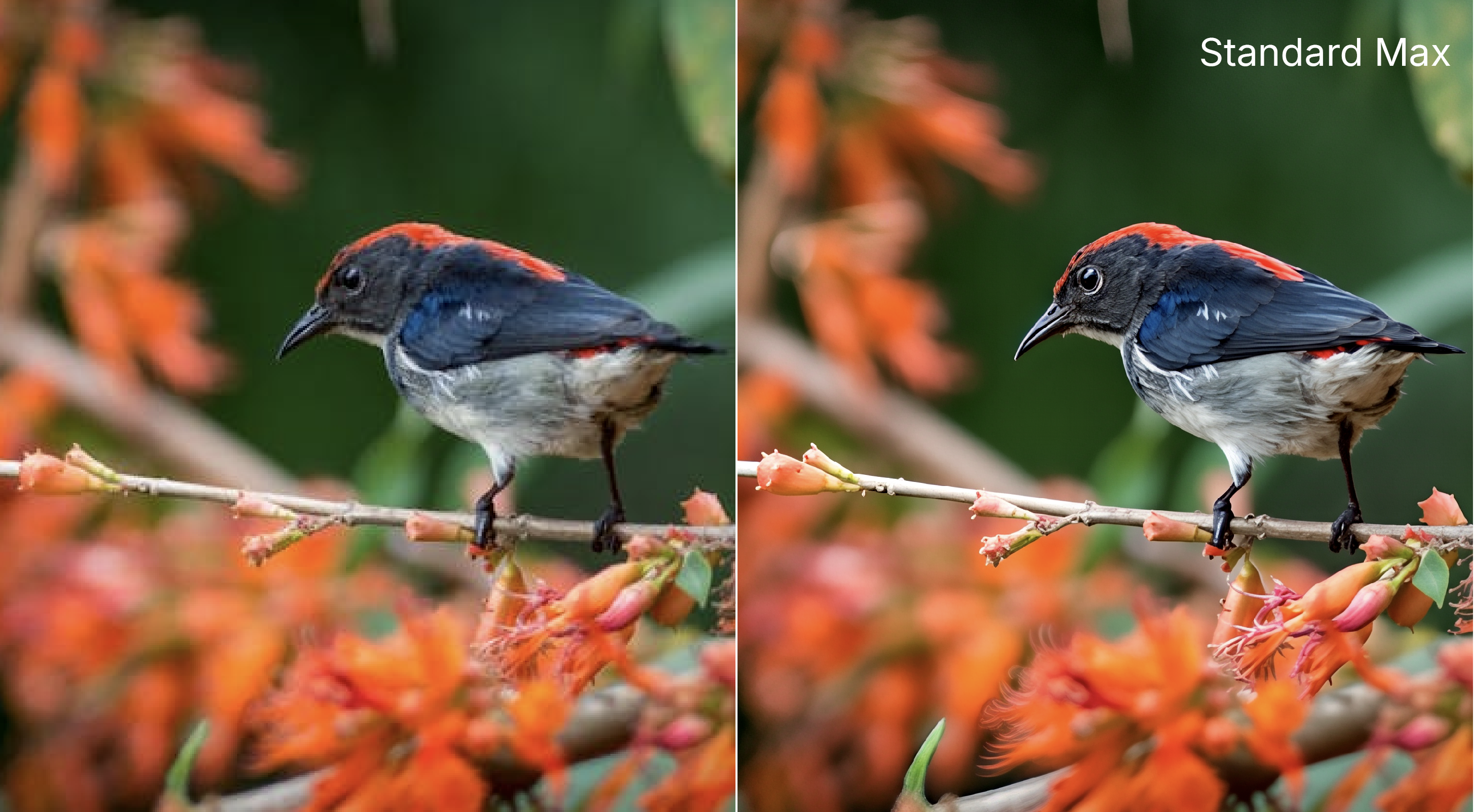
Standard Max is designed to run smoothly on a wider range of devices, so you can get professional-level results without the heavy processing demands of previous generative models. Try it out and experience faster, more powerful upscaling with refined detail and beautiful outputs.
How to use Standard Max:
- Locate Standard Max under the “Generative models” section
- Click on Standard Max and preview the entire image
- Please note that the Preview controls do not work for this model and will show an “Error while processing” message.
- Run it locally or through the cloud
Results too intense? Use the Strength slider.
This model does not currently include additional model settings like Recover or Redefine with the exception for Face Recovery.
 Workflow tip: Try this model with animal and nature images.
NEW! Advanced one click enhancement: The Wonder model
Considered to be one of our more balanced enhancement outputs in our Generative model line-up, the Wonder model can improve small low quality images. The results are definitely worth the wait. There are less artifacts in the background compared to our other models. Wonder also maintains a better level of natural output quality without over sharpening. The model does not have the ability to address extreme motion blur.

Check out the subtle difference in output where Wonder maintains the integrity of the background and does not add oversharpened artifacts on the right side of the image.
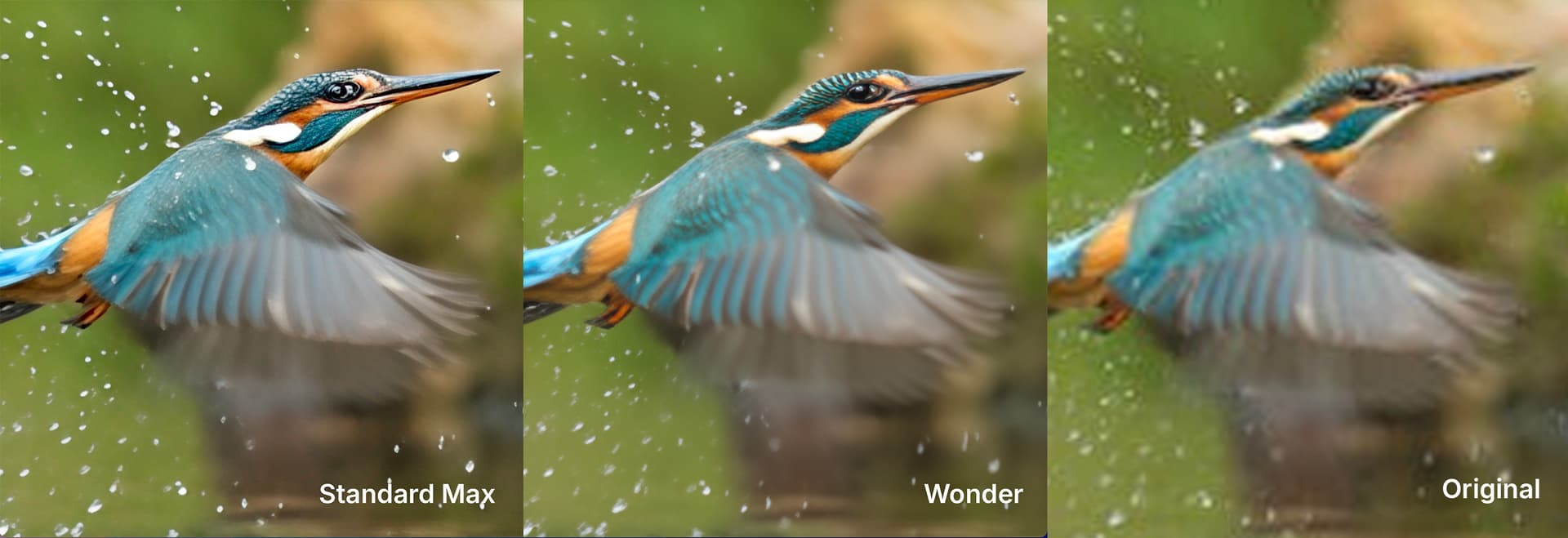

You can access the Wonder model under the Generative models section in the right panel. Please note that this model is available locally for PRO/Founder users.

The Wonder model has no additional enhancement parameters meaning you will not find any additional sliders under the Model settings. But we added the ability to turn on Face recovery in certain cases where the model cannot enhance a blurred face for example. From our testing, we’ve seen that Face Recovery is not needed because the model already outputs faces well.
Workflow Tip: Use a 4x upscale with images with faces less than 1000px by 1000px for the best results.
Unlimited Image Cloud Processing
We’re introducing a new feature to make experimenting with generative models easier: no more cloud credit costs. This means you can explore models freely without needing high system requirements locally.
This feature is currently available only for generative models.
Please note that we’ve also set a batch queue limit of 100 images at a time (queued + processing) in the app. If you hit the limit of 100, you’ll be notified with the following message:
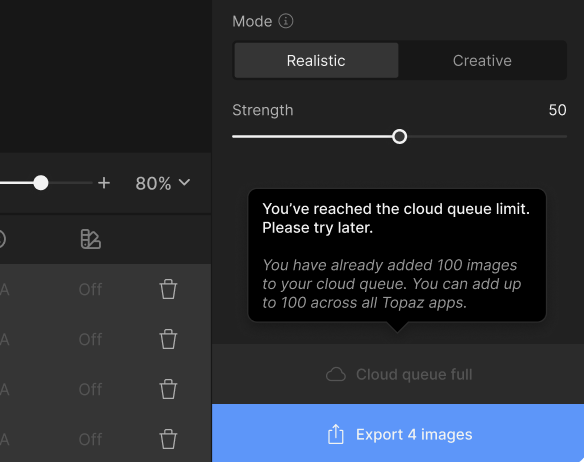
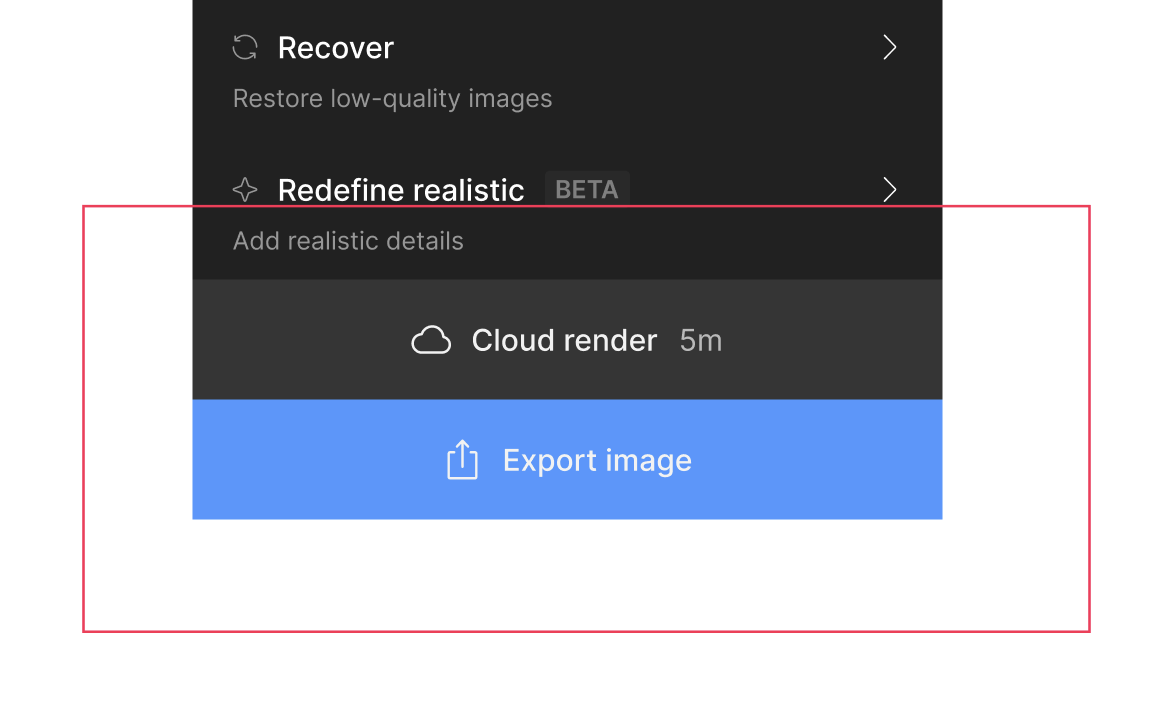
There are no UI changes that are significant when running unlimited image cloud rendering. Unlike Gigapixel AI v8.4.3, costs of credits are no longer visible on the cloud render button. Nor will you see any credit count in your user profile.
How to use Unlimited Cloud Processing:
- Run a Generative model
- Click the Cloud Render button
- Find your image in the Cloud render Queue
- Click on the Downloads folder icon to get the final image
Streamlined Login with Single Sign-On (SSO)
We’re excited to introduce a new Single Sign-On (SSO) option to make getting started with Topaz Gigapixel faster and simpler. You can log in using your existing Google account — no need to create an account from scratch. This new flow helps new, trial, and returning users access the app in fewer steps, with less hassle.

Save your Text Prompt in Exif Data
The Redefine feature in Topaz Gigapixel lets users guide AI upscaling with a custom text prompt. However, once exported, that creative input is currently lost — making it hard to reproduce, trace, or share the enhancement process.
By embedding the user’s Redefine prompt directly into the exported image’s EXIF metadata, we ensure the creative guidance is preserved with the file. This improves traceability, supports collaboration, and gives you an easy way to archive and revisit your workflows.
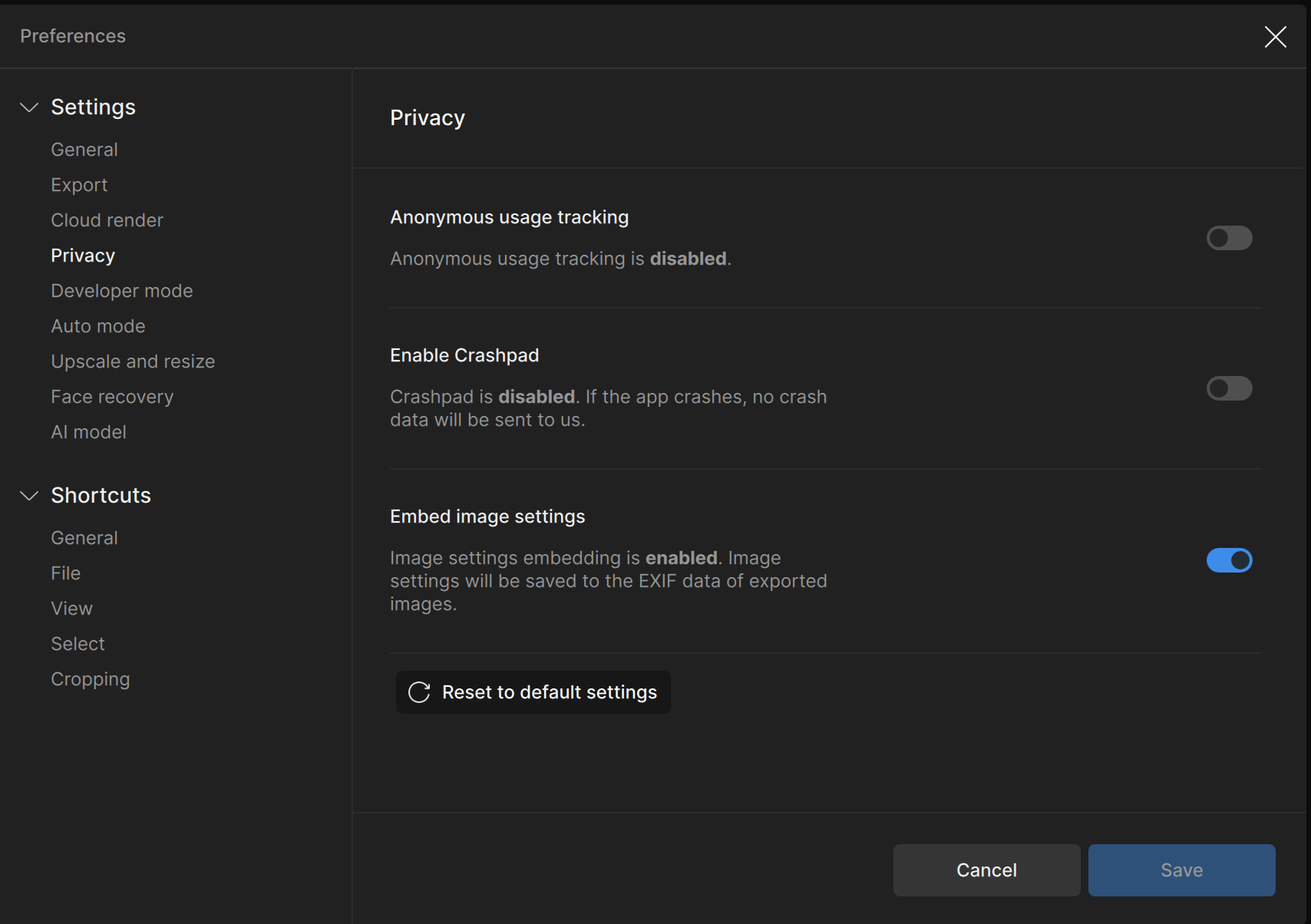
This setting is automatically enabled.
But you can turn it off in Preferences > Settings > Privacy > Embed image settings
Updated Crop Tool
We’ve updated the Crop Tool in Topaz Gigapixel to match the improved design and functionality you know from Topaz Photo. This means a more intuitive, streamlined cropping experience with familiar controls, clear visual guides, and easy aspect ratio options — all helping you crop, straighten, or reframe your images with precision before upscaling.
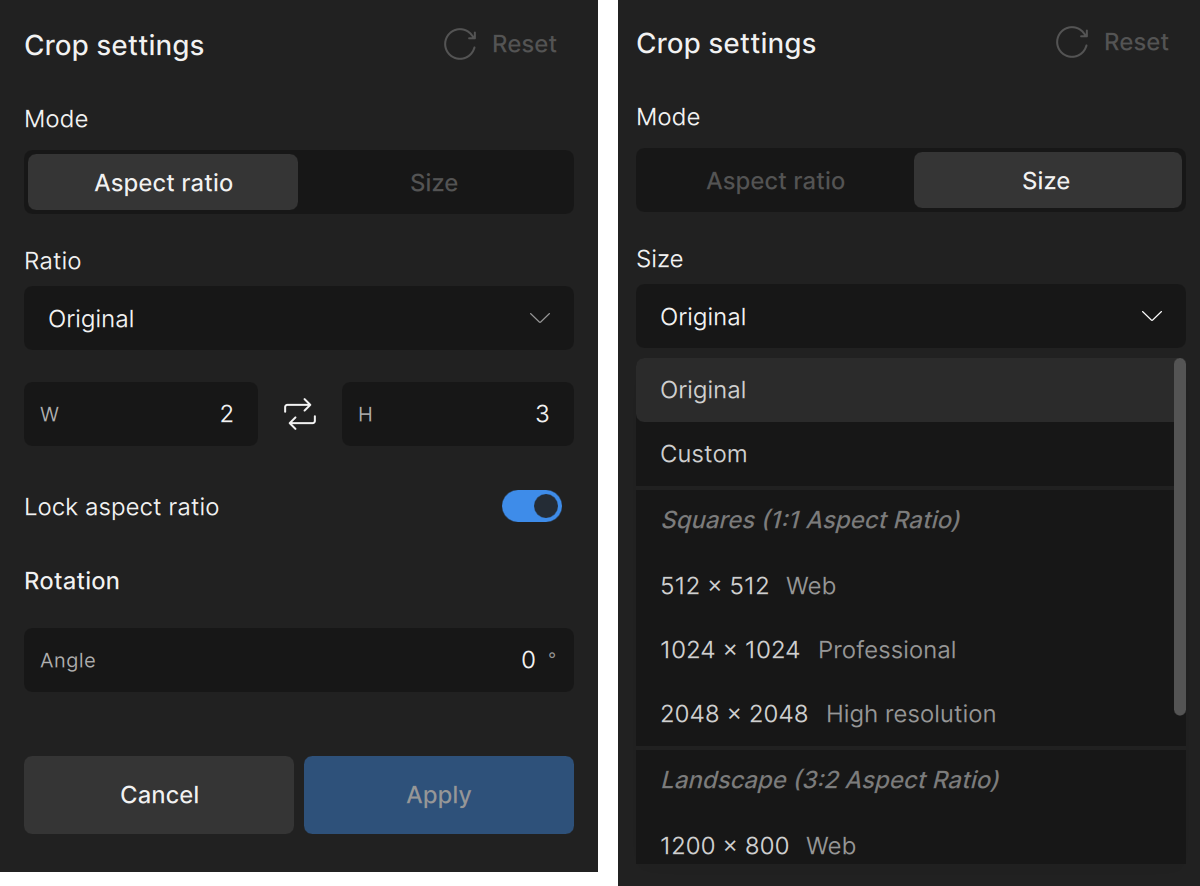
The improved workflow gives you more control over your final composition so your upscaled results look exactly how you envisioned.
Support for Adobe Lightroom Classic
Users running Lightroom classic plugin should note the name change. Use the steps below to make sure you are selecting the right one for your workflow.
How to open Lightroom Classic plugin:
- Launch Lightroom Classic
- Right click on a selected image and choose Edit In > Topaz Gigapixel (Studio)
- Customize What To Edit and Copy File Options. Then click Edit.
(The file will not open if an option for PSD is selected) - Immediately, Gigapixel’s user interface launches.
- To save your enhancement, click the button “Export to Adobe Lightroom Classic”
Known Issues:
- Black outputs on ARM build when using Standard Max
- Photoshop plugin does not work
Changelog:
- Updated Topaz Gigapixel logo and header
- Added Standard Max Model
- Added Wonder model
- Removed cloud credits
- Opened unlimited cloud rendering
- Single Sign-on support for Google
- Added Text prompt saved in Exif data
- Updated crop tool UI
- Enable One-Click Model Cache Clearing for Mac
- Improved Local Processing ETAs (excluding Wonder)
- Disabled Gigaprint tab
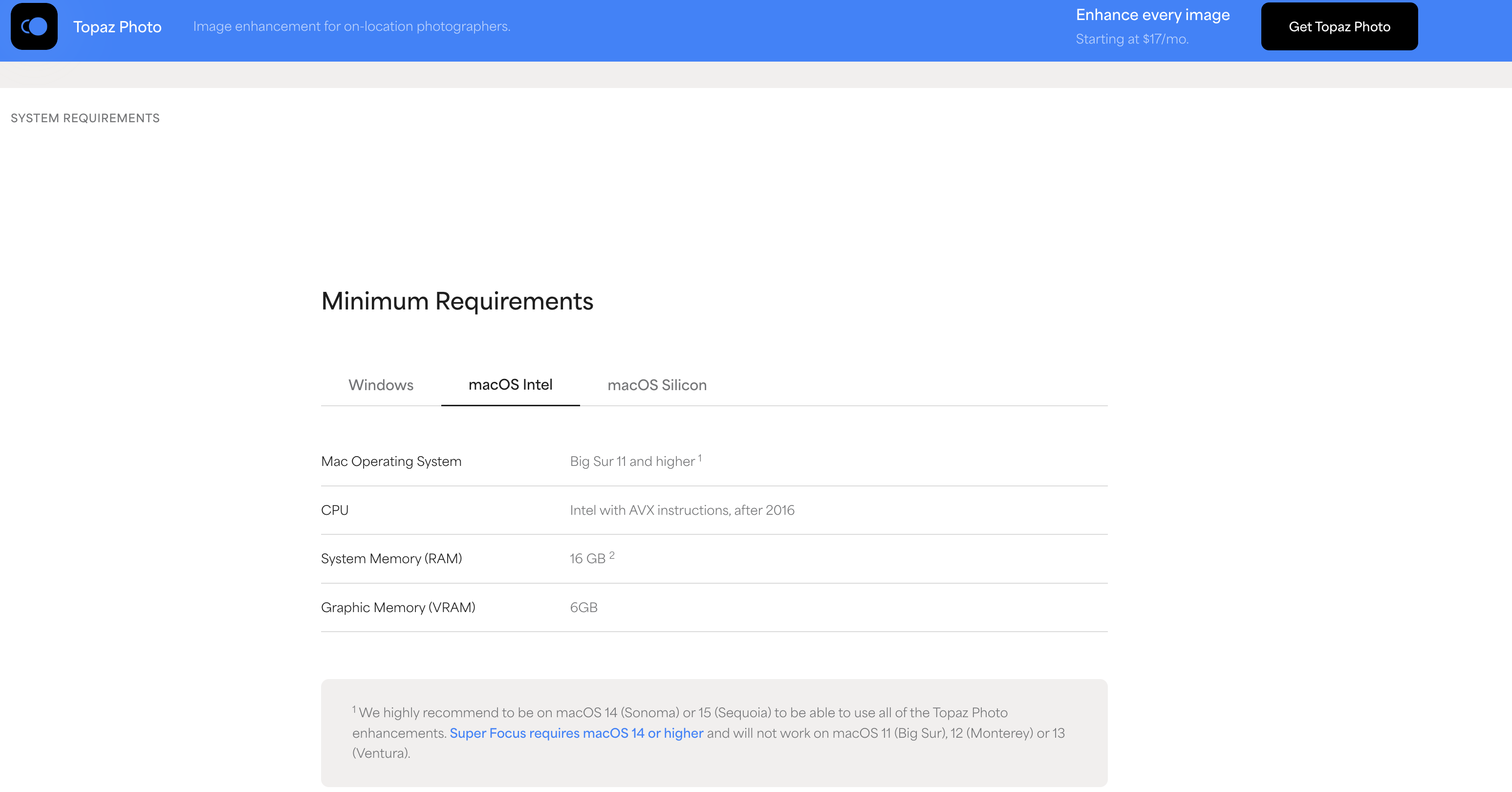
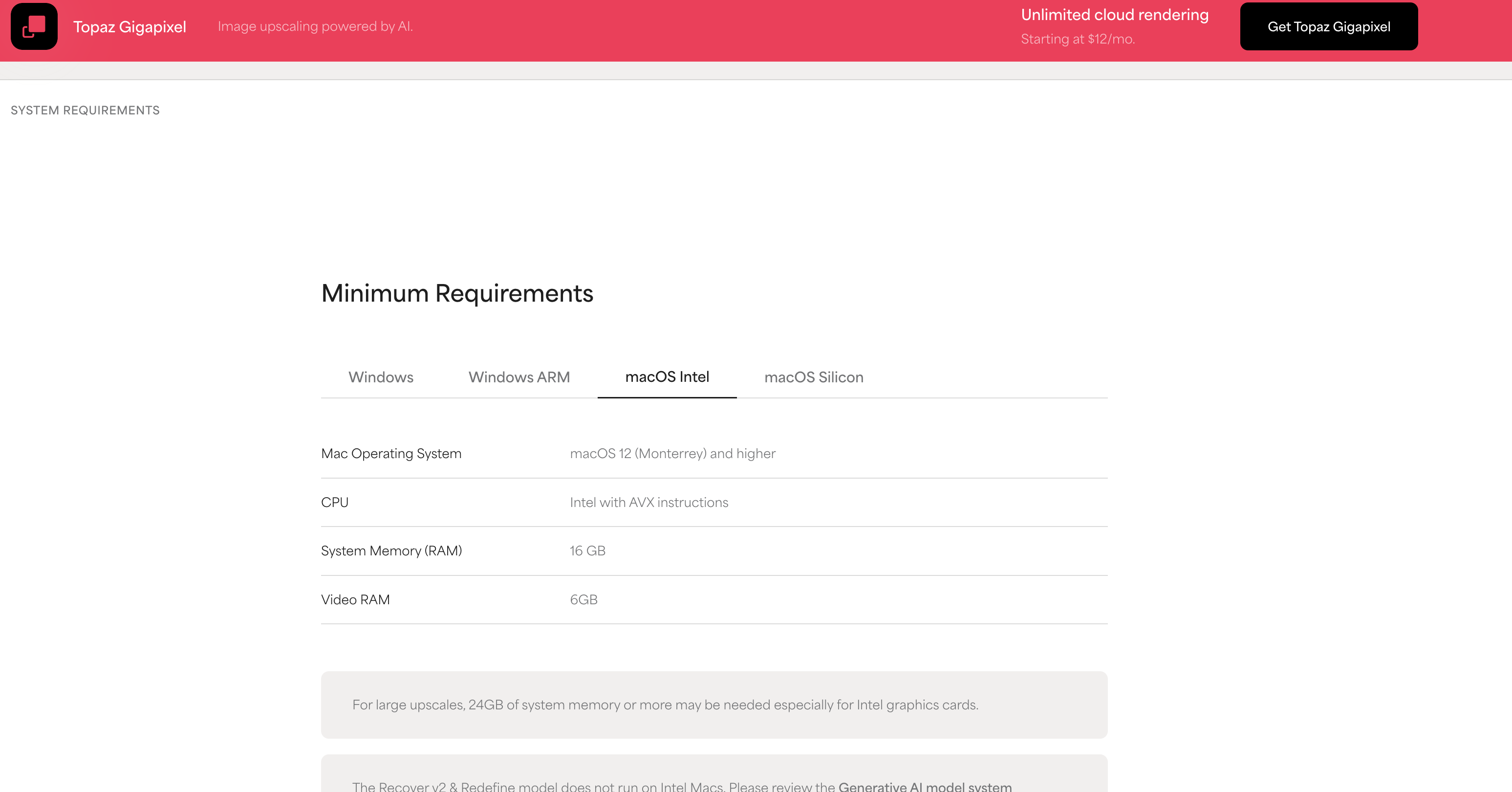
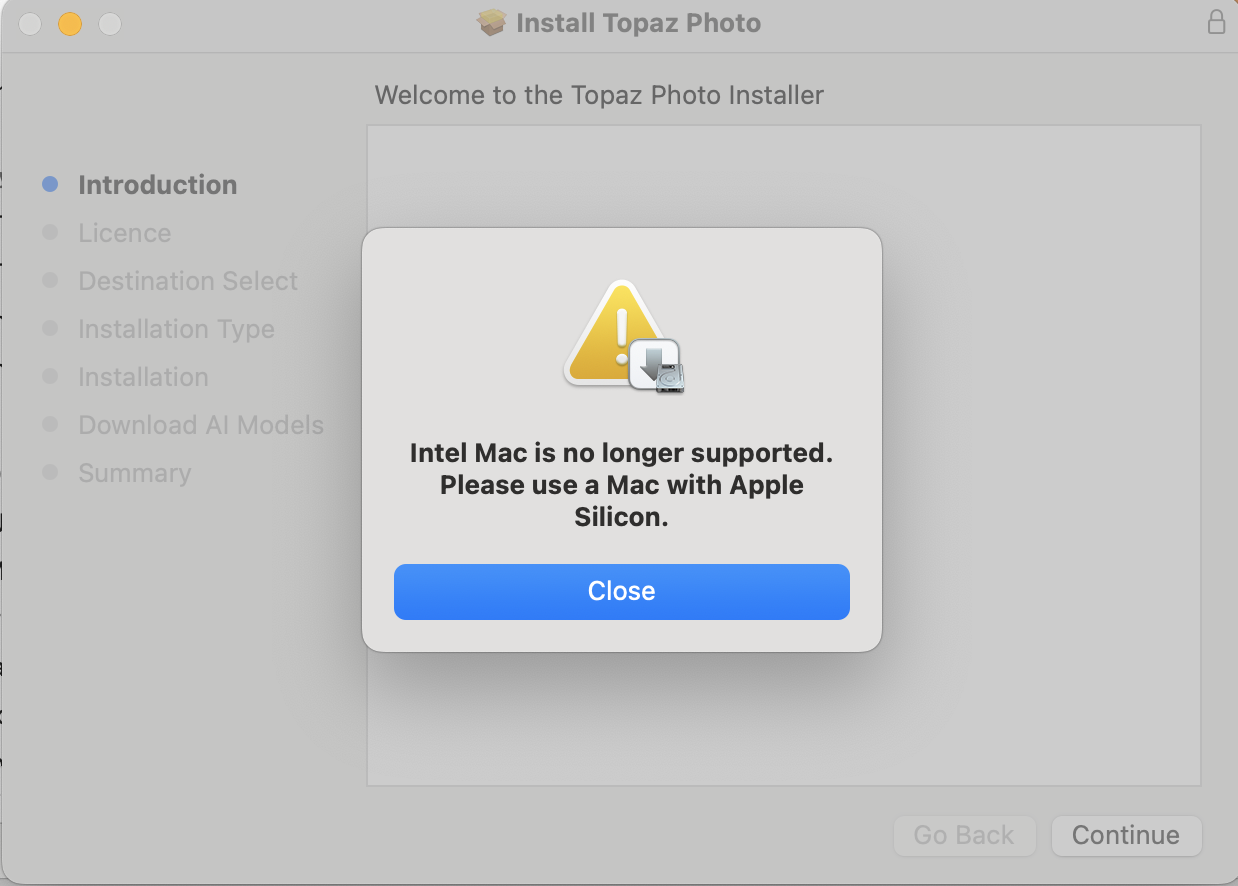
- Disabled Intel Mac support
- Added right click Copy + Paste options for Redefine prompt
- (v1.0.1) Fixed various product prices being incorrect
- (v1.0.1) Fixed unlimited cloud dialog’s close button not working
- (v1.0.1) Fixed issues with claiming and removing seats
- (v1.0.1) Fixed Help menu Release Notes url being incorrect