Not necessarily as Sharpen AI relies on intensive mathematical computational power.
1 Like
Try setting the processing to OpenVINO rather than GPU in the Preferences.
This screenshot … windows scale factor 100%, left to right and top to bottom:
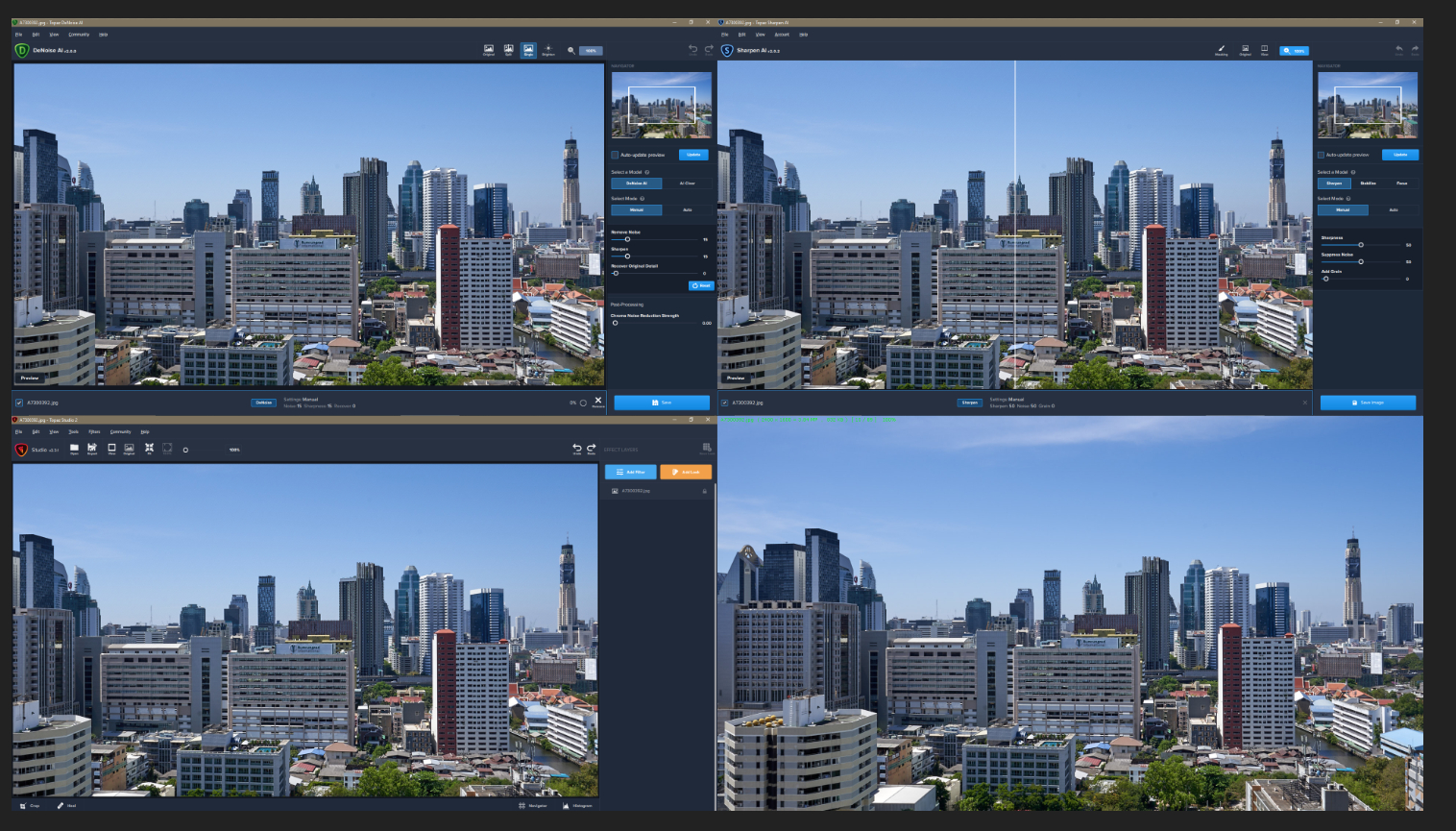
All the same scale (DeNoise, Sharpen, Studio and Fastone) , you should raise a support request at the main website.
That does resolve the problem. It was set to OPENVino on V1 and GPU on V2, and OPENVino does not show the artefacts but takes 22 seconds to process the file rather than 11 seconds.
Thank you.
1 Like
This is done . I understand you agree with me is that correct ?
I am having the same problem after updating to the latest version, the images are saved to black whether I save them to TIF or JPEG. I am only using it stand alone.
I pulled up the graphics info and noticed it says Intel HD Graphics 530, but my laptop has a Nvidia Quadro M1000M card besides the Intel graphics card. This is a Lenovo ThinkPad which I purchased used, I assume whomever purchased it added the Nvidia card.
When I go to the advanced preferences I see that Enable Discrete GPU is turned off and Enable IntelVINO is on. I reset choose to reset the settings, but the images still save to black. I then enabled Enable Discrete GPU but still no luck.
I disabled the Intel display adapter in Device Manager this helps resolve the black image problem, but that brings another problem, SharpenAI comes up on the screen at a very low resolution which makes it extremely hard to use. I posted both sets of information below, the one using the Intel display and the one using the Nvidia display.
Any feedback will be greatly appreciated.
Here’s what is in Graphics Information:
Application & Version: Topaz Sharpen AI Version 2.0.2
Operating System: Windows 10 (10.0)
Graphics Hardware: Intel(R) HD Graphics 530
OpenGL Driver: 3.3.0 - Build 26.20.100.7263
CPU RAM: 40814 MB
Video RAM: 1500 MB
Preview Limit: 3466 Pixels
Second set of information:
Application & Version: Topaz Sharpen AI Version 2.0.2
Operating System: Windows 10 (10.0)
Graphics Hardware: Quadro M1000M/PCIe/SSE2
OpenGL Driver: 3.3.0 NVIDIA 432.13
CPU RAM: 40814 MB
Video RAM: 2048 MB
Preview Limit: 4308 Pixels
1 Like
This tells me that the Topaz apps do not properly support hidpi screens. No one with 4k and up displays will operate at 100% in Windows. I have a 32" 4k and run at 150%. This is lame considering that 4k is pretty much the standard now.
I have tried the same than jalamb (changing from GPU to OPENVino) and I have found just the opposite: 2:36 min OPENVino vs 4:16 min GPU.
Note that I have the discrete GPU selected in windows for the TOPAZ program, and I have checked it is working near 100% with the task manager.
These are my specs:
Application & Version: Topaz Sharpen AI Version 2.0.2
Operating System: Windows 10 (10.0)
CPU: INTEL i7 8750H
Graphics Hardware: GeForce GTX 1050/PCIe/SSE2
OpenGL Driver: 3.3.0 NVIDIA 425.46
CPU RAM: 16232 MB
Video RAM: 4096 MB
Preview Limit: 6434 Pixels
Answering Adam.mains and with reference to saving a JPG image in JPG format, the quality slider does not appear (both in single picture or batch). It appears in JPEG format. If I select other format and then select JPG again, the slider appears!:
I tried to post an image but it seems it is not possible.
By the way, I have not tested saving from other formats because I only use JPG.
I am having the same problem. My photos are saving as a black screen. I do not have any other software, using as a standalone! Please fix ASAP
Update:
It seems that my Lenovo ThinkPad P50 comes with both an Intel and Nvidia display adapters and there is some interaction between them. When I disable the Intel display adapter the system recognizes the Nvidia Quadro M1000M as the adapter in use, but although the resolution still shows at 1920x1080 the applications come up at a lower resolution.
The upside is that Sharpen AI works and the exported images do not come up black.
I ended up enabling the Intel adapter because there is too much of a downside to having it turned off.
Lightroom does recognize and use the Nvidia adapter, however Sharpen AI and DeNoise default to using the Intel with no option to change it. DeNoise works fine, it is only Sharpen AI that is saving black images.
BTW: It seems there are multiple issues muddled in this thread, please let me know if I should break this into a separate thread.
Thank you.
Mike.
Second update, I promise this will be the last one.
After messing with my Nvidia settings I found that in the Nvidia control panel 3-D settings I can force the applications to use the Nvidia display adapter I changed the setting and now both Sharpen and Denoise come up as using the Nvidia adapter and Sharpen AI does save the files correctly rather than black.
One downside is that if I set my text scaling to 125% (recommended and it worked before) the menus in both Topaz apps comes up cut off, example Fil instead of file Hel instead of help. This is a small price to pay, and not a deal killer.
No I don’t agree with you but the support area may be able to help you, personally I wouldn’t buy a 4K screen and use it as 2K. I have a 24" 1920 × 1080 that I use at 100%.
My advice to to you would be to try 125% and 150% to see what works correctly.
don’t disable your integrated GPU … If you read the whole thread that has all tips you will see i posted to allocate the high-performance GPU using the Graphics option under the Settings panel.
4k is a standard for gamers and the development environments/windows support the scaling. Running at 125/150% should be ok.
the Task Manager doesn’t show correct GPU usage use something like MSI Afterburner.
To check which is most suitable for your PC press the Reset button in theSettings panel for the application too calibrate based on your pc’s hardware.
1 Like
Have you checked that you met the system requirements? Have you used CPU processing option under Preferences?
Please read the thread and use the suggestions.
It is easier to allocate using the Graphics settings under Windows Settings.
After updating Sharpen AI to version 2 and using the AUTO mode for adjustments, all the settings are hidden (sharpness, noise, grain).
The auto mode is often the start for me of the sharpening process. After that I tweak the settings in manual mode for the best results. It’s annoying you can’t see these auto-settings. I can’t think what the purpose is of this ‘feature’… fillmore70
I’ve noticed the same thing. The UI assumes that if you’re using Auto, you probably don’t care to know what the settings actually are. Fortunately, when you switch back to Manual it does retain the last values that Auto chose to use. That’s the only way to see them that I know of. If the program is set to start up in Manual mode then the initial values are always the nominal defaults.
The purpose is exactly as stated, switch to auto then back to manual of you wish to tweak it. And also think that in batch mode it is even more important to have auto mode.
1 Like
I’ve had to go back to the 1.x product. Version 2.02 locks up on exit as a plugin with Lightroom classic (latest version) on Mac. The 1.x product does not have this problem. I’ve uninstalled the 2.02 product and tried a second time with the same result. I’m running a MacBook Pro 16 with the latest OS. Quite disappointed in the update. Also, removed the 1x product from Lightroom. Now what.
