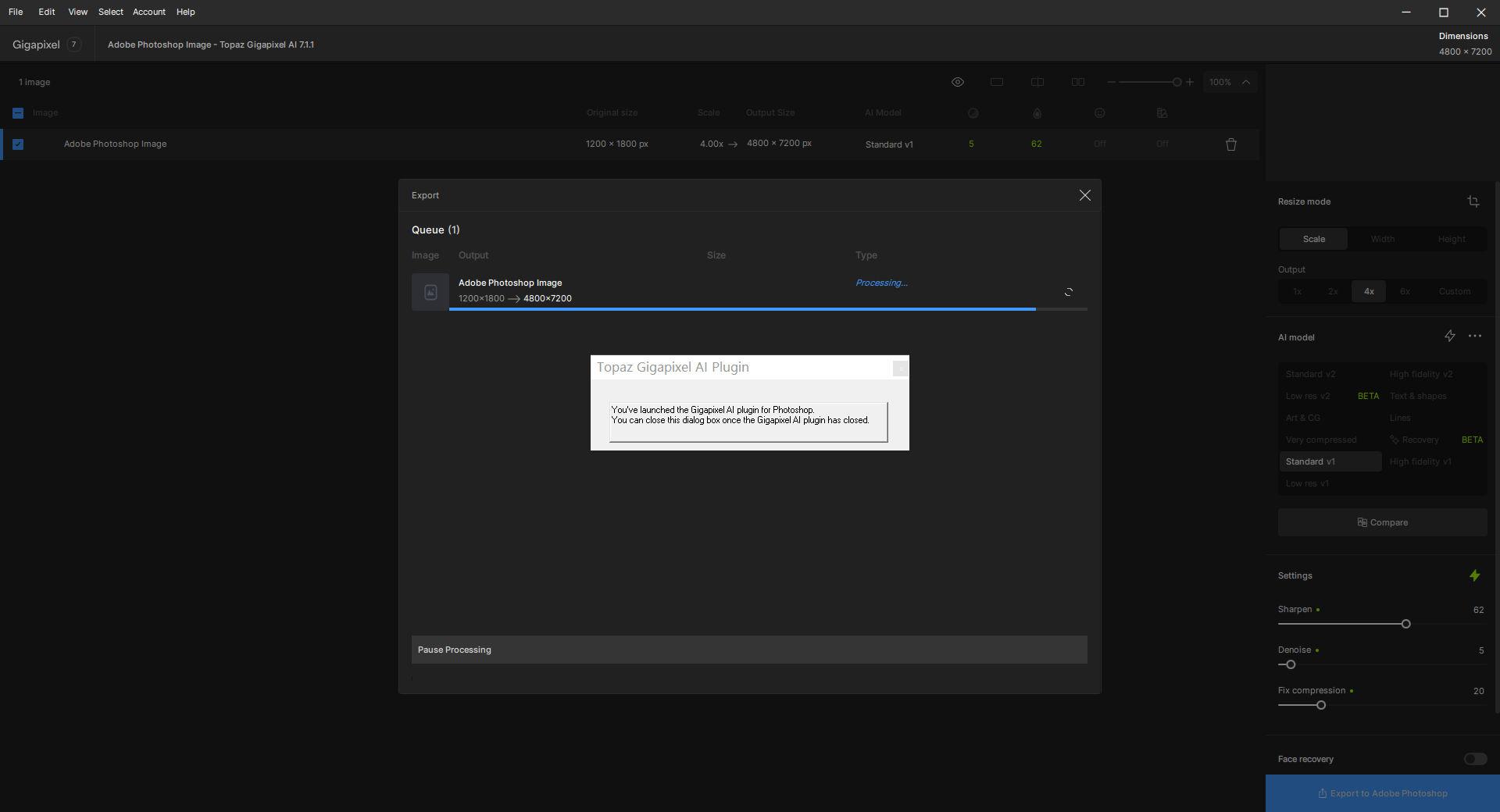
I’m assuming the specs for your Win 11 PC match the tech requirements on the Topaz Labs product page. Given that your handle is 3D I’d assume you have a high powered machine.
Have you tried an uninstall and reinstall using the installer from the top of this discussion thread? Pls be sure all other apps are closed when you run the install and (even though it’s slow) don’t do anything else on your PC while the install is running. I know my PC aborts the Topaz AI installs if I try to let the install run in the background…
I also use Win 11 and it works for me. Both standalone and as a plugin to Photoshop.
I tried some practical testing on small images’ (~750px to 1920px) batch processing on both v6.3.3 & v7.1.1 to have an idea for processing speed. v6.3.3 requires ~ 0.3-0.5 sec per image, where as v7.1.1 requires 2-6 sec per image. Average results in v7.1.1 is definitely better but speed is 5-12 times slower compared to v6.3.3. ‘Face recovery’ was kept off for above testings. If kept on, the processing time increases for both the version (1 - 2 sec per image).
Another user in the forum gave a great idea on how to run both the versions on same PC without uninstalling / sand-box / parallel OS method. Thank you man _/_. I am now running v6.3.3 for large batch-processings. Where better quality is required, I’m using v7.1.1.
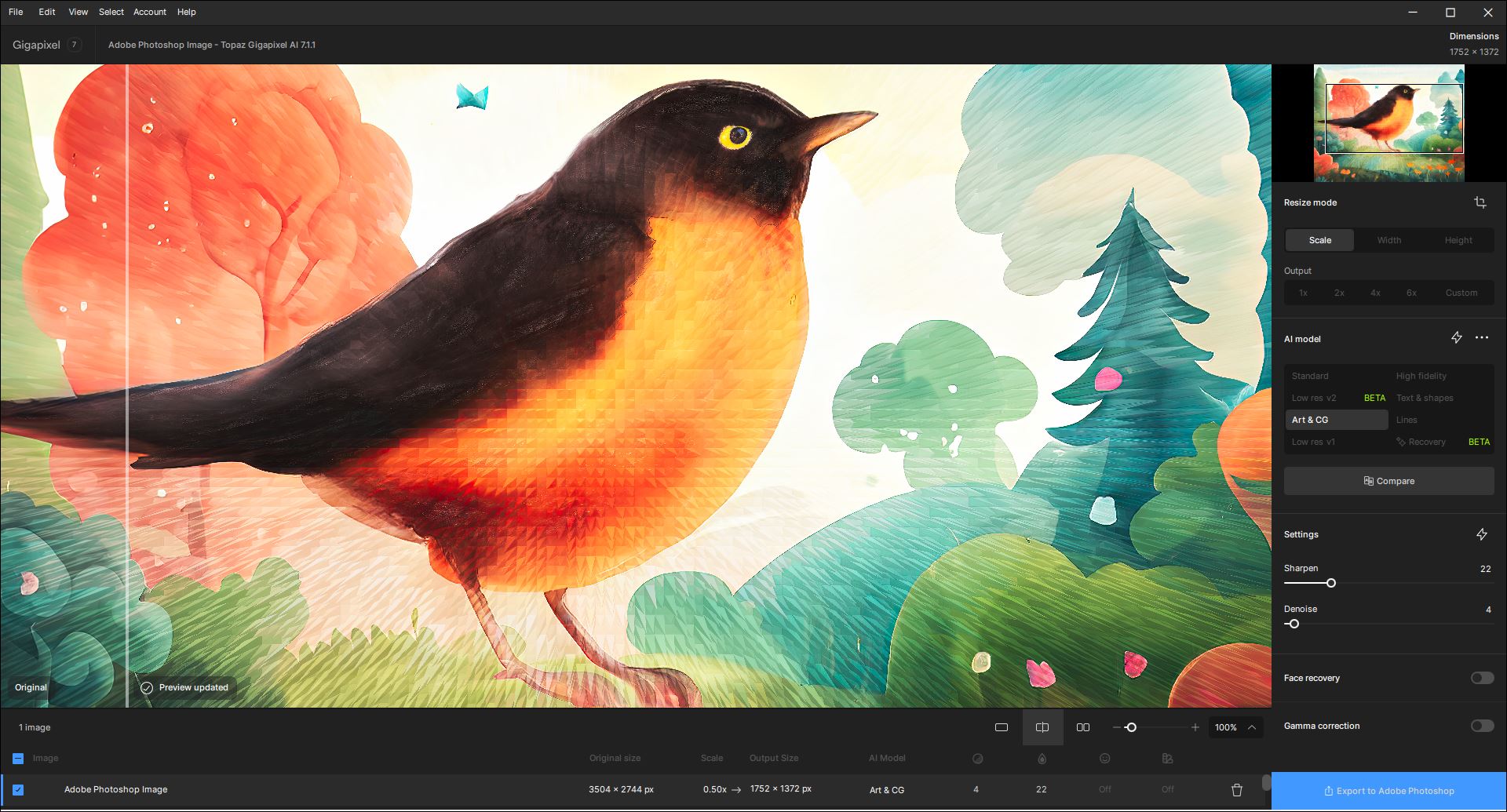
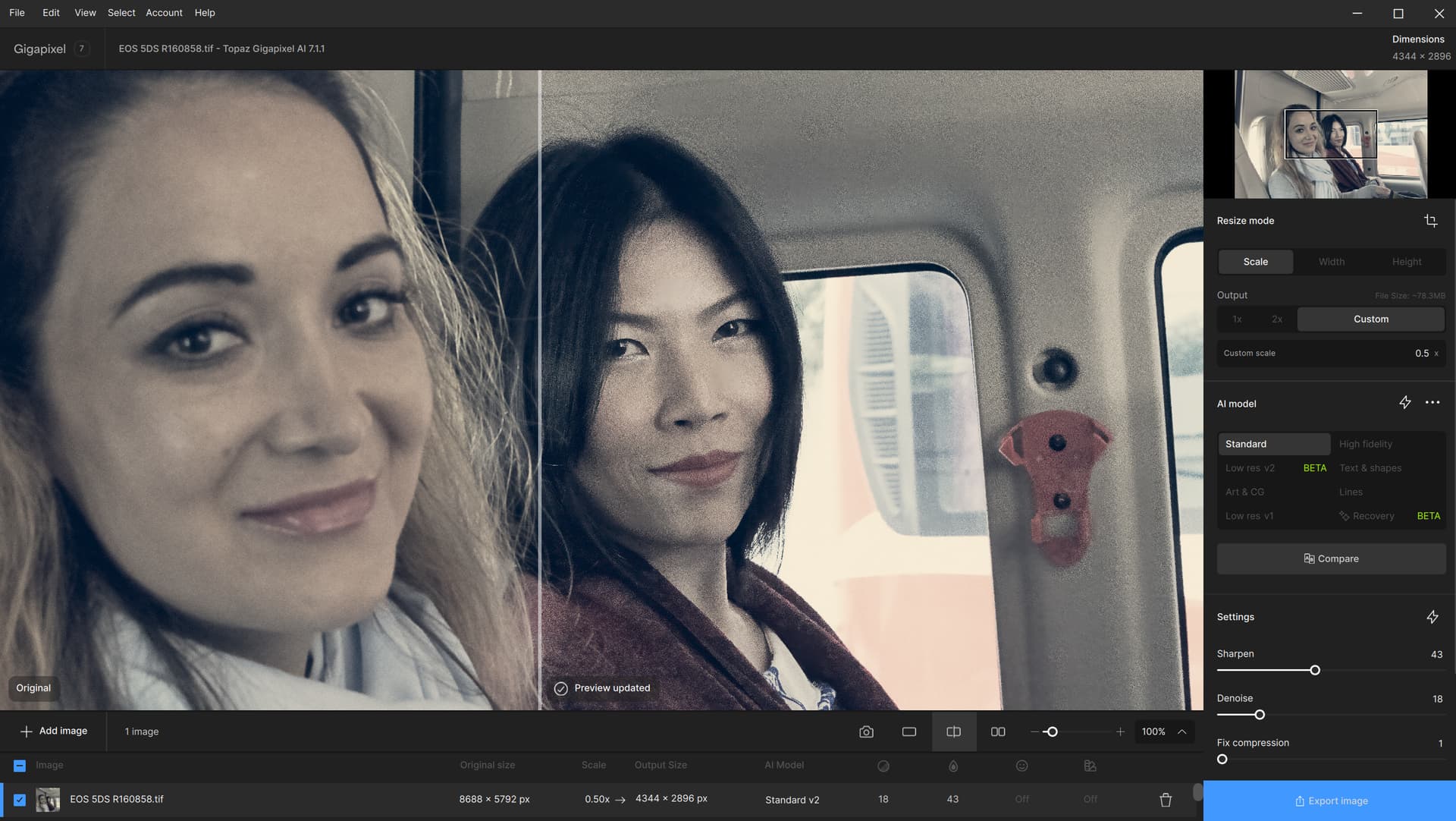
I am an avid user of Comparison View as the 1st step in my GAI workflow. So appreciate the re-intro of that feature into this gen of GAI.
I must say that I think this newer design functionality for Comparison View is superior to the old Comparison View (which could be fidgety and inconsistent in terms of how it operated, even if better than no comparison view at all). This latest design is more controllable and customizable. Which I prefer and find useful.
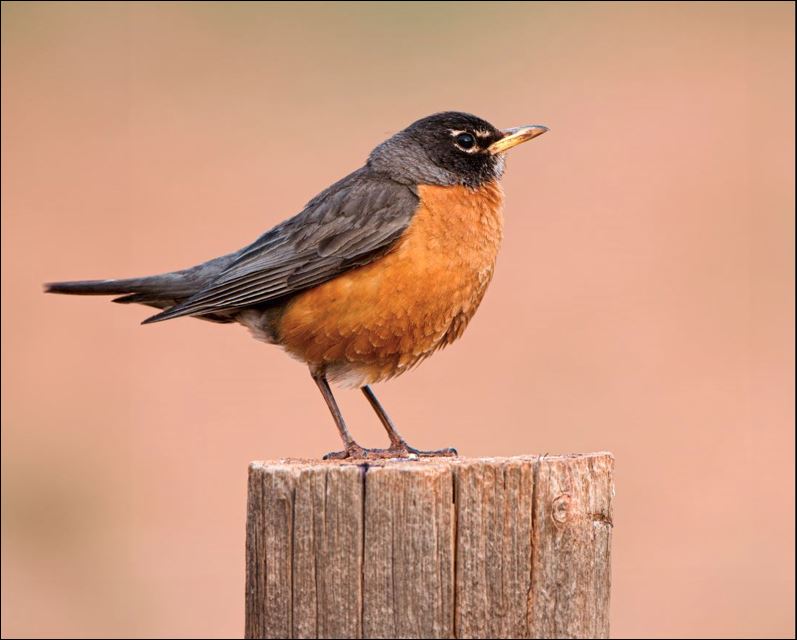
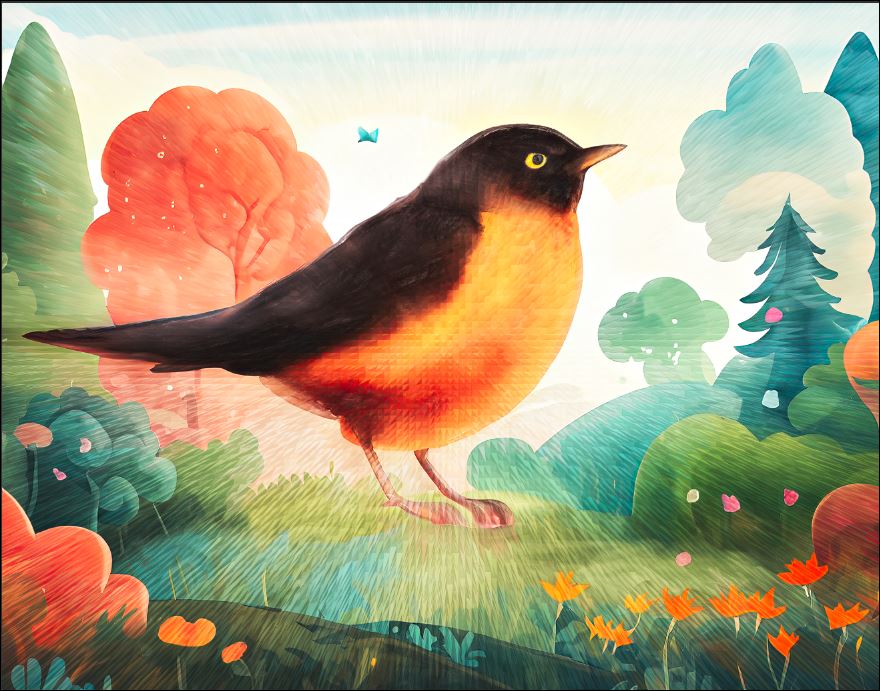
I was just using it with an image that I created by starting with a photo of a robin, that I digitally “painted” in Ps using the Mixer Brush and the Art History Brush (for an underpainting effect), then added a stylized “extrude” to in the Ps filters and finally a Firefly ‘cartoon’ background. And, hey, robins are a great symbol of spring!
GAI picked up all the details all that experimenting produced (Art Model) and cleanly upscaled 1.5x retaining all the colors too. No pixel hop.
Just wanted to say, great job on this release
I realy like UI improvements, and (finally) upscaled text looks amazing
Thing i noticed:
When using standard on the photo for example, my gpu is always around 92-95%
But if i use text&shapes on some poster with letters, gpu is 100% to the point of slowing down my pc, also takes longer
The results are great, but just wanted to make an observation
I realised that Topaz doesn’t do a very good job of uninstalling previous versions when ‘there is an update’.
I fixed it by manually uninstalling every Topaz GigaPixel version, including downloading a free piece of software to force uninstall a version that stubbornly stayed inside the “Add & Remove Apps” dialog box.
Restarting at each stage and then carefully reinstalling this latest version, finally worked
Thank you for your help!
I’d like to echo and add to Fotomaker’s comments about the return of the comparison view in Gigapixel. I am very happy to be able to use that feature again, and the new iteration is nicely improved.
For my photos that need upscaling from 10+ years ago, low res v1 is almost always the best model, and regularly is cleaner than the newer low res v2.
Does anyone regularly use GAI for all their photos, even the ones not needing upscaling, rather than Photo AI?
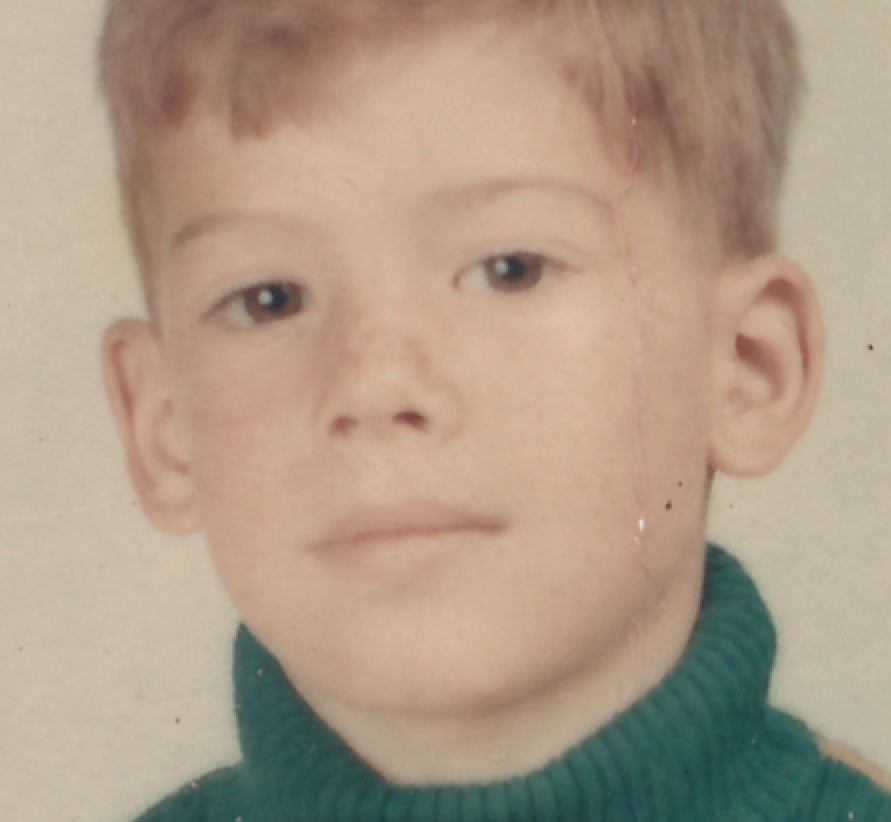
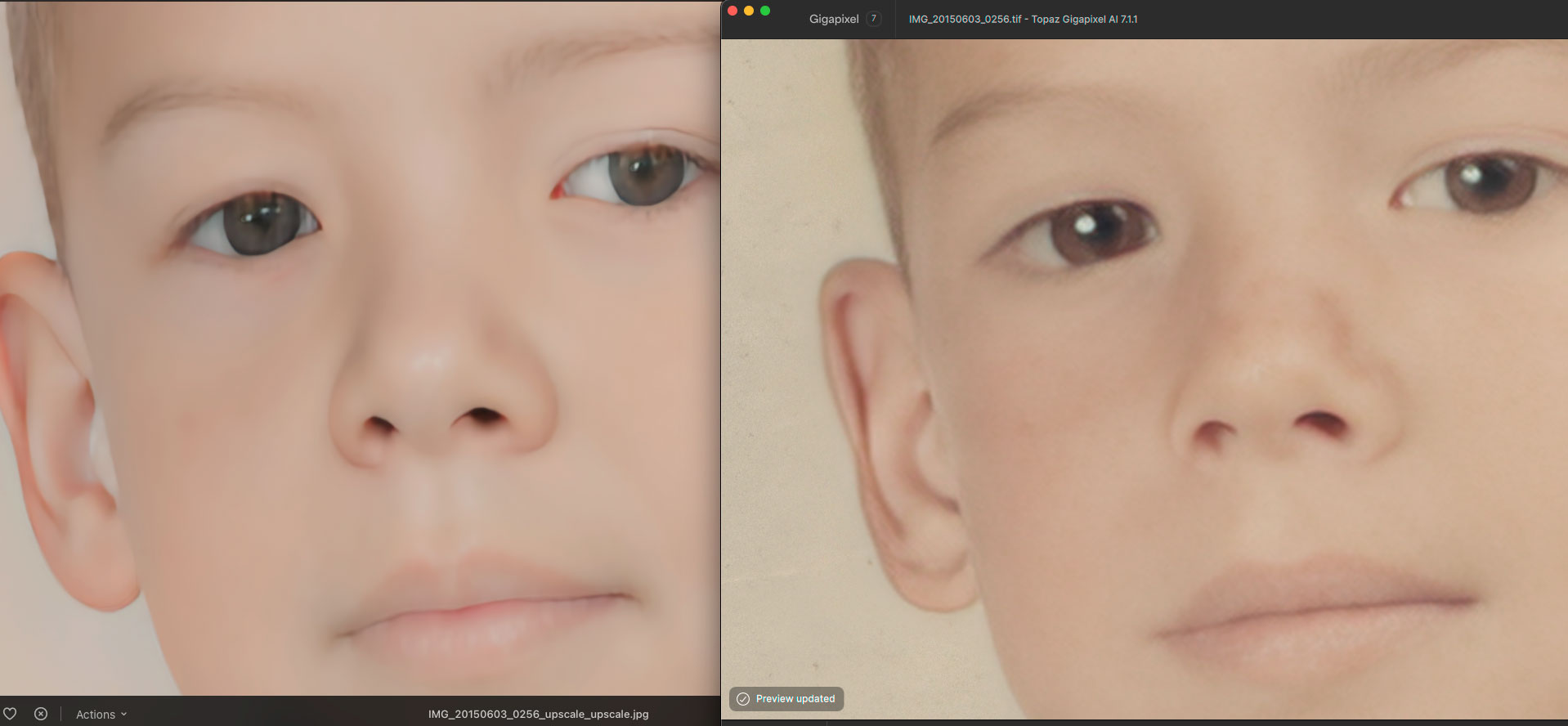
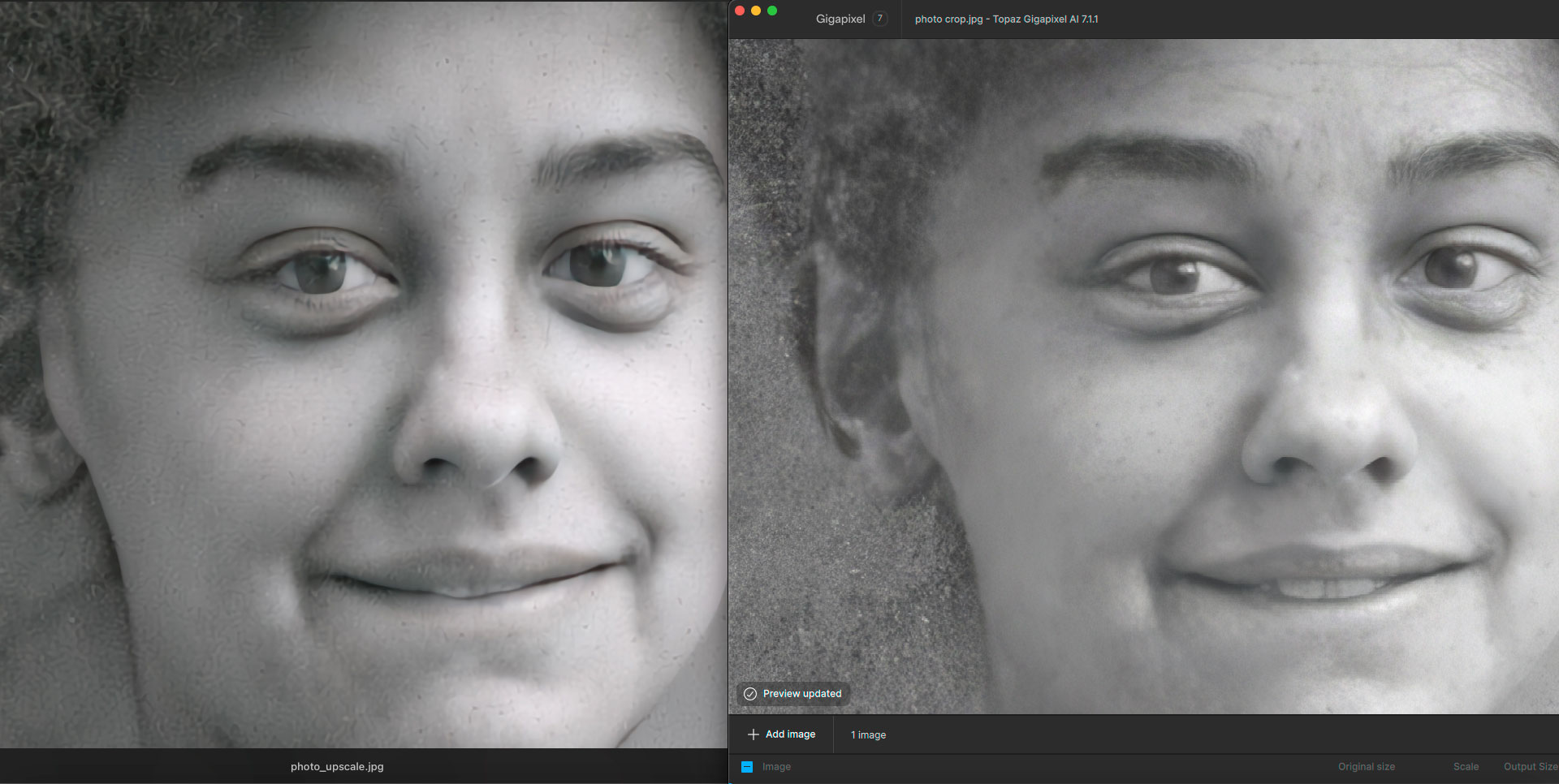
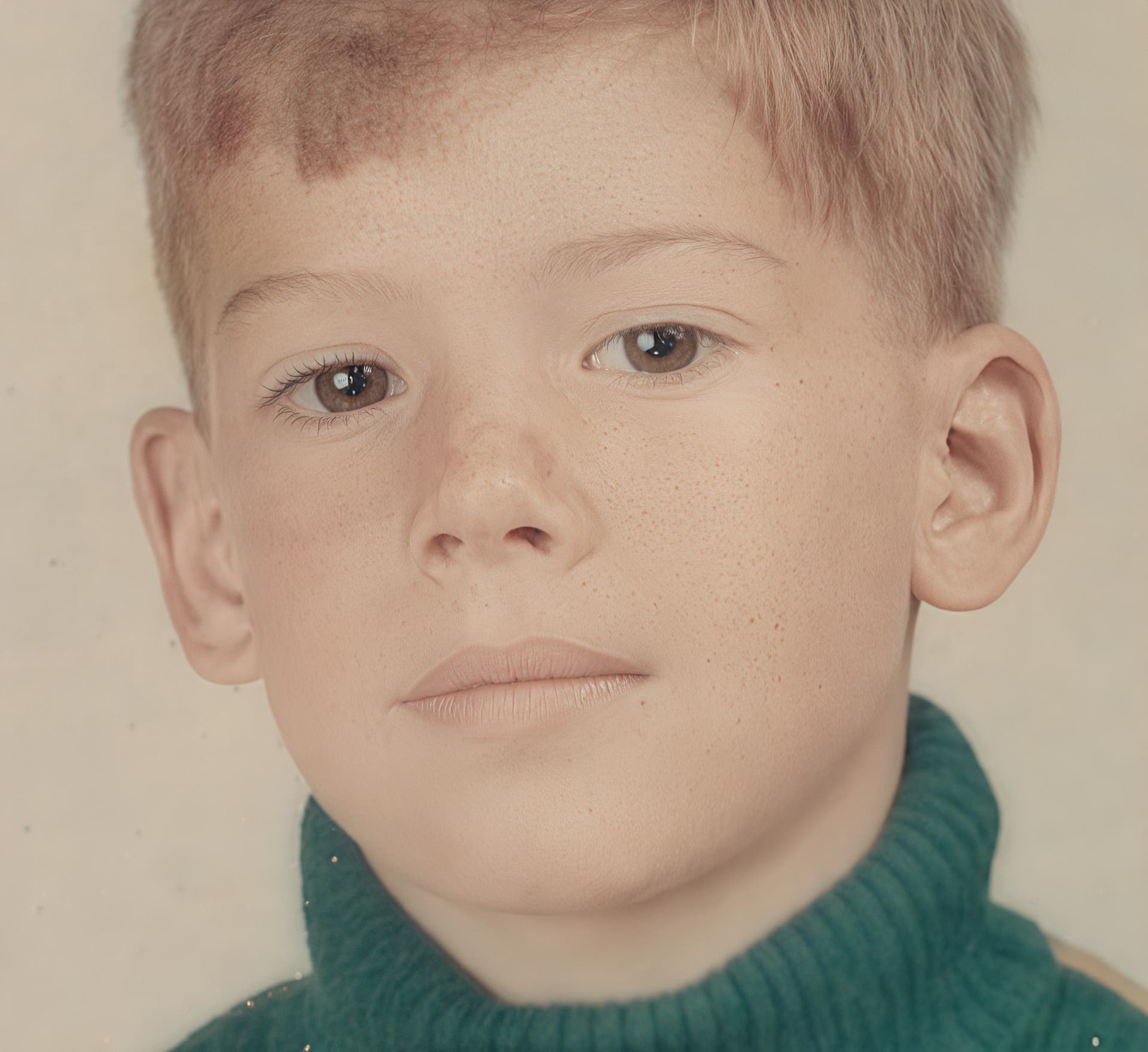
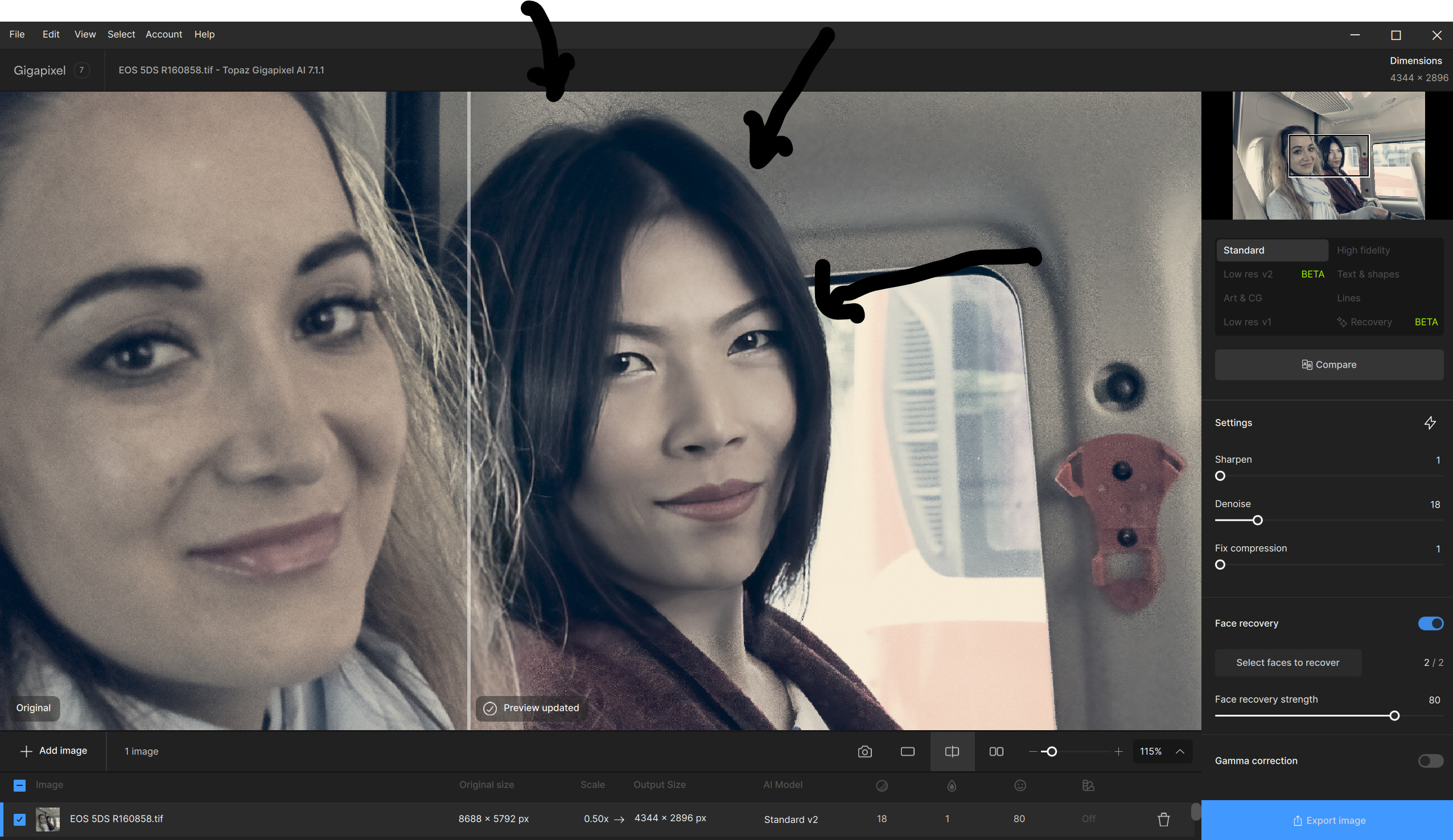
Note that you can recover the faces using Face Recovery but that creates a “plastic” look …
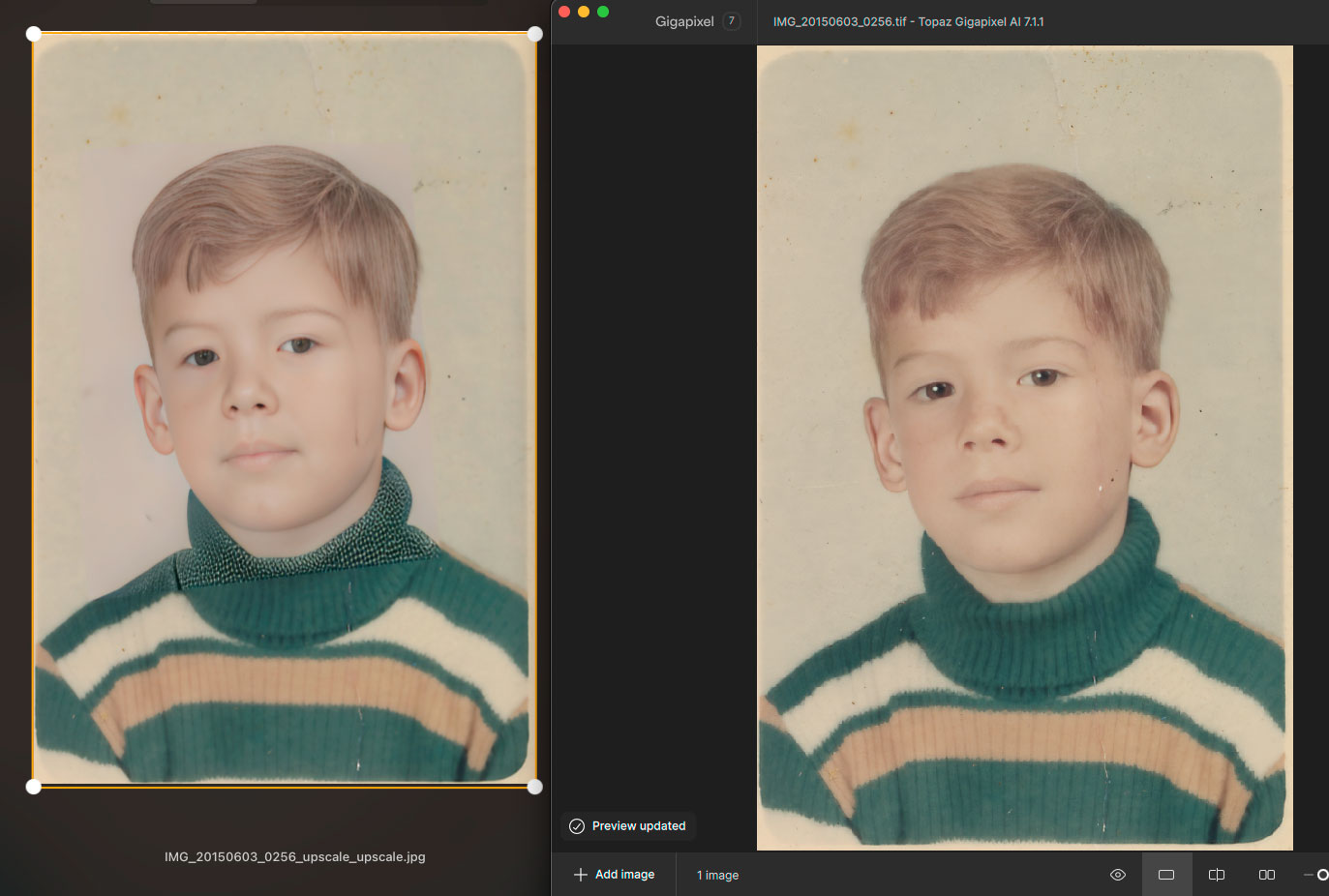
You can see the Sharpening halo around the faces and the same is on the background.
I posted this in another thread, its worth repaeting here.
I had to stop using the latest release as it uses 100% of my system resources and over heats my GPU. The GPU reaches 74°C - 165°F each time which can’t be good for the card. At 212°F water boils, I can’t imagine consistently heating your card to those temps long term will not cause issues.
For those allowing the process to run for long periods of time I would suggest you monitor you system temps.
I’m not willing to put that theory to test since I just invested in upgrading my system. The upgrade was done based on a conversation I had with Topaz support when moving from 2.1.2 up, that was in Dec 23. Now, 3 months later they conveyed the requirements for GP and PAI may not be enough to run all the enhancement functions, the software now max’s my system and a single image processes for extended periods, sometimes hours. This after I purchased the extended Topaz license’sfor updates. To say that I am not pleased would be an understatement.
Just review my old posts, I have been an advocate of both the software and the Topaz team but the new releases have become a moving target as it pertains to stability and performance. Having to wait for the software to process and not being able to multi-task because of a lack of resources isn’t really a viable option for most people.
You must have missed the part where I stated “Having to wait for the software to process and not being able to multi-task because of a lack of resources isn’t really a viable option for most people.”
Well that works for you, I’m happy for you. I am not happy with the performance of the software and the fact that it dedicates so much resource that multi-tasking is not an option. That and the fact that it pushes the GPU to extreme heat for extended periods of time!
But we did get a bunch of pretty new software icons.
Just started using the latest GIgapixel 7.7.x updates, and I’m digging the changes. I have some feedback:
I appreciate you kept the legacy “Low res V1” model. Just had an upscale project where its more aggressive denoising was what I needed, rather than endlessly tweaking the new models. Hope it sticks around.
I do a lot of batch processing, so the “Recent” panel isn’t terribly useful for me and tends to add to the visual clutter. I’d love to be able to hide or turn this off. I don’t need to see the last several images I processed out of a hundred.
The menu item “Close All Images” doesn’t have a keyboard shortcut mapped to it. Again, because I do batch processing a lot, closing all images at once with a keyboard shortcut would be very useful.
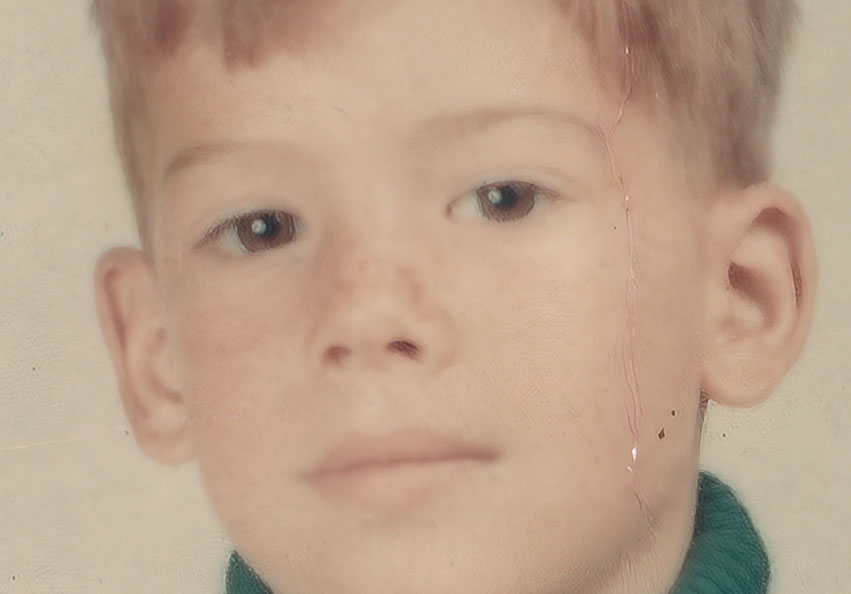
I know you can lower the intensity (I have been using GigaPixel since the first release), and no it doesn’t help as the problem is with the model creating artifacts.