Hello,
We’re excite to announce the release of Gigapixel 7.1.0 which contains some incredible updates for the application.
This release marks an important milestone for Gigapixel:
-
New Recovery diffusion-based upscaling model (Beta) for recovering images under 1MP by intelligently simulating new details. You will need 8GB+ of VRAM for this model.
-
New Text & Shapes model for images with hard edges, curves, shapes, and text in many languages
-
New Low Resolution v2 model (Beta) which excels at low resolution upscales across the board
-
Model Comparison View has been added to help you quickly compare models and find the best pick for your upscale. This view mode will continue to be supported in future updates.
-
New standardized Topaz UI framework, with updated colors and icons across all Topaz Labs app for a unified, streamlined look.
Please check out the detailed breakdown of new features in this Gigapixel progress post. That post also contains some tips, examples, and more information about future changes in Gigapixel which. Many more exciting things to come.
You can use the in-app updater to install the new version of Gigapixel. Optionally you could also download the installers directly from this thread. They should automatically uninstall previous versions of Gigapixel for you before installing the updated version.
v7.1.1
Released April 12th, 2024
Mac: Download
Windows: Download
Change log:
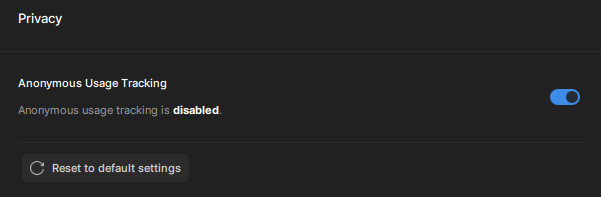
- Fixed visual issue where toggles would look on when they were off
- Fixed wrong link being used for help article
- Fixed uncommon permissions issue on Mac
- Fixed being able to pull up file list while in comparison view
- Fixed recovery warning always saying “small”
- Fixed comparison view incorrectly keeping auto model flag enabled
- Fixed various button hover states, spacing, and icon sizes
- Fixed auto settings not re-applying when switching between models
Known issues:
- Saving from Photoshop Automate plugin may incorrectly save PPI information
v7.1.0
Released April 10th, 2024
Mac: Download
Windows: Download
Here’s a breakdown of what’s new in Gigapixel:
-
New “Recovery” Model (Beta): Recovery is a diffusion-based generative AI upscaling model, which produces different results than our other upscaling models. While this model is slower than the other upscaling models, the model performs very well when upscaling low-quality source images, for example images with low resolution or significant blur.
The model also seems to perform well on faces, buildings/structures and other objects. The detail slider allows you to control the level of detail in the image after the initial render in post-processing. We have found that detail settings in the 50-75 range work well for most scenarios.
The Recovery model also allows you to preview sections of an image by rendering small tiles before running a larger recovery, as some of those renders can be lengthy. You can also still render the entire image directly from the export panel if you desire. Note that the recovery preview will be a different generated image than the final result, so it will not blend. However, it should be quite representative of the quality of the final output.
Please Note: We have plans to release significantly more performant and smaller versions over time – but you will need a powerful graphics card for this version of the model. We recommend upscaling images under 1000px by 1000px depending on the size of your graphics card. This model currently requires 8GB+ of VRAM. Renders with the Recovery model may take several minutes even on relatively small images at the moment.
For Mac users: Recovery mode currently only works for Mac OS version 13 or higher
-
New Low Resolution v2 Model (Beta): The Low Resolution AI upscaling model has been upgraded into the 2nd generation family of models, performing well out of the box for both low resolution and high compression images. You will still have access to the Gen1 model as well, using the drop-down menu on the top right of the model selection panel
-
New “Text & Shapes” Model: We have added a new AI-upscaling model that enables more distinct patterns and shapes during upscaling with man-made objects or defined shapes such as cars or buildings, and even written text and fonts.
-
Comparison View: The beloved comparison view makes its return debut with its notable four quad design. We’ve cleaned up how the interface is used, showing exactly which image you’re working on. You can also now configure default settings for which AI models are used in the view and remember those settings for future use. We will continue to improve and support this view over time, and we have some more exciting updates in store for this one.
-
Crop Rotation: We have extended the Crop tool within Gigapixel, adding new capabilities into your workflow. Images can now be rotated to create perfect vertical or horizontal lines.
-
Face Selection: In previous versions of Gigapixel, face recovery sometimes recognizes faces incorrectly. We have now added Face Selection, which will allow you to see the number of faces detected and manually choose which faces should be recovered.
-
UI Changes: New colors and icons across all Topaz Labs apps for a unified, streamlined look. Photo AI, Gigapixel, and Video AI are all receiving a UI refresh to make them feel more cohesive, as many of our users own multiple different Topaz Labs applications.
Please also be prepared for a large download given the set of new models.
Cheers,
Dakota Wixom
Product Manager, Topaz Labs
Change log:
- Refreshed UI
- Added comparison view
- Improved crop and added ability to rotate
- Added face selection
- Added Text and Shapes model
- Added Low Resolution v2 model
- Added Recovery model (diffusion-based)
- Added camera profiles for Panasonic DC-G9M2 and Sony ILCE-6700



 .
.


 RIP. Indeed