I hope the next version is coming very soon fixing the annoying bugs.
The processing optimization / speed issue is still unattended … hope Gigapixel AI would get faster in future releases …
2 Likes
Today: Had the “missing image” situation again after opening one. Quit and reopened GP to solve.
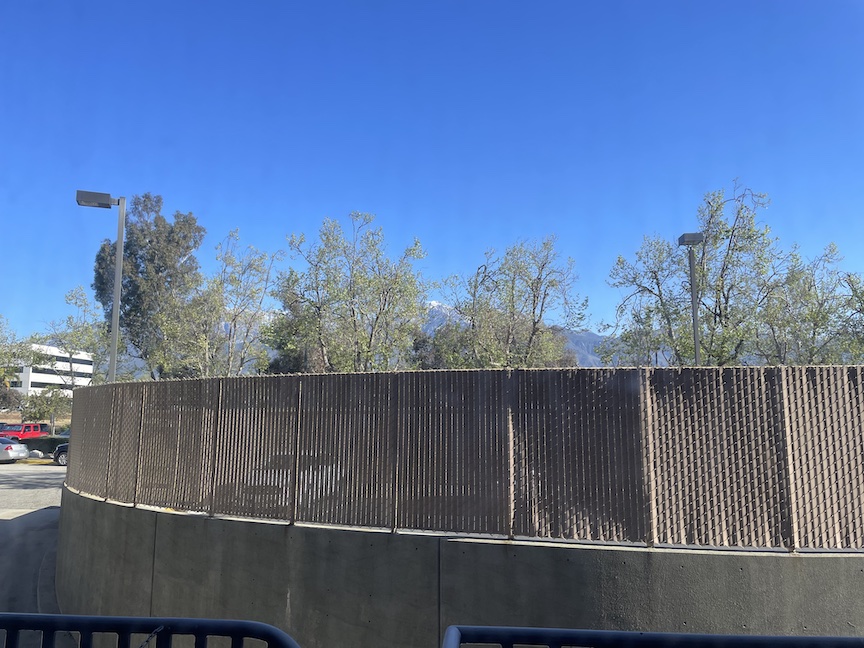
I am trying another of my “radical scenic enhancements” (iPhone window view from jury duty today…). M2 Mac Mini 500/16, Ventura.
Then I noticed I could not drag the preview images around while in Compare mode. Dragging in Navigator worked.
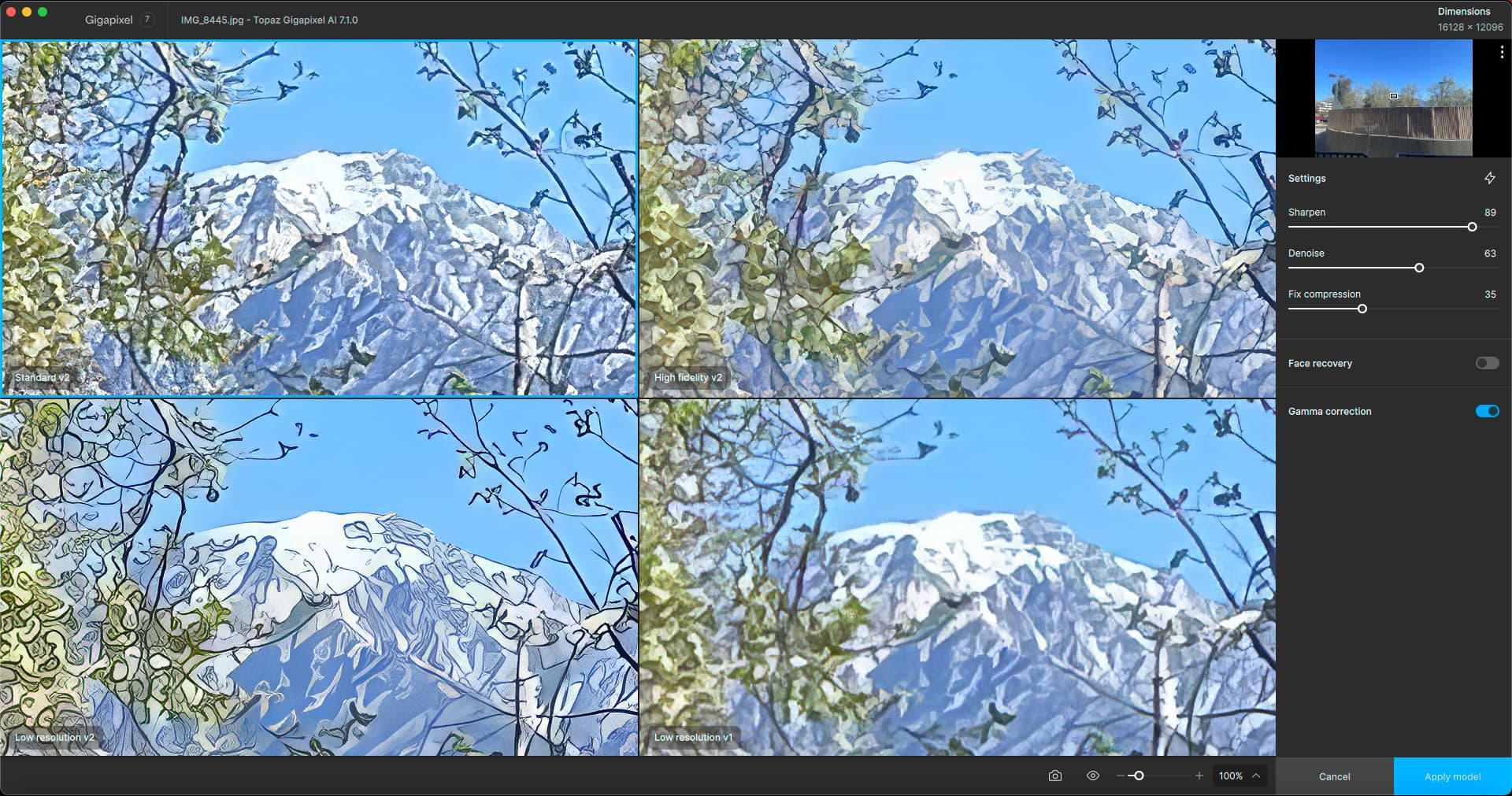
Also in Compare more, clicking one quadrant did not select it. Images all just Upscaled repeatedly in the views.
Also: How do you get out of Compare mode? Since I can’t choose a quadrant to apply the model, I will have to take note of it and do it in single view mode. Let’s see what “Cancel” does.
This!
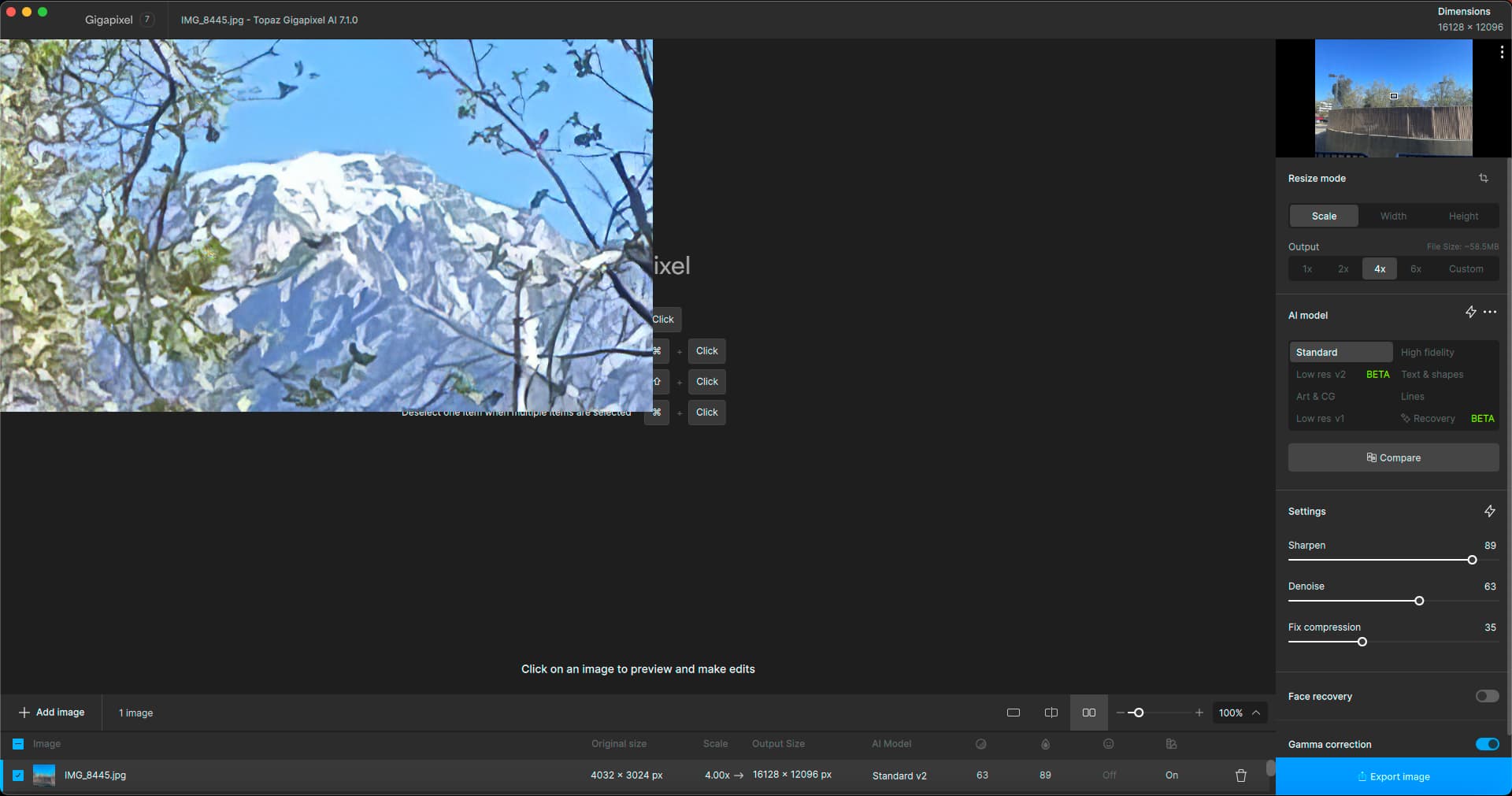
Clicking through the model options only replaces this single quadrant view.
Clicking on the single quadrant to do a before-and-after makes the “after” disappear with nothing to replace it.
Dare I export this at 6X?
It actually worked! While I was waiting a minute or two for the export, I realized I should have cropped the wide scene first… So let’s go back and do that:
I can’t, the original image won’t load!

So I have to right-click and close the image to start over again:
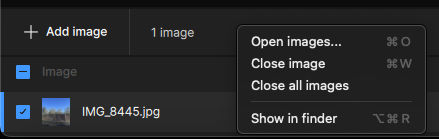
I reopen from recent: Image is still missing. I guess I need to quit and relaunch yet again.
It offers to save, and I say, “Thanks, but no point really”.
After a relaunch I skip Recent and open the original iPhone image fresh. I can see my image! This is normally something you take for granted but it is becoming a special event here…
Now, let’s crop!
Here is my cropped image (at least I got an updated navigation preview…!!
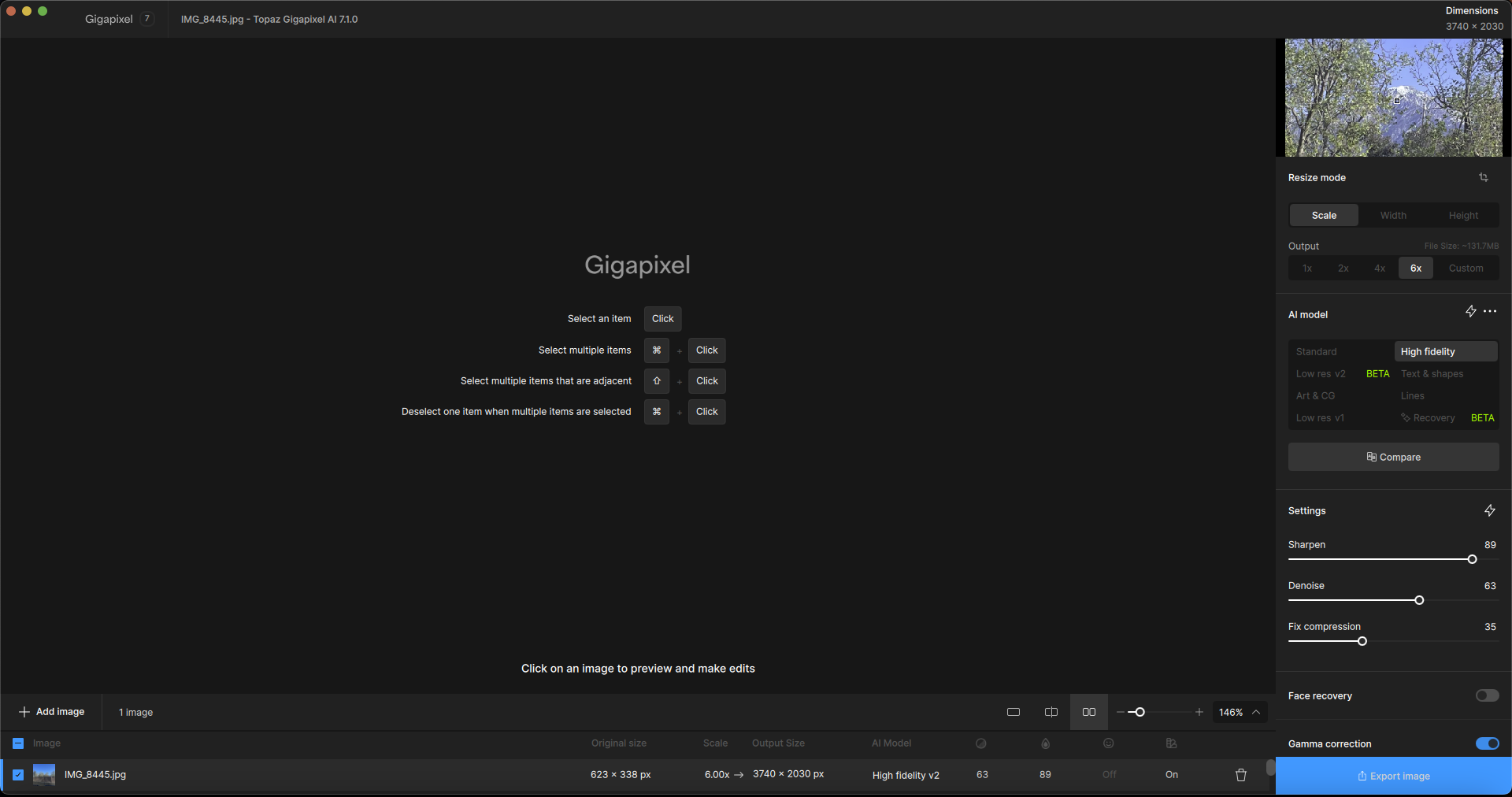
I’m going to proceed anyway, working blind and by faith… Let’s upscale first.
Actually, it already seems to be in Upscale mode but I am going to push it and do another Compare:
Now I can drag the quadrant previews. I can also select models from the various views and adjust settings. This was not working before (?). Was it playing tricks on me? Testing my dedication?
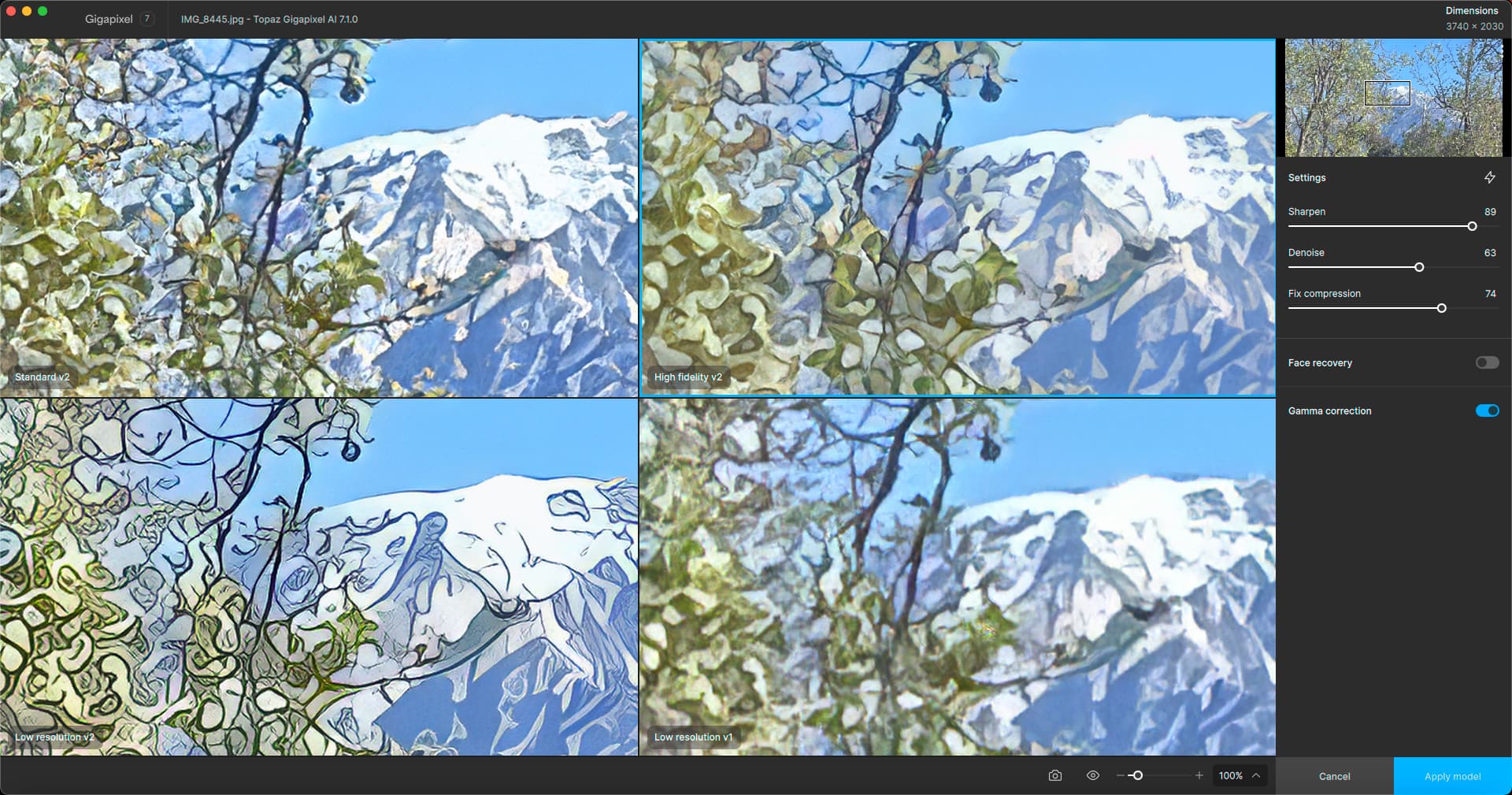
I have now applied the model! I guess I have to export to see what I got…
Wait: I thought this was going to be a 6X upscale of my crop but the export shows a smaller export size… Did it already get upscaled? The dimensions at the bottom of the GUI shows one thing and the export dialog another…
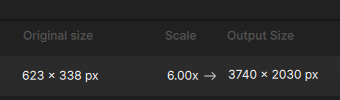
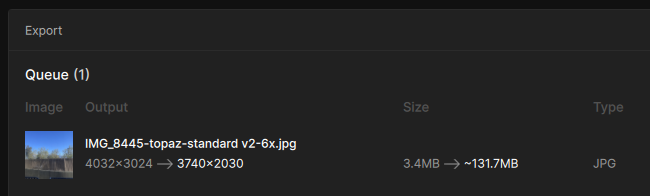
After doing the Export I see a totally different output estimate (or is it the actual result?):
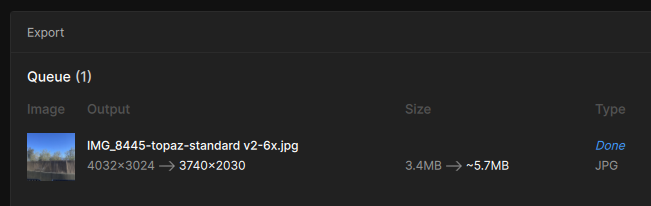
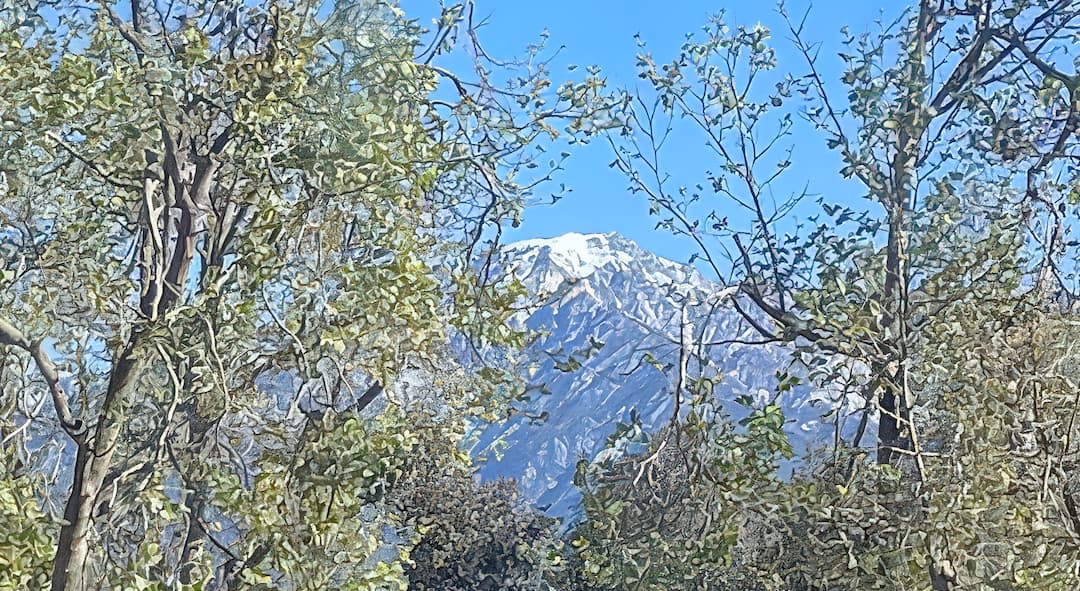
Anyway, I got the cropped, upscaled result (reduced here), and this is as far as the Topaz apps can take it.
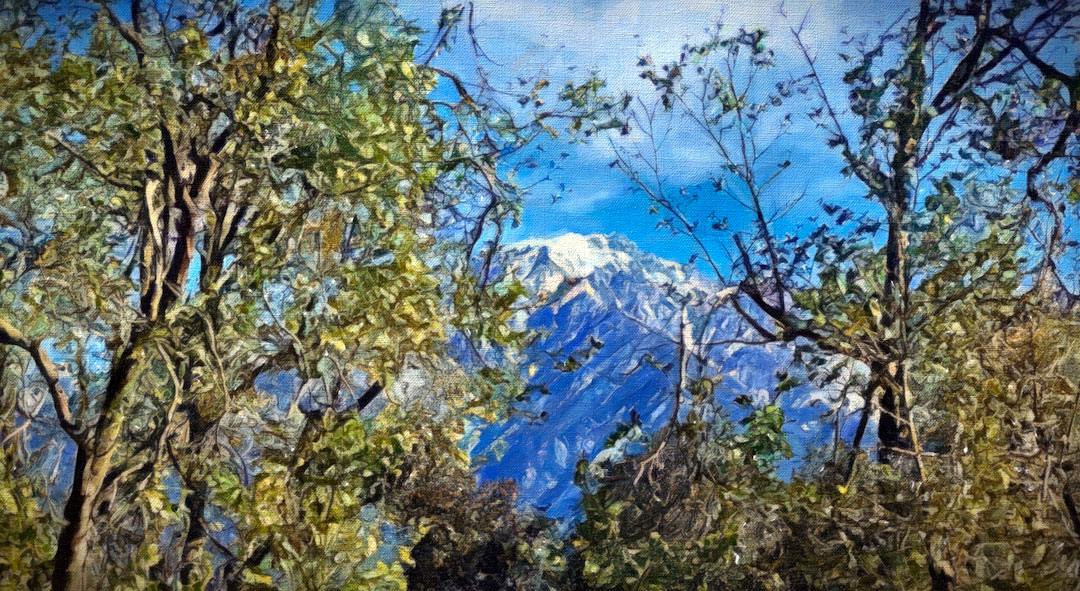
Now to continue with other apps… And the result:
I felt bad that I missed the beta for this but the release feels like a beta (actually alpha) right now 
Just an update, but hotfix will be pushed to tomorrow.
4 Likes
I tried to test new Recovery model and it was extremeeeeely slow. Used it on 13 mPx picture with 1.5 upscale and after 15 minutes I gave up. At that time it was only 25% of the processing.
Sure, my PC is a bit outdated (AMD Ryzen 3950X, RTX 2080 Ti, 64 GB RAM), but I did not expect it to be that slow.
1 Like
Hi. For those who want it (who don’t like the new GAI icon logo), I redid an icon from the old one. Both for Windows and for MacOS
GAI icône Win-Mac.zip (217,8 Ko)
I upgraded to 7.1 and the GUI and mouse pointer slow to a crawl when the app is maximized on my display. I believe the app has issues running with variable refresh rate displays when maximized. I’ve seen similar behavior in new releases for other apps that were updated to fix this.
Edit: After some more testing, the app framerate slows to a crawl even without the window maximized. The new version appears to have major issues with variable refresh rate displays that the old one did not.
1 Like
7.1.1 fixes should be released now. Top post should be updated soon with links, or you can update from inside the app.
The updated change log is:
- Fixed visual issue where toggles would look on when they were off
- Fixed wrong link being used for help article
- Fixed uncommon permissions issue on Mac
- Fixed being able to pull up file list while in comparison view
- Fixed recovery warning always saying “small”
- Fixed comparison view incorrectly keeping auto model flag enabled
- Fixed various button hover states, spacing, and icon sizes
- Fixed auto settings not re-applying when switching between models
Known issues:
- Saving from Photoshop Automate plugin may incorrectly save PPI information
9 Likes
It seems the UI Bugs are all corrected.
I must say 7.1.X is way faster than 7.0.X versions. Though the speed is far slower than the 6.3.3 version.
2 Likes
7.1.1, M2 Mac Mini, Ventura, 500/16:
Testing the update on my iPhone photo from yesterday using Recovery which I hadn’t tried yet. At first I thought it was unusably-slow, but it finally returned (preview) results which were impressive!
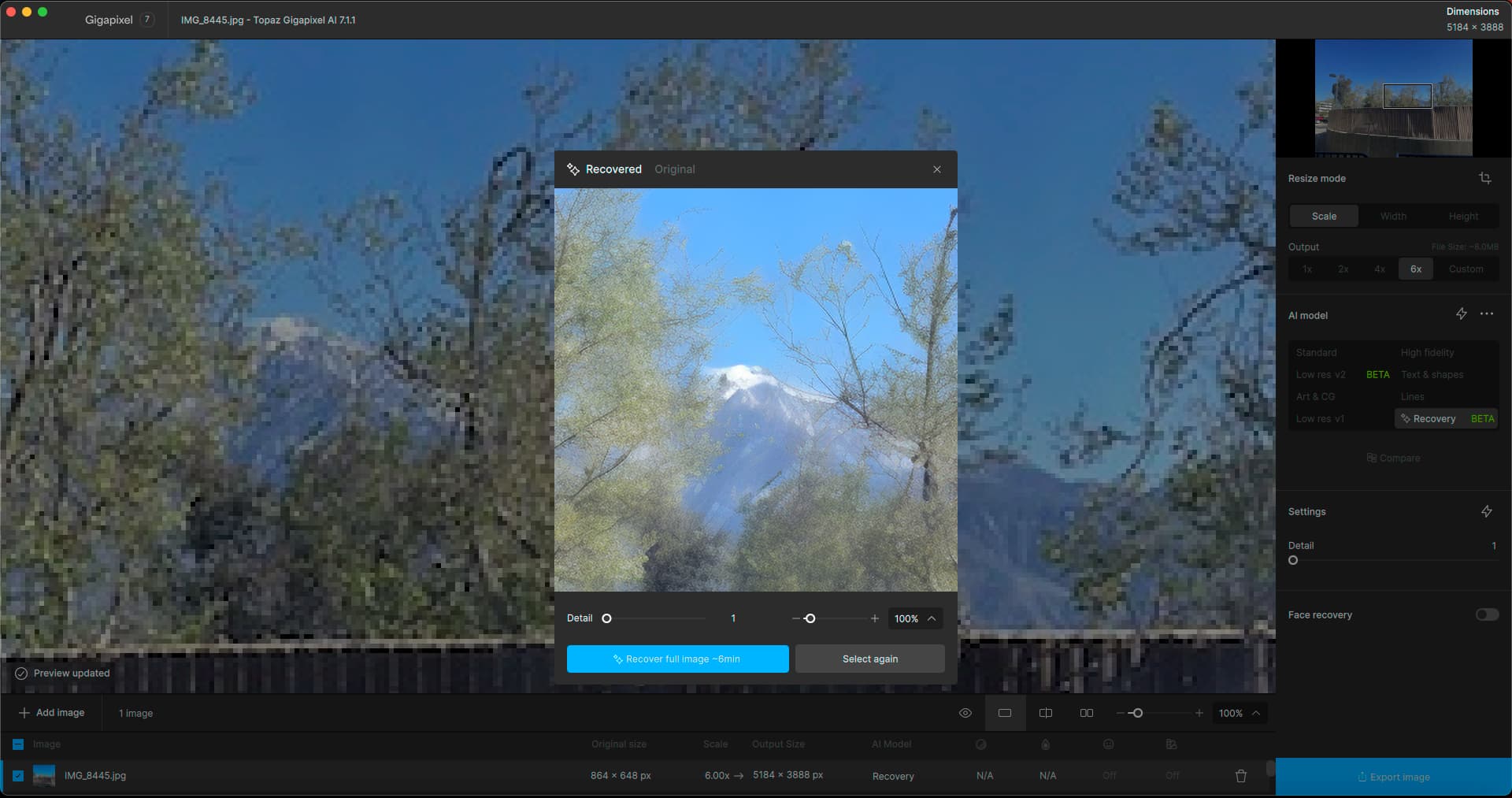
GP warned me that to process the whole image would take 6 minutes, and since I don’t care about the whole photo, I decided to crop it before recovering:
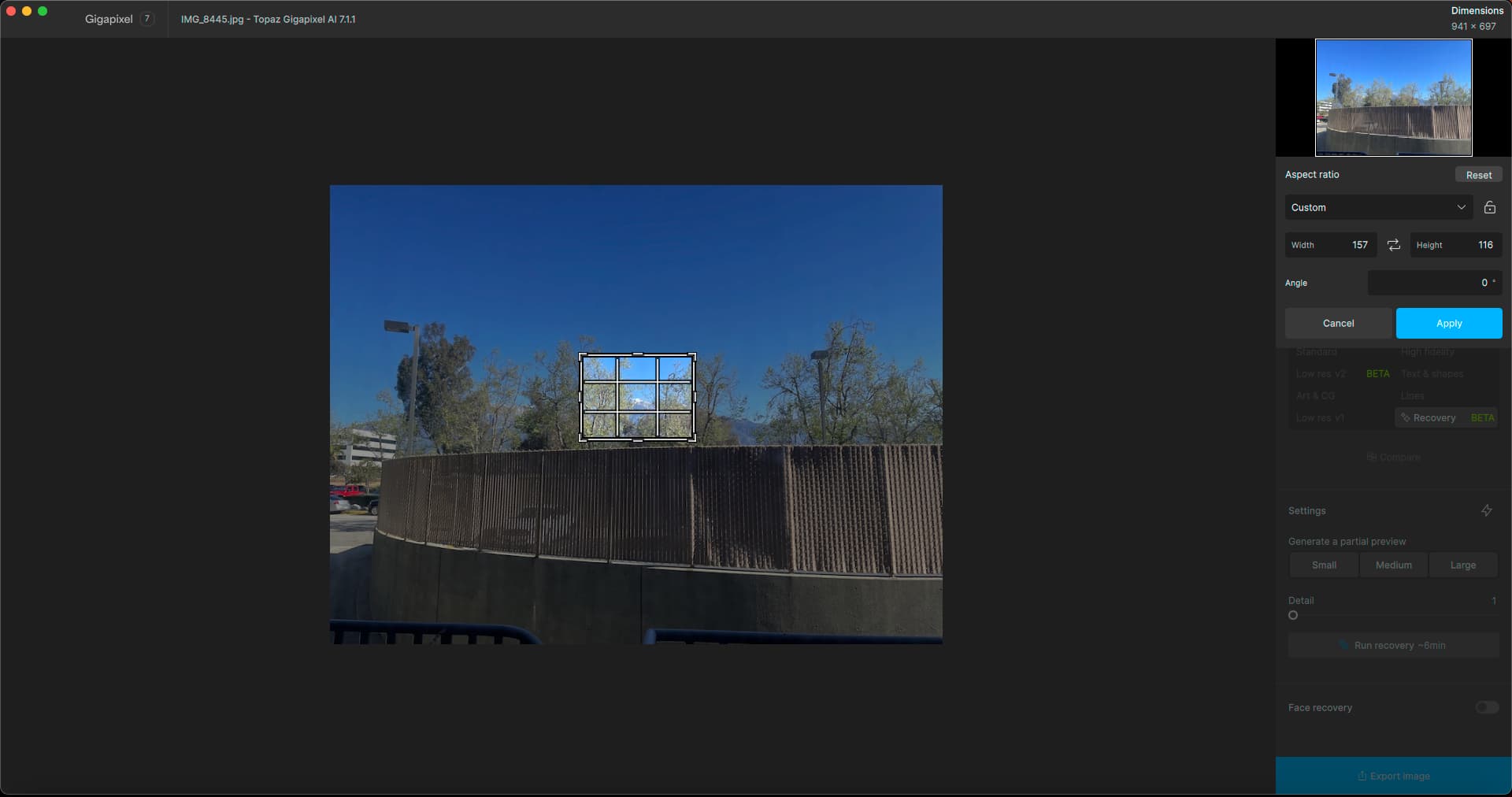
But a simple crop doesn’t work…
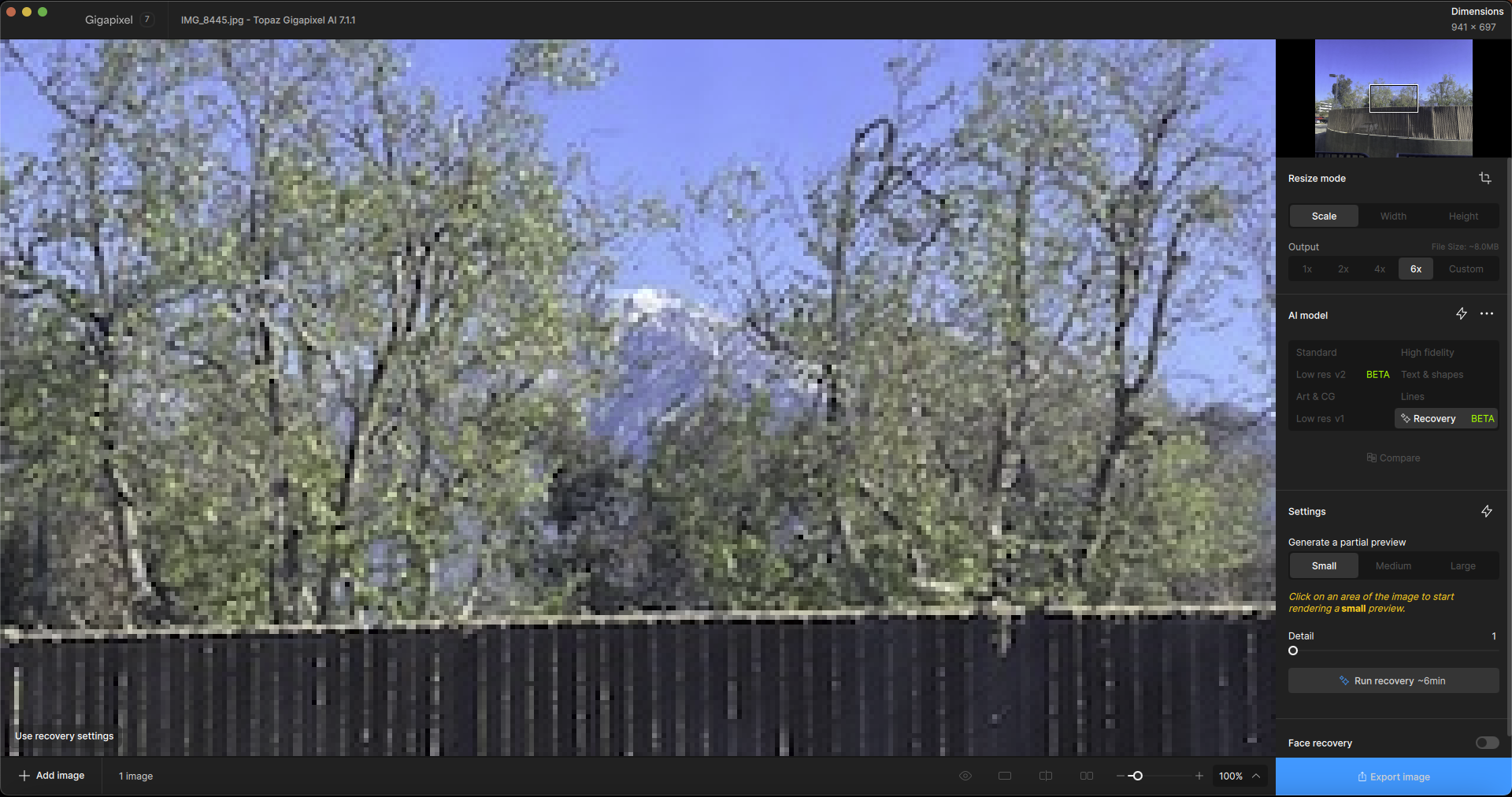
Going back into Crop shows the same crop area as above.
Clicking out of Recovery shows the desired crop:
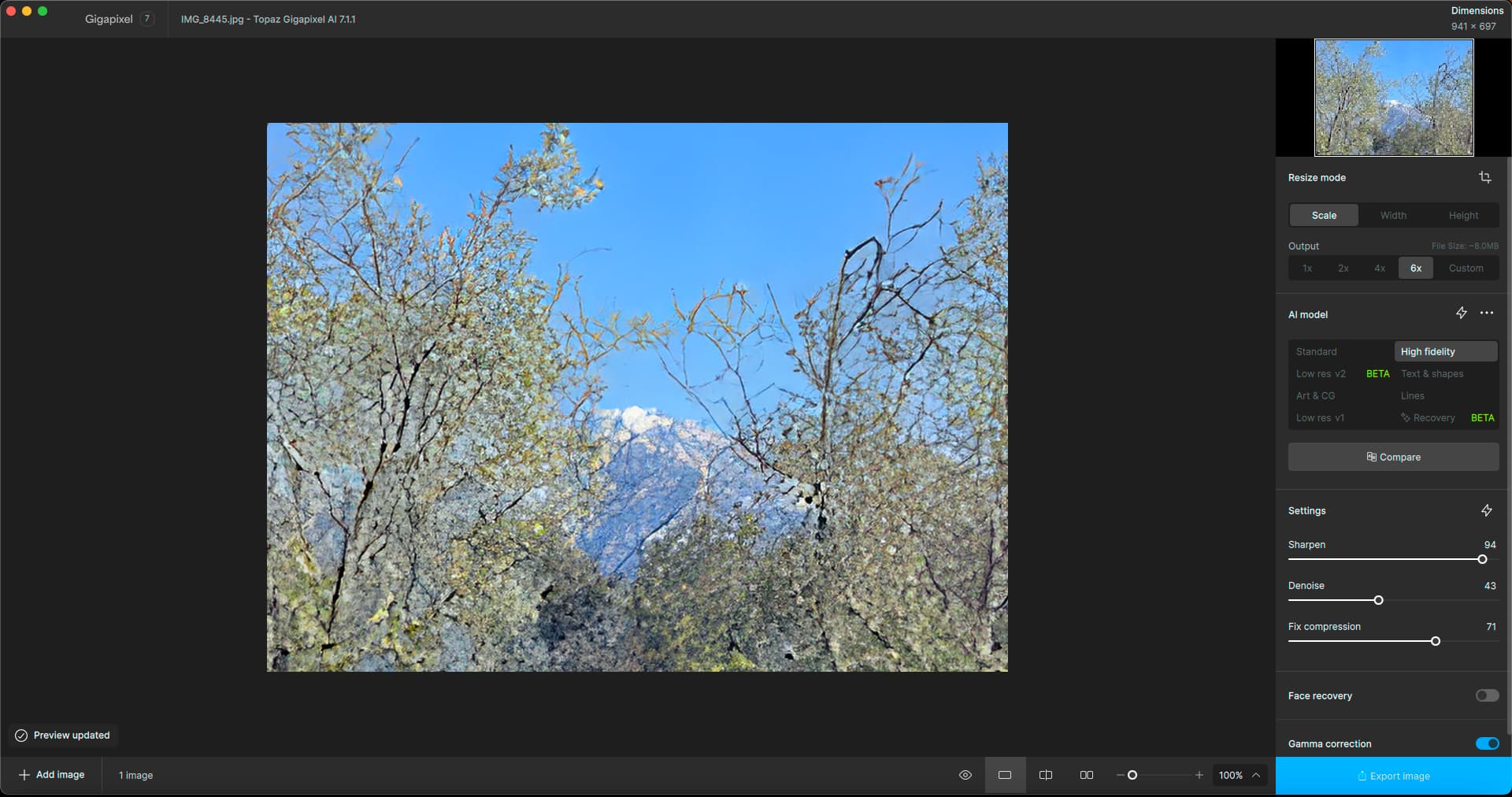
Clicking back into Recovery shows the uncropped image again… I reported something similar to this earlier regarding Upscale maybe?
What does the user have to do to make the crop stick, short of exporting and reopening the image (an unnecessary round trip)?
So you see I am unable to determine how Recovery on its own would work on this image since I can’t export it out of GP without doing something to it.
I go into Apple’s Preview app to make and save a quick crop of the image before going back into GP.
Working off of the cropped image, I am not seeing the same level of Recovery quality at all, even with it cranked up (??):
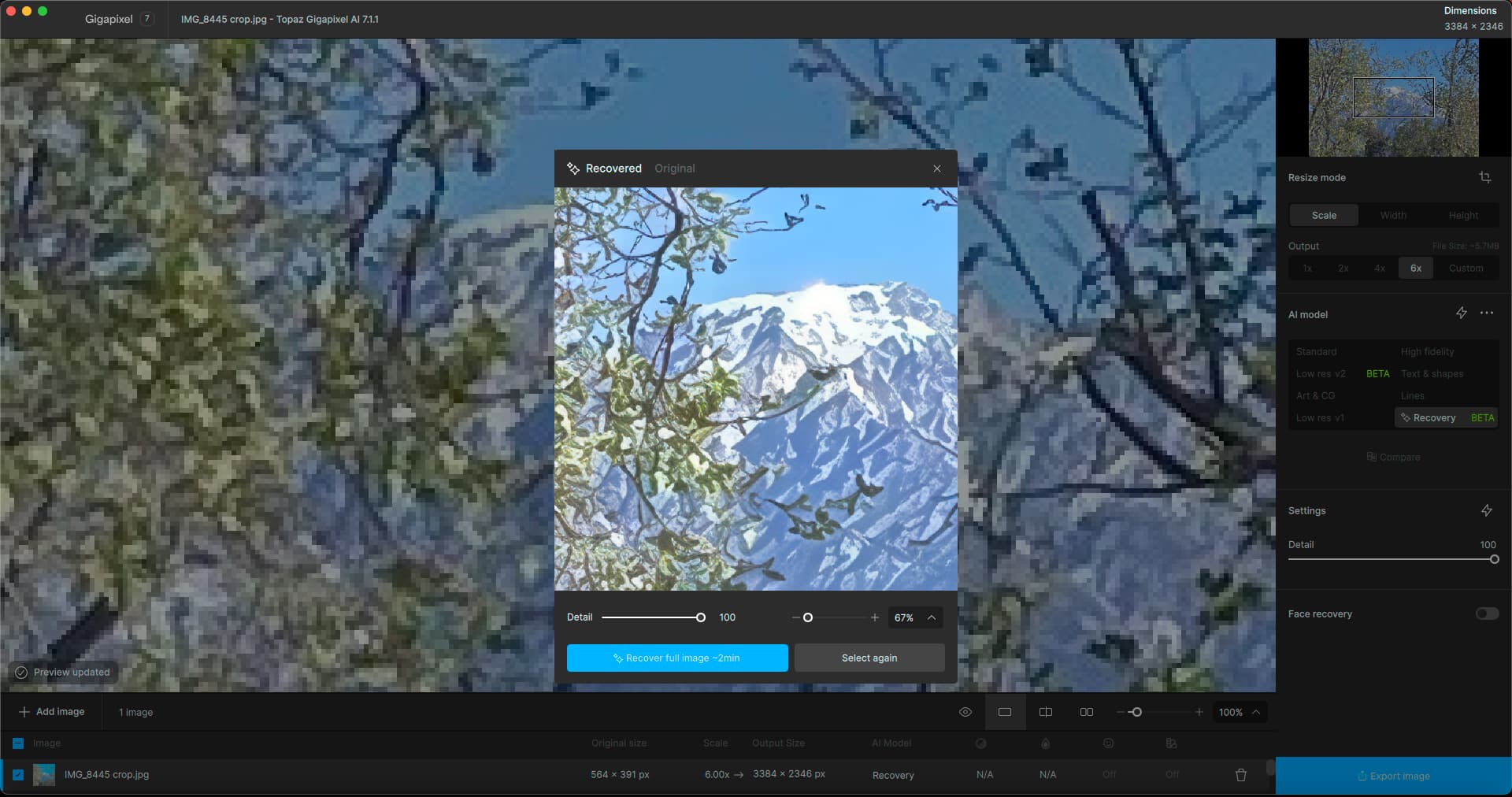
So I guess I go back to the full version, wait 6 minutes and see what I get.
I’ll be back…
2 Likes
Thanks for the feedback plugs, this is helpful. I’m surprised Recovery actually runs on the Mac Mini to be frank - but do stay tuned. We’re looking at some tricks to reduce requirements here … dramatically
Regarding crop, unfortunately the Recovery model (and others) run on the entire image. This explains the discrepancy in your results, but it is not intuitive. This is something we’re taking a look at. The crop tool can use some love on both GP and TPAI in general.
Hey garito, yeah this version of the Recovery model is built for small images under 1000px, both in terms of output quality and of course performance. If you do upscales with it, stick to only small images for this one. It also often works well with images that are blurry. Do stay tuned though.
1 Like
Thanks for your quick reply and feedback! I hope my real-time descriptions give you a good idea of random users’ workflows.
Maybe add a disclaimer pop-up about the full image processing requirement so the user doesn’t think the app is broken or buggy.
Anyway, even though an M2 Mini is not a slouch (it handles local Stable Diffusion renders and such without issue), my wait time in GP has now doubled to 12 minutes. Actually more; “Topaz time” is not real time
I have access to Dell Precision 3660’s in the office so I might try sometime and see what happens there.
1 Like
Yeah I’d give it a shot on a larger machine - still stick with smaller images but you can push the boundaries a tad if you monitor your system, I just would not recommend it. Some upscales that simply weren’t possible before with this Recovery model, and more to come.
Yes your notes and suggestions are very helpful. The next two releases will be focused on fixes and optimizations for Gigapixel.
The ETA can indeed be improved, I agree with that note
Cheers
As for the strength of the M2 Mac Mini:
GP is not making anywhere near max use of the available resources:
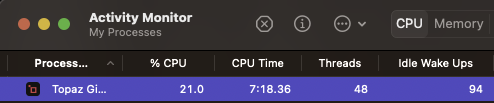
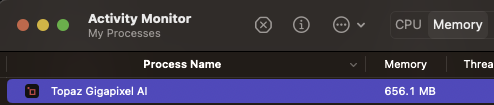
And I just got my results!
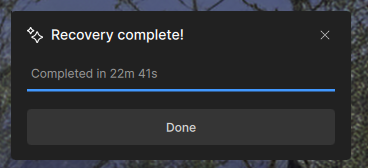
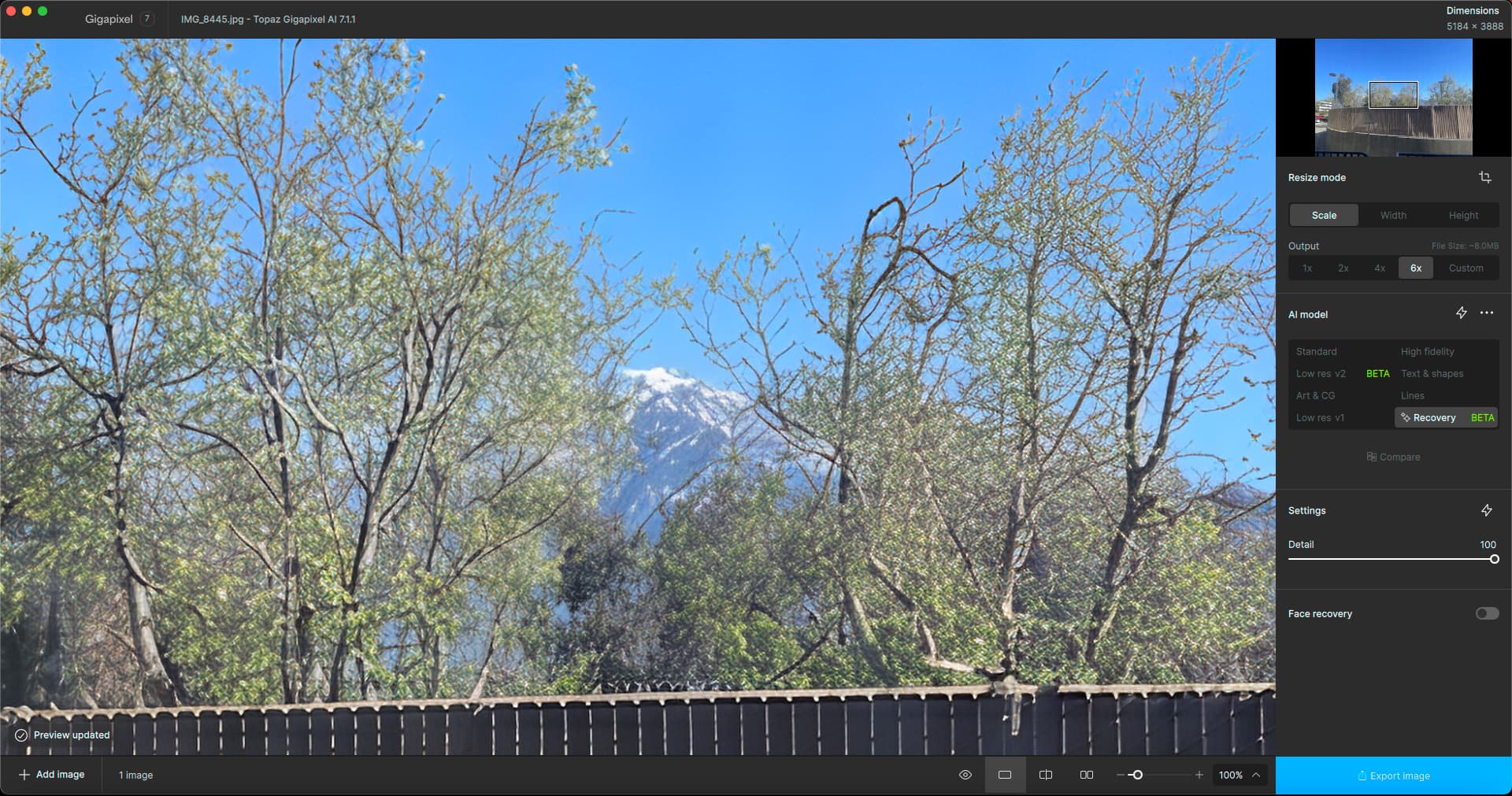
Next I will try backing down the detail, see you in awhile…
1 Like
Interesting.
Detail slider changes should be fast after the render actually. Also changing the scale.
I just saw that! I was ready to go out again to dinner and a Broadway show!
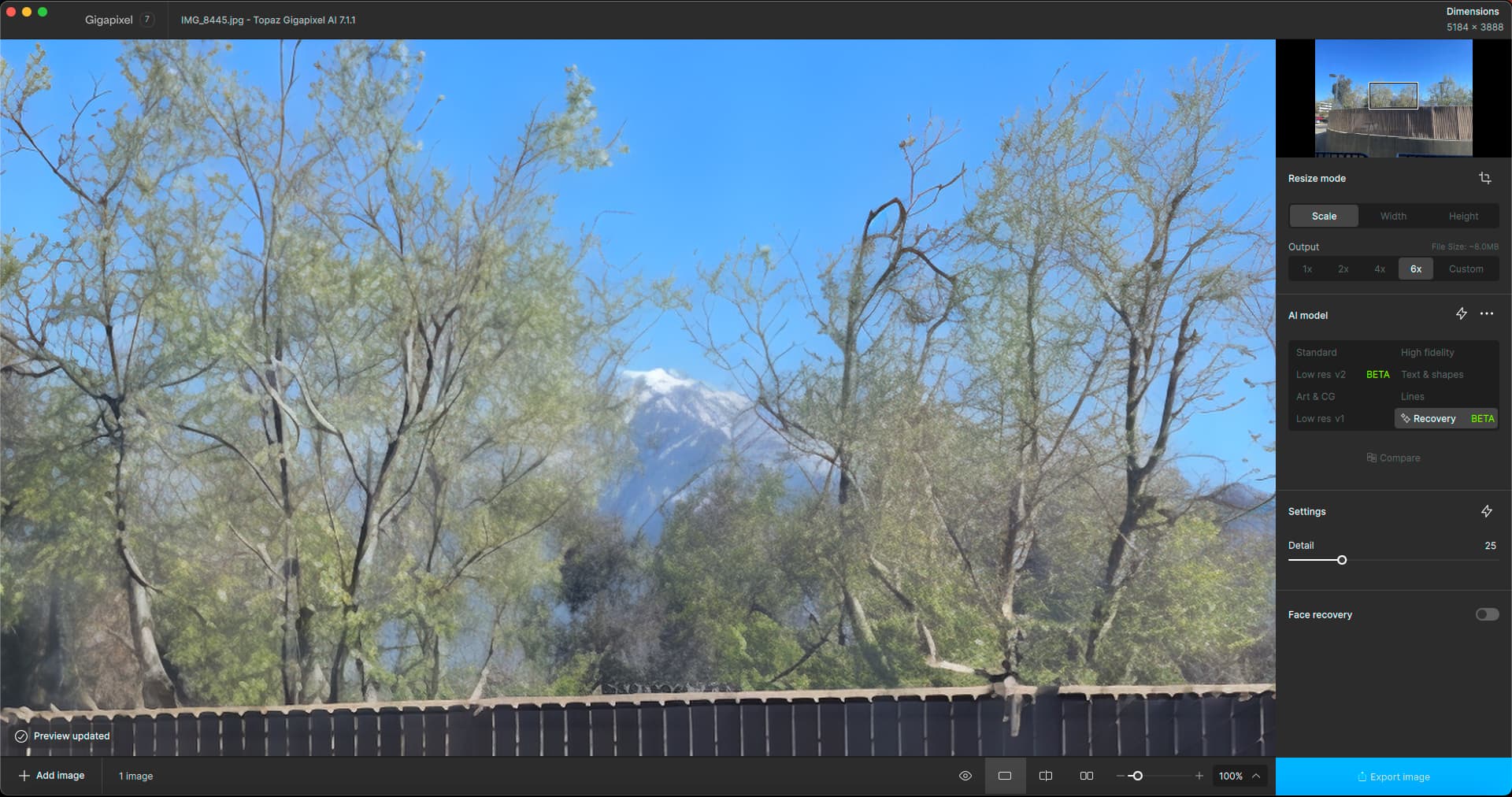
Now to try cropping the result and doing further work… I better export it first!
1 Like
I don’t recall choosing 6X today; maybe that’s what took so long?
I have not personally benchmarked 6x vs 4x, but I do know that 2x and 4x for the Recovery model take roughly the same amount of time (this is not the case for other models of course). It has a different architecture. This also means your actual generation at 2x will be the same as 4x (and I assume 6x).
Win 11 PC. GAI 7.1.1. Processor = AMD RX6800 XT (16GB). Intel i9 12th gen.
-
Took 15 mins. to install over prior commercial rel.
-
New Desktop Icon is ‘cute’. Makes me wonder what the new PAI desktop icon will be! (Square with a Bell & a Whistle on top of it or Square with a Bow on top? ;-> )
-
Able to launch the Ps Plugin via File > Automate (my workflow is all in Ps) & work with images okay. No flukes of View options after using Comparison view. “Rotating” worked okay in the Crop panel.
I do have a Devs question: What is the value-add of Low Res v2 vs. Hi Fi v.2? I’m not (at least in 1st test image) seeing any re: details recovered, intensity of the settings, etc. and I’d be more inclined to use Hi Fi for its implications of keeping a photo looking enhanced but still photographic. Plus, the Low Res v2 (again, at least on 1st test image) seemed to produce jaggier edges on objects in the scene (to my eyes). I can see the model settings diff. b/wn Low Res v1 and v2 in terms of the add’l. slider for compression details, but that’s not what I’m asking about. Thx!
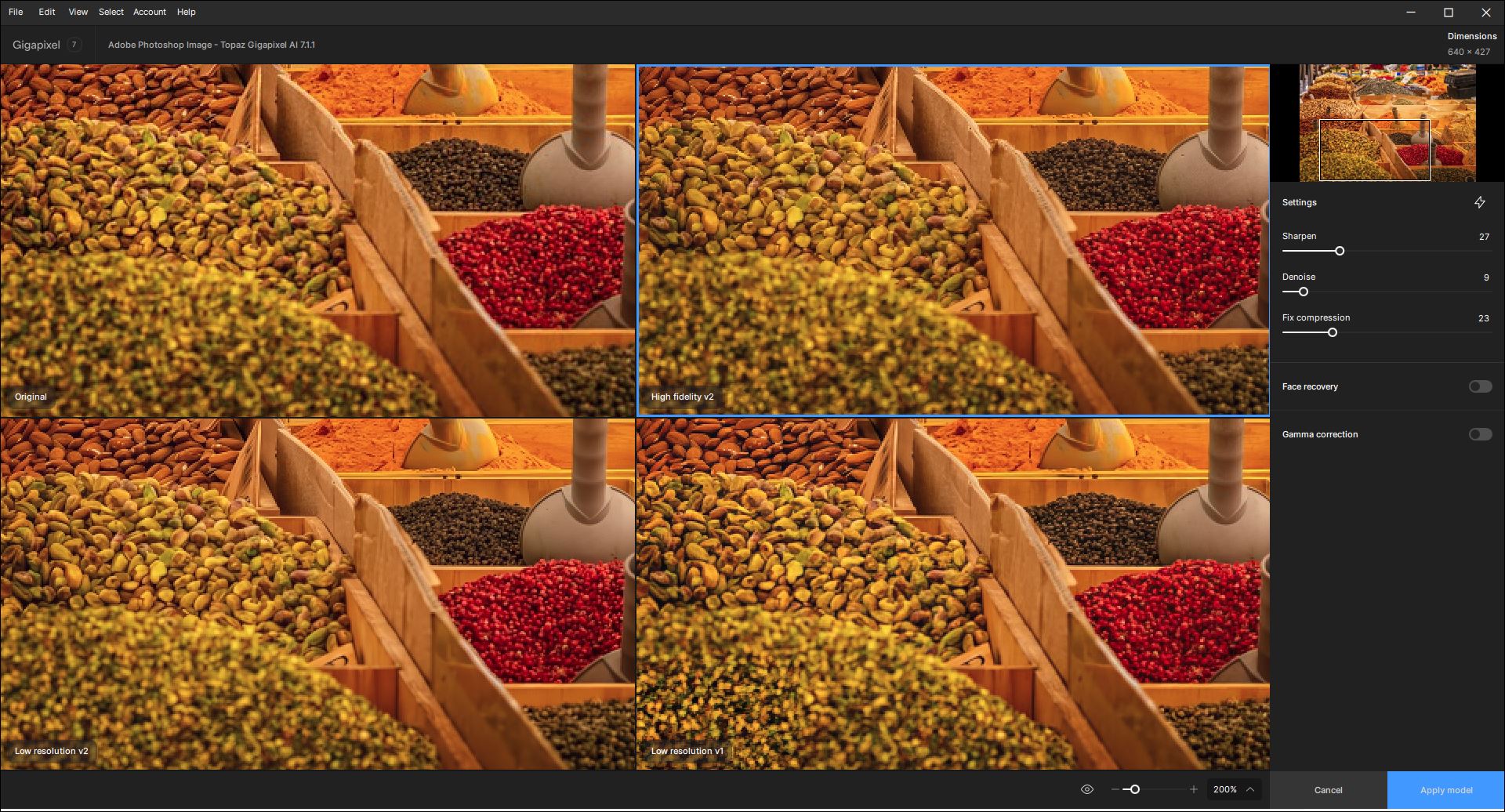
- Image processed in the File > Automate GAI 7.1.1 commercial plugin saved back to Ps layer okay.
2 Likes
Good question Fotomaker.
Similar to low res v1, low res v2 often works better with highly compressed or low quality images, whereas high fidelity v2 does well with preserving the detail and information from higher quality photos for example. Low res v2 often beats very compressed as well in images with high compression as well actually.
Some people are getting good low res v2 upscales on smaller web assets, it may not be great on some photos, depends on your use case. The current version of low res v2 sometimes struggles with noise or texture in images, which is why it is in Beta. This model will likely be updated soon.
Let us know what images you find it good at upscaling.
3 Likes
