Switch your Preferences, Performance, Enable discrete GPU to ON to as in this panel and then click Calibrate and load an image and it will Calibrate correctly. It is a non-error error 
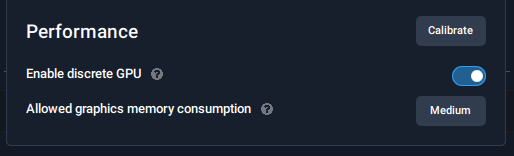
Switch your Preferences, Performance, Enable discrete GPU to ON to as in this panel and then click Calibrate and load an image and it will Calibrate correctly. It is a non-error error
I’m wondering if this has something to do between the installer switches between 2.4.0 and 2.4.1 that cause some issues. We stopped using HKCU since it was only for the current user and moved to HKLM which should be global, but that means that old DataPath is no longer looked at which would be why installer would default to the C drive.
Could you try uninstalling completely and installing 2.4.1 and see if you get the same issues?
I’m not sure how this broke again, I remember specifically fixing this. Might be some other path.
Edit: I actually cannot reproduce this anymore. I had it happen once, but now even the same steps as before don’t work. Tried clearing registry too.
This notice was removed on purpose, so that’s fine.
I already reported with v2.3.x that the Low Light algo got worse compared to 2.2.x. With 2.4.1 it’s still the same. It’s about the low frequency noise which I hope this picture shows pretty obviously (100% crop):
(here would be a picture, but I’m not allowed to post one, although uploading is fine…)
It would be great if you could have a look at the changes made and bring back the low frequency noise reduction again
I cant use DeNoise now - downloaded from Full Installer above. The box comes up “You are invoking Topaz” but then nothing. Cant get beyond this.
Hi, I have installed DeNoise AI 2.4.1 (Win). Was editing image from LR. It does seem to be working until I hit Apply button. There is no indication of progress (like countdown clock that somebody mentioned above) - just black screen. As it was going for ages had to hit Cancel Exporting. Can’t get it work.
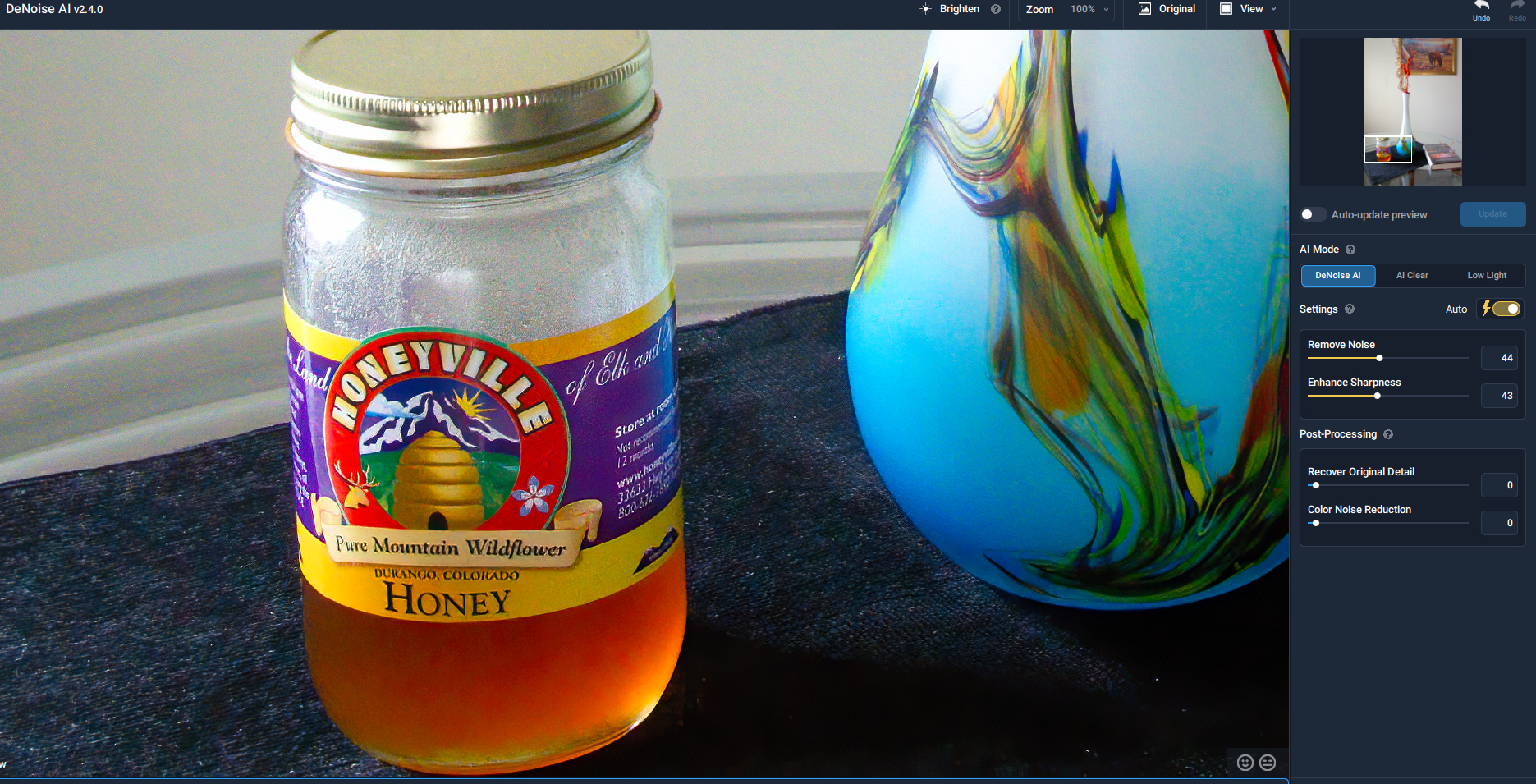
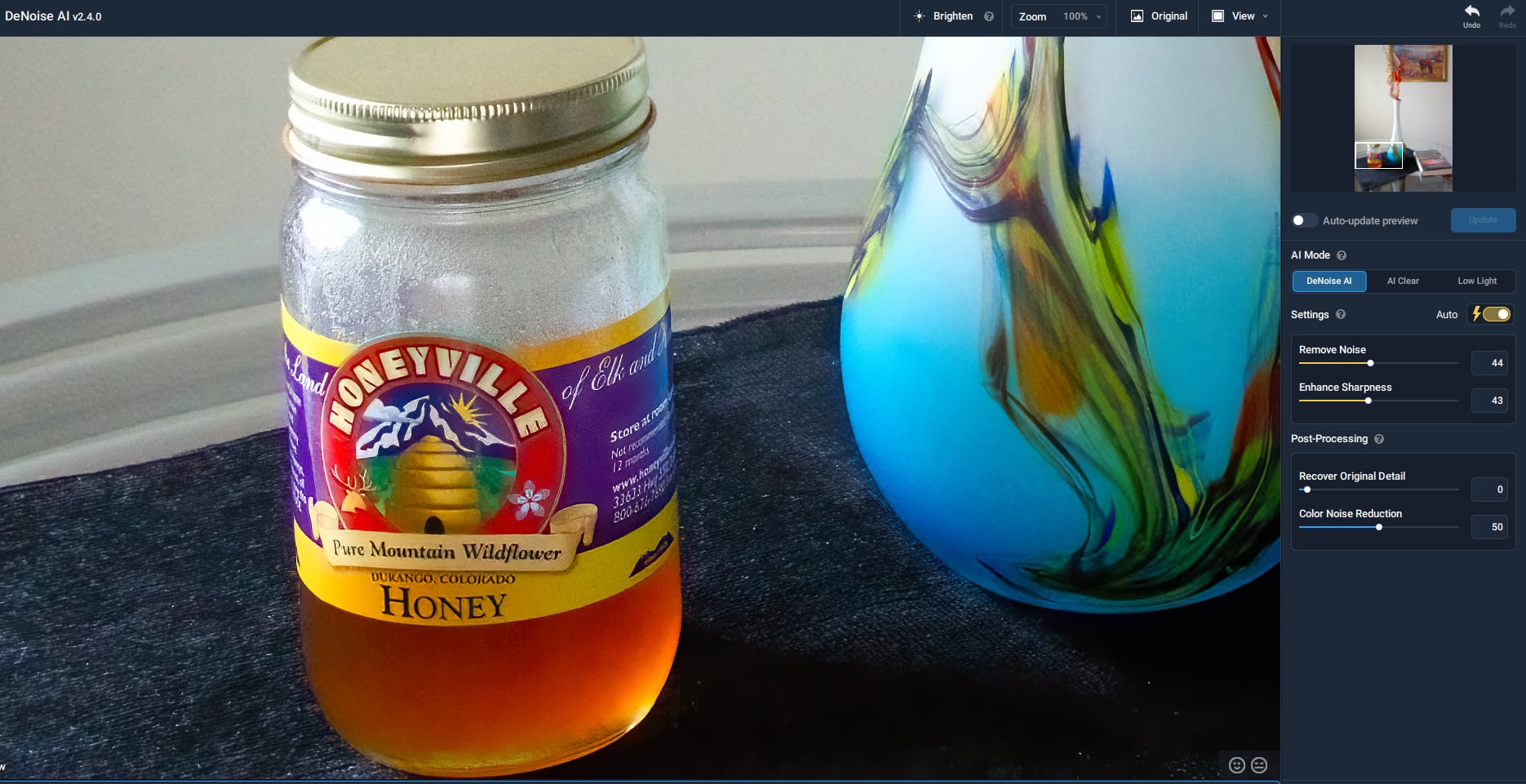
I on v 2.4.0 and I noticed that Color noise reduction substantially reduced reds. Below are two pictures with the first having Color noise set to zero which shows the proper red on the Honey label.
The second image with color noise reduction set to 50 shows desaturated red and green.
Maybe this is inherent in the adjustment but not ideal.
Thanks for the feedback. Do you mean large color patches? Can you show an example?
OK, thank you. I have installed 2.4.1 and all the basic functions seem to be working. I have invoked from Lightroom and Photoshop and it works. I have successfully denoised some noisy bird photographs.
Hopefully I can get back to post-processing my photos now Software engineering is my (boring) day job!
Yes, I already prepared a side by side comparison but as stated above the forum didn’t allow to post the picture. I’ll try again… Just a sec… Didn’t work “Sorry, you can’t put images in a post” ¯_(ツ)_/¯
I see. You can upload that sample in this link then.
https://www.dropbox.com/request/eIvqkfXPPVtJhjaqdYxk
I got your image. I see 2.2 also has color patch but less visible than the current version. Please upload the original noisy image in the same link if possible. I’ll add this in our test image set to test our future model update. Thanks for the feedback.
Have you Tried out the Affinity Photo Noise Separation?
I have a workaround for the color patches.
If you use Denoise as a plugin in Photoshop you can copy the layer you have denoised and run Denoise with Clear Mid or High over it.
Then set the denoised layer to color, so that the colors of this layer are transferred to the layer below.
This solves the problem at least a little bit.
Hi, I just upgraded this latest version, especially for the " Updated Photoshop plugins
– Should now save/load all the settings properly" feature. Thus this still does not work. Particularly, the picture does not open with the previous AI mode…did I miss something?
Thank you Developer, Topaz Denoise is a excellent software.
However, my camera is very bad, it have lots of color noise (color patch) at High ISO, which is not possible to remove by Topaz Denoise.
AI Clear are better at remove color noise than Denoise AI or Low Light mode, but it tends to oversharpening the edge and cause artifact.
It would be great, if Denoise AI can train with image contain more color noise.
Here is an example of the Raw file
https://www.dpreview.com/reviews/image-comparison/download-image?s3Key=2bcee69d7ab34431bb28120b502fc950.arw
For more detail, you may want to check the images I posted in following post.
The color splotches on each color square is not noise but more like color distortion caused by your camera. The solution is to get a good camera. Software can’t determine that large areas of color need to be corrected. If it did that then many things like logos and cheetah spots would be erased.
I believe that is intended and I also suggest you try using Ctrl/Cmd+F for the last filter process.
Also if Auto is the last used setting it will be different each time.
Or use smart objects to reopen in the previous mode for that image.
Thanks for your answer. It is a filter on a smart object, and the mode is not in auto. The ai mode is « low light » or whatever. Point it that when I reopen the picture via the plugin, it comes back to the default ai mode, not the previous selected one
As far as i know if you open by clicking on it in the Smart Object it should open with the last settings so you can adjust them.
If it isn’t you need to raise a support request at the main website.