Where can I upload youre files from?
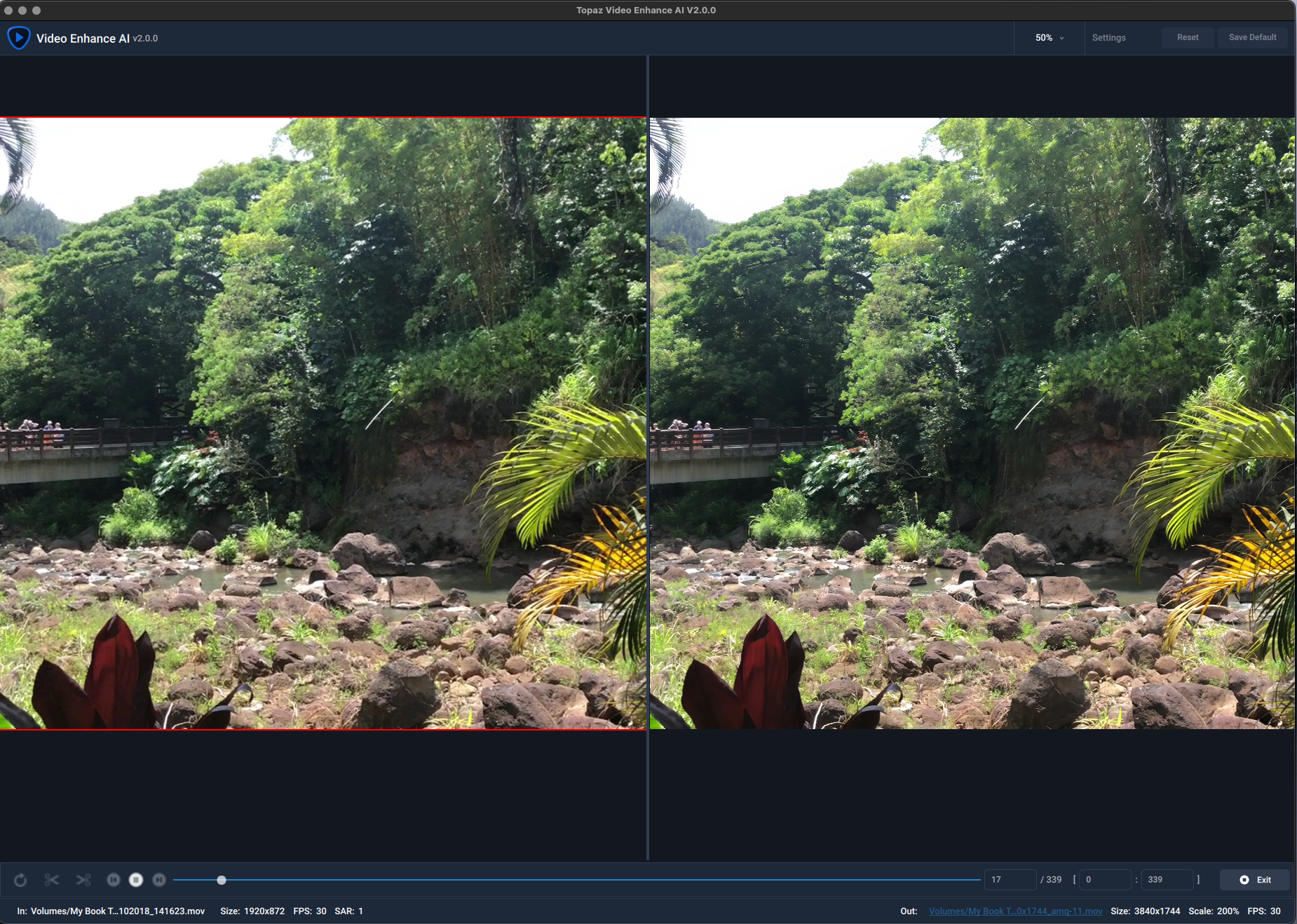
Don’t know if this is just a Mac issue or not. When I run preview, the screens (before/after) become fullscreen (see attachment). Can not see the frame rate of the preview.
Processing works fine and frame rate IS displayed as with betas
.
OK, i checked the Dione Models in version 2.0.0 with AVI sources 576i from Mini DV Tape upscaled to HD 1920x1080, No crop to frame, Keep Audio ON, Grain Amount 0,0, Grame Size 0,00
-
Audio is working
-
Drag & Drop is working
-
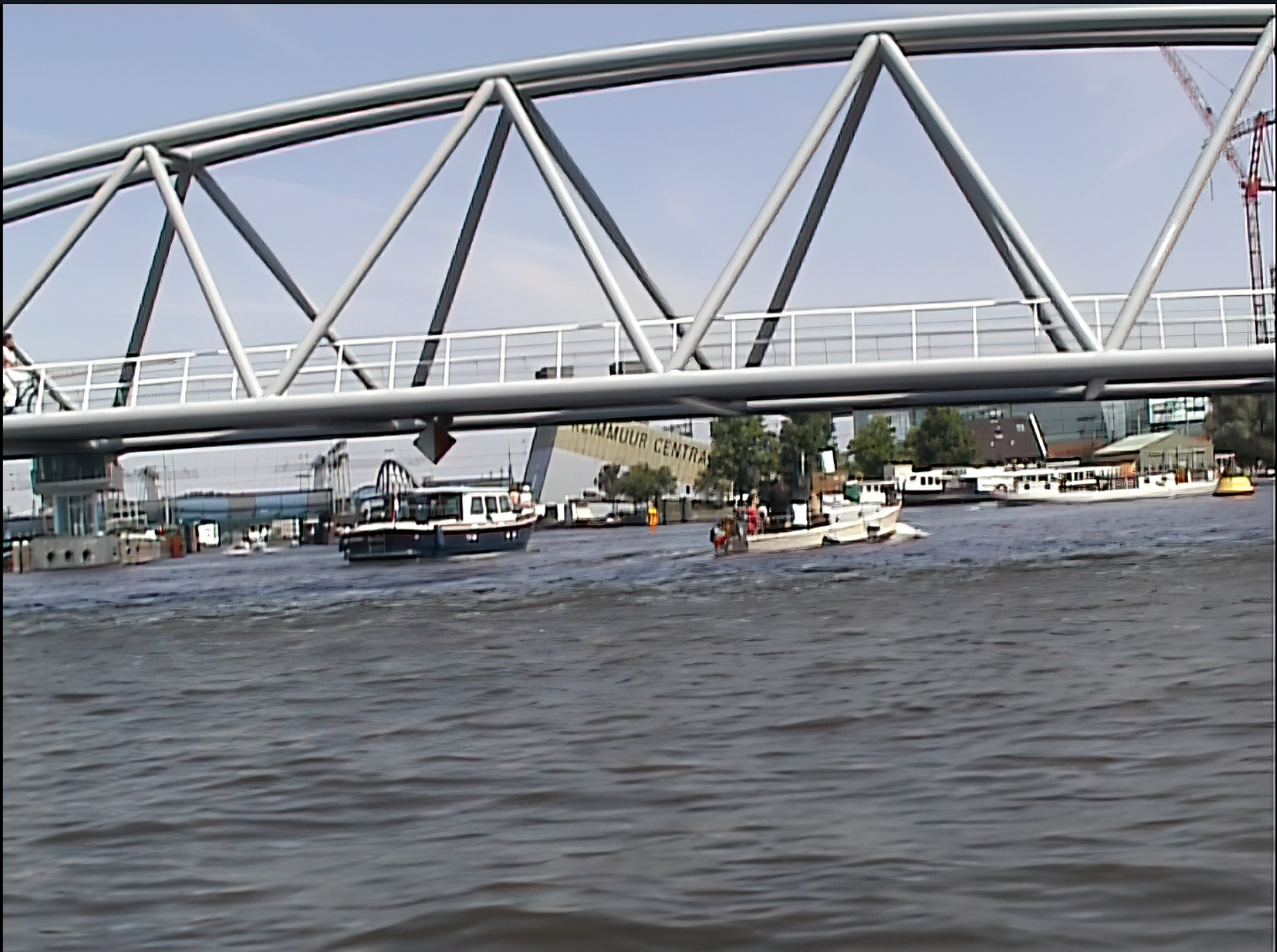
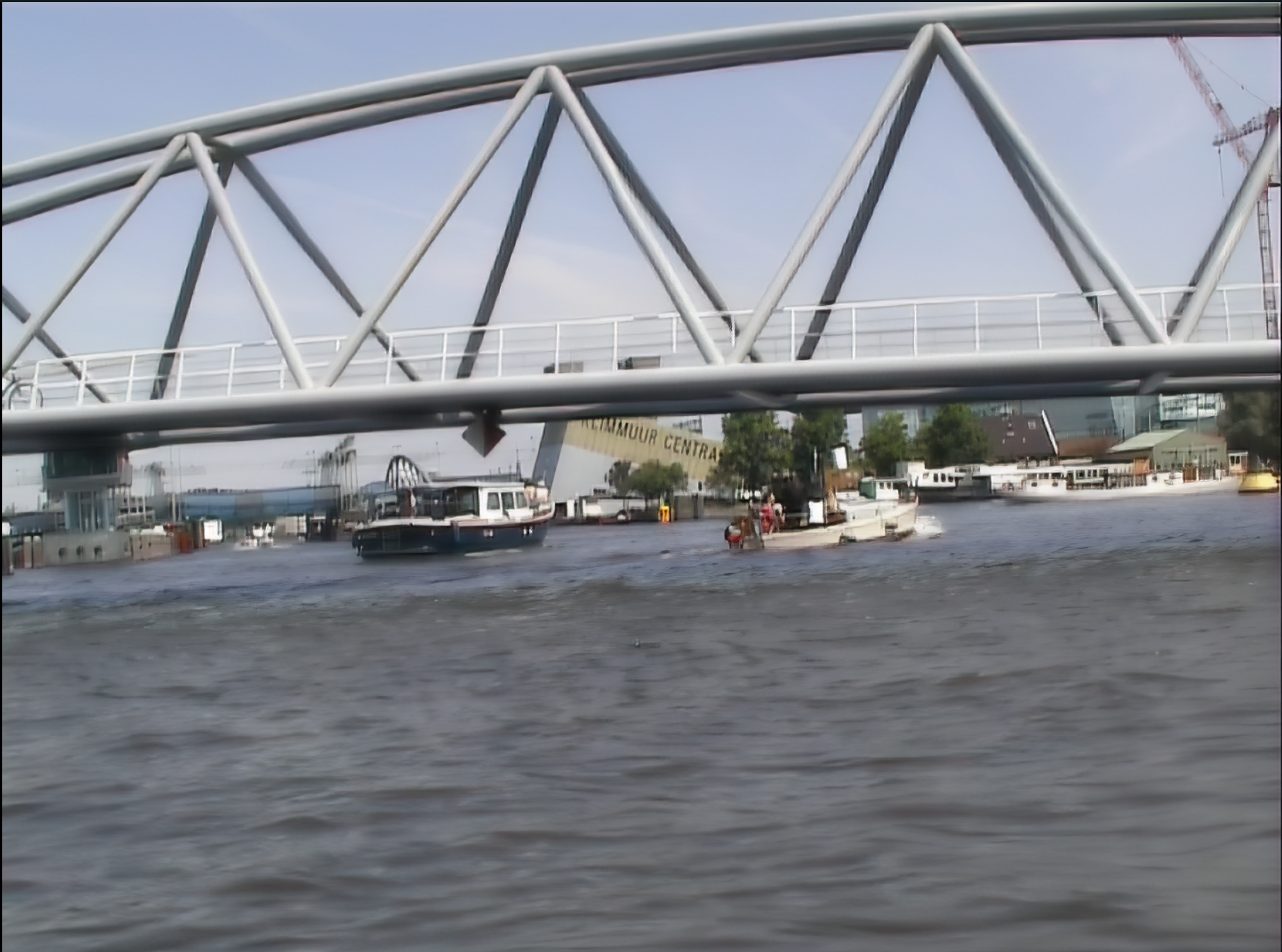
Dione Interlaced v2: The result is very blurred (see picture attached)
Horizontal lines don’t bounce. (I believe i wrote vertical lines in previous statements. Sorry for the wrong word.) -
Dione Interlaced Digital Video v2: The result is good (much better than Dione Interlaced v2)
but the horizontal lines bounce like in previous version -
Dione Interlaced TV v2: The result is very blurred, and the horizontal lines bounce like in previous version
1 Like
Having it remove the controls and maximize the preview is quite useful. I see the FPS and all other info as normal BELOW the preview. It’s just the stuff to the side that gets hidden temporarily.
1 Like
The new UI is incredible. Thank you.
I tried new v2.0.0.
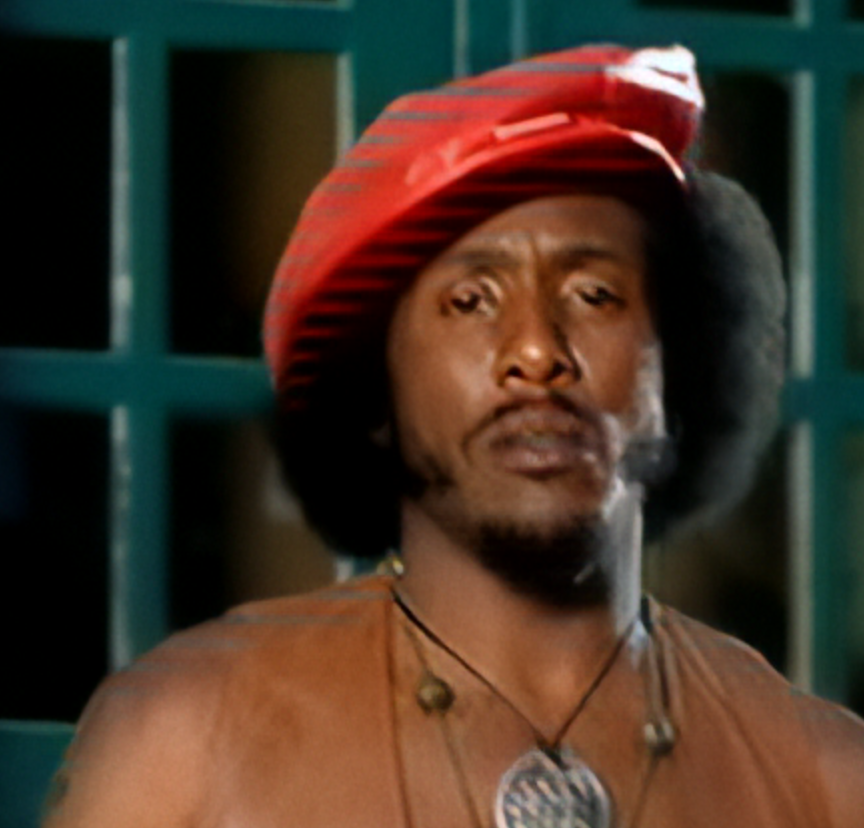
But unfortunately, v2.0.0 still has red striped issues by deinterlaced and upscaled to 1920x1080 with Dione TV v2.
My video are the below.
- Interlaced NTSC DVD.
- 720x480.
- 29.97fps.
No problem if it has been converted from interlaced video to progressive 60p by third-party software before upscaling to 1920x1080.
2 Likes
Something important is missing !!
There is no seconds per frame indicator in preview mode anymore !!!
ps: by the way the system warning checkbox doesn’t works it keeps popping each time you open veai
4 Likes
Is it normal that in version 2.0.0 I see more Dione v1 models?
In my models folder I have kept those of version 1.9.0 + those of the new version 2.0.0. And only the Diones V1 models are not visible in the interface.
Hi,
Here France: FRA language and keyboard with WIN 10. The decimal point is the comma by default.
Small problem to enter Grain amount and Grain size manually.
With Win10: if in your regional settings, the decimal point is different from the point, you cannot enter a parameter.
Hope this help.
I have absolutely the same issue, red stripes aka comb happening with all the Dione modules (very noticeable with DV), although the TV one gives much less (I think it’s due the fact that it blurs the image a lot).
And speaking of Blurry, I saw I’m not the only one getting extremely blurry and even bright/glowy result when using Dione TV! What’s up with that?! the DV one works fine (Except the red motion stripes).
Example (a music video): https://i.imgur.com/kF5dIsq.jpg
Hope they fix this in the next updates.
The final image looks more natural to me than the SD version. The Sd version, it seems that it has had in filter of sharpness by contrast much too strong. which makes the image disgusting. The improved version on the right is more natural I find.
Salut ! I’m french too, (Windows 10, FR language and keyboard).
I confirm the issue ! (nice one, i didn’t noticed it (but i don’t use the grain feature)
i’m using decimal point for everything and just noticed by reading your message that it’s impossible to use it for grain and custom setting. only the comma work. hitting the decimal point is like the key is not working.
addendum : if we use the slider in grain, and enter just after a number using the comma, it’s not working. we must type it a second time to have the value taken but i think someone else here noticed it earler today.
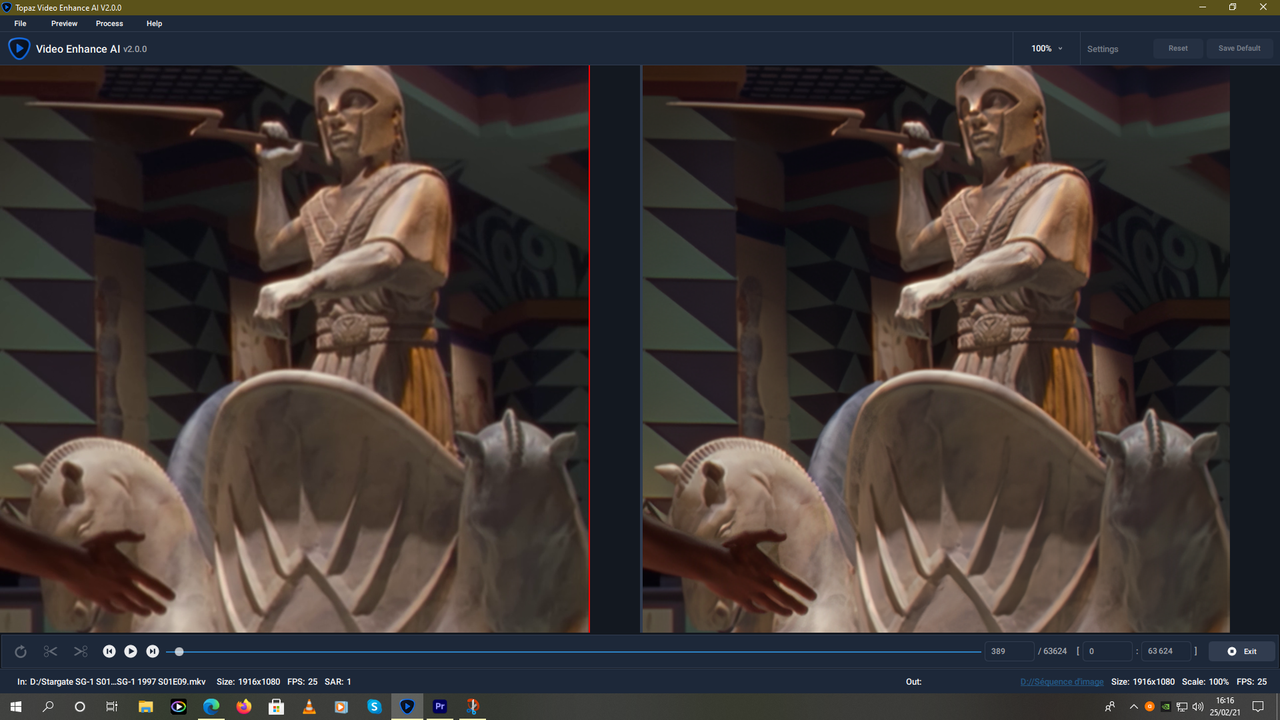
Atermis medium quality v11 and really not bad on my HD video footage which is a bit blurry.
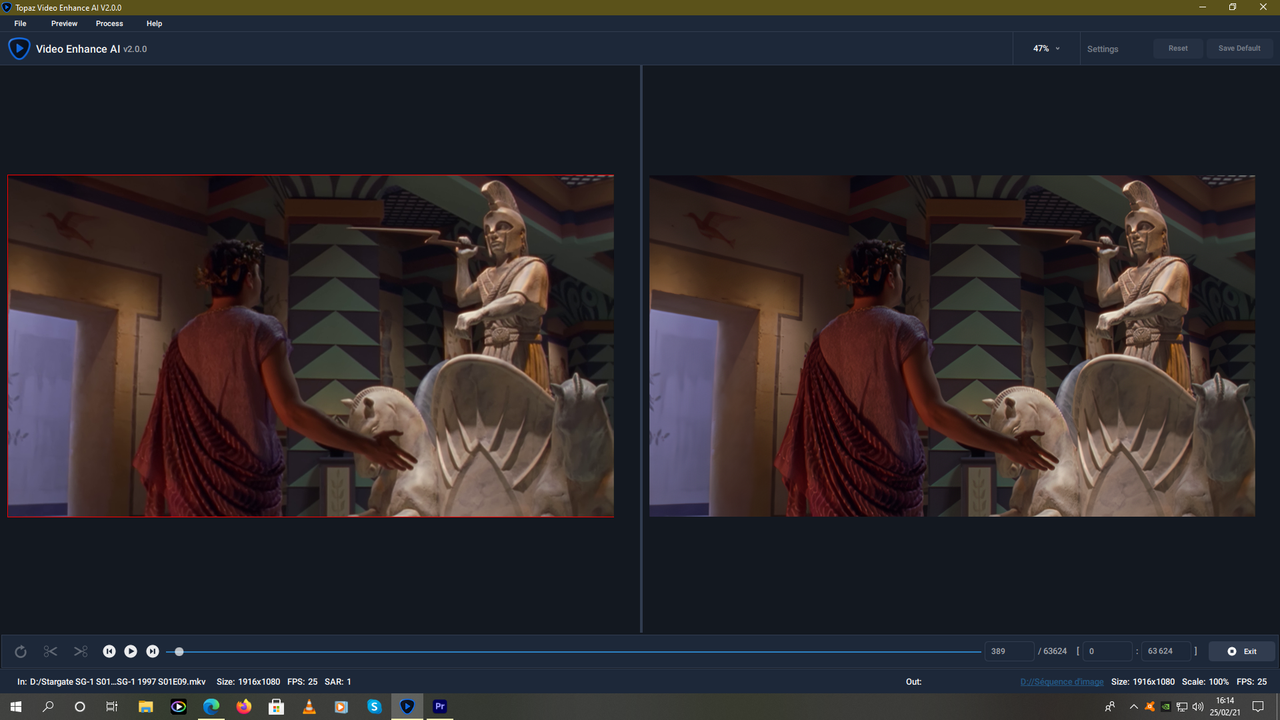
Result by zooming.
Here after in Adobe Premiere Pro with the filter Red Giant denoiser III
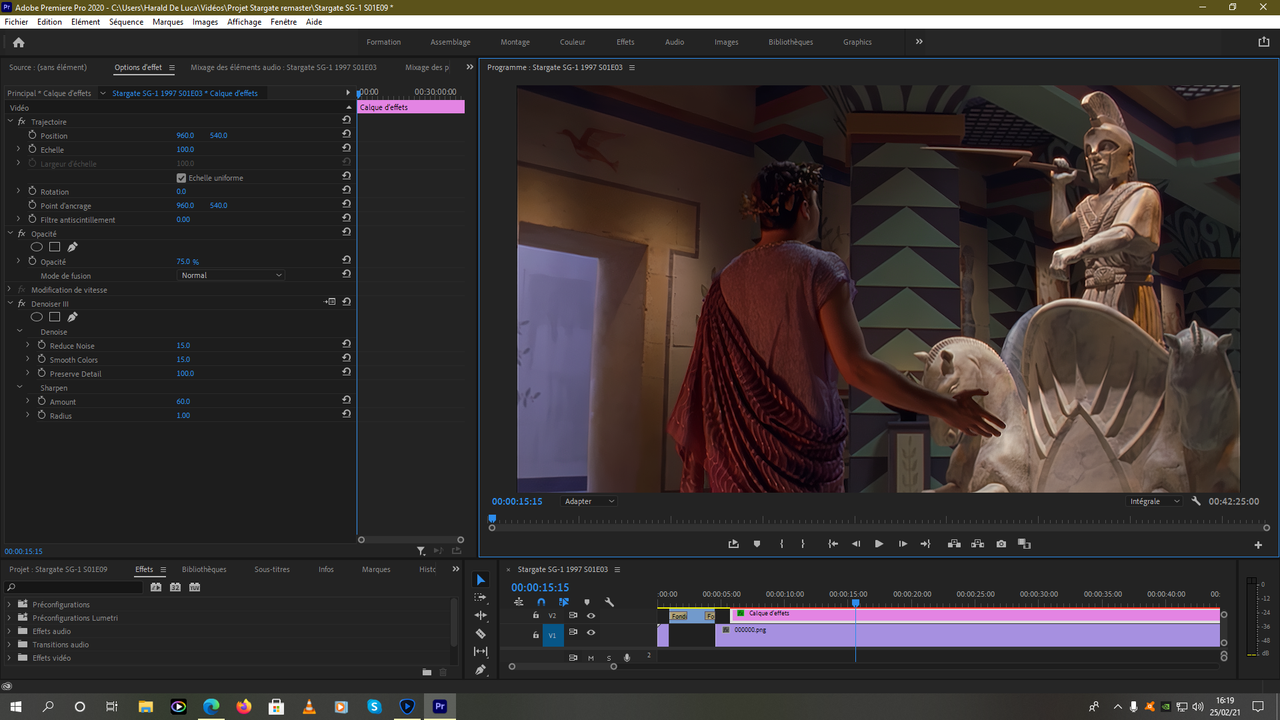
It’s really not bad
1 Like
Tried a 1080i HDV clip with dione ( all models ) and it has a but of difficulty of deinterlacing it. Comb artifacts are present.
( This was a M2TS file from the camera. Raw video )
My impression is that Artemis LQ v11 is a lot better than v10: faces look much more natural. This was on a divx file extracted from on-air PAL recorded on VHS in 1999.
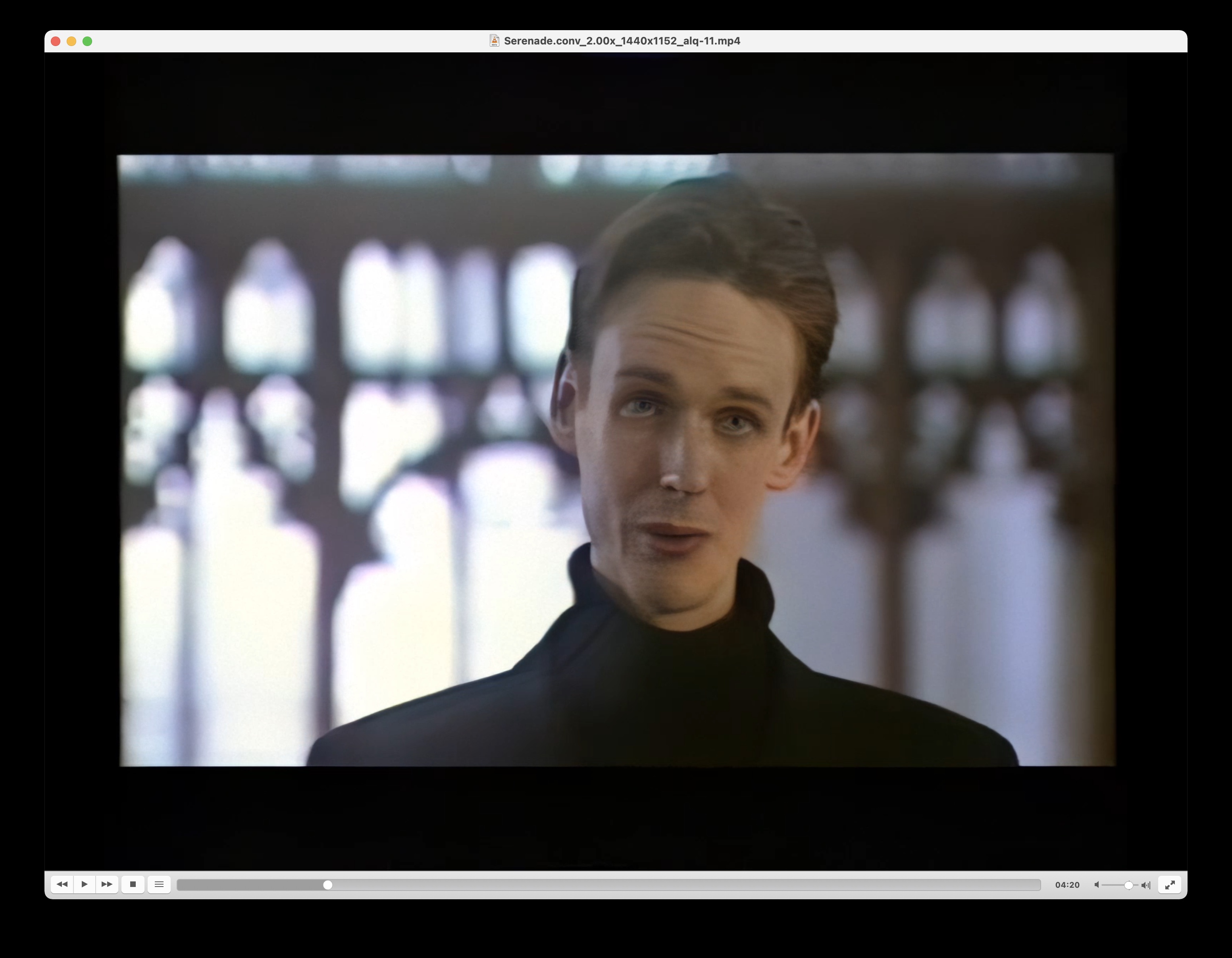
As expected, smaller faces do less well, since there is less information to process. But an acceptable job in my view, considering the original material was of such low quality:
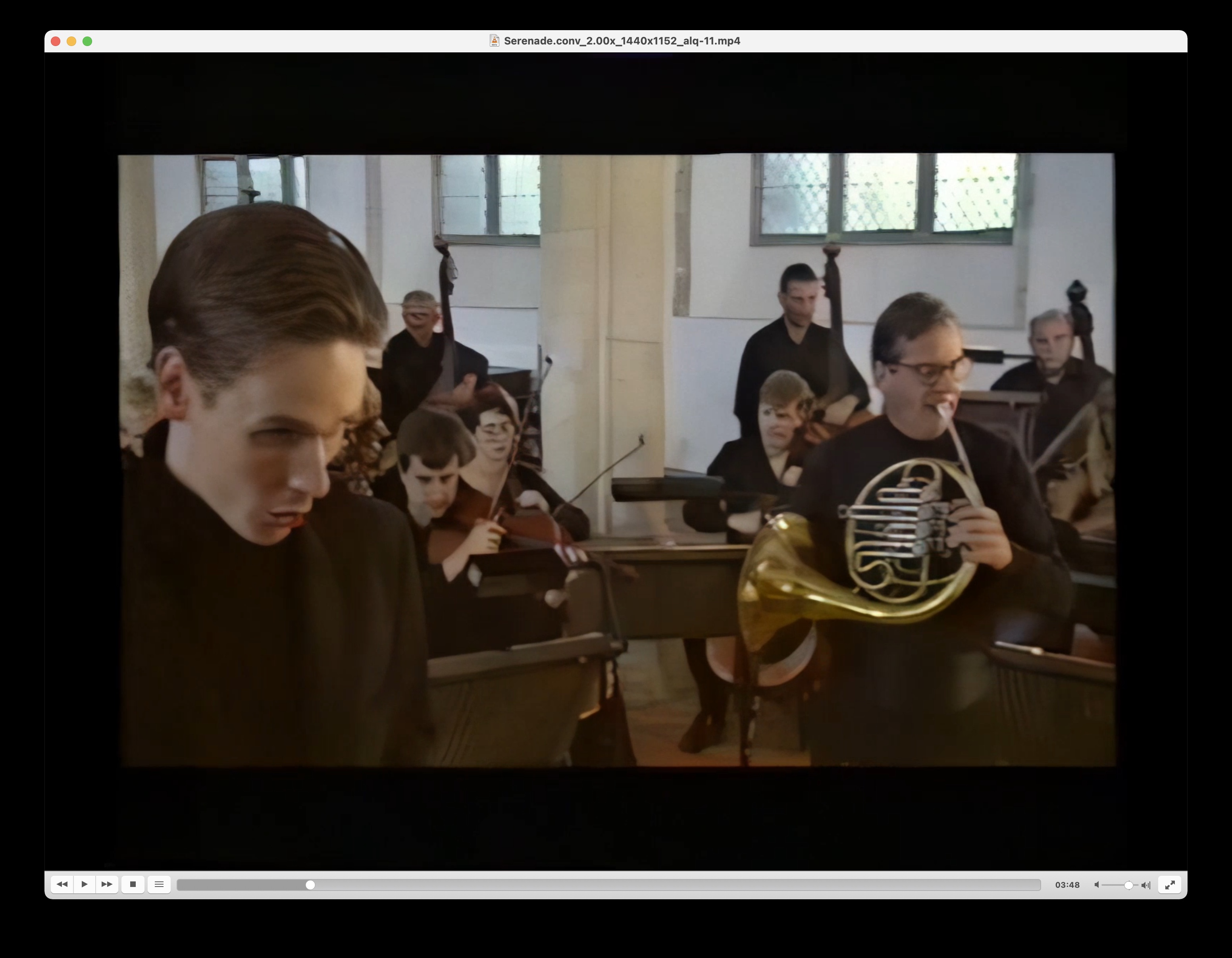
I also processed the file with Artemis MQ, but there was no real difference, and processing time was a lot longer.
What doing that filter Red Giant denoiser III? Auto color correction?
the only workaround I found to fix the red stripes combing is to Deinterleave the footage with FFMPEG (it separates the fields on top and bottom), and then Interleave them (put them back to interlaced), seems like with this trick, the fields are “correct” and I don’t get the red stripes in motion areas…
1 Like
It’s just cosmetics:
With Prores in output format, if you cancel, the popup displays:
Can’t Pause MP4 Output …
Vs (i wish)
Can’t Pause Prores Output …
1 Like
Is de-interleave the same as de-comb? If so, HandBrake de-combs automatically I think.
I mean, in all honesty, seconds per frame is useless. It doesn’t tell you how long the full project will take, and you CERTAINLY aren’t going to change models based on the time rather than the output. So really, why was it even there other than anecdotal information?
1 Like

