I’m not sure about combining enhance and resize. I do a lot of enhance while keeping the original size. So for me having these 2 seperate seems better. I can just keep resize filter off like it is now, and only worry about setting the enhance model. Just my thoughts.
The AI models themselves support only 1x, 2x and 4x upscale.
Is it not possible due to the nature of the program to scale it up to 3x?
When scaling up from 720p to 4K, it is a loss of time to 4x and then use Lanczos to reduce the size of the image.
Is it possible to add a support for Chronos/Apollo to remove duplicate frames? It would be a great to fix old 8mm films this way.
3 Likes
May be later we can add a remove duplicate filter that can be enabled with slomo.
5 Likes
I’m afraid you’ll have to wait that the playback of the preview is fixed.
your healt is what cause the issue (like mine for what you know), not the software itself, and not this bug too, but as you suffer from motion sickness under some circonstances, including this one, i don’t see an another solution to wait that this is fixed.
The team has a to do list of bugs and fixes to do in priority. don’t know where the preview is in this list, certainly close to the beginning of the list if they want at some point release a beta.
when it will be fixed and working properly, i’m sure you’ll know it fast, there will be dozens of message here of users telling “YEAHHHHHHH !”  .
.
Edit : another suggestion : read the change log when an alpha is released if you read this in
- Known issues : Preview sync, play/pause laggings
then, no need for you to try it, that’s mean it’s not fixed, and you’ll certainly experience the same kind of body reaction.
Thank you so much for your answers!
Just hit the pause button. Then you should be able to go back and forth using the other buttons. Is the pause button not working for you?
We will add preview mode option to preferences with loop play, pause on first frame or last processed frame. Hopefully that will stop the motion/flickering issues because of loop playback.
Unfortunately, image scaling works best in multiples of 2.
I don’t think those will be combined, also some users want upscale without enhance.
3 Likes
We will be adding tooltips everywhere so will make sure to add it there or just show a model selector.
1 Like
Thank you. On second look I found out that scale_qsv is included. But finding out everything to get it to work (managing the GPU-choice, all the required pixel formats, hw up- and downloads), took a few hours.
Anyway, here is my command in case someone needs it:
ffmpeg -hwaccel qsv -init_hw_device qsv=intel,child_device=1 -filter_hw_device intel -i input.mp4 -movflags use_metadata_tags -vf veai_up=model=alqs-2:threads=1:scale=2,hwupload=extra_hw_frames=1,scale_qsv=w=7200:h=4861:format=nv12:mode=2 -c:v hevc_qsv -global_quality 2 -preset 3 -c:a copy -o output.mp4
- hwaccel enables QSV hardware decoding (instead of NVenc, frees up some VRAM on the RTX so 2 files can be upscaled simultaniously).
- init_hw_device is needed for the filters, intel is the new “nickname” for child_device 1 (the internal GPU)
- the gpu for filtering has to be set to the previously initiated gpu
- -movflags use_metadata_tags carries over the stereoscopic VR-metadata to the output file
- hwupload uploads the frame to the intel gpu, has to have a fixed size (1 frame)
- scale_qsv scales the frame with hardware acceleration, outputs the frame in nv12 pixel format (doesn’t support yuv422p, but that’s identical in the output file as I read), mode=2 sets a high quality resize algorithm
- if I understand correctly, the frame stays in the VRAM of the Intel GPU, so it can be encoded via QSV right there.
If there are any improvements I didn’t think of, feel free to add! My CPU is still almost maxed out with upscaling one file, but it’s about 5-10% less, so a bit quieter at least.
I tried ProRes in the fastest setting, but that utilizes more of the CPU.
Installer - Data Directory location screen is still missing a button to navigate to the location you want the folder to be. You can only type or paste it in, unlike the Destination screen. Both are shown below.
This one has the button:
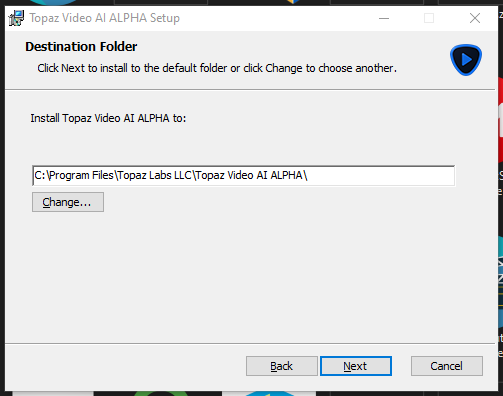
This one does not have the button:
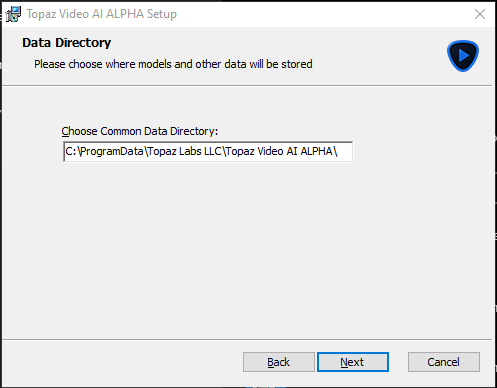
1 Like
Apollo doesn’t seem to run too well on my Nvidia RTX 3070. A video I have which I’m doubling the frame rate of will take around 5hrs converting to H264 using Chronos. I tried the same video with Apollo but after about 2hrs the timer said it still had 13hrs to go.
So, I have a question for others who have an Nvidia card. In Geforce Experience it has an option to optimize compatible apps, and VEAI is one of them. It recognizes the current official model, but not Alpha. Is there any way to change this?
1 Like
about Geforce experience : Go in Parameters / application and Games, and you have the folder you must set up for a scan, so if one is missing you can add other folders.
there isn’t VEAI alpha on it, it’s normal. only the 2.6.4 version.
What optimise do ? it’s only changing the parameters of the software in regards of several reasons, depending of the card and cpu and overall computer, depending of what the software creator told to nvidia what was best in different case scenario etc…
but it’s only changing the preference or parameters or options of the software. it does nothing else. I often saw that on some games, the optimisation was not “good”, I could put the options much more far than what was suggested without loosing any performance. For the Topaz products, if you know what to do in the preference, I don’t think it’s necessary to use it. eventually, it would change the “Device” and switch it to Nvidia Card, instead of All or Auto by default, and maybe setup the Vram switch in regards of the card.
1 Like
The following is my guess of how VEAI works based on previous forum answers, etc. I am not a developer and sorry if I am incorrect.
Example: mpeg(YUV420 8bit) → ProRes422(YUV422 10bit)
VEAI 2.6.4
mpeg(YUV420 8bit) → VEAI(RGB 8bit) → ProRes422(YUV422 10bit)
VEAI’s internal processing is only 8 bits, and outputting more than 10 bits simply padding the output.
VEAI 3.0α
mpeg(YUV420 8bit) → ffmpeg cpu(bgr48le:RGB 16bit) → [VEAI(RGB 16bit)] → ffmpeg cpu(YUV 10bit) → ProRes422(YUV422 10bit)
>’No accelerated colorspace conversion found from yuv420p to bgr48le.’
As per the warning regarding conversion to bgr48le, it is believed to be processed at 16 bits.
Even if the decoding was QSV, the CPU does the color space conversion, so I guess once the color space processing is done on the CPU, it is then transferred to the GPU.
mpeg(YUV420 8bit) ->[ VEAI(bgr48le:RGB 16bit) → VEAI(RGB 16bit) → VEAI(YUV 10bit) ] → ProRes422(YUV422 10bit)
Assuming the above speculation is correct, I would like the developer to consider whether it is possible to increase the transfer efficiency from CPU to GPU by enabling color space conversion within the VEAI filter.
But I don’t know if the cause of the slow conversion is in the transfer or in the conversion itself…
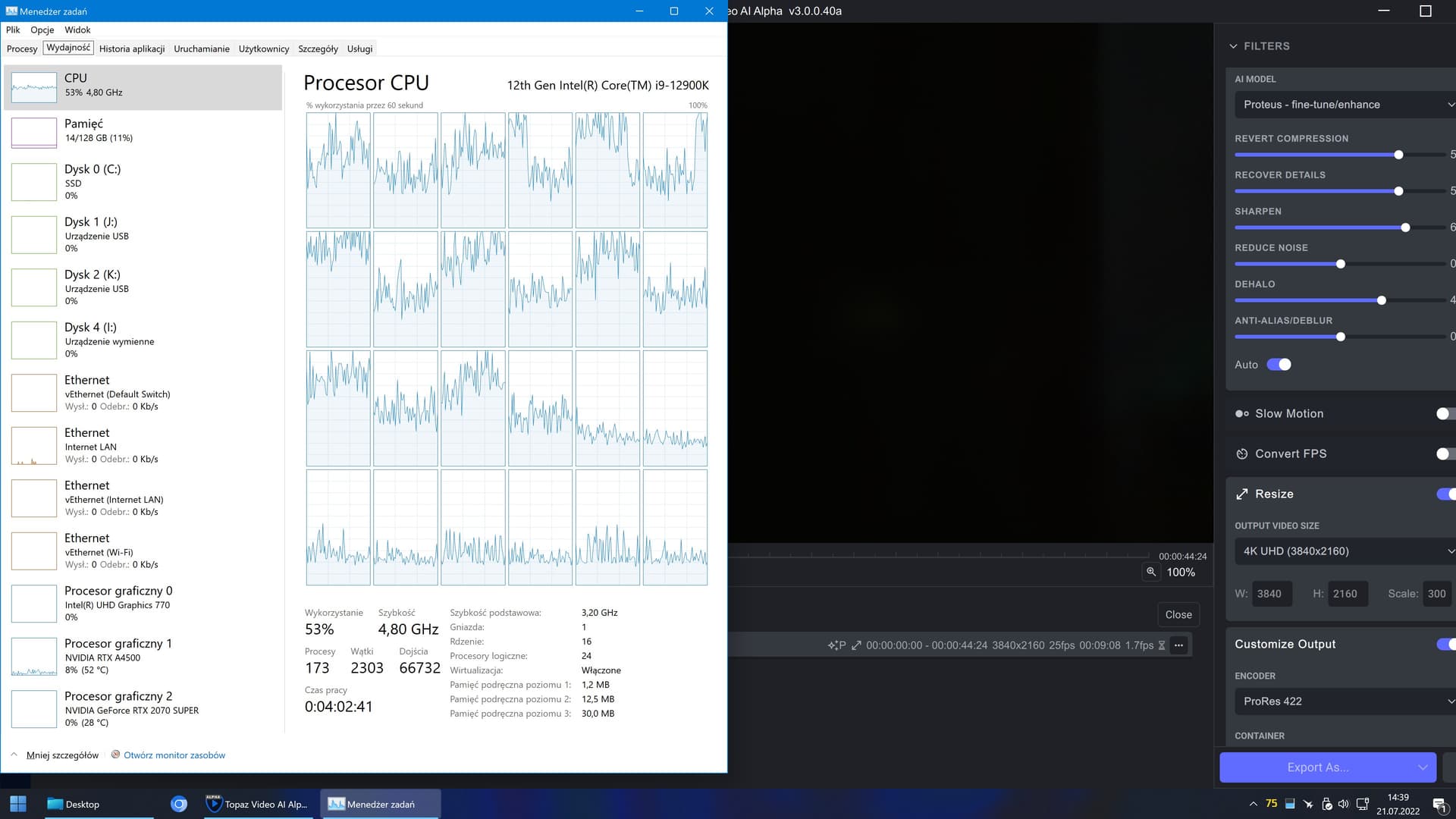
720p to UHD upscale with Proteus enhancements to ProRes codec gives a staggering 1.7 FPS of performance when using AUTO AI Processor / MAX memory / MAX processes and disabled POWER SAVE MODE.
If I selected RTX A4500 as the main AI Processor, the performance dropped to 0.6 FPS.
When can we expect a reasonable date for this app to work as it should? May you please at least recompile the v2.6.4 using the latest Qt6 libraries as you did with Gigapixel AI?
1 Like
I had a similar error
No accelerated colorspace conversion found from yuv420p to bgr48le.
No accelerated colorspace conversion found from yuv420p to bgr48le.
No accelerated colorspace conversion found from yuv420p to bgr48le.
No accelerated colorspace conversion found from yuv420p to bgr48le.
No accelerated colorspace conversion found from yuv420p to bgr48le.
No accelerated colorspace conversion found from yuv420p to bgr48le.
No accelerated colorspace conversion found from yuv420p to bgr48le.
No accelerated colorspace conversion found from yuv420p to bgr48le.
No accelerated colorspace conversion found from yuv420p to bgr48le.
No accelerated colorspace conversion found from yuv420p to bgr48le.
No accelerated colorspace conversion found from yuv420p to bgr48le.
No accelerated colorspace conversion found from yuv420p to bgr48le.
No accelerated colorspace conversion found from yuv420p to bgr48le.
No accelerated colorspace conversion found from yuv420p to bgr48le.
No accelerated colorspace conversion found from yuv420p to bgr48le.
No accelerated colorspace conversion found from yuv420p to bgr48le.
av_interleaved_write_frame(): Invalid argument
Error writing trailer of E://RnS Borgata EX1 CC 4K.mov: Invalid argument
frame=95765 fps=2.5 q=11.0 Lsize=36928266kB time=00:53:15.54 bitrate=94668.3kbits/s speed=0.0841x
Error closing file E://RnS Borgata EX1 CC 4K.mov: Invalid argument
This is specs for file I was working with
General
Complete name : K:\Borgata EX1 CC.mp4
Format : MPEG-4
Format profile : Base Media / Version 2
Codec ID : mp42 (isom/mp42)
File size : 24.6 GiB
Duration : 2 h 4 min
Overall bit rate mode : Variable
Overall bit rate : 28.3 Mb/s
Encoded date : UTC 2022-07-18 23:22:17
Tagged date : UTC 2022-07-18 23:22:17
Video
ID : 1
Format : HEVC
Format/Info : High Efficiency Video Coding
Format profile : Main@L4.1@High
Codec ID : hvc1
Codec ID/Info : High Efficiency Video Coding
Duration : 2 h 4 min
Bit rate : 28.1 Mb/s
Width : 1 920 pixels
Height : 1 080 pixels
Display aspect ratio : 16:9
Frame rate mode : Constant
Frame rate : 29.970 (30000/1001) FPS
Color space : YUV
Chroma subsampling : 4:2:0
Bit depth : 8 bits
Bits/(Pixel*Frame) : 0.452
Stream size : 24.4 GiB (99%)
Language : English
Encoded date : UTC 2022-07-18 23:22:17
Tagged date : UTC 2022-07-18 23:22:17
Color range : Limited
Codec configuration box : hvcC
When it’s out of the Alpha and Beta stages
Hi there:
We creating a python wrapper around Topaz|ffmpeg to run on the windows command line. Similar to->
ffmpeg -hide_banner -strict 2 -hwaccel auto -y -i source_MP4_video -vf veai_up=“threads=2:scale=1:model=ahq-11” -movflags frag_keyframe+empty_moov -c:v prores -profile:v 2 -pix_fmt yuv422p10le -loglevel quiet output_MOV_video
Question:
We wish to run the command line tool in parallel for 5 videos shot with different cameras. We wrap it in our Python tool where we create Python multiprocessing.Pool for 5 tasks, and run starmap_async method of class Pool. For many other our tasks, with starmap_async we really run all the processes in parallel, but when in each process we call ffmpeg command like the given above, we start all 5 processes, but then we switch from one process to another executing only 1 process at any time. So, the final execution time is about equal to 5 sequential calls. Any hint of how to set multiprocessing for a parallel usage of your command line tool would be much appreciated.
Thanks
/Biju
1 Like
This is a very minor request but please make the window state of VEAI persistent. I should only have to maximize it once and then it should open maximized every subsequent time after that unless I change the window size/position (which should also be remembered). I asked for this in the 2.x series and never got it.
Thanks!
