Ah that is great! Thank you for sharing.
1 Like
Can you share a zip of the following;
- Input file
- Exact settings
- TVAI export
Sometimes when exporting a ProRes Export, frames will be missing and we are looking into this, however, I have not seen other reports of more frames being added that I remember at least 
Preview is an ongoing project for us and we are getting closer to perfecting the preview experience. If you are not already in our Beta group and would like to be, please join. We are always looking for users to help us propel the app’s progress through testing.
I agree, that sounds like exactly what is happening here
You’re welcome 
1 Like
If the preview could be fixed, it would’ve by now. I don’t think it can be fixed, which is one of the reasons I’m waiting for this whole V3 thing to be abandoned and Topaz go back to continued V2 development. If Topaz did this one thing, I’d pay to upgrade, without any hesitation.
Yes! Progress! Thanks! I converted it to square pixels, the image and AR didn’t change and that made it 640x480. Then I reimported it to VAI, and did a upscale to 4K and convert to 60fps. I understand it might be better to do that in more steps but the main thing is to get the AR correct. The result IS 3840x2160 but with black side bars. Again, I can use Premiere to get rid of the side bars but I would like to be able to do it in VAI. So I imported that into VAI and to my surprise (and delight), the red box is actually 16.9 visually, but it includes the side bars. So, I reduced the red box to not include the side bars, but I adjusted the height to keep the AR 1.78 (apparently there is no scale feature in VAI?). I exported that and visually it is 1.78AR without the side bars. However, Media Info (and Premiere) report the size as 2876x1616 which is what I had to make the red box. But if I import that and upscale to 3840x2160, the result is exactly what I want! 1.78AR with no side bars. So yes, the non-square pixels are the problem. Can you tell me the sequence of conversions I should make to get it where I want? I’m not sure I’m cropping correctly.
1 Like
- MOV uncompressed
- res. original, 23,98 to 60, Apollo8
- ProRes422 HQ
The original file and the resulting one sent to dropbox.
It certainly can be fixed I understand how frustrating issues like this can be for our users, however, the things that take time are often the most complex and will require additional time to iron out.
We will not be returning to the v2 series as there are significant issues with this series and the code base will not allow us to add the features that have been added to the v3.x series.
1 Like
Thank you! This does appear to be connected with the known issue with ProRes outputs  If you disable Preview during export under the preferences menu, do you still run into this issue?
Oh I’m the worst person to ask for that. Any cropping I need to do, I do in IrfanView. That means my video needs to be in PNG images and finding the correct crop is by trial error then math.
But I think you can do it all in TVAI:

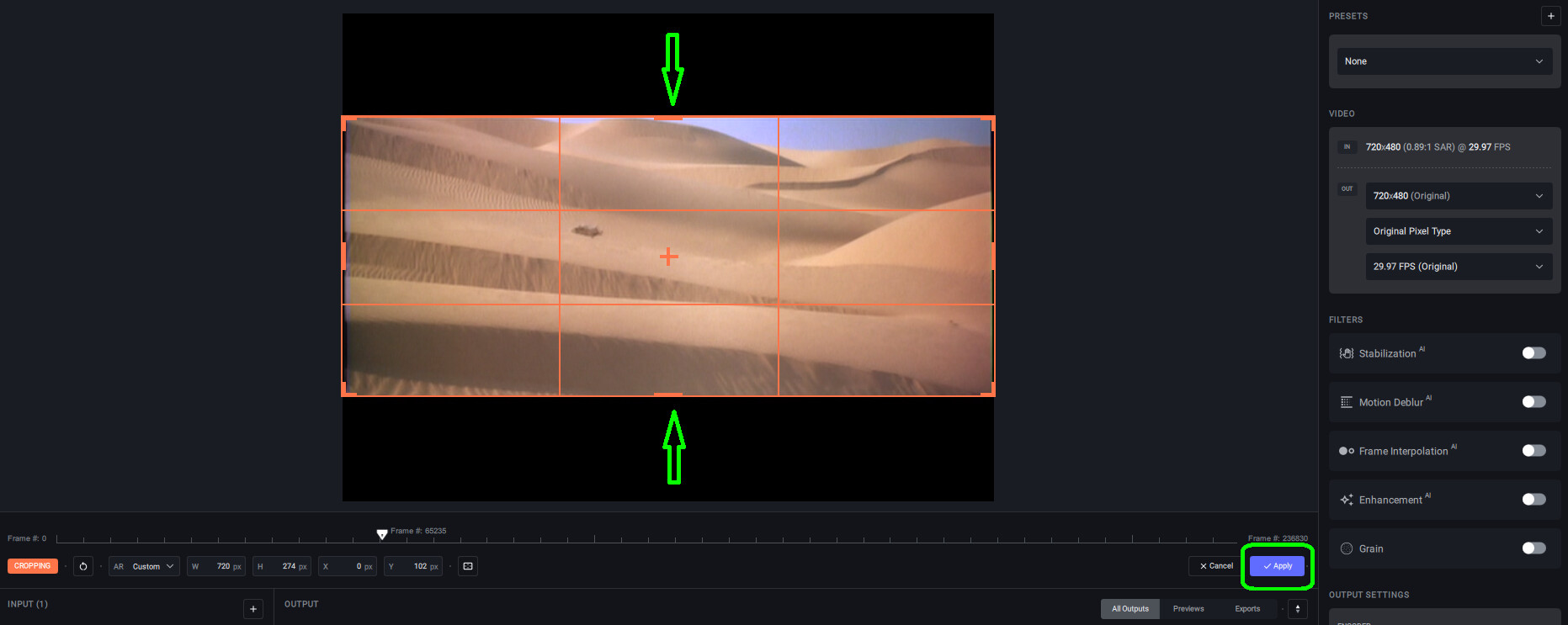
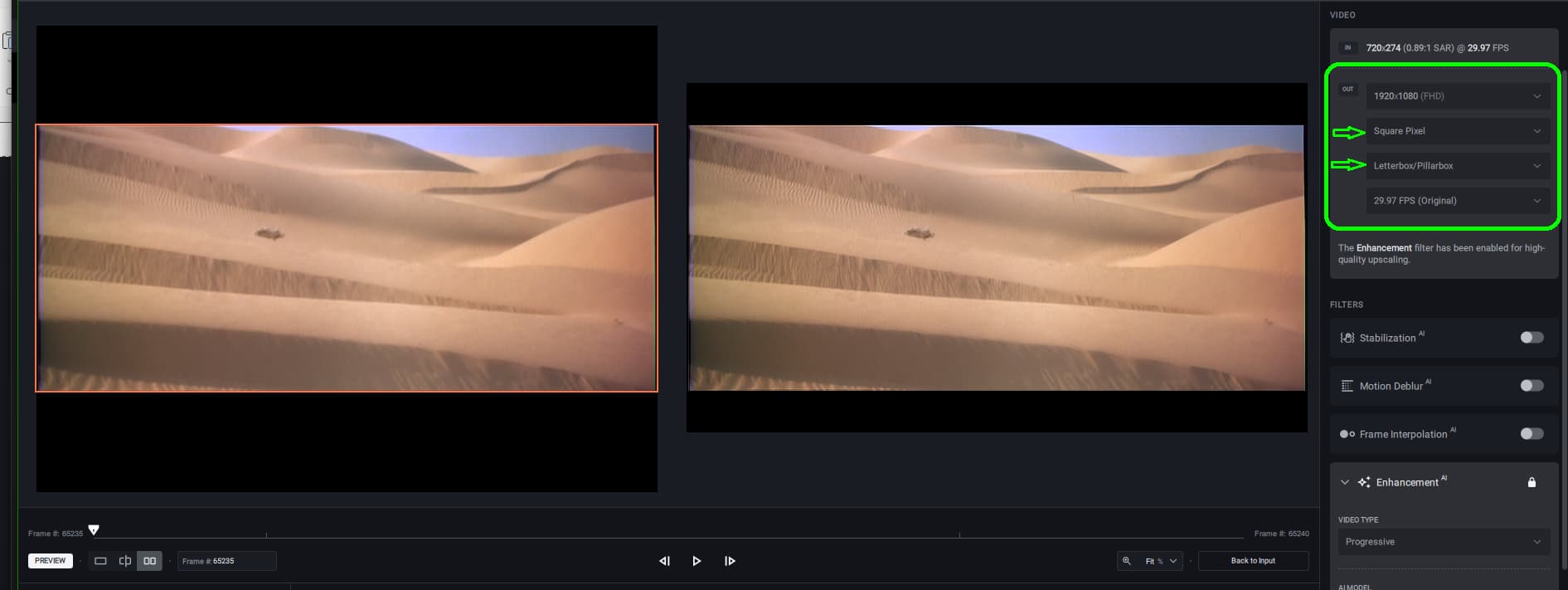
This is using a DVD I have that is in Full screen, but widescreen. The only way to get rid of the side bars is to crop it. (Or buy a full screen TV har har. [Fake laughing])
Normally I will run this through ffmpeg with -r set to the reported frame rate in Media Info first. This is to unDVD it. Gets rid of duplicate frames. Does not always work on all sources. I think you said something about it being interlaced. If you can have whatever you use to deinterlace it change it to square pixels, that might be best.
(Looking at those screen shots, is there a color shift? I’d probably modify the generated ffmpeg command to do the colorspace conversion more correctly. Is not working with digital video fun? The more issues you solve, the more issues you find.)
Without preview outfile is good.
1 Like
As I was hoping, this has turned out to be really simple. First step is to convert the 720x480 to square pixels, no other changes at this point (that made the entire difference so a special thanks to Serious). The output becomes 640x480. Import that into VAI and everything can be done in one step! Select “Upscale to 4k and convert to 60 fps”, Output becomes 3840x2160, select Apollo, Video Type=interlaced, Dione DV 2x FPS, H264 High, mp4. Click Crop button, change custom to 16:9, adjust the red box to the desired vertical position (the red box width is set correctly and cannot be changed). Click Apply (the crop). Click Export. The output is 3048x2160p 1.78AR and no sidebars. Hoorah! I tried the ProRes Encoder but it does not work. I don’t know the “best” settings but these aren’t bad and the new version is better than the original so I’m not complaining. I assume Apollo is better than Chronos and Fast is quicker but not better. Thanks for all the help, this was driving me nuts! 
1 Like
I just found out that Video AI started to output wrong video resolution a few versions ago, for example, if I pass in a 3840x2160 source, even if nothing is done, the output result will be interpreted as 3840x2176 (h265 Nvidia) by some players, but The actual content and meta information are still 2160.
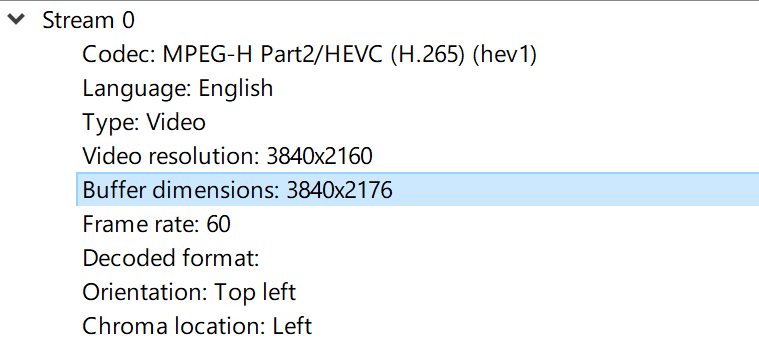
Looks like just some player wrong display buffer dimensions.
1 Like
Just wondering why the CPU usage is so extremly high with the latest releases - It maxes out my i9-12900K with the RTX 4090 basically “idle” at ~55% load.
Does not matter if I set it to 1 or 4 processes in the settings.
Have calculations shifted towards CPU with the newer Releases?
Is there something I can optimize on my end?
Ever since a recent fix for color correction, the processing is more balanced when enhancement filters are used. This is the reason for the high CPU usage.
Sorry if this seems a dumb question but what does Max Processes mean or actually do? I am not sure if putting it on 1 or 4 makes a difference so I’ve kept it on 4 for the time being.
Does it mean it speeds things up or 4 videos at a time? Thanks.
It’s max simultaneous processes. The performance drops for each additional process proportionately so I always keep it set at 1.
1 Like
Not a dumb question at all! You can see our full documentation here.
Max processes control how many files you can process in parallel at one time. If you have 10 files queued up to process and you have 2 selected for max processes, 2 files at a time will be processed.
1 Like
