yes.
(at least 5 charackters for posting)
yes.
(at least 5 charackters for posting)
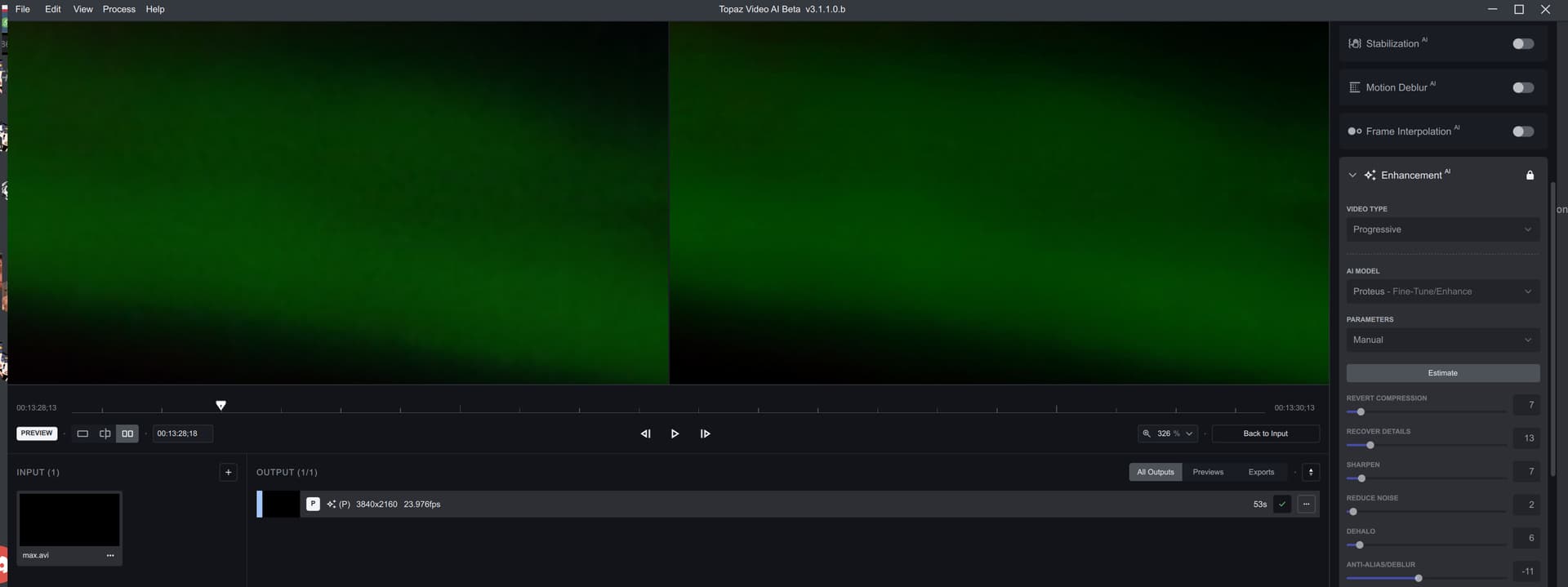
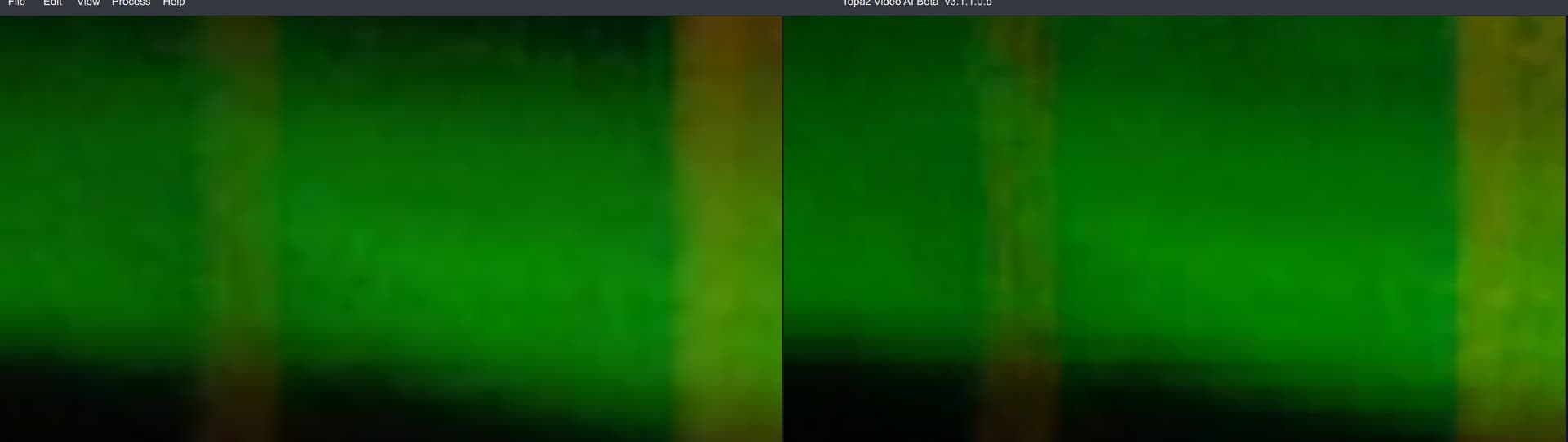
Will 3.x Proteus ever work properly? Look at this light beam (see below). TVAI completely ruins it, and turns it into some weird stretched macro-blocking weirdness (less noticeable here, btw, as the forum reduces the image in size):
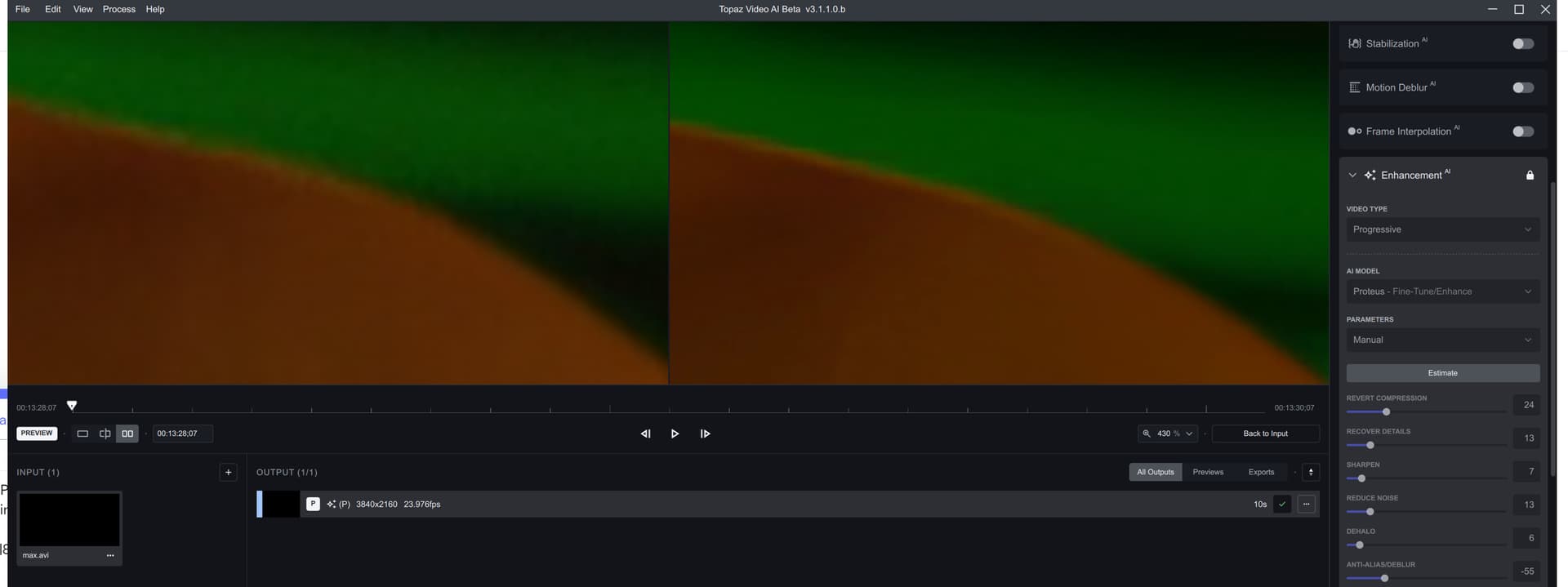
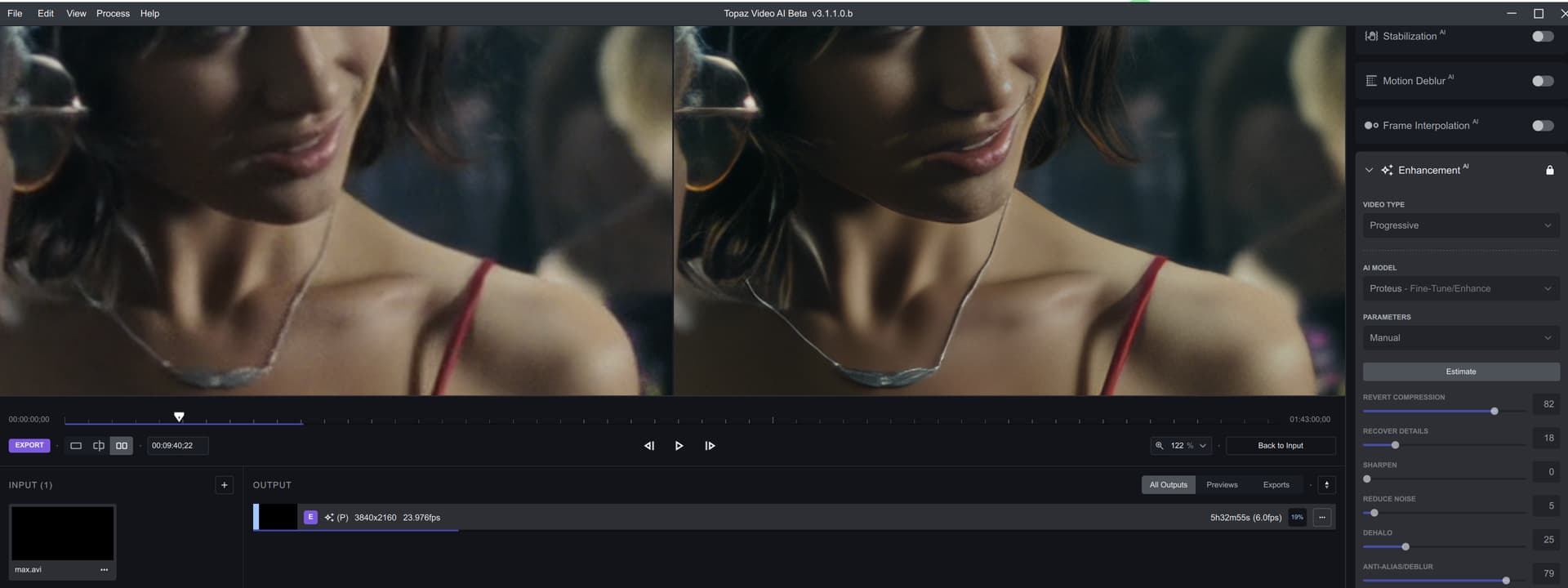
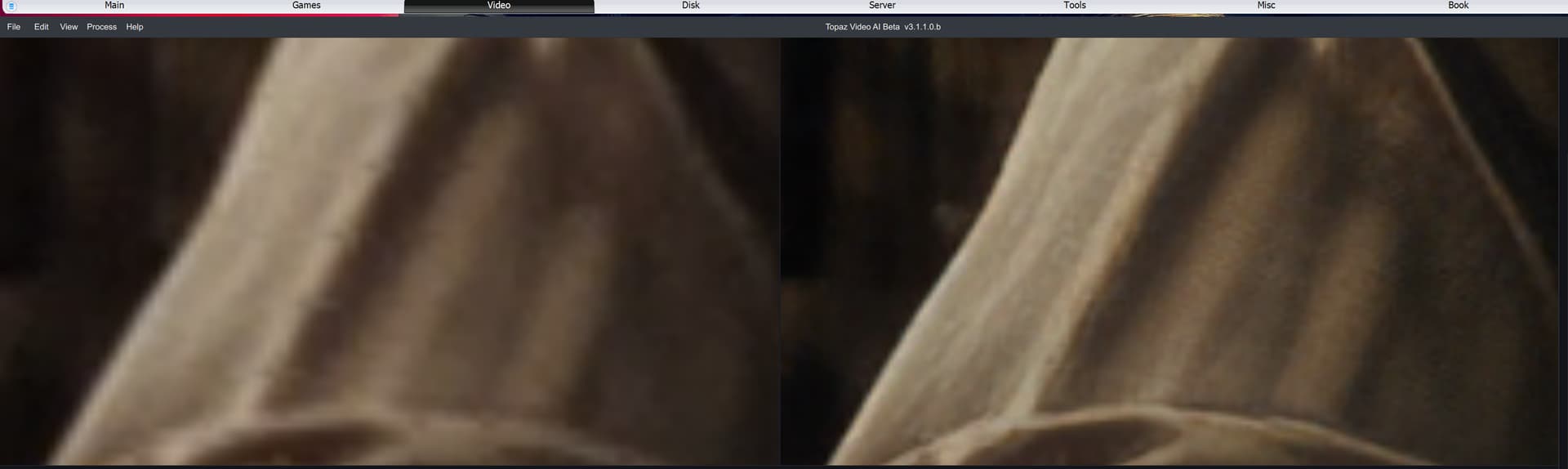
And look at the top of her shoulder:
See all those blocky stripes? Tried to fiddle with all settings, but nothing seems to improve it.  If you look at the left side of her shoulder, you can also notice TVAI has applied some odd dithering/color banding.
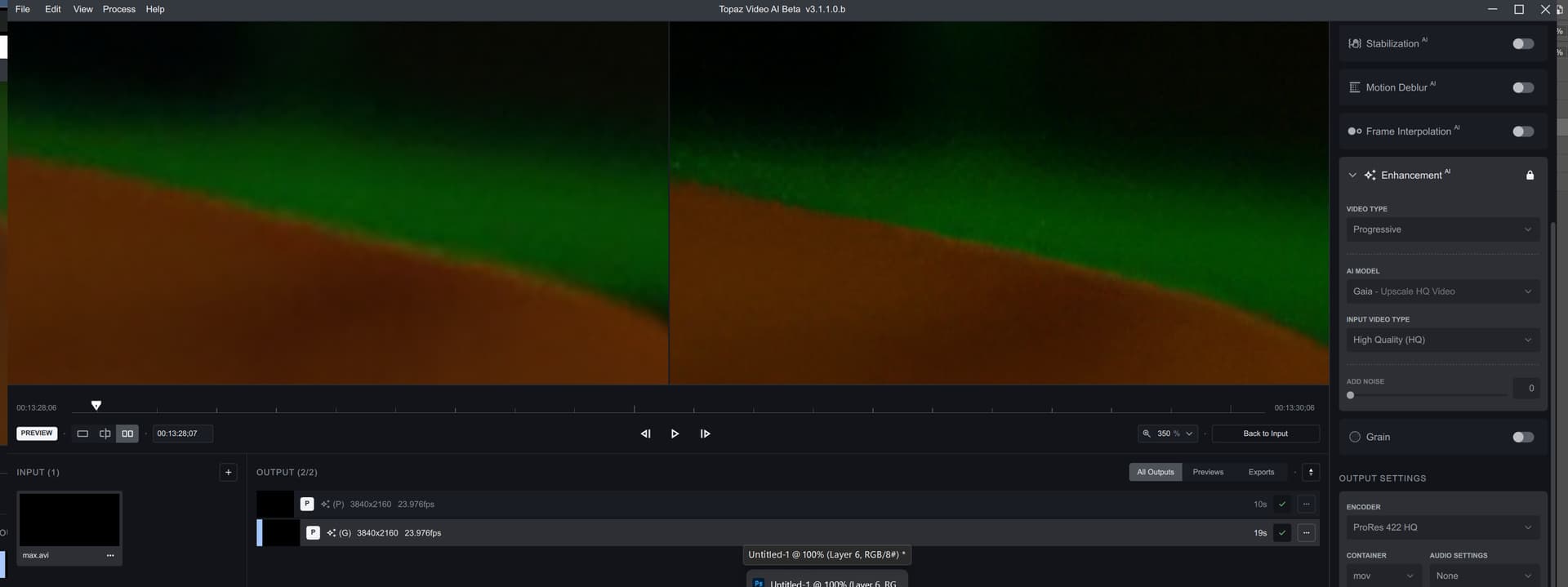
Gaia, at least, doesnt have the odd stripes, but comes with its own artifacting:
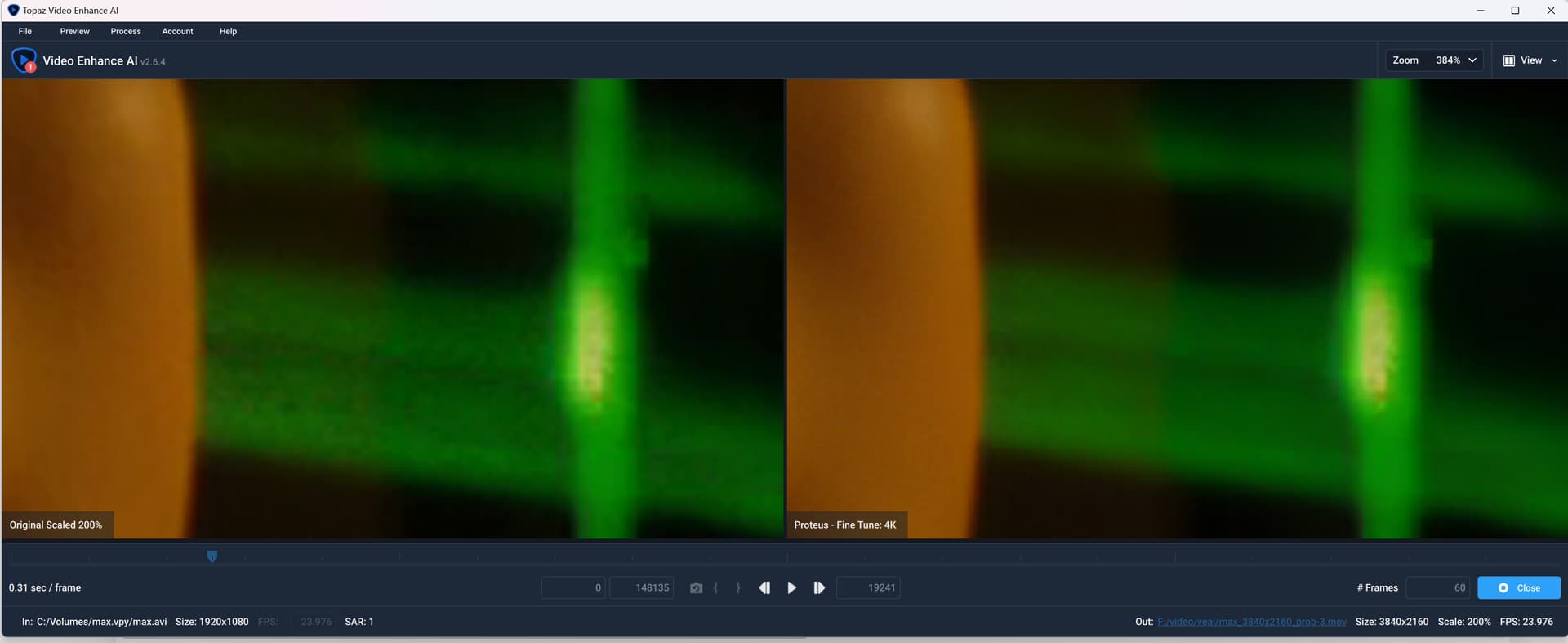
v2.6.4, as always, it seems, does a much better job:
And take a gander at this:
This is compression along with noise.
Try increasing the compression slider to reduce the compression.
Between quality and loss of detail you always have to find a corridor.
That’s why I always work with as much lossless data as possible in photography, so that I don’t have a problem with loss of detail due to compression.
Of course, this has the disadvantage that you need hardware with a lot of power.
Of course, you can also add grain to hide the compression.
Already did that.  (almost to the max). I also added a Deblock_QED to the pre-pass filter, but to no avail.
I use TVAI to upscale my Blu-Ray collection. So, have little say in the source material, sadly.
Also, as I mentioned, v2.6.4 does not have this problem, and smoothes out the laser beam just fine (see above).
what is your output format?
ProRes 422 HQ (as always).
Eh, I forgot something.
The beginning of the preview is always bad because TVAI has no frames before the point you are looking at.
This means that if you want to see the result of what you set, you have to play the video once (like two or 3 seconds), otherwise it won’t work.
When you adjust the video, you have to do the same thing.
Never look at the first frame.
with recent release and/or this beta, what is the opinion on performance gains going from something like a 2080 ti to a 4080 or 4090? Trying to make a decision on upgrading…
I know this. But good tip, regardless. Sadly, as you can see, TVAI makes things considerably worse (in this case).
Also, the dithering/color banding on her shoulder is bothering me. Why on earth would TVAI do that? Almost like it thinks it needs to output to 8-bit or something (or 4-bit, almost). The ProRes extra bit-depth (as opposed to the 8-bit input from the Blu-Ray) should ere give it extra room to deal with gradients much better.
I was wondering if you could get a better result by changing the settings.
I rely more and more on the automatic of topazlabs but never without checking it.
Relative to auto works quite well, even with my extremely poor test material.
And of course you have to consider the viewing distance.
Look at this thread, all you want to know, but read all posts.
If you consider that you might want to do something else besides TVAI, then you need a CPU with more cores and a bigger GPU.
Meanwhile I prefer Proteus Relative to Auto with slightly adjusting some of the parameters.
I realize also that processing speed to upscale 1.33x is only 50% compared to upscaling 2x ( independant from original size of input)
The speed always depends on the tile size that TVAI uses.
So the speed of a vertical video can be slower than the speed of a horizontal video even though the resolution is the same.
I read that people are complaining about the performance of the 10XX cards from Nvidia.
It would be interesting to have a look at a logfile to see if the models are loaded multiple times and executed one after the other as I suspect with AMD.
I tried them every which way I could. But alas.
N.B. Fiddling with the settings yielded some interesting results, though. For instance, I decided to go apeshit on AA (way above what is normally advised). The result is a remarkably crisp image; but what’s truly remarkable about it, is that such a de facto stark sharpening performs antialiasing in the traditional sense of the term too (as in removing zig-zaggies).
Looks like I still have to learn on what the Proteus sliders actually do (as opposed to what I intuitively think they do). I mean, look at the necklace alone!
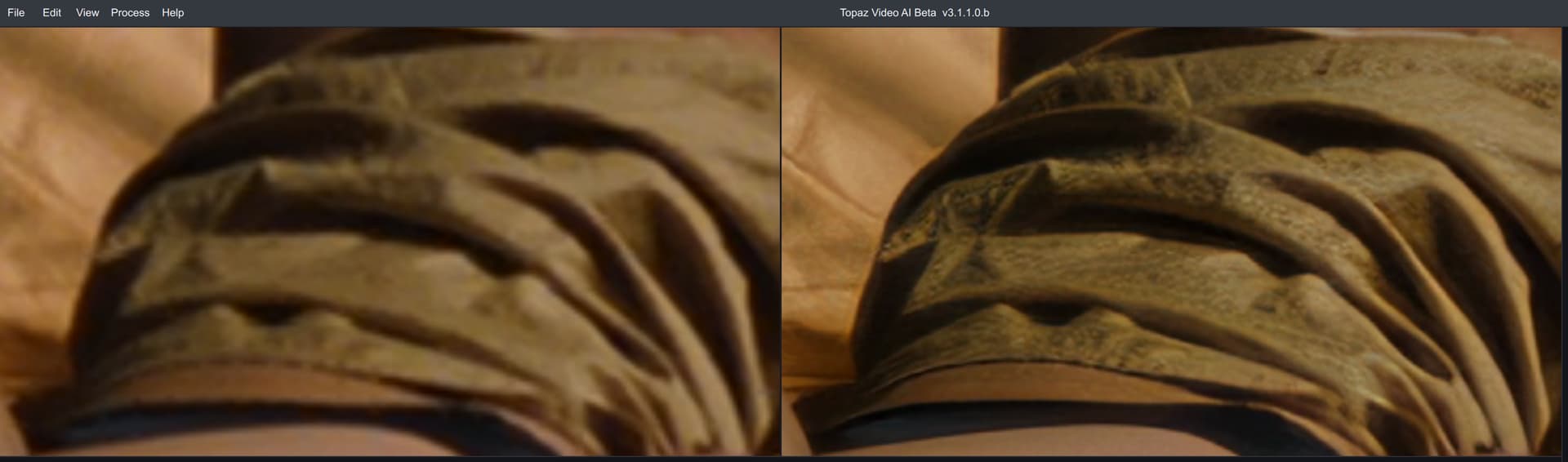
Now watch this!
The recovery on those bed sheets is astounding!
Meanwhile I prefer ‘Estimate’, and then adjust from there. ‘Relative to Auto’ just sets all sliders in the middle.
Speaking of which, in full zoom, I accidentally stumbled upon a frame that suggests this film might have been the result of bad de-interlacing (by the producer). Look at the typical bad de-interlace stripes in the left image:
Source is Progressive; but the signs are there.
Relative to Auto is more advanced than that, it manages what it thinks is best for the image and then leaves the slider in the middle to adjust the percentage. If for example it estimates Sharpen at 60%, the cursor will be in the middle but at 60% anyway, if you put it on 25% (that you lower the cursor in the middle left, it gives you 50% of this 60%. and auto and relative to auto manage each image differently not as manual
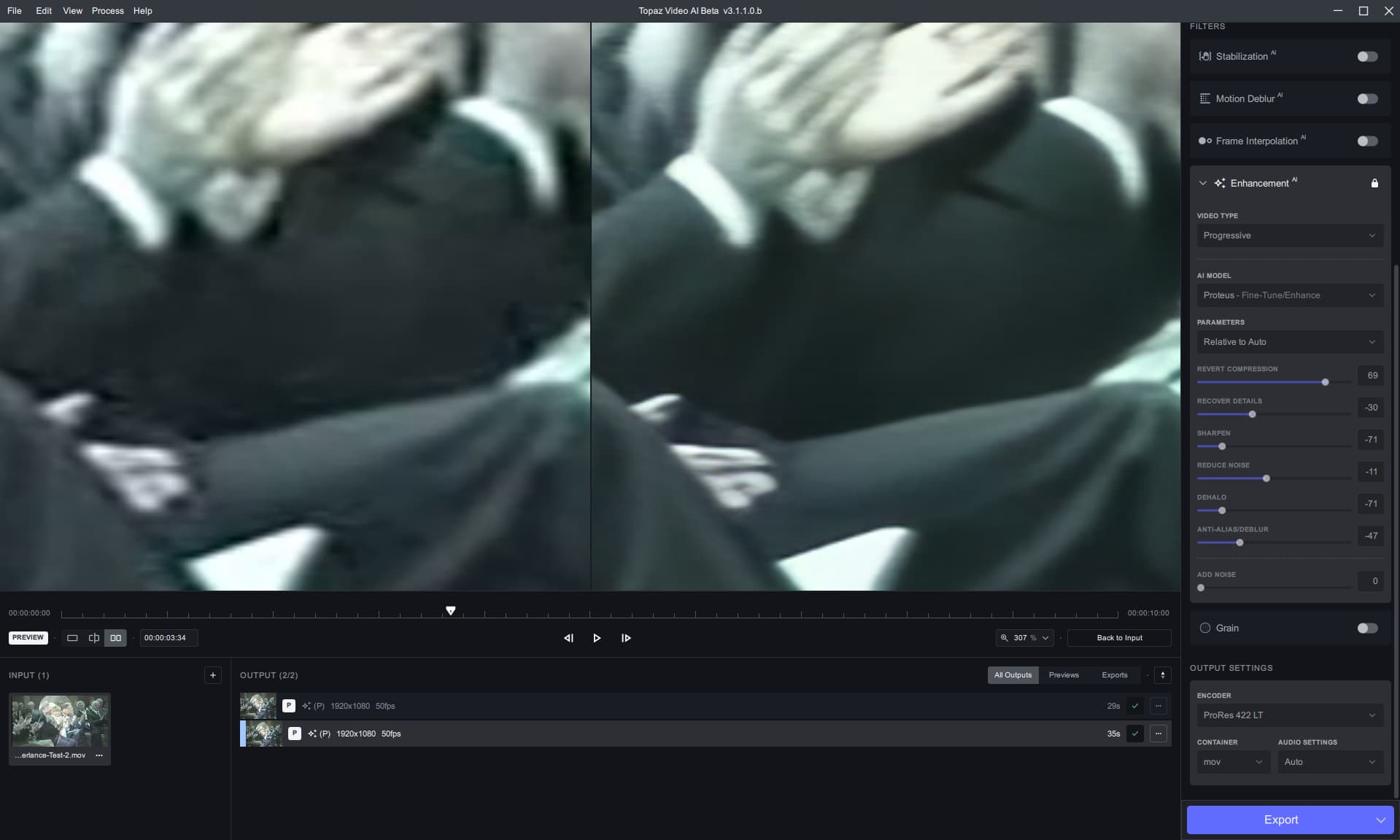
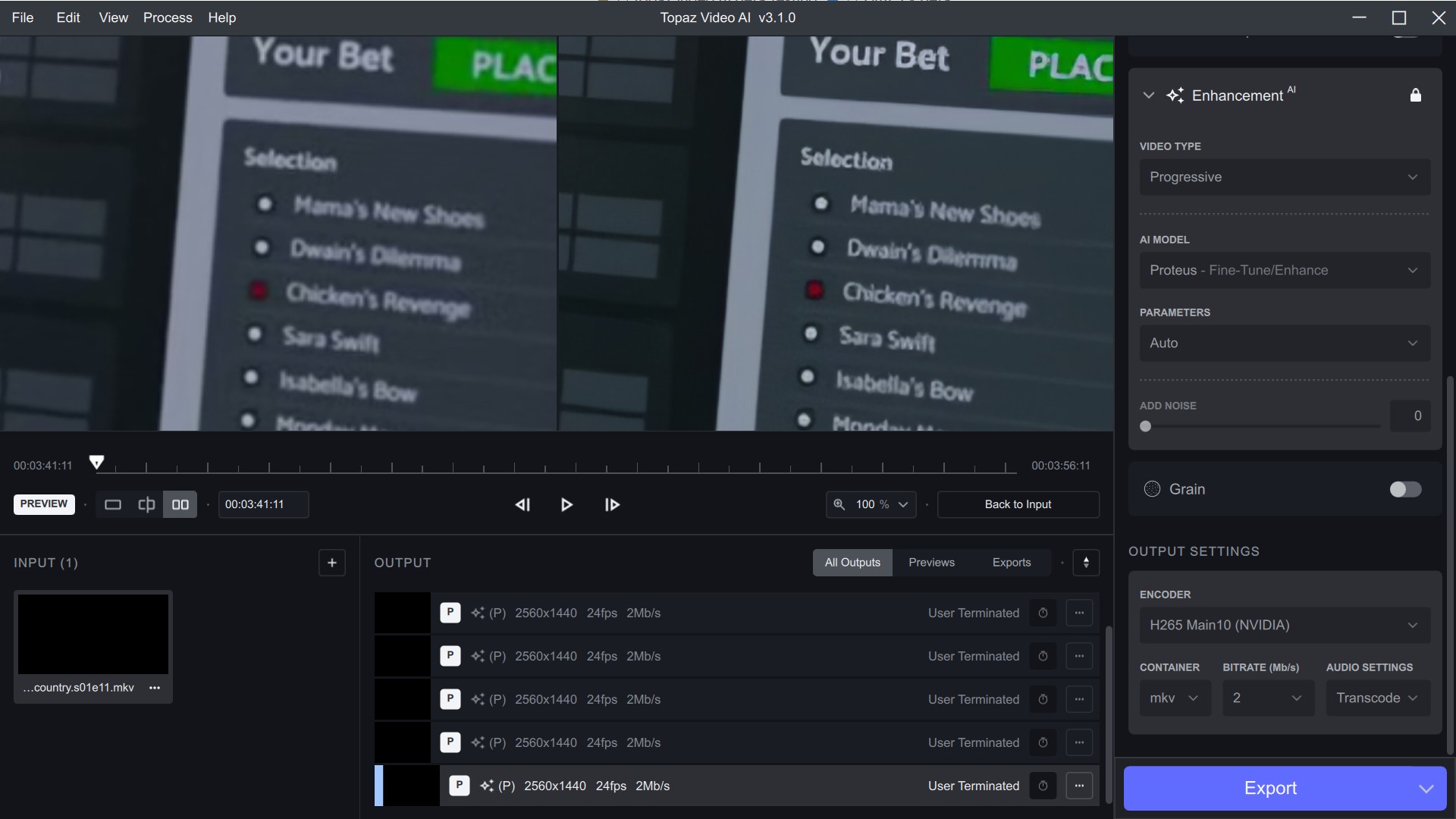
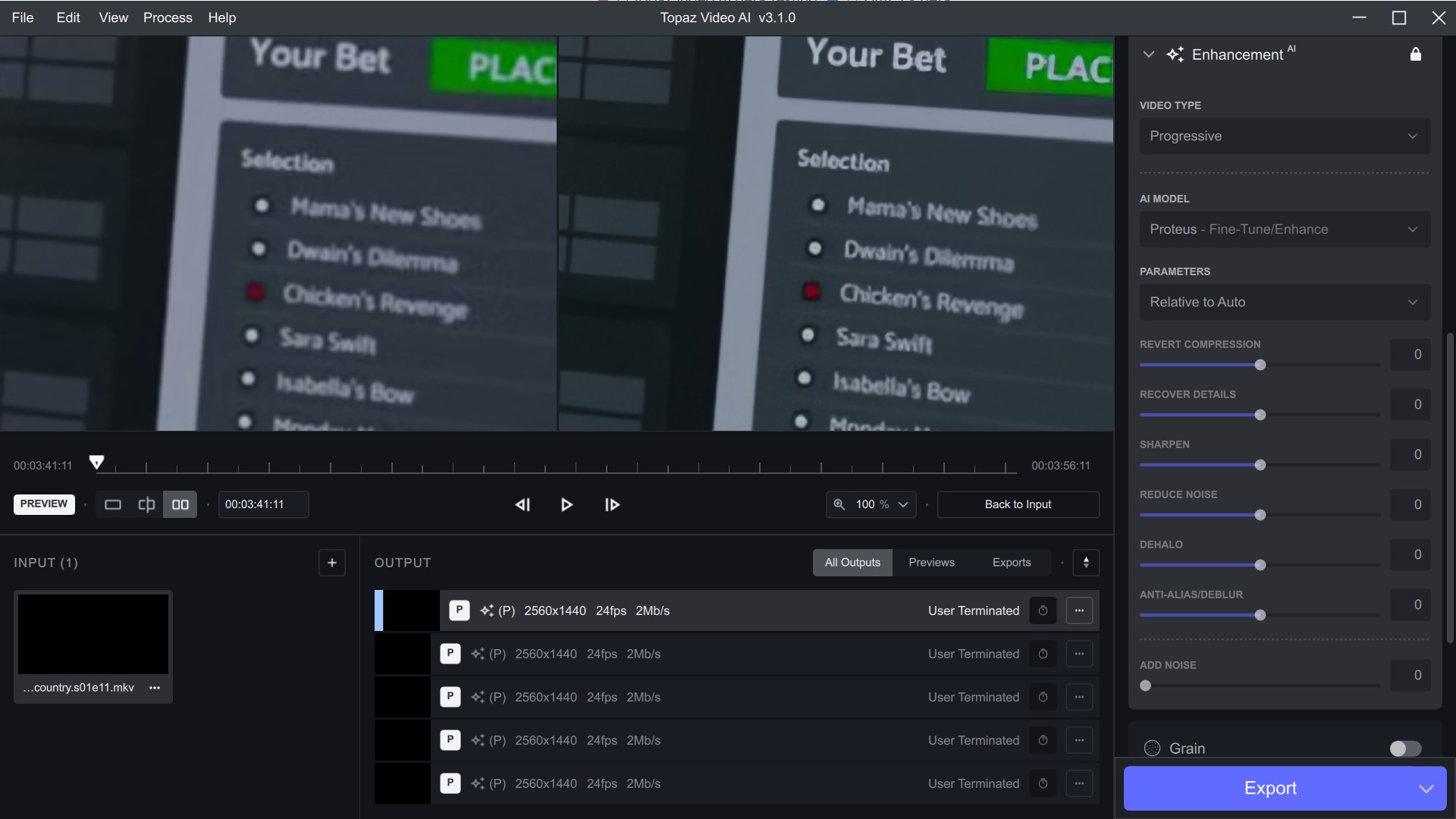
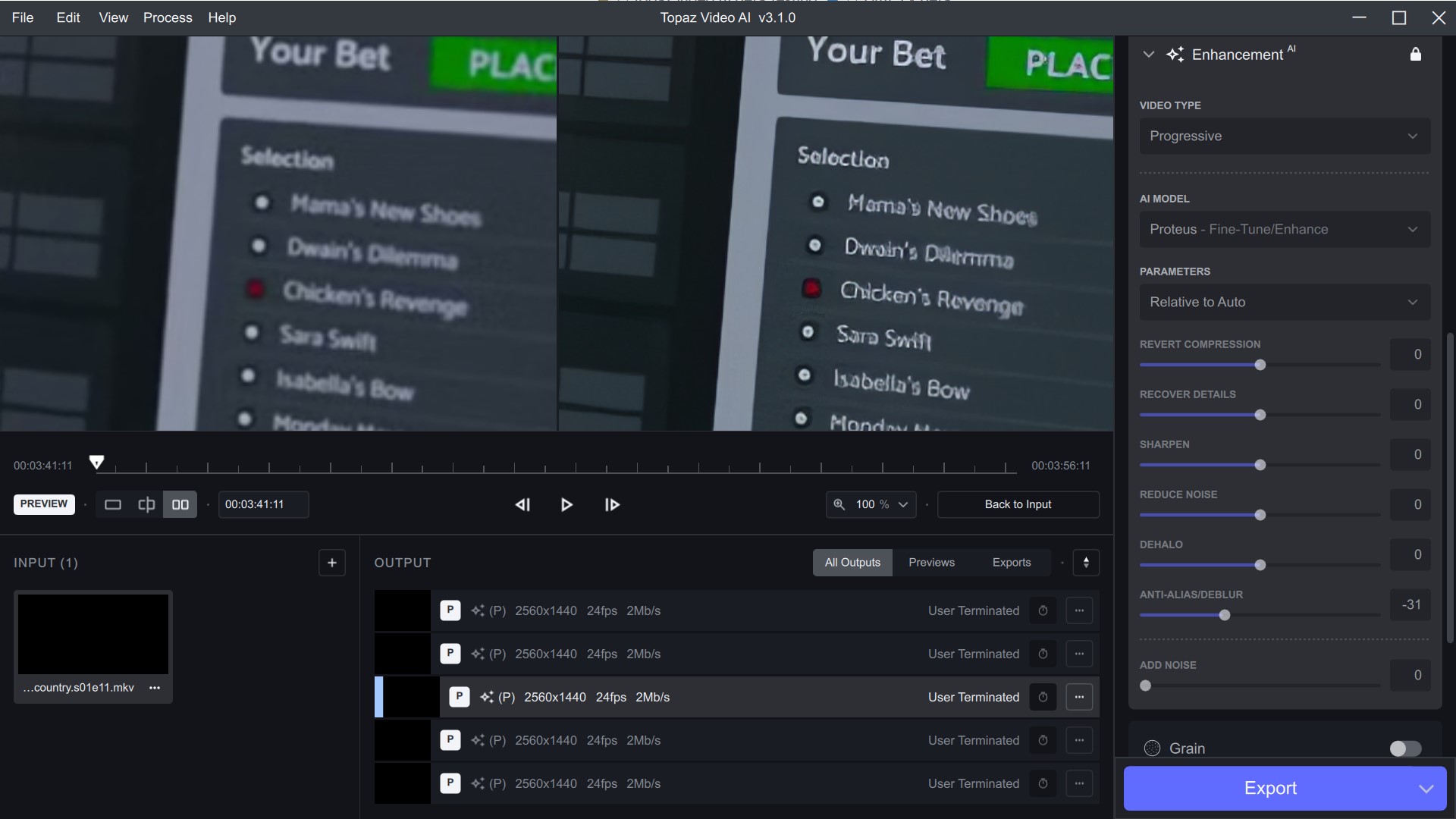
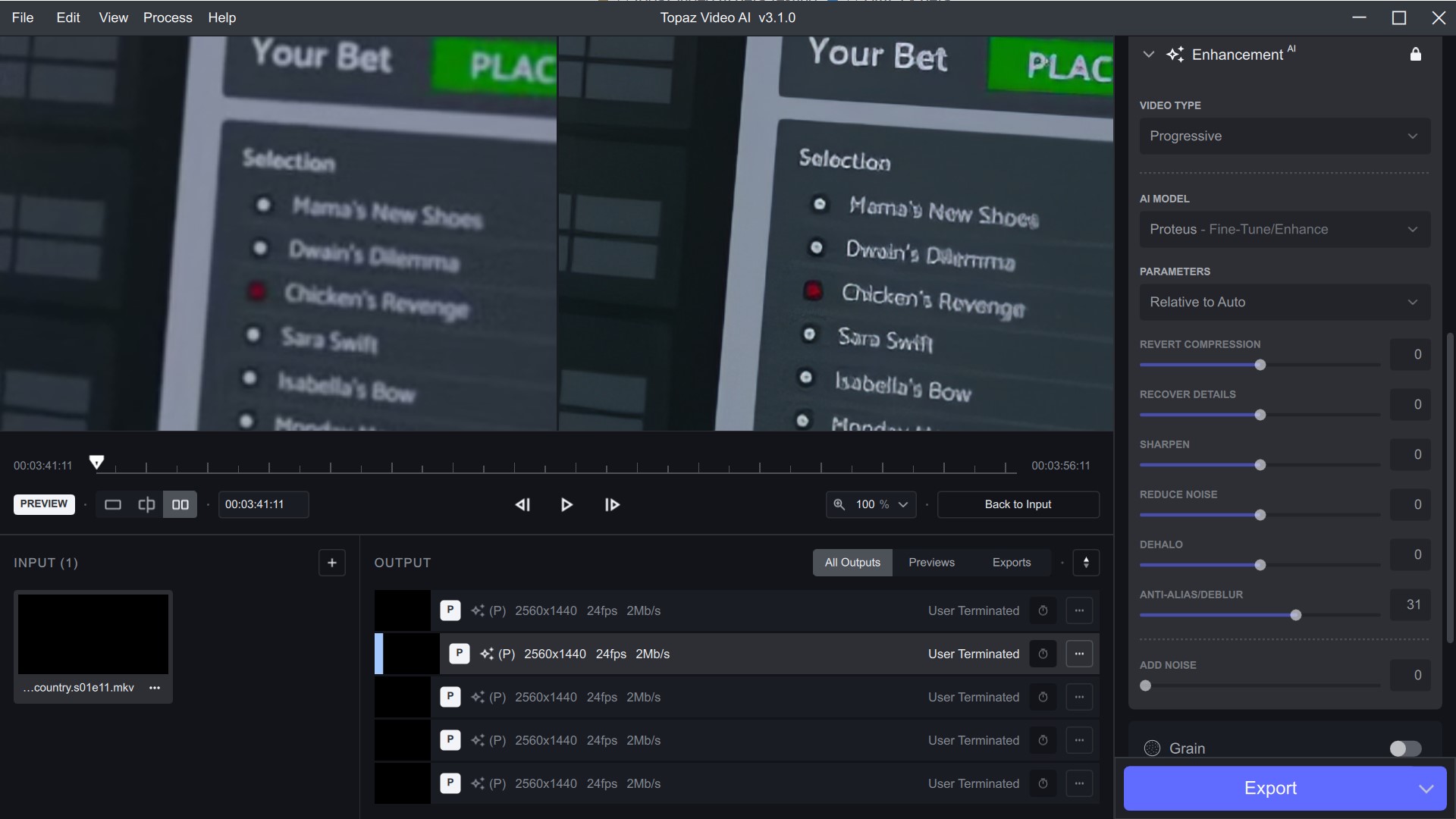
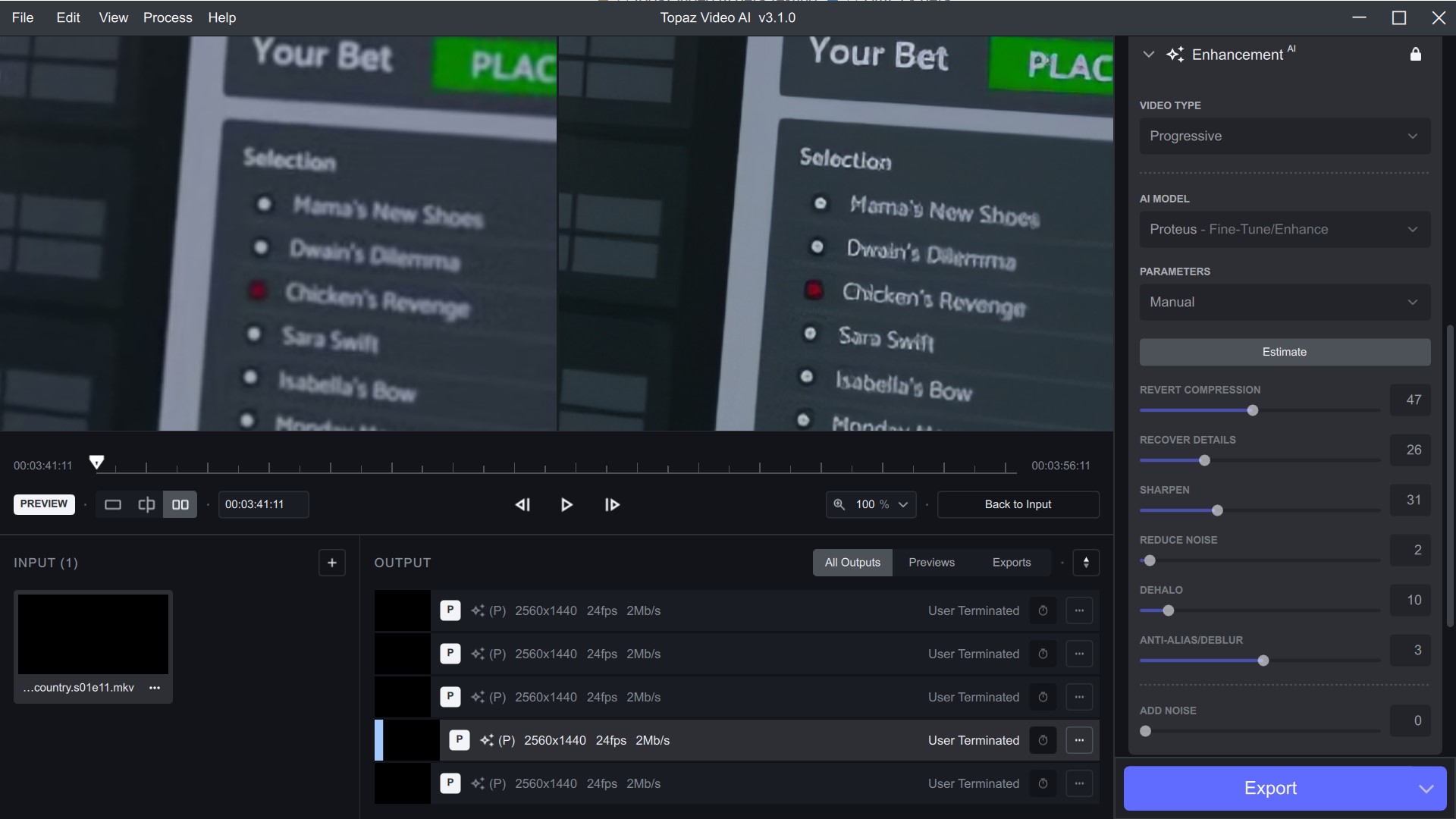
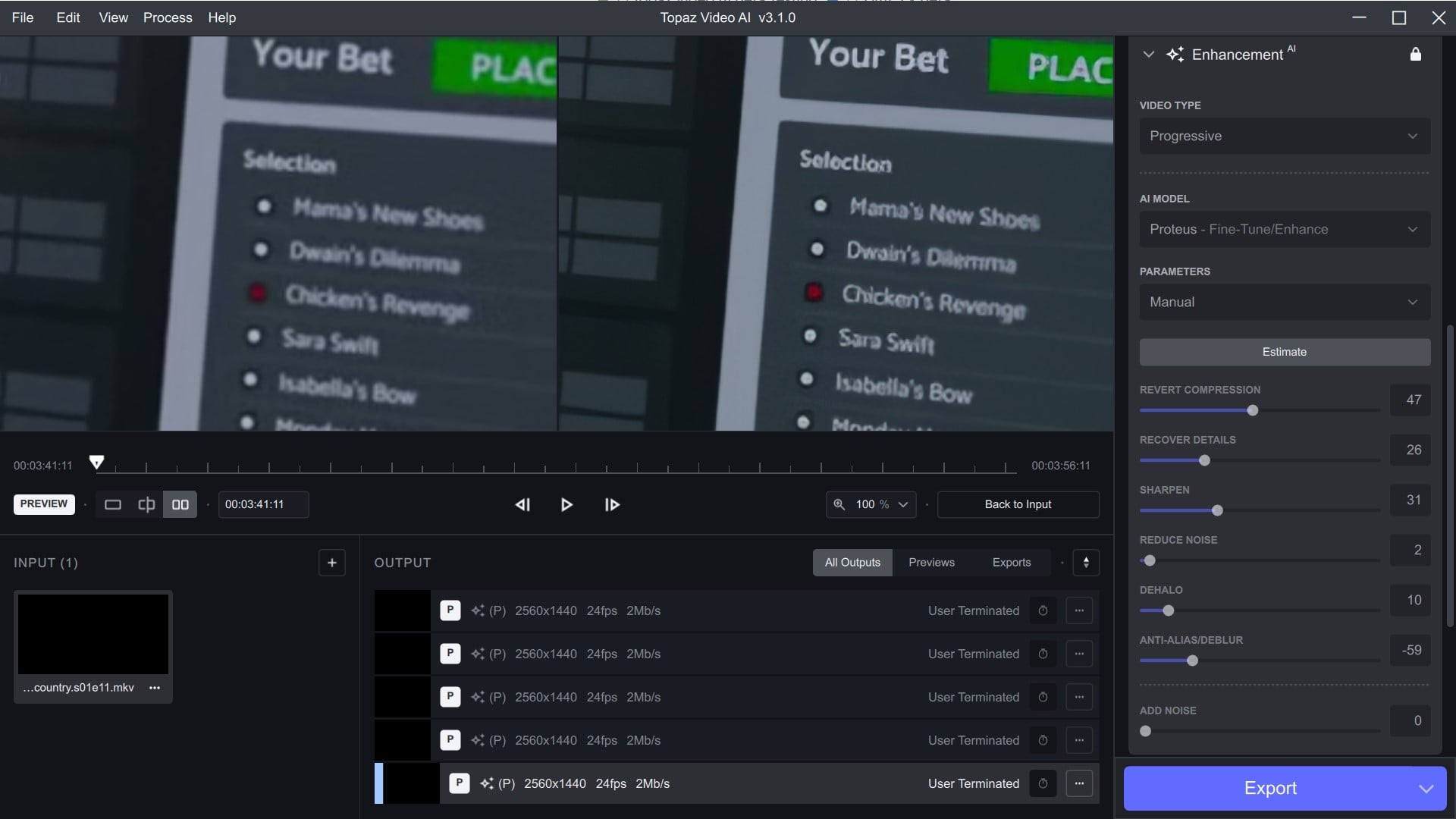
Ok I’m going to show this again, Relative to Auto, AntiAlias/DeBlur issue that has been here since Relative to Auto first started.
If you place a negative value for AntiAlias/Deblur you are actually placing a positive value as the parameter. That seems to be the way TVAI is interpreting this input.
The Relative to Auto if you don’t change a value is using the Auto values also which makes perfect sense. It is not a zero for the parameter. It is Auto with a percentage difference when adjusted. Again this is true for every setting but AntiAlias/Deblur. Relative to Auto doesn’t seem to know how to deal with negative values For AntiAlias/DeBlur.
Here are a series of different settings using Proteus.
Okay, now I get it. I thought it just lamely put everything in the middle.
EDIT:
So, ‘relative to auto’ effectively is starting the settings at what I’ve been doing with Manual → Estimate? (But with more conveniently placed sliders)