Hi All,
The team has worked on a few great updates and improvements!
See more details below:
1.7.1 Downloads
Windows | Mac
Please note, with Neuroserver, DMG versions are no longer available.
Improvements and Fixes
Features
- SDR-HDR: Hyperion 2.5
- Topaz Panel Update
- Model Manager Update
- First Start Neuroserver Model Manager
- Stabilization Preview: Disable Option
- Extra Metadata: Settings and Export
- Add Watermark to Exports
- Hardware Decode Options
Bug fixes:
- Encoding/decoding errors
- Thumbnail artifacts with .mov sources
- LUT issue
- Starlight Precise 2.6 processing speed fix
SDR-HDR: Hyperion 2.5
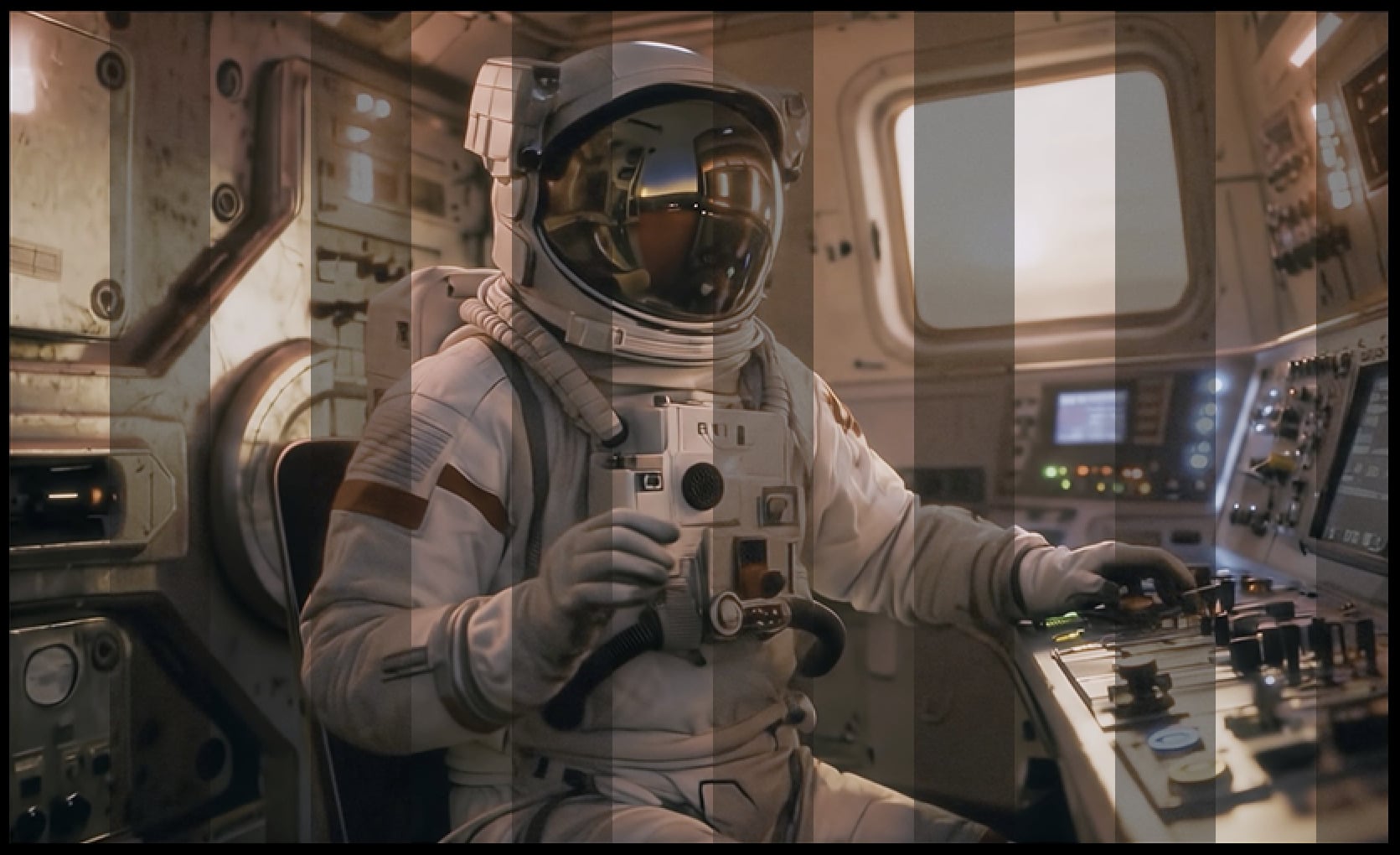
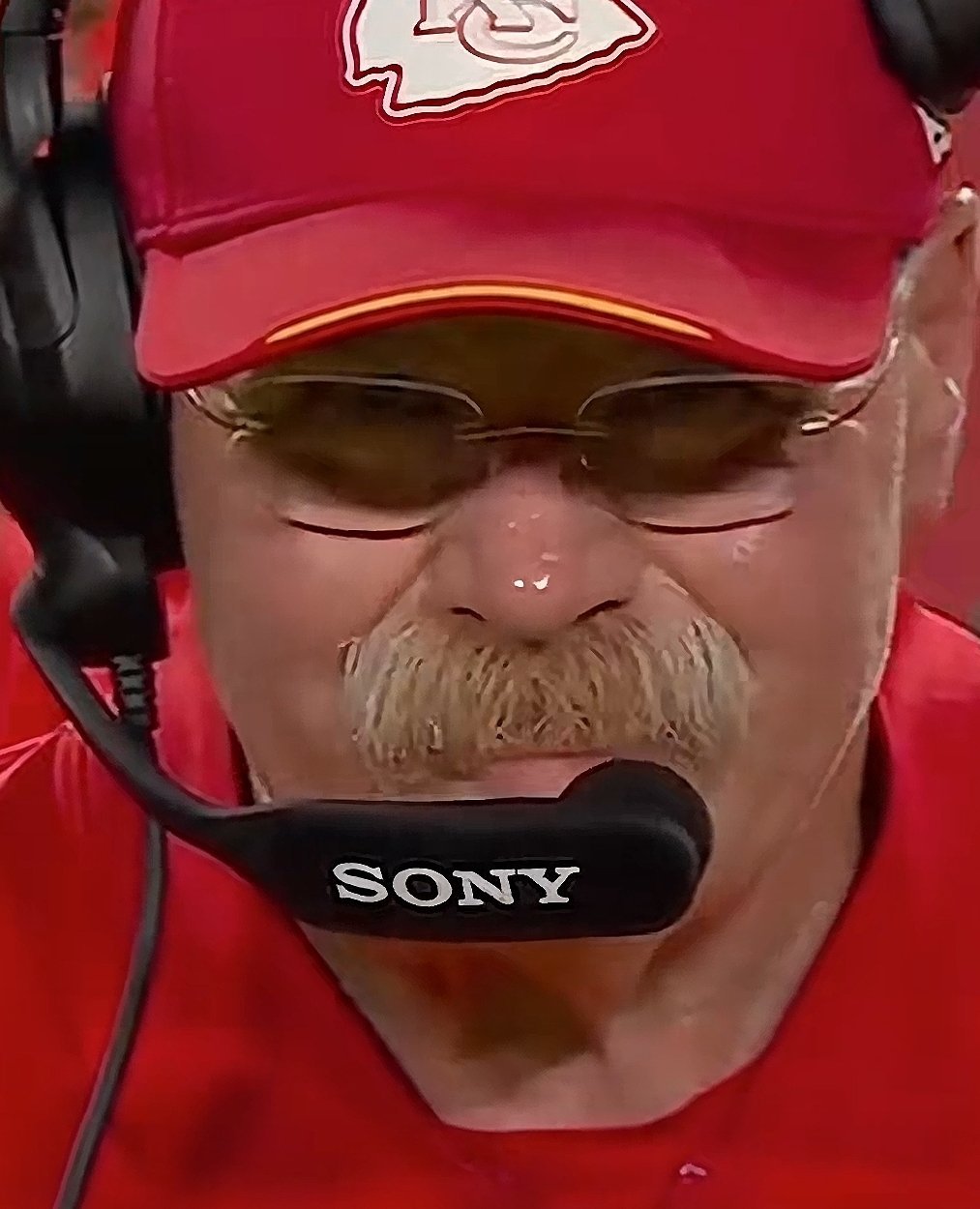
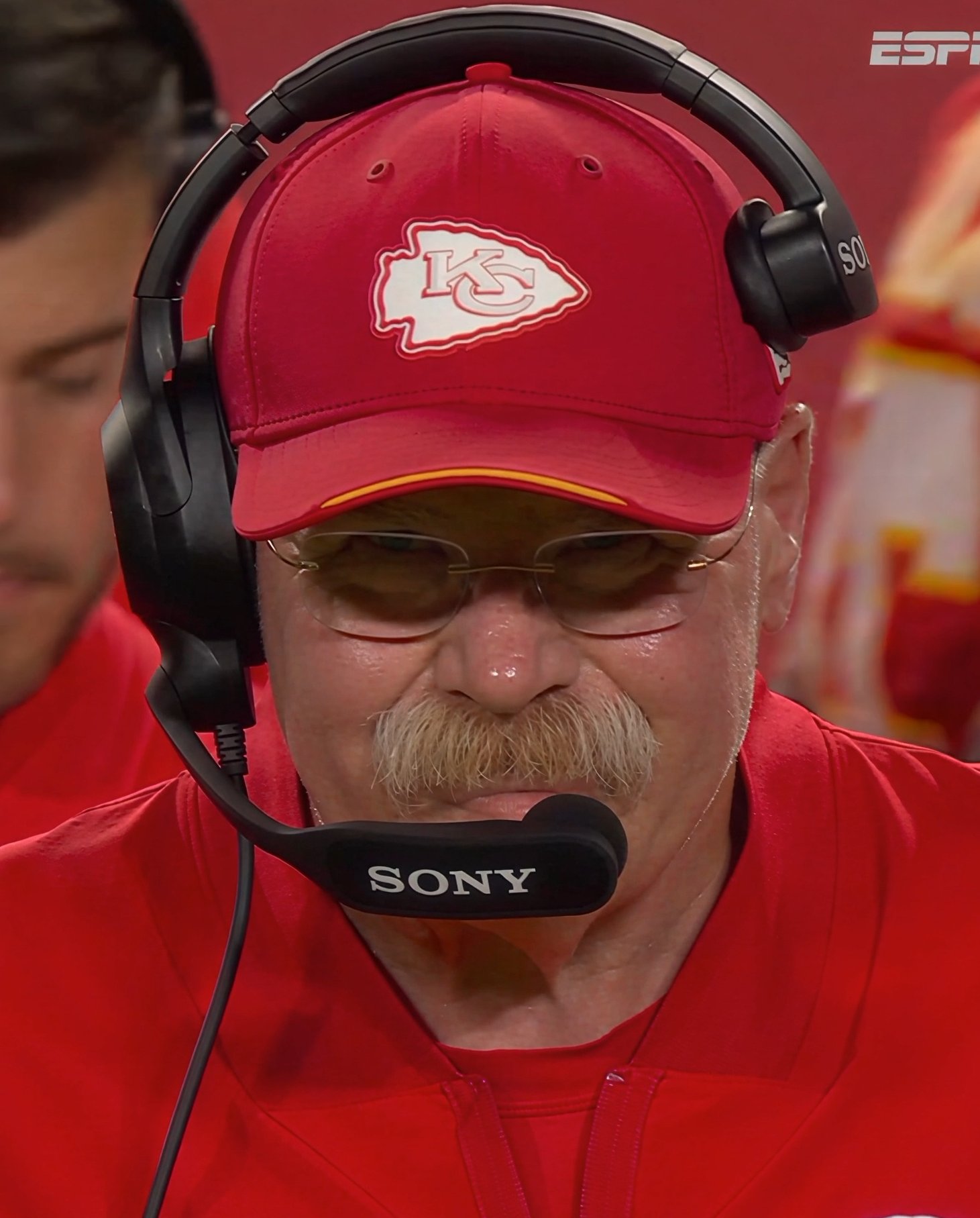
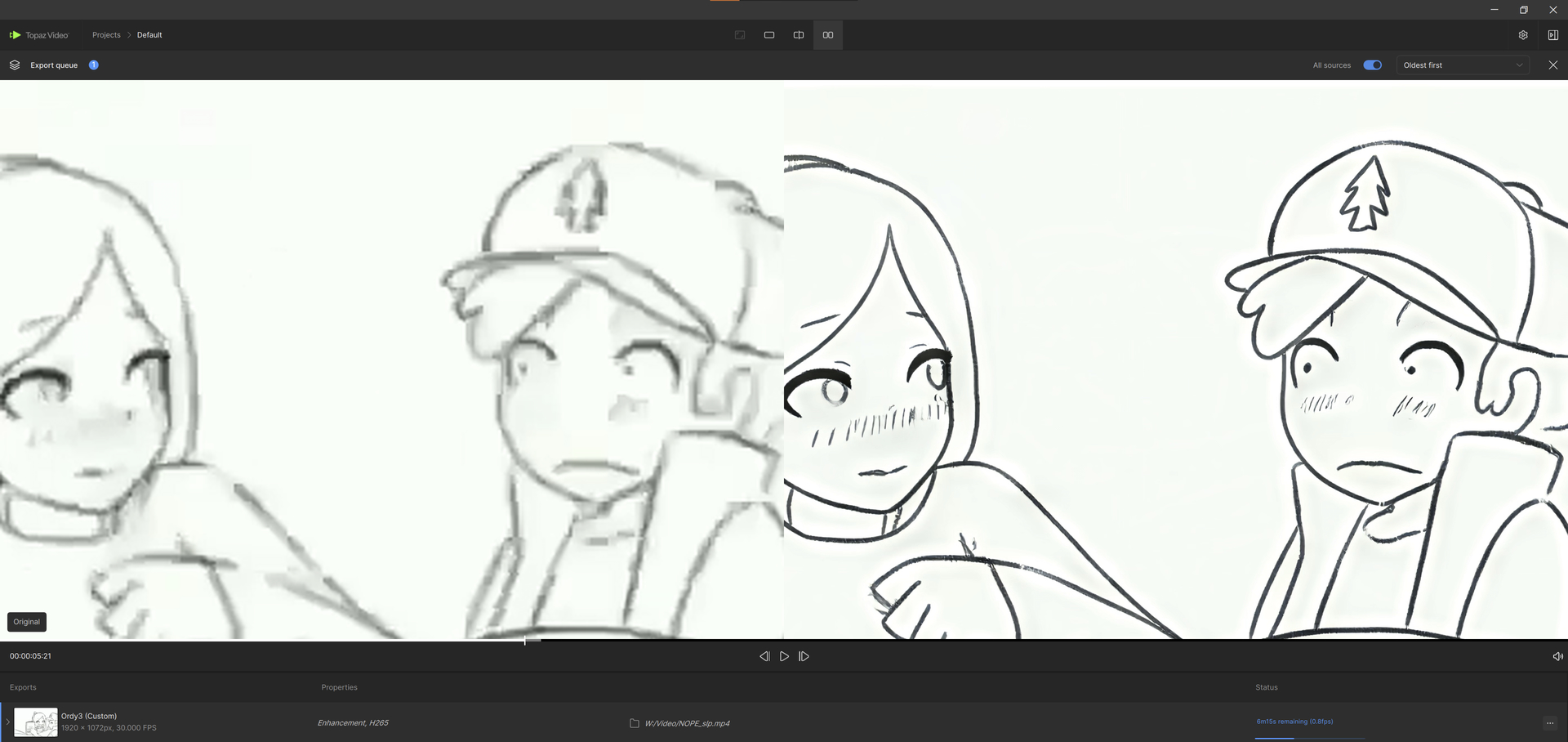
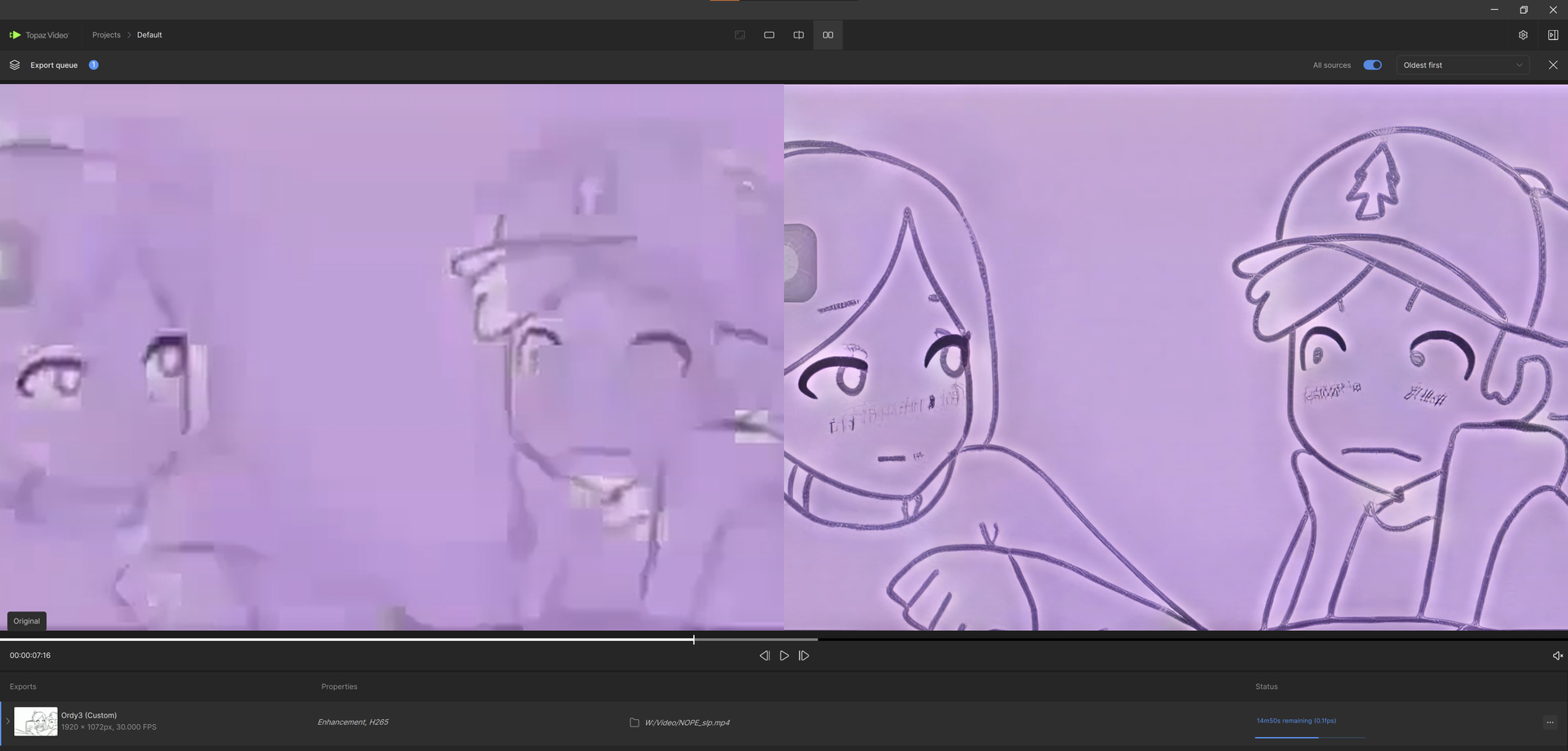
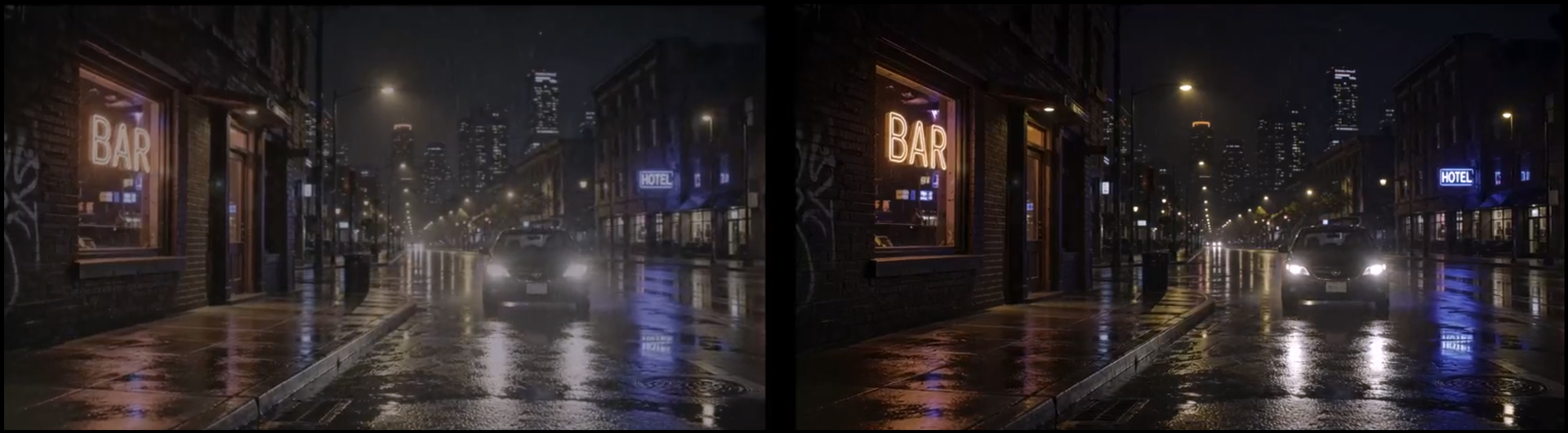
Hyperion 2 has been making a splash with it’s SDR to HDR enhancement that is being greatly enjoyed. Since then, we have been refining the model and now we have Hyperion 2.5. Hyperion 2.5 for SDR to HDR is our best version yet. This addresses the occasional ghosting-like artifacts and keeps the integrity of the original source intact. This update includes AMD/NVIDIA/MAC.
Model Recap
Hyperion 2.5, is a great update to our previous Hyperion 2, so many of the previous conditions are still relevant. This model expands your color and nit value range for VFX Compositing and for modern viewing on HDR supportive displays!
About
-
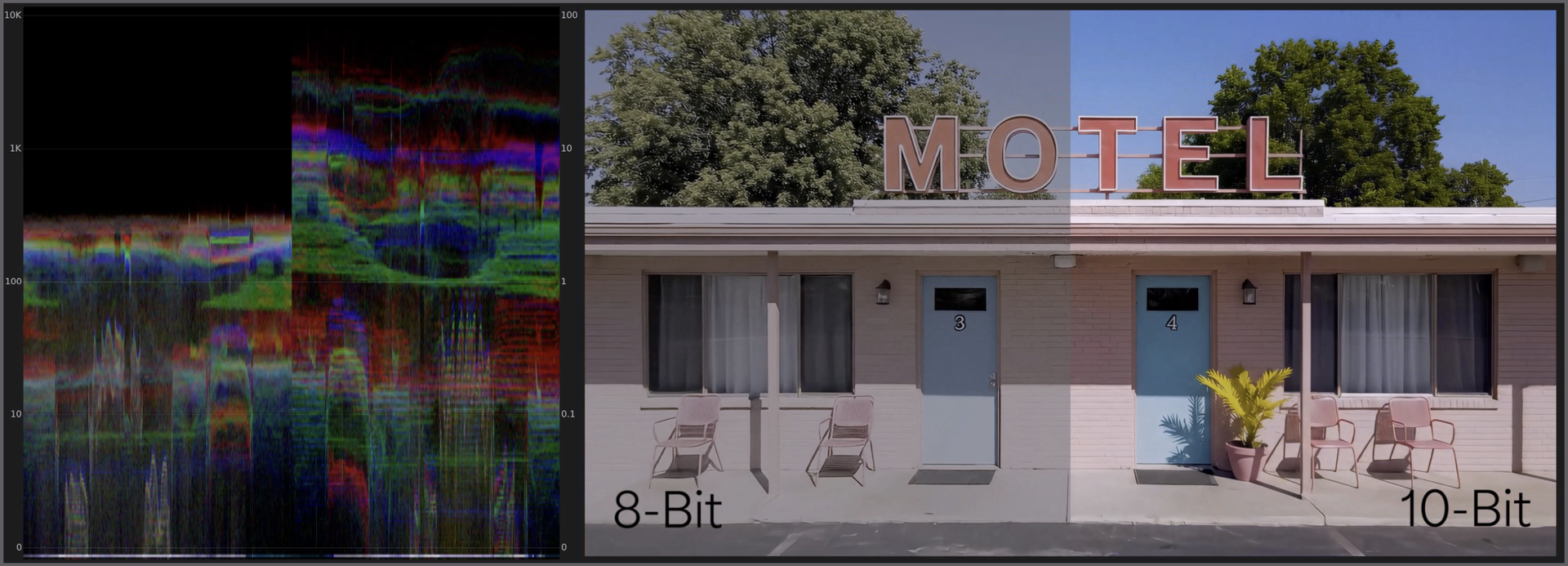
Converts 8-bit GenAI or archival video into HDR, high bit-depth media suitable for professional finishing pipelines.
-
Expands tonal range and color precision to provide significantly greater grading latitude in highlights, shadows, and midtones.
-
Prevents highlight and shadow clamping often seen in standard range and native GenAI video sources.
-
Expands existing color opportunities/steps for professional compositing and color manipulation workflows.
-
The additional color opportunities greatly reduces visible banding and compression artifacts common in 8 bit renders.
-
Has great details with text and textures even during high motion blur areas.
-
Export ProRes video or EXR (Pro) image sequences.
-
Support ACES color output with EXR (Pro) renders for better integration into industry-standard film and television pipelines.
-
This works best for medium to high quality content.
-
This model has some built in enhancements to revitalize and improve content.
-
This version is an easy “one click” solution. There are no parameters to adjust.
-
This is a 1x model. This is not an up-scaling model.
-
Max input and output resolution for this model is 3840x3840.
Technical things to know
Nvidia Requirements:
- Requires an absolute minimum of 12GB VRAM with 32GB CPU RAM, though 16GB VRAM is recommended.
- Targeted for GPU compute compatibility of 8.9. This is also the recommendation.
- Please note, though there might be some success with a CC of 8.6 cards, this is not technically supported and some may encounter a less ideal experience.
AMD Requirements:
- Requires an absolute minimum of 12GB VRAM with 32GB RAM, though 16GB VRAM is recommended.
Mac Requirements:
- Requires an absolute minimum of 16GB though 24GB is recommended.
- All Apple Silicon should be supported.
Outputs:
10-Bit ProRes (Cloud & Topaz Video Local Rendering)
- ProRes Primaries: BT.2020 PQ
- ProRes Transfer Function: BT.709
16-bit EXRs (Cloud Rendering)
- EXR Image Sequence: BT.2020, Linear
16-bit EXRs (Topaz Video Local Rendering -PRO)
- EXR Image Sequence: Aces 2065-1
Updated Topaz Panel for Premiere: Version 1.1.1
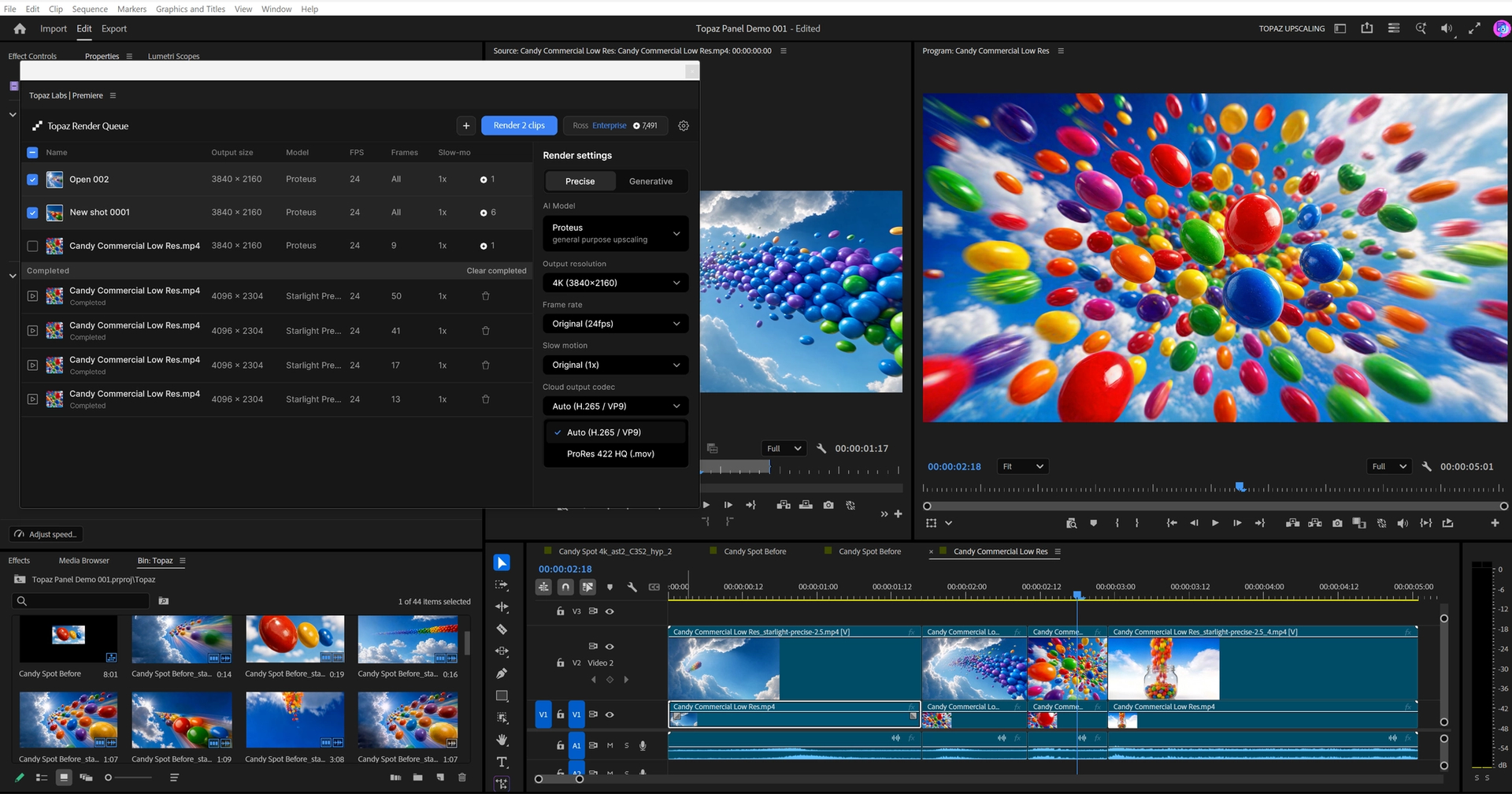
We’ve updated the Topaz Panel for Premiere with multiple fixes to enable an improved batch processing experience when enhancing from the Adobe Premiere timeline.
Simply drag video or image clips from your bin or timeline into the panel, choose an AI enhancement model, and upscale to HD, 4K, or even 8K. Better yet, this process does not take up system resources, allowing you to continue editing. Rendered files are automatically imported to your project and placed in timeline. Learn more here
Fixes & Improvements:
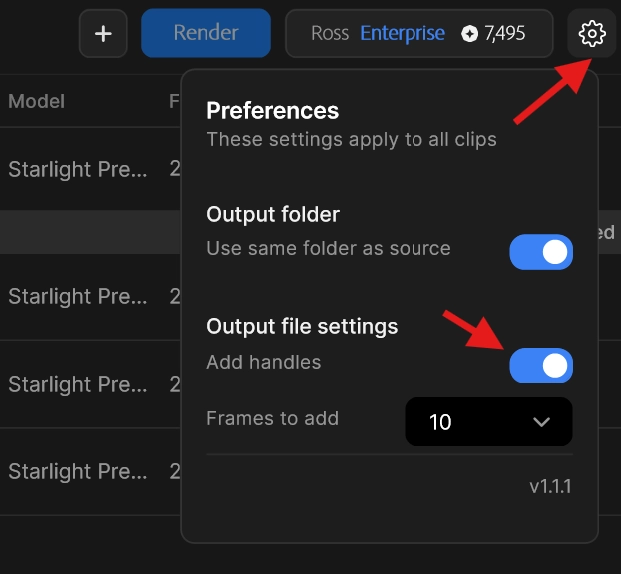
- Improved the ability to render with handle media. Found in preferences, Add handles will add the desired handles to a clips in/outs when enabled. This is a useful feature for upscaling a timeline with transition effects; also enabling more editing, trimming capabilities after upscaling.
- Fixed an issue where the panel did not treat sub-clips or clips from the same source as unique renders. Previously if portions of a clip was cut into a timeline OR user marked in/out on a clip, dragged to panel and repeated, the panel would only render one instance. Now the a user can drag multiple portions of a timeline that reference the same source clip and render each clip independently. This vastly improves the ability to enhance from a mastered source. Use scene detection to segment your clip, then choose an independent enhancement for every clip in a timeline.
- Fixed an issue where a rendered clip is inserted into the wrong sequence after switching sequences. Now a user can render from the timeline and confidently switch to another timeline while the panel is rendering.
- Fixed an issue where timeline clips would return missing 1-2 frames.
- Fixed an issue where returned timeline clips shift right or get stacked in vertical video tracks.
- Fixes an issue where the rendered file resolution did not always match the selected upscale preset setting in the panel.
- Fixed an issue that would allow an unsupported output resolution for specific models. Now Precision models (Proteus, Iris, etc) properly support up to 8K, while Generative (Starlight) models support up to 4K.
- Improved the panel’s ability to display accurate credit usage for cloud credits.
Known Issues / Limitations
- Users may experience some unexpected behaviors when sending from timeline:
- We recommend the timeline is set to match the source clip resolution and then changed after upscaling. This is not an issue when upscaling from a bin.
- When enhancing from timeline, be aware of these settings:
- Use In/Out range. When you have a clip that has been cut into the timeline, if this setting is off, the clip will render ALL the frames.
- Add Handles (found in preferences). This setting will apply the desired handle media beyond the selected clip’s in/out range.
- When enhancing clips from the timeline with audio, there is a known issue with audio potentially overwriting in the timeline. We recommend unlinking your audio and sending only the video tracks to the panel.
- Vertical video. To upscale vertical video formats, choose 2x or 4x. The HD, 4K, and 8K presets will place your vertical video into a 16x9 aspect file.
- Vertical video that is than 4k or larger will switch to VP9 codec and give an error when completed. To render vertical video larger than 4k, choose ProRes.
- Slow-motion is a video only process and will not effect an audio track.
Additional Updates to Note!
Model Manager Update: Neuroserver Models
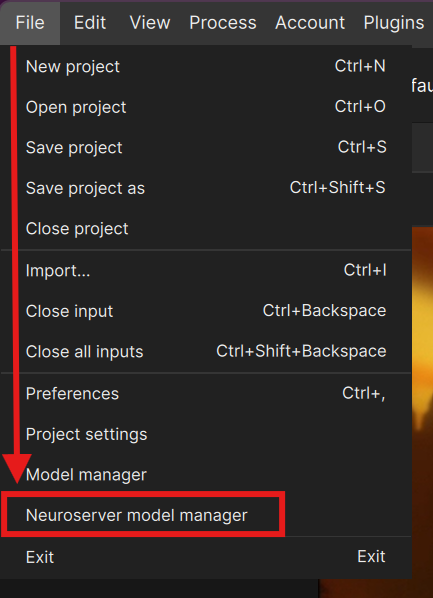
The Neuroserver Model Manager has been added below the traditional Model Manager. This has a built in hardware and version checker. The intention is to give clarity with the size of these models that need to be stored locally. Also, if you have installed neuroserver models that are not relevant for your next few projects, then this is a great place to uninstall them.
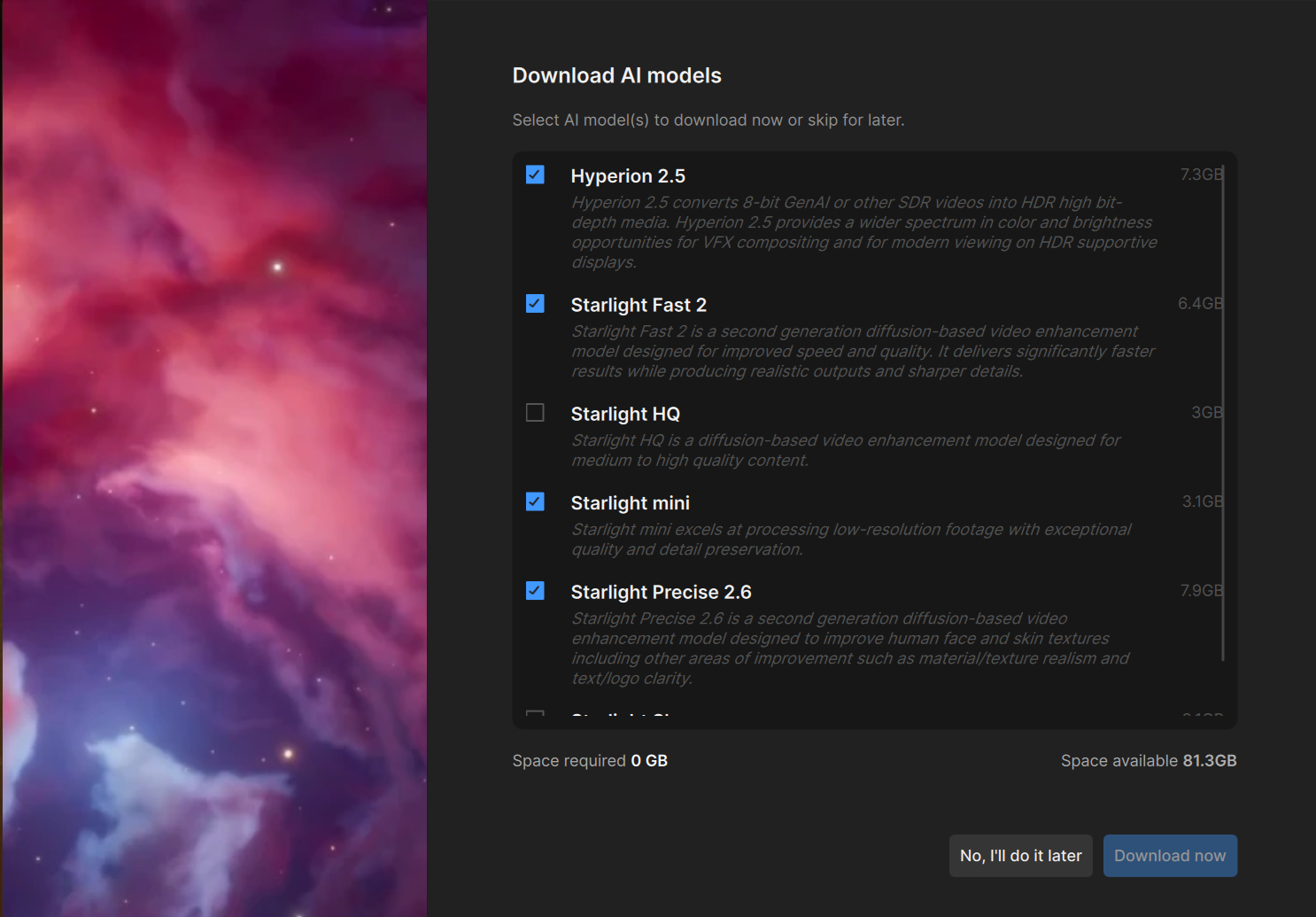
- In the example above, there are four items already installed. There is nothing to download. Click on the “No, I’ll do it later” button.
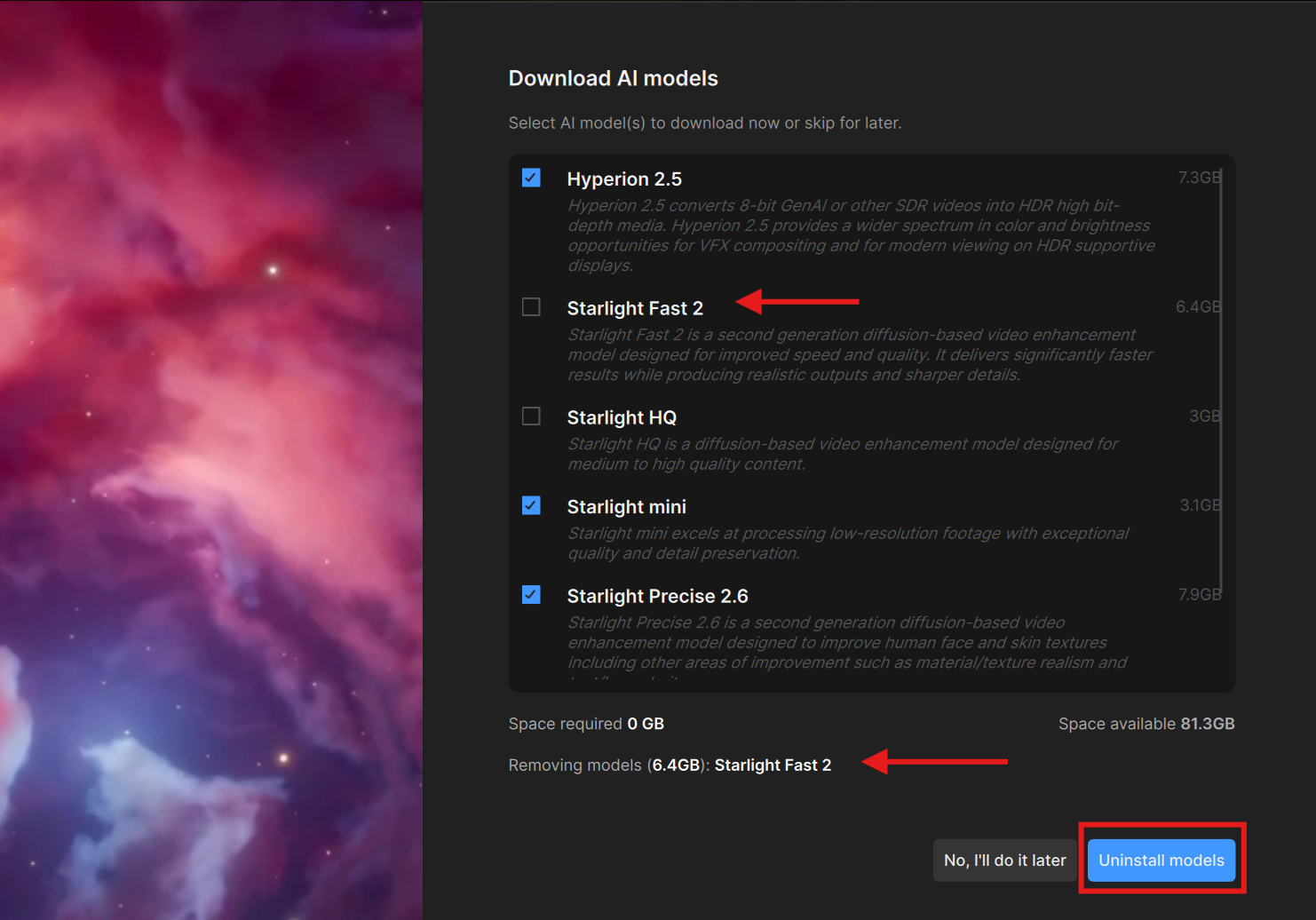
- If an installed model is unchecked, then you can remove that installed model.
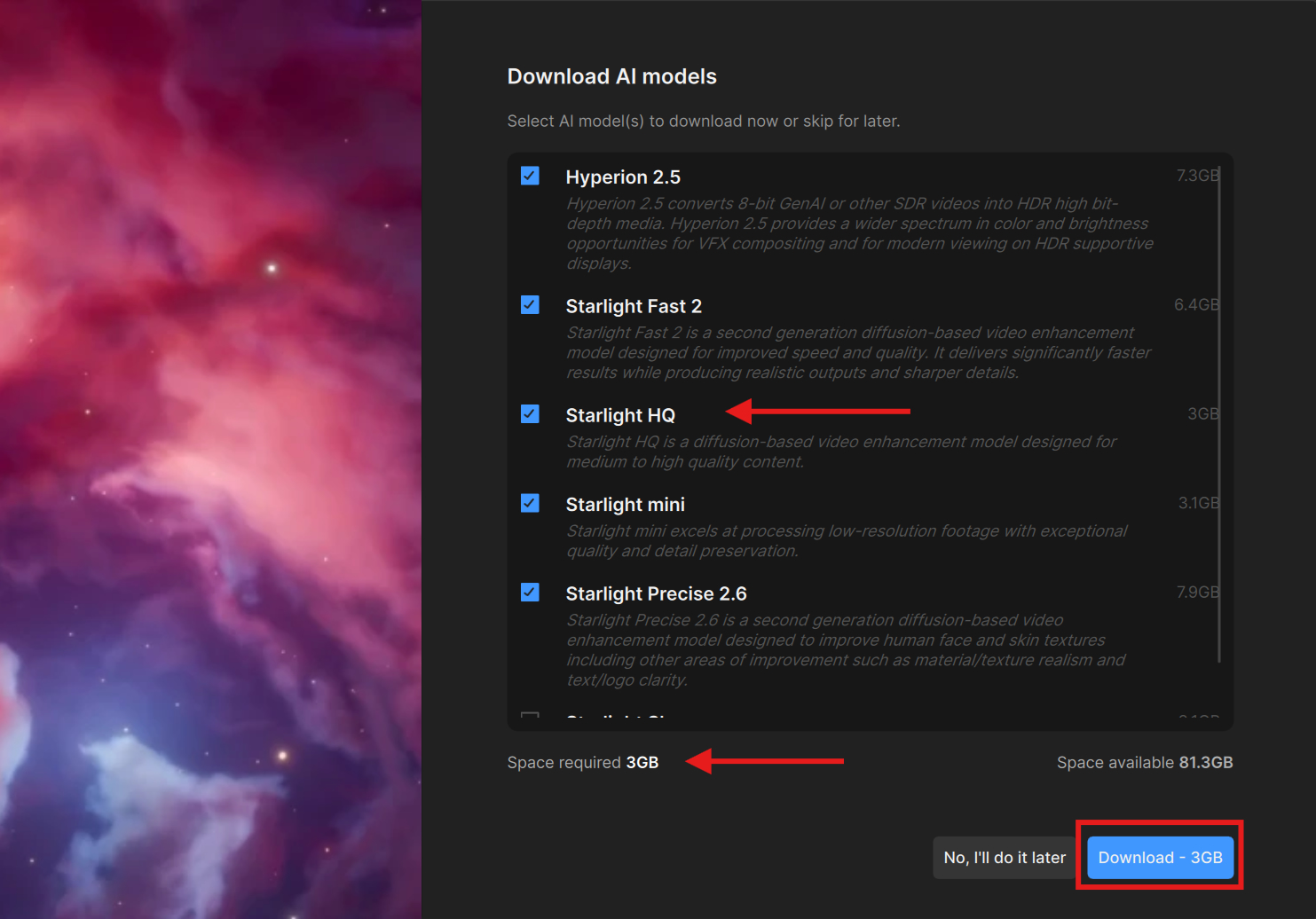
-
If a new model is checked, then you have the option to install the model at this time.
-
Download progress will show in the upper screen right side of the app.
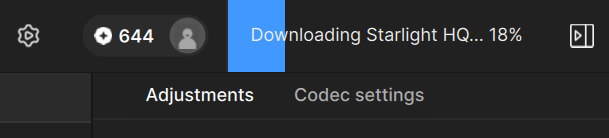
Please note that if your hardware does not meet the requirements or if there is a Pro-only model and your version is standard, then the model will be greyed out.
First Start Neuroserver Model Manager
When you open the app for the first time, you will be met with the Neuroserver Model Manager. This is to give you some transparency on the neuroserver models that you may want to download with clear indications of the space that these models will require. You can use this opportunity to install or uninstall a model. This step is optional. You can always manage your neuroserver installs and removals at a later time.
Stabilization Preview: Disable Option
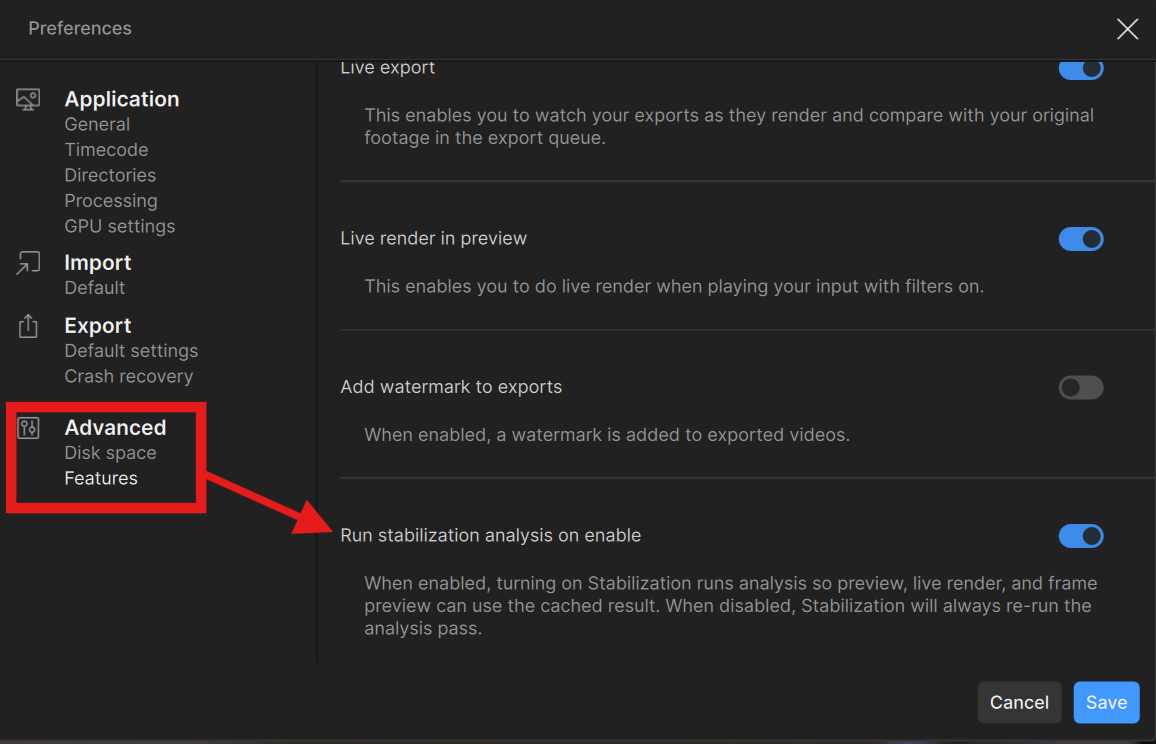
The Stabilization Preview workflow may not be the right choice for your project. We have added the ability to turn the “stabilization analysis” off via Preferences. It can be found at the very bottom of the Advanced section. Be sure to “save” if you wish to retain any changes made.
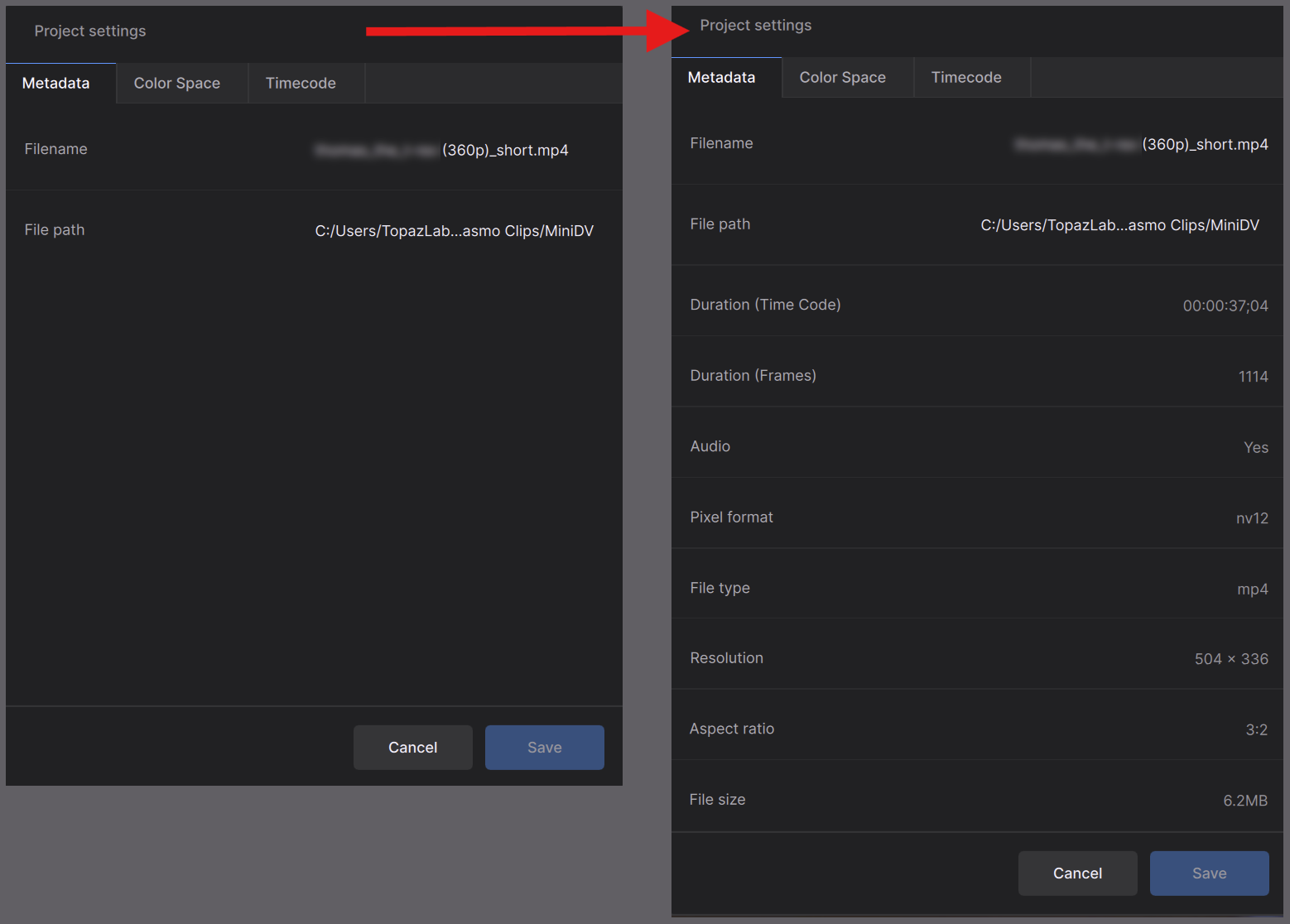
Extra Metadata: Settings and Export
-
Project Setting source metadata have been updated significantly with the following: file name, file path, duration (time code), duration (frames), audio, pixel format, file type, resolution, aspect ratio and file size.
-
Export Meta data simply didn’t exist Aside from adjustments and Codec. This now includes output: name, destination path, duration (time code), duration (frames), audio, pixel format, file type and resolution

Add Watermark to Exports

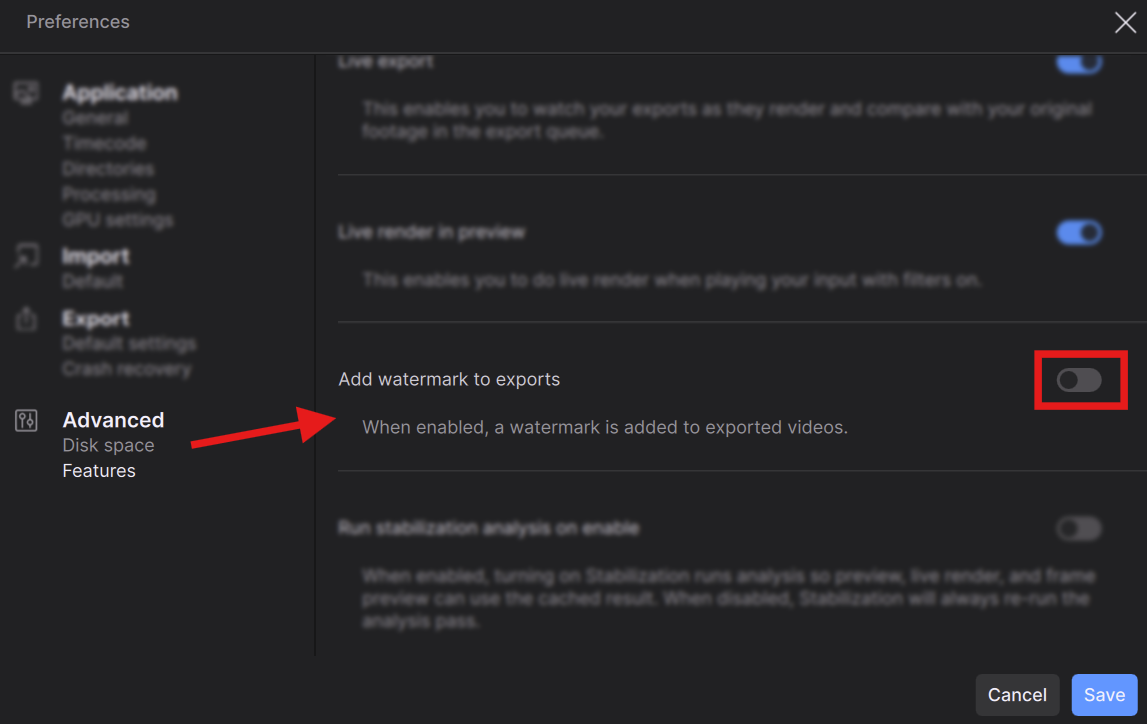
You now have the option to add a Topaz watermark to renders. This is accessible in the Preferences menu under the Advanced category. Be sure to “save” if you intend to keep the change.
Hardware Decode Options
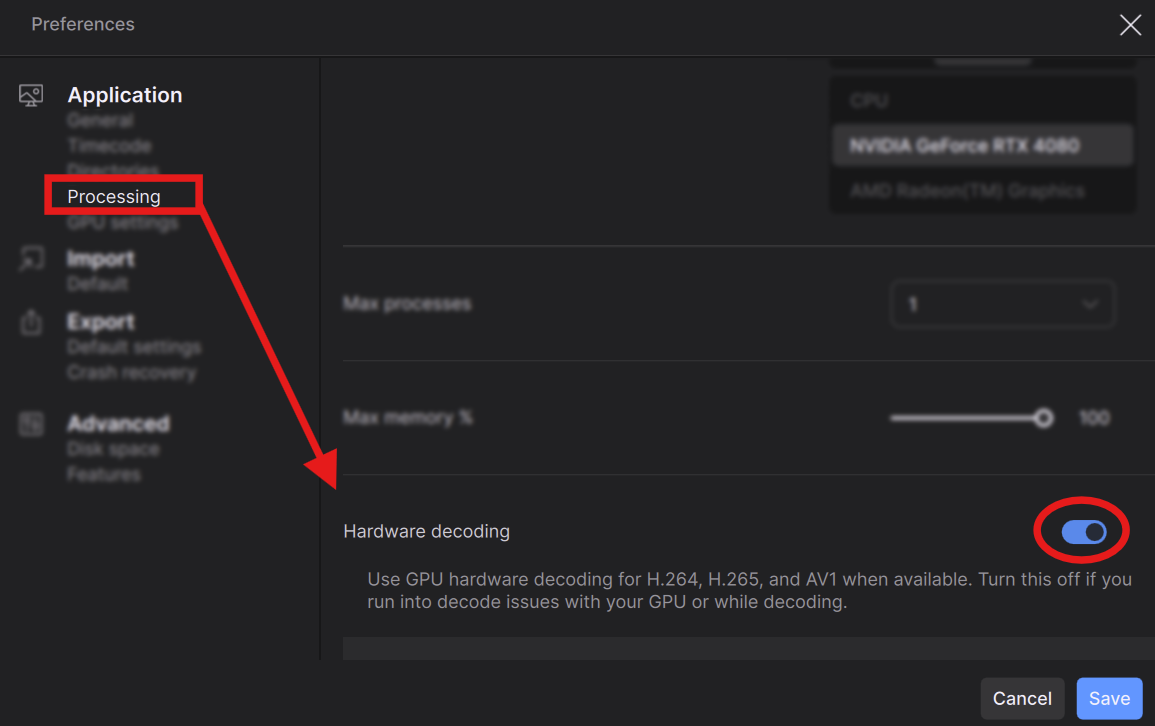
You can now decide to enable or disable hardware decoding. This can be beneficial for H.264, H.265 and AV1 processing. This can be done by going to the Preferences menu under the Application category. Then navigate down to the Processing section to find it. Be sure to “save” any changes you make.
Bug fixes
- Fixed encoding/decoding errors with some 10-bit sources.
- Addressed thumbnail artifacts of digital noise with .mov sources.
- Resolved LUT issue with “colorspace error”.
- Starlight Precise 2.6 processing speed fix, experienced by some, for inflated render times outside of model expectations.
- Refined slower thumbnail generation.
- Addressed the “Retry” button from restarting failed videos that have already gone through the stabilization analysis process.
- Addressed neuroserver URL install issues experienced by some.
- Fixed access issues for Starlight Mini on compatible AMD GPUs
Known Issues
- Updating to Mac OS 27 will cause issues with Topaz Video. The team is working on a solution for the recent OS release.
- Some may experience Starlight Sharp “freezing” during export. The team is working on a solution for this.
Don’t Forget
Is your system compatible?
Click Here
Documentation
Click Here
Encountered an Issue?
- If you experience any issues, please ensure that your drivers are up to date. Next to a proper restart or an app reinstall, this is usually the first step to ensure you have the correct drivers running for this application.
- Be sure to do a full reinstall if you are having issues making the upgrade from a previous version.
- Sometimes a firewall can prevent the app from starting. If this occurs, be sure to add Topaz on the exception list.
Otherwise, you can easily reach out to our fantastic Support Team: Click Here
Enjoy the new updates!