I really need version 1.6.1
1 Like
can you send details on the issues that remain and logs (Help > Open logs folder and send all logs) to support@Topazlabs.com and we can have a look!
Bug report. 
5 Likes
Did take a moment until i did get it.
A new tool will arive tomorrow.
But even its memory would be insuificent in the current state of Neuroserver.
Usage for neuroserver was 32GB virtual Vram and 23 GB Vram.
But maybe TL will make it happen that we are able to get nice performance & quality and at the same time to do something else on the same machine while using its software.
1 Like
We need an update soon. The new models are very difficult to use. They use an absurd amount of VRAM. My PC has crashed twice while trying to upscale photos with an output resolution lower than 30MP
What GPU do you have / how much VRAM?
RTX4080 16GB VRAM
1 Like
I would hope that Neuroserver uses all available VRAM if it helps performance.
But crashing is not good.
I would leave room for other software too.
For 16GB i would use 12.
For 24GB i would use 20.
For 32GB i would use 28.
1 Like
A post was split to a new topic: Discussion | Tests with ON1, Nano Banana and Topaz Photo
A post was merged into an existing topic: ADJUSTMENT SLIDER BUGS | Topaz Photo v1.0.1 adjustment slider remains visible after use
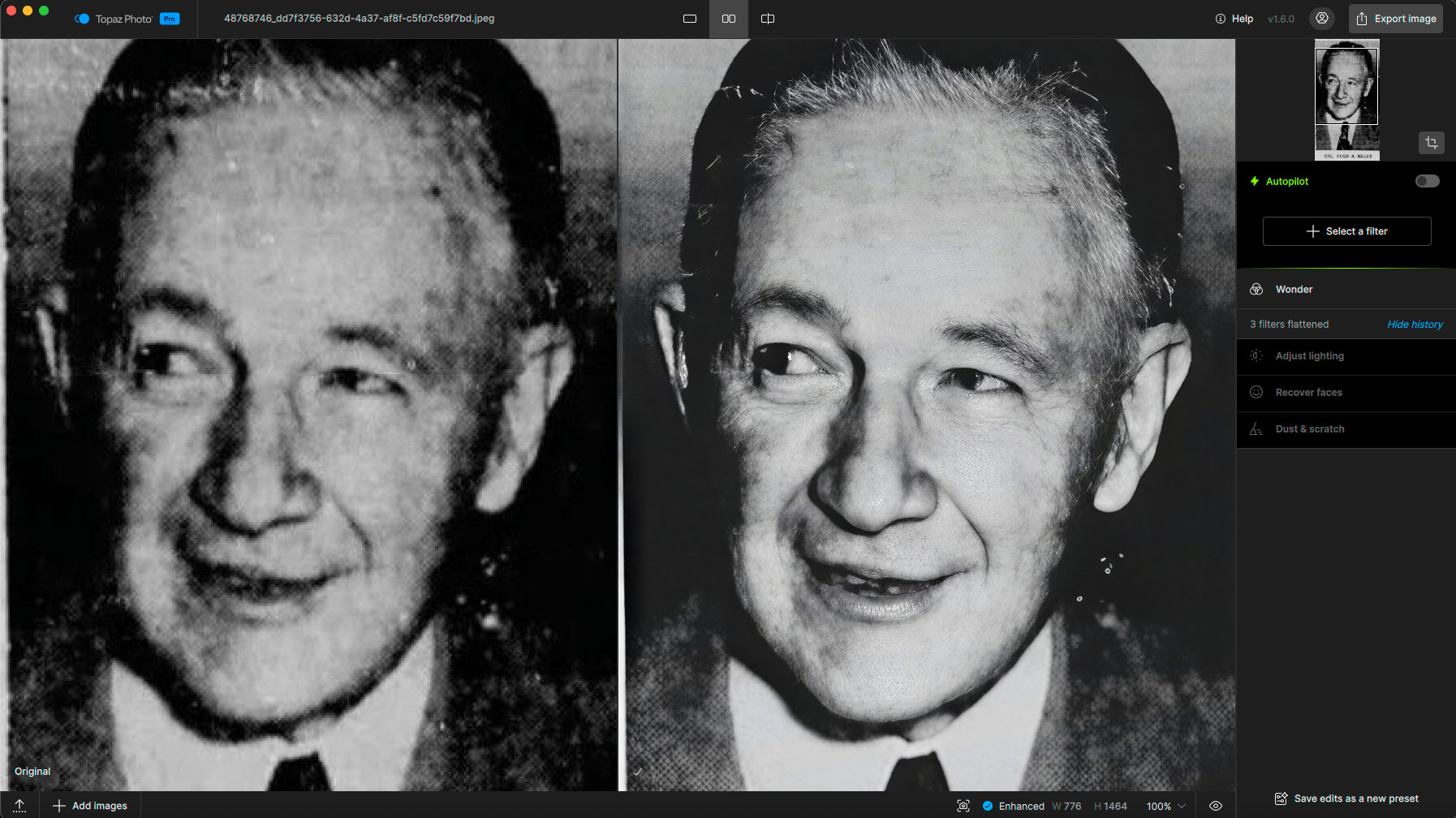
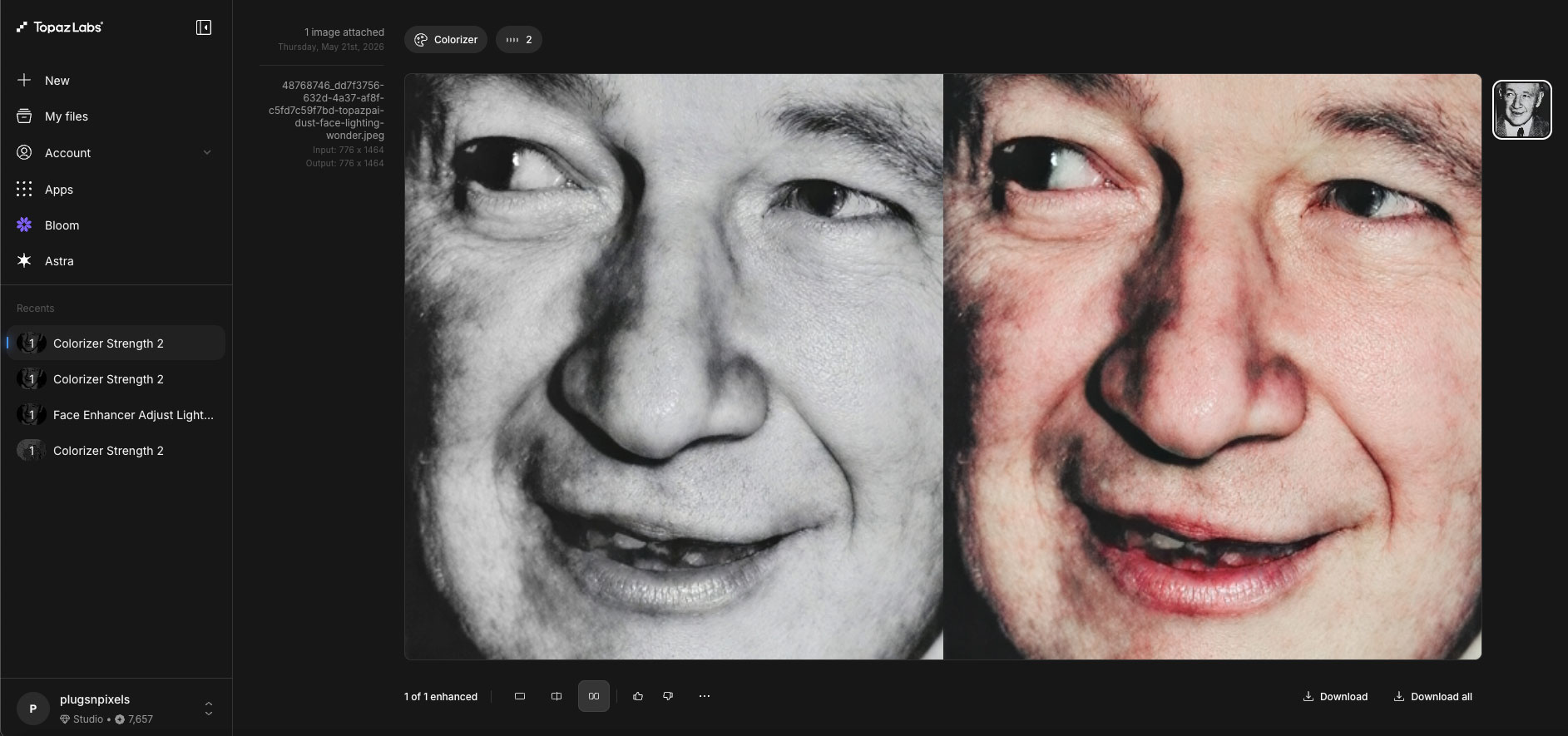
Some more of today’s random results from both Photo and the Web App (colorization):
1960s color print:

Scan of a newspaper clipping of a distant relative found online:
1 Like
@partha.acharjee
@Lingyu
@Ange.topazlabs
To my very little understanding of math but deep imagination.
What OpenAI has found here could solve problems connected with diffusion models.
https://openai.com/index/model-disproves-discrete-geometry-conjecture/
2 Likes
I fixed the memory leak in the 16GB GPU profile by creating a script that tricks Python into thinking I have 12GB of VRAM. This way, the program uses smaller blocks and doesn’t overload the VRAM. I was able to upscaling to a 93MP output using 11.5GB of VRAM, and now I’m testing with a 432MP output using only 14GB of VRAM
The profile for 16GB of VRAM is broken, and the problem is here:
[stderr]: INFO:models.bloom_precision.kuc7w2luozt1:Tile config: VAE 1024/128, DiT 512/64 (chosen for 16.0 GB total VRAM)
And this is with the fix I made:
[stderr]: INFO:models.bloom_precision.kuc7w2luozt1:Tile config: VAE 1024/128, DiT 256/32 (chosen for 12.0 GB total VRAM)
I can finally use it after waiting for over a week
2 Likes
Did the output quality stay the same or did it change?
When you change the tile size, you change the context size too.
In diffusion models, every pixel is connected to every other pixel.
Thats why it does need so much memory.
I would like to change the tile size for myself.
1 Like
I just tried it with an image I had already upscaled, and the output isn’t exactly the same, but it’s very hard to spot any difference in quality
1 Like
And if we zoom in a lot, is the difference visible?
There is no difference in quality.
I’ve also experimented with tiled post-processing, and now I can upscale without any size limit (I’ve tested it up to a 453MP output), but the model isn’t trained for that much detail, so it’s not worth it.
1 Like
453 MP 
 . And besides, nobody will take photos of that resolution, except for gigapixel photos like the one of New York. But this is a composite of many photos.
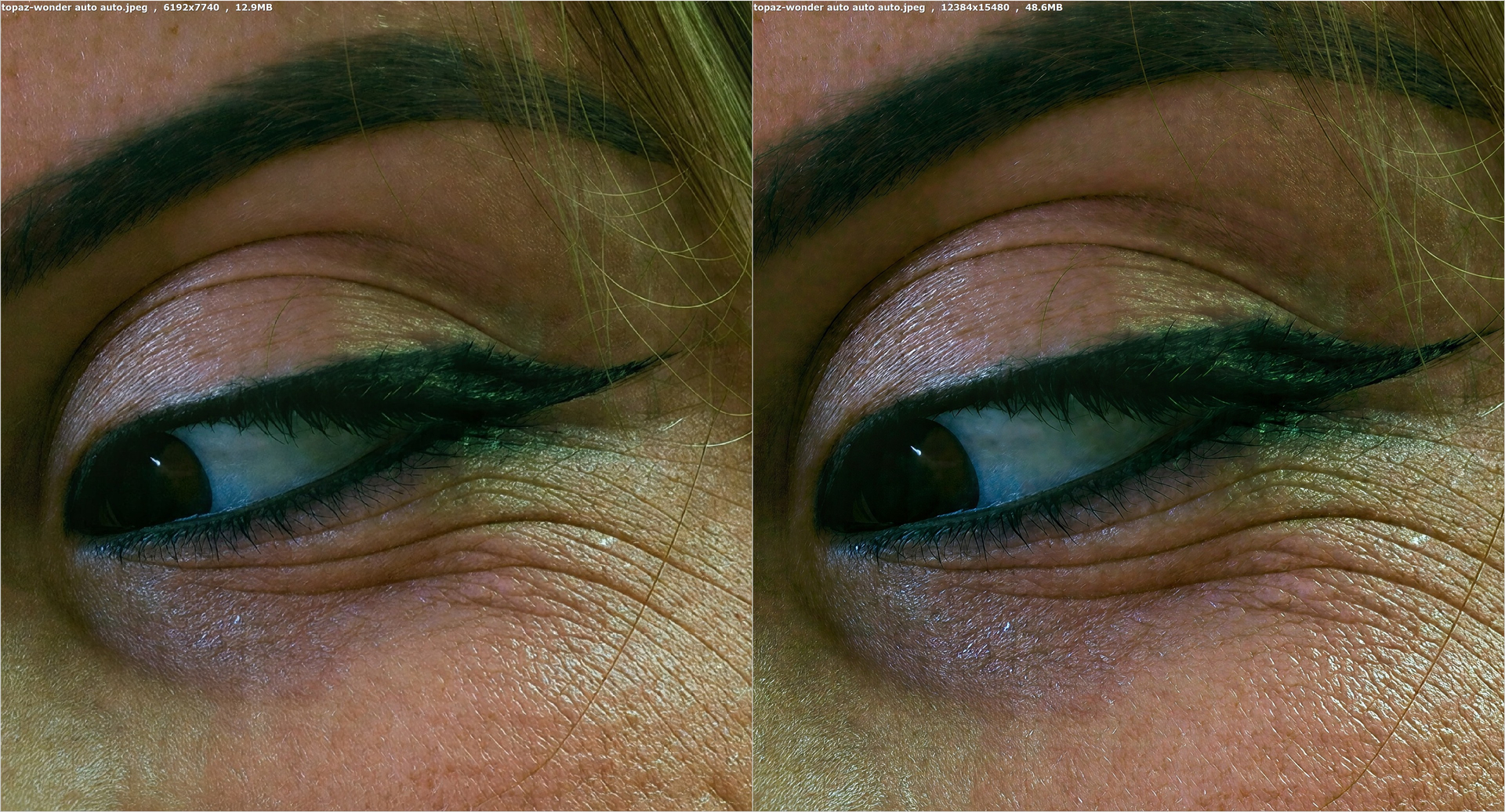
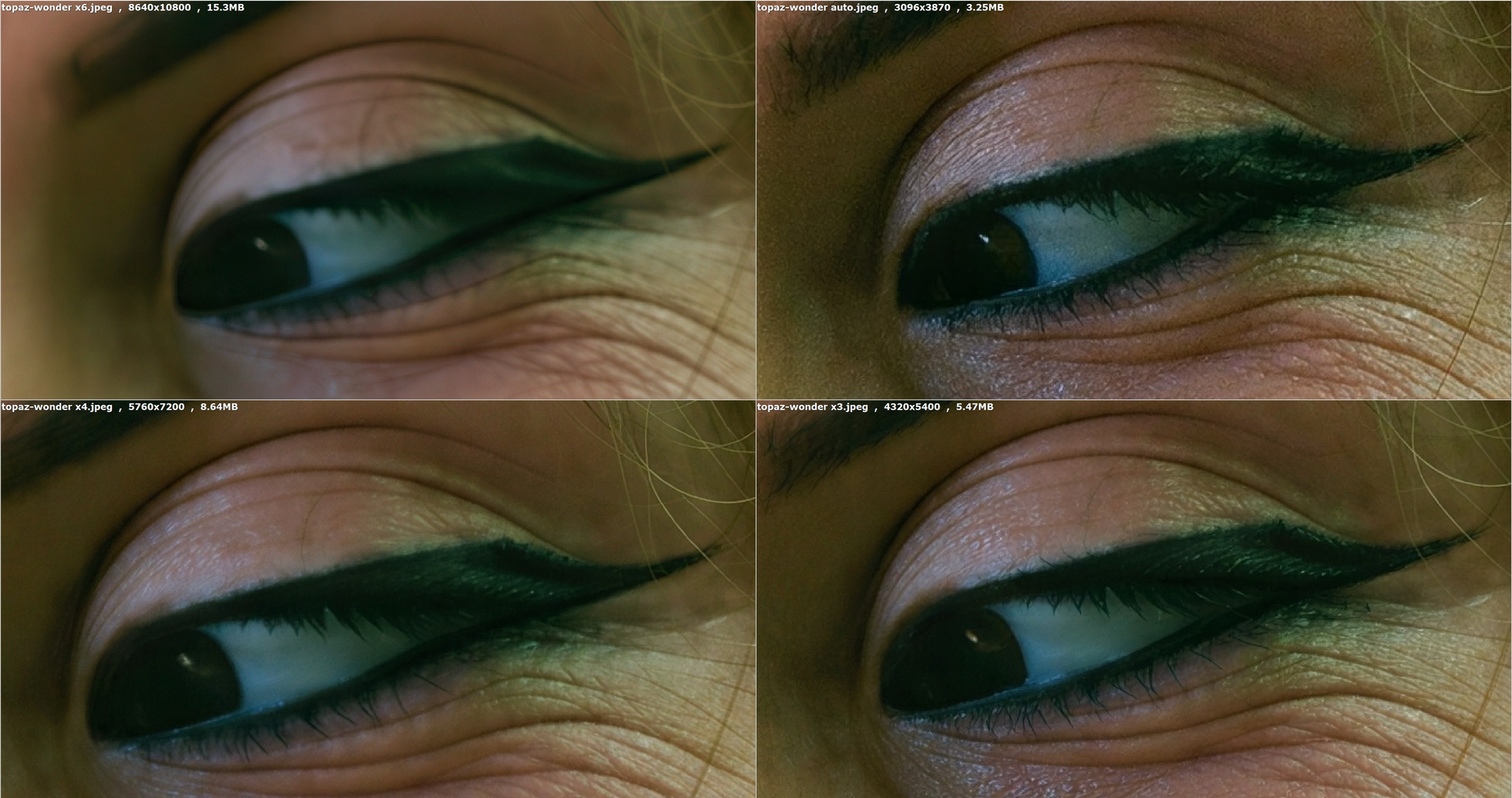
This is a portrait photo with decent base quality. I don’t understand why the x6 is so bad. The higher the multiplier, the worse the detail in the photo. In the top left corner of each photo, you’ll find the multiplier, resolution, and file size for each photo. All photos are using Wonder 3 High model
And this is basically the auto mode processed again in auto mode versus the same thing but done three times. The final quality is insane