Hello everyone!
A new release for Topaz Photo, with two new models and a significant speed improvement for many NeuroServer-based models.
- Recover Faces 3 — Portrait Quality Face Recovery
- Sharpen - Noise-Aware — Sharpen Detail, Not Noise
- NeuroServer Model Speed Improvements — Over 300% Faster
You can find the installer links and the full changelog below for this version of Topaz Photo. For any issues, make sure to send us an email to support@topazlabs.com
v1.6.0
Released May 13th, 2026
Windows: Download
Snapdragon: Download
Apple Silicon Mac: Download
Intel Mac: Download
Recover Faces 3 — Portrait Quality Face Recovery
Recover Faces 2 had two problems that limited how useful it was for many images.
The first was a hard size limit. Recover Faces 2 has a maximum output size of 512x512 pixels. Faces larger than that are forced to the smaller size, losing detail and sharpness. Faces that needed recovery would look smooth and out of place when compared to the rest of the image. Our recommendation was to avoid using it entirely in these situations.
The second was dot artifacts that appeared at high strength levels, exactly when you’d need strong recovery the most. On blurry or low quality faces, a strong face recovery is needed, but artifacts would make the result unusable.
Recover Faces 3 fixes both these issues to expand when the enhancement can be used.
The size limit is gone. Recover Faces 3 sharpens and recovers soft detail on faces of any size, producing sharp, portrait-quality output regardless of how large the face is in the frame. This image has a large face with soft details. There is room for improvement, but the existing Recover Faces 2 model would not create an acceptable output.

Using Recover Faces 2, the freckles are reduced significantly. The eyes are softened instead of improved. Eyebrow hairs are blended together as well.
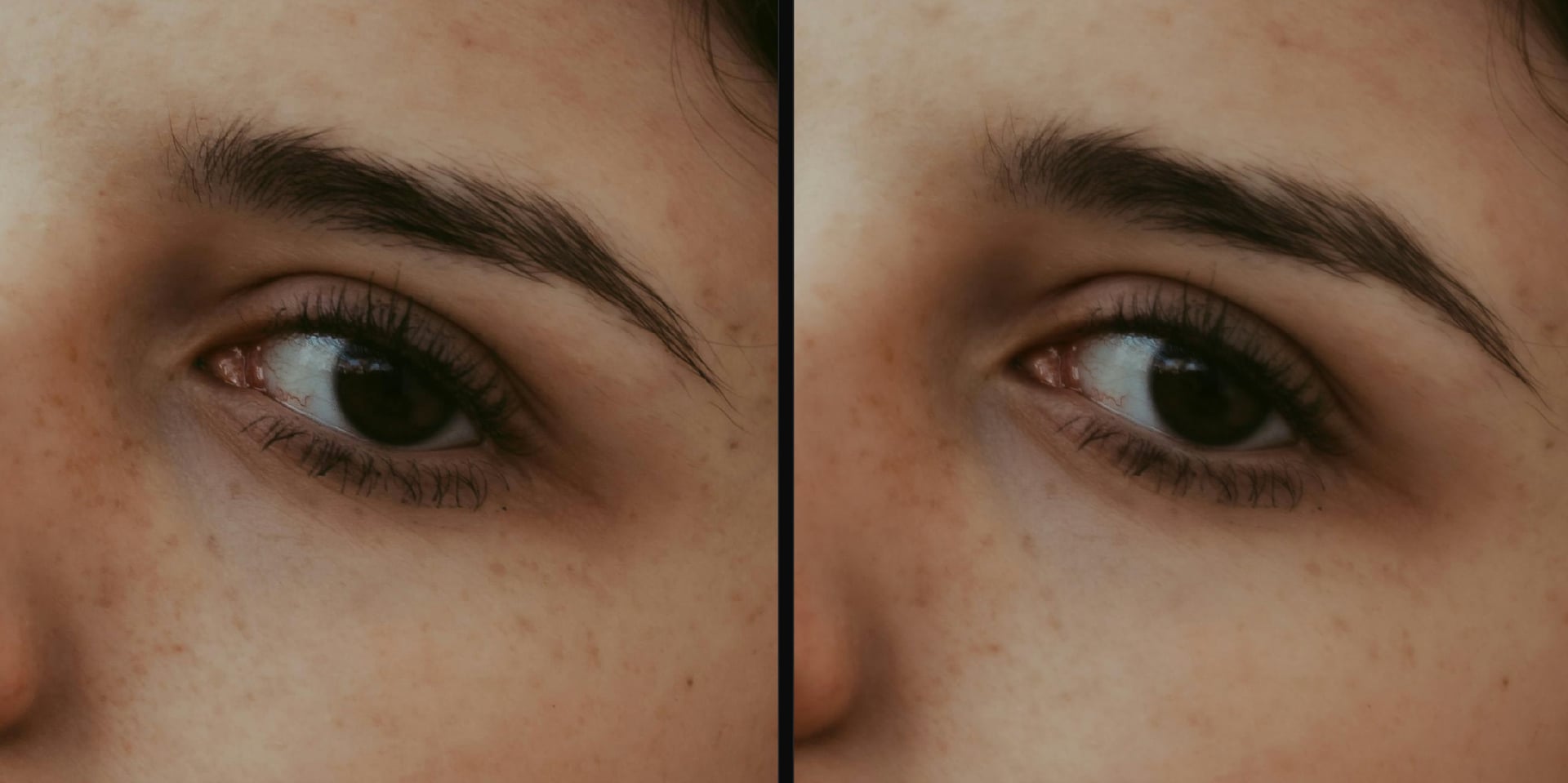
Meanwhile, Recover Faces 3 is able to sharpen the eyes, improve the skin, and enhance the eyebrows too. It’s far better suited for high quality outputs.
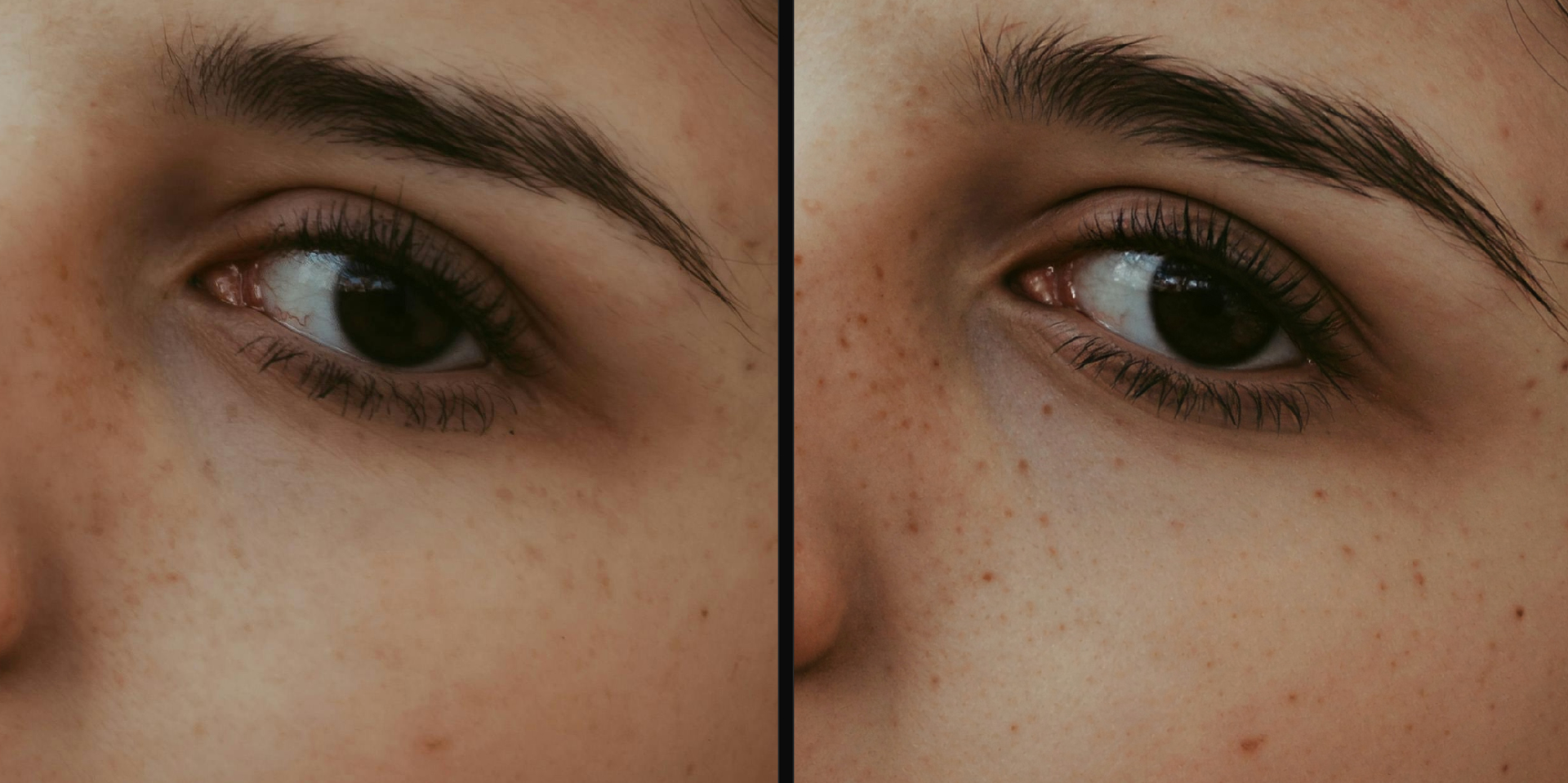
The dot artifact issue is resolved. You can push strength as high as the image calls for without worrying about it. For low quality or heavily degraded faces, that means the model recovers those faces with high quality output.
The new model is a generative recover faces model that processes each face separately. Each additional face selected will increase processing time. For example, 4 similarly sized faces will take 4x the time compared to 1 face of the same size.
For faces already with decent quality and below the 512x512 pixel limit, Recover Faces 2 will still do the job and process faster. For large faces, blurry faces, or anything degraded enough that Recover Faces 2 struggled, 3 is the better starting point. and the quality difference is worth the extra processing time.
Recover Faces 3 runs on NeuroServer and processes locally on NVIDIA, AMD, and Apple Silicon (macOS 14 or later). Cloud render is available for unsupported hardware, up to a maximum output size of 100MP.
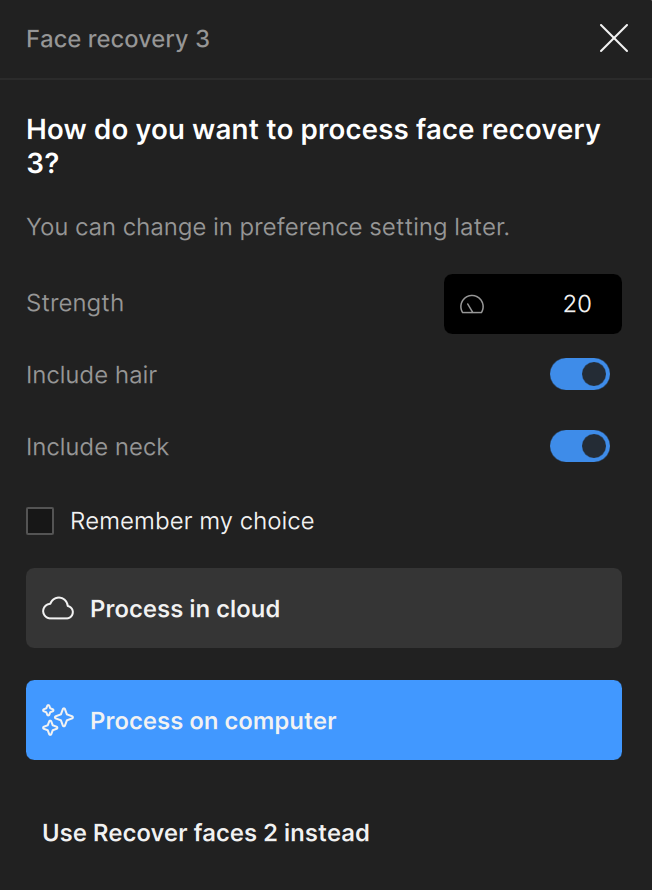
Due to the lower quality of the older model, we are sunsetting Recover Faces 1.
Sharpen - Noise-Aware — Sharpen Detail, Not Noise
Photographers working on location don’t get to control their conditions. For wildlife, portrait, sports, and other types of photography you may be forced to shoot in low light, fast moments. The noise and grain in those captured moments is part of what makes your images come alive. Every sharpening model we’ve shipped until now treats that texture as a problem. Sharpening will enhance noise or grain to a distracting level, which means it must be removed before sharpening the underlying detail. In doing so you lose the character of that moment.
Noise-aware is built for these situations. You can find it in the Sharpen enhancement.
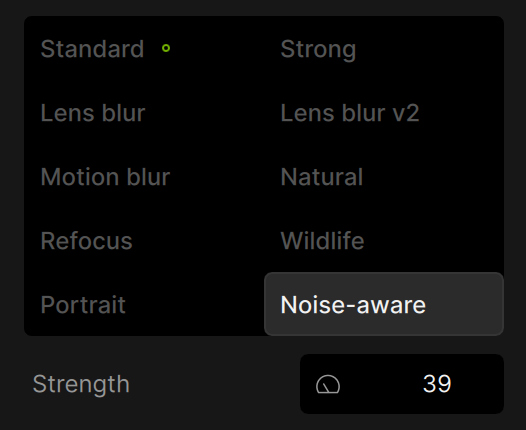
It’s the first sharpening model that separates noise from detail before touching anything. It reads the noise structure in the image and sharpens only the underlying detail in the captured scene. The result is a sharper image with noise and grain intact. It still looks like the image you shot, with the details you care about enhanced.
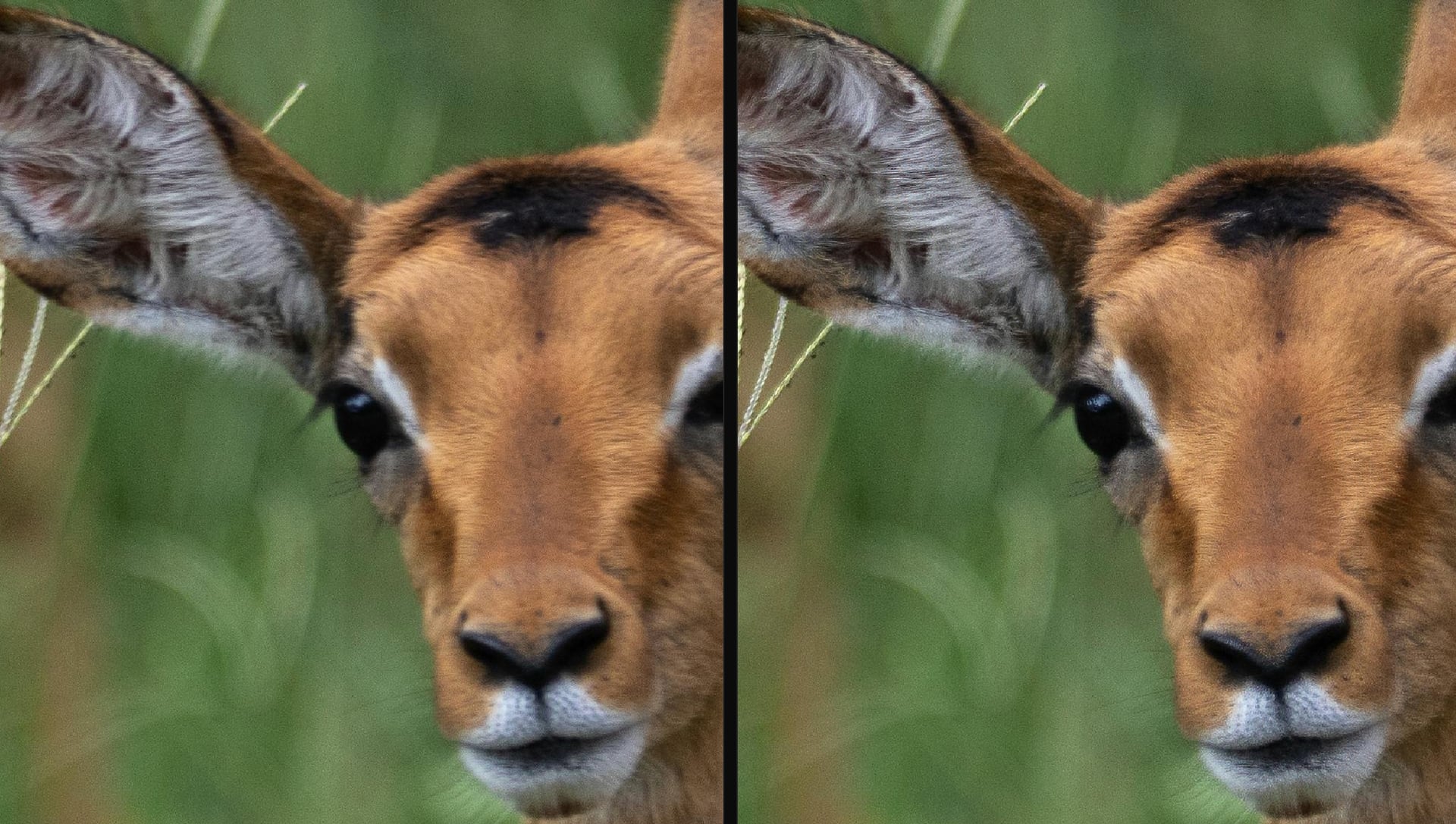
Take this wildlife image for example. Using existing sharpening models on this image enhances the noise, instead of sharpening the main subject details. Looking at the ear and the fur on the face, it’s clear that the digital noise now looks like grain.
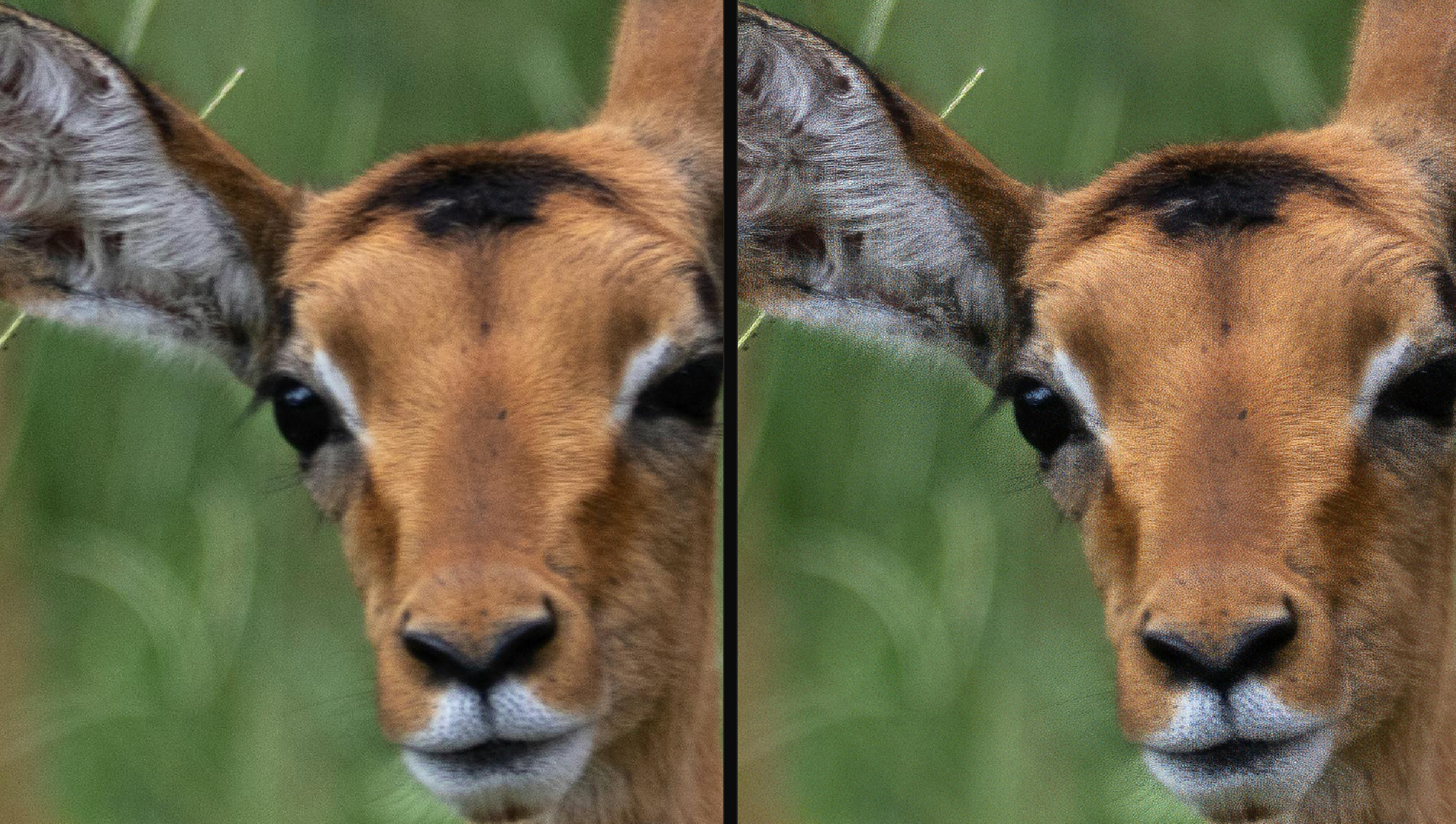
With the noise-aware model, we can now sharpen without touching the noise. The fur details are noticeably clearer without creating artifacts.
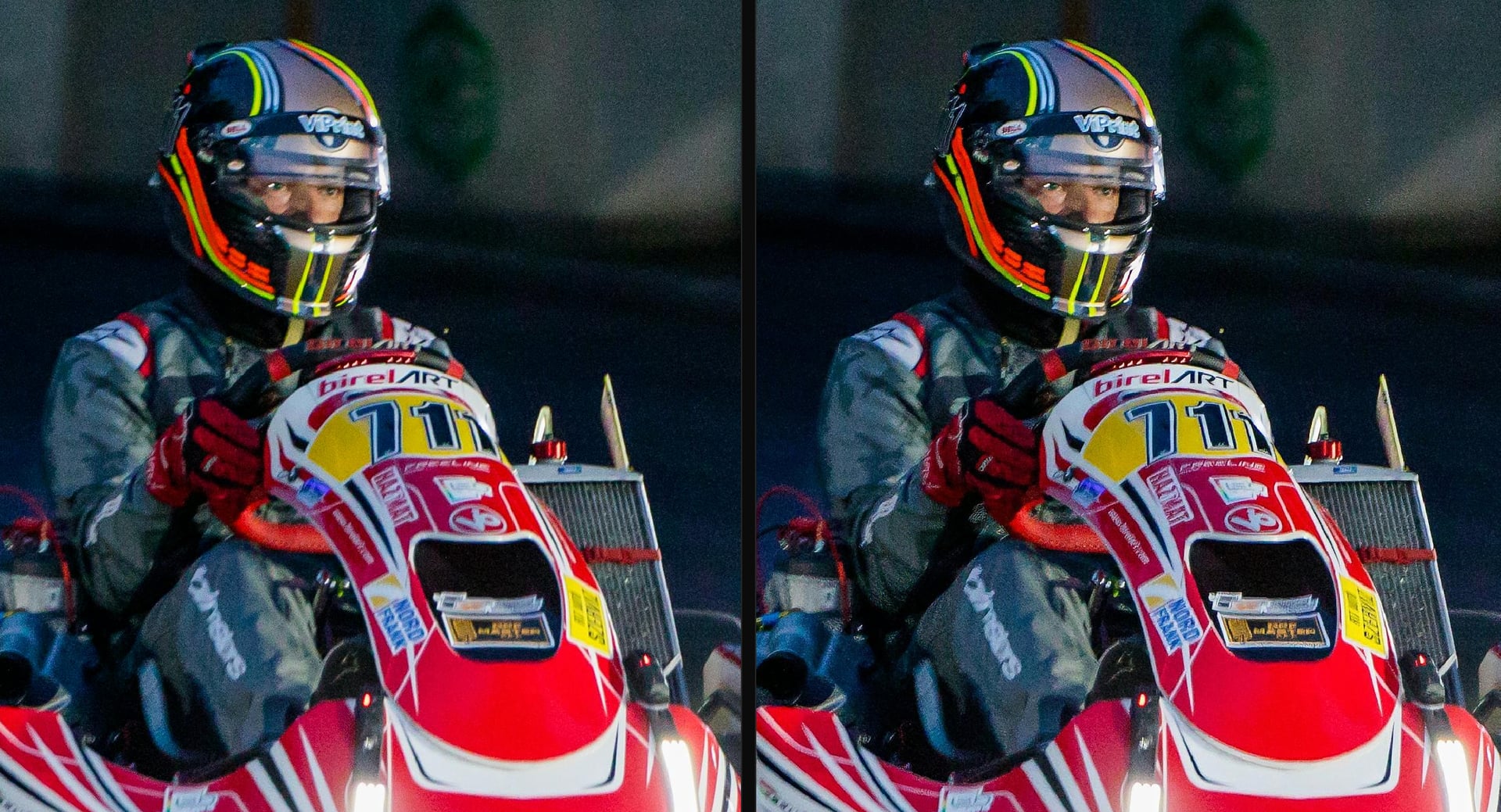
In this nighttime go karting picture, sharpening the image with existing sharpen models boosts the noise to the point of distracting from the driver and kart.

Noise-aware works on the layer under the noise, bringing the subject in focus without creating artifacts.
Noise-aware is a new addition to the sharpening model lineup, not a replacement for existing models. If your images are clean, the existing sharpening models remain the right tool. If you shoot in conditions where texture and noise are part of the image, this is the model that’s been missing.
NeuroServer Model Speed Improvements — Over 300% Faster
NeuroServer-based models are now significantly faster. We reduced the model load time and increased processing speed for Wonder 3, Super Focus v3, and Denoise Max.
Testing with a NVIDIA 3080 at 20MP output, we saw a speed increase of 330%. For larger images and faster GPUs, the speed increase is possibly even larger. If you’ve been putting off images and batches because of processing time, this update will enable you to use these models more.
Recover Faces 3 benefits from the same improvements. The version shipping today already includes the speed gains, so there’s nothing extra to enable.
Hopefully this encourages more usage for these models with images that need the extra push.
Known Issues
- Recover faces 3 intermittent out of GPU memory error with 8GB VRAM. Will have a fix in next patch.
Changelog
- Add Face Recovery v3 through Neuroserver for NVIDIA, AMD, and Apple Silicon devices
- Add Face Recovery v3 cloud render
- Add Sharpen - Noise-aware model
- Update Upscale - High fidelity v3 model
- Update NeuroServer to speed up Wonder 3, Super Focus v3, Denoise Max, Face Recovery v3
- Fix crash with face parse model in image analysis
- Fix Remove v2 error running model on some devices
- Fix Remove v2 and Recover v3 grey output on Windows devices with foreign locales
Lingyu Kong
Technical Product Manager
Image AI
