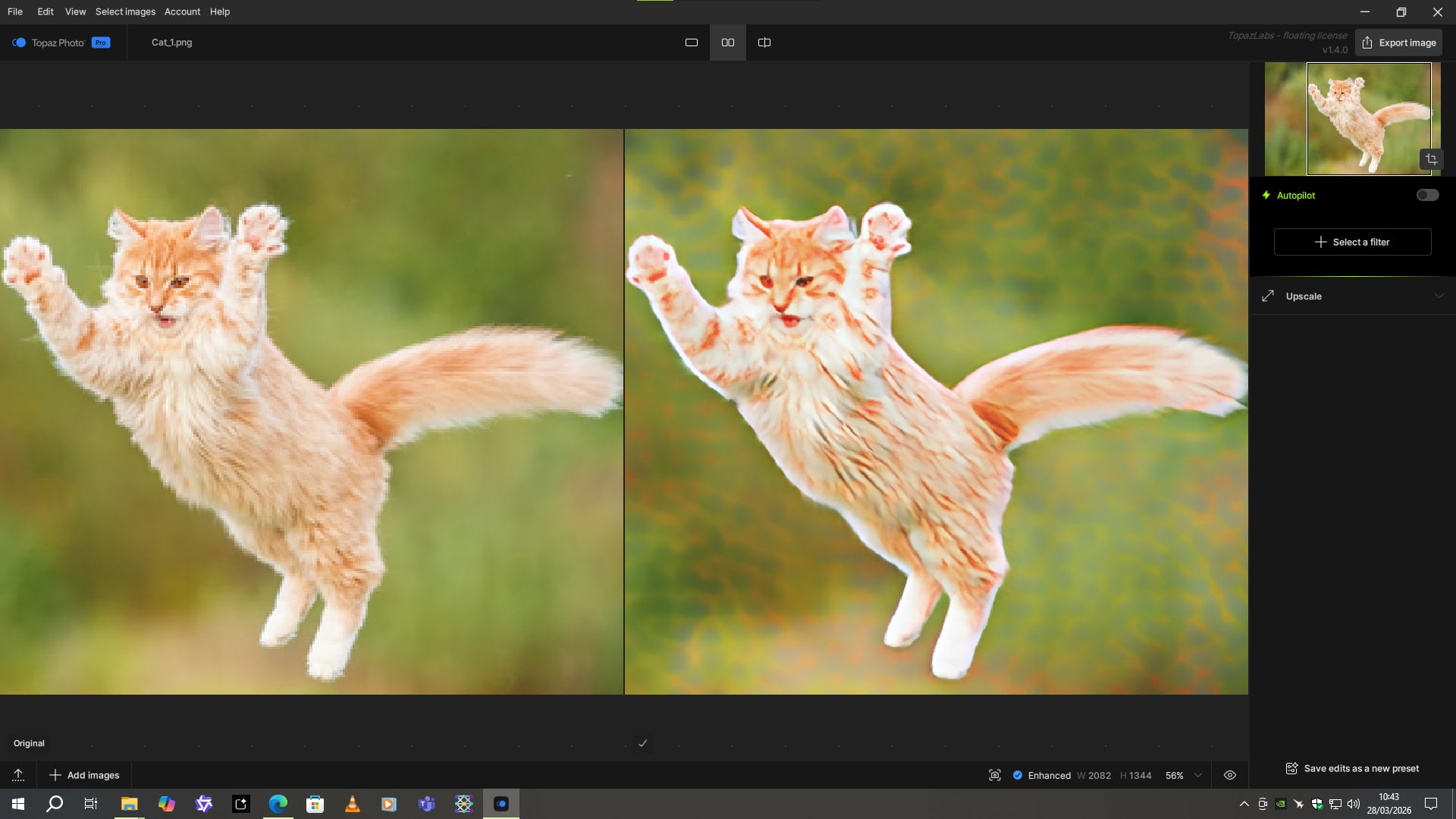
Hello everyone! 
 Topaz Photo 1.4.0 is here!
This release is focused on making Topaz Photo smarter, leaner, and faster to set up. We’re introducing a new processing mode for Wonder 2, quick install options in the installer for a faster setup, and under-the-hood upgrades that make the app more efficient.
Here’s what’s included in the Topaz Photo v1.4.0 release:
- Auto Mode for Wonder 2 — Pre-downscaling Wonder Recommendation
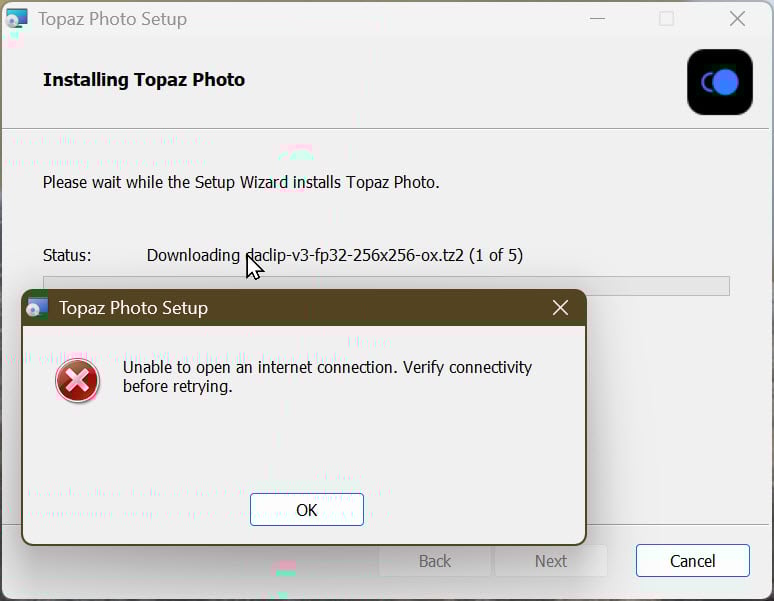
- Faster Installation — Recommended & On-Demand Model Download
- Faster Analysis on Mac — Improved image analysis efficiency to reduce analysis time
Topaz Photo v1.4.0
Released March 27th, 2026
Installers:
Windows : Download
Snapdragon : Download
Apple Silicon Mac : Download
Intel Mac : Download
Auto Mode for Wonder 2 — Fix False Resolution and Low Detail
One of the trickier image problems to solve is false resolution, where an image has been upscaled or resampled to a larger pixel size but the actual detail doesn’t match those dimensions. Standard upscaling models tend to produce poor results on these images, and until now Autopilot had no way to detect the issue or point you toward a better option. The same applies to images that are heavily blurred or simply low in recoverable detail.
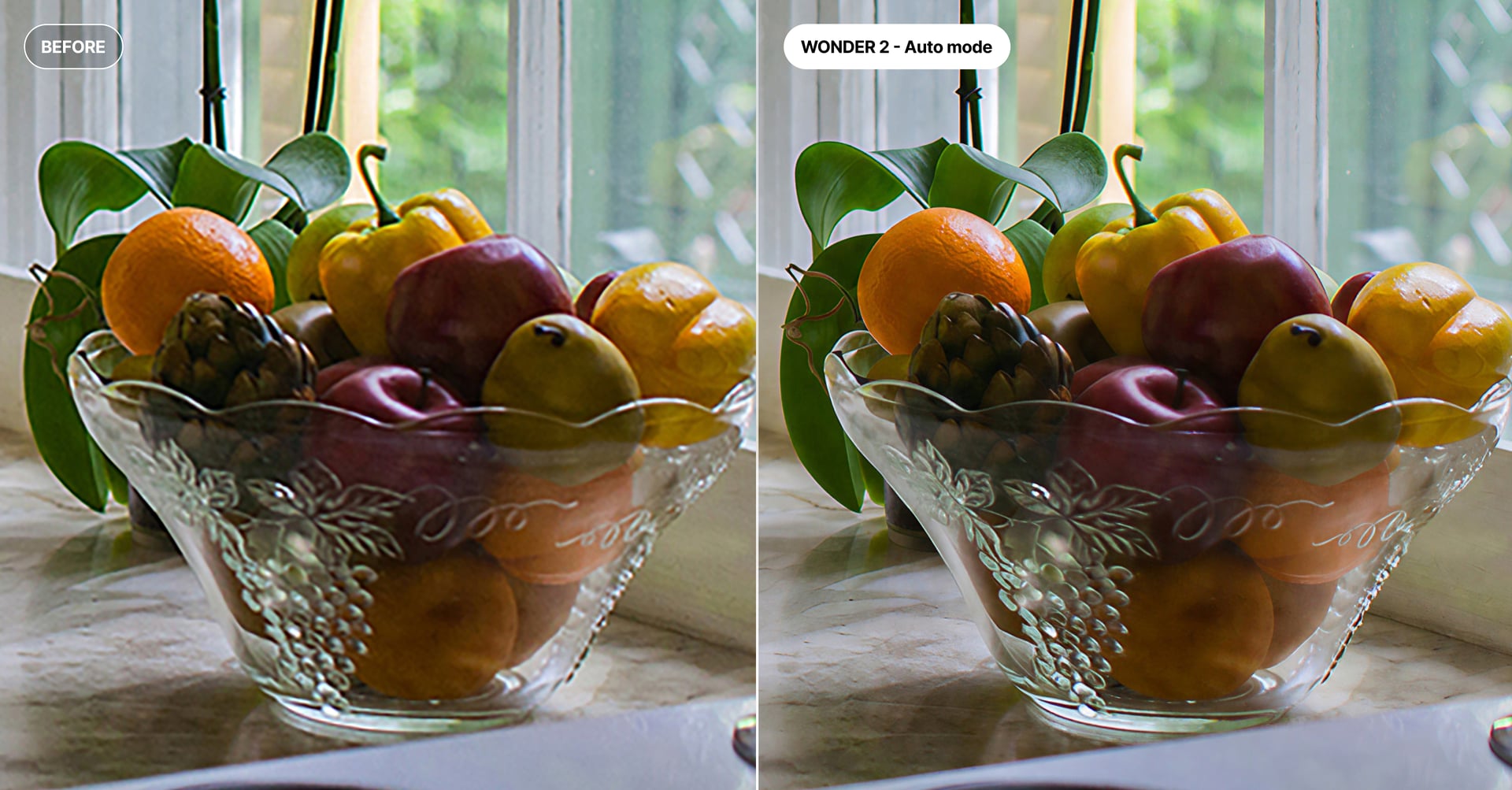
Wonder 2 is great for low and medium resolution images. It does not handle false resolution images with normal scale and size controls.
We’ve added a new analysis model to Autopilot Analysis that looks for these conditions. When low detail or false resolution is detected, using Wonder 2 will automatically select its Auto mode.
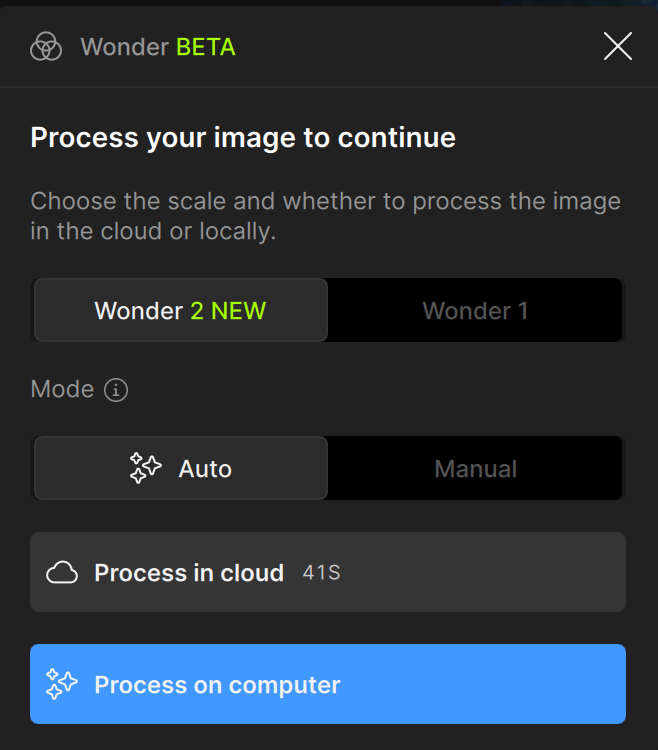
In Auto mode, Wonder 2 determines the appropriate output size based on the actual recoverable detail in the image rather than its nominal pixel dimensions. When Autopilot selects this recommendation, the output size is set automatically with no manual configuration needed.
Recommended & On-Demand Model Downloads
Installing Topaz Photo has always meant downloading every model upfront, including large specialized models that most people use rarely. This made the installation very slow and storage-heavy before you could even open an image.
The reason comes down to model size. The core editing models covering Denoise, Sharpen, Upscale, Face Recovery, Lighting, and Color are compact and cover the vast majority of workflows. The generative models are significantly larger and produce strong results, but they are designed for rarer and more specific image situations. Bundling everything together meant new users were waiting through a long download for models that are less commonly used in their workflow.
The installer now allows you to decide which models to download.
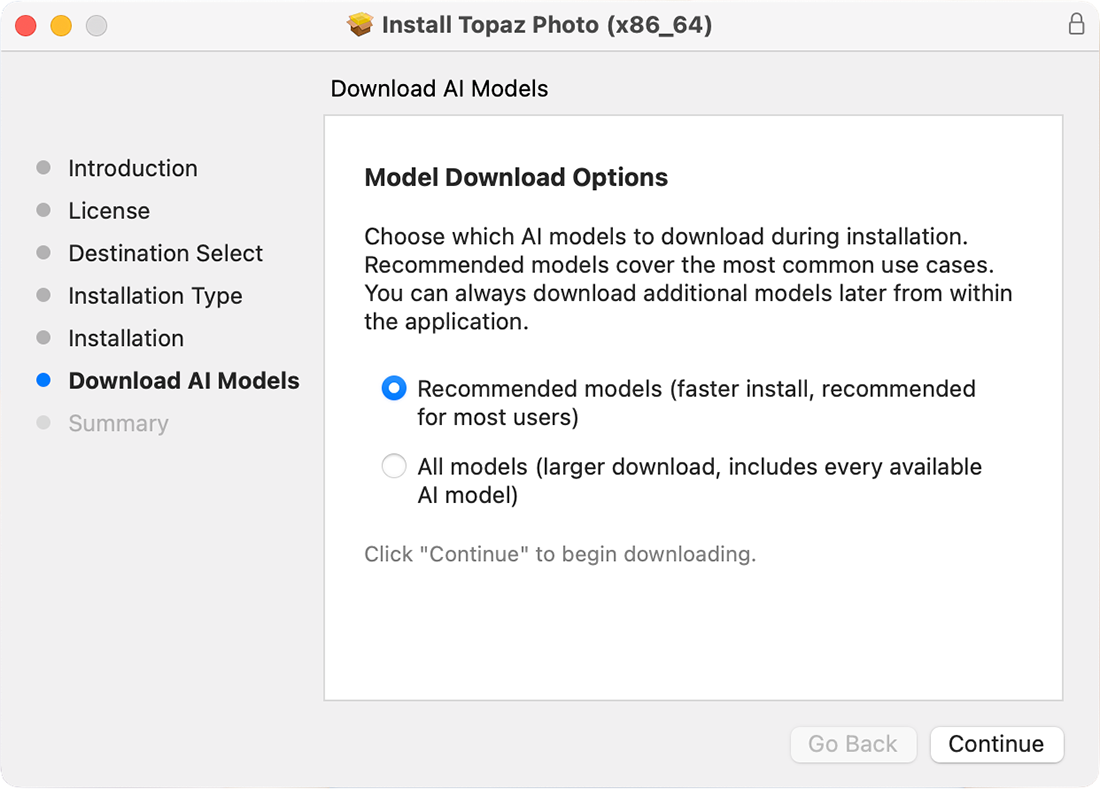
Recommended models includes all the analysis and core GAN models: everything you need for Denoise, Sharpen, Upscale, Face Recovery, Lighting, and Color. Download is fast and the full standard editing experience is available immediately.
All models includes Remove, Super Focus, Dust & Scratch, Wonder, Upscale - Recover v3, and Upscale - Standard MAX.
If you choose recommended models and later use a feature that requires a model you don’t have, the application will download it automatically on demand. No need to reinstall or manually manage anything.
NOTE: the processing ETA for generative models on the first use will be inaccurate due to the models downloading.
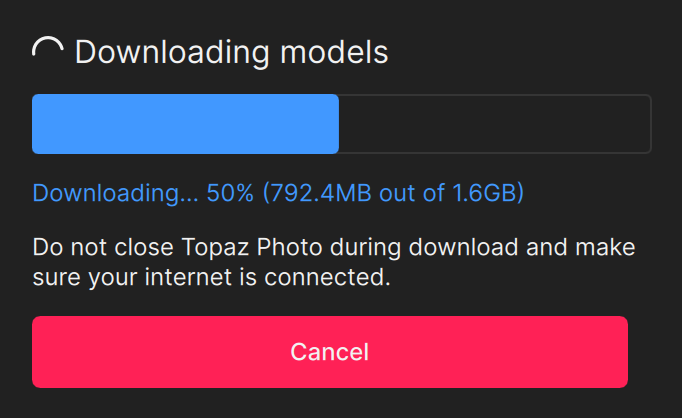
If you plan to use the app offline or know you will need the generative models regularly, we recommend selecting all models at install.
Faster Autopilot on Mac
Autopilot analysis runs on every image you open, which means any improvement to analysis speed has an outsized effect on the experience, particularly for the first file loaded in a session.
In looking at where time was being spent, we identified a few models that had become bottlenecks. For each one we looked for improvements, whether that meant finding a smaller model variant that produces the same results or changing how the analysis models are executed.
On Mac, the results are significant. Analysis time in testing dropped from 19 seconds in v1.3.3 to under 8 seconds in v1.4.0, more than a 50% reduction.
Windows was already running analysis quickly. We made some improvements there as well, though the new false resolution detection model added in this release offset most of the gains, keeping overall analysis time roughly flat.
Changelog
- Auto mode for Wonder 2
- Recommended and all model options in installer
- Just in time model downloads
- Faster image analysis on Mac
Esther Huynh
Product Manager
Image AI