The whole models folder can take over 40GB in ProgramData\Topaz Labs LLC\Topaz Photo\ location. The wonder-2 zip file is probably at least 6.5GB big.
I didn’t ask for it to be downloaded. It did it as part of the installation. What should I do to prevent this issue from occurring again? I can uninstall and reinstall Topaz Photo, but how can I control what’s happening to prevent this issue from recurring?
For Wonder 2 files, I have these:
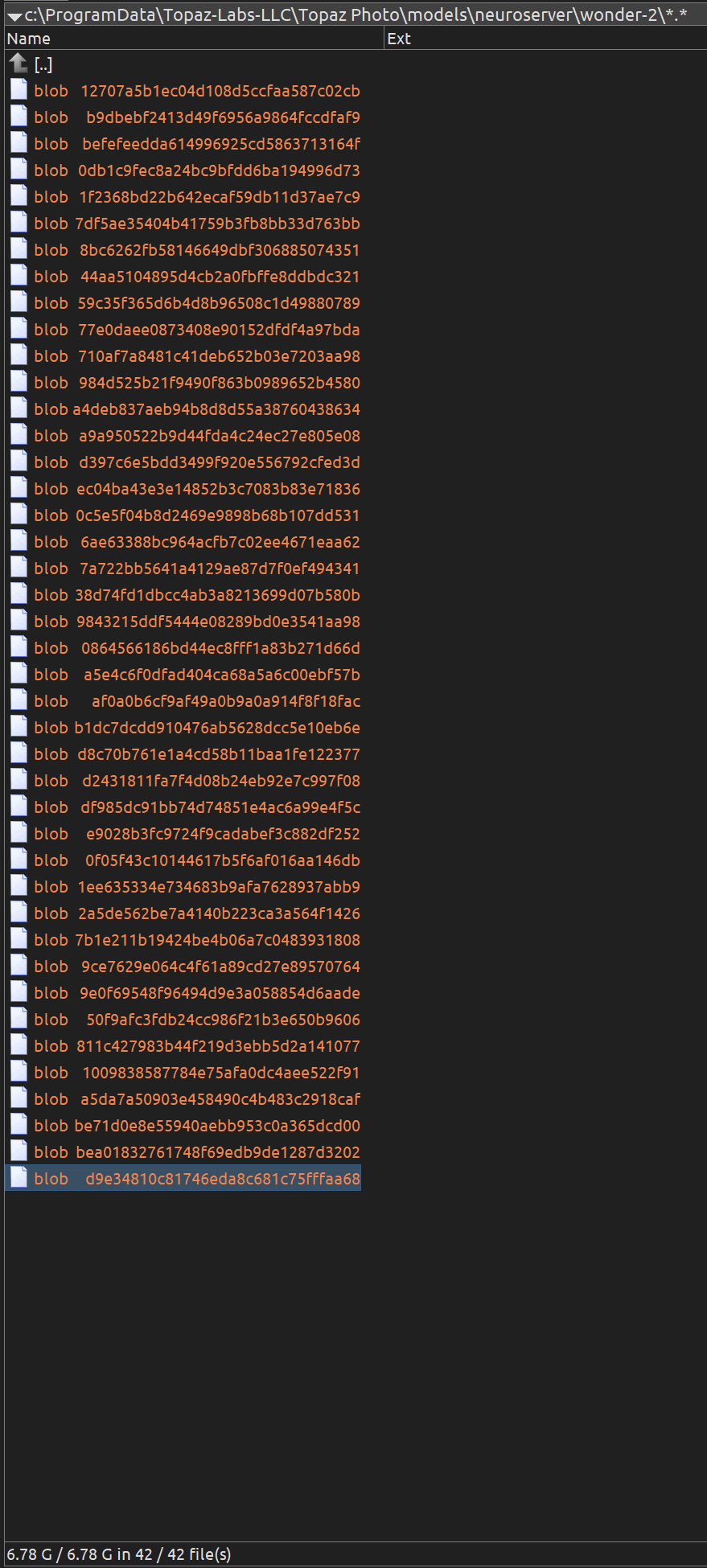
They should not redownload themselves, if you have them already. Otherwise, I’d check the amount of free disk space, as the installation is BIG.
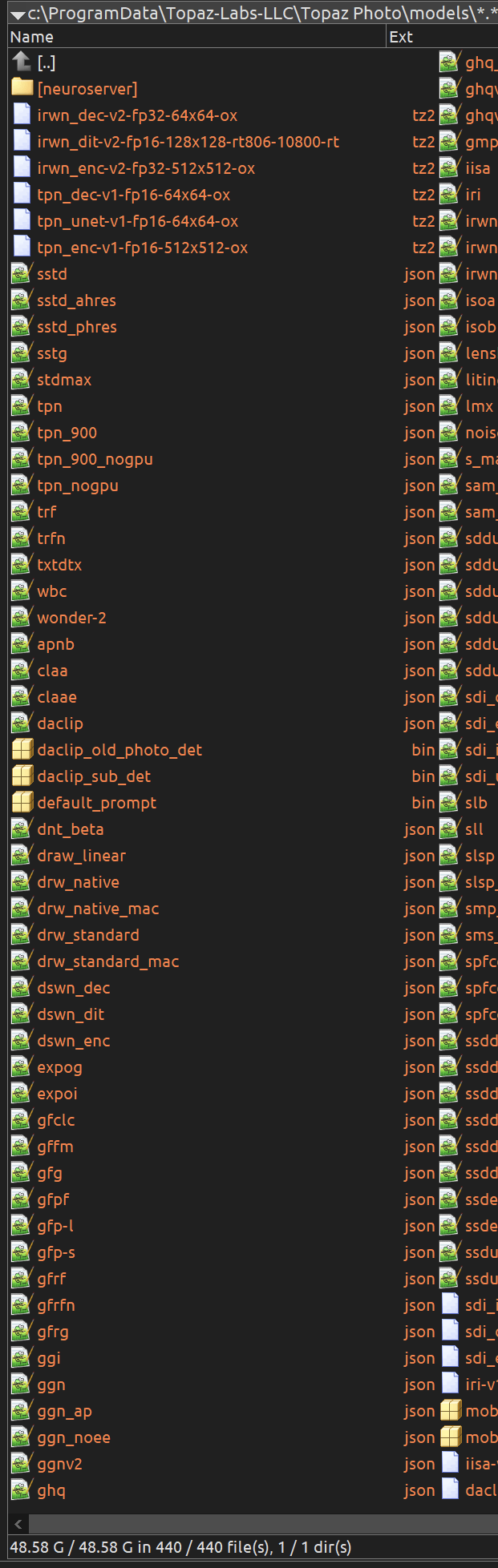
That’s the whole model folder disk space requirements, with Wonder v2 included.
1 Like
Do you mean that the installation software is going to download the 40GB stuff no matter what, and I can’t control how much it will download?
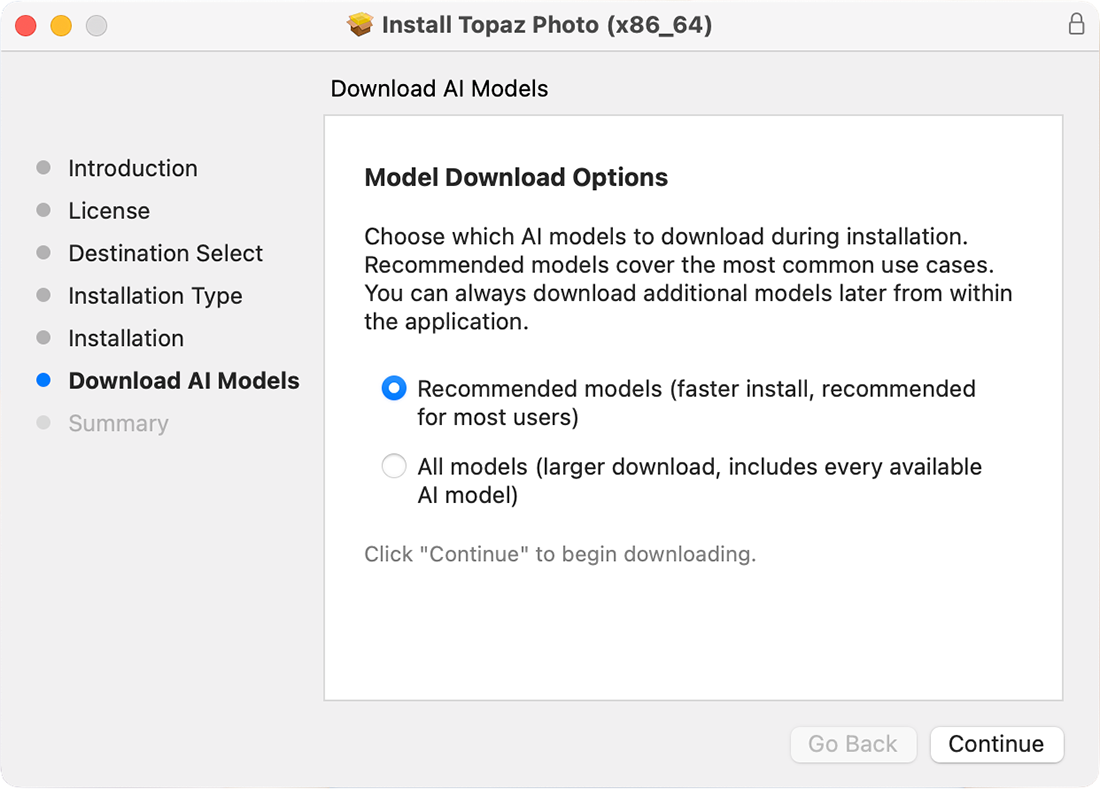
It should display the option to either download everything at install, or just the essentials (as the OP shows with the Mac version of the install), I didn’t see that option during 1.4.0 or 1.4.1 install though, when I was updating from 1.3.3.
2 Likes
It’s better to have a lot of free space on the OS drive though - these models are no joke with sizes. 
1 Like
Agree.
I didn’t see that option during my Win 11 download & install. That would have been helpful.
1 Like
Well, I reinstalled it again and put it on a second harddrive with much bigger capacity (deleted everything from the old install). I also clicked the “recommended models” option and now it seems to work OK. It still takes about 13GB total on the disk.
Thank you very much for your help!!
1 Like
after update “analyzing” the image gets stuck, runs in a loop. Please fix
Hi @Lingyu ! I sent you DM end of last wk. Hope all’s well.
@BMuntasserPhoto - glad to hear the install worked! if any other issues re-occur with the installer, let us know!
@birgit.neiser - can you send to support@topazlabs.com your apps logs (Help, Open Logs folder, Send all logs to the Support email) and we can have a look to see what is causing this!
Once you have sent the logs over and while we have a look at them, you can also revert to v1.3.3 to be on a working version while we investigate:
Topaz Photo v1.3.3
Windows: Download
Snapdragon: Download
Apple Silicon Mac: Download
Intel Mac: Download
If anyone has a Stuck on Analysis behavior, see steps that can fix this here:
If anyone has the installer Stuck at wonder2-20260218.zip, see steps that can fix this here:
I have two minor issues, both basically with Edit Preferences:
- Now that Wildlife seems to have made it out of Beta, could you please let me assign it as a default choice for sharpening?
- This one has been a thing for a while now: every time there’s a new release, Autopilot gets turned off in Preferences for no obvious reason (nothing else is ever changed, just this setting).
Thanks in advance (I hope)!
Hello @davidfiedler -
For Sharpen I have added your contact information on the feature request for this.
For the installer/Au-Pilot behavior, when you next update, can you record your workflow, and we can show the development team? When we update, it keeps our Preferences and will help to see what differs in yours!
Is there a more in-depth explanation as to what auto mode for Wonder actually does? I’ve tested an image with a face, and auto mode actually resulted in a smaller image with a face that looks nothing like the person compared to a larger setting. All of the images that I’ve resized by 4x also look great, so why go with the typically smaller image that auto results in?…
Wonder had issues with false resolution images, which is what the Auto mode is designed to address.
False resolution typically comes from images downloaded online, scans, or screen captures. It happens when an image has been upscaled, increasing the pixel count without adding real detail. The extra pixels don’t represent unique information from the original image, which can reduce clarity and cause inconsistent results. The solution to this is downscaling, which removes those excess pixels and condenses the real detail. This helps restore clarity by eliminating the false resolution. The Auto mode performs this step automatically when needed.
If you’re getting good results without using Auto, it likely means your files don’t have false resolution and don’t require this Auto step.
1 Like
4x is its native scaling step, it does work best with this.
1 Like


Hi Roberto.
This is a known issue and is currently being investigated please use Local Rendering if available until a solution is found
Here’s some information about the issue from Alexandre at Topaz Support
Hope this helps
1 Like
