I waited like 10 mins, it never get back to PS on my PC after I am done with TP. Bug?
You forgot about the poor owners of Leica. DNG is native RAW format in these cameras.
I told about this issue 1 year ago… EXIF data
2 Likes
@Serge.L - you can send your file to support@topazlabs.com and we can test it and add your contact information on the development team ticket!
1 Like
It’s not limited to date fields. Using Apple Pro Raw DNG files directly exported as “Original” in Apple Fotos and imported into Lightroom Classic. This is how metadata looks like directly after importing into Lightroom:
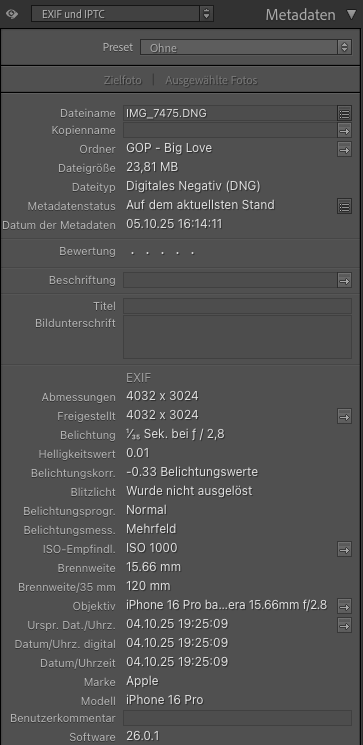
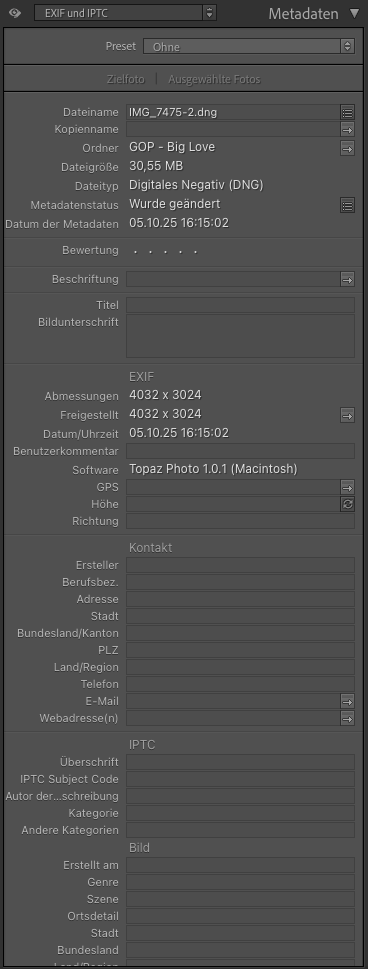
After sending this picture as copy to Topaz Photo and saving again as DNG almost all metadata is lost:
2 Likes
The Apple Pro RAW files are not supported at the moment, mentioned here.
The open Ticket we have with development is for: 1. Renamed files in LRC, which will rename file and put them as renamed DNG. Using the unnamed RAW native file will not have issue 2. Cameras that are supported but have a native file as a DNG: Leica for example or Drone pictures. 3. Users that deleted their native files, and only have access to Backup DNGs. #2 and #3 will have metadata loss as they don’t have non-DNG native files to go back to. To keep metadata, it can be converted to non-TIFF as a workaround. Users that reach out with this issue (#1/2/3) will be contacted when a fix is found and released.
1 Like
What plugin path are you using and were you making any size/upscale changes? Make sure to use FIle > Automate from PS to do siz changes, Adobe will not accept any size changed from Filters. Let us know if any issues occurs on The Automate path!
1 Like
I see. Yes, I did do the upsize in Wonder and it never pass it back to PS. If I do 1:1:, it works after I do Wonder. I like to first crop my photo in PS. What is the proper way. Thank you.
Youc an crop, just have to use from PS the menu plugin which allows size change, this is File > Automate! Do not use Filters menu, as it won’tallow size changes!
Yes. Ange is right. I only use the TL products in a Ps workflow. Not standalone. I’m a TL user for 14 yrs, tester for over 10…
I’d suggest that even if you aren’t scaling your images @mrtoyota03 , or others, if working with the products as plugins to Ps, I’d recommend not to use them by going to the Ps Filters menu. If you access the product there, you not only won’t be able to make sizing adjustments, but the TL Photo output from the Ps Filters menu will overwrite your sending layer. It’s almost always best to add a new layer as a processing output, including with 3rd party filters, in case you want to step back (or undo) changes or if you want to mask the changes you just made and not affect prior layers’ work.
I always work with TL Photo (& Giga) in the way Ange suggested you try. That is… go to the Ps File menu, then Automate under there & find Topaz Photo under Automate & launch it from there. The benefits are not only that you can scale or change the form of an image from there, but also when you Export [ie, save back] to the Ps UI your output will become a new, labeled layer. And, that new layer is maskable (in case you want to either lessen the generated effect or apply it selectively).
If your system is having issues when you follow that File > Automate > TL Photo approach, then that’s beyond me as a fellow user. Then, perhaps by seeing Logs, Ange or others at TL could help troubleshoot.
2 Likes
In Dust-and-Scratch, when using Select Additional Damage to Restore, the red circle with the white cross (i.e. the specialized mouse cursor) moves very slowly and jerkily. Otherwise, everywhere except the edited image (which has a size of 2768x1504 pixels), the cursor (a regular arrow) moves completely normally.
3 Likes
@unrelent - Thanks for flagging! Definitely Strange! There is no speed behavior changes on our side using this tool and have not received any reports for this yet. Can you send to support@topazlabs.com your Logs, System Profile and a screen recording of the slower behavior and we can troubleshoot!
Yes, I will send it. Thanks for the lightning-fast response.
1 Like
A post was merged into an existing topic: Dust & Scratch Removal
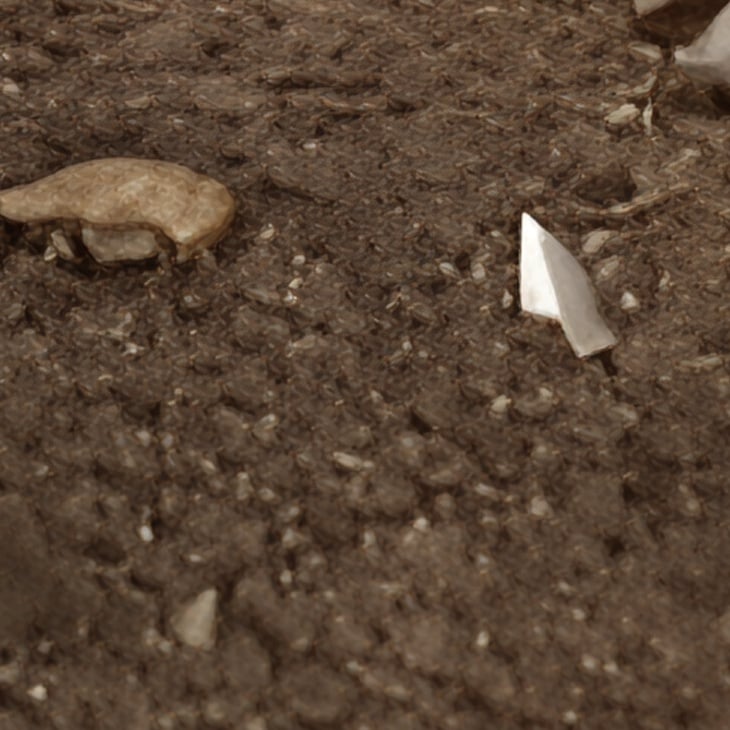
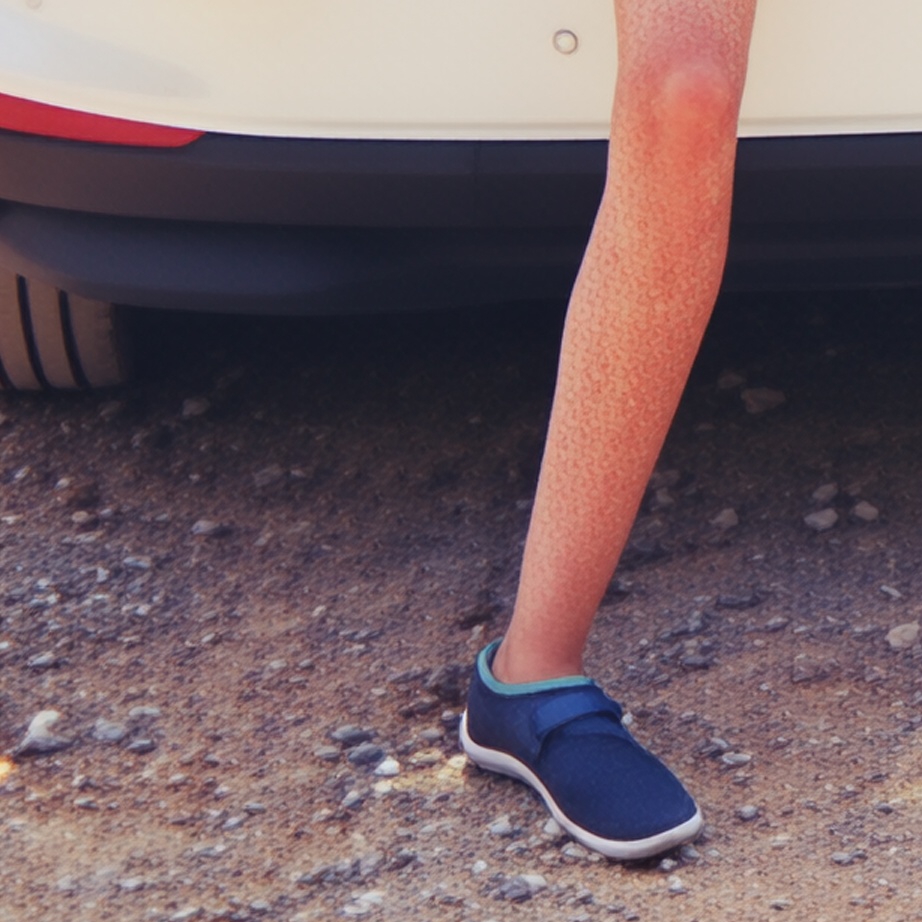
The Wonder model is a good step forward and the result is very good in some cases, but in many cases it adds very strange and repetitive patterns that ruin the image, as in these two images.
3 Likes
Is there a way to apply Wonder as a preset across multiple images and bulk process them? I feel like I’m misisng something here.  I’d like to get about 10 images in queue, and run Wonder locally because it will take quite a while. But I seem to only be able to apply it to one image at a time.
As far as I’m aware, no, you cannot apply Wonder in a batch processing mode at this time.
From what I’ve seen, even if you click “Apply to All” the results may be inconsistent and you would need to apply settings manually. It is a generative model - so it would be difficult to have it apply desired settings across a batch of different images in its current design.
That may change over time…
I have run Wonder (on single images) locally. I guess you’d have to have a system that supports it. I’m a user - not Topaz staff.
1 Like
Thanks for the confirmation that I’m not missing anything. If all I’m doing with Wonder is clicking apply > 2x upscale, it seems like that should be something that could be queued up and run in sequence.
1 Like
@sumsar - can you share the original image to support@topazlabs.com and we can test it and show the development team! thanks!
@topaz2023 - locally, yes you can batch process Wonder. You can have Wonder on first image, then select all images in filmstrip, then right-click, then click Apply current settings to Selected images.
1 Like
@Ange.topazlabs There must be a bug then, because when I apply Wonder to my first image, then do the steps you mention - select all, right click, apply current settings, approve the prompt - nothing happens to the other images. Wonder isn’t applied to them.
1 Like
