It wasn’t. @Ange.topazlabs suggested I turn off anti virus and firewall, and re-install. For the benefit of anyone else who is reluctant to open their machine to the whole world, with Norton Security Ultra, you can do this:
Make the Topaz Photo\models directory trusted by the AV software
Change the “Smart firewall” setting for new apps to “Ask” or “Allow”. I changed it to “Allow” but I am pretty sure “Ask” would have worked, and it is a safer setting.
The model file to which you refer is now the right size, and the “re-downloading” message has gone away.
Thanks to you both!
2 Likes
Ange.topazlabs
(ange.topazlabs@gmail.com)
Split this topic
106
Sorry I’m not going to recommend hardware for you there, plenty of people on here who love doing that sort of thing however, from my own experience I’ve found a combination of Intel chips i7 or i9 and the NVIDIA Graphics Cards either the 40 or 50 series the higher the better is usually the best way to go.
The reason I mentioned finding the Topaz Recommended Specifications and doubling it was because, again in my experience when a company Recommends something they usually mean that’s their Minimum Requirements.
I have an M4 Mac with Tahoe 26 and I’m glad that I came across an answer in here somewhere, to give Photoshop Full Disk Access in Settings > Privacy & Security, as I’d tried uninstalling and then reinstalling Photoshop and Topaz Photo etc. to get Photo working as a plugin. After giving Full Disk Access to Photoshop, Topaz Photo now works as a plugin… finally. It’s been a few frustrating hours trying everything else!
Yes, faster processing is definitely true, and also, the very popular request to have Upscale Anywhere is now available, but can only be done if all prior layers are flattened.
Initial impressions–
For whatever reason, my automatic renewal of PhotoAI seems to have been disabled (despite verifying that with Topaz) but Topaz customer service gracious extended my subscription so I could take advance of the “legacy” offer.
Lightroom Classic (Mac) did require full disk access, as was indicated. That manifested as error message in Photo saying “cannot access model.” Fixed the security/permissions and then no issue.
Worked with a couple of .ARW files from LRC to Topaz Photo. Seemed to process faster but definitely in each photo saw some artifacting. In one image, experimented with SuperFocus rendering on machine rather than cloud. Strong artifacts even when I reduced to 25. In another photo, used Sharpen → Subject → Focus v2 to sharpen silightly out of focus subject. Worked well on the subject but the initial denoise and autopilot left artifacts in a different section of the photo than subject. So far-- and mind you this is only after processing a few images-- I am not seeing a significant differnece from PhotoAI.
Will continue to experiment by working with more images and comparing the same original ARW processed in PhotoAI with a copy processed in Photo.
@ra.ny - This setup you posted would be a great machine for AI Processing. If you wanted to Recommended Specifications for Topaz Video (which has the highest requirements of all Desktop apps), it would have to be 32GB of RAM (I don’t see the RAM on your posted specs). The Graphic card is over the recommended specifications so nothing to change here.
@nsoltz - Glad you see faster processing! Any Sharpening, especially Super Focus should be set to Subject, as its a very strong enhancement and will not work for backgrounds. Make sure once the process done to change Super Focus to Subject in the Selection Panel. (It also depends on the image, once we see your images we can help more) - You can send unsuccessful attempts to support@topazlabs.com and we can relay to the development team as well. Make sure the selection is set to Subject in your examples you will sent, and send in the original as well! Additionally, only use SF, not Sharpen + SF. It ill create a over processed look otherwise (agian will depend on images but usually test Sharpen first, if not recoevered correctly, remove SHarpen, then use SF).
Agreed. And, even doubling minimum specs (for headroom) will likely become obsolete within months to a year given the pace of development in AI for products like Photo (and, Gigapixel and Video). And, other AI products that aren’t relevant to this forum. It’s like Moore’s Law on steroids. Part of what’s important for someone to think about (besides one’s wallet) is what is the tradeoff analysis & personal preference for doing on computer vs ‘Cloud’ processing given one’s image processing requirements.
You know a lot more about this than I do. My Intel Mac is working fine, just not up to running the new Topaz Studio. Am I better off going for a Windows Laptop or a MacBook ?
If you are planning to run AI-heavy workloads day to day, NVIDIA desktop GPUs are the fastest processing you can get.
If AI processing is not vital for your needs, I think an Apple Silicon Mac will work well for quite a few years and have the benefit of a familiar operating system for you.
Really depends on your budget and what your workload is.
Bottom line, YES a Windows Machine with Intel chips with plenty of RAM and NVIDIA Graphics Cards with plenty of VRAM are far better suited for Topaz Studio then the current range of Apples
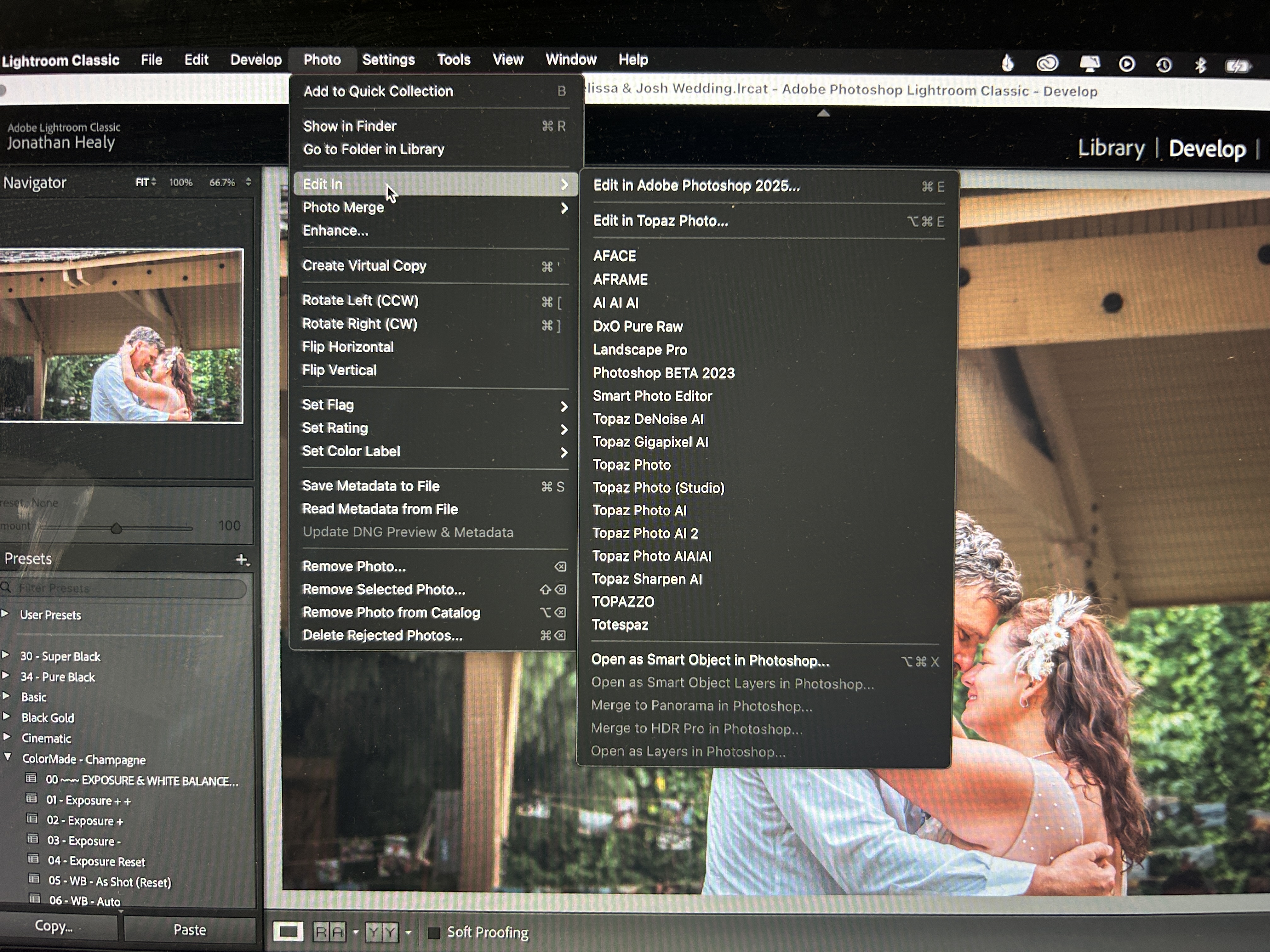
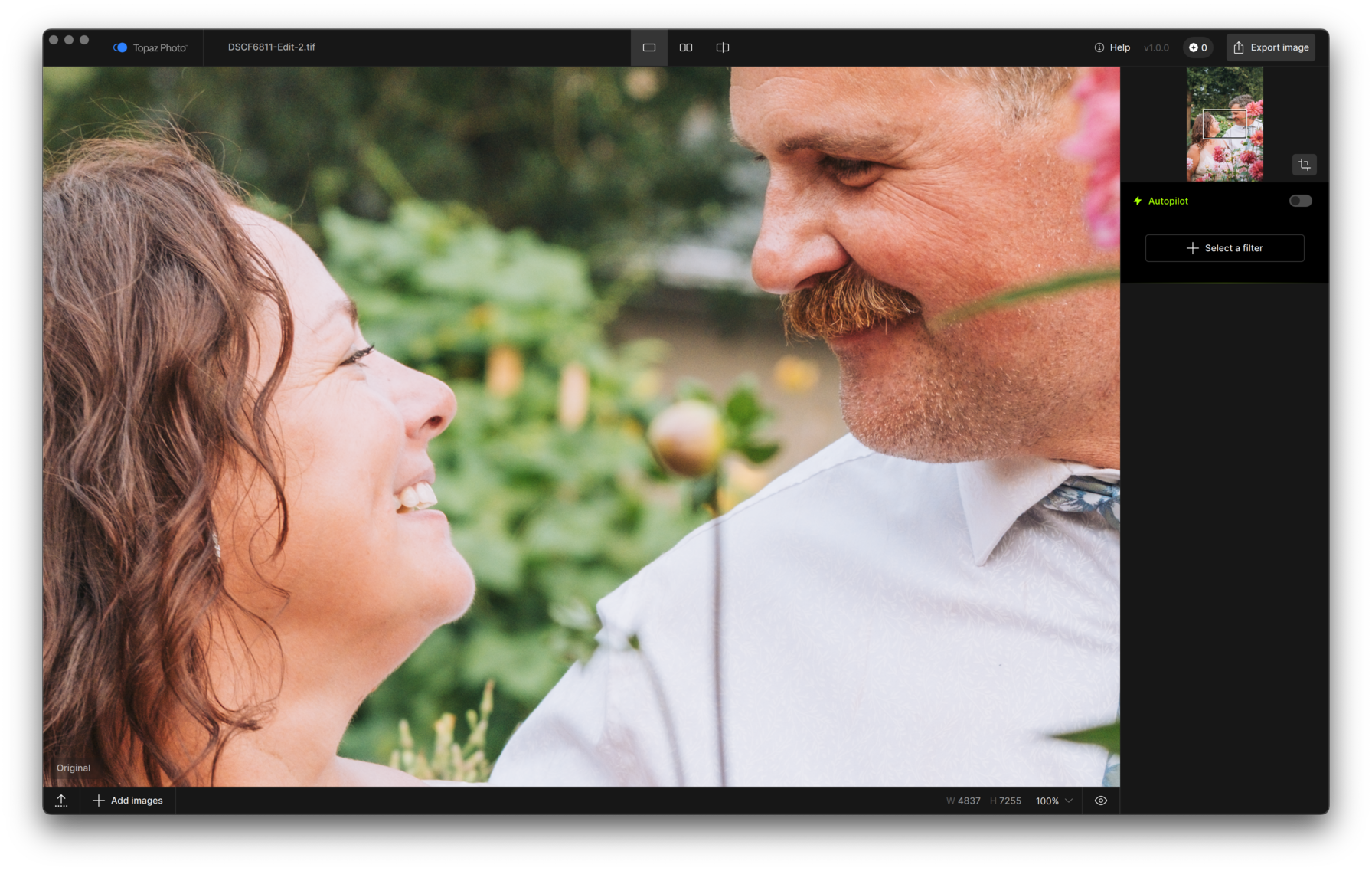
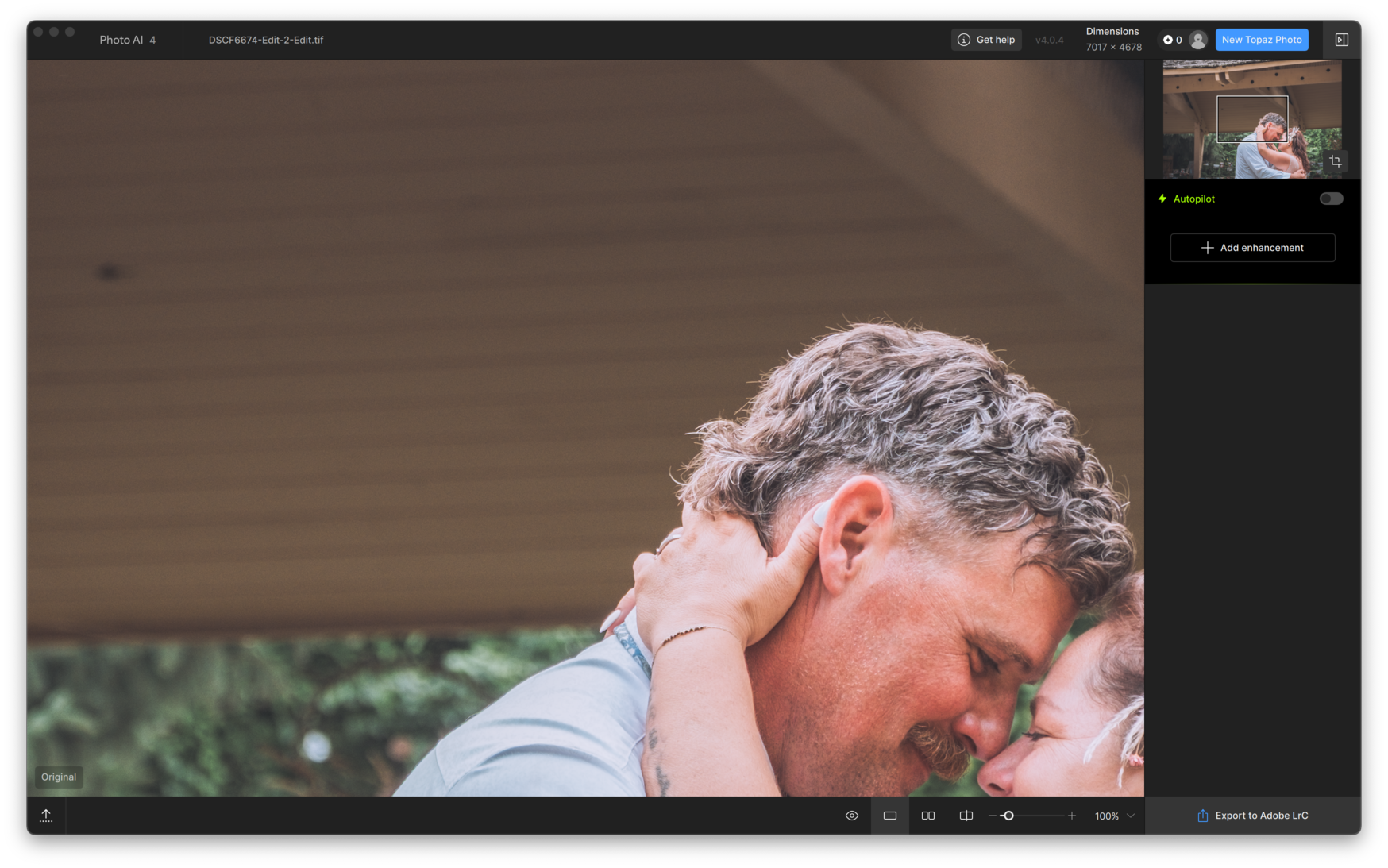
Thanks for reaching out. I’ve done the Full Disk Access thing just yesterday, and it doesn’t seem to have changed anything. These are what I’m mentioning below - how previously, Photo AI would give me the option to “export to LrC”, Photo doesn’t. With Photo AI, it would allow me to edit using the application as an external editor, then automatically close when my edits were done, returning the image back to Lightroom Classic. In this instance, it opens up a separate window asking if I want to save it in the original folder, and when I close that window, the application stays open and I have to manually close it - working as a stand-alone application, rather than an external editor. Screenshots below for context:
As another piece of the puzzle - I’ve had this happen with Photo AI as well, and I’m not sure what I did to fix it, but it’s on and off had the same issue.
It looks like you have multiple Topaz Photo options here. Can you try using the “Topaz Photo (Studio)” plugin and see if that is set up correctly to allow round tripping?
Hi there - I don’t see an option for a Studio Plugin - just the app itself (Photo). I deleted all the other Topaz options, and it doesn’t seem to have changed anything, again. Still just the “Export” option. I also uninstalled Photo, then reinstalled it. Is there a downloadable plugin? The only option I see is to select the app to add as an “external editor”.