Yes, I recall a long time ago you or someone posted an example of that. When was that? A year ago? Longer?
There’s at least one ref in the forums from Nov. 2024 (earlier posts in 2023 talked about Denoise removing freckles - so that’s different). But there are no snips in that post either to show what it looks like when it happens for “V”.
Seeing an example often helps the devs troubleshoot if they can’t replicate an issue themselves. I suppose that’s why Thomas is suggesting the poster include a sample too.
I just had a major bug/issue with the latest Adobe Ps release. Their prod mgr told me that what really helped them correct the issue (so they could replicate it and help other customers with the same issue) was seeing the snips I’d sent them unsolicited along with my sysinfo and a clear description of what happened when during processing.
You mention that 4.0.3 addresses batch processing issues for Mac/Windows. I reverted back to 4.0.1 because of 4.0.2 continuously trying to download models on my Windows system with a non-NVIDIA 50 series GPU. I’d like to know before I install 4.0.3.
Hi Keith,
I’m not with Topaz. And, Ange is very good about responding…
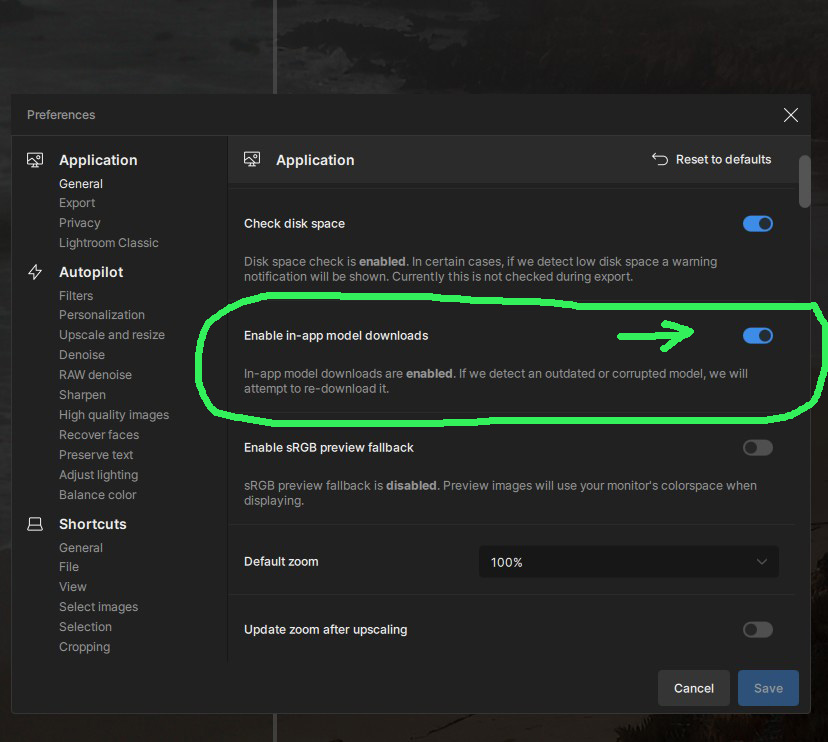
But since it’s the weekend, I wondered if you have your Preference for model downloading turned off and if the models still kept downloading.
I have my Pref for in app model downloads turned On. But I was just curious if your models were downloading even if you have that switch set to “Off”. Here’s a snip from my Prefs settings. Take care. Good luck!
1 Like
I recall someone posted an example that had freckles added. I am not interested in searching through all the threads though.
But it would be good to have another example posted here.
1 Like
Yeah, I just did a quick search. I saw the same person had posted about that happening in Nov. '24. But no snipped pic example was in that post. (The way certain artifacts manifest sometimes morph. So, you’re right, can’t hurt to see what’s happening now.
Okay, I decided to do a quick run with a group shot of office workers (stock) to see if any would develop freckles when using Recover Faces in PAI.
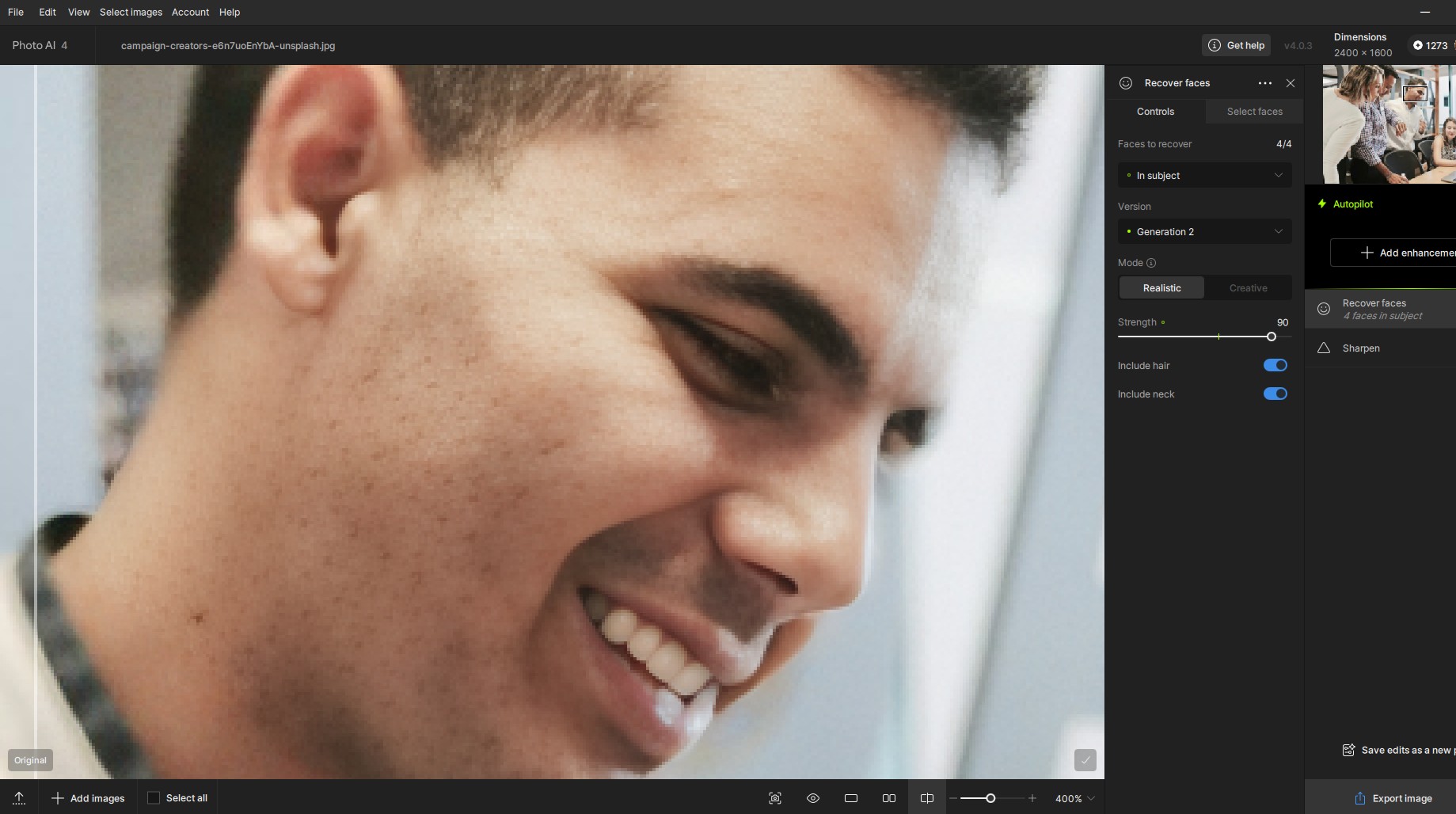
One of the subjects in the shot did! Not all of them. I’ll attach my snips of the example in this reply. I’ve only zoomed in on him b/c he was the only one affected.
Here’s my quick observations:
-
There were no evident freckles or notable skin anomalies that needed to be made more visible or enhanced in my BEFORE test image (for any of the subjects in the photo).
-
I ran a Sharpen enhancement 1st to simulate a PAI workflow in which Face Recovery should be applied at the end after other enhancements. Then I added a Face Recovery (FR) enhancement layer. FR recognized all 4 faces. But only this man’s face developed square pixelated “freckles”.
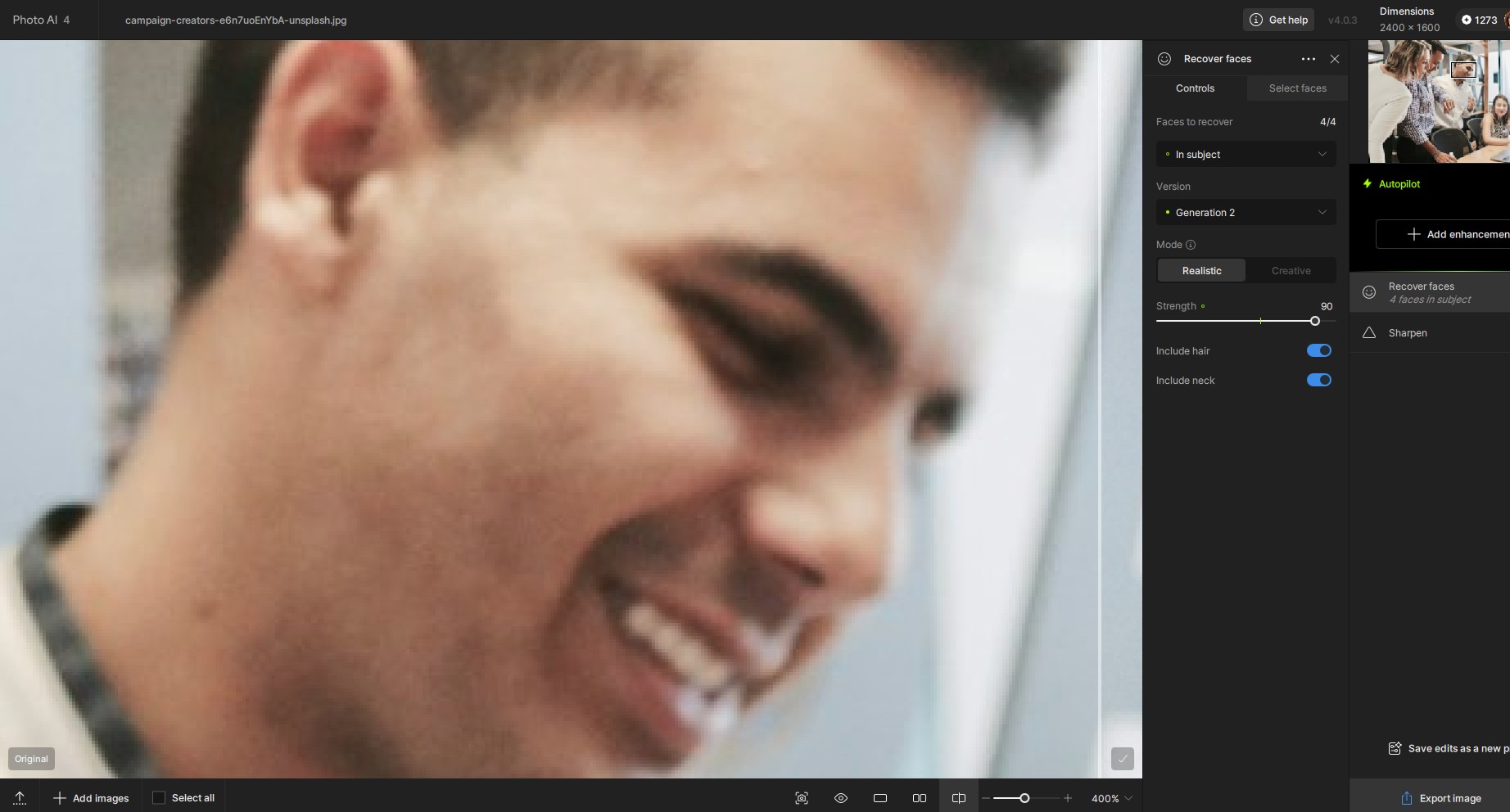
I have my controls set to only recover faces in subjects and to work with head, hair, neck. For this run, I used Face Recovery - Realistic - Gen 2 & I cranked up the strength slider. (NOTE: I could minimize the pixel freckles appearance if I pull the strength way down, but then the facial features overall looked very soft - which is n.g. and defeats the purpose of FR).
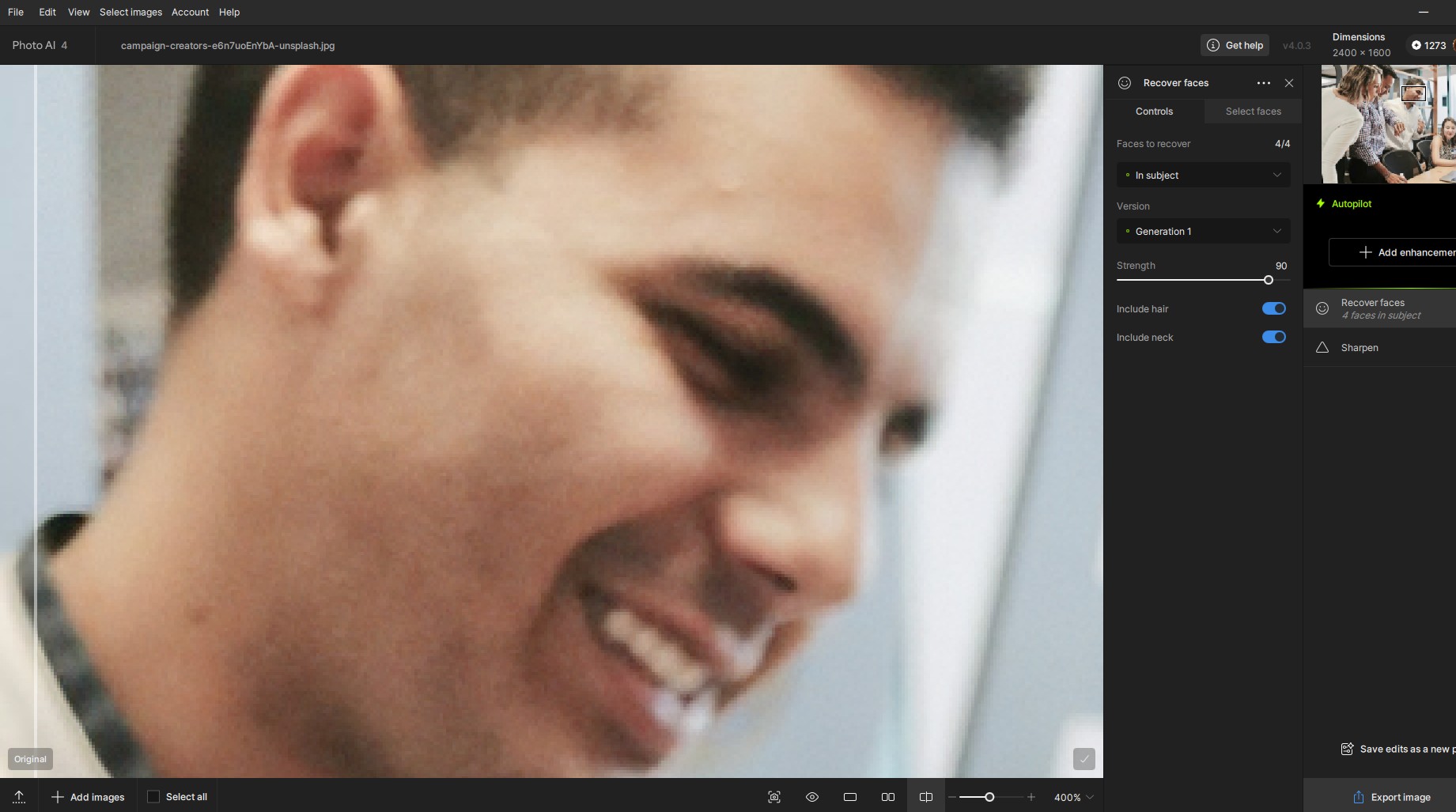
- Next, I swapped using the Face Recovery - Realistic - Gen 1 with the same subject and also cranked up the strength level. I don’t see the pixel ‘freckles’ anymore. The face recovery capability in that Gen 1 model output is softer overall than the Gen 2 model that I keep my UI set to…this result in Gen 1 looks like how my Gen 2 output looked when I lowered the strength to ~ 30%:
Here’s the original image w/out zooming in. As far as I can tell, it’s not that this subject has darker skin with large pores or acne or anything else that would trigger ‘enhancing’ that could end up looking like freckles. Because some of the others are in the shadows one would think it could happen to them too if that was the issue. But none of the other subjects in the pic showed the artifacts…

2 Likes
Have you changed the way photos can be exported in this version? Previously a photo can be selected from Apple Photos imported into Topaz then exported to a selected location on my hard drive. Now the only option I seem to have is send it back to Apple Photos. How do I change this? I dont want to send it back to Apple Photos
I understand better why the extra 5 GB. Thanks for the explanation  .
.
1 Like
In Topaz Photo AI v4.0.3 itself, there is a photo of a guy with his parents as an example. Try playing with even this photo and everything will become clear to you. The freckles problem still remains((((
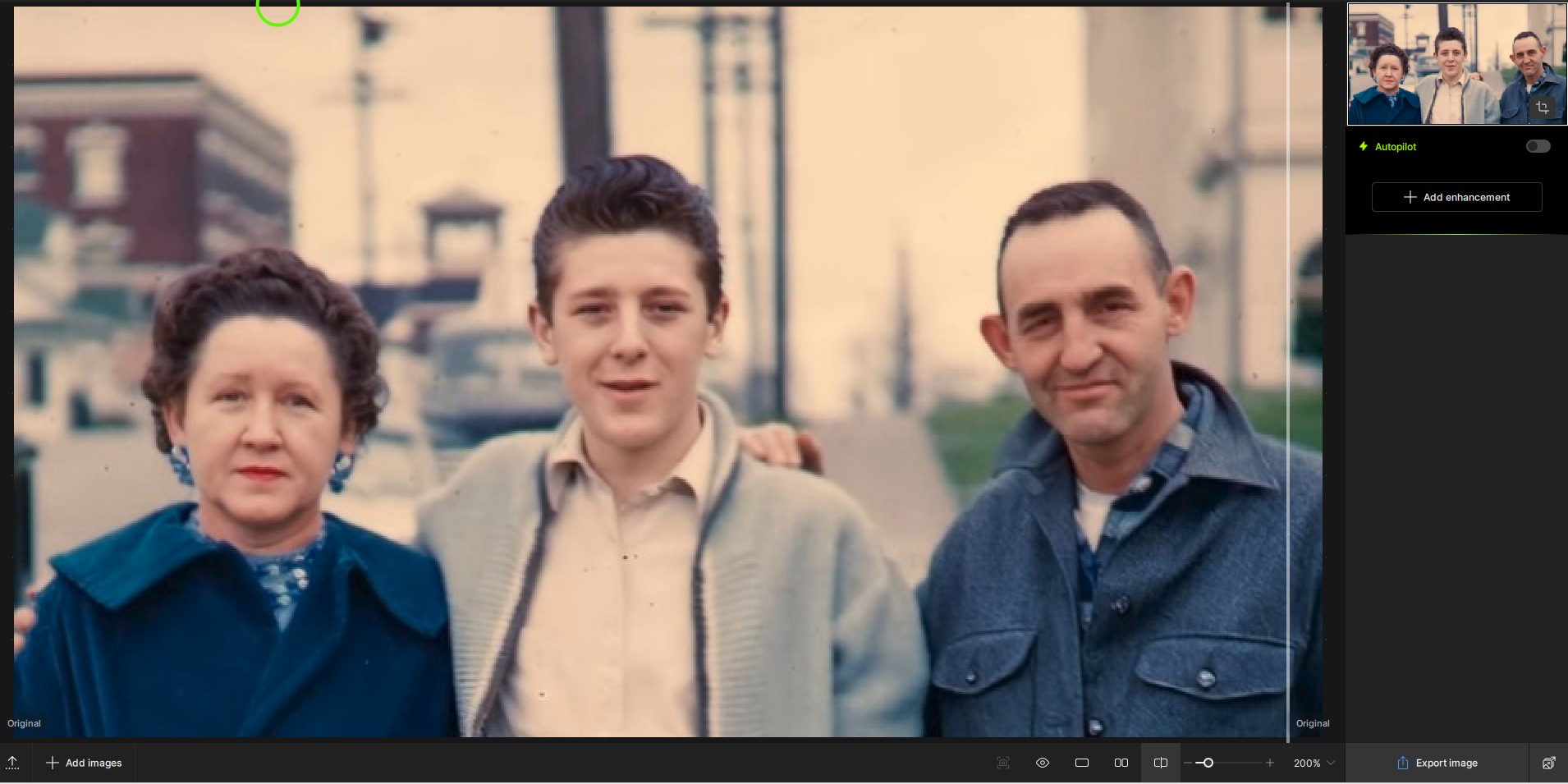
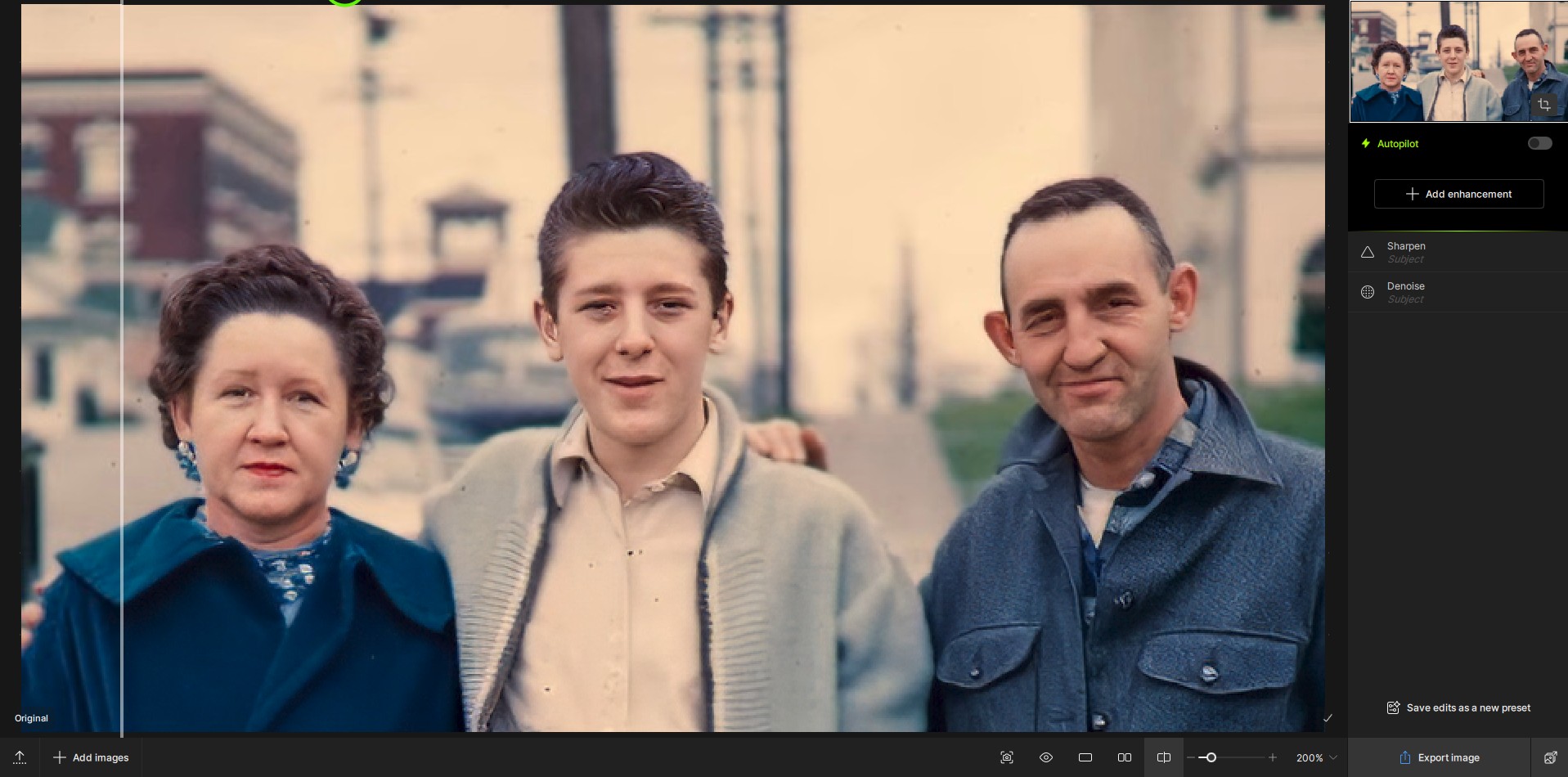
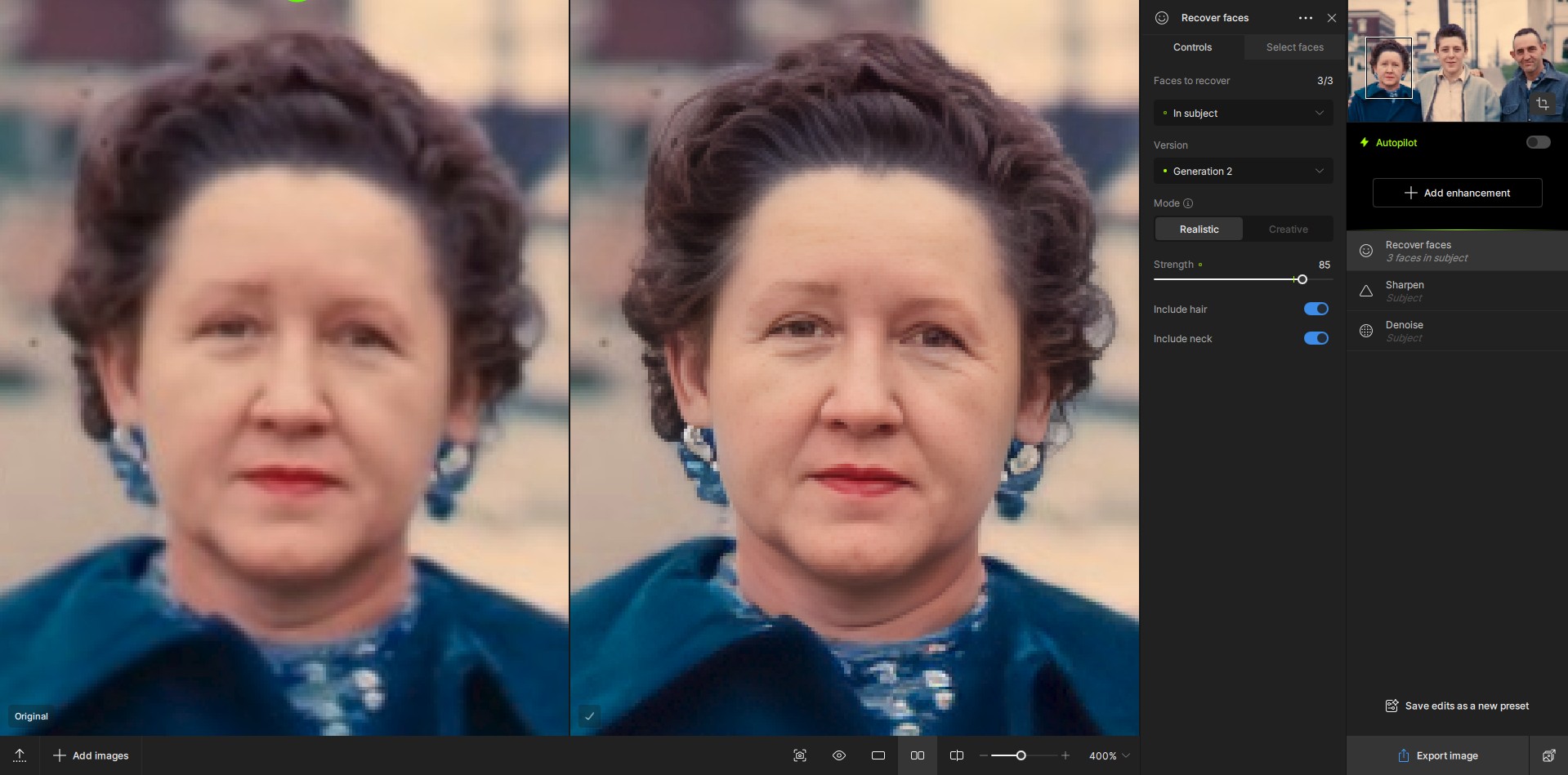
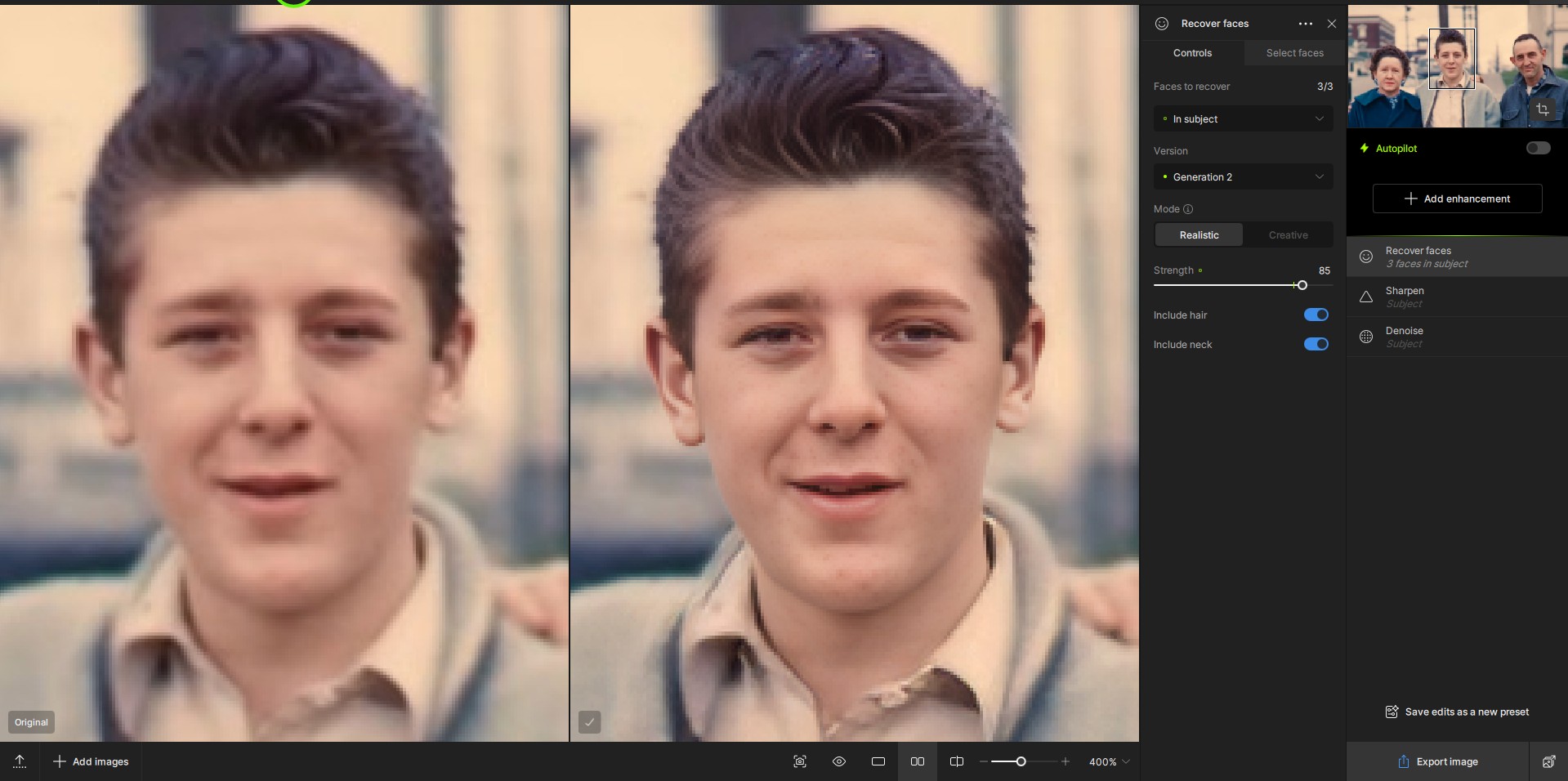
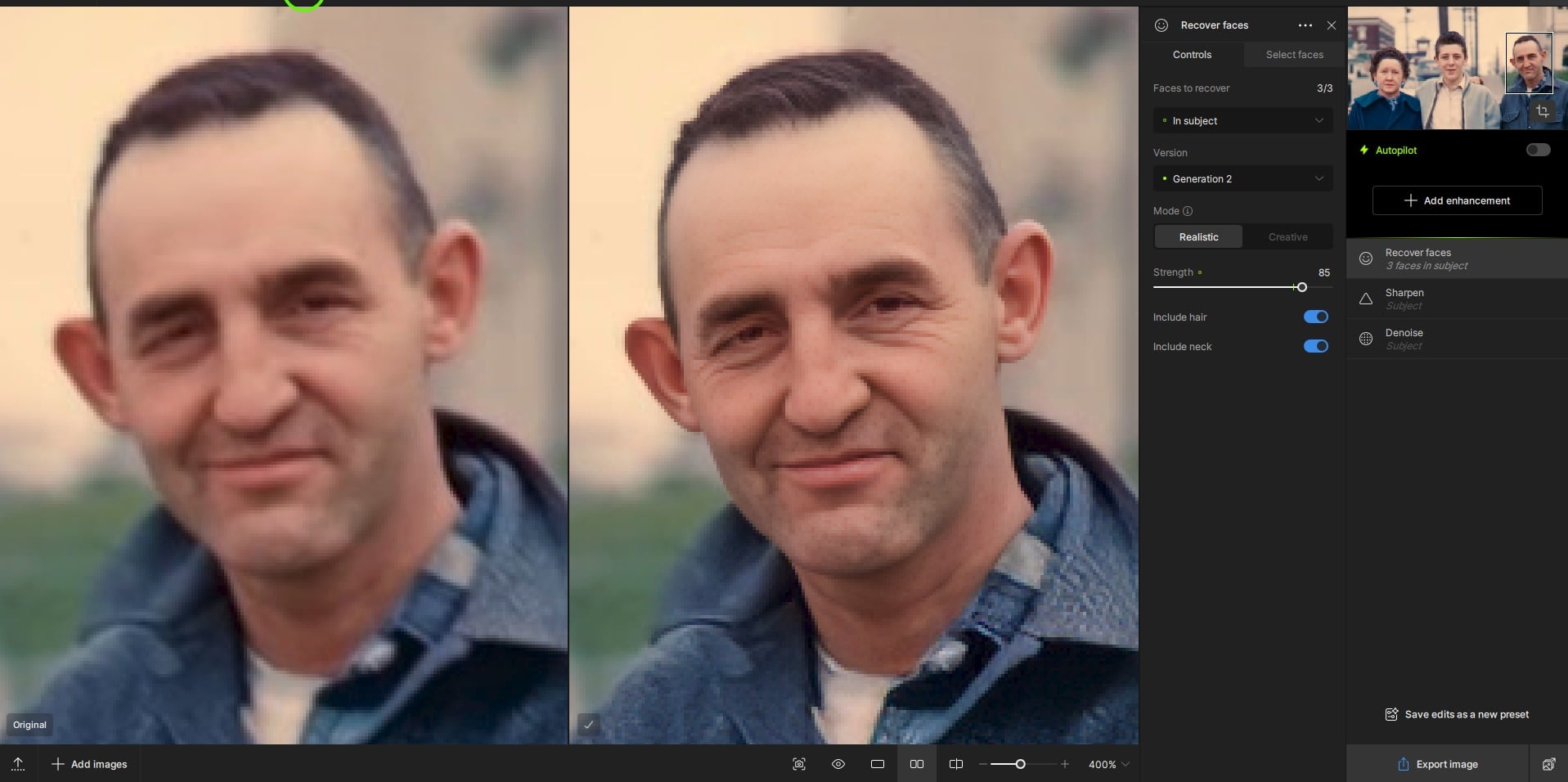
I tried using the PAI Remove tool after the Recover Faces (RF) step to get rid of any brown, pixelated rectangles but couldn’t do so b/c RF is a finishing step and Remove only works on the original or pre-finishing step image.
I can see, in this sample image, how the program would want to try to enhance some discolorations on the blurry faces. But it almost appears to be more of a pattern of brown pixelations that’s generated (almost like a quasi-grid) rather than random pigmentation enhancements. I see it in the guys, not the woman. Perhaps the adjustments in the models are hitting up against some boundaries and creating the artifacts…
I’ve found the artifacts aren’t as visible if you just switch to use the “Creative” model in FR Gen 2 vs the “Realistic” model:
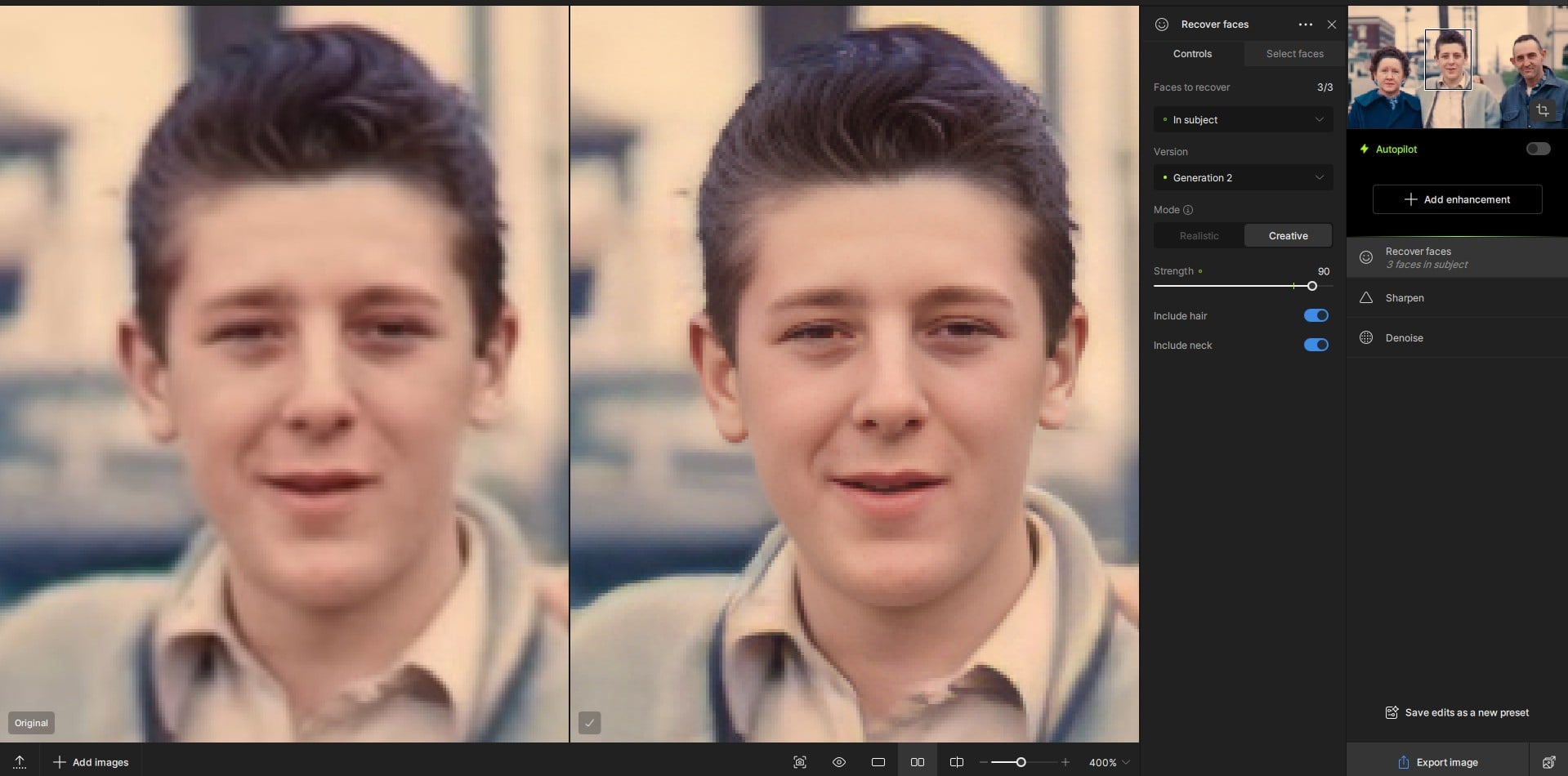
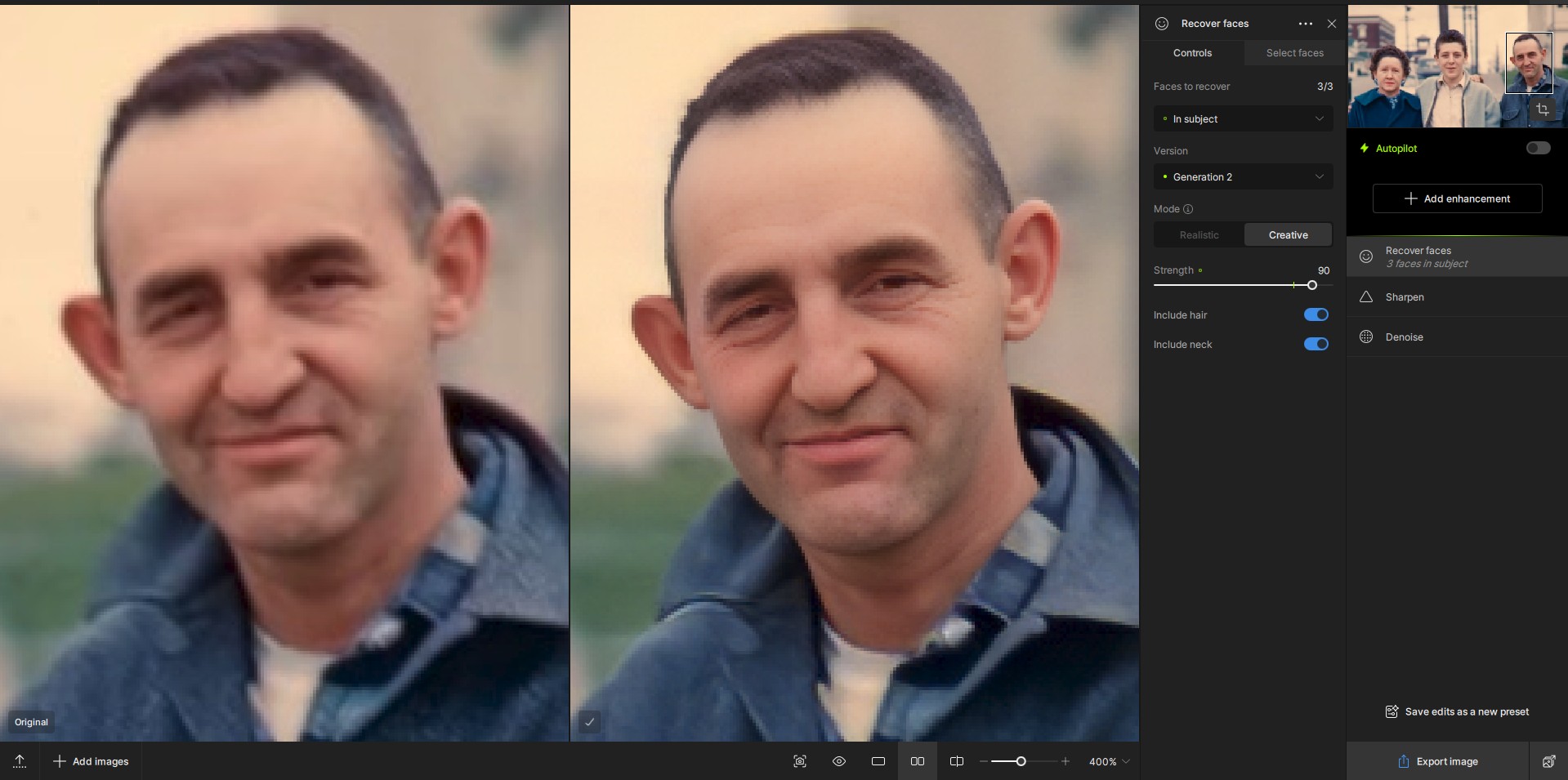
3 Likes
@vovchan73 - The issue with dots on the face is with the Generation v2 model and its something our development team is looking to see if possible to fix or if will have to be another model. It will be less noticeable on Creative mode or will not occur if you choose Generation v1. I added your contact information on the development team ticket for that issue and can tag you once resolved.
1 Like
@keithz829 - missing models means there is a blocker on your computer, can be firewall, anti-virus or router security settings. Test rerunning the installer with firewall/antivirus off. If still get the message, test connecting to a mobile hotspot. Do not uninstall, just rerun the installer and it will install the missing models. Then once all reinstalled, turn back on what you had turned off/the blocker.
1 Like
@penny.webb - v4.0.3 fixes an issue that was in v4.0.2 only, where the Apple Photos plugin was not working correctly. The v4.0l3 behavior is the correct behavior, using a plugin will export back the file as it is doing right now in v4.0.3. If you want any choice on where the file goes to, you have to use the standalone of Photo AI from your desktop icon, and not use the plugin.
@mrtoyota03 - this thumbnail issue was not in the changelogs of fixes addressed in this patch. The display issue happening on some TIFF file is being looked into by the development team and I can tag you once resolved! You can revert to v4.0.1 to not get this display issue. Topaz Photo AI v4.0.1
I tried rerunning the installer for v4.0.2 with that stuff turned off when it first came out with the same results, which is why I reverted back to v4.0.1. All I want to know is if v4.0.3 fix this issue so the Windows Lightroom plugin will work correctly?
Can you clarify if the Lightroom issue you mention is the missing models? IF so, there is no fix for that, as its a blocker on your side. There is no Lightroom Classic plugin issues reported, and we would need more information on your issue if its something different then the missing models (which is something you can fix, by finding the blocker or installing with a mobile hotspot).
I am running 4.02 and have paid up until Aug 31 but on opening Photo AI there is no prompt for the upgrade to 4.03 as there was in the past.
Do updates not appear by default or am I unable to download because my account is two weeks from expiring?
Also, my understanding from a previous post was that I will continue to get updates to 4.0.x versions even after my paid period runs out. Is this true?
You can download the 4.0.3 installer from top of this thread.
I’ll let a Topaz rep answer your other questions.
1 Like
