@rien.meijer
Can you check if it eventually goes through after waiting? If it does, can you tell me a time estimate it took for the initial preview to load? The development team is looking at an issue occurring on the initial unpacking of the files needed for Super Focus, and once unpacked, the next previews load normally. If that is the case for you:
Send us logs that show the initial estimate and the next tests, the logs will show the timestamps and show the difference between the initial/next previews - send us this at support@topazlabs.com and I can relay to the development team and add your contact info on the open ticket for this!
I am using LIghtroom Classic to launch PhotoAI with an image. This works OK but when Photo AI returns the image to Lightroom the following messages is shown “The file appears to be unsupported or Corrupt”. The image is not displayed. This is a new bug as this has never occurred before.
does it say corrupt or damaged? Do you shoot in monochrome? Can you confirm the path used from LrC to Photo AI is FILE > PLUG-IN EXTRAS > PROCESS WITH TOPAZ PHOTO AI?
Also,
The buttons no longer work correctly. If the title in the button is highlighted, they do not work, however, if the background of the button is highlighted, they work.
Additionally,
If one selected recommended option a Diaglog box comes up but is empty, selected the recommendation does indeed select them.
I am running the latest version of windows 11 with all the lates updates installed.
C:\Users\hayze\Pictures\2025\OldPhotos
Tony Hayzen
Well, I did try again….had to remove TAI completely and reinstall it. Got the Superfocus working… a 2,5Mb picture took 35 minutes. Tried a small picture with a group of people, took about 7 minutes, sharper but… awfull faces, TAI created eyes and transformed faces… did not like the reusult.
I think it is better to take sharp pictures….
Ok so Damaged is the error. Make sure to test what I mentioned: Do you shoot in monochrome? Can you confirm the path used from LrC to Photo AI is FILE > PLUG-IN EXTRAS > PROCESS WITH TOPAZ PHOTO AI?
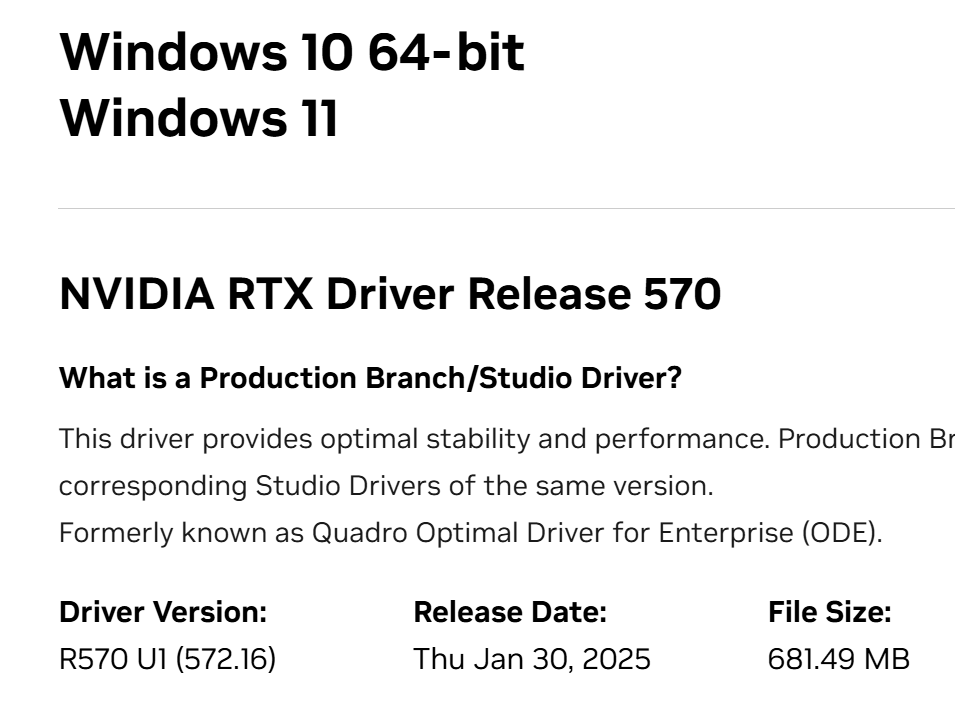
Then for the other issue raised about the buttons, I see your graphic card is underpowered for Photo AI, it only has 4GB of VRAM, and this means your machine does not meet the minimum requirements for Photo AI. Make sure to be on the latest NVIDIA driver, go in your NVIDIA app and update to the latest. You can also test reverting to a prior Photo AI version if needed, until you can get a machine that meets the requirements (6GB of VRAM, mentioned here) - to revert → Photo AI v3.2.0 - Windows: Download
This is processing times for Super Focus, based on your image size and memory your computer has. The Super Focus tool has a in-app mention to put a Recover Faces after. Make sure to add Recover Faces after Super Focus for the faces!
Also make sure that you first test Sharpen, as Super Focus may not be needed at all here.
Image path used is C:\Users\hayze\Pictures\2025\OldPhotos
Image is monochrome
I have the latest driver version of Nvidia (see below)
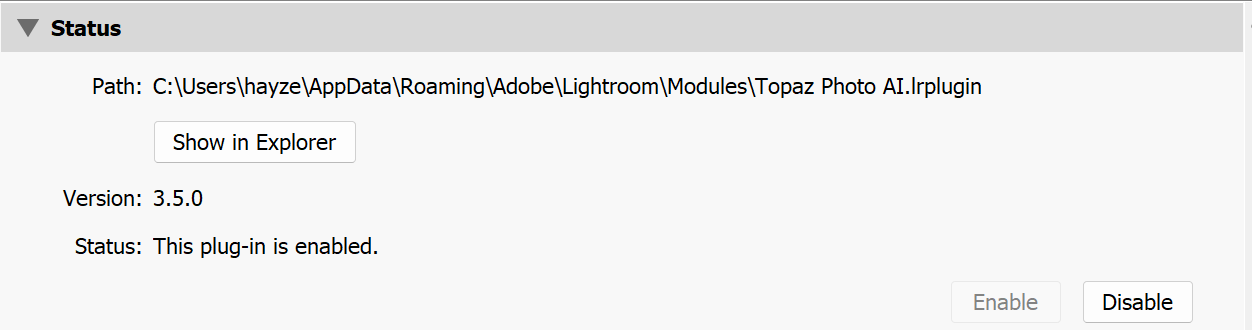
Topaz path see below.
Has something changed with 3.5.0 that needs more vram? Version 3.4.4 worked OK. The installation worked and checked requirements?
Tony
I was working on some pictures the other night and and had a few program crashes and the CRASH RECOVERY worked perfectly. It saved ALL the different maskings and settings that I had used and returned the picture to its last edited state before the crash . Thank you.
If the SAVE EDITS AS A NEW PRESET would work in the same way (which it doesn’t at present ie saving all the settings exactly) it would be perfect and enable the user to save a picture’s progress and return to it at a later date and reload the saved PRESET to return it to its last edited state.
What I’m saying in a nutshell is that the CRASH RECOVERY is doing exactly what the SAVE EDITS AS A NEW PRESET should be doing the only difference being is the user can SAVE a preset and not rely on a program crash to restore a picture to a previous date.
I bought this version yesterday after trying the free version and it uploaded my 12 photos in minutes! So I buy this version and last night i edited 15 photos and 14 hours later I’m still waiting for them to be exported to my files!! I’m not happy with this! I had the old version of Denoise that was slow but this is ridiculous! I have to keep pausing it and resuming just to try to get a photo to “complete”! This obviously is a huge concern since the “free trial” worked awesomely well and now that I have bought it, it sucks! I feel like I’ve been played!
To access a saved session, you can also close the Photo AI app top right X and it will ask if you want to Save and Exit, this will allow to reopen the session as you left it next time you open Photo AI.
Additionally, crashes in the app are not normal altogether, and looking at crash reports on our side, I see your AMD 880M graphic card only has 0,3GB of VRAM, and the minimum to meet the requirements of Photo AI is to have 6GB of VRAM. This can create processing errors, crashes and slow processing, and could be the culprit of presets issue you have. You can test forcing Photo AI to use your CPU, in Edit > Preferences > General > AI Processor and put it to CPU. The Save Preset should be saving all your settings from the current file, and once applied on another file, it will put the settings that were saved.
Let me know how the CPU workaround goes and when you shop for a new machine make sure to look for one that has 6GB of VRAM and 16GB of RAM!
@gotozeus and @z1nonly
Confirming that the v3.5.1 patch released today has moved the Generative AI slider to General, and out of Privacy in the Preferences menu - thanks for flagging!
@paul.t-uk
Confirming, the X giving no warning when using a plugin should also be fixed now in this v3.5.1 patch - thanks for flagging!