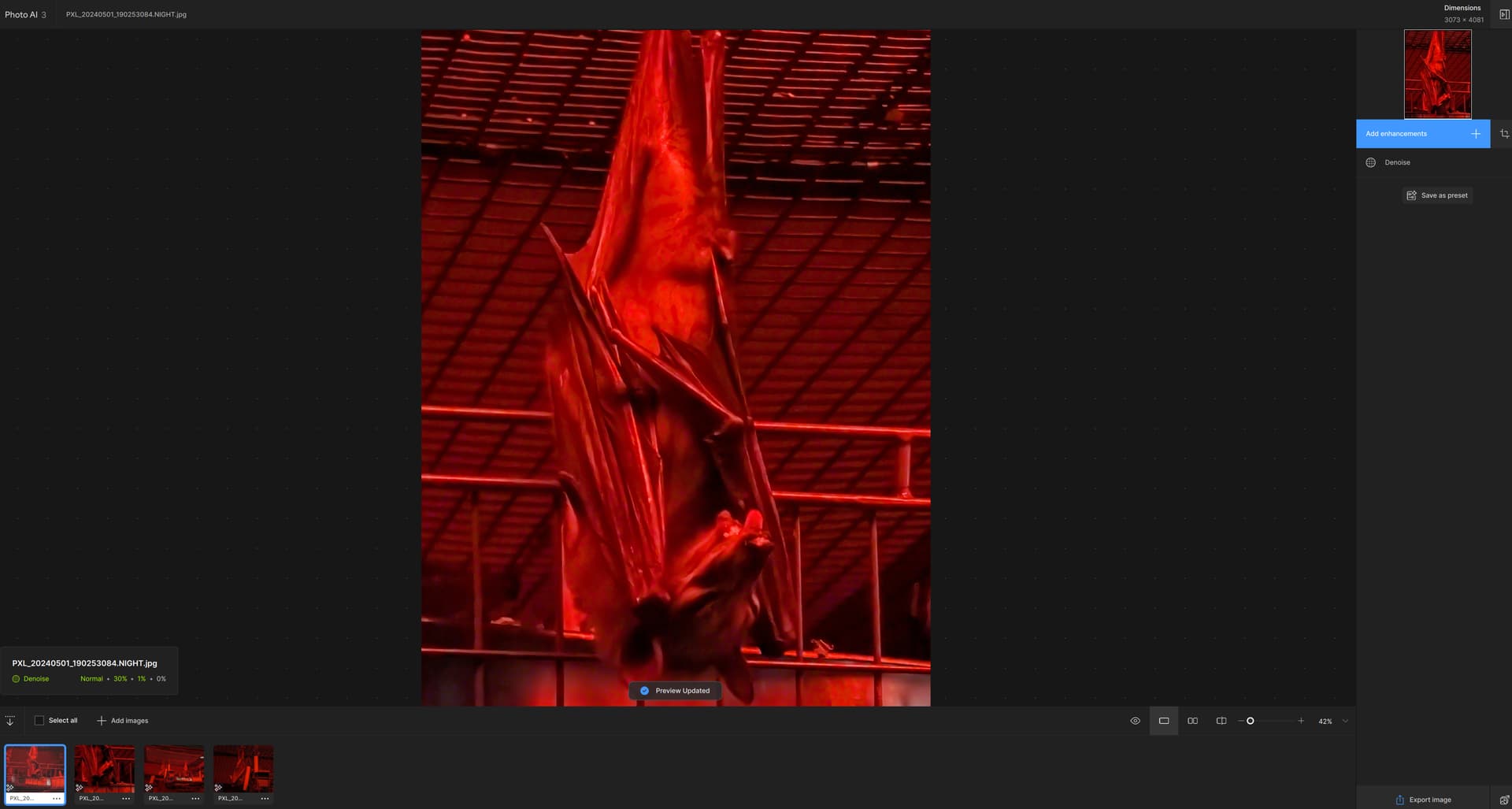
I’m curious what’s involved in fixing the memory leak.
The problem seems repeatable and consistent, so I don’t understand why it’s taking so long to fix.
I’m curious what’s involved in fixing the memory leak.
The problem seems repeatable and consistent, so I don’t understand why it’s taking so long to fix.
It should be an obvious, easy fix since it was introduced in 2.4.0 and wasn’t present in 2.3.2.
All they have to do is look at the engine code that got changed between those releases and fix it.
Maybe the AI engine team is on vacation. 
One of my requests was fulfilled! The Photo AI logo no longer looks like I have 3 messages!

But I still can’t quickly tell which specific build this is as before.
Now on to fixing the other minor stuff like memory leaks, wasted UI space, etc. 
Tonight’s experience with Remove: It does not work properly or well…
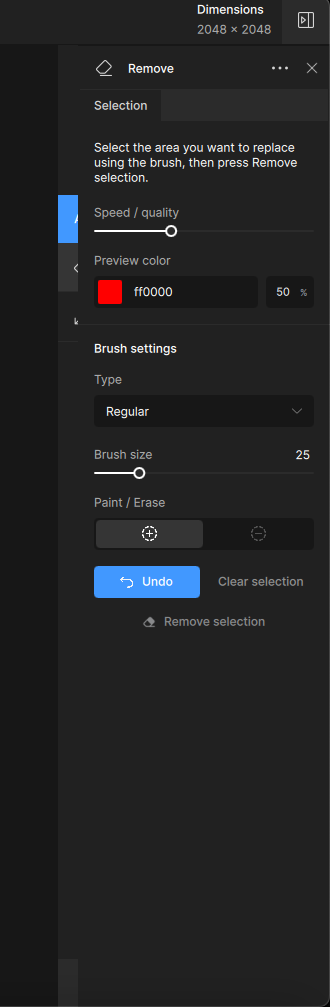
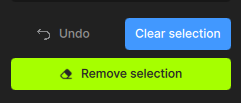
Select an area. First, the “Clear selection” and “Remove selection” button labels mean basically the same thing as read but do different things. Please consider “Process selection” for the large action button, as the user is already in Remove mode.
Next: I was already messing with Generative Fill in Photoshop for this AI image (which I had already enlarged and saved in PAI) so I was enjoying both more control and better results. But I thought I’d better try Remove in PAI to be fair.
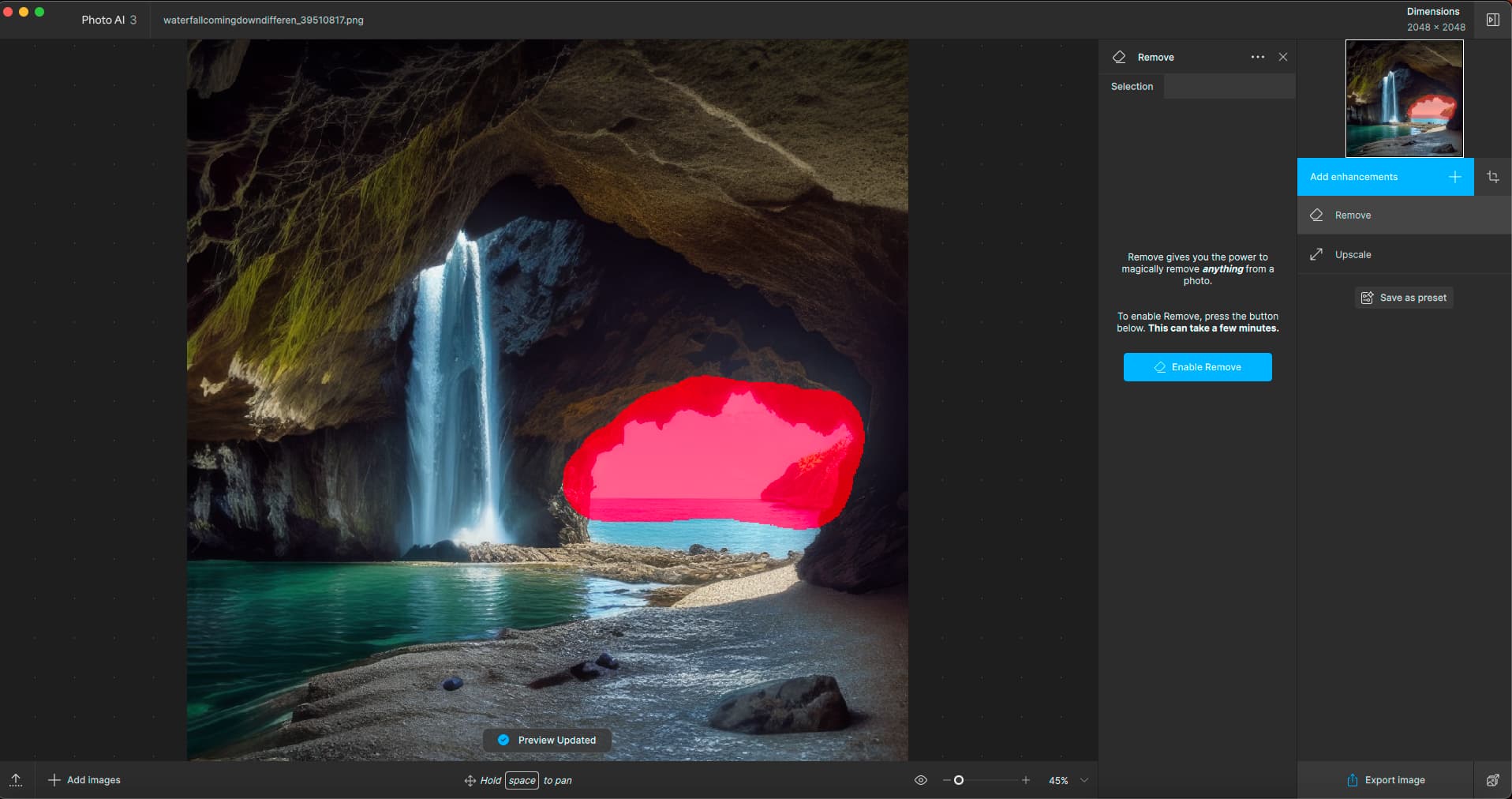
My sky and sea selection (I was hoping for a better scenic outside the cave):
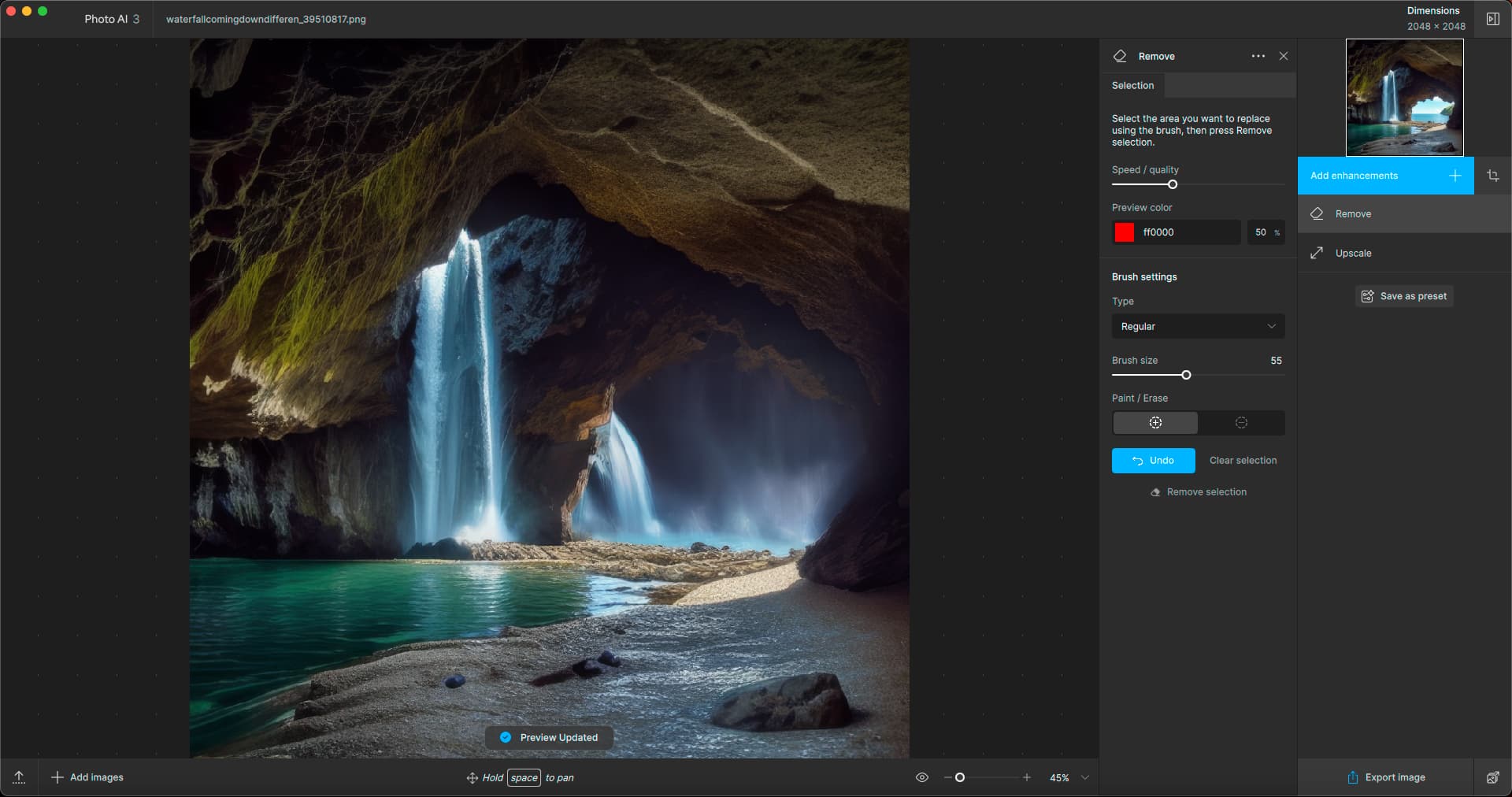
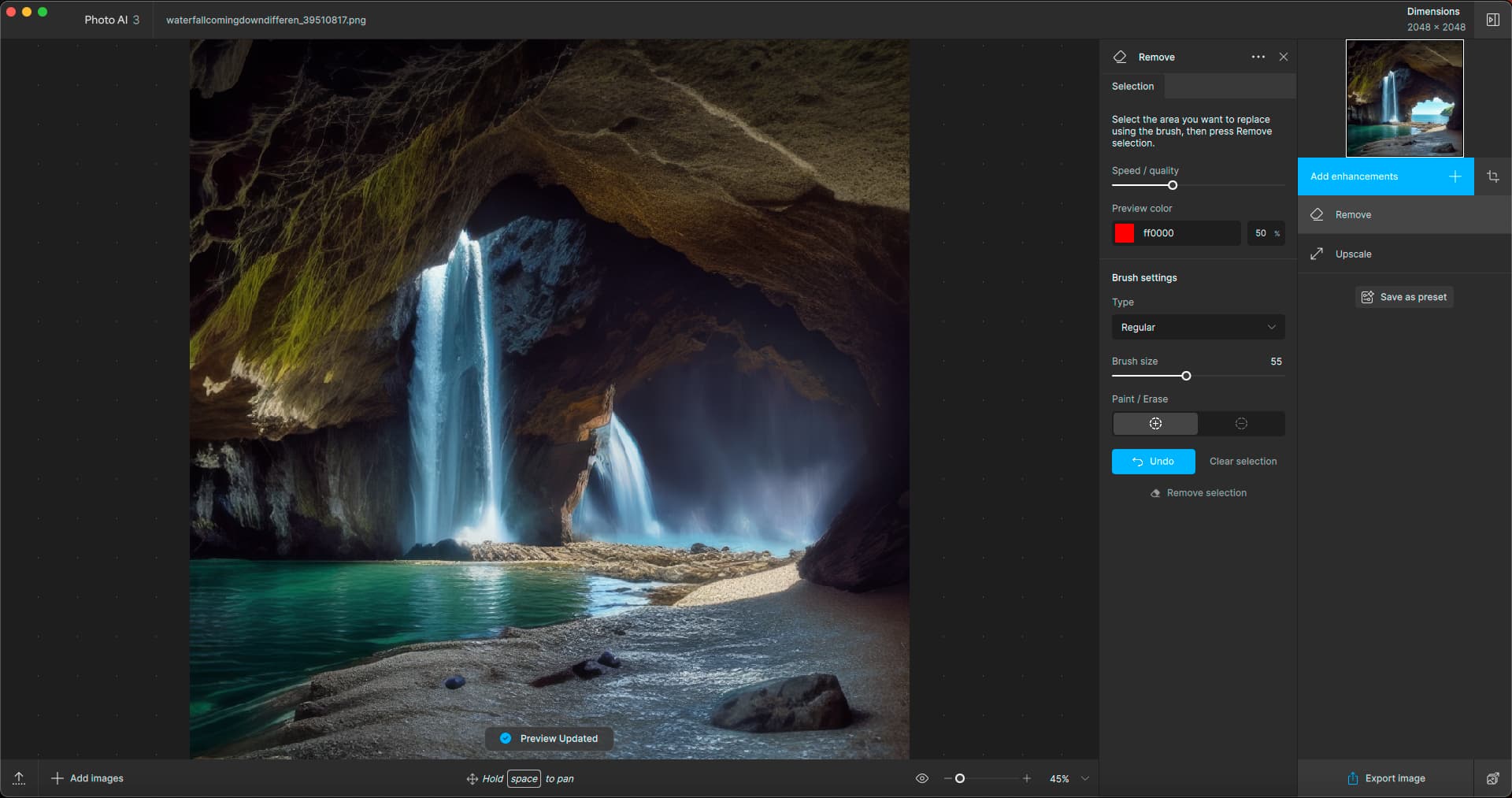
Instead I got more waterfall or a flood or something:
So I used Undo and decided to select the waterfall instead to see what would happen (again, you have no control over whether you are Removing or Replacing):
I ended up with the same (unwanted) replacement of the sky and sea, which has nothing to do with my waterfall selection:
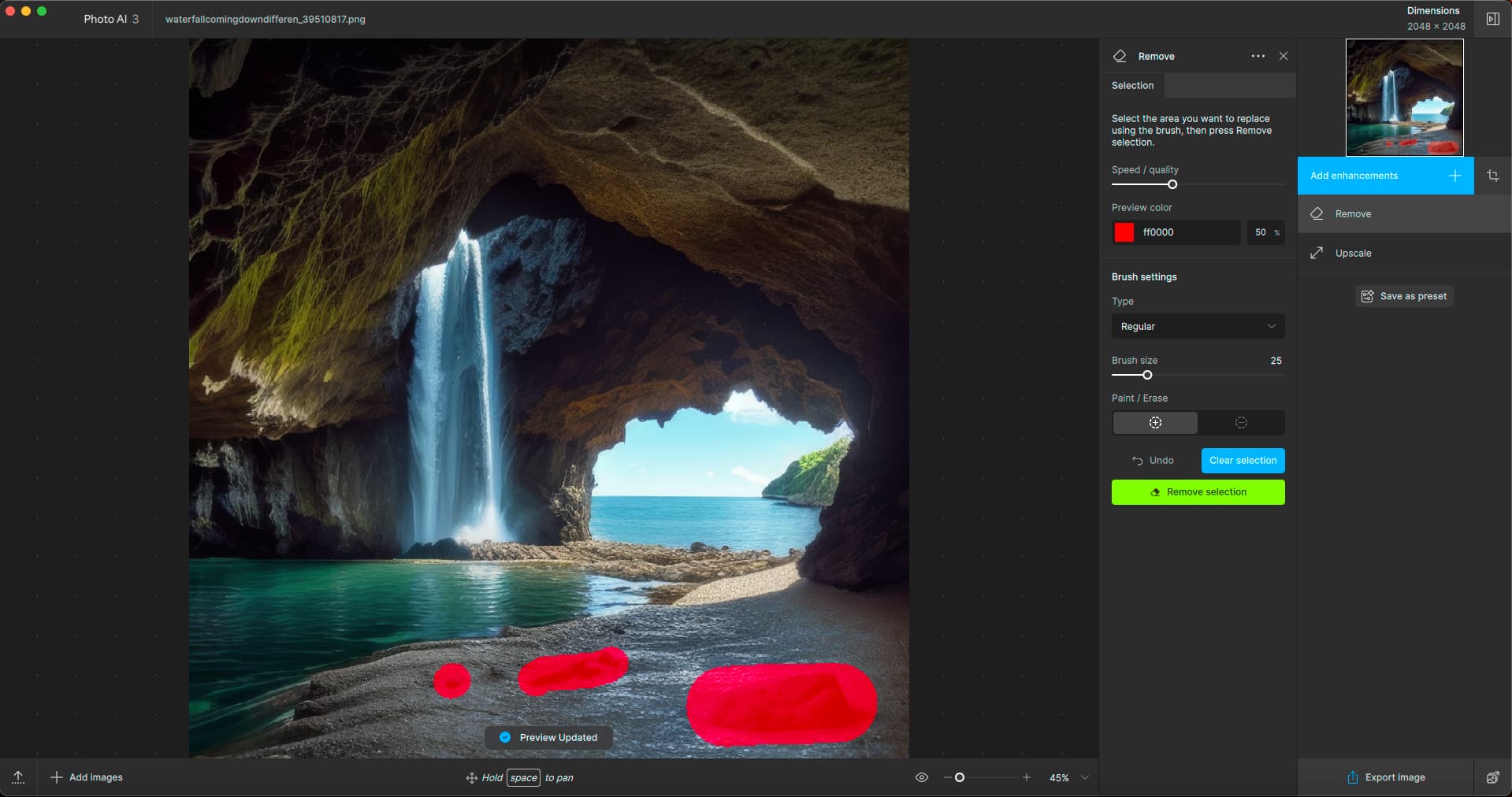
After another Undo I decided to Remove the rocks for something different to test:
But once again I got the waterfall replacing the ocean and sky (not shown because you already see it above).
How PS handles the same selection, with no text prompt:
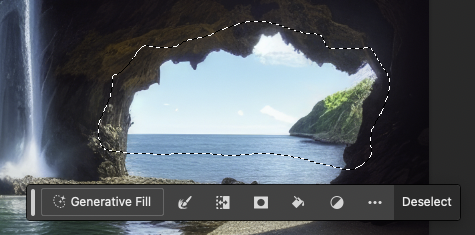
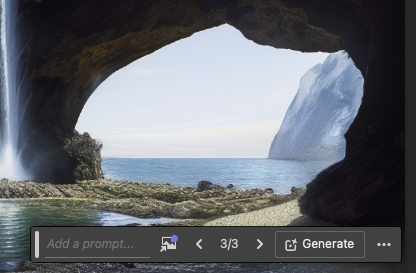
Also in Photoshop I had happily been doing surgical lasso selections to tweak the lower left side of the cave interior, the upper left roof area of the cave (replaced the moss), the outside roofline of the cave, the shape of the land mass in the distance and the sky and horizon:
Obviously in PS you can regenerate more results at will and pick the best, whereas in PAI you have one shot and have to start over each time (making a new selection as well).
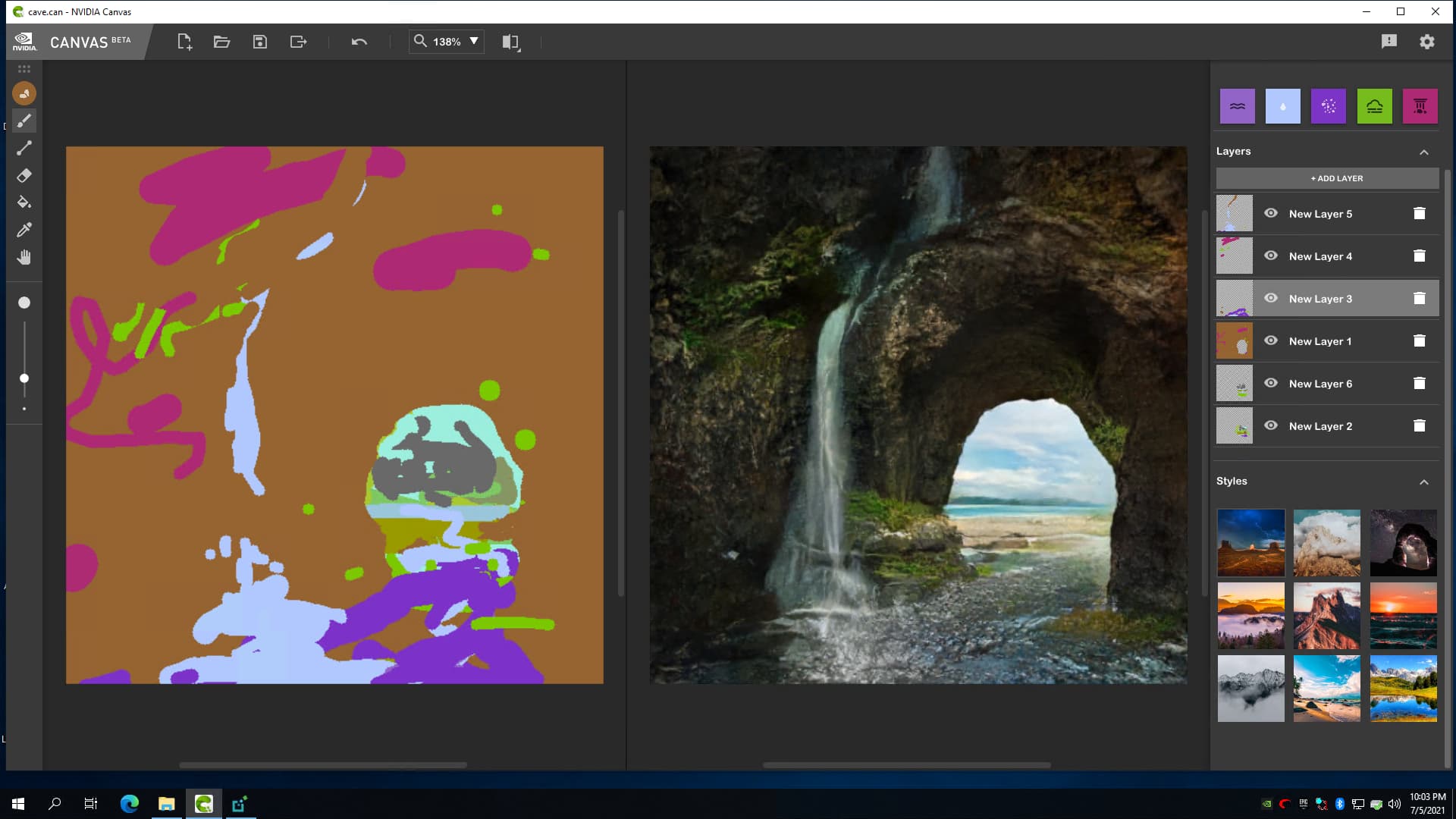
BTW, three years ago I made a drawing-to-image render in NVIDIA Canvas:
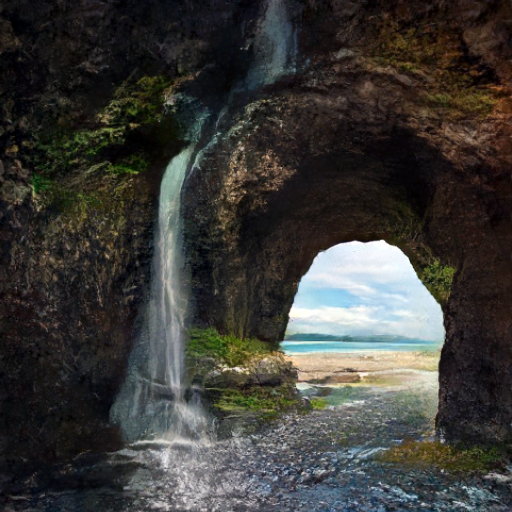
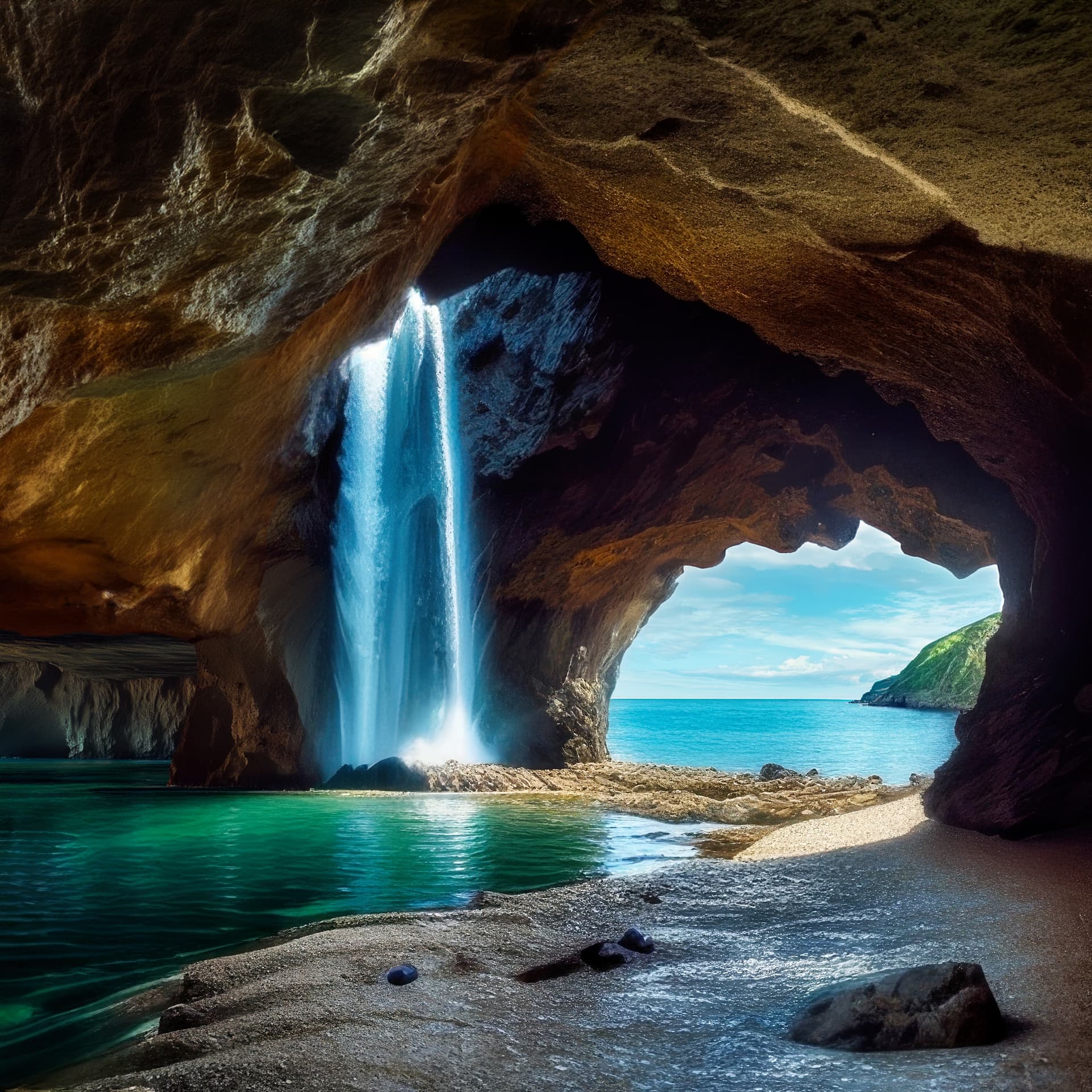
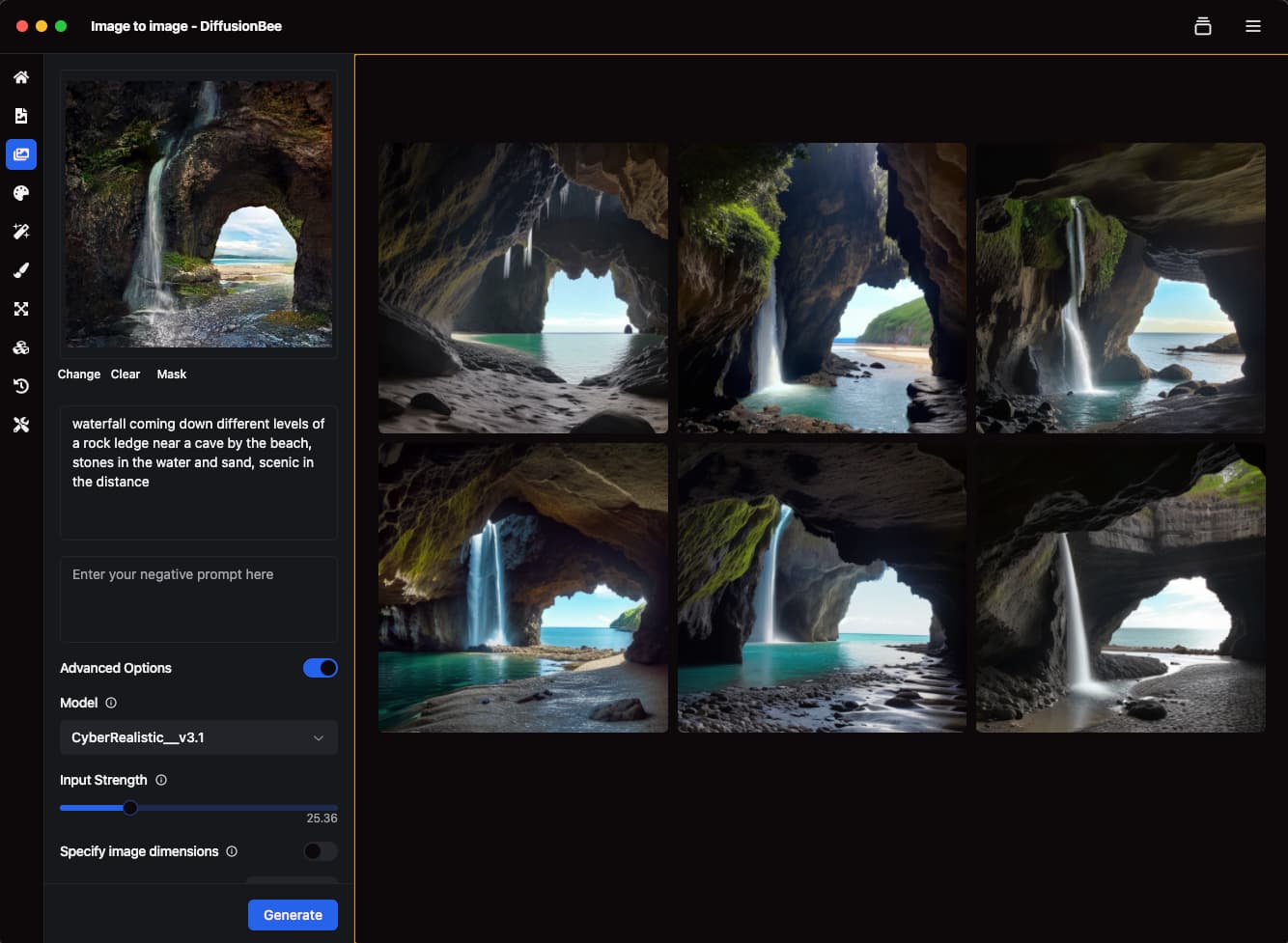
I used DiffusionBee’s image-to-image option to make tonight’s new AI version (so much fun this is!):
How I made the original in July 2021:
I really want them to fix floating panel ,to be docked in the empty space fully opened.
Yeah, a number of us have been heavily pressing for that as well, but it’s still not there…
However, I just tried and got the expanded (not floating) panel to drag and stay over the right panel, but it was tough to do (flickered badly) and is probably not intended to do so:
The time I got it to work temporarily it was badly lined up on top of something else vs below it. It wasn’t like I could drag it in and it embedded and stayed where desired permanently. It’s not like I could drag in my 3 most used panels and have their settings fully visible (ditto for all the model names like in the past). All the other times it just boomeranged back out. Sigh.
Such a mess, yes! I wish they waited to fix this before moving to version 3… Now if it suddenly gets fixed, it will be a jarring change within the same version. Or maybe then we’ll be at v4 all of a sudden!
Something has gone wrong with the window resizing coordinates (as set in the registry).
There is now a black band on the right hand side where the inner boundary can be dragged to the edge, but always returns to being unstuck.

You’ve got that black band on the right edge as well (a draggable window inside the window).
I’ve checked this on a Windows machine and I could reproduce this error.
If you’re sending a DNG file via the plugin to PhotoAI and save it the original file will be overwritten instead of saving it as a copy, importing it into Lightroom and stacking it with the original file.
I’ve checked the LR plugin to work with DNG files on a Windows machine. Besides the problem with overwriting the original DNG as described here Topaz Photo AI v3.0.2 - #70 by axel.matthies, I found another problem.
The next issue I’ve found that the setting of “Constrain Crop” option will be ignored if you’re working with a RAW file (in my case .CR3, becaus I work with Canon). The “Transform” settings will be used but not the “Constrain Crop” option
On working with RAW files the imported DNG should be imported to the collection from which the plugin was started and stacked with the original file in any cases. Or there should be an option in the preference settings in PhotoAI.
That does look like it sharpened well.
At least what I can see of the image…
Who knows what might be going on that’s wrong or bad under that label that’s blocking part of the image at bottom center.
@dakota.wixom - It’s troubling to read the claim that one should no longer see a performance drop on large batch sizes when, with respect, I can’t think of many situations where any program outright leaking memory or not managing it efficiently has no direct impact on either the applications or the performance of the system. IMO that is not how things work.
I have to say, I was very confused when trying to help a client understand issues they had with respect to a workflow after seeing issues with the latest 2.4.x series my typical developer brain thinks, you’ve tried everything short of upgrading to the 3.x series one would assume massive memory leaks, the inability to batch process anything over 38-4x images in a batch (per my testing) wouldn’t slow down a system. (On more than one machine, even one with Almost 100GB of RAM)
After trying that and the 3.0.1 update, stunned based on how well I’ve seen this software perform in the 1.x -early 2.x days I was again shocked. I came to the community knowing that the users would have some deep insight that sadly to say your team is totally missing the mark.
I don’t want to sound harsh here, as it sounds like in the past you guys have already heard some sharp criticisms here… But after seeing the gauntlet that these users have also gone through to be unpaid consultants to your development process, I have to ask what the hell is going on?
You have what one can only assume is a fine set of power users ready to sacrifice time in order to help refine software that they use to find value and time savings in. You’re going to reach a critical point where that time savings is negated by the amount of hand-holding your customers are doing on your behalf. While this is all playing out for any to witness should they go looking you are 100% alienating future customers and potential repeat customers by adding features that are questionable when compared to the needs to the core features that shouldn’t be breaking so often during every change and fix cycle.
The fact that there are so many issues, that are claimed to be resolved only for anybody to see an hour or so after the dust settles, we see a flurry of there’s still work to be done, and we’re still tweaking XYZ…
You have people wanting to offer to beta test the software, which from the outside, I am scared to see what one of those releases look like if these last few pass the sniff test for public consumption. I’ve seen people ask if the developers are even users of the software, and I have to echo that sentiment.
I have serious concerns about the QA that is going on, and what the standards are for actually releasing the next version? Is it just does it compile and launch? If so ship it? Is every basic core function at minimum tested and validated to make sure that it is at least as good or better than the version it is replacing?
It’s very hard to believe that is happening based on the homework being done by the community.
It sounds like the memory issues have been around since before 3.0.x I also read that the way workflow is arranged or fired off has changed, so perhaps that has something to do with it.
I’m at the point now where I might just take a swing at seeing if I can Frankenstein a hybrid 2.x - 3.x and or take the parts that aren’t broken and see if I can bolt them into the qusai functional but memory leaky 3.0.x series.
I read the post where you said you’re only looking for license holders to be beta tests, but when you have people who have used your software, who have to fix it for clients, and have 20+ years of software development and QA on software that’s been used by plenty of people, you might want to reconsider allowing some of us to help out, because again not trying to kick that horse, you have almost 2,000 people in your beta testing group… How is this current state of affairs even possible?
If nothing else, I would suggest stopping the rollout of any new features, I know that there’s a claim floating around that you have split development, but it sounds like the split focus is introducing some fragmentation potential into the codebase that’s adding more new bugs, or potential leaks. Even if you don’t want to stop working on new features maybe just keep those changes to a different code base and merge it back to your current dev after you fix the real core issues. IMO just adding more stuff to the pile is bad optics.
Anyway, I really hope this can be addressed and this software can get back to being what it was in the past because you can only hang onto the glory that was GigaPixel for so long before good faith evaporates.
I just upgraded to 3.0.2. The regular selection brush is still too slow to use, while the object selection brush is working. I would say that brush hasn’t improved sinve it was broken in version 2.4.x. Since I’m usually refining the subject selection for sharpening the regular brush is the one I’m using. The new “improved” UI is very annoying. I’m using the 17" screen on my laptop and the last thing I need is another toolbar stealing space that is needed to show the image I’m editing. I’ve also seen PAI shutdown without warning while using the remove tool. This doesn’t happen every time I use that tool, but it’s bad enough to keep me from using it.
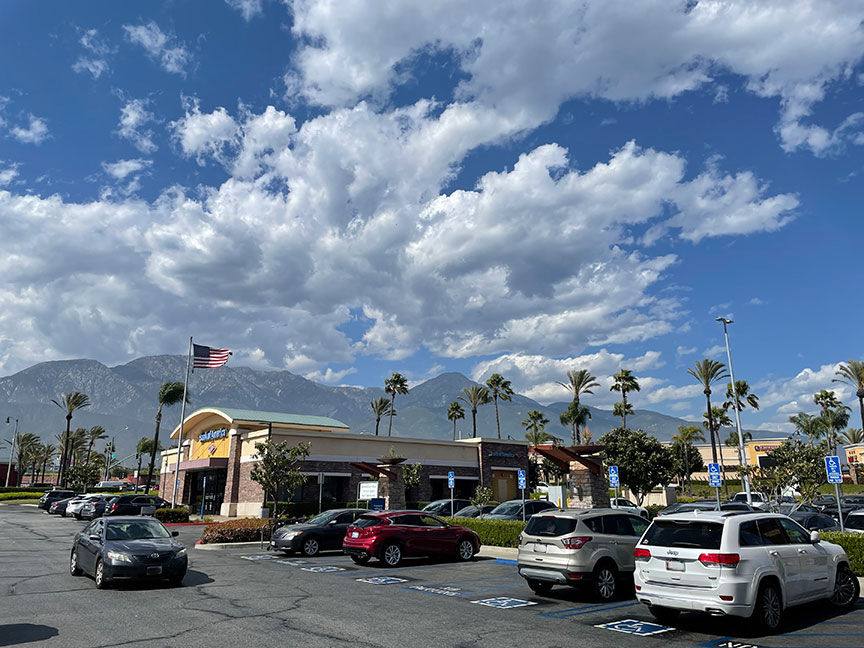
Time for a new radical iPhone Enhancement! New photo from yesterday.
Original, reduced:
First step, Crop in PAI:
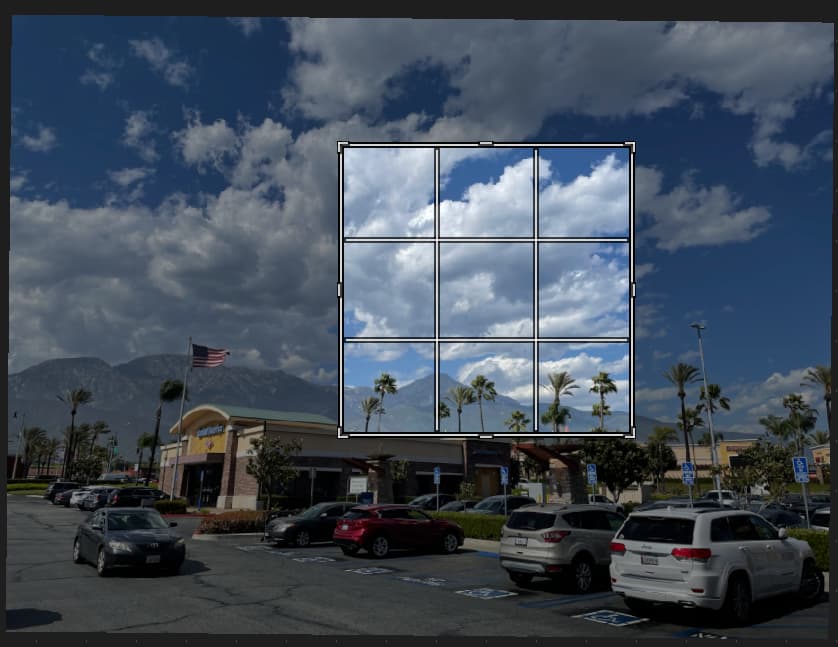
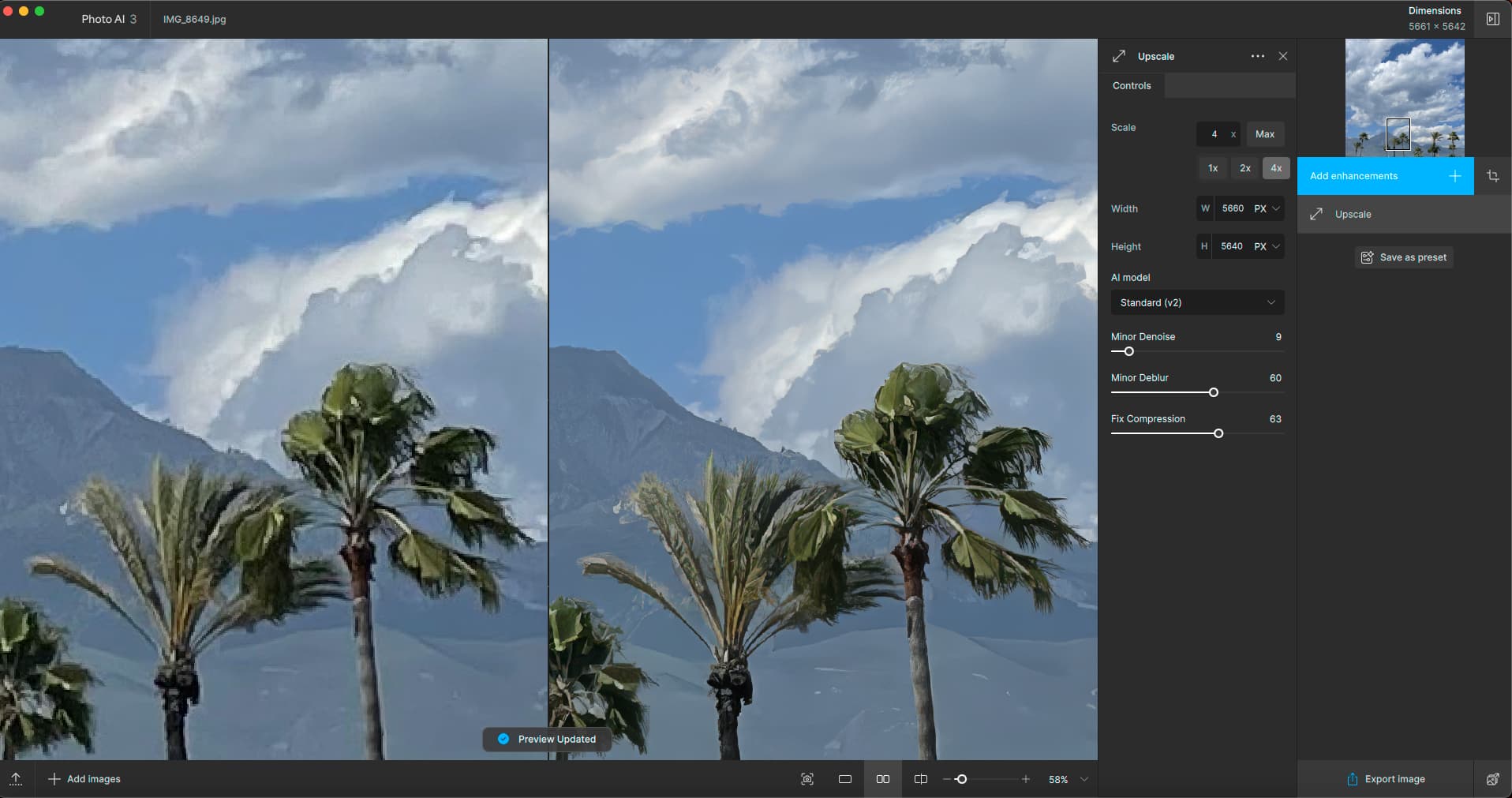
Now to enlarge:
As usual, the expanded enhancement panel is seriously encroaching into my work area… I do not wish to collapse the sidebar because then it takes extra work to pop it back open to access the settings. And I don’t wish to float the panel because it will cover the actual image area (rather than just pushing it over).
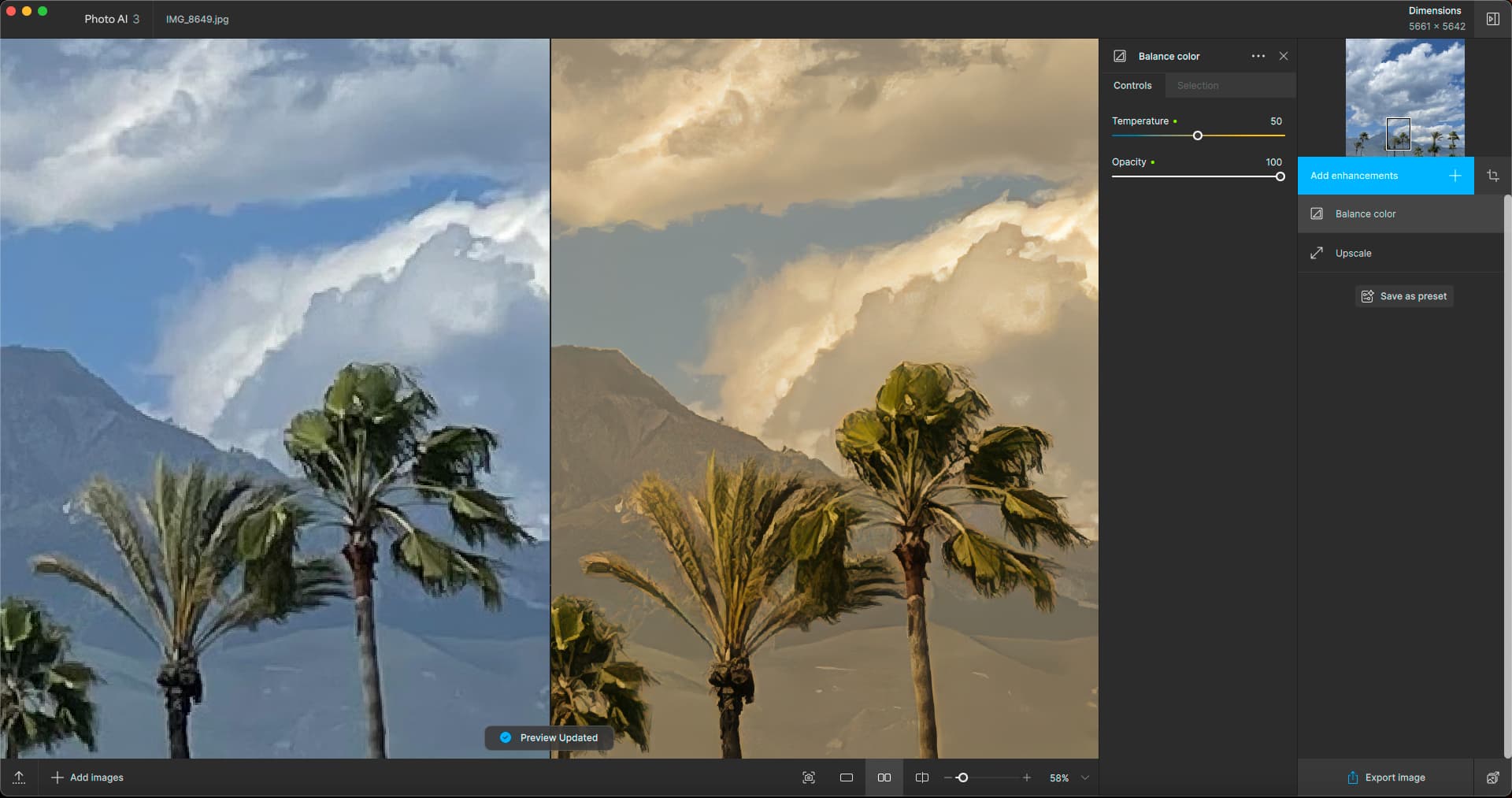
Upscale went pretty well for a lo-res phone photo, let’s try Balance Color (my expectations were low):
We went from too blue to too yellow as always. Can we just trade this feature for Levels-?
Now let’s enter the brave new world of Remove… As I feared, the earlier Crop was not actually applied as I keep asking (remove cropped pixels please), so Remove is useless at this point:
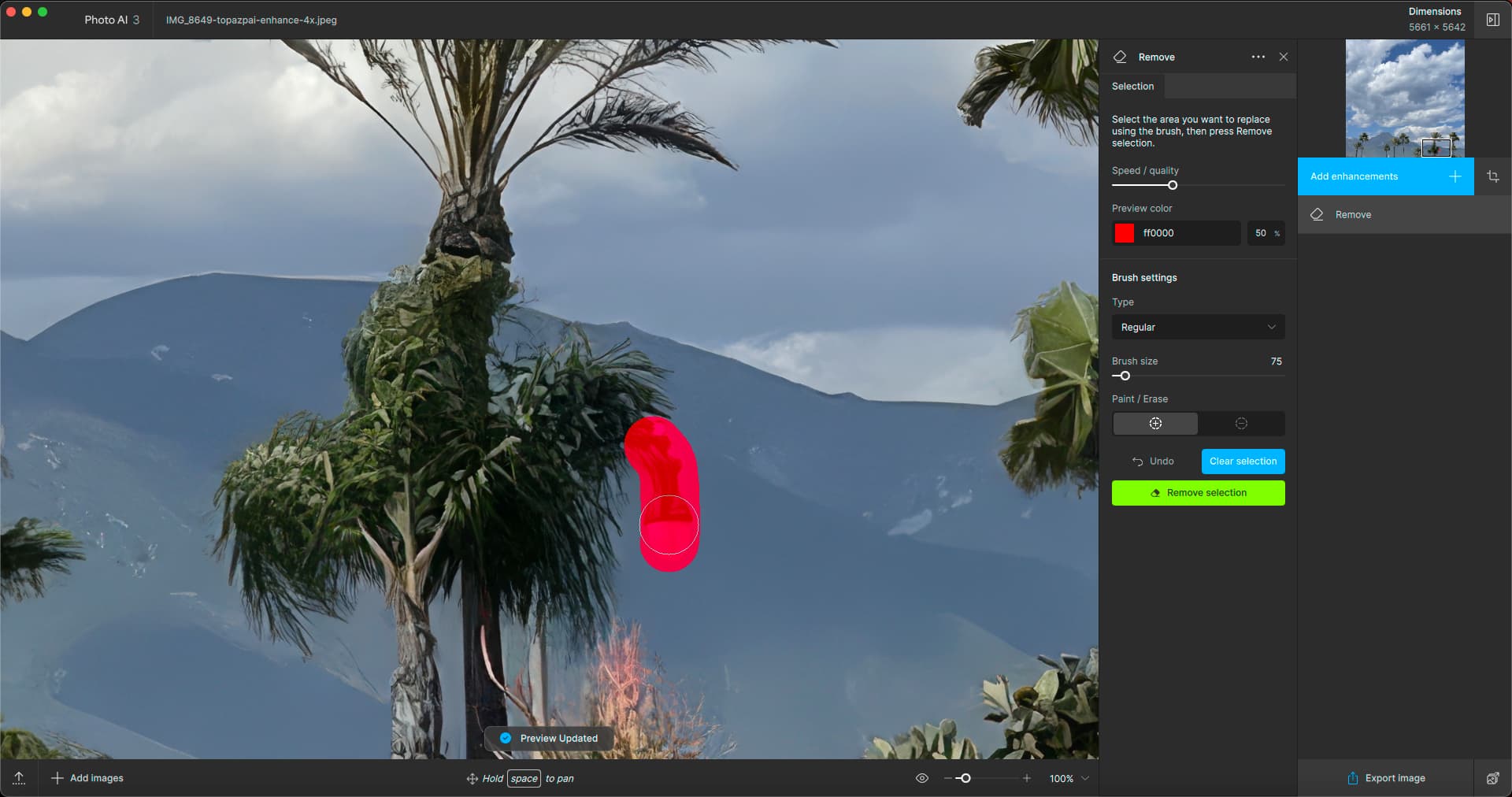
So I export the earlier crop and re-open the image. I begin selecting tiny areas to remove. On an M2 Mac Mini (500/16) this process is sluggish (I use PS on this same computer and it’s very fluid). I see I can’t use the mouse to scroll; the nav window is slow and holding the spacebar is also clunky.
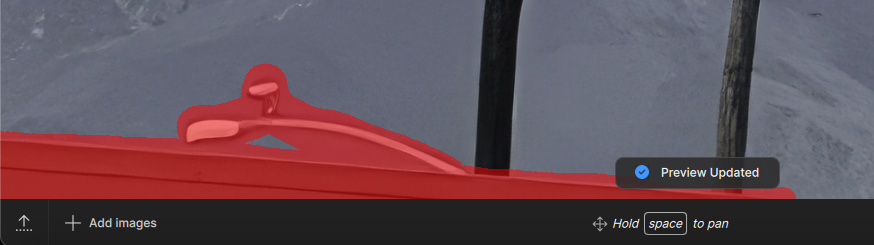
The next annoyance we run into is the Preview updating indicator that @fotomaker keeps mentioning. Yes, it is totally in the way! That, and when you’re working near the edge, it is very difficult to paint over areas (in PS you can work in non-windowed mode to access outside the image area):
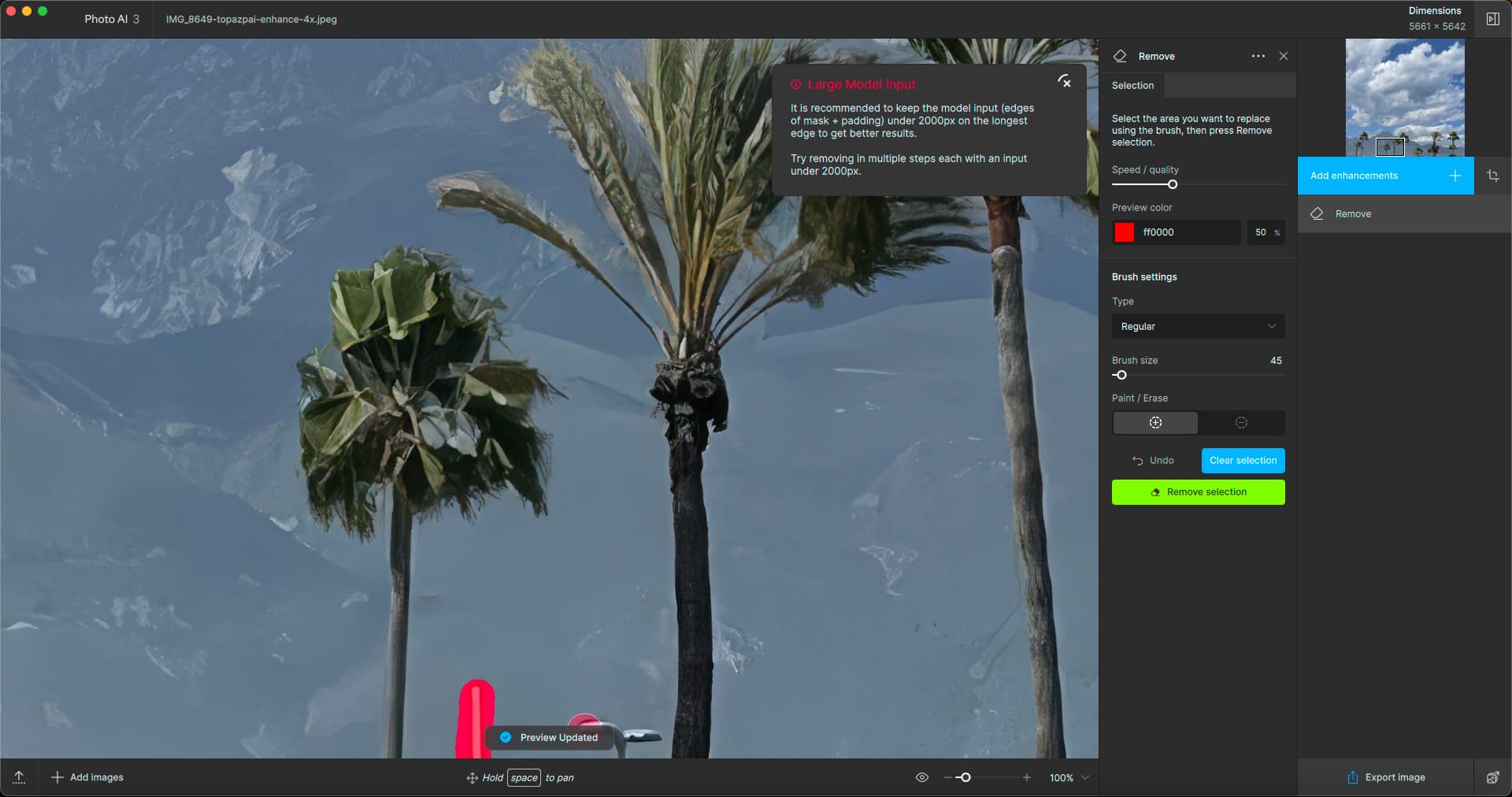
I also get the familar Large Model Input warning, even though I am selecting tiny areas (painting over the short post invoked it, before I did the area shown above). Perhaps this has to do with editing an already-upscaled image:
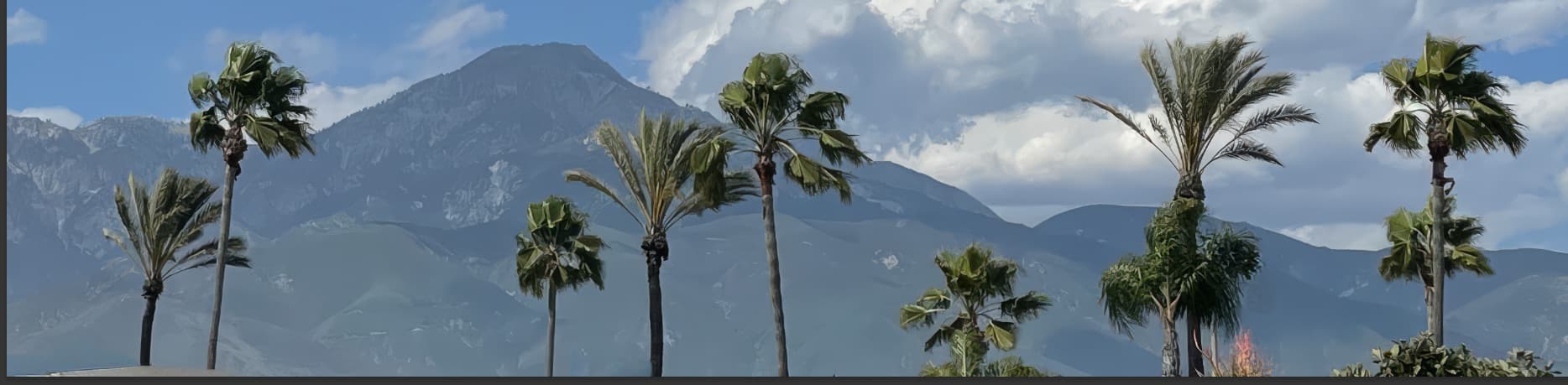
Anyway, here is the result (cropped to affected area):
The lower left still needs work but I just opened the result in PS and did a quick Healing Brush touchup – it’s so much easier, faster and more enjoyable.
If I didn’t have PS I don’t know what I’d do about area replacement/removal. PAI Remove is not fun to use, and it doesn’t even give the needed/desired results (at least in this case but I’ve experienced others). A simple Healing tool in PAI would be an intermediate step but again, other editors already have that sort of thing.
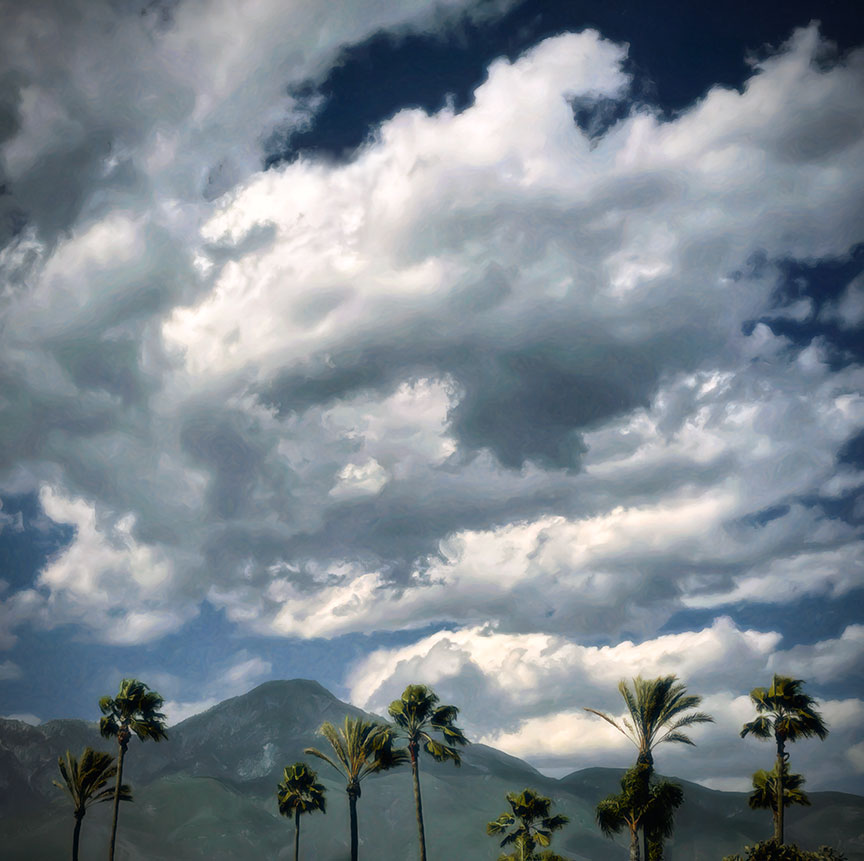
The finished result after further treatment with other apps (not the most amazing work but it’s something ):
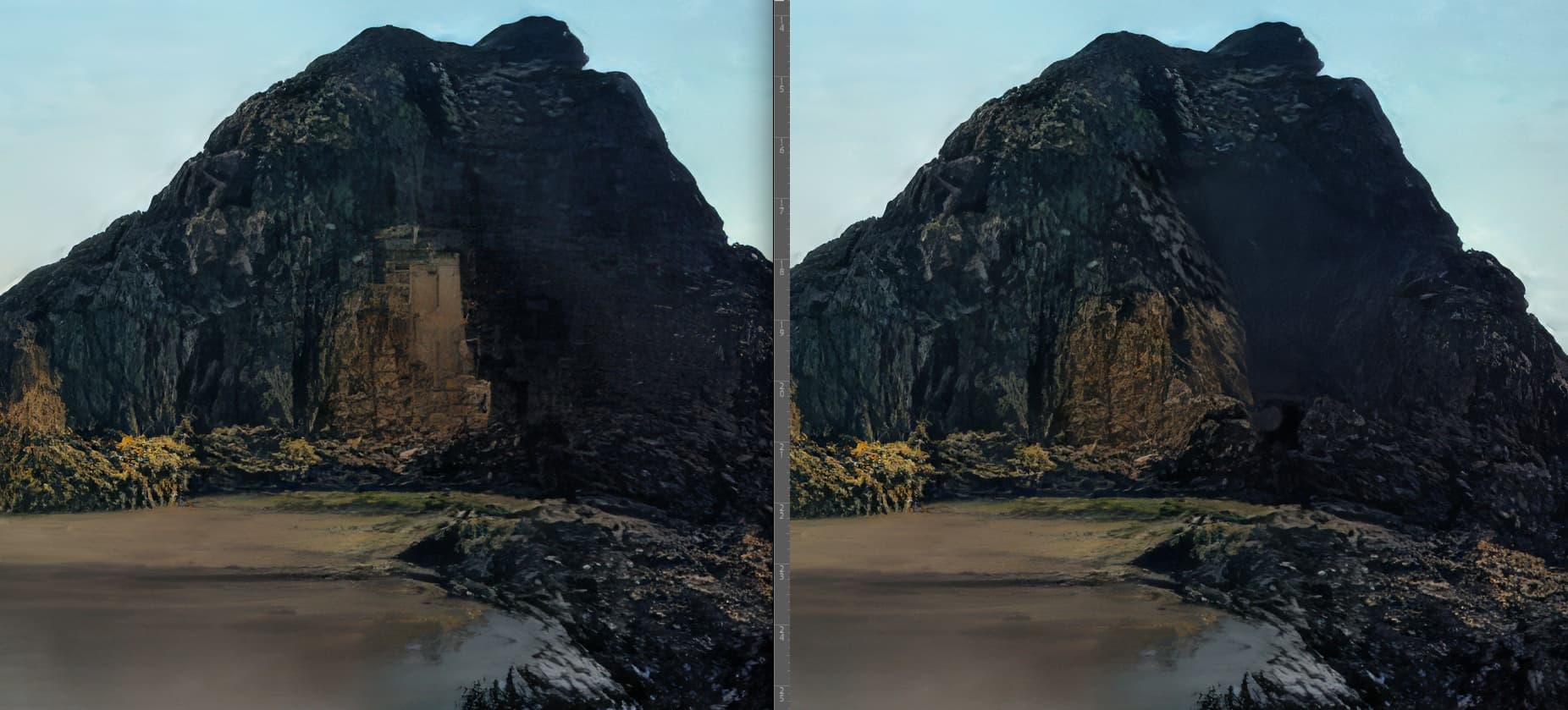
So let’s try another image. This is one of my first NVIDIA Canvas renders from a few years ago. I had accidentally erased instead of painting and as a result got this cool hole in the mountain!
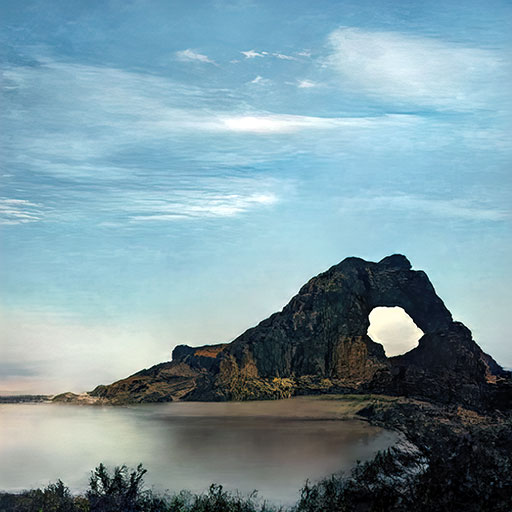
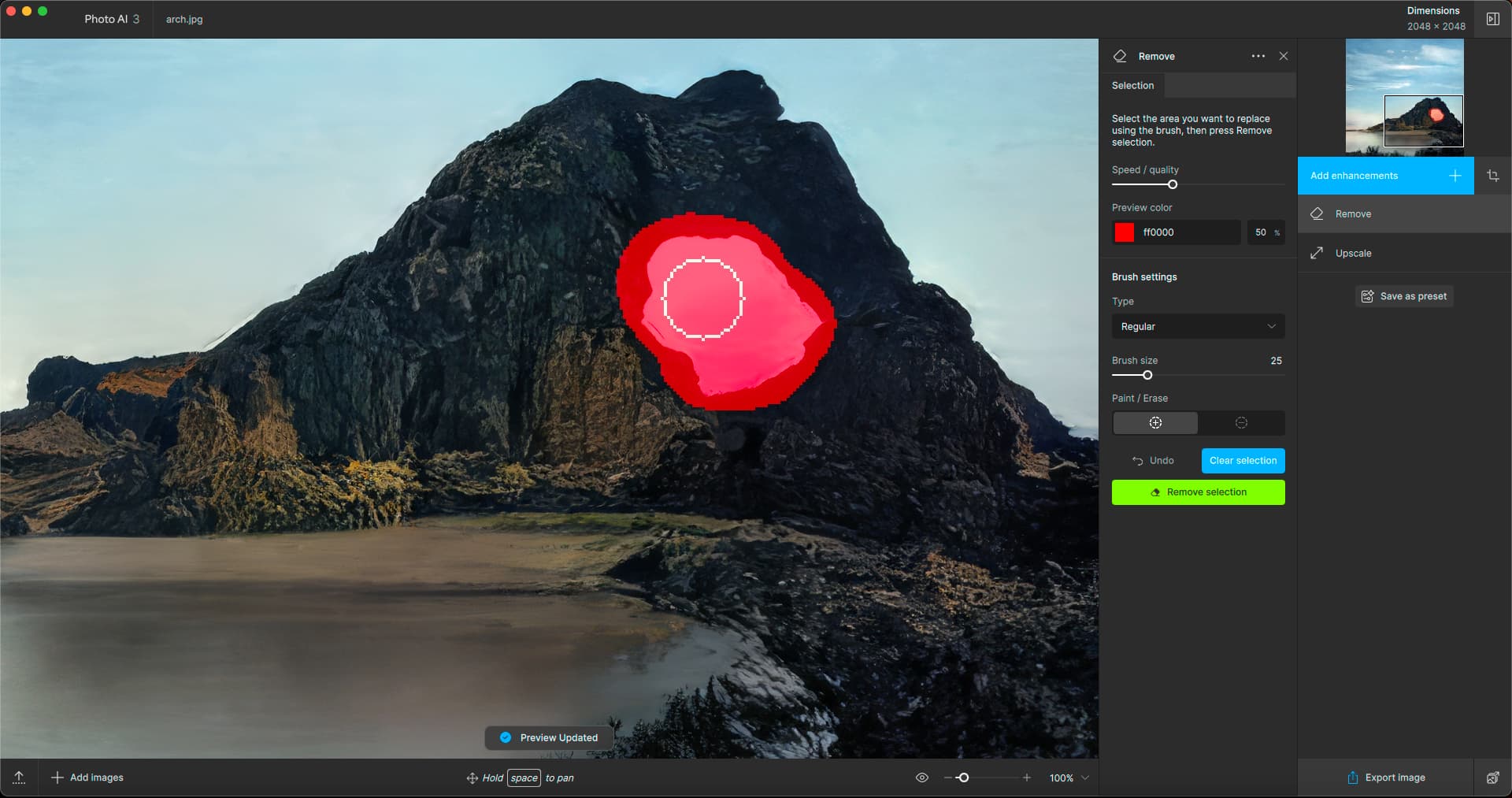
Trying to fix it in one shot, first in PAI:
Then PS (using the exported PAI upscale before Remove):
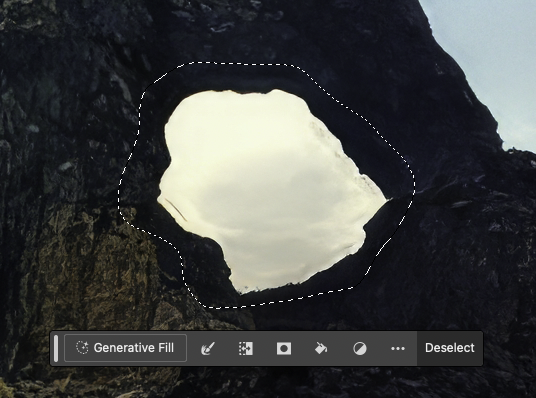
Side-by-side results (PAI at L, PS at R):
And one more time:
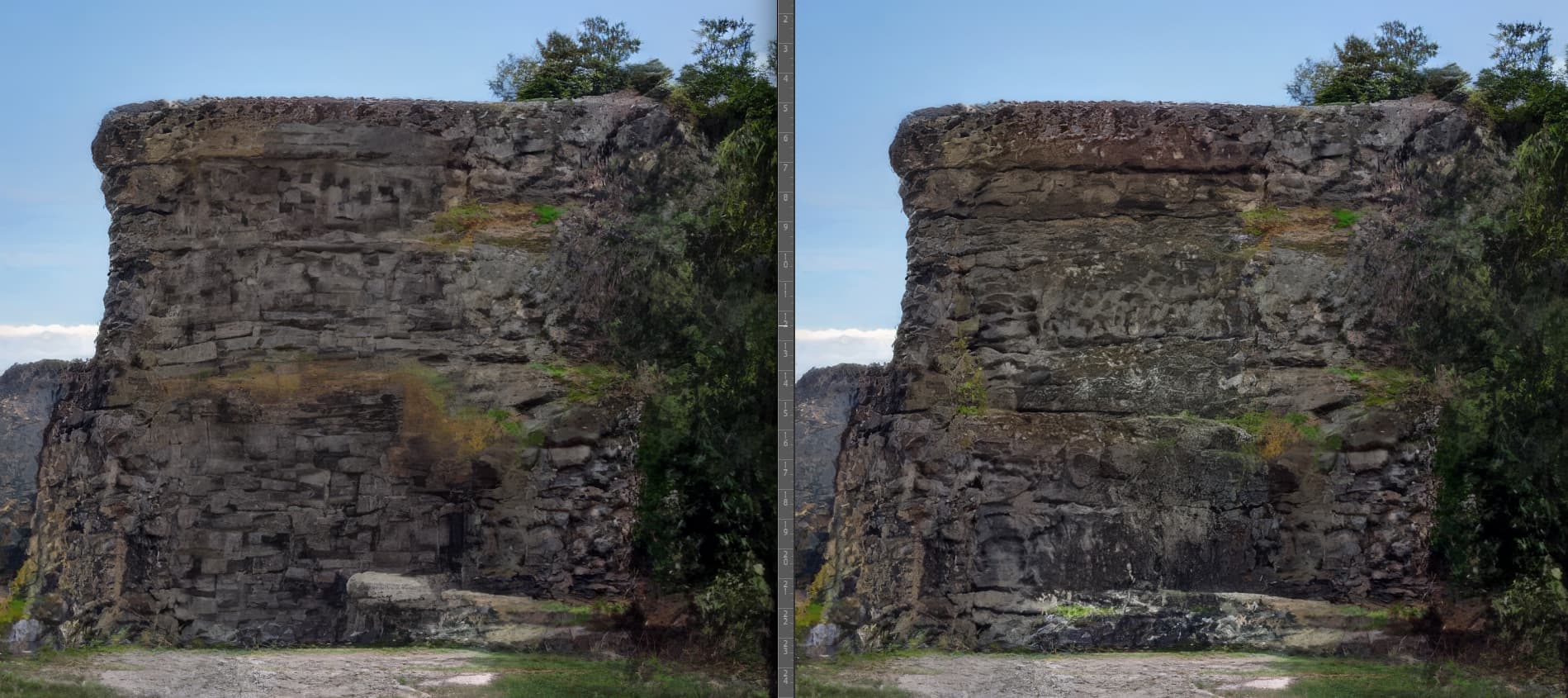
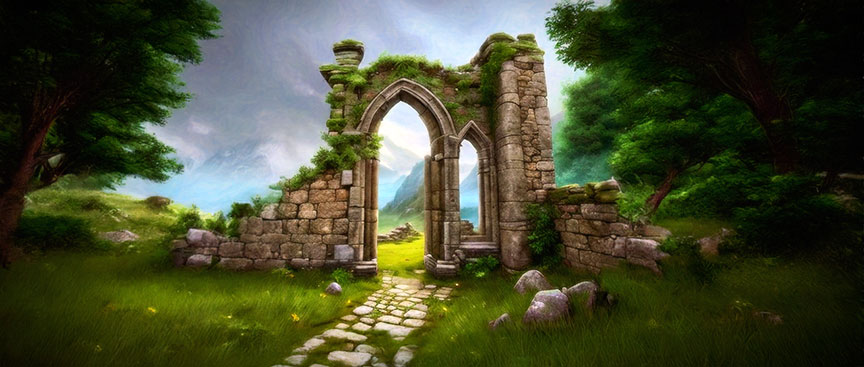
Another NVIDIA Canvas render, where I used the erase error purposely to make the doorway. Let’s fill it in!
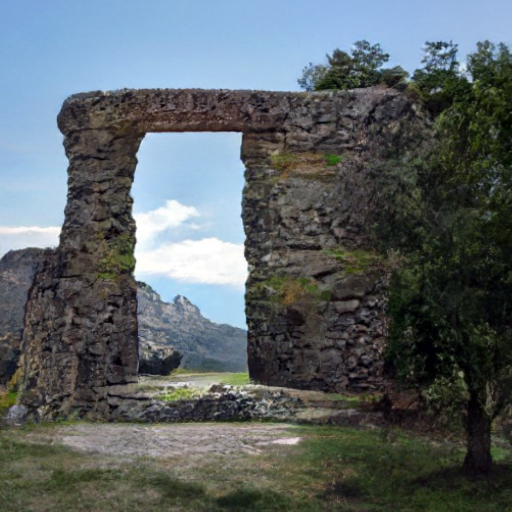
PAI at left (first try), PS at right (option 3/3):
In these last two examples, PAI is doing a “good” job, but not an “excellent” job.
Is it possible to add text prompts to PAI Remove? I feel the need for more control of this feature, especially when it comes to redoing the results. I would also like to be able to differentiate between “remove” and “replace” – maybe I wanted a new background in the doorway rather than a fill. I just tried in PS (“replace background with different mountains and sky”):
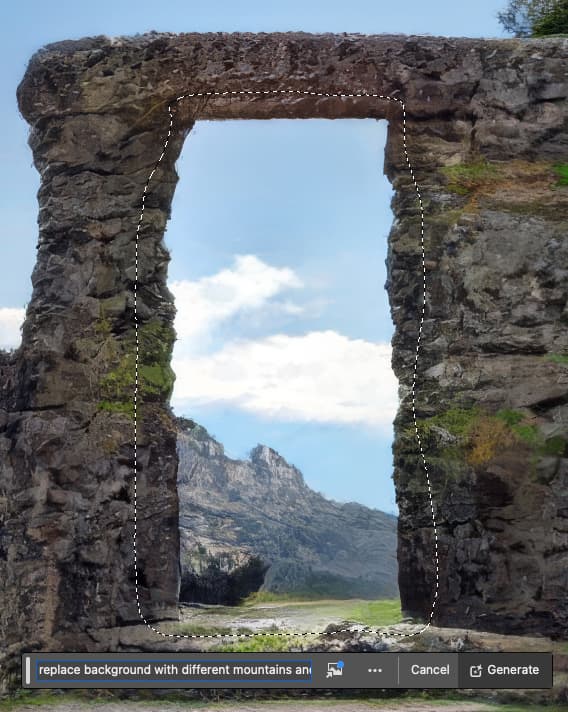
Result 2/3, with bonus weathered doorframe and steps!
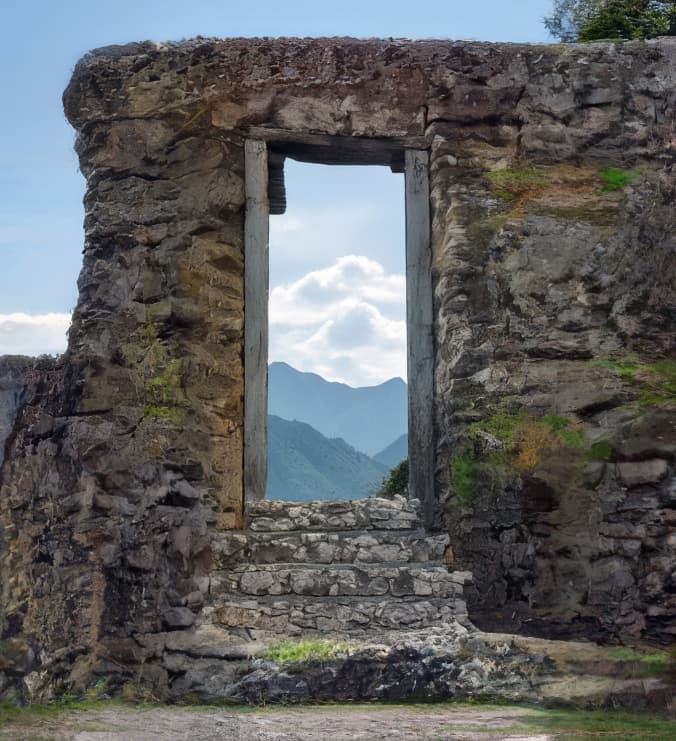
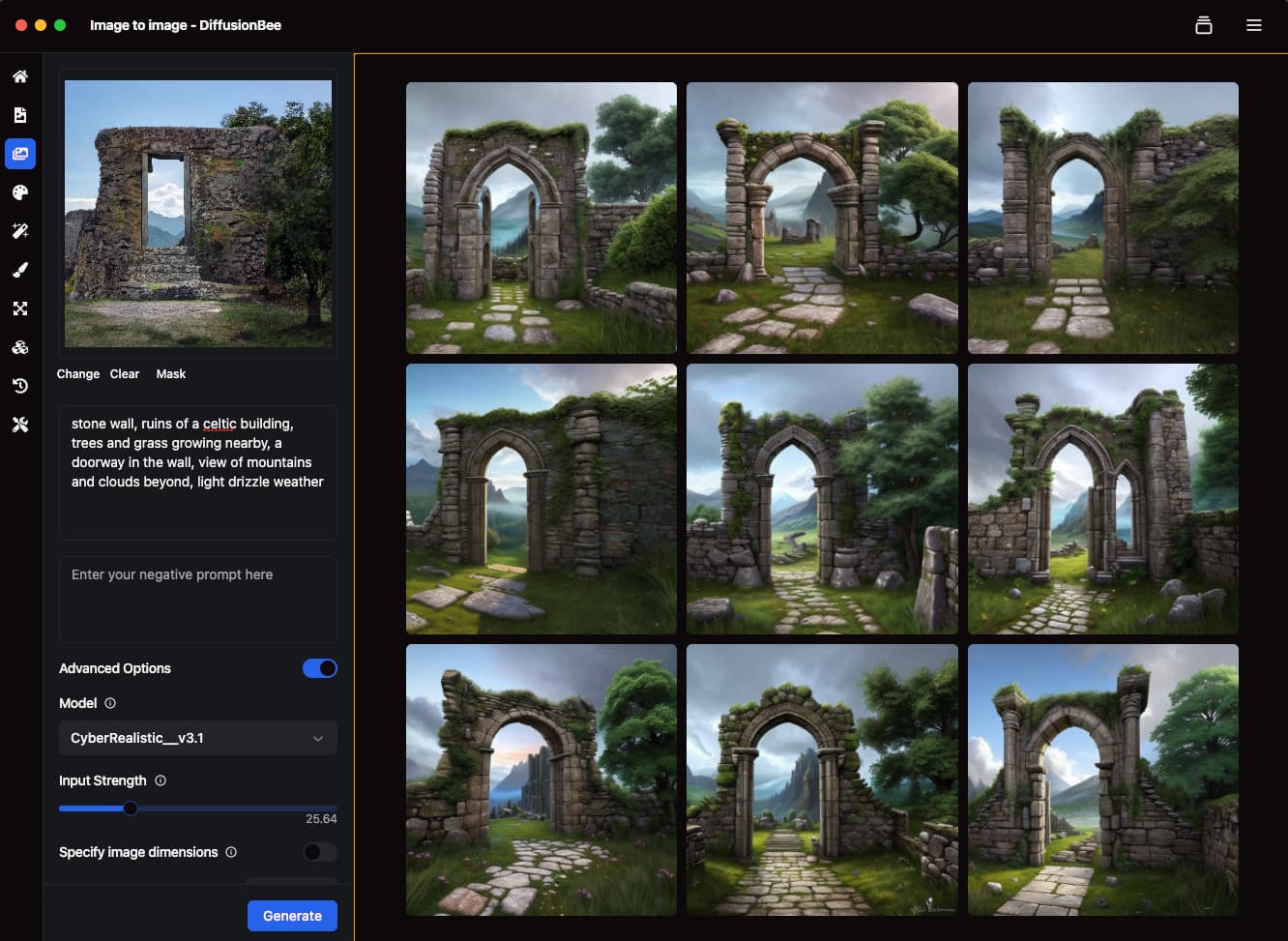
When you take that final image and run it through DiffusionBee Image-to-image, and then through PS Generative Expand, and then add some art effects… I did not have to go to Ireland even once!
So far things are working fairly well. I would like to see some indication that an image crop is active. When you select all to process it appears the crop is having no affect on the thumbnail. Even when in the active window there doesn’t appear to be anyway to tell unless you hover over the dimensions or select the crop function again. I’d like to see either the dimensions or crop buttoned highlighted in some way.
Hi, Topaz team. I have 2 big issues with PAI:
I’m getting very bad results with the Remove feature. Meaning, the newly generated area is very low-res/pixelated and with jagged edges. I don’t remember this being the case with PAI versions 2.x. It is only with 3.x that I noticed this.
There is no selection restore function in the Remove tool. This existed before version 3.0 came out. Why did you remove it? Now I need to spend tons of time re-drawing my selections when I want to redo or try different variations of my original selection.
Can you kindly look into these? I already reported issue 2. probably a month or more ago.
PAI is not in the same league as PS for “remove” and I don’t think it will ever be. Adobe has a much larger amount of resources to work on this feature. PS doesn’t require as much"horsepower" from the user’s computer, since much of the processing is done in the “cloud”. For me I don’t have any interest in PAI’s remove feature, color balance and other photo editing features that I can do better in LrC and PS.
Using Win 11 and Lightroom Classic, running File, Plugin Extras, Process with Topaz Photo AI:
.jpg files: Edit a Copy or Overwrite Selected File(s)?
.DNG files: Straight into Topaz Photo AI without a Copy/Overwrite option. Looks like it defaults to Overwrite.
Why don’t we have the option to edit a copy of the DNG file any more?
PS doesn’t require as much"horsepower" from the user’s computer, since much of the processing is done in the “cloud”.
Actually, no.
PS has the “Remove” tool that is local and uses an order of magnitude less processing than PAI.
Testing it with the same image, removing the same thing took PS 2sec when PAI took more than 25sec (on the same hardware).
The result of PAI was much worse than PS…