I have a 4080 GPU, 12900K i9 and 128GB RAM, I’m about to test the speeds for myself. It’s annoying that Video AI and Photo AI don’t use more of the hardware, max it uses in task bar is 30% or less.
The best photographers, I know are not limited by hardware and don’t have all this fancy computer hardware. The ones with the best gear are often not that good.
The remove tool is no big deal for many.
3 Likes
Are you using the remove tool?
Other parts of PAI don’t use so much memory.
If you are removing tattoos then you probably need it, but why do that anyway?
I’m really enjoying the remove tool and am hoping/looking forward to seeing my related requests being implemented:
- Add smart/AI selection brush to remove tool - makes masking much easier in combination with manual brush
- Add auto subject detection/selection mask to remove tool
- Add ‘inverse mask’ option on remove tool and main tool
Since the first two features already exist on the main image tool, adding them to the remove tool should be fairly trivial.
Also, not related to the remove tool:
- Add old model usage option
Thanks!
6 Likes
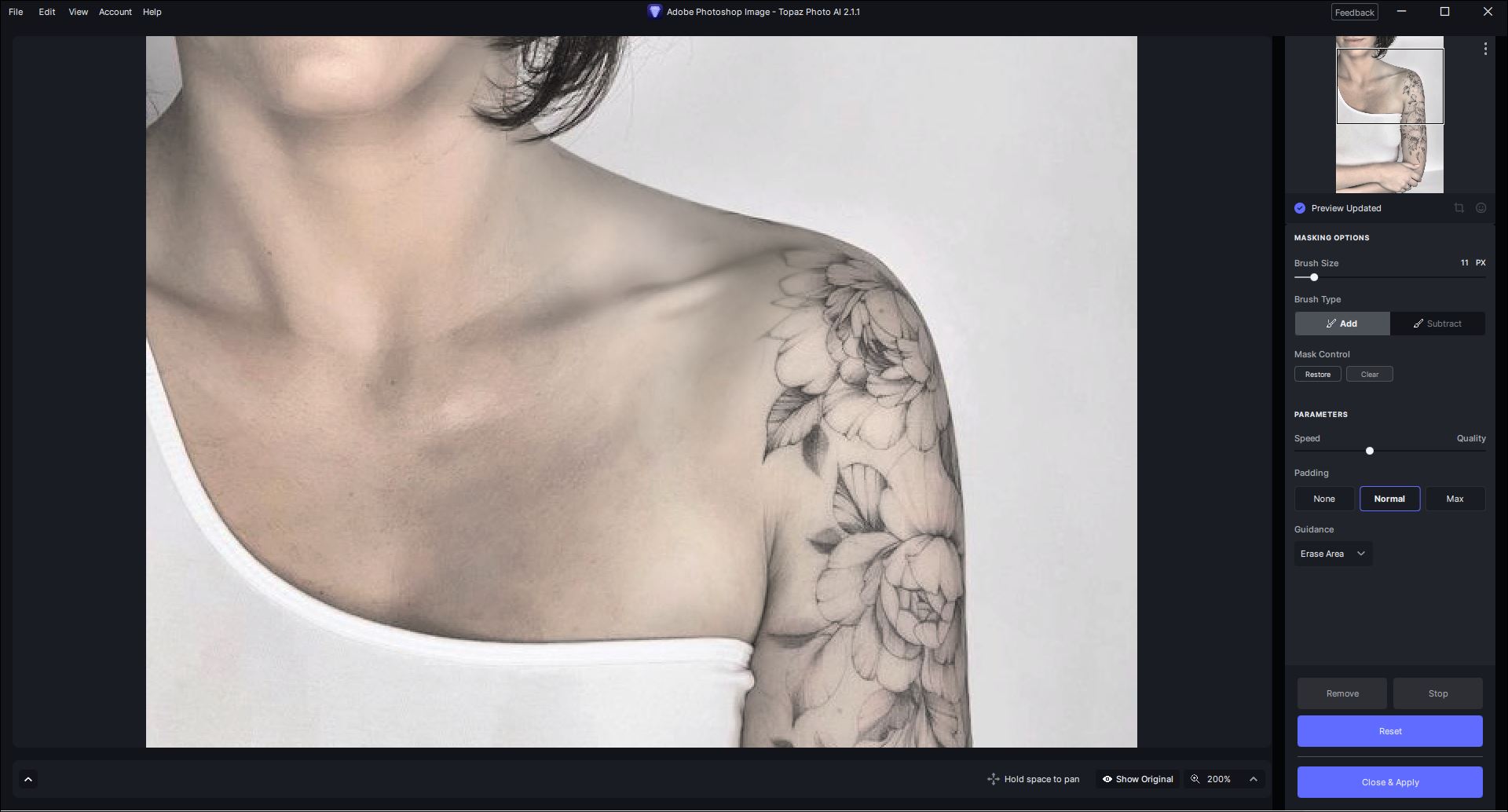
I wasn’t going to spend the time it would take to do a complete job on one of these sleeve tat examples. I opted to try the top girl’s tats b/c the ink coverage was less comprehensive. And, I only did the area on her upper chest/collarbone area.
I tried 2 experiments - one with this rel. of PAI (as a Ps Plugin) and one using Ps Firefly Gen Fill (inside Ps 2024).
B4 I did either tat removal attempt, I did a quick Color Correction step (b/c the girl seems very Red and her arm is either in shadow (not well lit when photographed) or the tats have ‘stained’ her arm blackish. I didn’t want those Hues & Tones influencing either of the removal processes (Topaz’s or Ps’).
PAI Remove - I Remove Brushed leaving skin showing. I did about 3-4 passes to keep the processing time down. I’ll attach a snip that shows my Spd/Quality & Padding settings. Each of those passes cleanly removed. And, preserved nearby shadows and bone structure. Once cleaned of a tat (certainly ones that extreme in nature) skin texture would have to be restored in some way. I have to assume that even an F.S. 2.0 would require that, but I haven’t tried that approach.
Ps Firefly Gen Fill - I just turned off the PAI layer and used the same baseline color corrected (at least to the level I did a quick pass…) image. I could just draw a single (vs multi-steps) Lasso around roughly the same tat area to see if it would remove cleanly. I’ll attach the snip result. If doing it for any real purpose, I’d do another quick Remove Tool cleanup (like along the shoulder line). Same issue as above. Skin gets smoothed. Skin texture would either have to be copied from elsewhere on the subject’s body or a faux skin-like texture would have to be overlaid. This was a faster process.
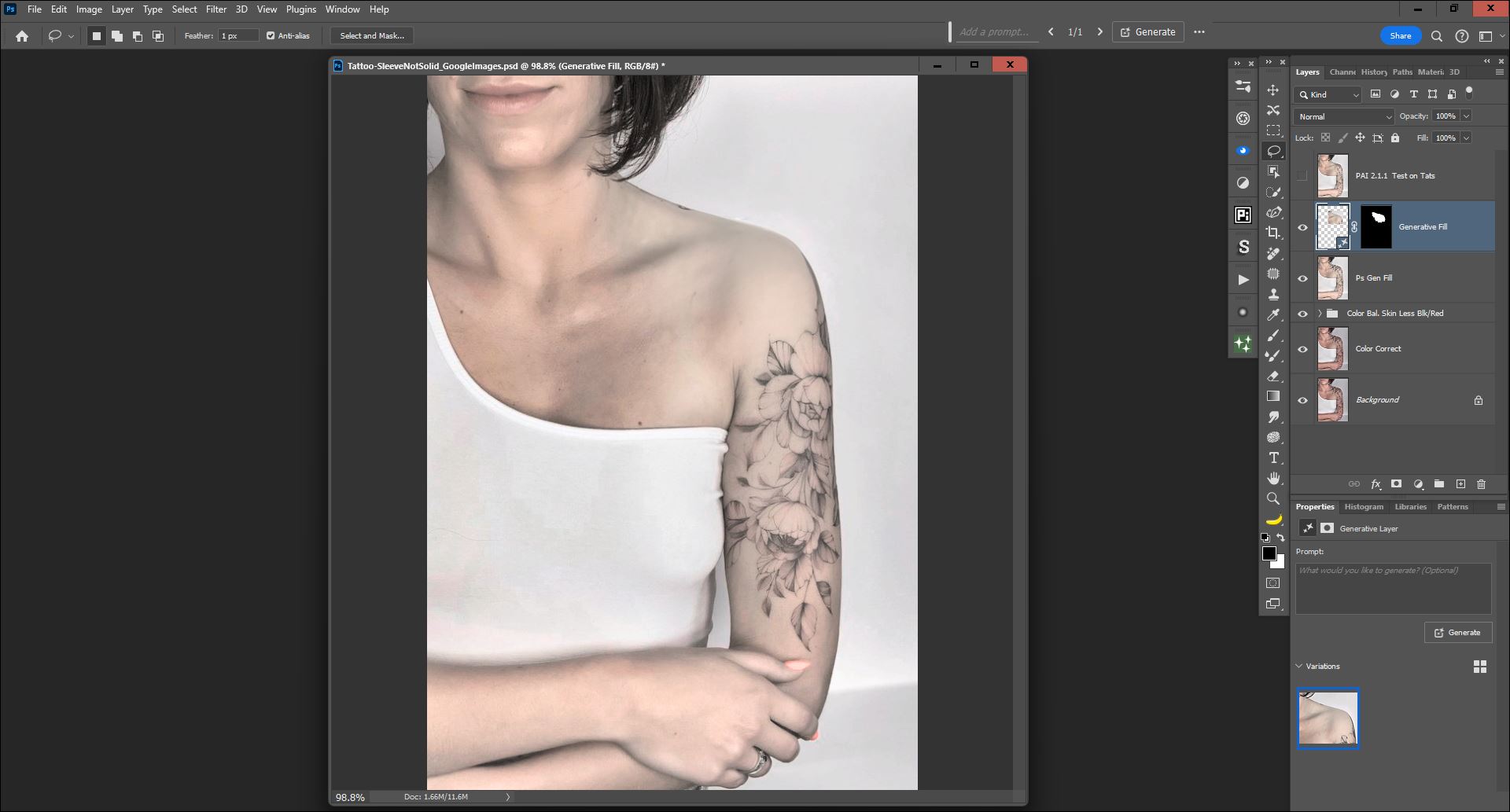
I’d say the ultimate results were quite similar - for the amt of tat I attempted to deal with.
And, again, I didn’t try the more densely inked sleeve. The tradeoffs are time and money. Does someone want to pay for Ps (or, use Web Firefly for as long as it’s available for free…) and get all its other features too. Or, go with PAI with its other more user-friendly pre-processing features and local processing (which - at this pt - is slower) - that may be less intimidating to some users.
3 Likes
Has anyone tried YouCam Perfect? If so, how does it compare to the Pai remove tool?
Thats an Smartphone app.
2 Likes
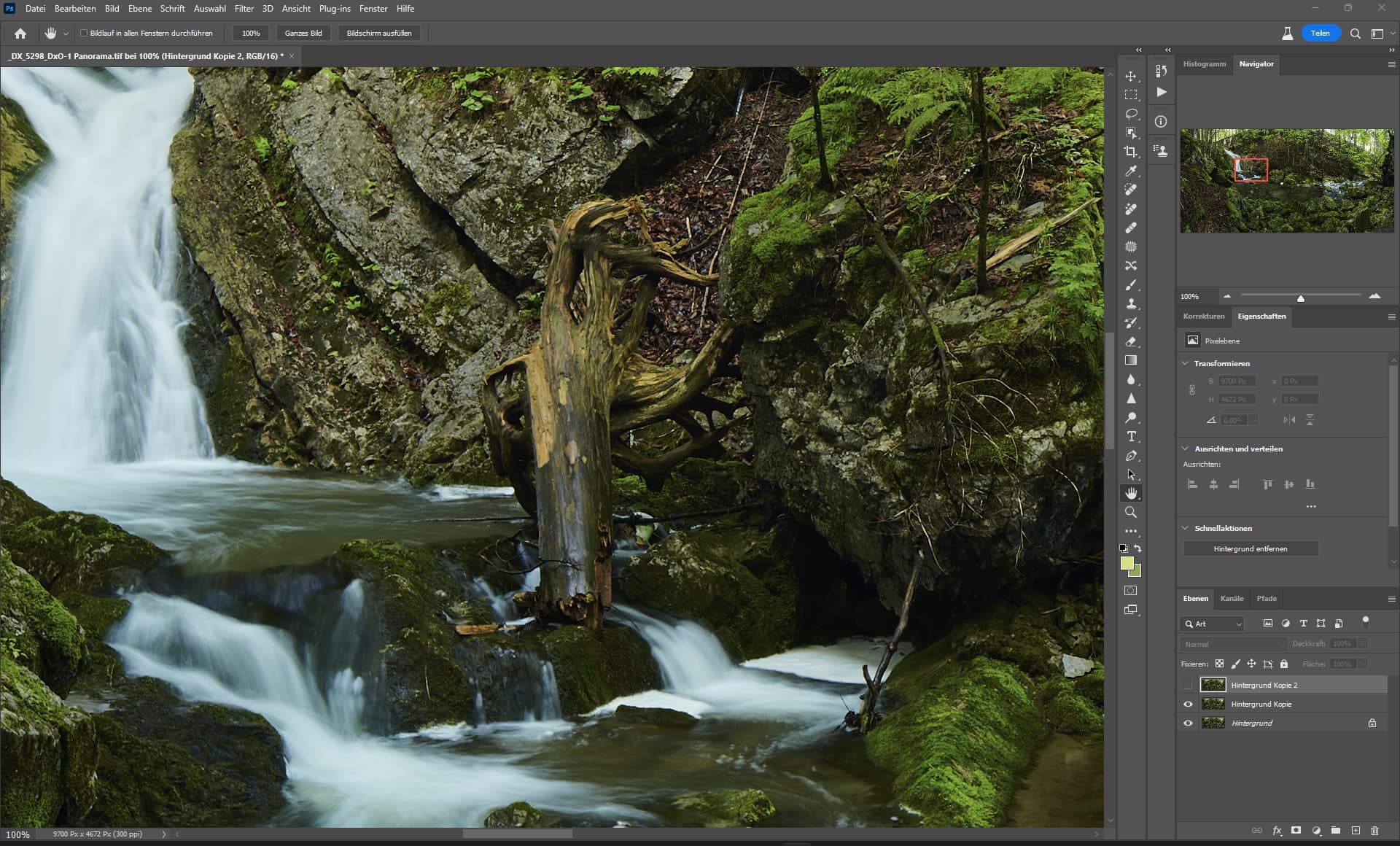
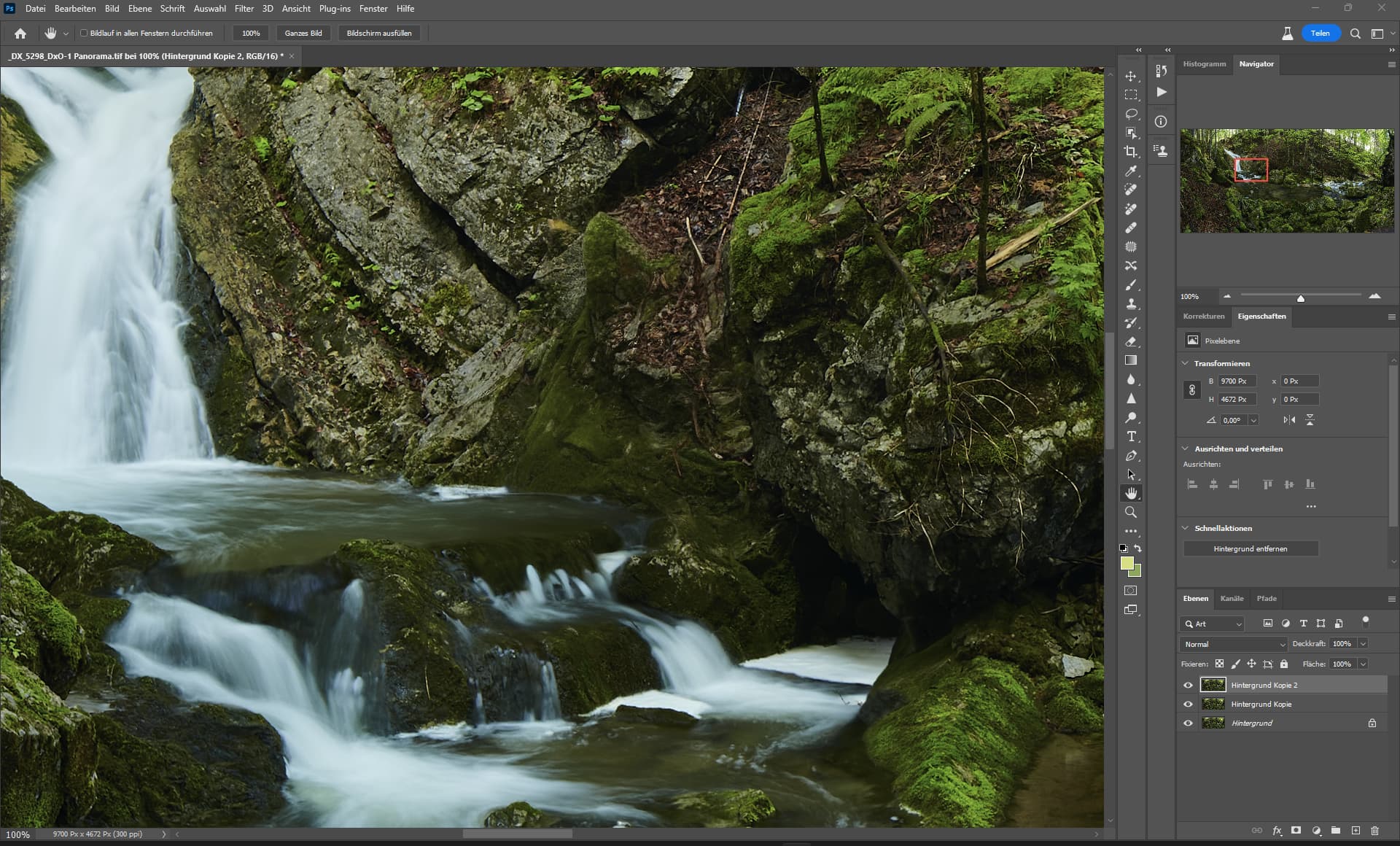
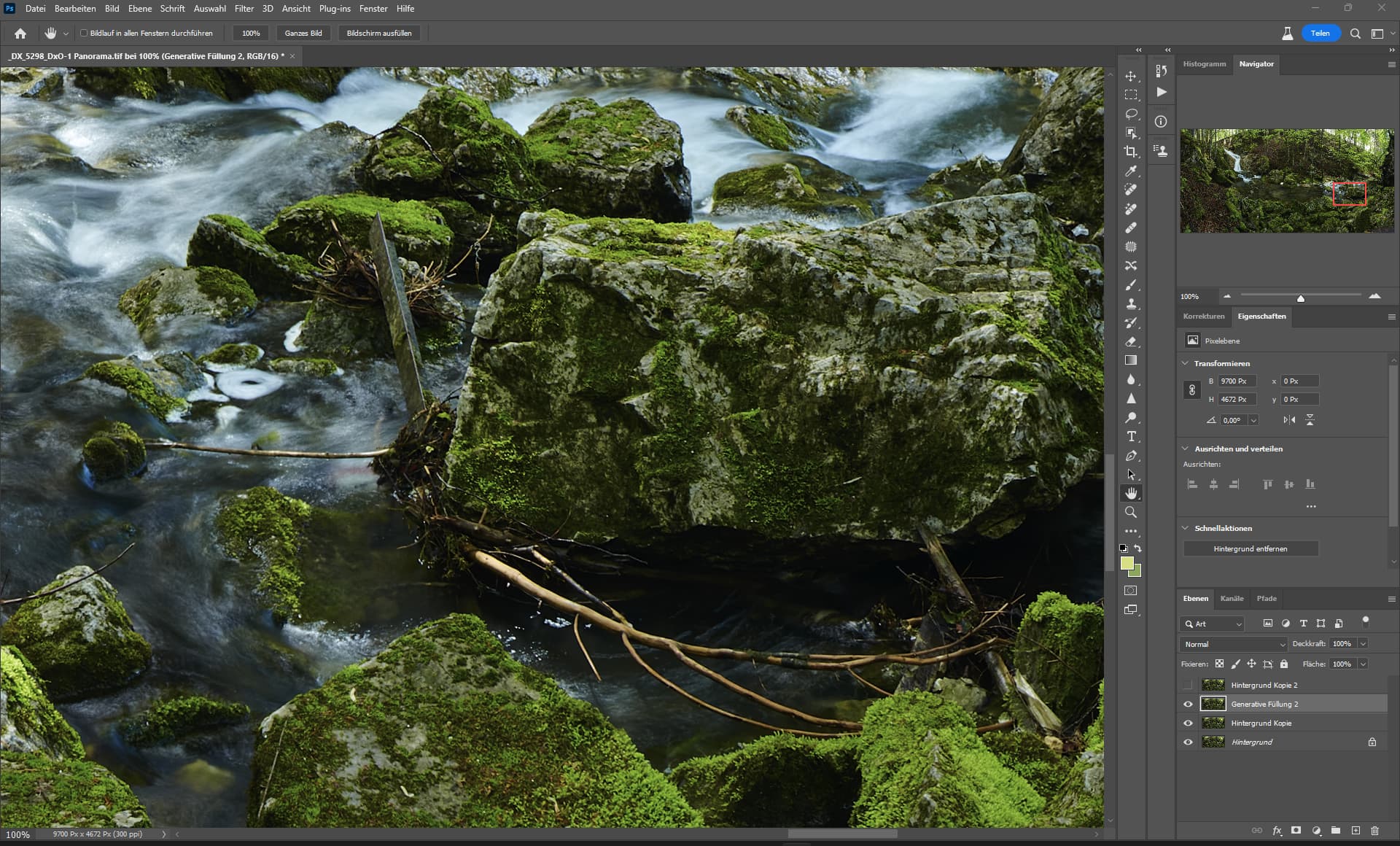
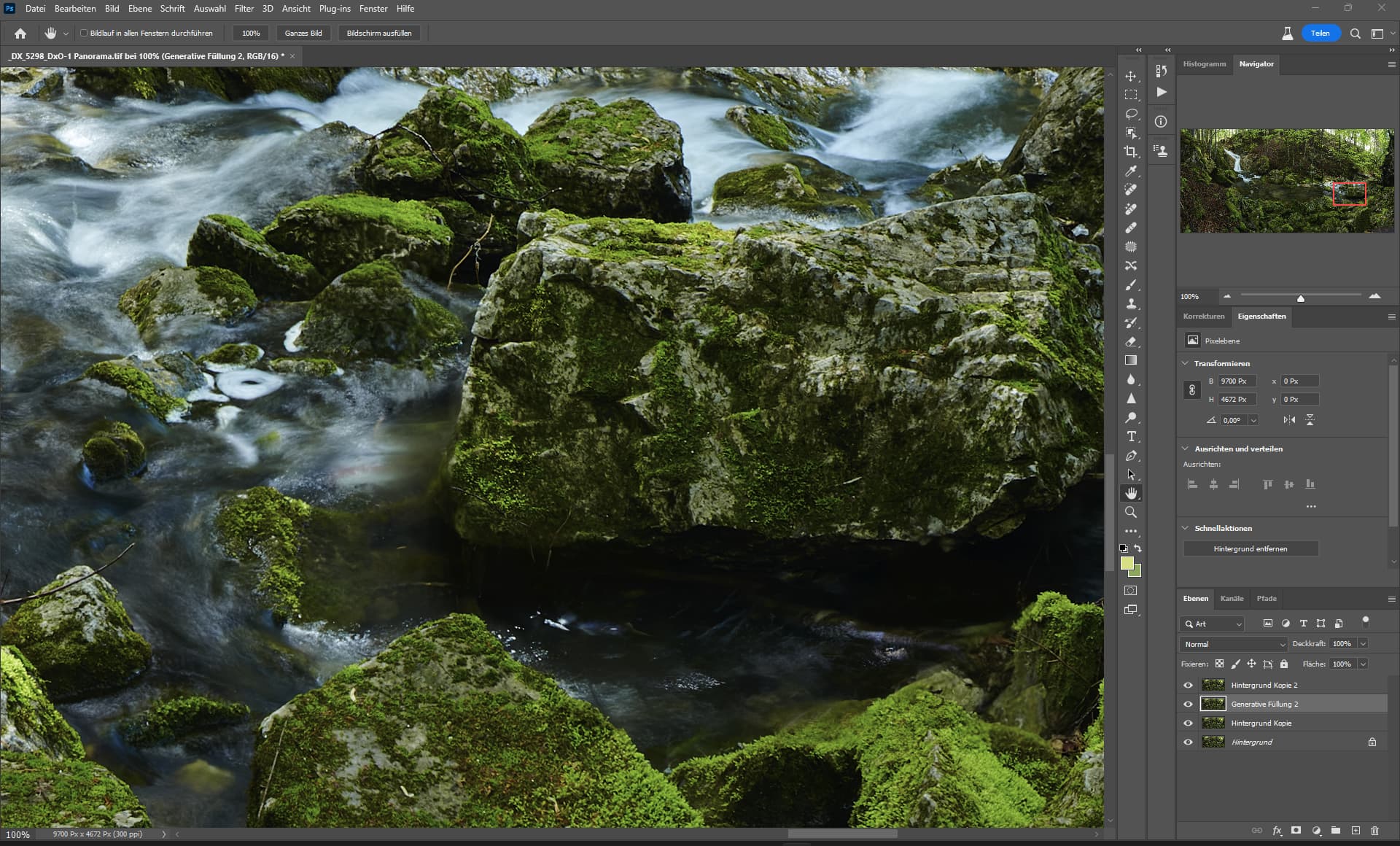
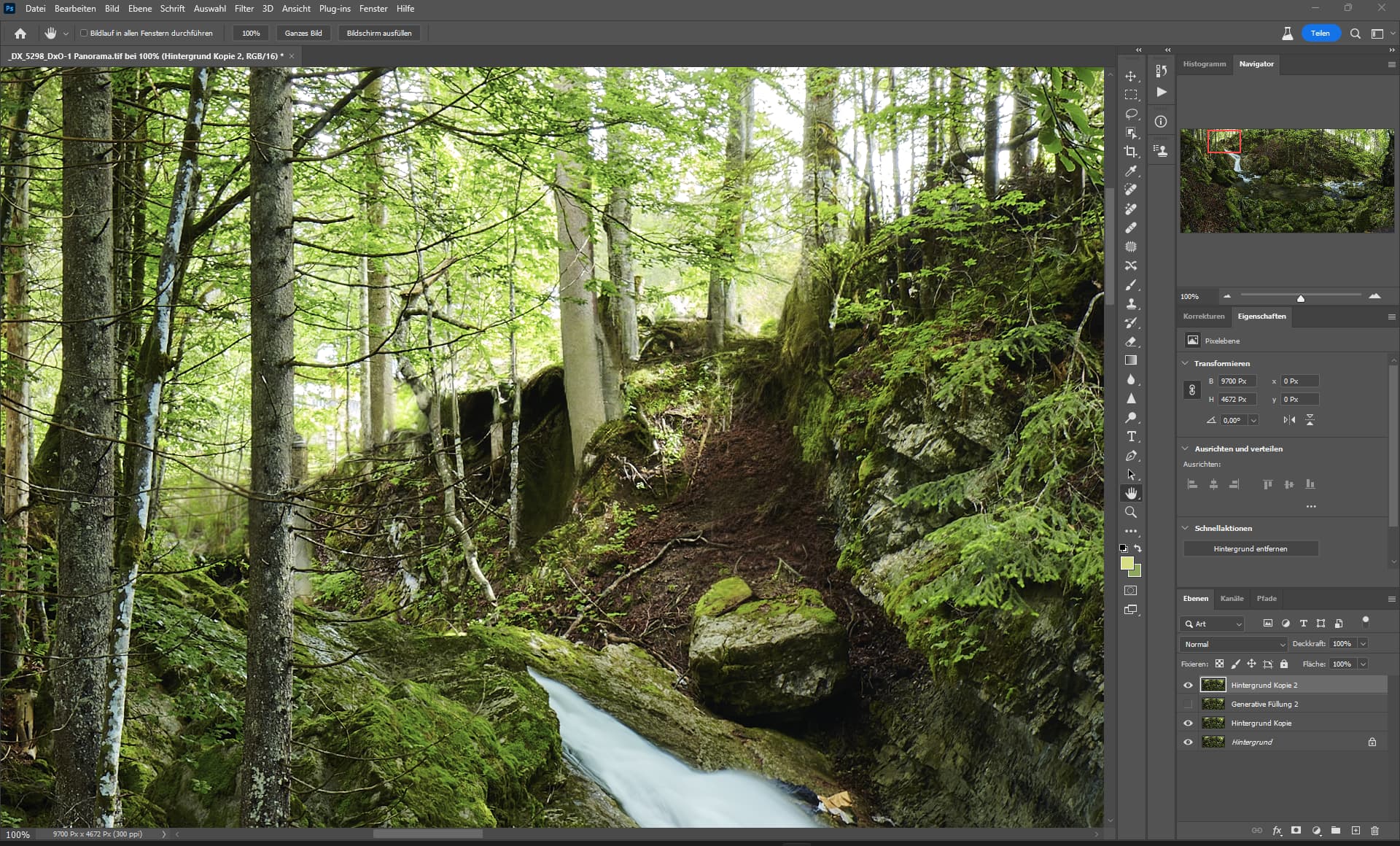
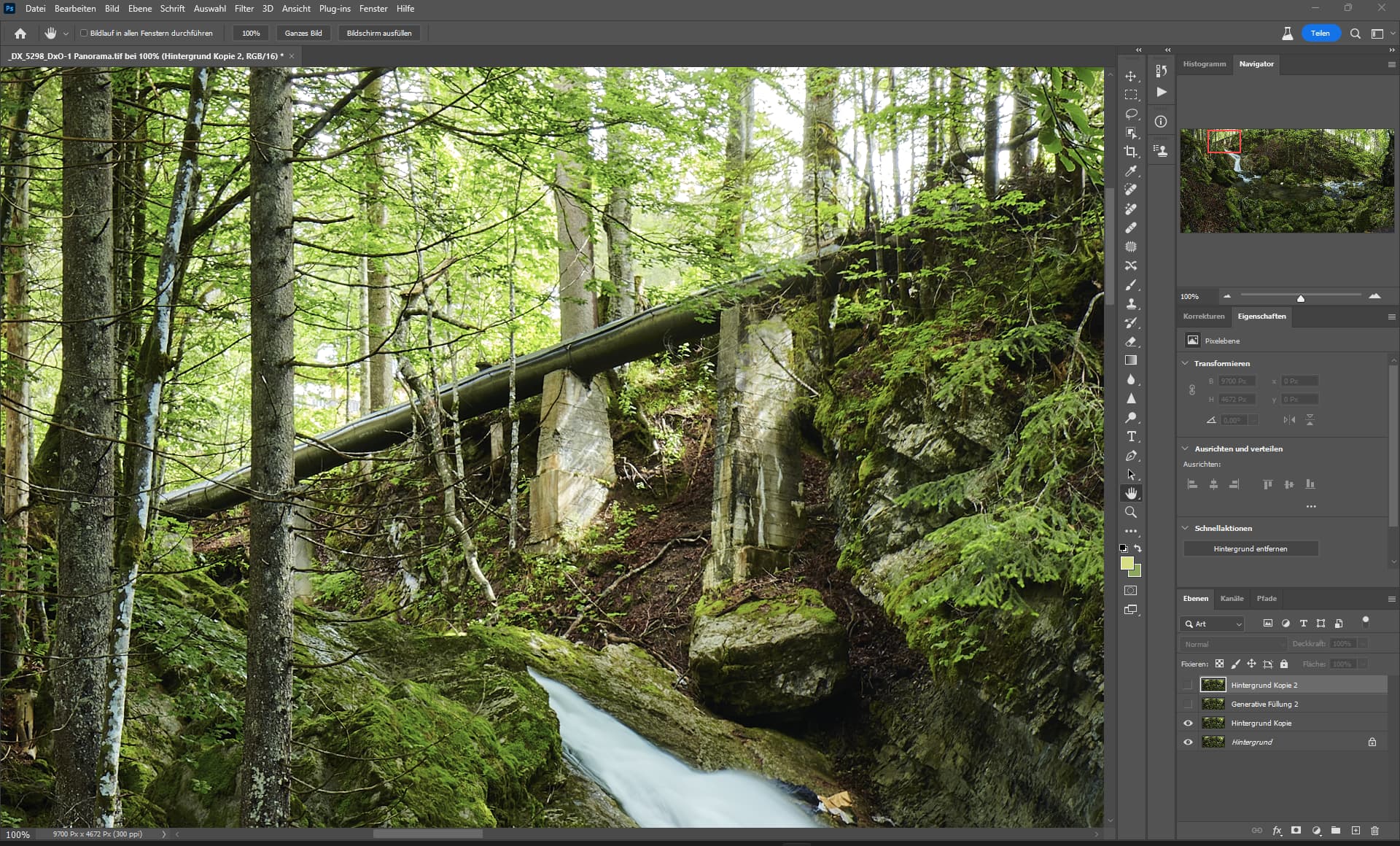
If one is using the latest version of Photoshop (PS), I really don’t see why one would be very interested in PAI’s remove tool. The PS version is much better for a number of reason such as: faster, less resources needed, presents 3 results to select from and ,
2 Likes
And is loading your images up to Adobe bc. its not running on your machine, and without internet it wont run at all.
I’ve generated another three times with adobe, all did fail, so six times generated, all failed, with guide and without (caption)
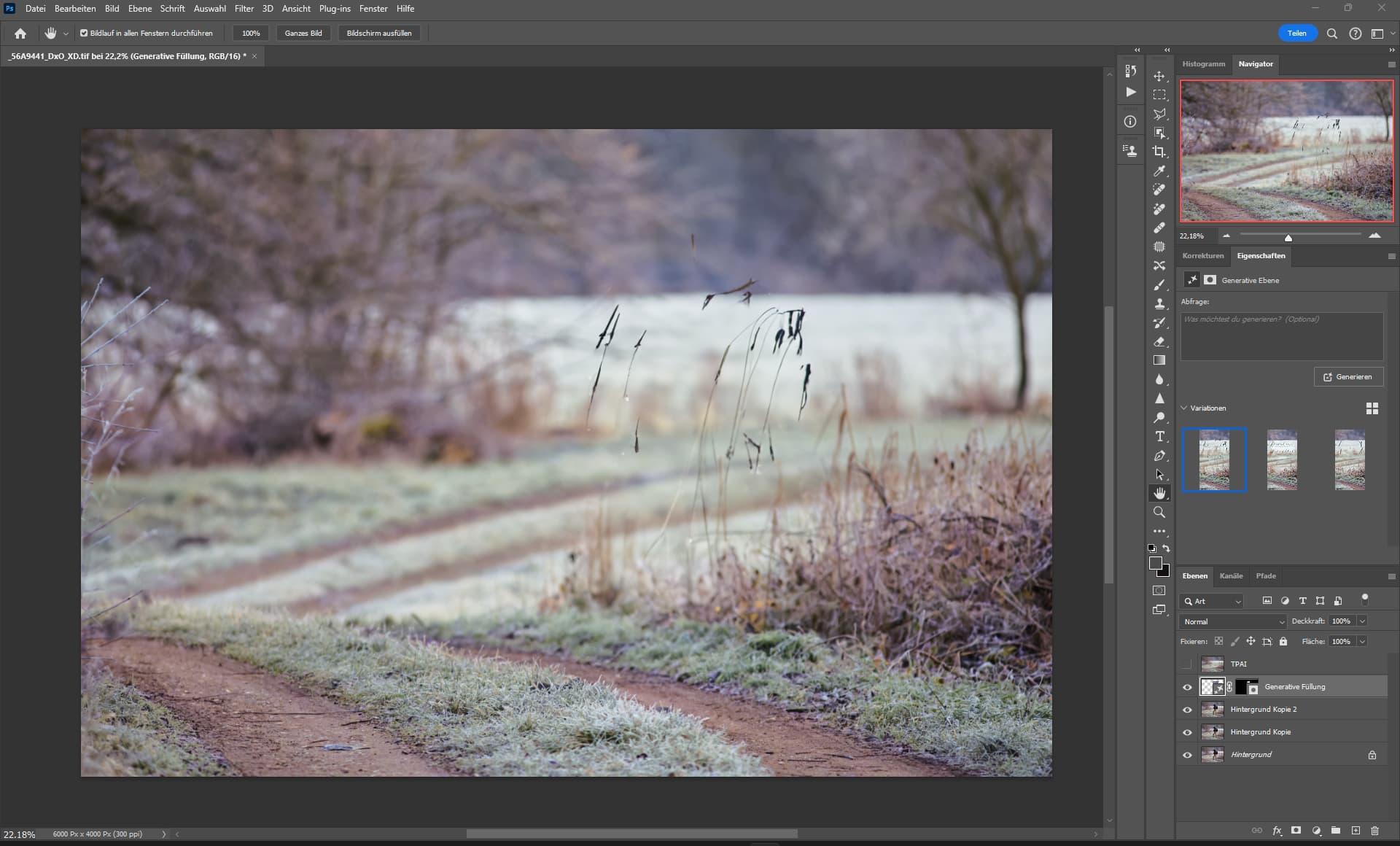
Adobe Generative fill
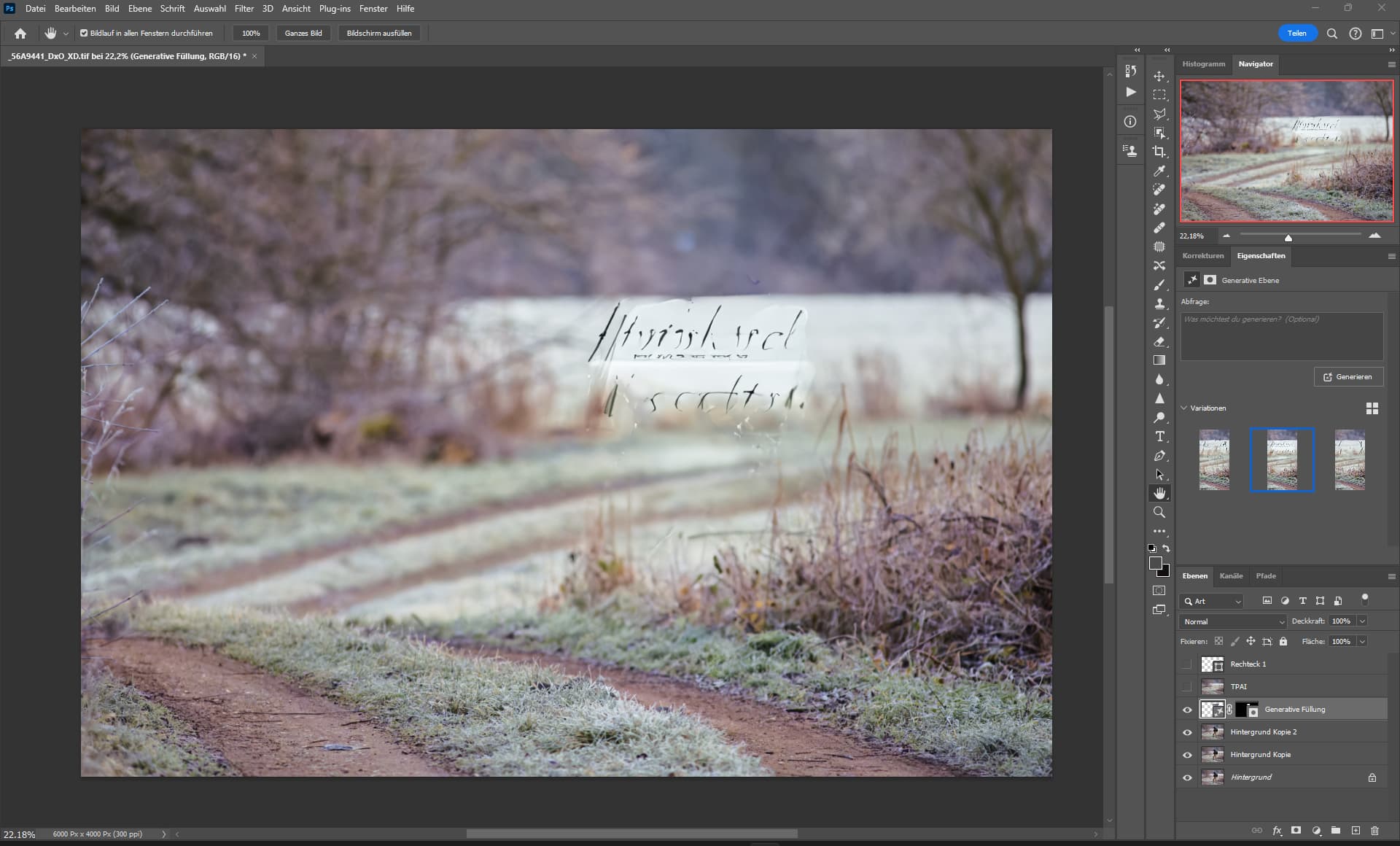
Adobe Generative fill
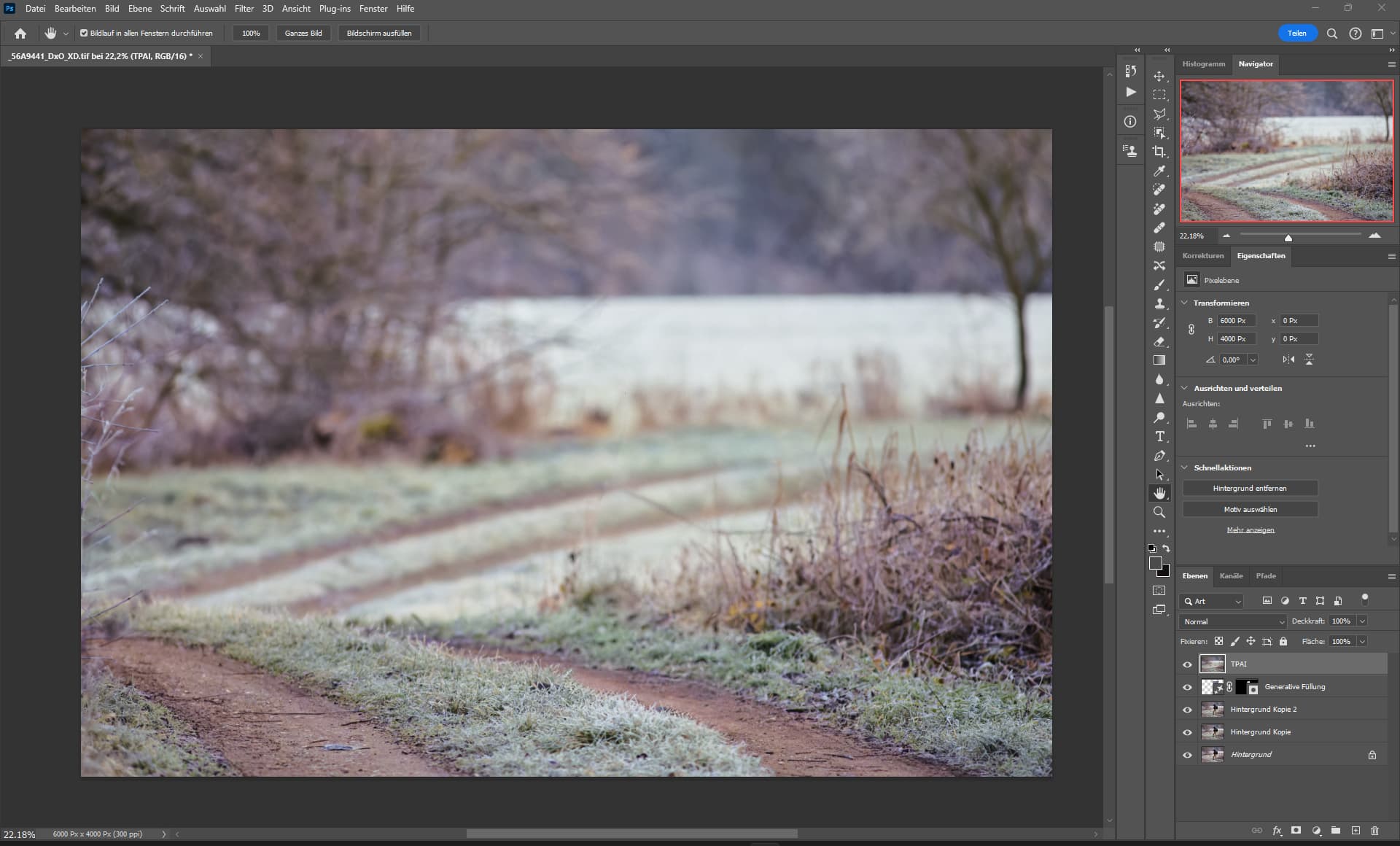
TPAI 2.1.1
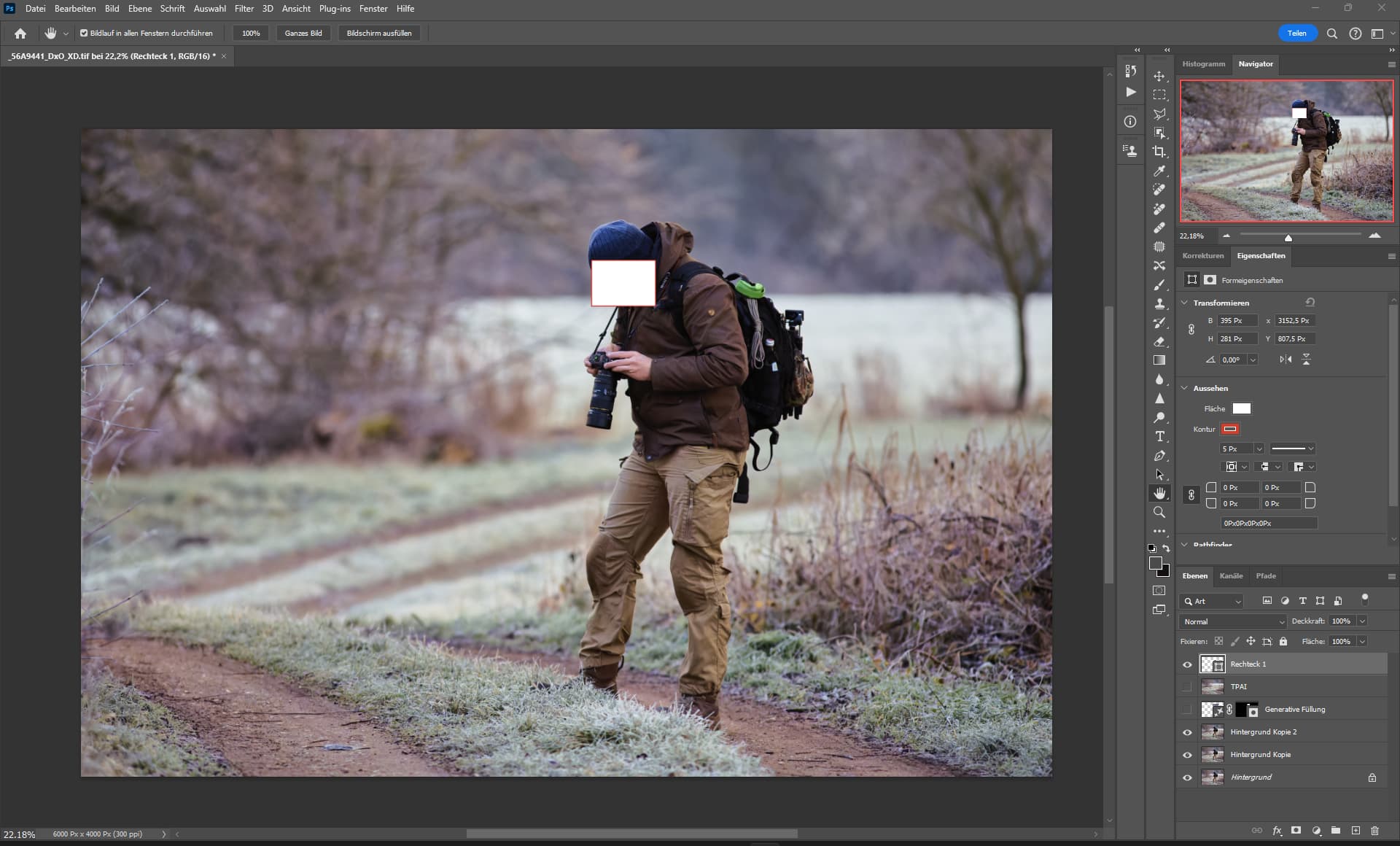
Original
4 Likes
My RTX3060 has 6GB … this means you are using a slow integrated GPU and CPU ( it does detect the integrated GPU).
I’m not sure what the direction here is as the minimum Technical Requirements are Graphics Card (NVIDIA) - NVIDIA GTX 900 or higher, 4GB VRAM but on my 17/16GB GTX1050/4GB older PC it uses that GPU but won’t select the RTX3060/6GB on a system with a AMD 9000 series and 32GB.
Why is it that we are Beta testing production releases?
I’m not sure Thomas, but I would suggest that because the selection methods seem rather rudimentary it would not and looking at the application when it is running, in this situation, it was using less that 1GB of system memory for the onboard GPU.
I mean as a supplement for the GPU ram, theoretically it should be able to use the ram and vram and “stream” the data from Ram to Vram.
It’s a pity that AMD Vega is no longer an option, because you could flip a software switch and the High Bandwidth Cache controller automatically swapped the Vram to the Ram, from the previous 16 GB it then became up to 48 GB.
But because Vega was “shitti”, it sucked at gaming, so it sucked overall, and just a vew people liked it. 
You can get now a Radeon Vega PRO for 900 (2250 two years ago) bucks, but it did already run out of driver support, only critical updates will be provided.
There was also the Radeon Pro SSG, which had two terabyte SSDs in addition to the 16 GB HBM (Vram).
Such an interesting card, but it’s completely out of support, nobody wanted it either, it could cache from the two SSDs and it was intended to have a low latency memory, close to the GPU.
Sorry what I mean is that with the programs rudimentary selection process it wouldn’t see anything but the 6GB GPU vRAM and therefore discard the 3060 as an option.
The software should not do that, because of the ram usage you would be able to set the minimum amount of vram to 2 GB.
It’s addictive for me
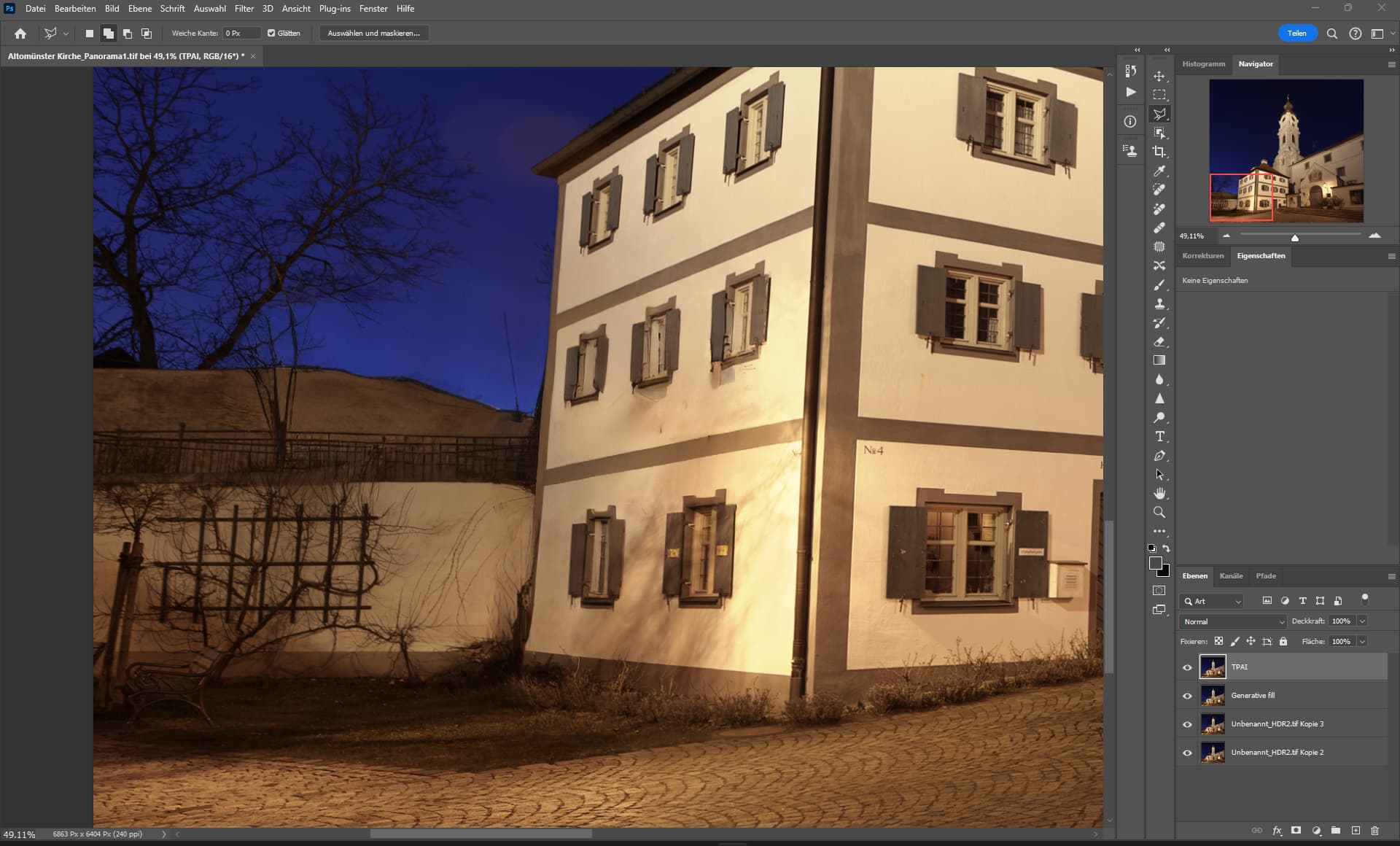
TPAI - 4 steps - yes needs a bit manual pixel love but looks very nice.
The windows and the fence are top notch.
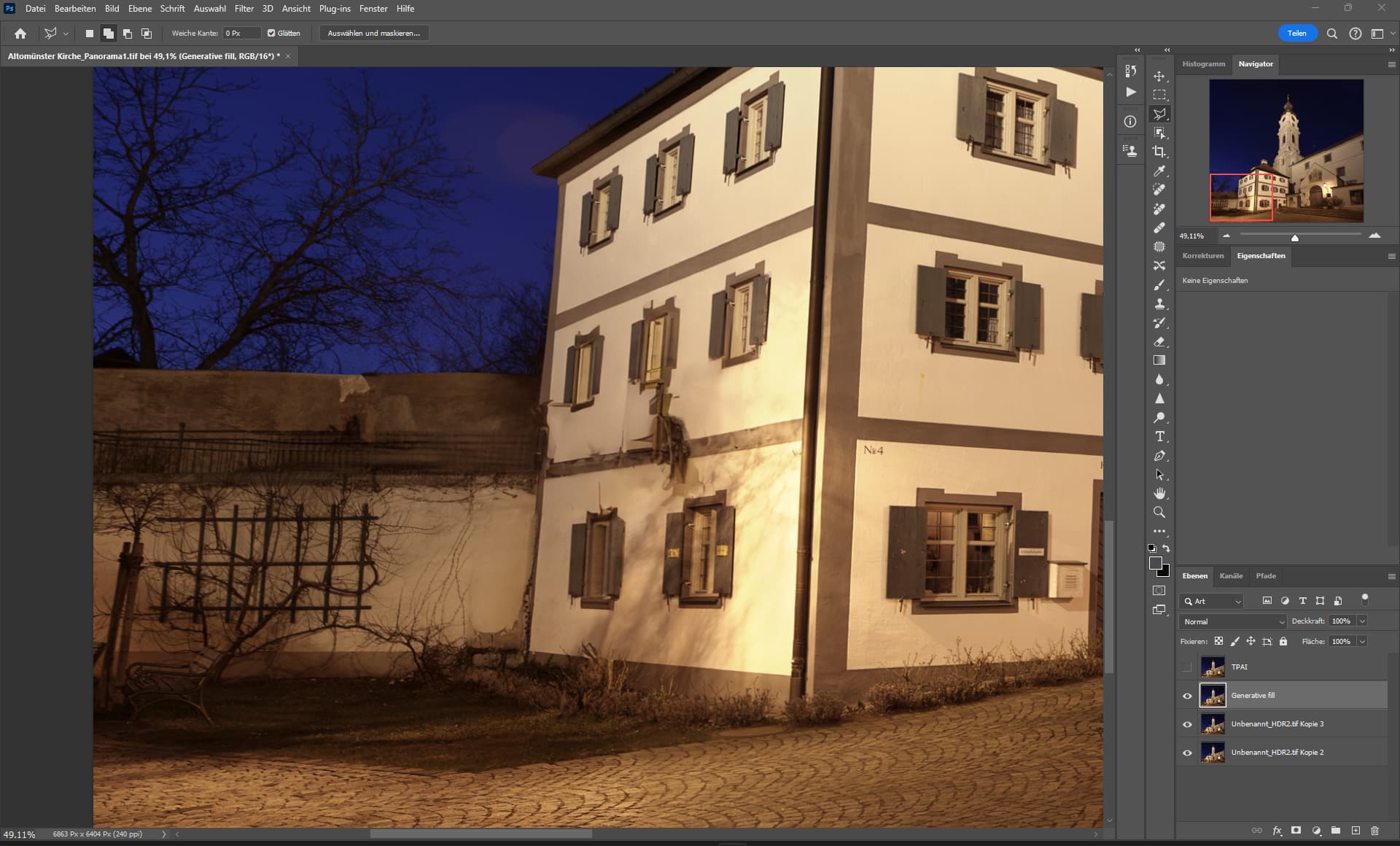
Generative fill, more than 5 steps - is solvable but needs more manual pixel love.
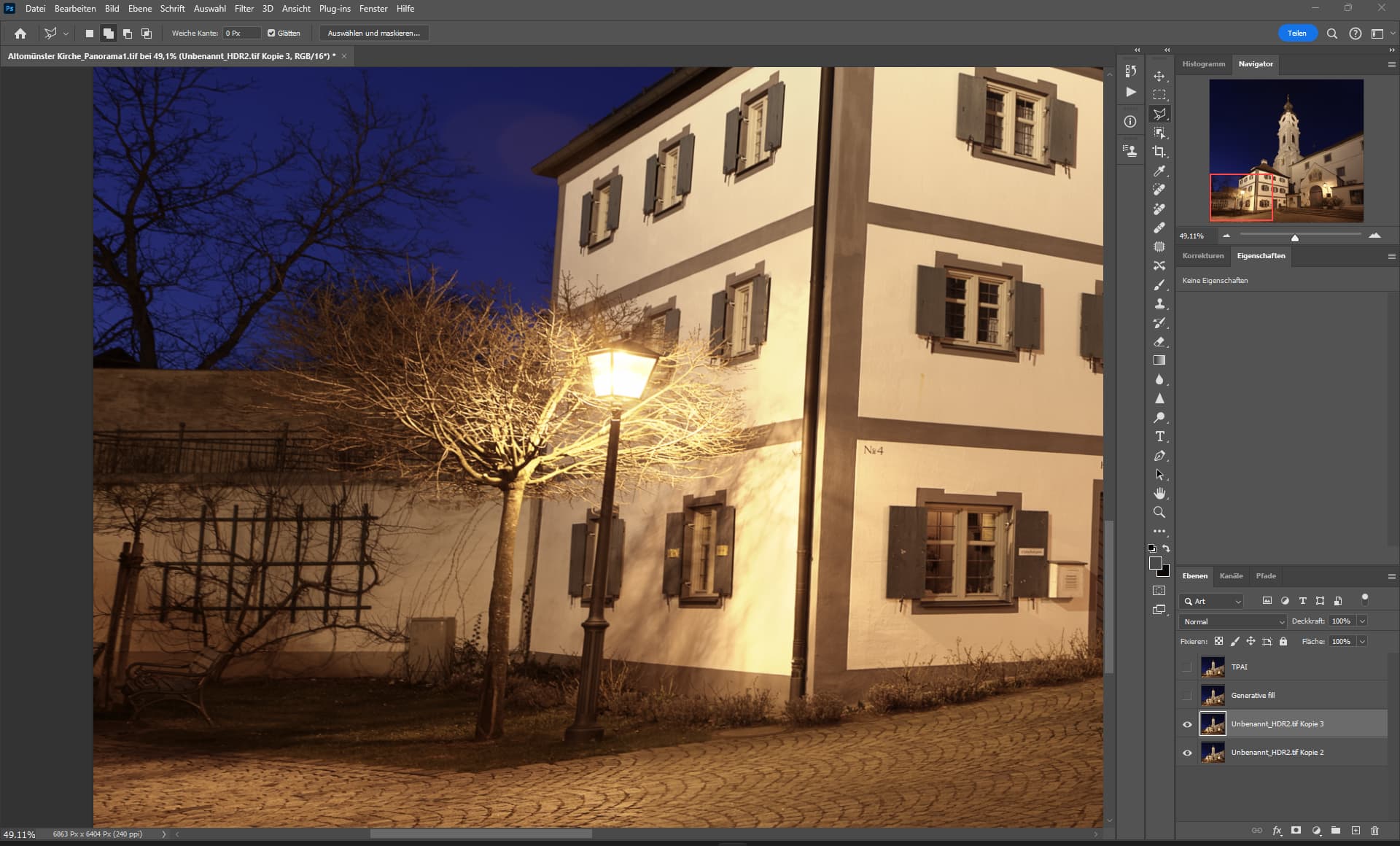
Original
2 Likes
This was after the first stroke, model was loaded.
And like it seems, the tree and the lamp was removed in a single stroke.
The work surface is tilted because the image has been tilted but not cropped, and it is quite large.

1 Like
This is all very nice but Denoise and Sharpen in TPAI still arent working properly
2 Likes
Do you have a example?
3 Likes
But I said for people who are using the latest version of PS. Obviously you aren’t or don’t want to use that feature.
