And Dust & Scratch still oversharpens the whole image. Here’s panned a bit farther left. Everything is sharpened/posterized, and not to good effect.
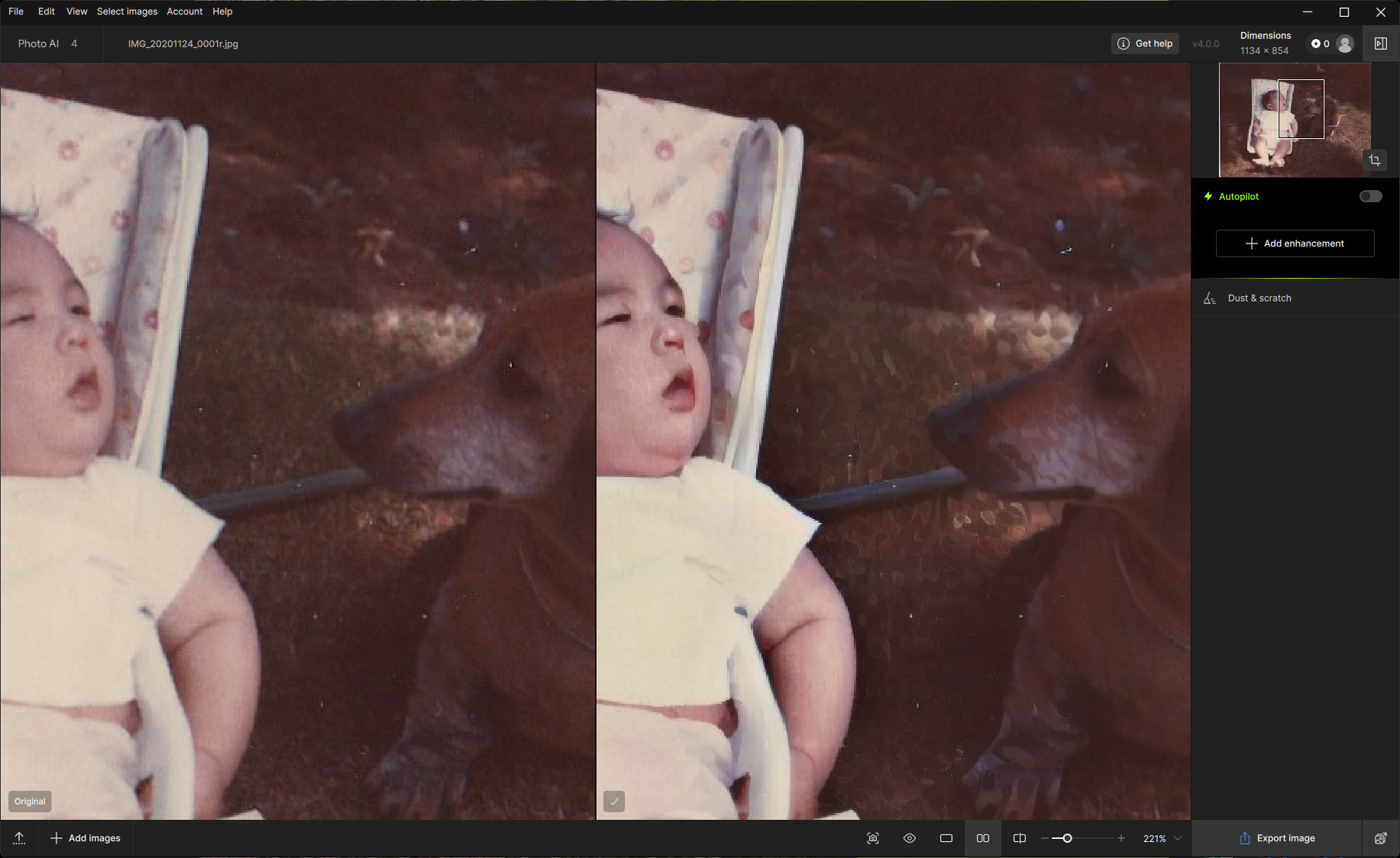
Especially look at the area spanning the dog’s nose to foot.
And Dust & Scratch still oversharpens the whole image. Here’s panned a bit farther left. Everything is sharpened/posterized, and not to good effect.
I used the original picture that PnP posted and ran it through PAI with the Scratch and dust filter, denoise, face recovery, sharpen and upscale. This took 1 minute and 30 seconds for the scratch and dust filter and about 1 min and 53 sec for S & D + upscale and recover face (total).
I was also running my MS Edge browser with 44 tabs open. My GPU has 6 GB of VRAM.
I wonder why yours took 4 minutes?
So how do I look-?
I ran PAI plugin (File > Automate) after using Ps as a pre-processor. And, ran it against the layer stack I’d created doing the Ps pre-processing. Perhaps that affected the timing. I never have other processes open (Chrome, etc.) when working in Ps. I was watching the clock on my monitor and noted the times as processes started/finished, then summarized the timing of each step.
p.s. Another thought occurred to me after thinking about not having processes running. I definitely don’t stop my Cloud backup program. Perhaps that’s running in the background and having an impact on PAI. But seems odd to me that it certainly doesn’t slow my Ps responsiveness when I’m working in it. Including using generative AI tools…
I have my PAI processor Pref. now set to Auto (vs my former AMD RX6800 XT GPU (drivers up-to-date), which I thought would be the fastest option). I’m not sure whether PAI is using my CPU or GPU with that Auto setting. I suspect Intel CPU. I have no clue how that might impact processing timing. 16GB VRAM. I just see what happens and record it. If a process is slow repeatedly I’m disinclined to use it. I like to keep moving while the creative inspirations are kicking in. 
I have mine set to auto too. You can use the task manager to see what is being used (second icon on the left side for graphing).
Like a fine young man 
A few years ago when I was using Denoise AI, Sharpen AI, and Gigapixel AI on a laptop PC I, like most people, would just use the default Auto setting, but one day I started experimenting and found that most of the time using other settings were faster, sometimes much faster. Rarely was Auto the fastest. The PC had a Nvidia laptop GPU and an Intel integrated GPU. Sometimes choosing the Nvidia was fastest. Sometimes the Intel integrated was fastest. And sometimes the CPU was fastest. Auto was almost never fastest so it seems Auto was very unsmart. Maybe Auto needs some AI help?  I reported this to Topaz at the time.
I do not know the situation with Photo AI and the current Gigapixel AI because I mostly use them on an Apple Silicon Mac. I have left it on Auto for them, but it might be worth experimenting.
Thx. I might give it a go experimenting (per your suggestion) again.
Yes, I’m Win 11 desktop PC. I always left my Processor pref. set to my AMD GPU. But then b/c it’s AMD and there are “issues” (I’m using my nice P.G. language) with that brand and working with the Topaz AI models, I changed to the Auto pref at someone else’s suggestion (who also was using AMD and having fewer issues with the setting on Auto - probably b/c the Topaz product wasn’t using the AMD when on Auto, is my suspicion).
Anyway, that’s a long-winded way for me to say thx for your suggestion to noodle with my processor back on AMD again if I’m not using the “sexy” fun models in PAI. I’m game to experiment!
@Tostanica-fezanamu @Artisan-West @plugsnpixels
Okay, I just switched my processor back to my AMD RX6800 XT (Win 11 Pro desktop).
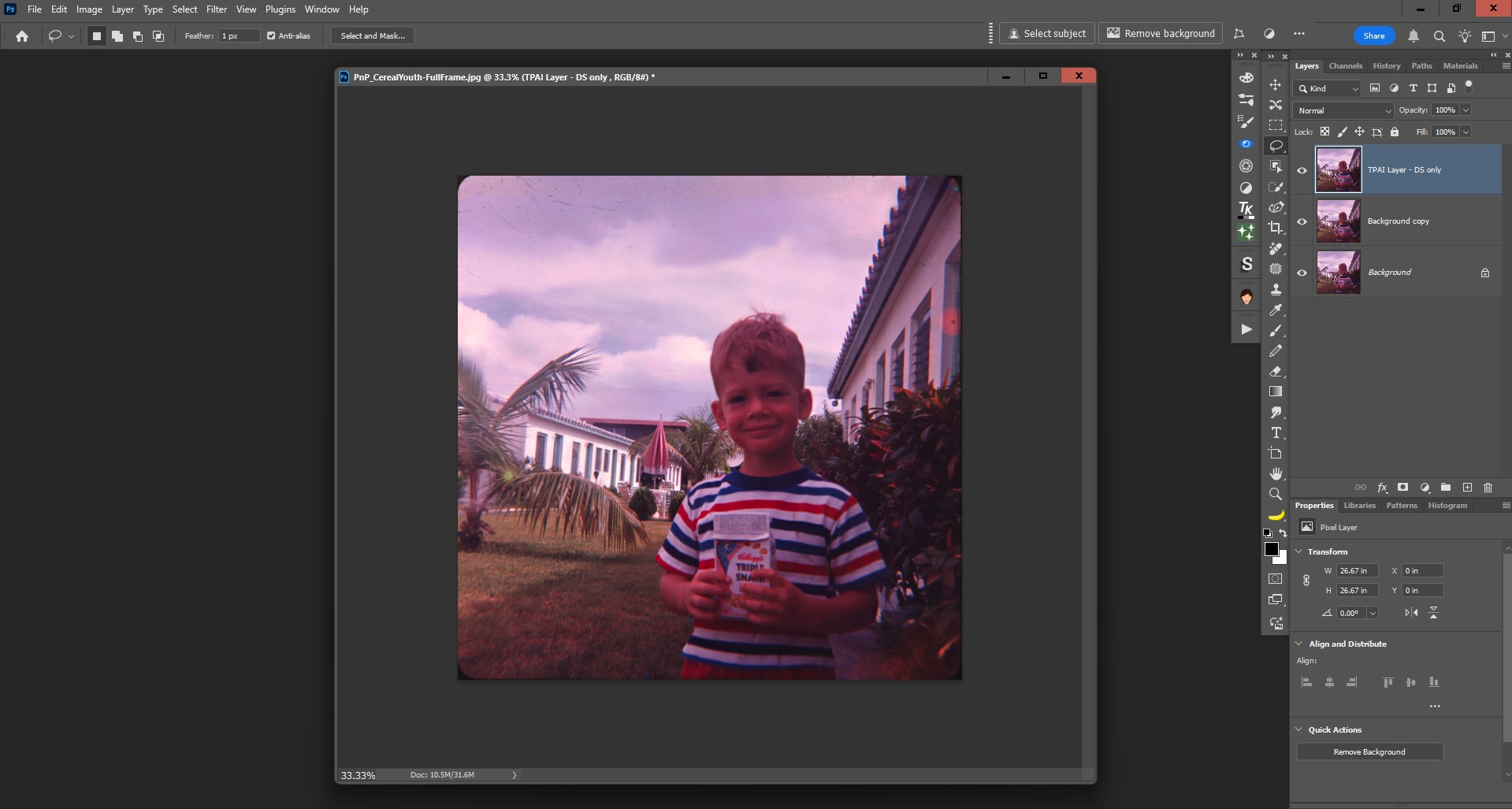
To keep comparisons consistent, I downloaded PnP’s full frame color damaged, scratched photo from above (since Artisan worked with that too…). I opened that into Ps, duplicated the Background layer (which made it a 21MB file). Then sent that to PAI 4.0.0 Ps Plugin. No other pre-processing layers (that I’d sent before while having the “Auto” processor setting and experiencing the ~4 mins D&S run). This time, just the original image.
This time PAI DS model took exactly 1 minute to run.
Because the scratches in PnP’s photo are thin and delicate the PAI DS model removed most of them (the older pics I had had in my collection to run had more serious scratch damage & the model only removed a small proportion of the scratches and only the tiny, thin scratches …).
Interestingly, it appears there are telephone lines in the background behind our young PnP and his cereal treat. The model didn’t remove them (which is a good thing!). It didn’t seem to perceive them as scratches (or, it just didn’t detect them ).
So either it was (A) Switching back to my AMD processor from Auto, (B) Only sending a dual layer (Background & Copy) to PAI plugin vs a layer stack of higher file size, or (C) Getting closer to a Full Moon - or all of the above - that made the DS model run faster this time. I’ll leave my processor setting on AMD for now to see if better performance as long as not using sexy (Recover, SuperFocus) PAI model options…
And how long did it take when set to Auto?
With just the single image layer on Auto it also took 1 min.
So, that seems to narrow it down to the larger file size of multiple layers of Ps processing I sent before … I’d done all the other cleanup (except for delicate scratches) during the 1st run and sent that to PAI when running Auto the 1st time.
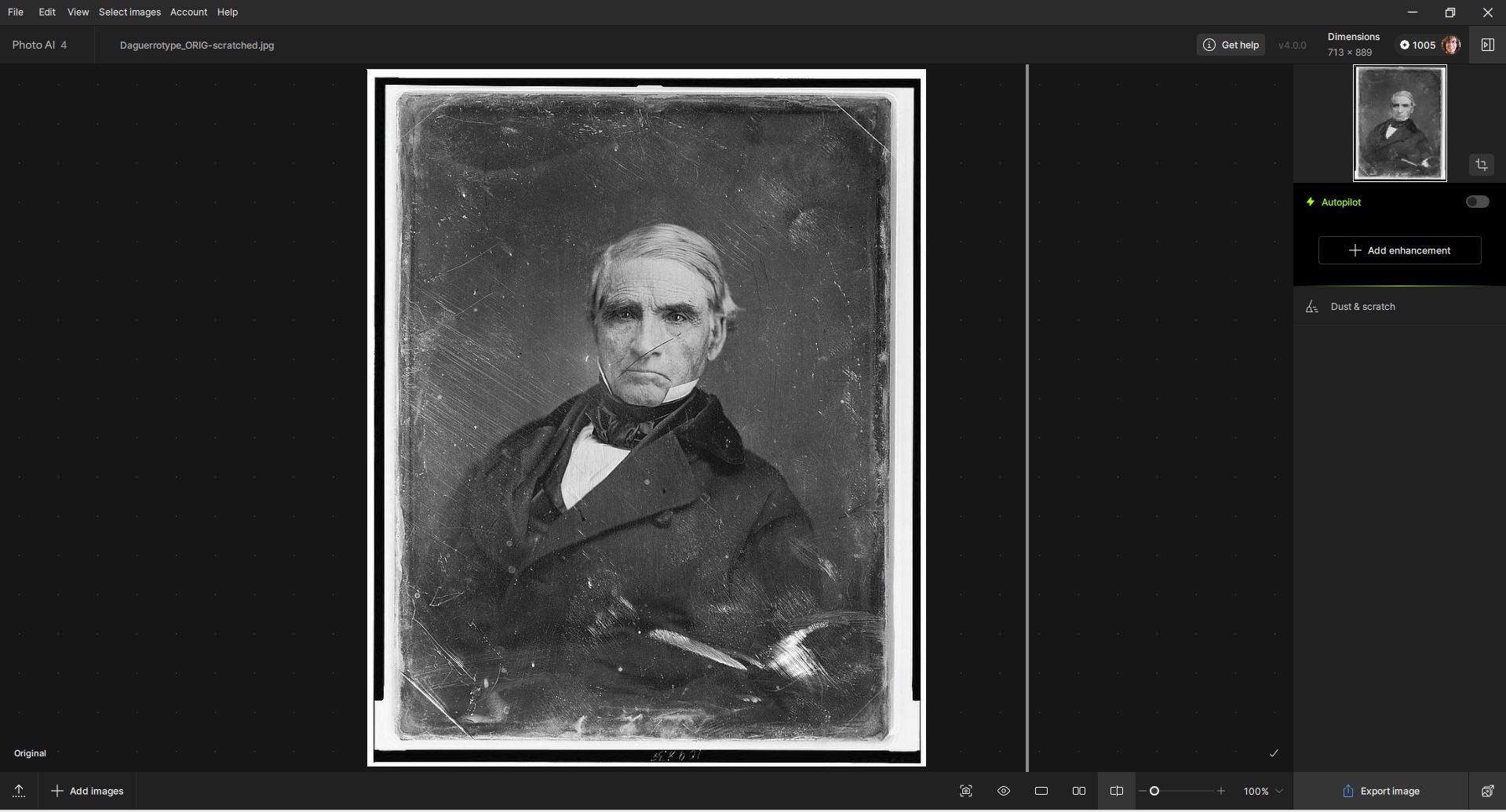
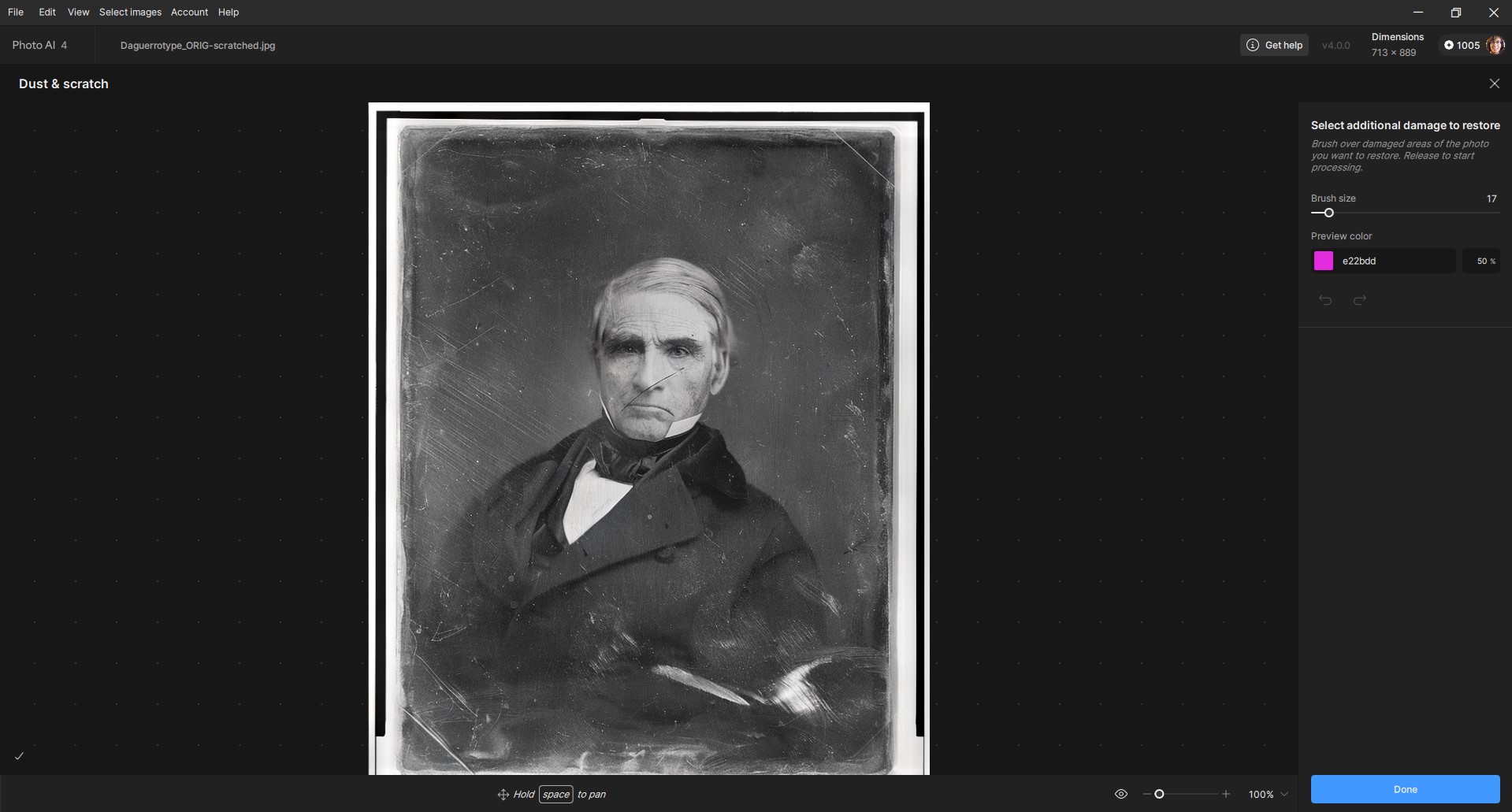
Here’s one I just ran using the Standalone (not, Ps Plugin) with one of the more typical old photos I have (ie, badly damaged and scratched). I kept my Processor = AMD RX6800 XT. Only ran the DS model. It is a small image (under 1K px on both dimensions) and the DS processing ran in just under 1 min.
ORIG image in UI:
AFTER DS-only processing:
Oh, I see you said it took 4 minutes when on Auto. And 1 minute when selecting the GPU.
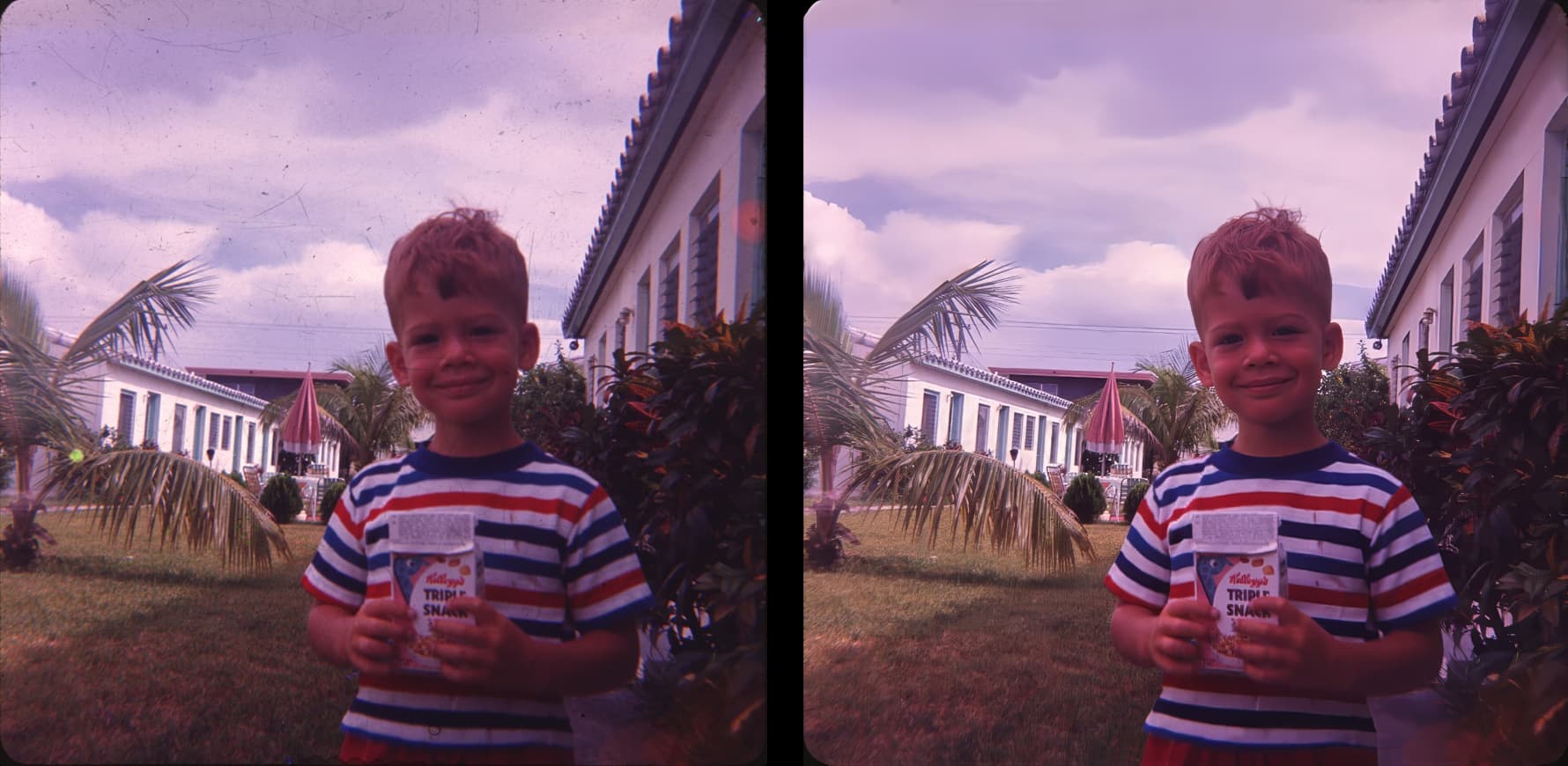
I’ve rolled with it using Photo AI 3.6.0 Using an alternate method and Affinity Photo 2 the old fashioned way.
When I try the Dust & Scratches filter with Affinity 2, I get a lot of general image softening - how are you doing this (assuming affinity is on the right)?
The Affinty 2 is on the right. I didn’t use any Dust and Scratch filters on the picture at all. I’ll get back to this tomorrow. It’s very late in the day now. I need sleep.
Regards Bob.
I’m on PhotoAI 4.0.0 on windows 11 machine. All functions that I’ve used in the meantime worked without any problems. This are only sharpening and denoising. More funtions I’m normally don’t need.
But I’ve one point that caught my attention.
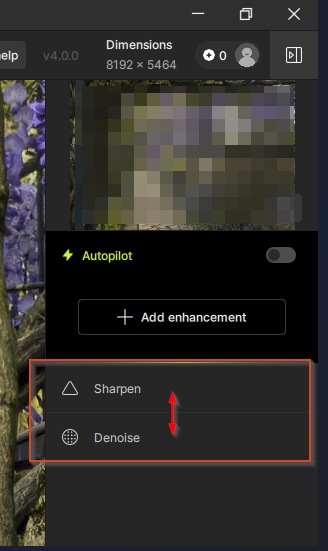
For an image I’m using to enhancements, sharpening and denoising. But I can’t change the order of both enhancements.
Is this no longer possible or is this an error? In what order are sharpening and denoising performed here (see screenshot)? Normally denoising should be used first.
It goes from bottom to top now like a process stack versus a top to bottom checklist.
Unfortunately, they’ve broken the ability to drag the enhancements up and down the list to quickly reorder them without having to delete them and start over again.
Here’s hoping that it wasn’t intentional…
Hello David.horita
Yes the image will soften when you use the Dust & Scratches filter with Affinity 2. But the sharpness can be put back when you open the picture in Photo AI and let it do its thing.
Take a look at the processes I’ve used previously in three other pictures.
Follow the link below. Post 38 in the Ideas Section to see what can be achieved.
Best regards Bob.
Thanks for the reply. I’ll hope they go back to the previous status. Especially the possibility to change the order of the enhancements.
BR Axel
@Ange.topazlabs; @dakota.wixom Please bring back the possibility to change the order of the enhancements via mouse (drag&drop)!!!
Okay, that’s supposed to be one of the improvements… and I was wondering what I was doing wrong. So I’m joining the call: Topaz, bring it back (preferably including the order of individual actions as it was before)!