Thanks! I was very surprised by the result myself (positively  ). I followed the “learn from mistakes” method, with the correct step always being the last one
  . However, the side effect is that one eventually learns something
  . It really seems that miraculous things can be done with AI (sometimes).
1 Like
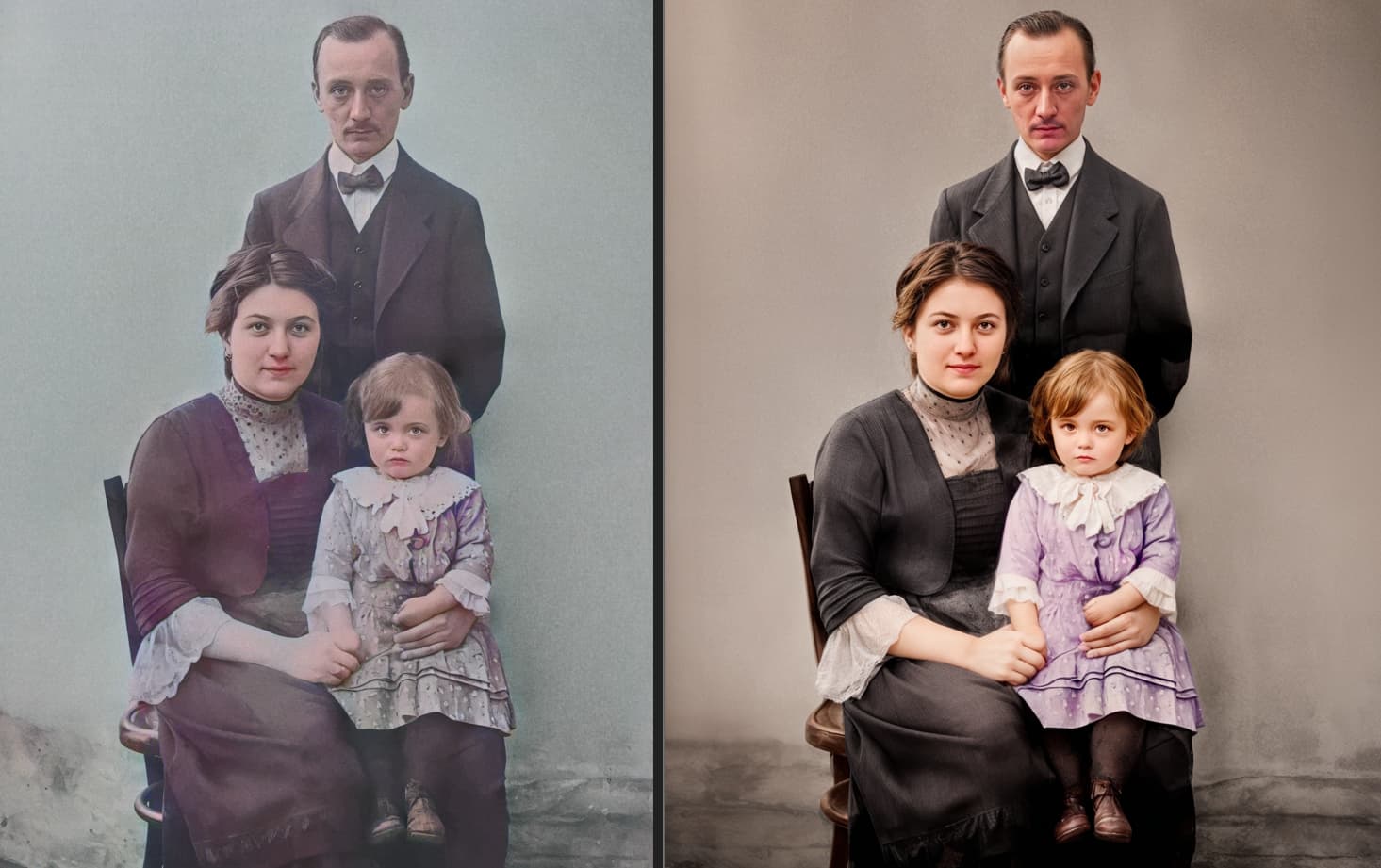
That child is so adorable! The colorized image turned out well. It missed a few spots and there’s some magenta bleed, but really very nice! What did you use for the colorizing & exposure fixes?
@unrelent with PS color and Giga Redefine. Started with your edit that had mangled hands so that part is hard to recover, would be better with original but had fun! Happy editing
5 Likes
I think it was https://www.img2go.com for coloring, you didn’t have to register there and the result was without a watermark, and it was free. Google found it for me. The coloring is not completely perfect, maybe my great-aunt’s hands could have done it better, but I was quite satisfied with it. Some online coloring tools just converted the photo into yellow-brown shades. Others colored it wildly and kitschly. The result shown seemed quite nice to me.
For exposure I used ACDSee Photo Studio Pro, I work with it comfortably, a pretty good set of tools for me. I don’t have anything from Adobe, I’m just a hobbyist. I was interested in the attempts of colleagues here on the Topaz web-site, so I tried it too.
1 Like
Oh yeah, your result is sensational! My coloring looks a bit dead with the colors. PS is undoubtedly the best tool, but I don’t have it, I’m just an amateur and I wouldn’t use it for its price. But it’s a good inspiration for me, to bring the colors to an acceptable end. I’m sure it will work somehow in tools other than PS. Thanks for the example!
@unrelent nice recovery using these! We have a lot of users using ACDsee too.
Thanks! Had fun playing with the file and I am a senior graphic designer so had lots of experience with file recovery and PS is definitely a crucial too to have in my toolkit.
What I often find in online colorize apps is that everything looks “flat” so the key is to play with shadows to remove the flat effect. The skin if often always too pinkish.
Have fun!
4 Likes
This is great to know and keep in mind when processing. Thx.
This is beautiful. Wow! Assuming you used the “realistic” Redefine. Yes?
1 Like
I’m in Photo AI Support so I’m still on the Giga v8.3.1 - haven’t updated it yet  so it was just the original Redefine, Creativity 3, did one with 4 for more texture on the clothes then layered it over/masked.
1 Like
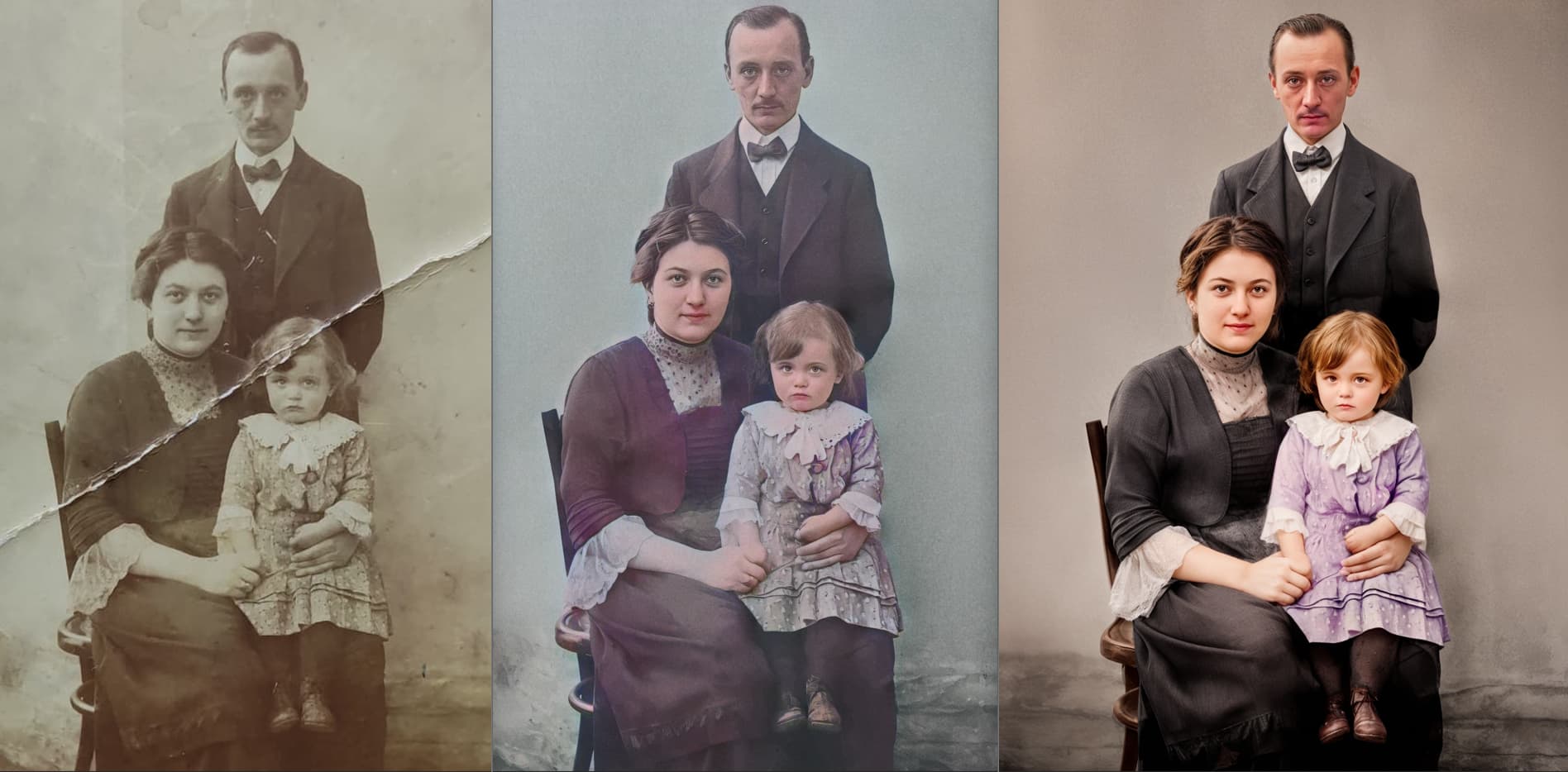
Great editing but why the female’s dress became black? Looks like the family is just back from a funeral…
the dress was black, the colorization made in the middle (by user Unrelent) on the file added a magenta hue that was not there in the original! You can see in the original it"s same as the suit, black. Wearing black does not mean it’s a funeral, this was a file from a very long time ago and black was the main clothing color back then because of lack of synthetic colored clothes
3 Likes
Am I the only one who thinks it would be really cool if one could like… ctrl-scroll (or similar) to change brush sizes?
Or does this already exist and I just haven’t figured out the keyboard combo for it?
Edit: Ctrl-scroll is already taken by zooming the preview, but you know what I mean…
Only the standard Left & Right Bracket Keys to resize
What about using Photoshop’s Keyboard Shortcuts Option/Alternate scroll size Left & Right and scroll between Softness and Hardness Up & Down
1 Like
Sorry but where did you get this from? I believe the photo was from 1915 AD, not BC. But even if BC… black as the main color of female clothes?..
Ohh, but the amount of beer I can buy every month to cool myself in the Catalan spring/summer/autumn not being locked into a subscription model like Adobe’s… 
Jokes aside… Let’s assume (once again) that there actually are some users who don’t use Topaz as a plug-in to other apps… I don’t think it’s an uncommon thing to be able to scroll+ some key being pressed to increase/reduce size of a brush… or is it?
I think you’re had to much to drink as I was complementing your reply by suggesting using the Photoshop standardise keyboard shortcuts for resizing and implementing them within Photo AI as Topaz has already done with the Left & Right Bracket Keys
Because, you already mentioned using Control plus scroll or something similar I just suggested something similar
Jokes aside
The color tonality in the original even the vest is black! That is what this lady chose to wear. Either way - If @unrelent wants to change it he can and the color of the dress is up to the person that is editing. I used the original color - It was black, can be changed to whichever dark color in the coloring part. A dark marroon could look nice.
3 Likes
You can add this to the Ideas Forum, the development team will look at the most popular ones!
My apologies… thought you had some interesting way of using PS to get where I wanted.
Thank you for the “endorsement”!
Well… I might just go ahead and do that.
I guess it just felt like it should have been “out there” already and me just having missed it (wouldn’t be the first time someone have had to point me in the right direction… “There is already a request in this thread…”)

1 Like
