Please try V3.2.0. That is working.
See link to download above.
1 Like
It happens on local files as well
[Please describe your issue here. Try to include logs (Help → Logging) and add screenshots if necessary.]
Steps to reproduce issue:
Aus Lightroom Classic Fotos mit Topaz AI bearbeiten auswählen.
Es wird eine Tiff Datei laut Voreinstellungen erstellt und in LrC angezeigt.
Topaz AI wird jedoch nicht mit der ausgewählten Datei geöffnet.
Topaz Photo AI [v3.2.2] on [Windows 11-64]
2024-10-11-10-11-3.tzlog (436.4 KB)
Let’s try to reset your Lightroom plugin to try and get it working for you. You can follow the directions below to reset your Lightroom plugin:
- Close Lightroom fully.
- Run the Topaz Photo AI installer again. Get a new one from the downloads page: Topaz Labs Downloads
- Open Lightroom and check the File > Plug-ins Extras again.
Let me know if those steps get it working again.
Topaz Labs Documentation | Topaz Photo AI | Plugins | Lightroom Classic
If it does not, open Topaz Photo AI, go to the menu bar on the top, and click the ‘Help > Open Log Folder’ menu option. Please send in all the files located in this folder.
You can securely submit your files(s) to my Dropbox using the link below. Make sure to send me a note to let me know you sent something. 
Vielen Dank für die schnelle Antwort,
leider hat ihr Vorschlag nicht zum Erfolg geführt.
Ich erhalte in LrC folgende Fehlermeldung:
Topaz Photo AI either failed to Start or did not finish successfully.
Exit code: 3221225477
Im Taskmanager ist Topaz Photo AI nach beenden nicht mehr aufgelistet.
Die Dateien aus dem Log Folder hab ich Ihnen über die Dropbox zugesandt.
I have exactly the same problems with the Lightroom Plugin as have been described here.
Lightroom v 14
TPAI v 3.22
System Information
  Time of this report: 10/15/2024, 11:35:27
         Machine name: STEVES-LAPTOP
           Machine Id: {8CC4520D-AD53-4ABC-BE58-007AE470FE9E}
     Operating System: Windows 11 Home 64-bit (10.0, Build 22631) (22621.ni_release.220506-1250)
             Language: English (Regional Setting: English)
  System Manufacturer: HP
         System Model: HP Spectre x360 2-in-1 Laptop 16-aa0xxx
                 BIOS: F.10 (type: UEFI)
            Processor: Intel(R) Core(TM) Ultra 7 155H (22 CPUs), ~3.8GHz
               Memory: 32768MB RAM
  Available OS Memory: 32120MB RAM
            Page File: 17816MB used, 19423MB available
          Windows Dir: C:\windows
      DirectX Version: DirectX 12
  DX Setup Parameters: Not found
     User DPI Setting: 192 DPI (200 percent)
   System DPI Setting: 192 DPI (200 percent)
      DWM DPI Scaling: UnKnown
             Miracast: Available, with HDCP
Microsoft Graphics Hybrid: Supported
DirectX Database Version: 1.6.2
DxDiag Version: 10.00.22621.3527 64bit Unicode
John:
At present there are three (3) updates for AI that I have not installed.
As suggested, I have relocated the Lightroom catalog files and all data files to a separate internal SSD drive that is not backed up to OneDrive. I assumed the effort would eliminate the OneDrive issue noted below. After the move and testing of Lightroom to ensure the proper catalogue was being referenced I installed the AI updates. The result was as before – when attempting to edit in Topaz AI, directly from Lightroom, it immediately returns a tiff file.
I have removed Topaz, the culprit Topaz application version, and reinstalled 3.2.0 and it functions properly from Lightroom.
Please respond with status of your bug resolution.
Paul Hirschman
Same problem for me. I am running the v3.3.0 version. My workflow is File-Plugin Extras-Process in Topaz Photo AI and then Edit a Copy. 3 seconds later I get the Failed to Process message.
I tried reinstalling Photo AI and clicked Repair, closed LR and Chrome as instructed and rebooted after just to be sure. Same problem. Frustrating.
It also does not work as a plugin if I chose in LR Photo-Edit in-Topaz Photo AI-make a copy. It creates a tiff file but does not open Photo AI. Something seems to be broken.
For the 3221 error, our development team is actively looking for a fix and talking with Adobe. Until then, you can either work offline or revert to Photo AI v3.2.0 - which will not have this error:
Just upgraded to Lightroom Classic 14.0.1. Now after editing and upscaling a NEF raw file that had been rotated to vertical orientation in Lightroom prior to import to PhotoAI, when I try to export back to Lightroom from PhotoAI, it only exports part of the frame, and also gives an error message 3221226505. The portion of the frame exported is a horizontal 2X3 rectangle cropped out of the vertical photo in TIFF format. It appears as if Photo AI is treating the width of the vertical photo as a maximum length and cropping out the remainder of the original to give a horizontal rectangle. I found this to happen both before and after the latest upgrade to PhotoAI.
Importing a horizontal photo gives an export that matches the crop in PhotoAI, but also throws the same error message, even though the dng file does appear properly in Lightroom.
Before the Lightroom upgrade, all NEF files imported into PhotoAI were horizontal, even if they had been rotated to vertical in Lightroom. Now PhotoAI is recognizing the rotation, but the problem may be arising because internal processing in PhotoAI still assumes the longest dimension is always the left-to-right dimension as it would be if all images were always horizontal.
Steps to reproduce issue:
- Step 1
Import NEF file of image that has been rotated to vertical in Lightroom Classic. That image now appears as a vertical in PhotoAI. - Step 2
Edit image. I tried denoise, correct lighting, custom sharpen, crop, upscaling result - Step 3
Export to Lightroom Classic. Only a middle horizontal section of the vertical image appears in Lightroom, if any image appears at all. Throws error 3221226505
Topaz Photo AI v3.3.0 on Windows
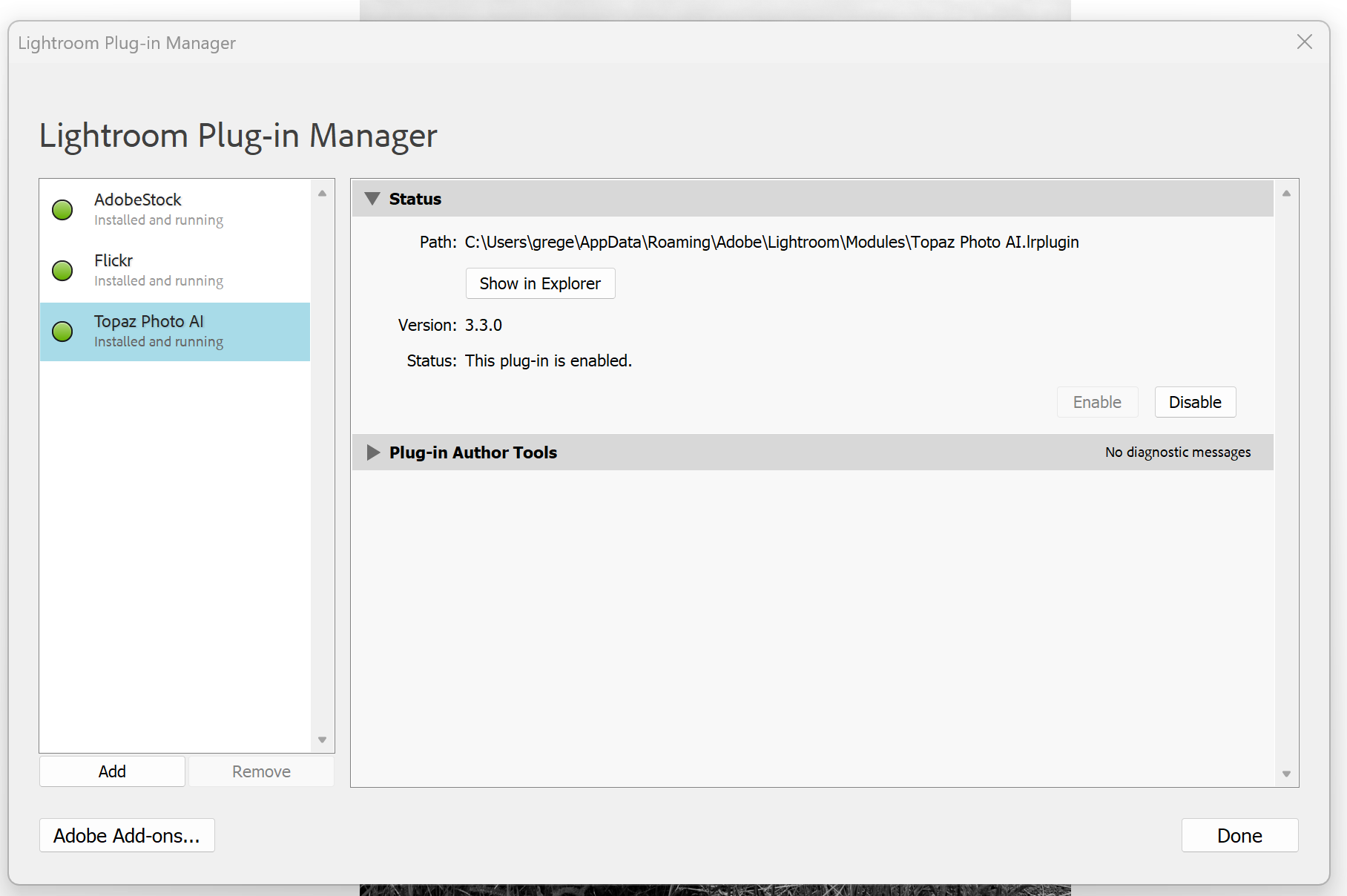
The top one (…“Process with Topaz Photo AI” from File menu results in the error code-- see first attached screen shot. 2nd screen shot shows the plug in manager path.
edit in>Topaz Photo AI brings up the dialog to decide whether to edit a copy or the original and then Topaz doesn’t start and I’m left with the “…-edit.tif” file in my catalog.
The log file attached (3rd) is from that attempt to start Topaz.
Greg Lobdell

2024-10-22-09-22-57.tzlog (15.9 KB)
Updated my subscription, but can’t use the latest 3 versions due to this 3221225477 bug 
Are you still working on it?
1 Like
While the team works on this problem to be addressed in a future patch release, we have the following fix to help with this immediate issue:
-
Download the openssl.zip file by using the following link | Download Link | openssl.zip
-
Go to your Downloads folder and extract the openssl.zip file.
-
Copy the following three files inside the folder:
-
aiengine.dll
-
libcrypto-3-x64.dll
-
libssl-3-x64.dl
-
-
Navigate to your Photo AI found at the following path:
- C:\Program Files\Topaz Labs LLC\Topaz Photo AI
-
Paste those 3 files into the Topaz Photo AI folder.
-
Run a test to make sure that Photo AI opens as a standalone application.
-
Open Lightroom Classic and try using the plugin.
Loom Video Example | Photo AI | How to Replace openssl files
If this does not work for you you can either work offline, use Photo AI as a standalone application, or revert to Photo AI v3.2.0 - which will not have this error:
Hi John:
There are issues with the patch noted below. Assuming that the three are identical to the three that were forwarded to me by one of Topaz’s team just the other day there are problems. I installed the three and initially opened Topaz and Lightroom and it appeared that all was OK. However, after coming back the following day, I encountered processing problems. I documented the issue(s) with screen shots and an explanation in a Word doc and forward the doc to topaz yesterday PM. I refer you to the attached.
Please advise if there are any questions and or assistance I can provide.
Right now, the only viable option is Ver 3.2.0.
Paul Hirschman
(Attachment Problem with AI 3.3 With 3 New Files.docx is missing)
1 Like
Yes! I just upgraded - at the program’s suggestion, I might add- and as soon as it even tries to import a photo through the LrClassic plug in, it crashes.
Lightroom Plugin | Error | Exit Code 3221225477
I had the same problem with v.3.2, so I downgraded to an old version (v3.0), which sorta worked, but left weird artifacts whenever I sharpened anything. I’m using Windows 11, and my computer meets all the specs to work with the software. Why am I paying for something that doesn’t work? They keep advertising their “new, improved” upgrades, but I’ve never seen any of them, because the program shuts down every time I try to use it. This is a known issue, and has been for some time. My one-year term is coming to a close next month, and I am considering giving up on this software entirely. Please, please fix this.
I just upgraded to Photo AI v3.3.0 - at the program’s suggestion, I might add- and as soon as it even tries to import a photo through the LrClassic plug in, it crashes, giving this error:
Lightroom Plugin | Error | Exit Code 3221225477
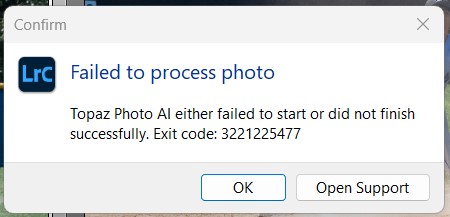
I had the same problem with v.3.2, so I downgraded to an old version (v3.0), which sorta worked, but left weird artifacts whenever I sharpened anything (there was a sort of checkerboard effect, some areas lighter, some darker, with lines running through). I thought I’d give upgrading a shot, as that is supposedly the advantage to paying each year - being able to upgrade - and I had thought that several months was enough to address the issue. Apparently not.
I’m using Windows 11, and my computer meets all the specs to work with the software. AI processor set to graphics card. Tried restarting computer. None of it helps.
Why am I paying for access to a product whose main appeal (and selling point) is its continual improvement - when the “improvements” make it impossible to use? Topaz keeps advertising their “new, improved” upgrades, but I’ve never seen any of them, because the program shuts down every time I try to use it. This is a known issue, and, based on the feedback on your forums, has been for some time. My second one-year term is coming to a close next month, and I am considering giving up on this software entirely. Please, please fix this.
2024-10-24-19-39-21.tzlog (31.8 KB)
It happens no matter what method one uses.
- Start from Lightroom Classic CC. File >Plug-in Extras > Process with Photo AI - crash, program closes with error message above
- Start from Lightroom Classic CC. Photo>Edit in> Topaz Photo AI >Create Lightroom copy (or Create LR copy with adjustments, it doesn’t matter which). Wait… and nothing happens. Topaz doesn’t seem to be activated in any way. Not even an error message. Program isn’t opened at all.
- Start from Photo AI “Drag and Drop” space. Attempt to drag and drop a photo. Crash, program closes.
1 Like
I contacted Topaz directly through their interface, and to their credit, they got back to me within 12 hours. I appreciate that. They gave me this fix, which appears to be working. I tried it with a single photo, and three at a time, and both seemed to work:
We appreciate you bringing this to our attention; while the team works on this problem to be addressed in a future patch release, we have the following fix to help with this immediate issue:
-
Download the openssl.zip file by using the link below:
-
Go to your Downloads folder and extract the openssl.zip file.
-
Copy the following three files inside the folder:
-
aiengine.dll
-
libcrypto-3-x64.dll
-
libssl-3-x64.dl
-
Navigate to your Photo AI found at the following path:
-
C:\Program Files\Topaz Labs LLC\Topaz Photo AI
-
Paste those 3 files into the Topaz Photo AI folder.
-
Run a test to make sure that Photo AI opens as a standalone application.
-
Open Lightroom Classic and try using the plugin.
openssl.zip (3.9 MB)
1 Like
Hello @lisa.notes-colburn
Thanks for posting these.
Yes indeed those steps will work on this specific version. Make sure to stay on this version until we contact you on the email thread we have with you that a fix has been released!
For @paul.hirschman - we spoke and all is also resolved with the steps he made (same as you did) and also by using the RAW plugin path from Lightroom Classic.
We will contact you both once we have a official fix, it’s in the works!
2 Likes
Hi, hope this is the correct forum for my first post
I have been using Photo AI as a plug in with LRC for a few months without any issue,
I updated PAI last week and ever since it won’t work as a plug in,
when i opt to edit a file in PAI, LRC goes through the usual routine to send the chosen file to PAI, but the doesn’t open for me to edit the file, almost instantly a copy of the file appears on LRC as if it has been edited in PAI.
I hope this isn’t too confusing, any advice is welcome how to address this glitch.
Let’s try to reset your Lightroom plugin to try and get it working for you. You can follow the directions below to reset your Lightroom plugin:
- Close Lightroom fully.
- Run the Topaz Photo AI installer again. Get a new one from the downloads page: Topaz Labs Downloads
- Open Lightroom and check the File > Plug-ins Extras again.
Let me know if those steps get it working again.
Topaz Labs Documentation | Topaz Photo AI | Plugins | Lightroom Classic
If it does not, open Topaz Photo AI, go to the menu bar on the top, and click the ‘Help > Open Log Folder’ menu option. Please send in all the files located in this folder.
You can securely submit your files(s) to my Dropbox using the link below. Make sure to send me a note to let me know you sent something.
